
When a customer replies to your RCS message, the reply lands in Live Chat (Inbox) in Fast2SMS. This guide shows how to read and answer RCS replies, assign chats to your team, use labels and statuses, and what each reply costs.
It is for businesses that already have an approved RCS bot. Live Chat stays greyed out in the menu until at least one bot is approved and active.
Before you start
- An approved, active RCS bot. Each bot has its own inbox. You switch between bots at the top of the chat list.
- Wallet balance for your replies. Incoming messages are free, your replies are charged (see the charges section below).
- Team members (optional). To share chats, add your staff under Team Members and give them RCS access.
How to reply to RCS messages in Live Chat
-
Open Live Chat (Inbox)
Switch to RCS from the app menu at the top left and click Live Chat (Inbox) in the sidebar. The left side lists your conversations with the newest first. A green number shows how many unread messages a chat has, and the small tag under a name shows the team member the chat is assigned to. The right side shows the charges for this inbox until you open a chat.
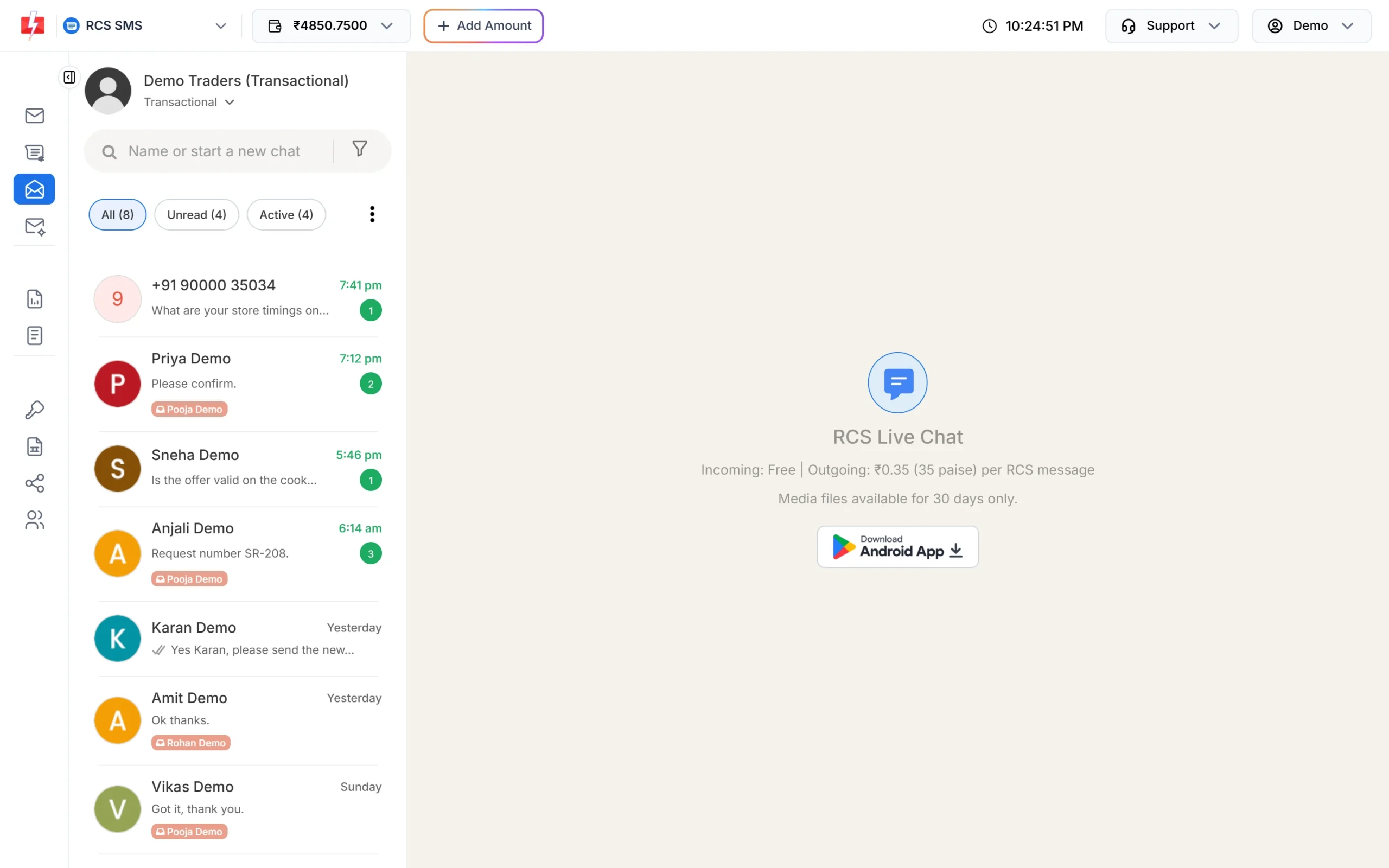
The RCS inbox for one bot. -
Pick the bot and find a chat
Click the bot name at the top of the list to switch to another bot. Use the search box (Name or start a new chat) to find a customer by name or number. The tabs help you sort:
- All: every chat of this bot.
- Unread: chats with messages you have not opened.
- Active: customers who wrote in the last 24 hours.
The three-dot menu next to the tabs adds Assigned, Open, Pending and Closed. The filter icon lets you combine Labels, Tags, Chat Status, Assignee, Reply Status (Unreplied, Manual, AI Agent, Bot), Read or Unread, and Response Window.
-
Open the chat and reply
Click a chat to open it. The unread count goes back to zero. Type in the box at the bottom and press send. You can also attach files with the + button. A reply can be up to 4,096 characters, and you can attach up to 10 files of 10 MB each. Ticks next to your message show its status, and the name of the person who replied is shown under each message.
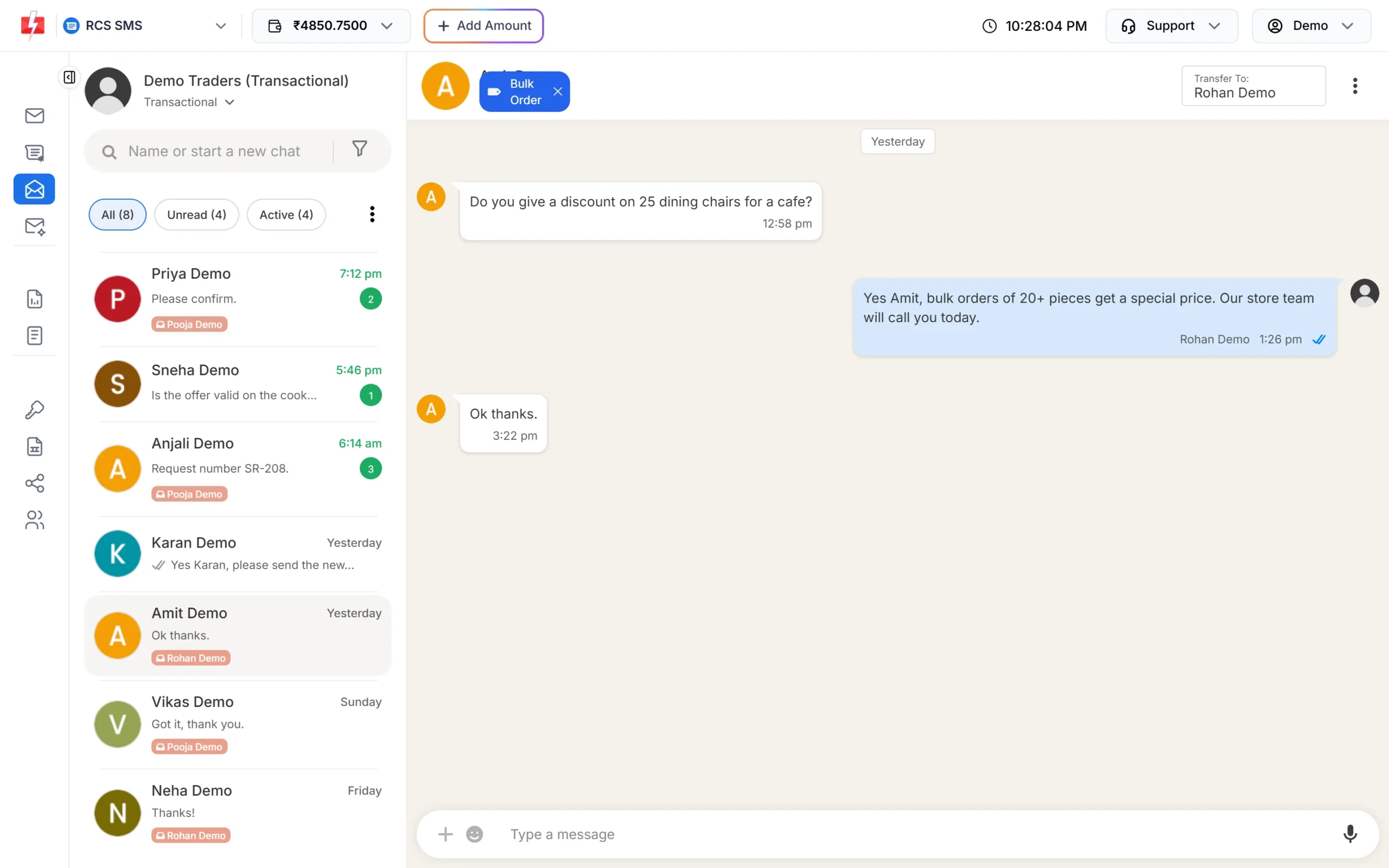
A conversation with a label and an assigned agent. No 24-hour rule: Unlike WhatsApp, RCS has no 24-hour reply window in Fast2SMS. You can answer a customer even if they wrote to you days ago.
-
Assign or transfer the chat
Use Transfer To at the top right of the chat to hand it to a team member. The agent then sees it in their own inbox. Agents only see the bots and chats assigned to them, not your whole inbox.
-
Take over a chat from an agent
If you open a chat that is assigned to someone else, the message box is replaced by “This chat has been assigned to” the agent’s name. Click Take Over to reply yourself.
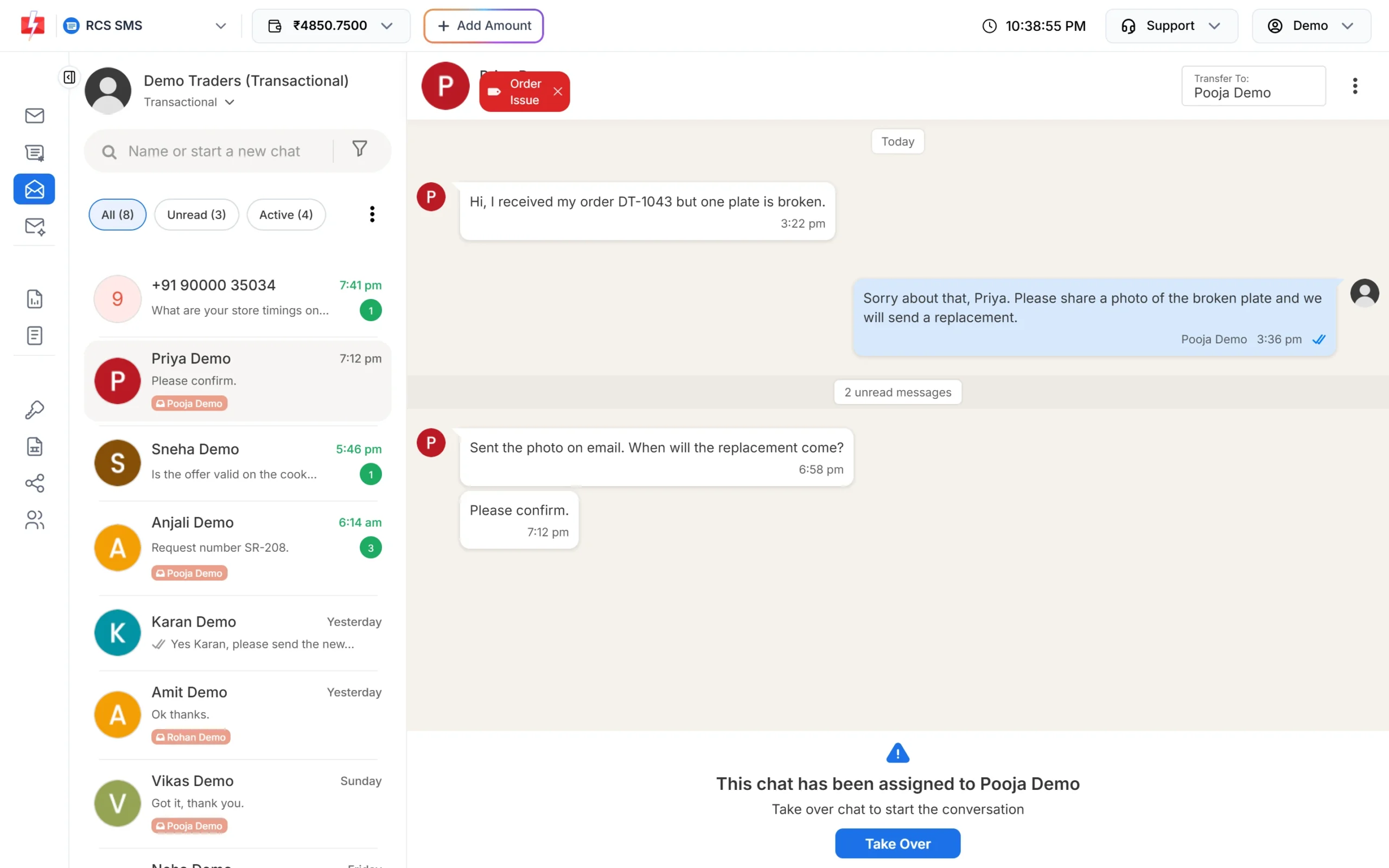
Take over a chat that is assigned to an agent. -
Label, tag and close the chat
Use Add Label to put a coloured label on the chat, such as “Order Issue” or “Bulk Order”. The three-dot menu at the top right of the chat has Contact info (for notes and tags), the chat status Open, Pending or Close, and Block to stop a number from writing to you. You can reopen a closed chat and unblock a number later.
Limits in RCS Live Chat
| Item | Limit |
|---|---|
| Reply text | Up to 4,096 characters |
| Attachments | Up to 10 files, 10 MB each |
| Notes | 10 to 400 characters each |
| Tags | Up to 100 per bot |
| Labels | Up to 50, each with its own colour |
| Media in chats | Available for 30 days |
| Reply window | None. You can reply at any time |
What do RCS live chat replies cost?
Messages your customers send you are free. Each reply you send, by hand or through an auto reply, is charged at the RCS plain message rate, and a long reply is charged at the rich rate. At the time of writing, the inbox shows “Incoming: Free | Outgoing: ₹0.35 (35 paise) per RCS message”. The current rate is on the RCS pricing page.
Sending in bulk? For high RCS volumes our team offers discounted rates. Talk to our team or see RCS pricing.
Use Live Chat on your phone
When you open Live Chat on a phone or tablet, Fast2SMS shows a mobile layout of the same inbox. The empty inbox screen also has a Download Android App button if you prefer an app.
Common problems and fixes
| Problem | Fix |
|---|---|
| Live Chat is greyed out in the menu | You do not have an approved, active bot yet. Check RCS Manager > Bots. |
| I cannot type in a chat | The chat is assigned to an agent. Click Take Over. If it says the number is blocked, unblock it first. |
| An agent says they cannot see a chat | Agents see only assigned bots and chats. Use Transfer To to give them the chat. |
| A customer’s reply is not showing | Check that the right bot is selected at the top. Each bot has its own inbox. |
| Reply not sent: low balance | Click Add Amount and recharge. Replies are paid from your wallet. |
Frequently asked questions
Can customers reply to RCS messages?
Yes. Customers reply in their messaging app like a normal chat, and the reply shows in Live Chat (Inbox) for the bot that sent the message.
Are incoming RCS messages charged?
No. Incoming messages are free. Only the replies you send are charged from your wallet.
Is there a 24-hour window for RCS replies?
No. You can reply to an RCS chat at any time. The Active tab just shows customers who wrote in the last 24 hours.
Can my staff answer RCS chats?
Yes. Add them under Team Members with RCS access and assign chats with Transfer To. They see only what is assigned to them.
Can I send images and PDFs in a reply?
Yes. Use the + button to attach up to 10 files of 10 MB each.
Can I reply automatically when we are closed?
Yes. Set an Out of Office message, welcome message and keyword replies in Inbox Settings.
Can I get RCS replies on my own server?
Yes. Add an RCS webhook with the Incoming Messages event, and each customer reply is posted to your URL.