
In Fast2SMS you do not submit RCS templates for approval one by one. You write the message in Bulk RCS, send it, and it is saved as a template under RCS Manager > Previous Template, ready to reuse. This guide shows how RCS templates work in Fast2SMS, how to reuse them, and where to find your Bot ID and bot status.
It is for businesses with an approved RCS brand who send similar messages again and again, such as offers, order updates or reminders.
How RCS templates work in Fast2SMS
- Open template. The Bulk RCS page lists “Open Template (No DLT Approval)”. Once your brand and bot are approved, you can send any message that fits your bot’s category without waiting for a template approval.
- Every send is saved. Each message you send becomes a card under Previous Template, with its own Message ID.
- Reuse in one click. Test Template or Select Previous Template fills the Bulk RCS form with that message. You can change it before sending, and it is sent as a new campaign.
- Rules still apply. Promotional bots can only send from 7:00 AM to 10:00 PM and up to 4 promotional RCS per number per month. Transactional bots are for informative messages only. Personal messages are not allowed on either.
How to create and reuse an RCS template
-
Check your bots in RCS Manager
Switch to RCS from the app menu at the top left, open RCS Manager and click Bots. Each row shows the bot name and logo, the Bot ID with a copy icon, the category (promotional, transactional or OTP), the brand name and phone, Usage (“Used: N” is the number of messages sent today) and the Status. Only Active bots can send. An Inactive bot does not appear in the Bulk RCS bot list.
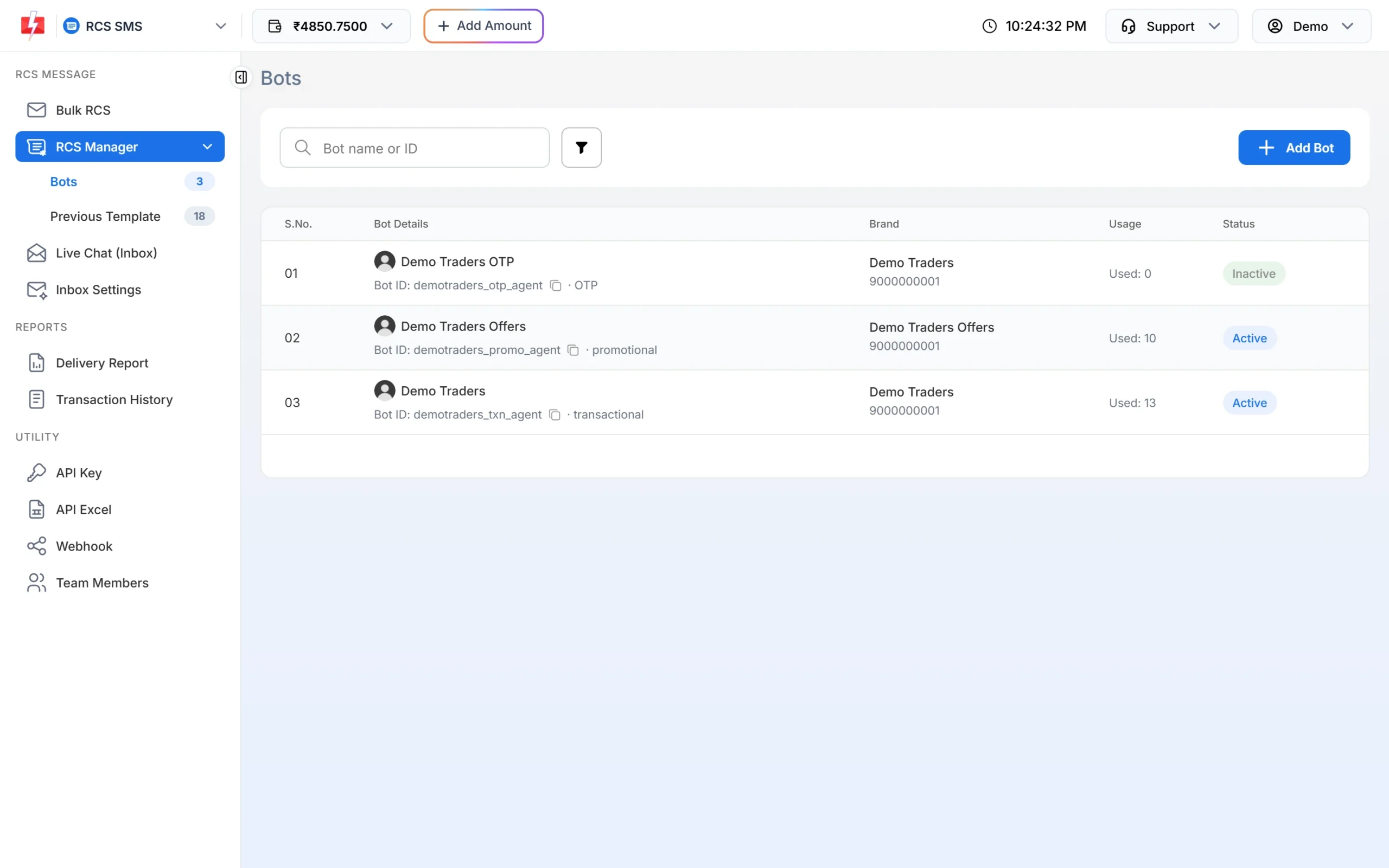
Your bots, their Bot IDs and status. -
Write your first template in Bulk RCS
Click Bulk RCS, choose the bot, and pick the RCS Type: Plain, Rich, Carousel or Media. Write the message, add an image and up to 4 buttons, and send it to your customers. A good habit is to send the first version to your own number and a colleague’s number to see how it looks on a phone.
-
Find it under Previous Template
Open RCS Manager > Previous Template. Each message is shown as a phone preview with a type badge (Plain, Rich, Carousel or Media), the bot it was sent from and its Message ID. Nine cards are shown per page. Search by Message text or type to find one quickly.
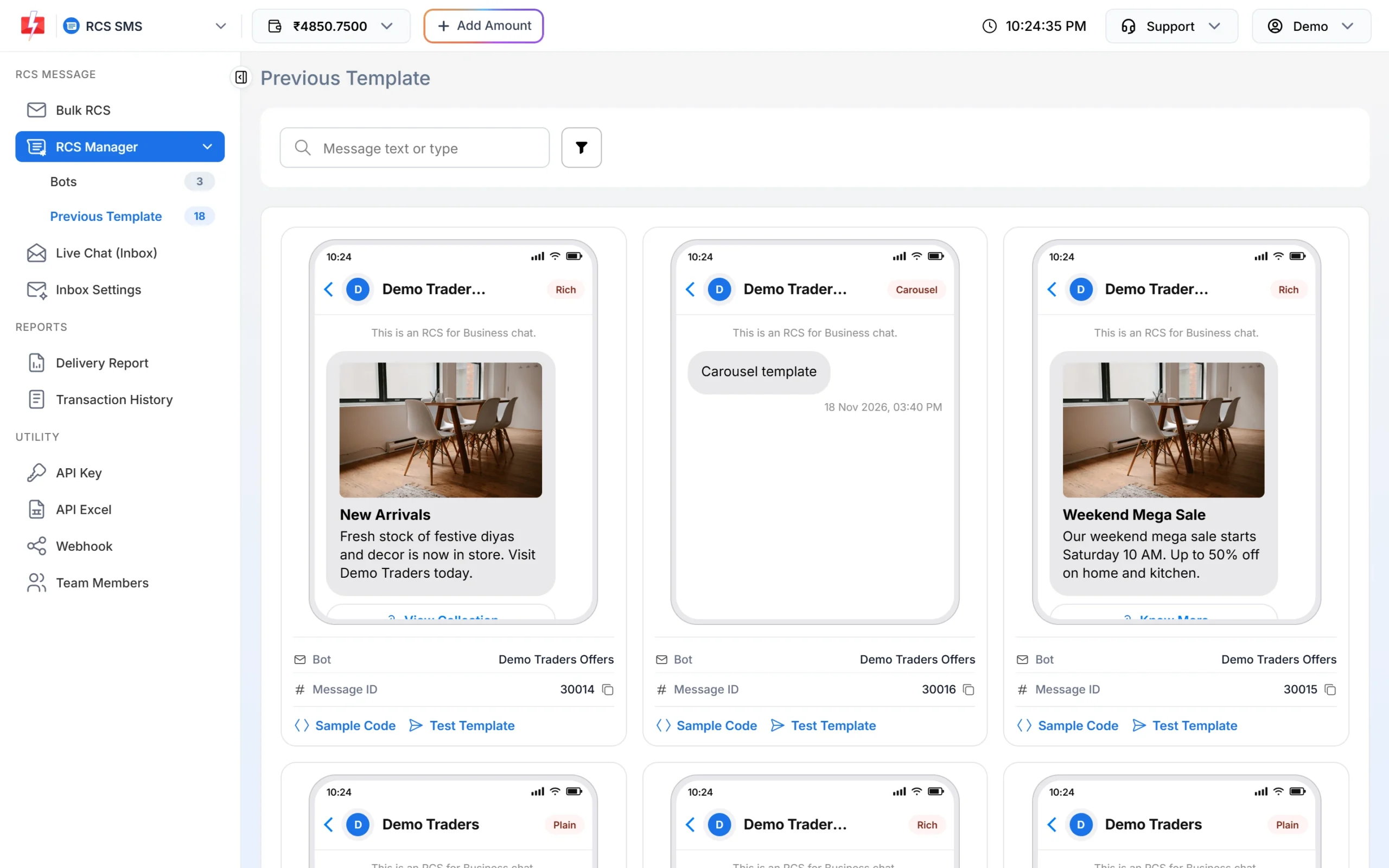
Earlier messages saved as templates. Note: Carousel messages show as “Carousel template” on these cards, without the individual cards. Open the template in Bulk RCS to see all cards.
-
Filter by bot or message type
Click the filter icon next to the search box. Choose a Bot or a Type and click Apply Filters. Reset clears them.
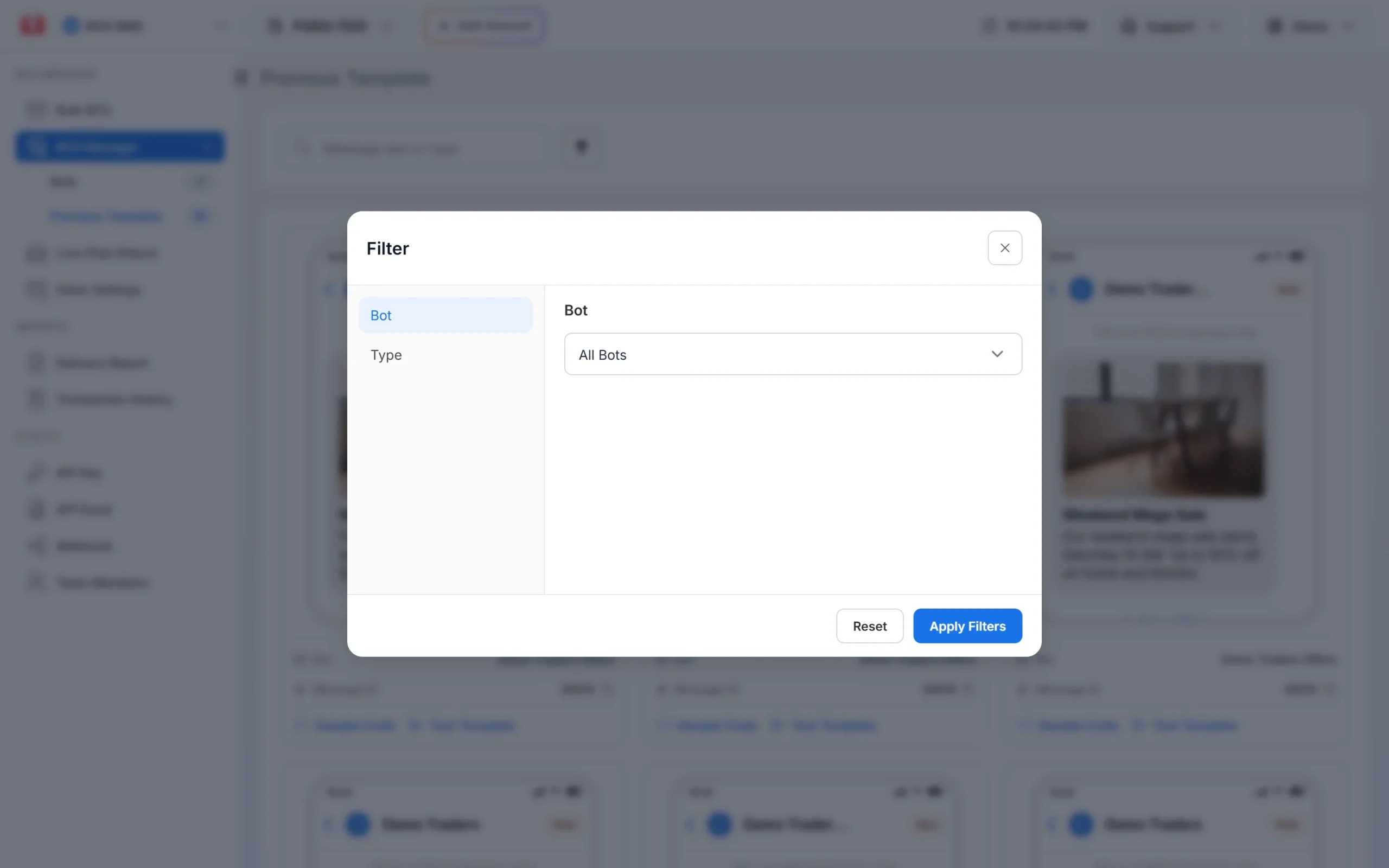
Filter templates by bot and type. -
Reuse it with Test Template
Click Test Template on a card. Bulk RCS opens with the same bot and content filled in. Add the numbers, make any changes and click Send or Schedule. The cost popup appears before anything is sent.
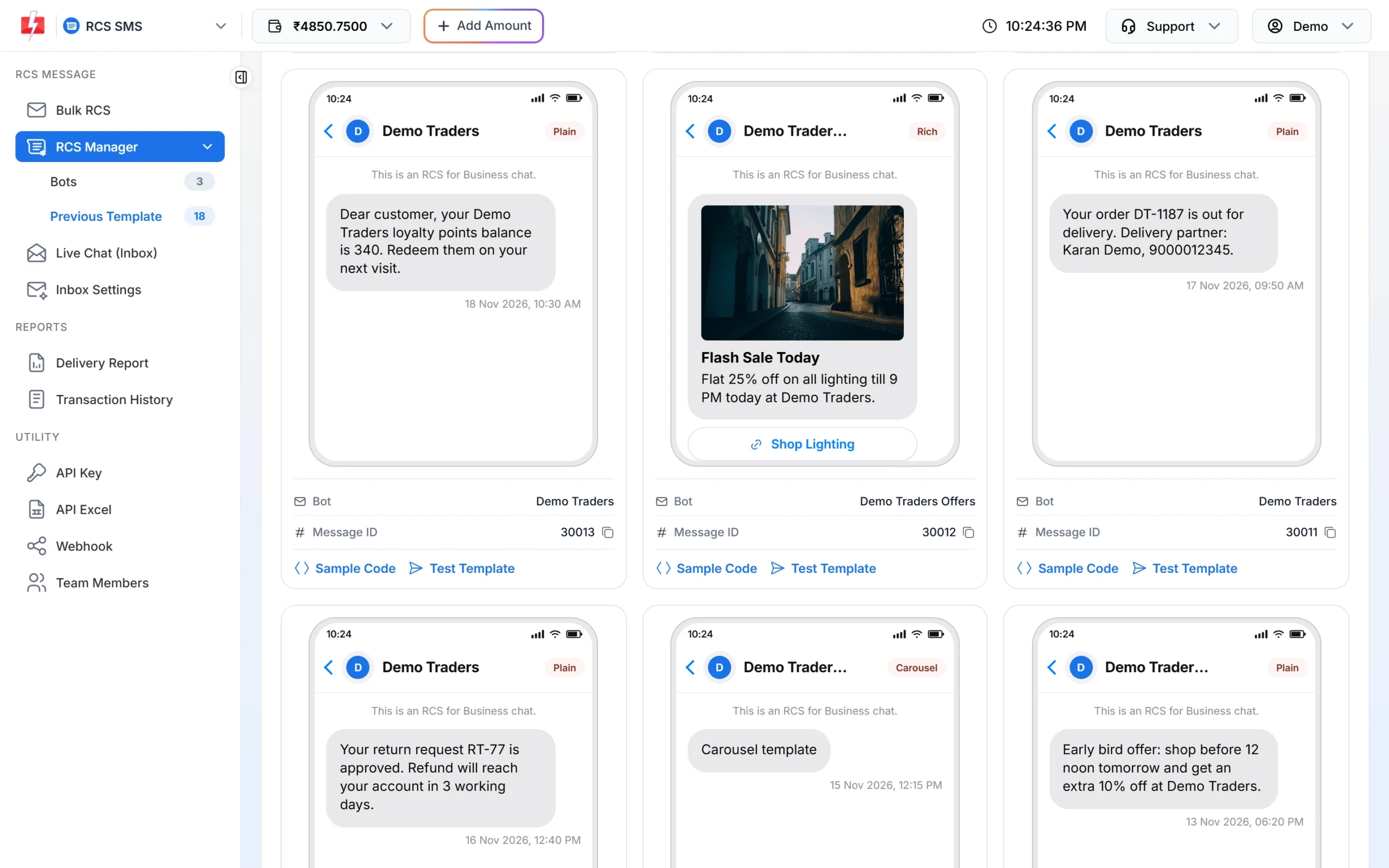
Plain and rich templates with their Message IDs. -
Or pick it from inside Bulk RCS
While writing a message in Bulk RCS, click Select Previous Template. Choose the bot at the top, use the tabs All, Plain, Rich, Carousel or Media, or search, and click a message to fill the form.
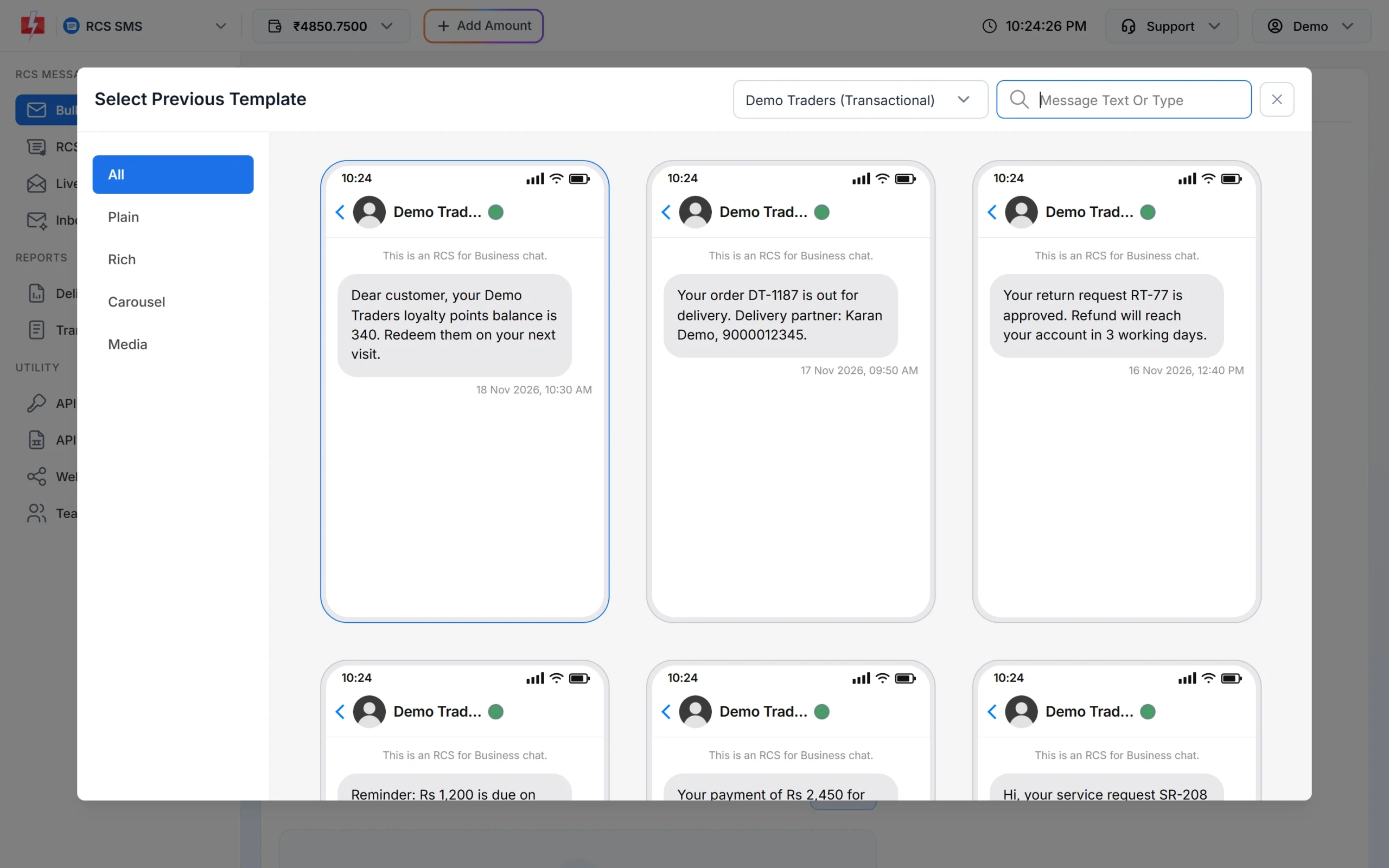
Pick a previous message without leaving Bulk RCS. -
Get the API code for a template
Click Sample Code on a template card to get code for sending that message by API. For your own code you need the Bot ID from the Bots tab, which goes in the
bot_idfield of the RCS API. API Excel in the sidebar also has an RCS file with ready examples for each of your bots.
Bot ID, agent ID and other names
Google and other providers call an RCS sender an “agent”. In Fast2SMS it is called a bot. The Bot ID in RCS Manager is the ID you use in the API. The Message ID on a template card is the ID of one earlier message. They are not the same, so copy the right one.
| Name in Fast2SMS | What it is | Where to find it |
|---|---|---|
| Bot | Your approved RCS sender (called an agent elsewhere) | RCS Manager > Bots |
| Bot ID | The ID of the bot, used as bot_id in the API |
RCS Manager > Bots, copy icon |
| Category | Promotional, transactional or OTP | Under the Bot ID, and in brackets in the Bulk RCS bot list |
| Message ID | The ID of one earlier message (template) | RCS Manager > Previous Template, copy icon |
| Request ID | The ID of one campaign or API send | Delivery Report > RCS Report |
Common problems and fixes
| Problem | Fix |
|---|---|
| “No previous templates found. Send a Bulk RCS message to see it here.” | You have not sent any RCS yet. Send your first message from Bulk RCS. |
| My bot is not in the Bulk RCS list | The bot is Inactive or not approved yet. Check its Status under RCS Manager > Bots. |
| A media template shows no picture on its card | Media sends do not show the image on the template card. Open it with Test Template to see the files. |
| API says “Invalid or inactive RCS bot” | Copy the Bot ID again from RCS Manager > Bots and check that the bot is Active. |
Frequently asked questions
Do I need template approval for RCS in Fast2SMS?
No. Your brand and bot must be approved once. After that, the messages you write in Bulk RCS go without a separate template or DLT approval.
How do I create an RCS template?
Write and send the message from Bulk RCS. It is saved under RCS Manager > Previous Template, and you can reuse it with Test Template or Select Previous Template.
Can I edit a previous template?
Yes. When you reuse it, the content opens in the Bulk RCS form and you can change anything before sending. The changed version is sent as a new message.
What is an RCS agent ID?
It is the ID of your RCS sender. In Fast2SMS this is the Bot ID shown in RCS Manager > Bots.
What does “Used” mean on the Bots page?
It is the number of messages the bot sent today.
Can I add a customer’s name in an RCS template?
No. Bulk RCS sends the same content to every number, and the page shows “Personal Message not allowed”.