
To schedule a WhatsApp campaign in Fast2SMS, fill the Bulk WhatsApp form as usual and click Schedule instead of Send. Pick a date and time, confirm the cost, and the campaign goes out by itself at that time. This guide shows how to schedule a WhatsApp message, repeat it over several dates, see your scheduled campaigns and cancel one for a full refund.
Before you start
- A Connected WhatsApp number and an APPROVED template.
- Your customer list: typed numbers, an Address Book group or an Excel/CSV file.
- Wallet balance for the whole campaign. The amount is taken when you schedule, not when it sends.
How to schedule a WhatsApp campaign
-
Fill the Bulk WhatsApp form
Open Bulk WhatsApp, choose the sender in Select Sender Number, add your contacts under Send To, select the template and fill its variables and header file.
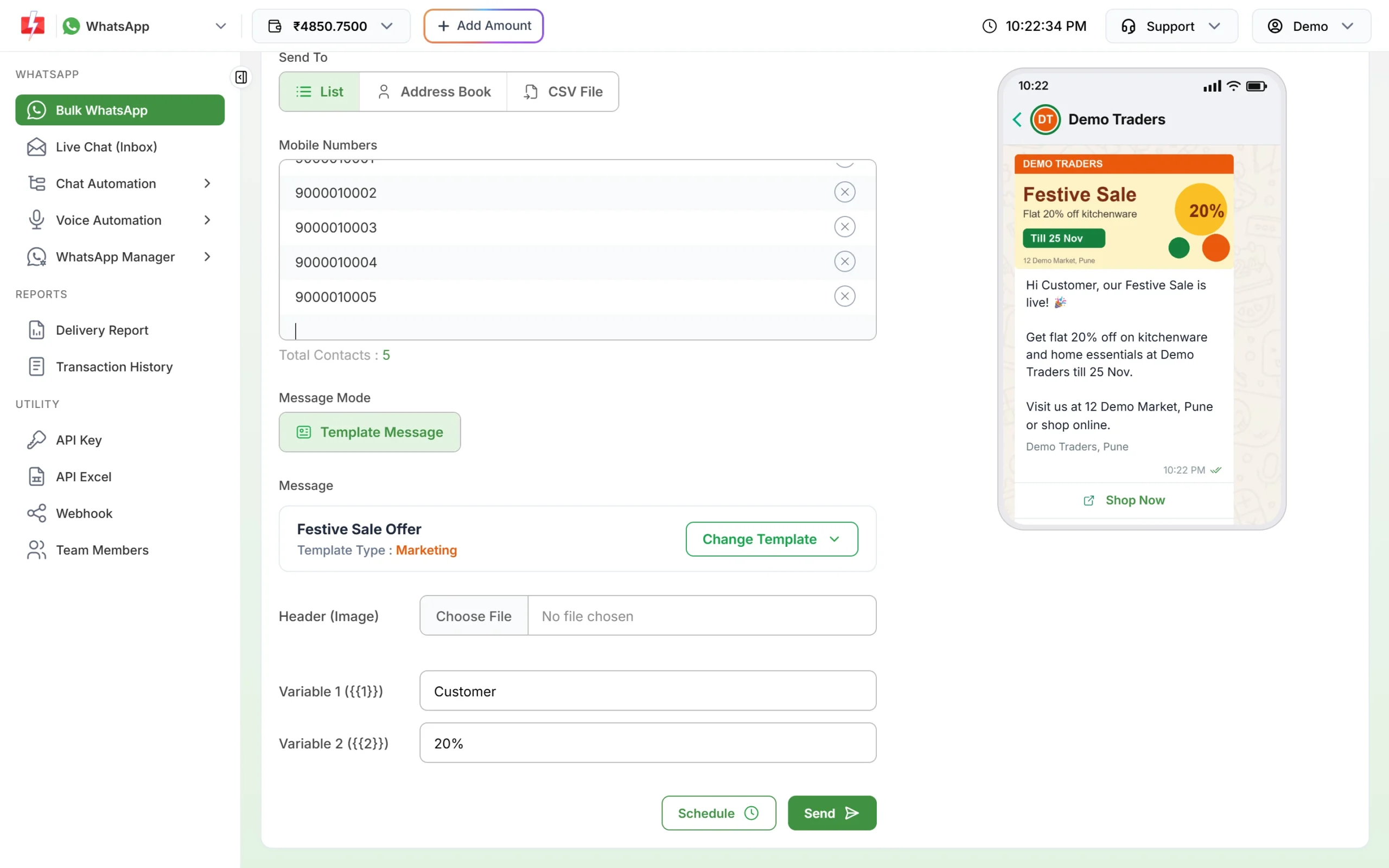
Fill the form first, then use Schedule instead of Send. -
Click Schedule and pick the date and time
Click Schedule at the bottom of the form. A Schedule drawer opens with Select Date and Enter Time. Choose one date for a one-time campaign, or a date range to send the same campaign on every date in that range, at the same time.
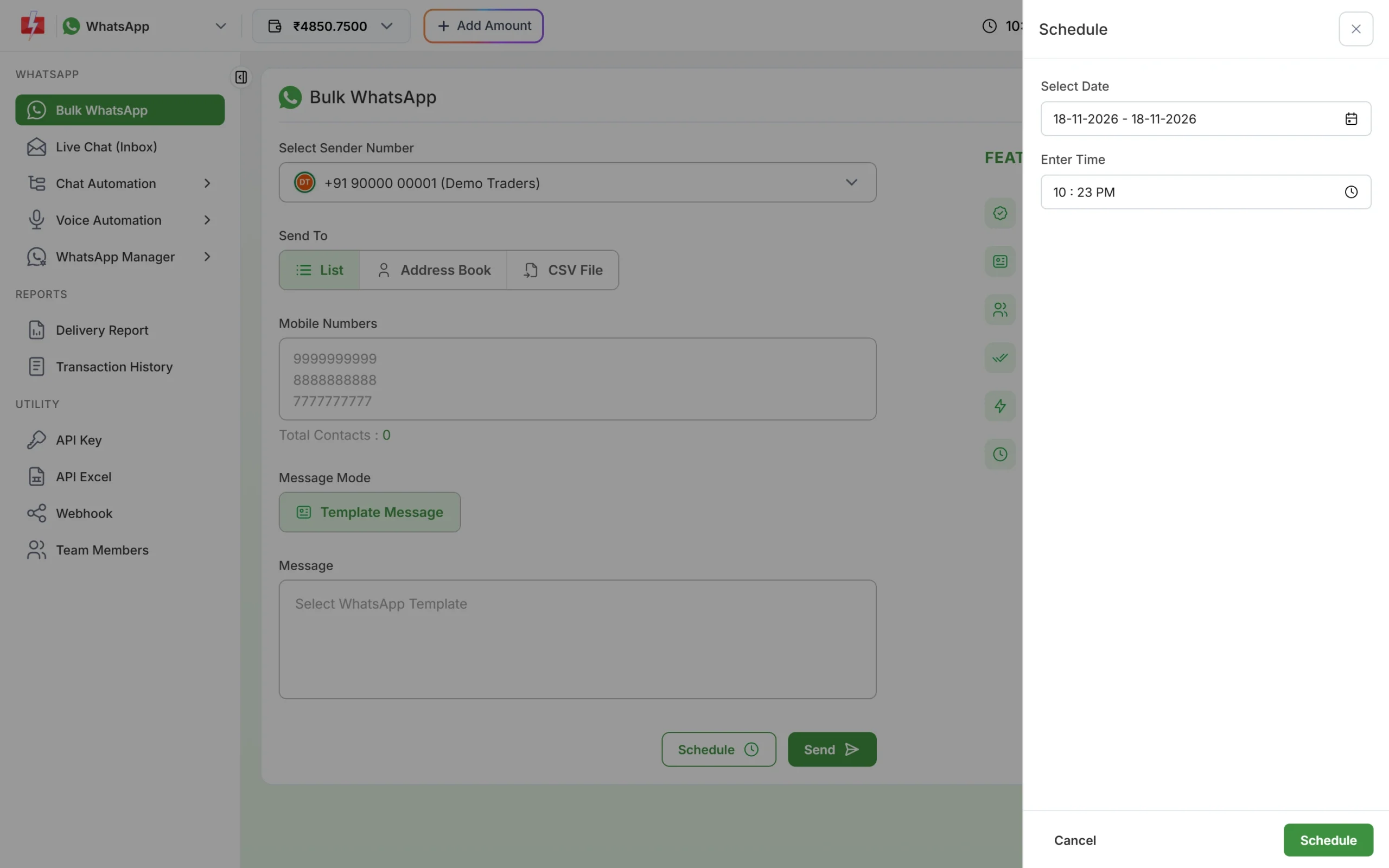
Choose the date (or a range) and the time. The time must be in the future, at least a minute from now. Otherwise you see “Schedule time must be in the future.”
-
Click Schedule in the drawer and check the cost
The Message Preview & Confirmation window opens. For a date range it also shows No. of Schedule Days, and the cost line multiplies by the number of days, for example “Cost: [100 x ₹0.9500 x 3]”.
Sending in bulk? For high WhatsApp volumes our team offers discounted rates. Talk to our team or see WhatsApp pricing.
-
Confirm
Click Confirm & Send. A message confirms that the campaign was scheduled successfully. The full amount for all dates is debited from your wallet now. If the wallet is short, you see “Insufficient wallet balance, you need at least ₹X to schedule this Bulk SMS campaign.” Recharge with Add Amount and try again.
How to see and cancel a scheduled WhatsApp campaign
-
Open the Schedule list
Go to Delivery Reports > WhatsApp Report > Schedule. You see every future campaign with its Schedule Time, Message, Detail (for example “20 WhatsApp (Marketing)”) and a Cancel button.
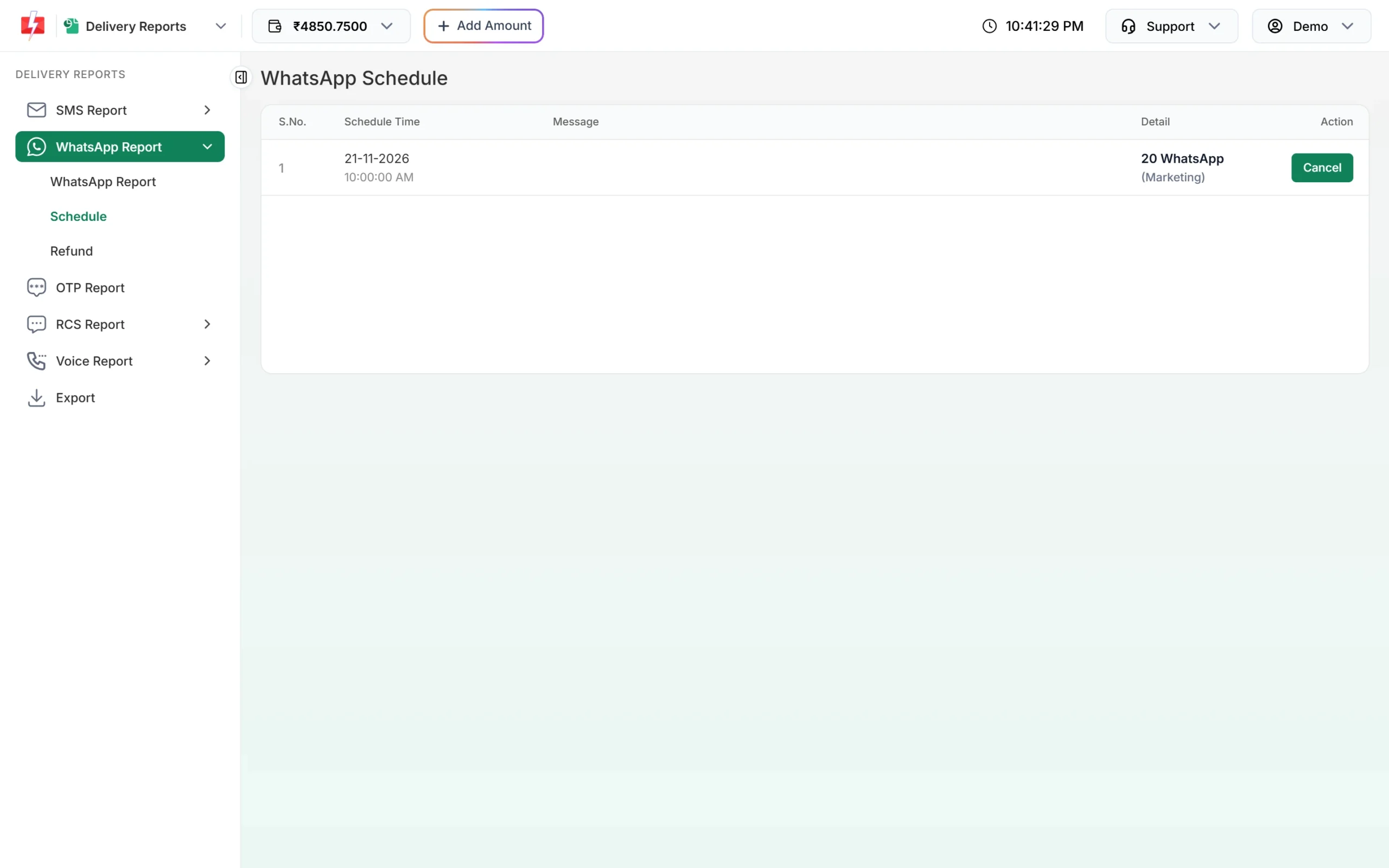
Scheduled campaigns wait here until their time. -
Click Cancel and confirm
Click Cancel. The confirmation reads “Cancel this scheduled message? The amount will be credited to your wallet.” Click Yes, Cancel. The queued messages are removed and the full campaign charge comes back to your wallet. You will see “Schedule cancelled successfully. Amount credited to your wallet.”
After the scheduled time
At the scheduled time the campaign leaves the Schedule list and appears in the normal WhatsApp Report, dated by its schedule time. Open it to see Delivered, Read and Failed counts. Failed messages are refunded to your wallet automatically about two days later.
A few things to keep in mind:
- Keep the template approved. If Meta pauses or rejects the template before the scheduled time, the messages fail with “Template is PAUSED” or “Template is REJECTED” and are refunded.
- Mind your messaging limit. Scheduling does not raise it. Split very large lists over several dates.
- Pick a sensible hour. Customers react better to messages in the day than late at night, and fewer blocks keep your quality rating high.
Common problems and fixes
| Message | What to do |
|---|---|
| Please select schedule date & time. | Pick both a date and a time in the Schedule drawer. |
| Schedule time must be in the future. | Choose a time at least a minute from now. |
| Schedule time is invalid. / Schedule date & time is invalid. | The time was in the past by the time you confirmed. Pick a later time. |
| Insufficient wallet balance … to schedule this Bulk SMS campaign. | The wallet must cover all dates. Recharge, or shorten the date range. |
| This schedule cannot be cancelled. | The scheduled time has already passed, so the campaign is sending or sent. |
| This schedule is already cancelled. | It was cancelled earlier and the money was already credited. |
Frequently asked questions
Can I schedule WhatsApp messages in Fast2SMS?
Yes. On Bulk WhatsApp, click Schedule, choose the date and time, and confirm. The campaign is sent automatically.
When is my wallet charged for a scheduled campaign?
When you schedule it. If you cancel before the scheduled time, the full amount is credited back.
Can I schedule the same message on several days?
Yes. Choose a date range in Select Date. The campaign is sent once on each date at the same time, and charged once per date.
Can I edit a scheduled WhatsApp campaign?
No. Cancel it for a full refund and schedule a new one with the changes.
Where can I see my scheduled WhatsApp messages?
In Delivery Reports > WhatsApp Report > Schedule.
Can I schedule a campaign from an Excel file?
Yes. Upload the file on the CSV File tab, match the variables, then click Schedule instead of Send.