
You can add Shopify OTP verification to your store pages with the free Fast2SMS OTP widget. Create a widget in the Fast2SMS panel, add your store domains, and paste 2 lines of code into a Custom Liquid section of a theme page. Customers verify their mobile number with a 6-digit code on SMS or WhatsApp, and you get the verified number on your webhook. It works on normal store pages such as a COD confirmation page, a contact or wholesale signup page, or a landing page. It does not work inside Shopify checkout and it does not replace the Shopify customer login.
Where the OTP widget works on Shopify
Fast2SMS hosts the widget and your page only loads it, so it works wherever your theme lets you add your own code.
| Place in your store | Widget works? | How |
|---|---|---|
| A custom page (COD confirmation, wholesale signup, landing page) | Yes | Custom Liquid section on the page template |
| Product page | Yes | Custom Liquid block or section on the product template |
| Contact page | Yes | Popup button, or Mobile field mode on the phone field (theme code) |
| Shopify checkout | No | Shopify does not let outside scripts run inside checkout |
| Shopify customer login | No | Sign-in is handled by Shopify; the widget does not replace it |
For order notifications and COD messages, use the free Fast2SMS Shopify app next to the widget.
Before you start
- A Fast2SMS account with some wallet balance. The widget is free; each OTP is charged.
- An approved Smart OTP template (OTP ID) on SMS or WhatsApp. If you do not have one yet, follow the Smart OTP setup guide.
- Access to Online Store and the theme editor in your Shopify admin.
Set up Shopify OTP verification step by step
-
Create a new widget
In the Fast2SMS panel, open Smart OTP and click New Widget under OTP WIDGET. Give it a name you will recognise, such as “Shopify COD confirm”.
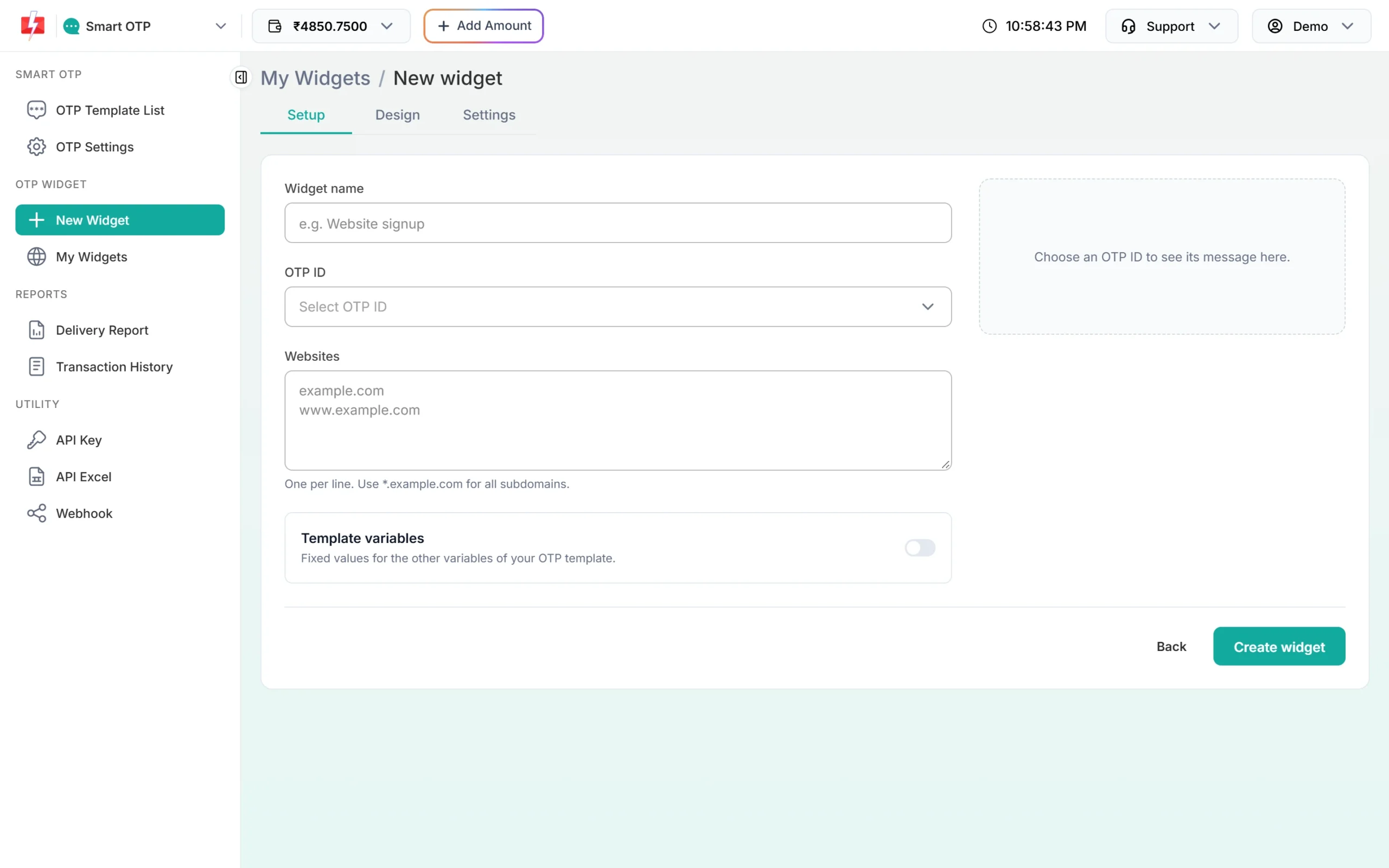
The New widget page has three tabs: Setup, Design and Settings. -
Pick your OTP ID
Click Select OTP ID. A pop-up shows your approved OTP templates with phone previews. Filter by SMS or WhatsApp and pick one.
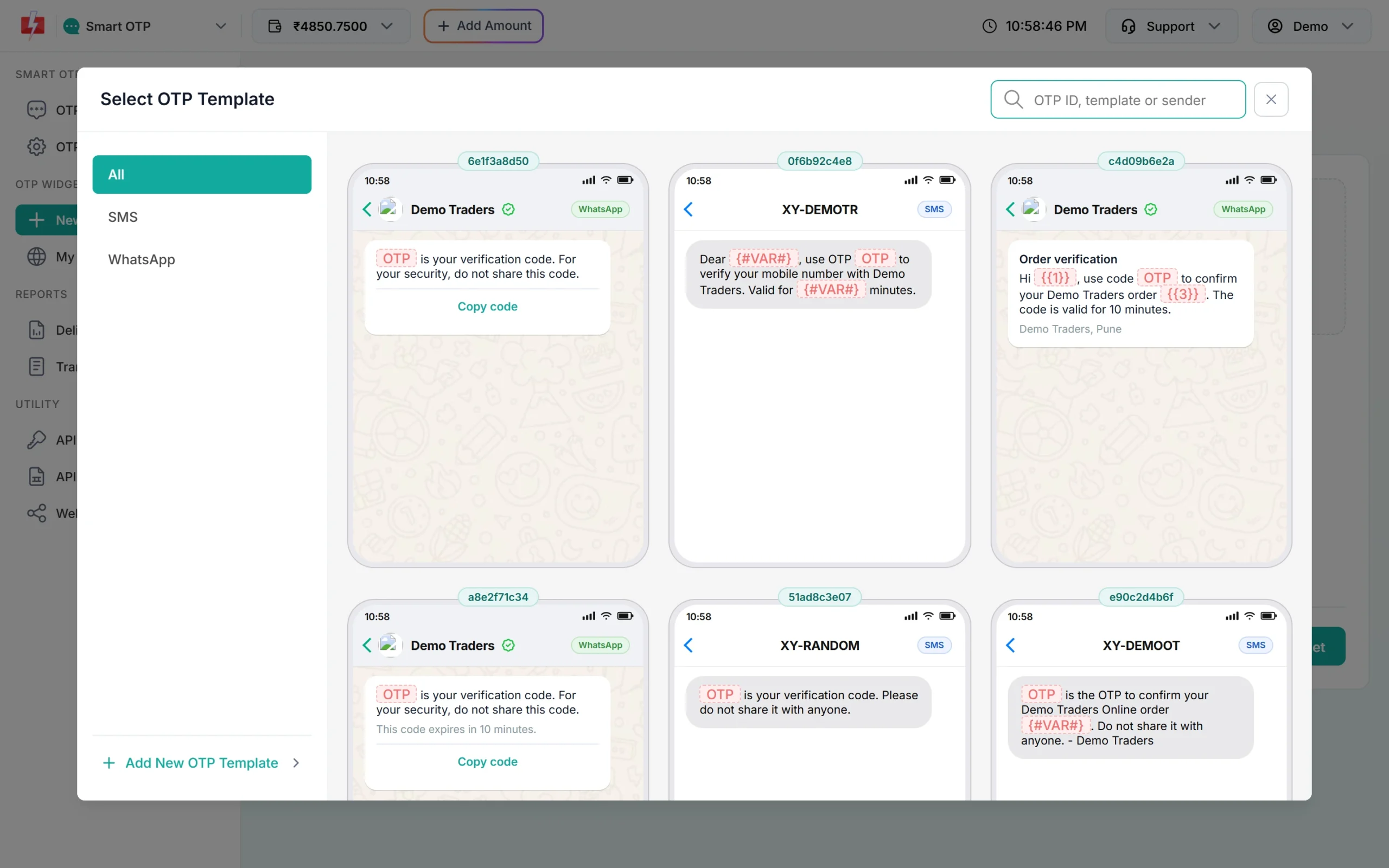
Each card shows the OTP ID and how the message will look. -
Add your store domains
In Websites, add every address your store opens on, one per line:
yourstore.myshopify.com
yourstore.in
www.yourstore.in
The widget shows only on these sites. On any other site it shows “Mobile verification is not available on this page right now.” Do not add
*.myshopify.com, because that would allow every Shopify store. Then click Create widget.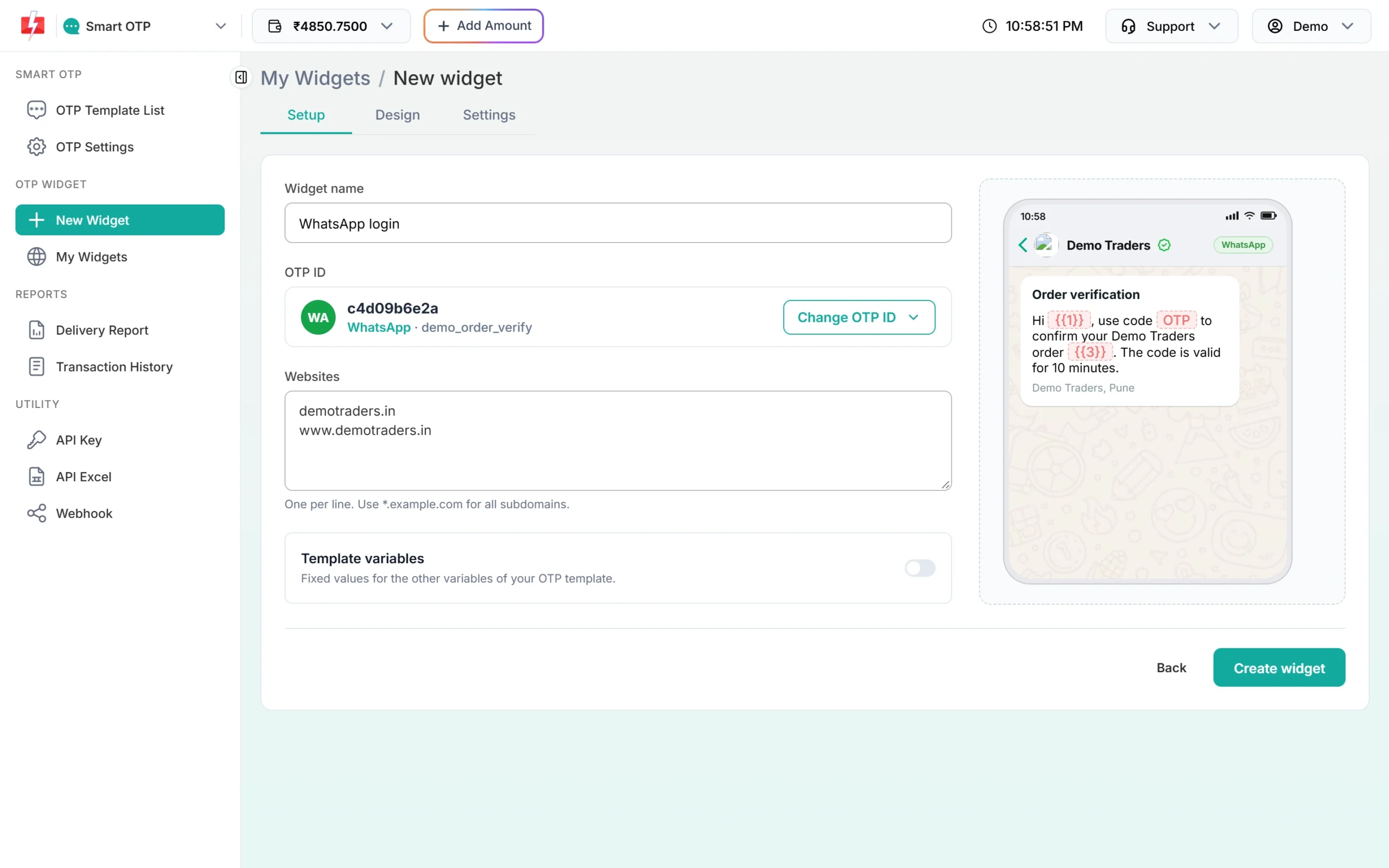
Add your domain with and without www (test account). -
Set limits to protect your wallet
Open the Settings tab. Under Limits you can cap daily and monthly spend and the number of codes per day, per number and per visitor. A limit that is off still uses a safe default. Set limits that fit your daily orders.
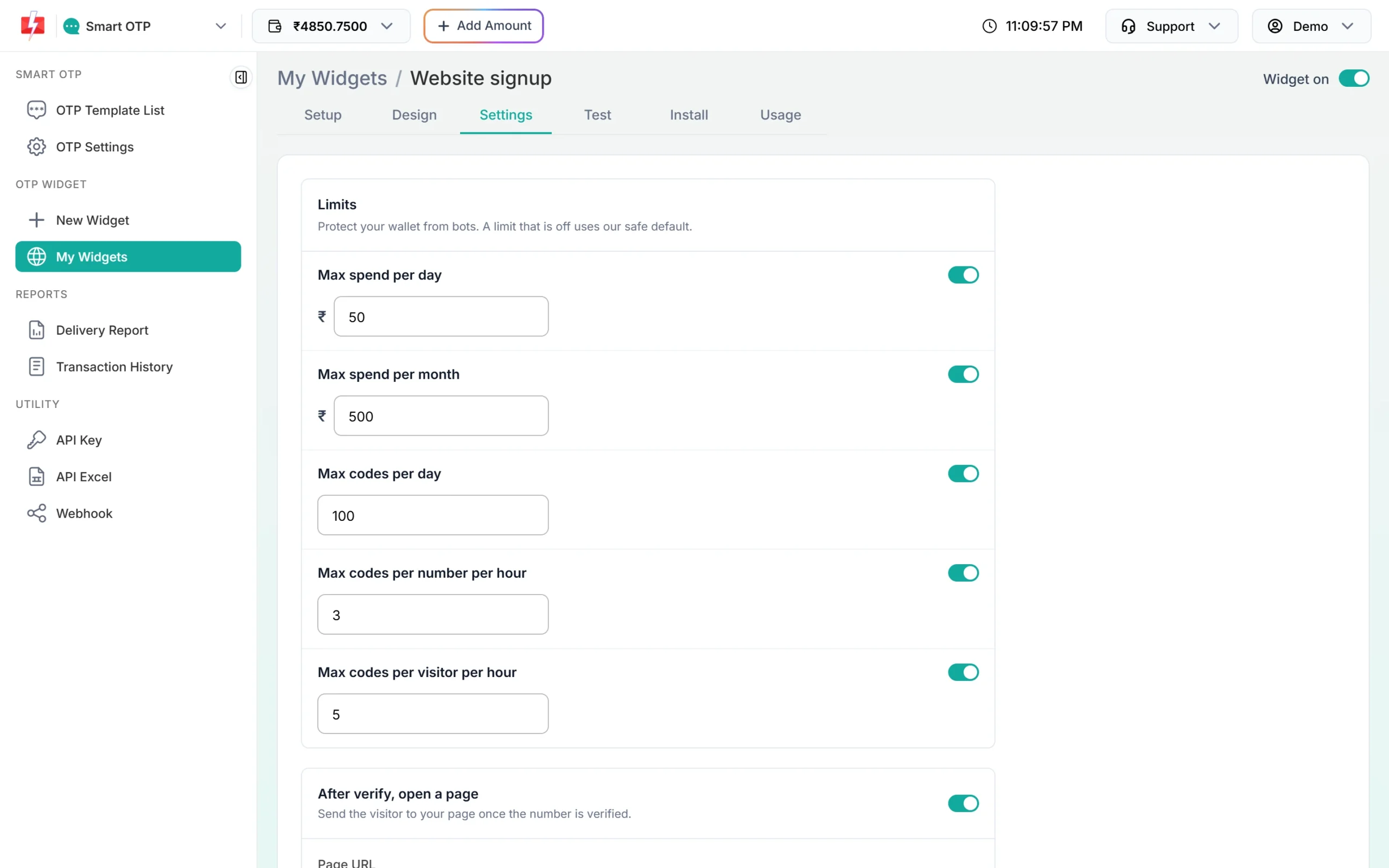
Spend and code limits stop bots from draining your wallet. -
Turn on the webhook for verified numbers
Shopify cannot check the widget’s token on its own, so the webhook is your proof. Turn on Send verified numbers to my webhook and enter an https URL that you control. Fast2SMS sends a POST to it for each verified number. Click Show webhook secret and keep the secret for checking the signature. You can also turn on After verify, open a page to send the customer to a thank-you page.
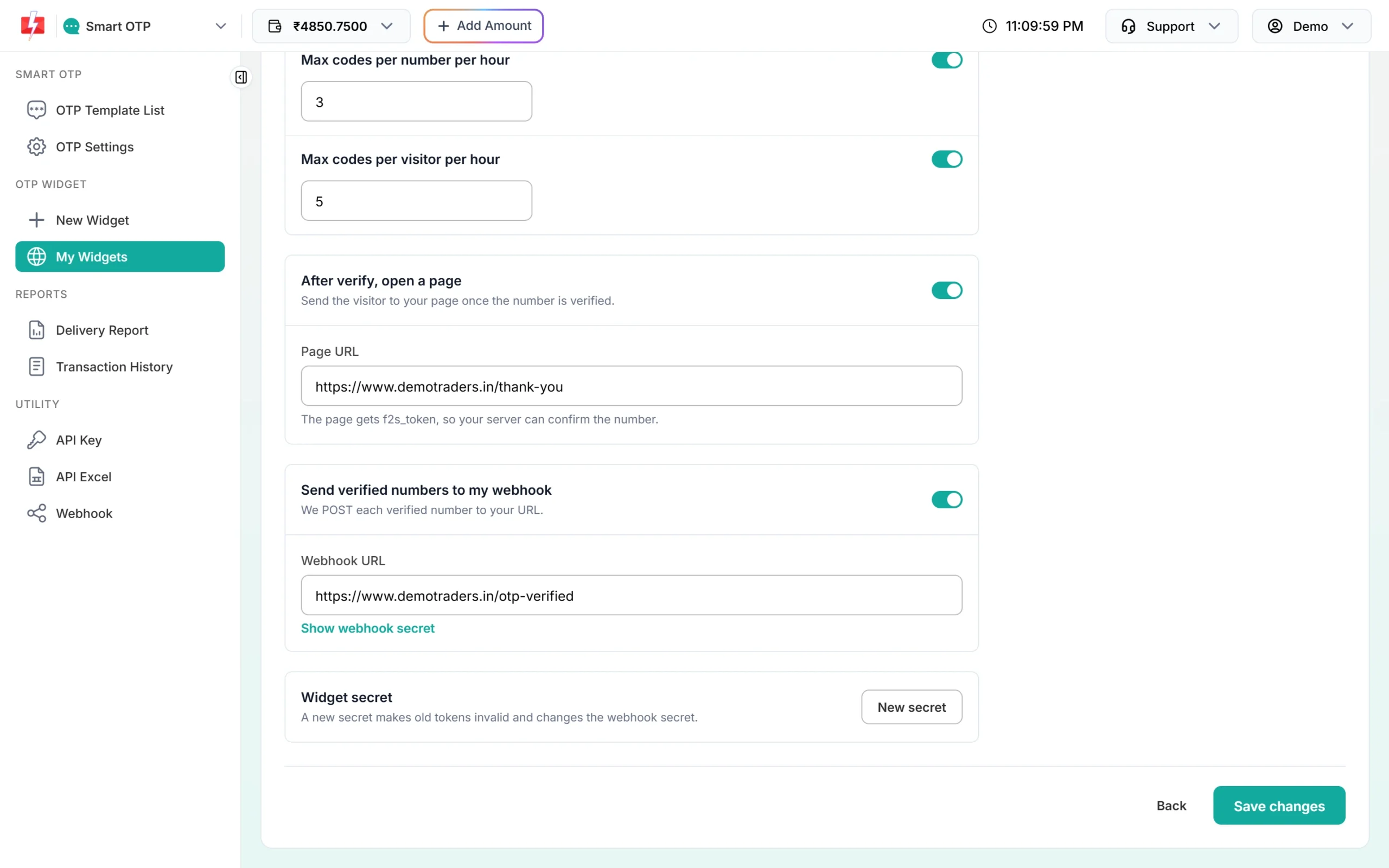
Webhook URL and the after-verify page, from a test account. -
Copy the Popup code
Click Save changes, then open Install and the Popup sub-tab. Your own button opens the widget in a popup, which suits a “Verify mobile” button on a store page. Choose a Popup position and click Copy.
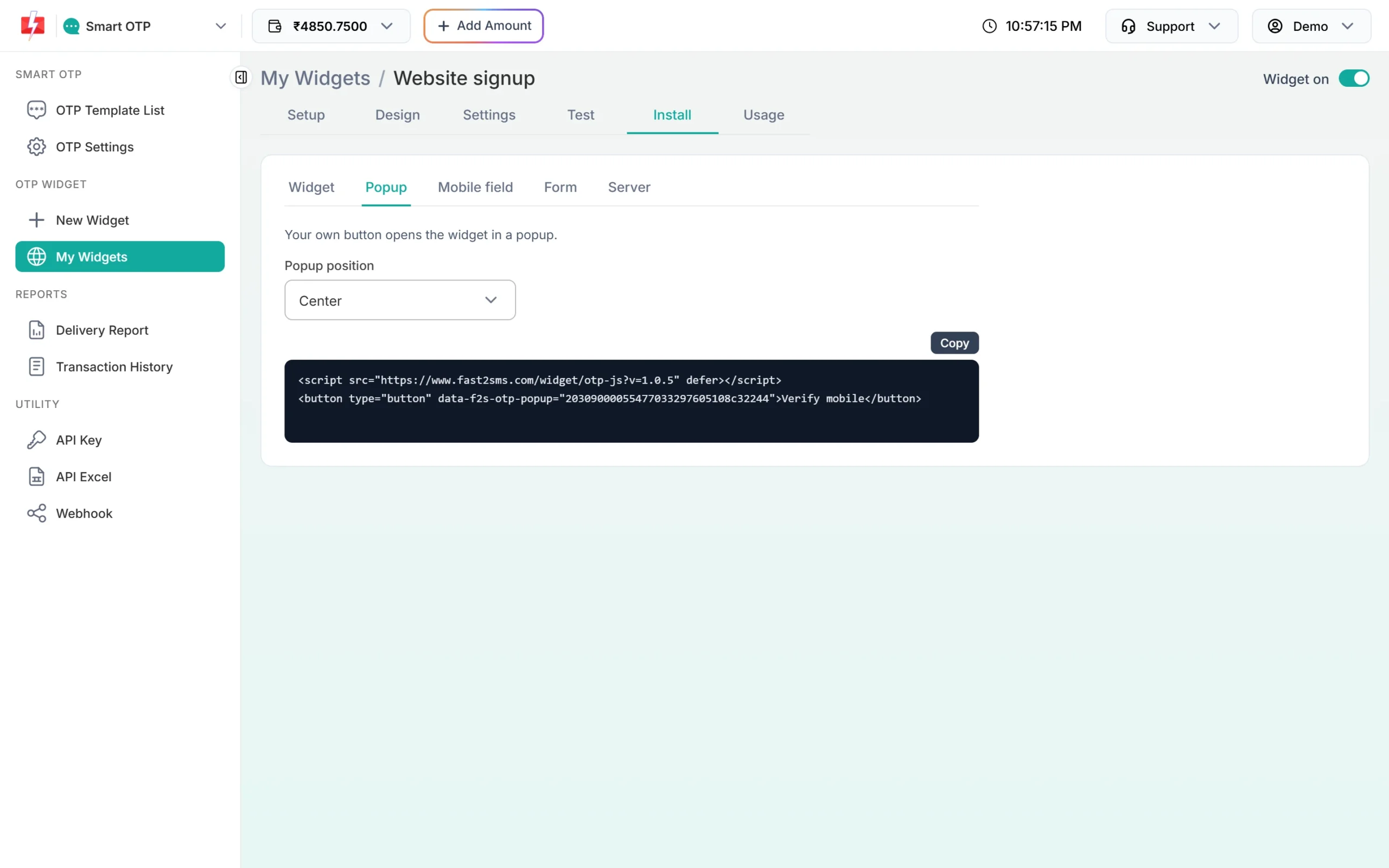
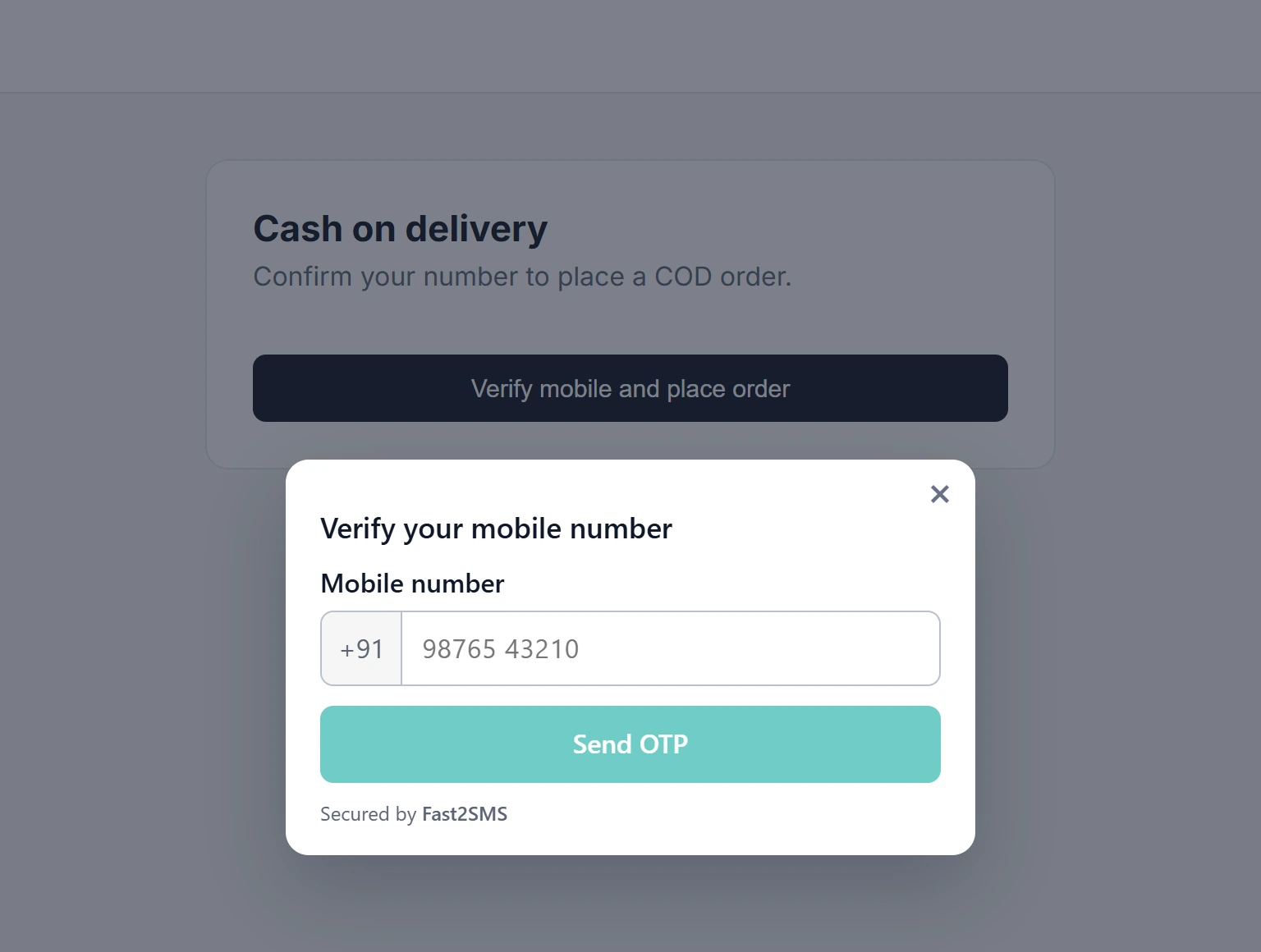
Two lines: the script and your button. <script src="https://www.fast2sms.com/widget/otp-js?v=1.0.5" defer></script> <button type="button" data-f2s-otp-popup="YOUR_WIDGET_KEY">Verify mobile</button>You can change the button text, for example to “Verify mobile to confirm COD”. If you want the box shown on the page instead of a popup, copy the code from the Widget sub-tab.
-
Paste it into your Shopify theme
In Shopify admin, add a page under Online Store > Pages (for example “Confirm your COD order”). Then open the theme editor with Customize, go to that page or its page template, add a Custom Liquid section and paste the 2 lines. For a product page, add a Custom Liquid block or section to the product template instead. Save. Most current themes have Custom Liquid; if yours does not, ask your theme developer.
-
Test in the panel and on the live page
The Test tab runs the real widget in the panel: “Try it with your own number. A real OTP is sent and charged.” Then open your store page in a normal browser tab, on your domain and on the myshopify address, and verify once. The theme editor preview can behave differently, so always check the live page.
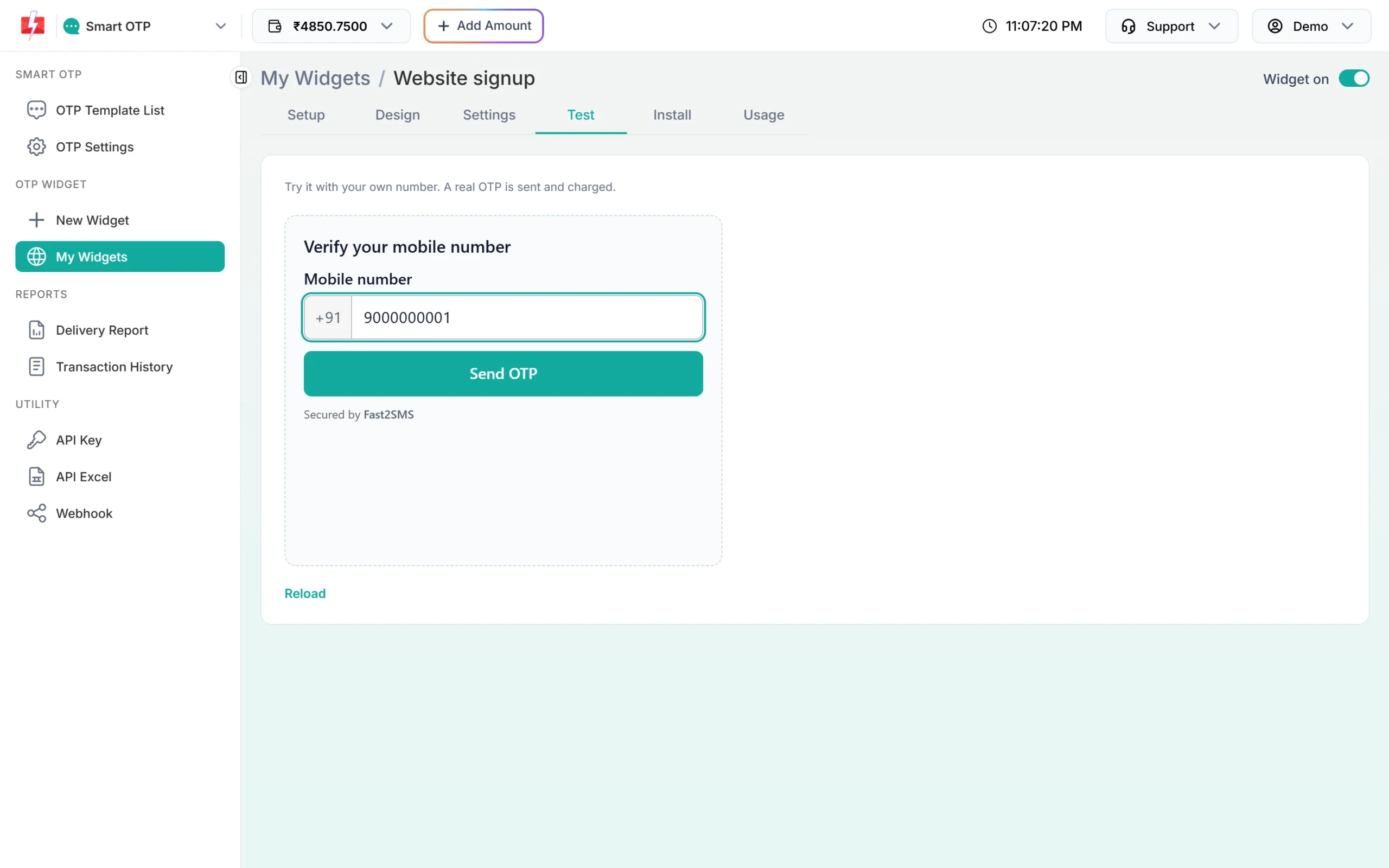
Test with your own number first.
What your customer sees
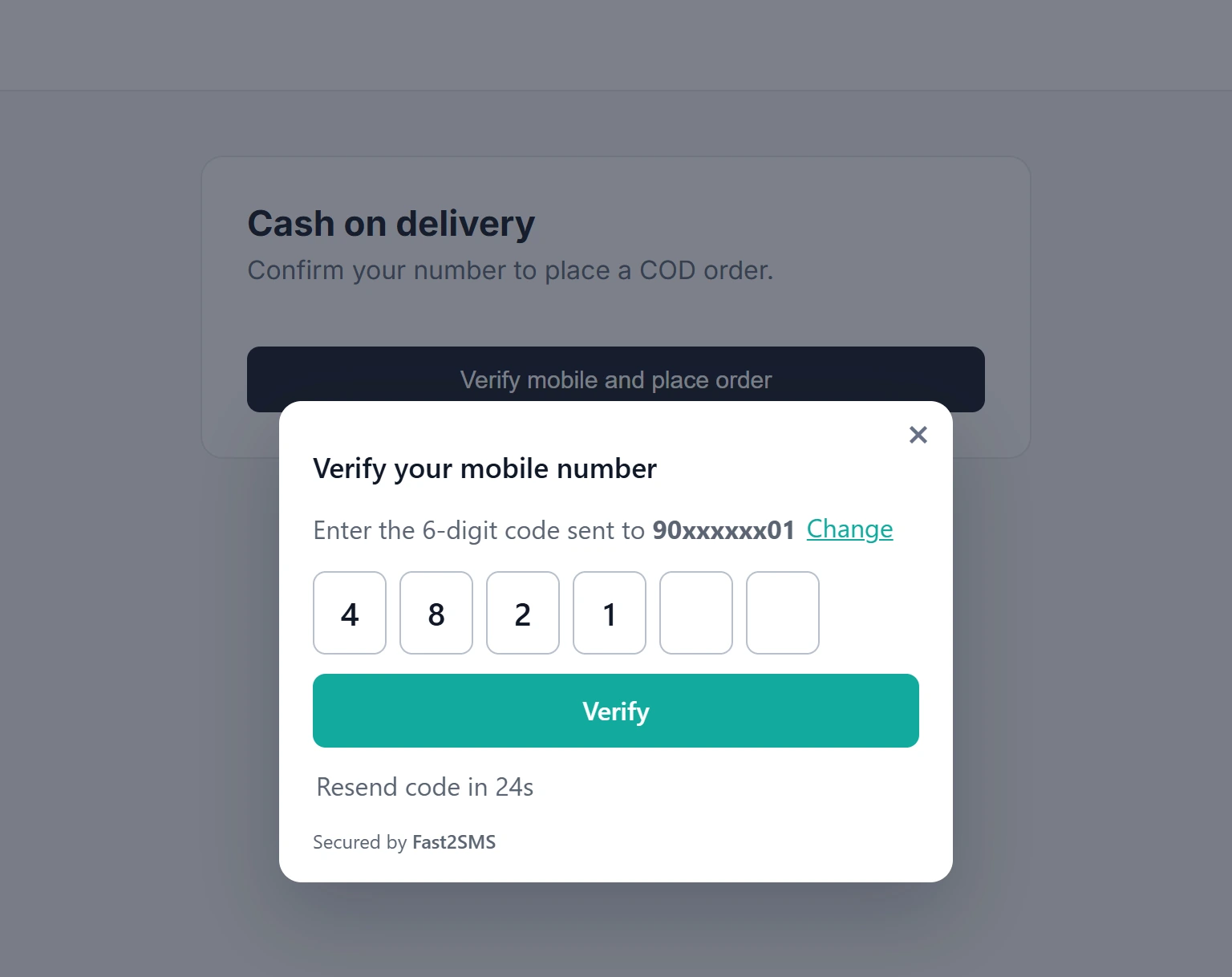
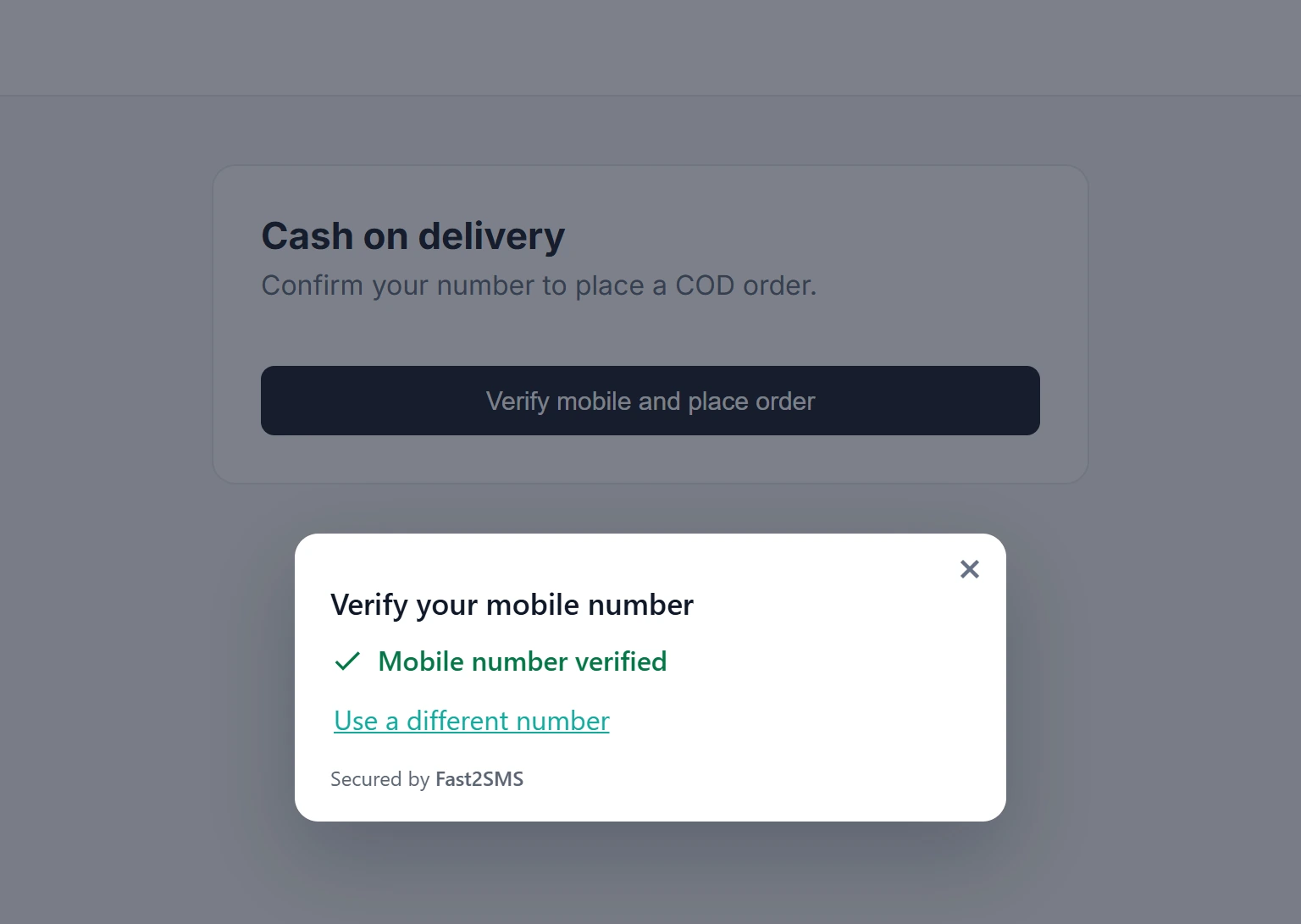
The customer clicks your button, types the number, clicks Send OTP, passes an “I am human” check and types the 6-digit code.
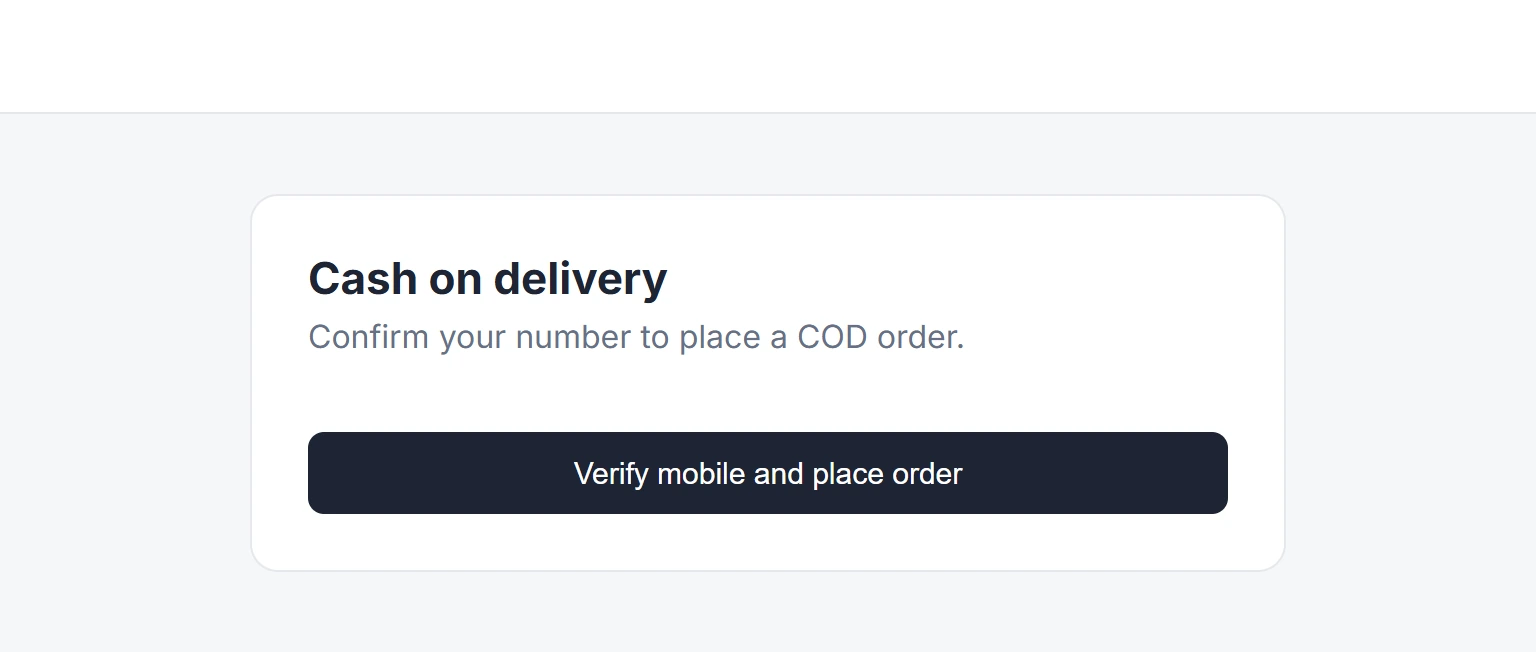
Shopify COD OTP: confirm the number before you ship
Checkout cannot show the widget, so COD verification on Shopify happens after the order:
- The customer places a COD order through normal Shopify checkout.
- The free Fast2SMS Shopify app sends the COD order placed message on SMS or WhatsApp. If your approved template has a link to your “Confirm your COD order” page, the customer can open it from the message.
- On that page the customer verifies the mobile number with the widget.
- Your webhook receives the verified number. Match it with the phone number on the COD order and mark the order as confirmed before you ship.
For other COD options, such as a WhatsApp YES or NO reply, read Shopify COD verification options. The app itself is free; see the Shopify app FAQ. For shoppers who leave without ordering, see abandoned cart messages on WhatsApp.
OTP on the Shopify contact form or wholesale signup
The simplest way is a Popup button above the form, with the webhook as your record. If you can edit theme code, use Mobile field mode instead: add data-f2s-otp-attach="YOUR_WIDGET_KEY" to the form’s phone input (the one with type="tel") and load the script on that page. A Verify button appears next to the field and the form submits only after that number is verified. Duplicate your theme before you edit code. Both modes are explained in OTP widget popup button and mobile field.
Receive verified numbers with the webhook
For each verified number, Fast2SMS sends a POST with JSON like this to your webhook URL:
{"event":"otp.verified","widget_key":"YOUR_WIDGET_KEY","mobile":"9876543210",
 "origin":"https://www.yourstore.in","verified_at":1763540000,"fields":{}}
The request has an X-F2S-Signature header made with your webhook secret. Check it, and refuse requests older than 5 minutes. The URL must be https and should answer within 4 seconds, without redirects. Shopify has no server for this, so use your own server or an automation tool with an https webhook URL. The signature check and the server-side token check are in verify the OTP widget token and webhook.
What it costs
The widget has no widget fee, setup fee or monthly fee. You pay only for each OTP sent, at your normal Smart OTP rate, from your Fast2SMS wallet. Codes sent from the Test tab are real and charged too.
Sending in bulk? For high OTP volumes our team offers discounted rates. Talk to our team or see OTP pricing.
Common problems and fixes
| What you see | Why | Fix |
|---|---|---|
| “Mobile verification is not available on this page right now.” | The address in the browser is not in Websites, or the widget is off. | Add the myshopify address and your domain with and without www. Check the Widget on switch. |
| Nothing shows, or the button does nothing | The script line is missing, or the page uses a different template. | Paste both lines, and check the live page uses the template you edited. |
| The widget stopped sending | A daily or monthly cap was reached. | The list shows “Stopped today”. Sending starts again after midnight IST, or you can raise the limit. |
Frequently asked questions
Can I add OTP verification to Shopify checkout?
No. Shopify does not let outside scripts run inside checkout. Put the widget on a page before or after checkout, such as a COD confirmation page.
Does the widget replace the Shopify customer login?
No. Customer sign-in stays with Shopify. The widget verifies a mobile number on your own store pages.
Do I need an app for Shopify mobile number verification?
No. The widget needs no app install, only the 2 lines in a Custom Liquid section.
Can I use OTP for COD orders on Shopify?
Yes, after the order. Send the customer to a confirmation page with the widget, then match the verified number from your webhook with the COD order.
Can the OTP go on WhatsApp?
Yes. Pick a WhatsApp OTP ID when you create the widget. If the template has a fallback set, the other channel is used when the first one fails.
Can I host the OTP code myself instead?
Yes. If you prefer to host the code yourself, see the OTP widget kits and the older Shopify theme section kit. They need your own server for the API key.