
What is Entity ID, Sender ID and Content Template ID in DLT Bulk SMS
Entity ID, Sender ID and Content Template ID are the three main components in DLT Bulk SMS. Each of them plays a major role while you begin any Bulk SMS campaigns. These IDs help telecom operators verify your business, sender details and SMS content before messages are delivered to customers.
Understanding what is entity id, sender id and content template id in DLT bulk SMS can help businesses send SMS smoothly, avoid message rejection and improve delivery rates. In this post, we will learn about all three of them in detail, so continue reading.

All three DLT IDs
| PE ID | Sender ID | Template ID |
| Business entity in DLT | Name of Sender or brand name | Approval message code |
| 13 character code starts with TM | 6 characters for Service Implicit, 10 characters for Promotional message | 19 character alphanumeric code |
| One PE ID for one business | Sender ID is different for Service Implicit and Promotional messages | Each message has a separate template ID |
| Eg: TM-1234567890 | Eg: FSTSMS | Eg: 1122334455667788990 |
1: Principal Entity ID (PE ID)
Principal Entity ID is the unique registered number given for a particular business ID on the DLT portal. It comprises of 13 characters beginning with TM. Business entities with PE ID are considered authorised to send bulk SMS as per TRAI guidelines.
Example TM-1234567890
You get one PE ID for one business. This individual PE ID contains all your registered Sender IDs and templates. Avoid creating more PE IDs for a single business unit, it may cause penalty and rejections.
How to get Principal Entity ID on Jio DLT portal?
1. Visit the link: https://trueconnect.jio.com
Click on the Register Now button to register as an Entity in the Jio DLT platform.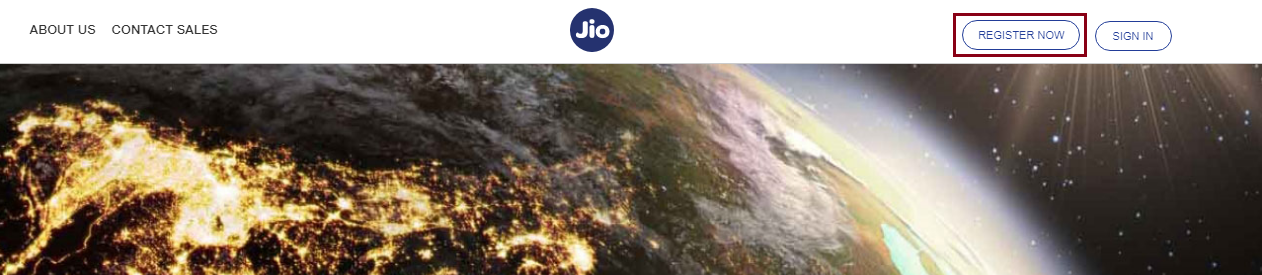
2. The following page will be displayed. Select the Principal Entity option.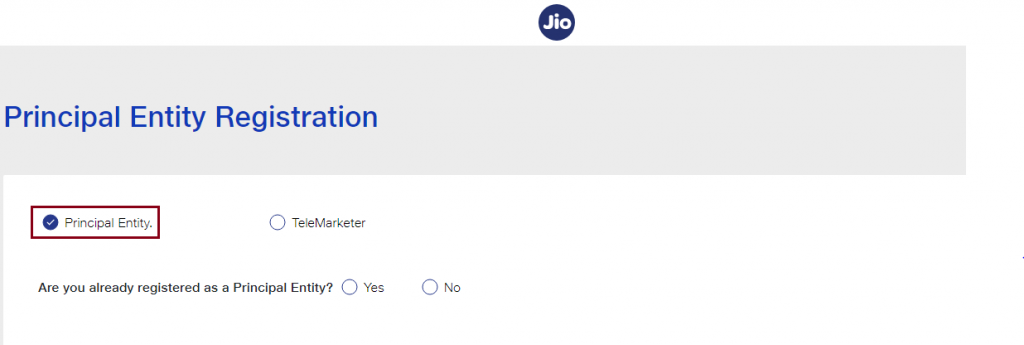
3. If you are registering on the DLT platform for the first time, select No & Fill the requested details.
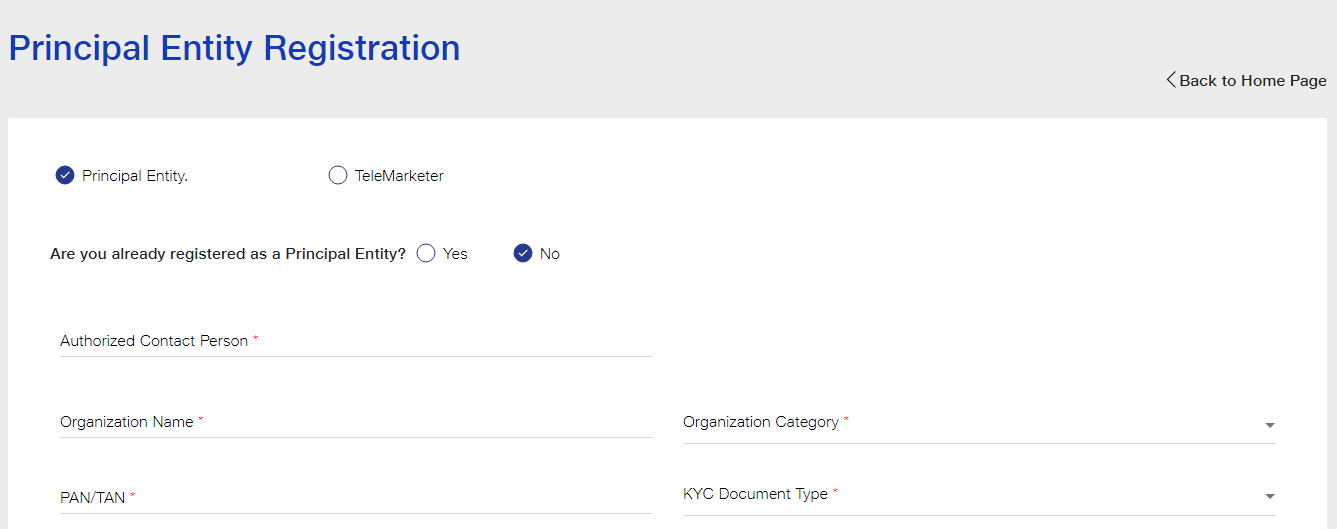
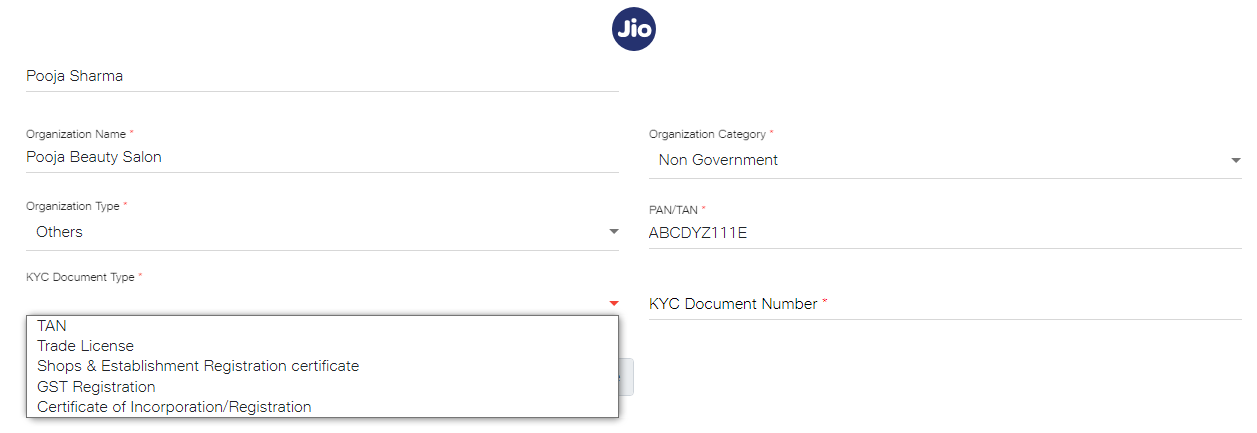
4. Enter the details as shown in the image below. Select your Organization Type from the drop down list.
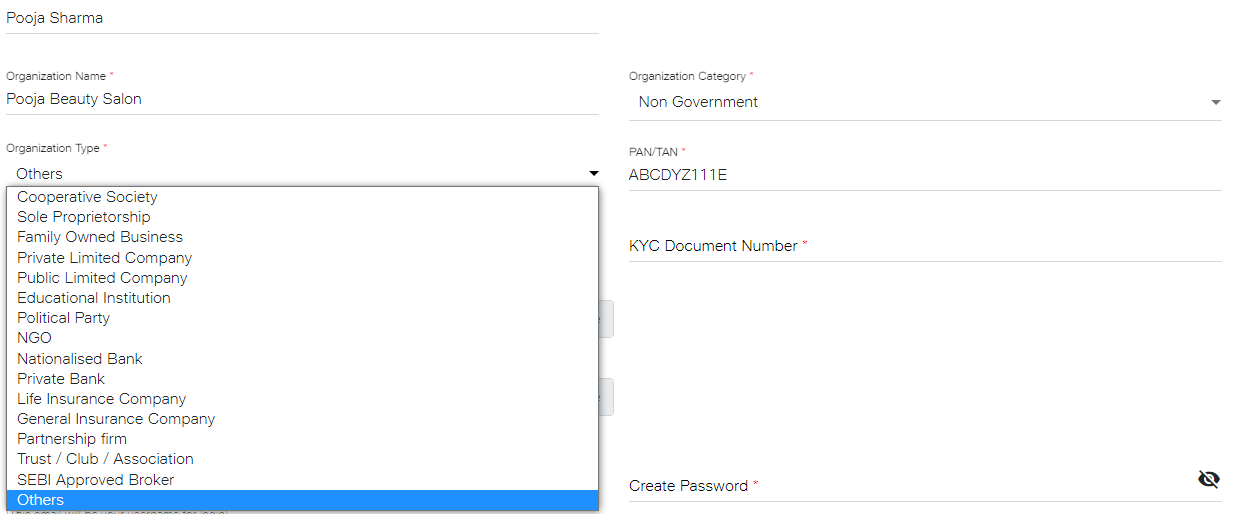
5. Select the KYC Document Type from the drop down list and enter the KYC Document Number.
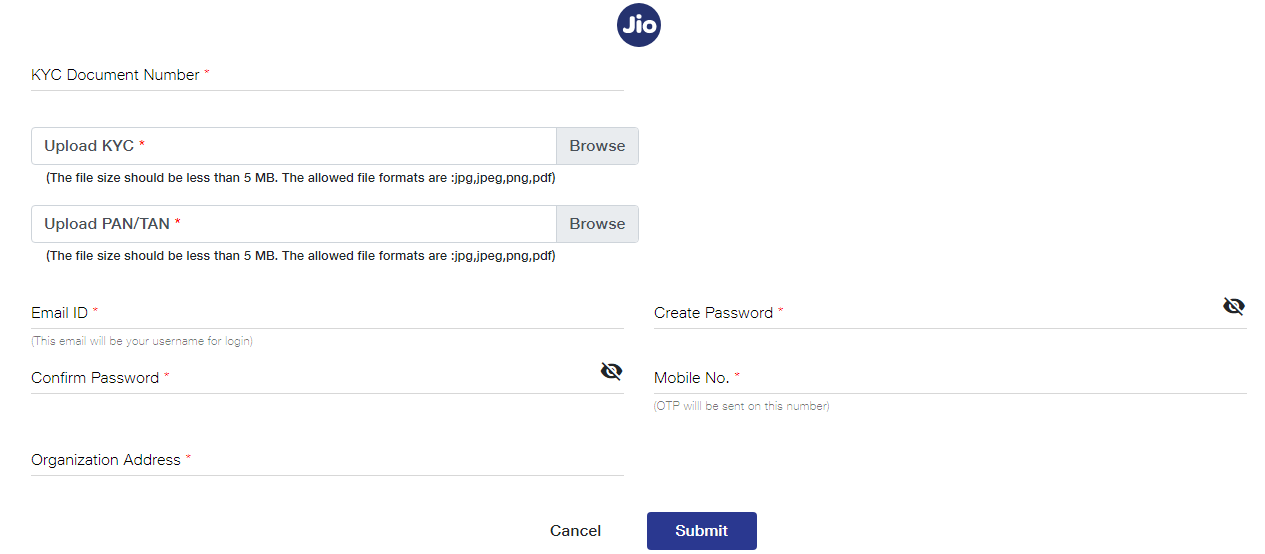
6. Upload your KYC Document and PAN/TAN. Make sure the file size is less than 5 MB.
7. After uploading KYC document and PAN Card. Next, enter your email ID, password, mobile number and organization address. After providing the details, click on the Submit button.
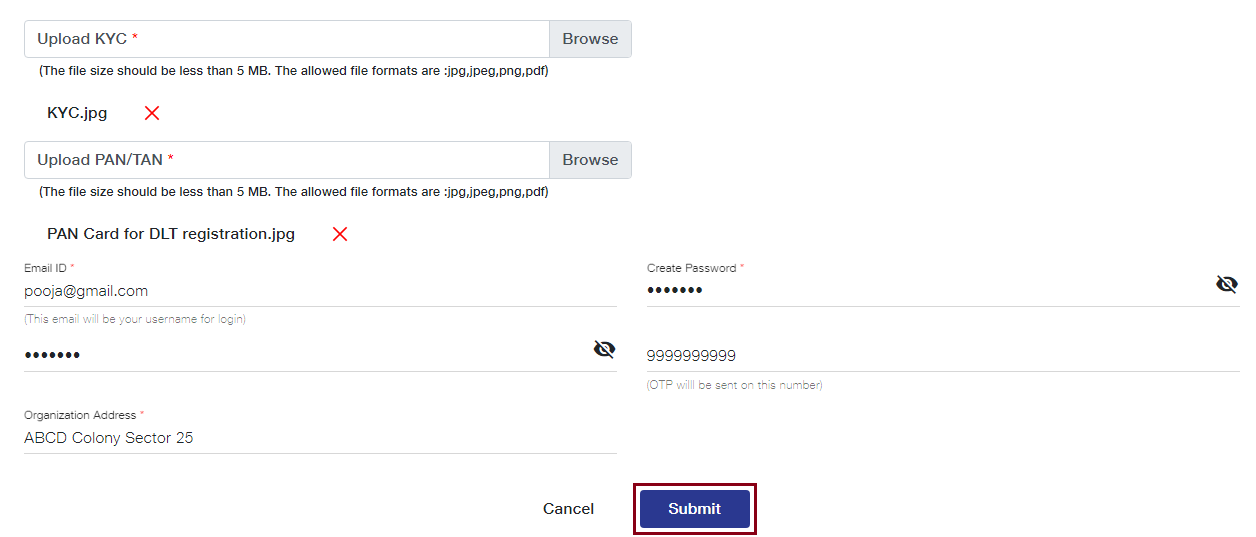
As you click on the Submit button, an OTP will be sent to your registered mobile number. Enter the OTP received to complete the mobile number verification.
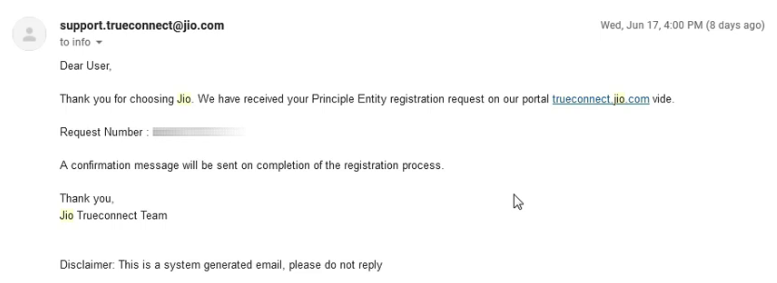
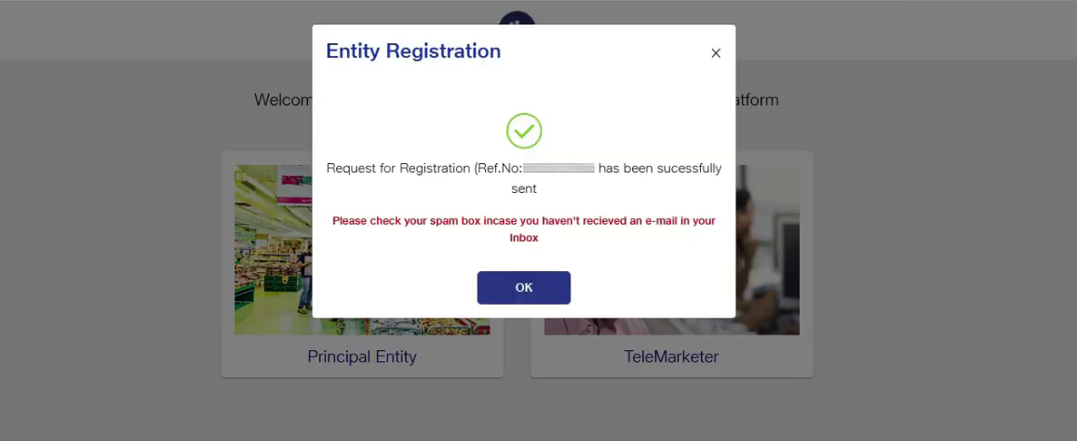
8. As shown in the image below, an email will be sent by Jio that your Entity registration request has been received and is being processed. After submitting registration request, you need to wait for 2-3 days for its approval.
9. Once your entity gets approved, an email will be sent by Jio as shown in the image below. You will receive your login details and PE ID on your registered email ID.
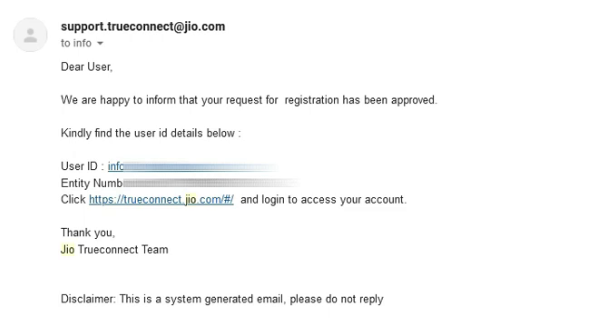
10. Now, you can login and access your JIO DLT account.
2: Sender ID (Header)
Header is a unique combination of six characters representing the brand or company name of the message sender. Header was earlier known as Sender ID. Header is of 6 characters for transactional messages and of 10 characters for promotional messages.
Transactional message Headers is used for sending OTPs, alerts, informative messages to both DND and non DND numbers. It must be alphabetic. Whereas Promotional message Headers is used for marketing related messages and can be sent only to non DND numbers. It must be numeric comprising of 10 digits.
Example of Sender id: FSTSMS
How to get your Sender ID in Jio DLT portal?
1. Login to your Jio DLT SMS portal. Header SMS option will be visible on your dashboard screen. Once you click on that tab, two options will get displayed – Header SMS Registration and Header SMS Details. Select the first option Header SMS Registration.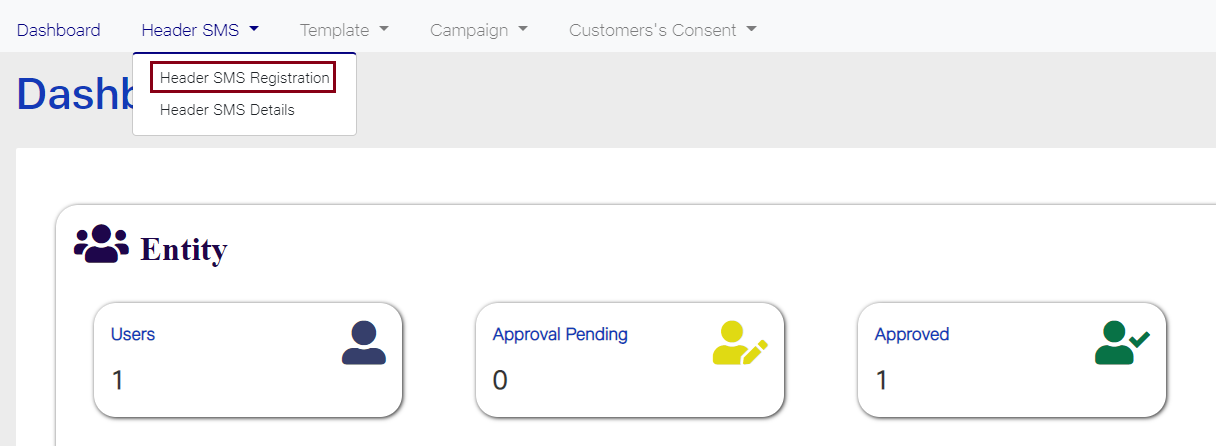
2. Once you select it the following screen will get displayed.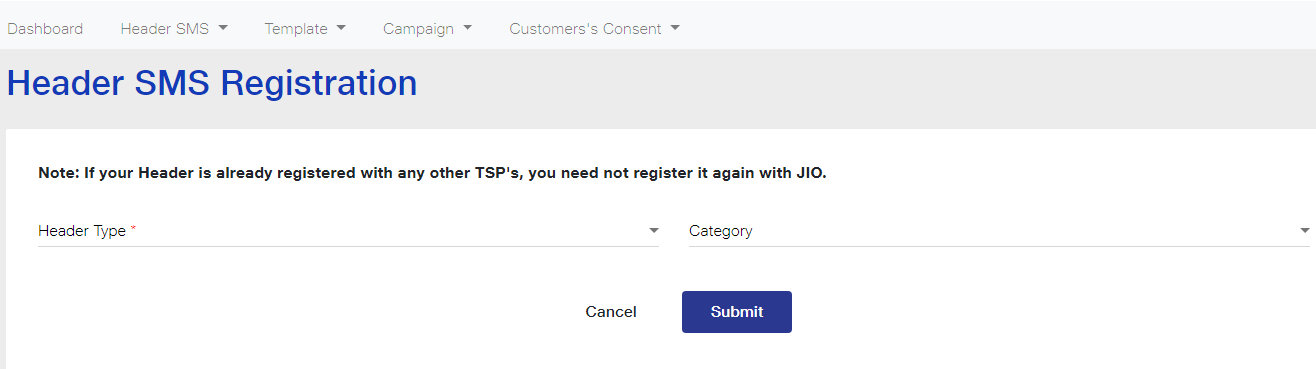
3. Select the Header Type based on your SMS content. If your SMS is promotional in nature select the first option Promotional and if the SMS is informative then choose the second option Others (Transactional, Service Explicit, Service Implicit).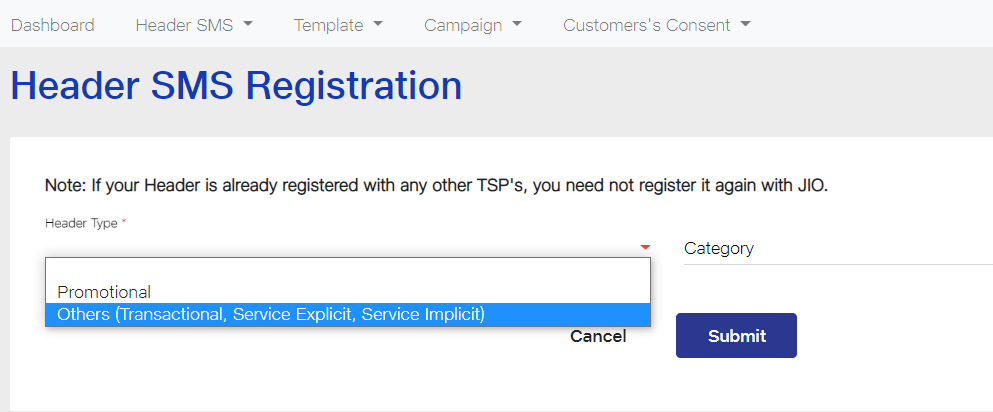
4. Select the Header Category from the dropdown list. If your business or industry is related to Finance choose the first option, if you are a Real Estate Business owner choose the second and so on. If your business does not fall in any of the listed categories, select Others.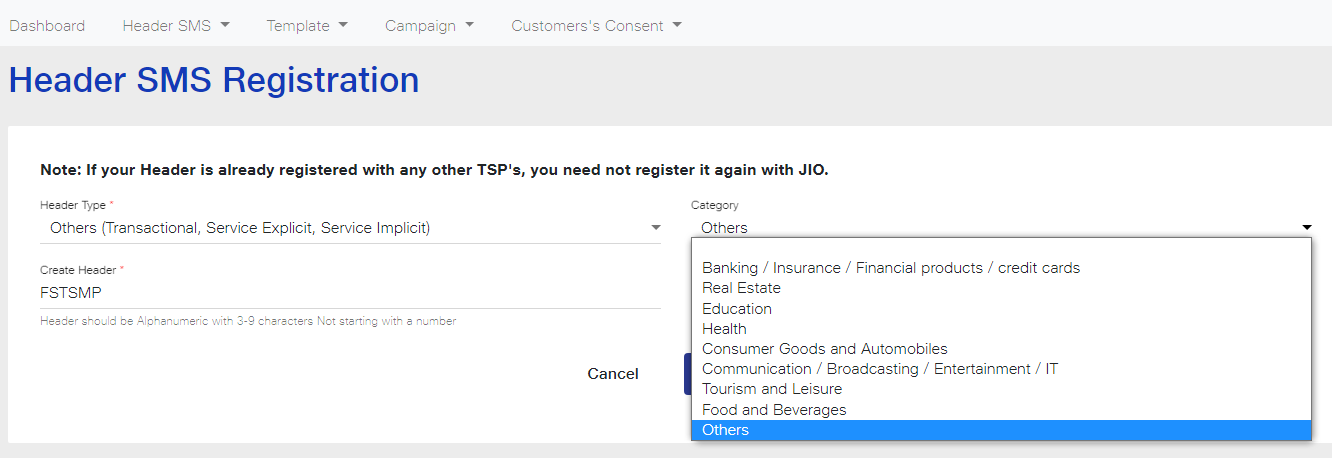
5. Create a Header Name of six letters representing your company name.
Create a Header name in accordance with the specified rules and then click on the Submit button. As you can see in the image below, we have created Header Name as FSTSMP as the Header Type is Others and is for Transactional, Service Explicit and Service Implicit messages.
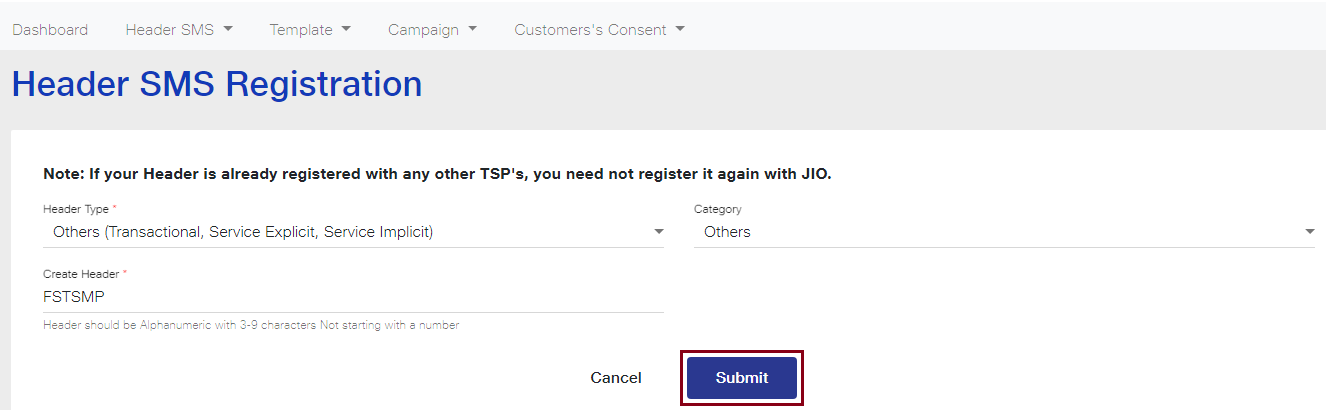
Header Name must be as follows:
Promotional Route: 6 Digit Numeric only.
Other Route: 6 alphabetical characters only (without number)
6. As you click on the Submit button, a dialog box will appear on your screen as shown below.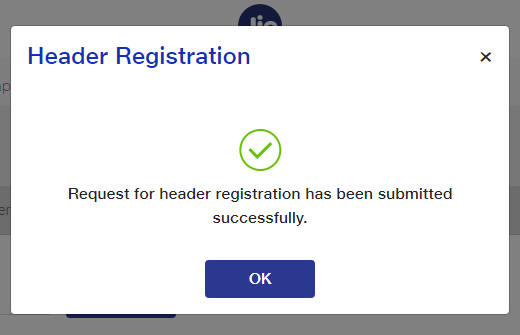
Note: If your Header name has been already taken by someone else, the following message will appear on your screen.
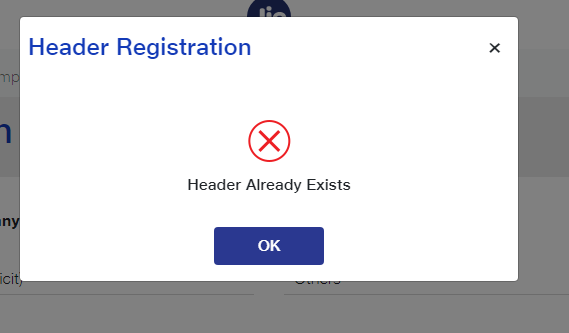
7. Once you have submitted the Header request, an email will be sent on your registered email ID stating that Header registration request is received and is being processed.
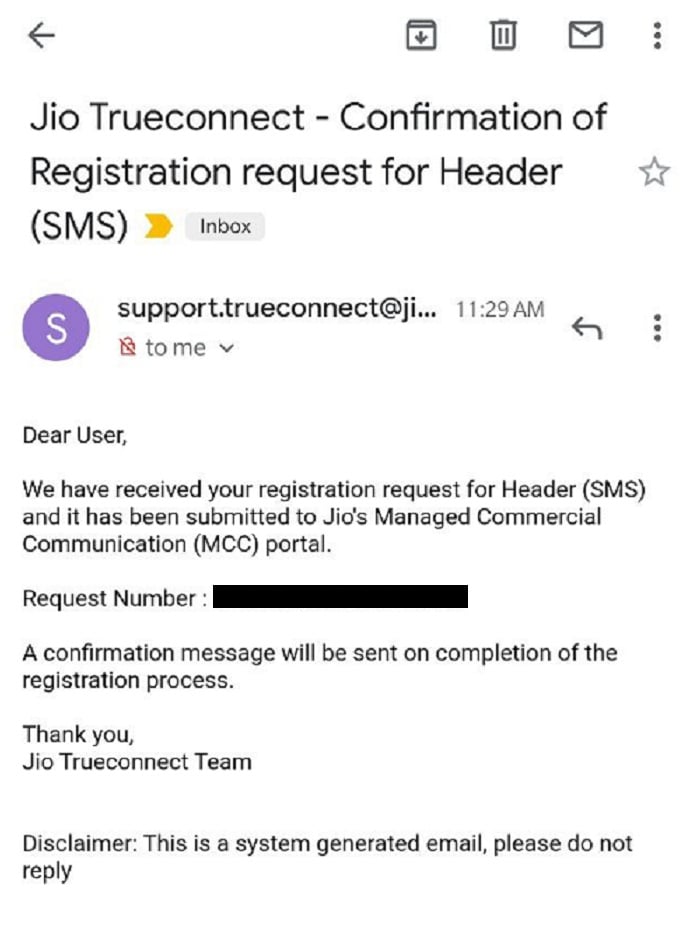
8. It can take 3-7 working days for headers approval from Jio DLT after submitting your request.
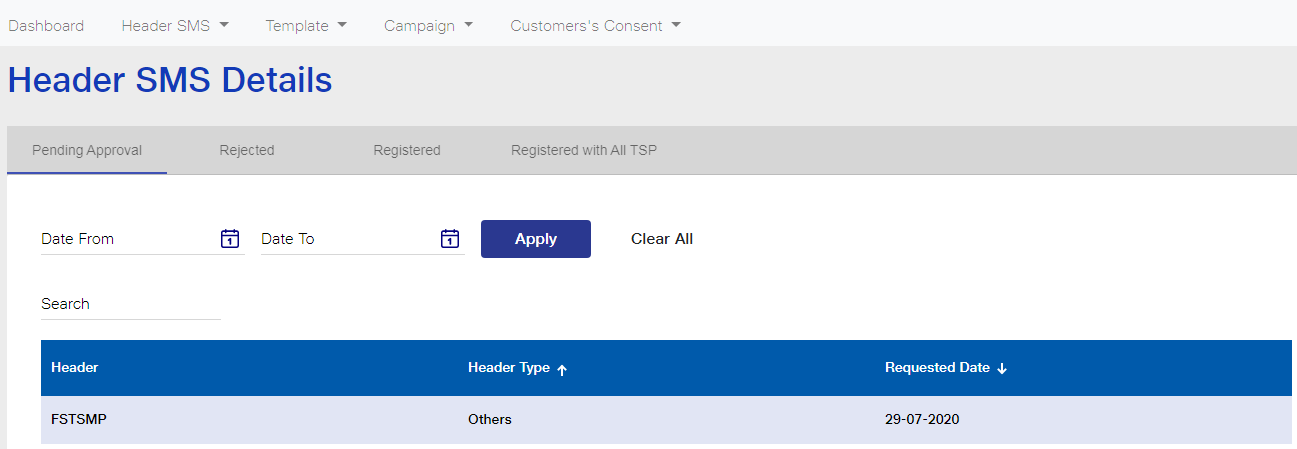
You can check the status of your Header Registration Request from the Header SMS Details option in the Header SMS tab. The status of Headers pending for approval, rejected and registered can be viewed from this tab.
As you can see in the image below, Header FSTSMP submitted for approval is in the Pending Approval tab. Here, the Header Name, Type and Registered Date will also be displayed. You can even search for a Header within a specific time frame. As shown in the image, a date selection field is visible. Enter the time period in the Date From and Date To fields and then click on Apply. The Headers based on the selected time frame will be displayed.
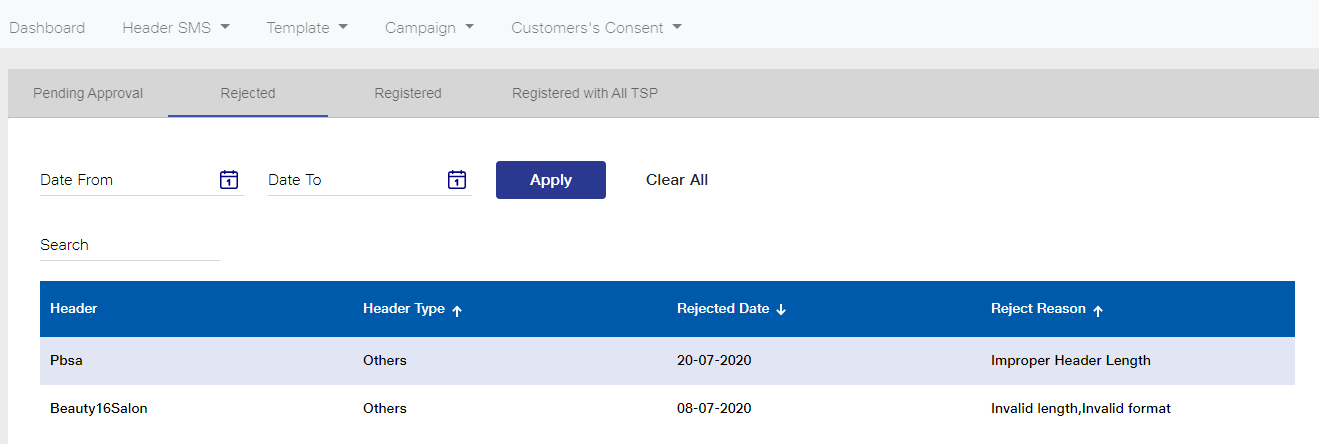
The Headers which have been rejected will be visible in the Rejected tab. As you click on that tab, the Headers rejected will be displayed as shown in the image. The Header Type, Rejected Date and the Reason for Rejection will also be available to view.
As you can see in the image below, Header Pbsa has been rejected with the reason of improper Header length. Next, Beauty16Salon has been rejected because of Invalid length and Invalid format.
Similarly, your registered Headers can be viewed from the Registered tab. These are linked to your PE ID and Header ID is generated.
3: Template ID
Template ID is the unique code assigned to every message you want to send. It is of 19 characters. Template ID denotes that the message template is reviewed and approved as per TRAI rules and can be sent to your customers. If you are sending 5 different messages, you will need 5 different template IDs.
Example of template ID: 1122334455667788990
How to get your template ID in the Jio DLT portal?
1. Login to the Jio DLT portal.
2. Select Content Template Registration from the Template tab.
3. In the dashboard, Template Type field, SMS will get displayed by default. In the next field ‘Type of Communication’ 4 routes will get displayed – Transactional, Promotional, Service Explicit, Service Inferred.
Transactional route is reserved only for banks, so if your registration is under banking sector then only you can use this route. Promotional route will sent messages to non DND numbers from 10am to 9 pm only and its Header can only be Numeric.
In Service Explicit route, messages will get sent only to Non DND numbers but in this route, you get the option of alphabetical Sender ID. In Service Inferred, you can send informative messages to all numbers, promotional SMS is not allowed.
Next, enter the template content. You can add variables (var) in the content template to send messages like OTP to every user. This option is given so that you can change the variable value and keep rest of the message same for every user.
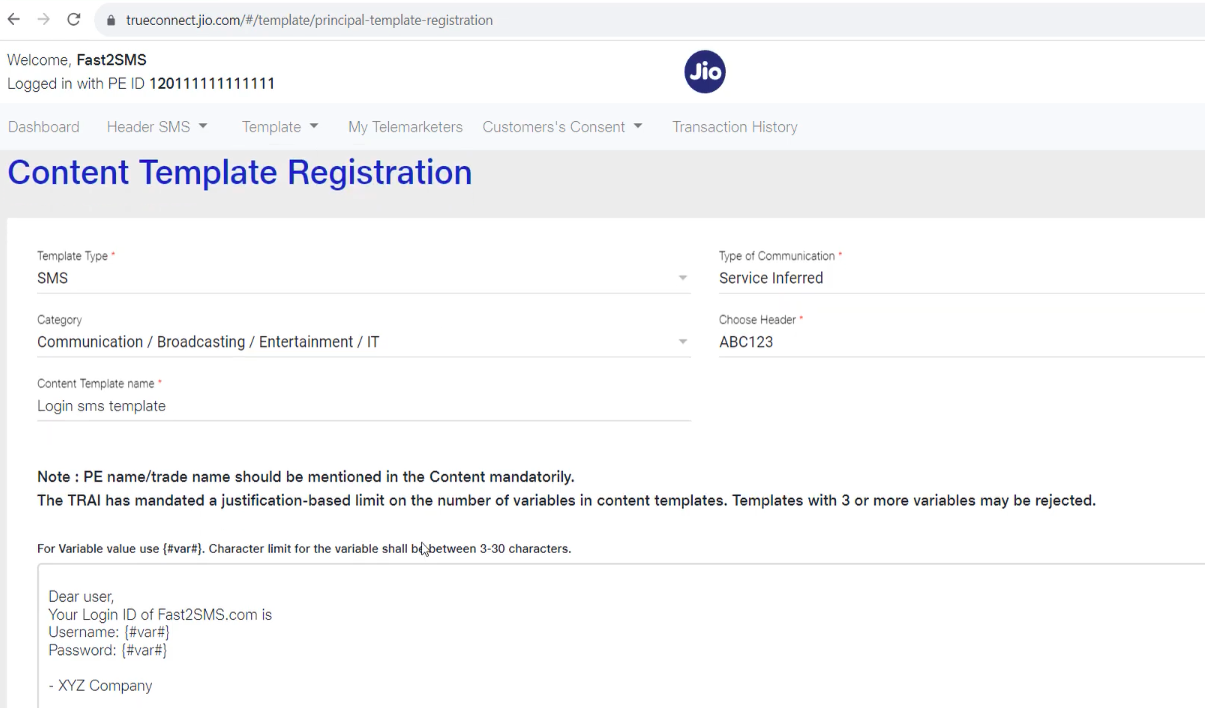
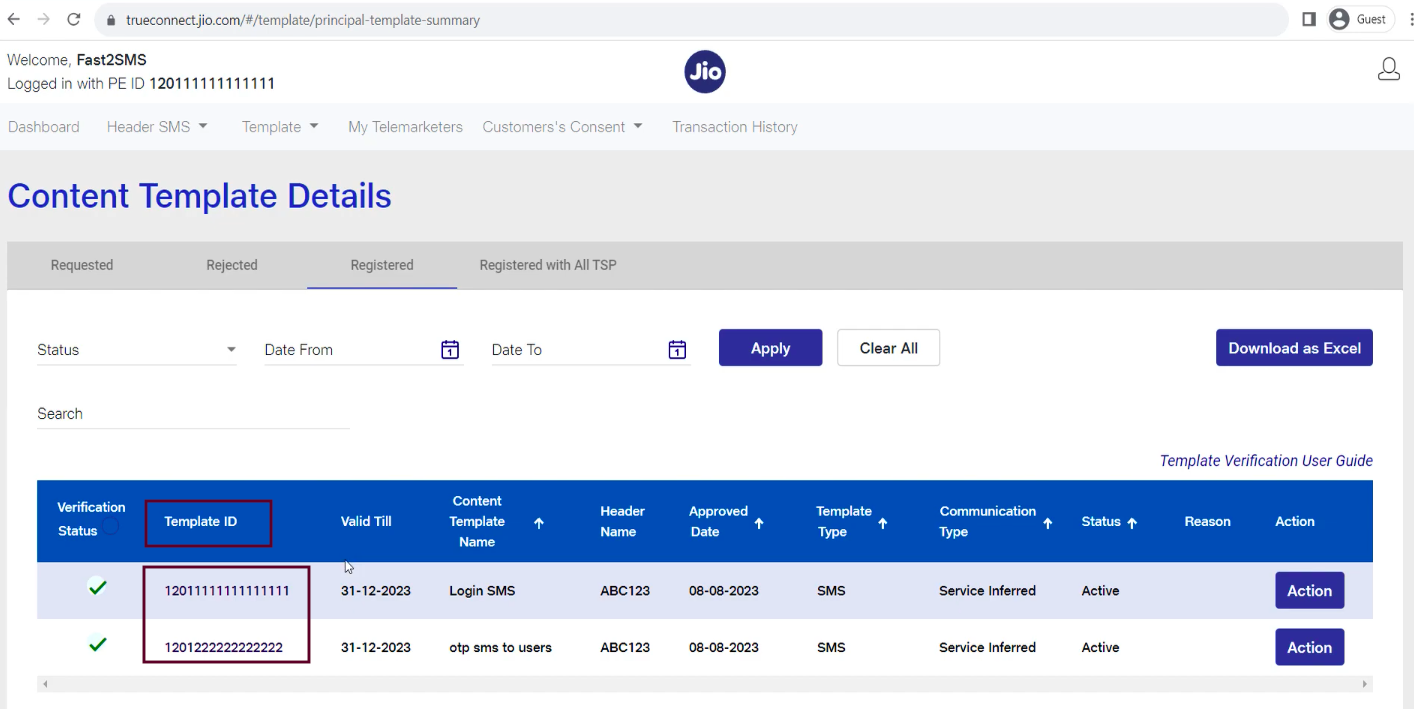
4. The template will be submitted for approval. You can check the status on the Template tab in the Content Template details section. Once the template gets approved, it will appear on the Registered tab.
As you can see in the image below, once your template gets approved, it will appear on the Registered tab as shown along with the Template ID (highlighted text). This template ID you can copy, and use it while sending SMS with the Bulk SMS Service Provider (Fast2SMS).
TRAI rules for Entity ID, Sender ID and Template ID
- Every SMS must include PE ID, Header ID and template ID.
- DLT system reviews whether PE ID is registered or not on the DLT portal.
- Headers are reviewed whether Headers are registered with the particular PE ID.
- DLT team reviews whether Template ID has been approved for the particular PE ID.
- Your actual message must match with the template.
- Once all review is successful, message gets delivered to the recipient.
- If any of these happen such as wrong PE ID, unregistered header, missing template ID, content does not match with template, etc. message does not get delivered and is blocked by DLT.
Common FAQs on DLT in Bulk SMS
Q: Where all the three registered DLT IDs are displayed?
A: PE ID is visible in the email received from DLT and also in the DLT dashboard at the top section. Header ID can be viewed in the Header section of the DLT portal. Template ID is visible in the approved template section.
Q: Will I require all three IDs to send SMS?
A: Yes, you will require all three IDs – Entity ID, Sender ID, Template ID
Q: Can I use some other business’s PE ID?
A: No, it is mandatory to register your business on the DLT portal. You cannot use other business’s PE ID, you require your own approved by DLT.
Q: How may template IDs I need?
A: You need one template ID for every message format.
Q: What will happen if I send messages without DLT ids?
A: Messages will not get sent without DLT IDs, it will be blocked.
Q: Does Fast2SMS provide DLT support?
A: Yes, we provide free DLT support. You can call us, email us or chat with us for any query or support.
Register with Fast2SMS and get free DLT support for all your queries. Learn about Entity ID, Sender ID and Template ID and begin your Bulk messaging journey with us. We are a leading Bulk SMS Provider with the fastest and most affordable services across India. Call us on 6262778822 for all your questions, we provide round the clock assistance. Start sending SMS without any minimum purchase limit. Sign up now and get Rs. 50 free credit instantly!