
In the Fast2SMS DLT SMS API, the message parameter takes the Message ID, a short number Fast2SMS gives each template in DLT Manager. It does not take the 19-digit DLT Template ID from your DLT portal. This page shows the difference between Message ID vs DLT Template ID, where to find each one, and which ID goes in which API parameter, so you do not get the “Invalid Message ID” error.
The short answer
| Message ID | DLT Template ID | |
|---|---|---|
| Who gives it | Fast2SMS, when you add the template in DLT Manager | The DLT portal (Jio, Airtel, Vi, BSNL and others), when the template is approved |
| What it looks like | A short number, for example 10001 | A 19-digit number, for example 1107xxxxxxxxxxxxxxx |
| Where you see it | DLT Manager > Content Template card, row “Message ID” | Your DLT portal, and on the same card as “Template ID” (half masked) |
DLT SMS API (route=dlt) |
Send it in message |
Do not send it |
DLT Manual API (route=dlt_manual) |
Not used | Send it in template_id, with the full text in message |
Why Fast2SMS uses a Message ID
When you add a template in DLT Manager, Fast2SMS saves its approved text, its variables, its type and the sender IDs it is linked to. The Message ID points to that saved record. On the DLT SMS route you only send the Message ID and the variable values. Fast2SMS fills the variables into the saved text and adds the DLT IDs for you, so the text always matches what was approved.
Find the Message ID in the panel
-
Open Content Template
In the SMS app, open DLT Manager and click Content Template. You see one card per template with a phone preview, a status badge and the IDs below it.
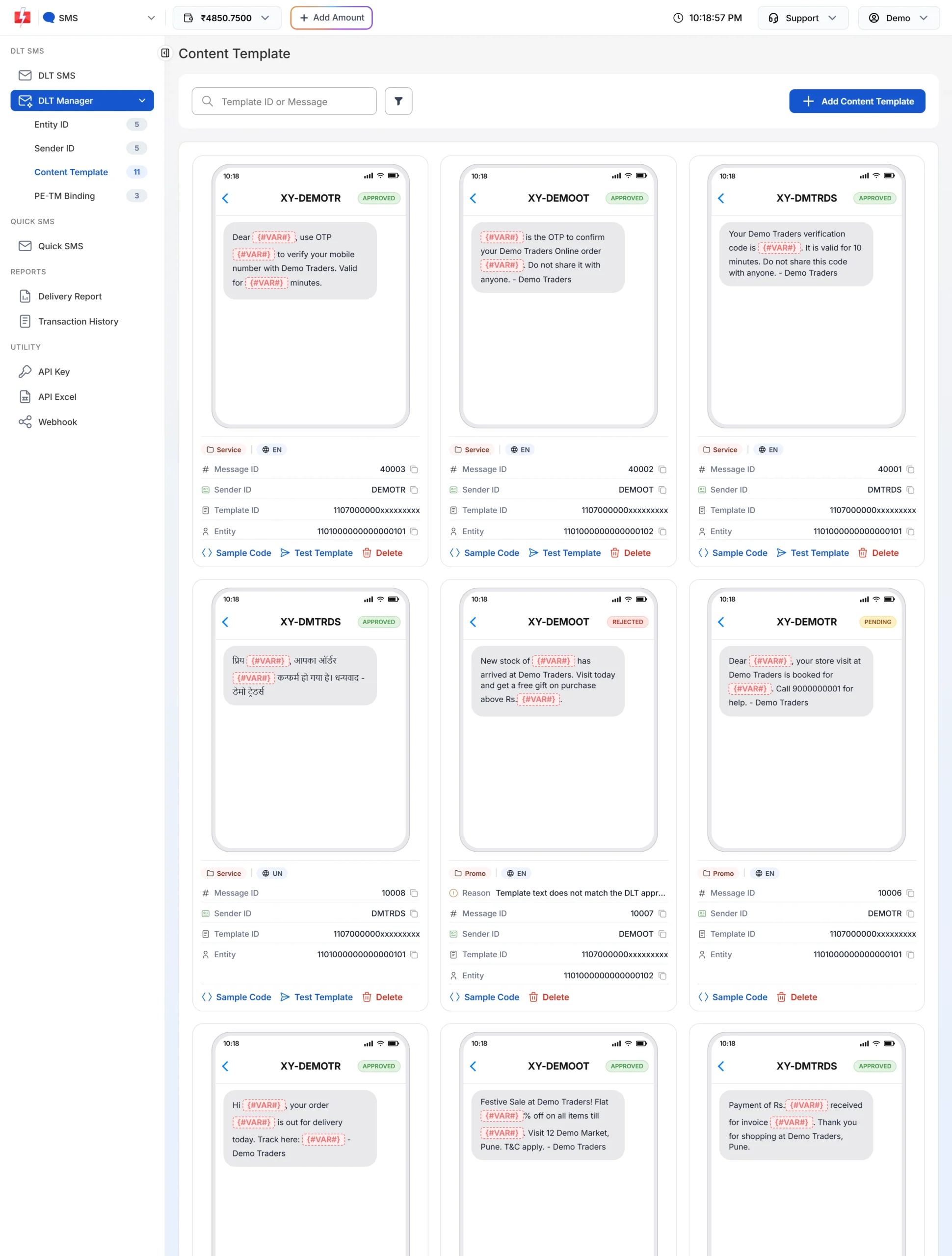
Message ID is the first row under each card. -
Check the status and the sender
Only templates with the APPROVED badge can be sent. Look at the Sender ID row too. The API only accepts the Message ID together with a sender ID the template is linked to.
-
Copy the Message ID
Click the copy icon next to Message ID. You can also click Sample Code on the card. The code it shows already has this Message ID in
messageand the linked sender insender_id.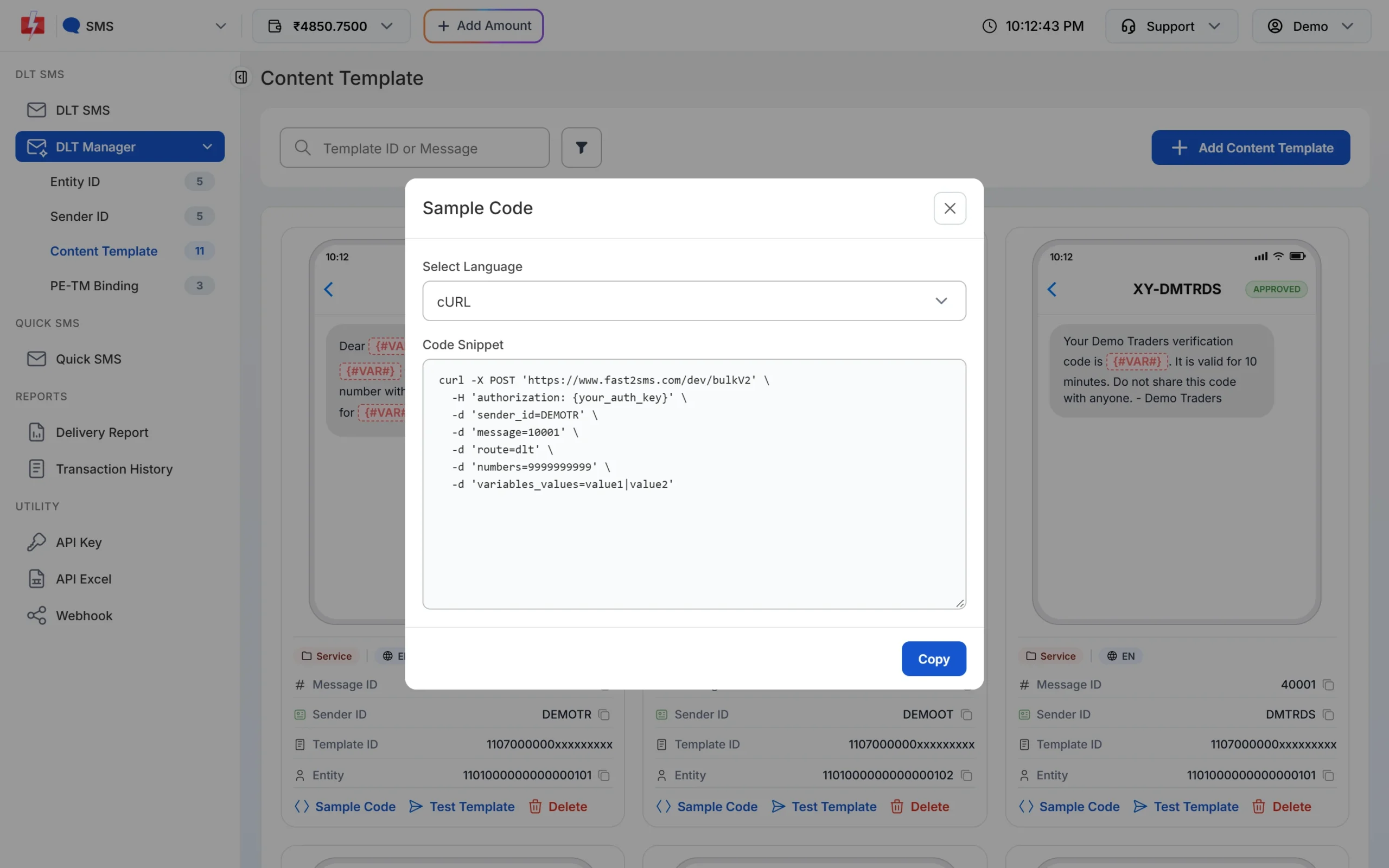
In the sample, message=10001 is the Message ID.
Get all Message IDs in one file
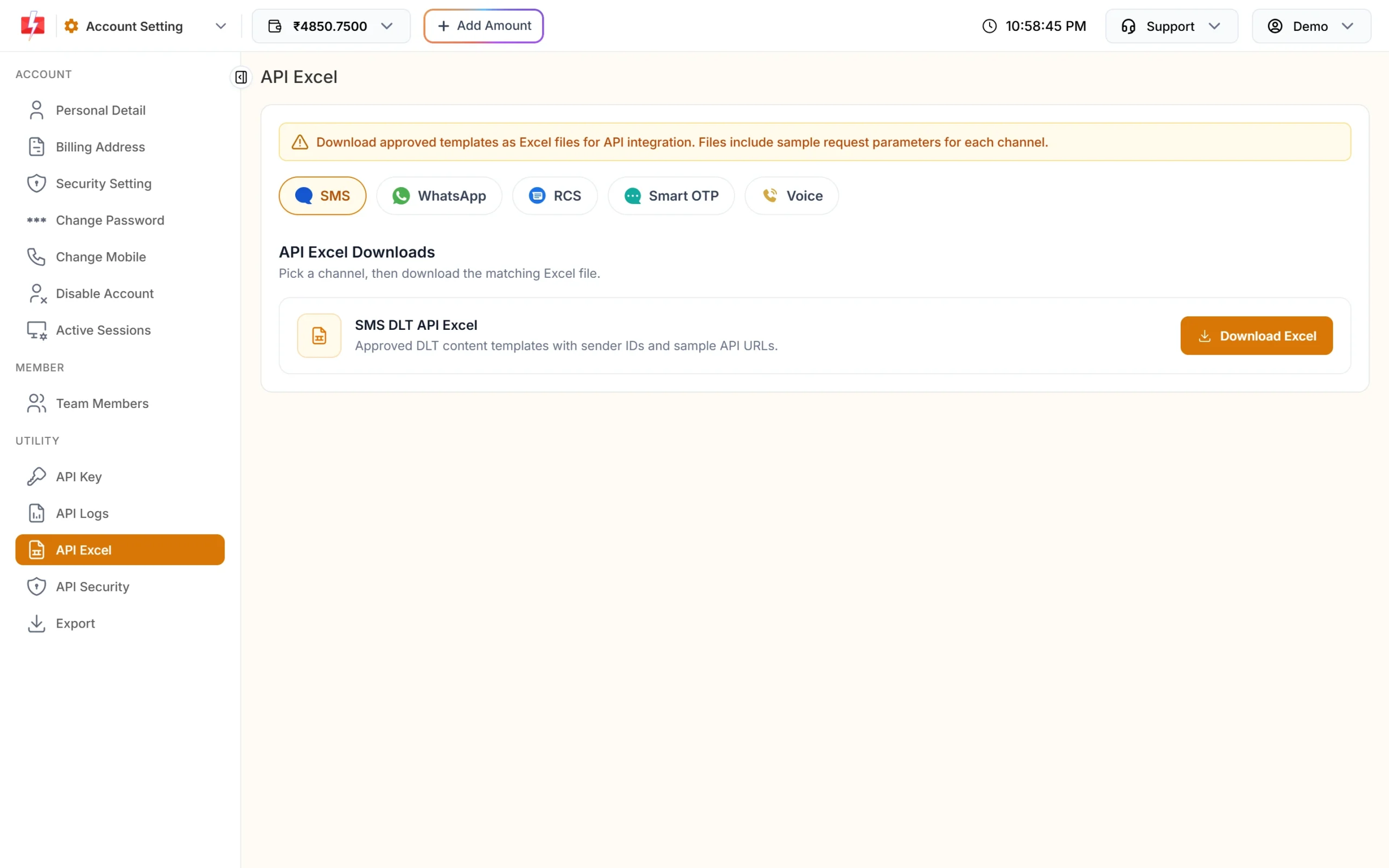
Open API Excel under UTILITY and choose SMS. SMS DLT API Excel downloads your approved DLT templates with their sender IDs and sample API URLs. This card shows only when you have at least one approved template.
Get Message IDs by API
If your software needs the list, call the DLT Manager API. It returns your senders, each with its templates and their message_id.
curl "https://www.fast2sms.com/dev/dlt_manager?type=template" \
  -H "authorization: YOUR_API_KEY"
The reply looks like this (shortened):
{
  "success": true,
  "data": [{
    "sender_id": "DEMOTR",
    "entity_id": "1101xxxxxxxxxxxxxxx",
    "entity_name": "Demo Traders",
    "entity_status": "Approved",
    "templates": [{
      "message_id": 10001,
      "message": "Dear {#VAR#}, your order {#VAR#} of Rs.{#VAR#} is confirmed and will be delivered by {#VAR#}. - Demo Traders",
      "status": "Approved",
      "var_count": 4
    }]
  }]
}
Use message_id as message, the parent sender_id as sender_id, and send var_count values in variables_values. Template status can be Approved, Not approved, Rejected or Unknown. Only send Approved ones.
Python: build a lookup of Message IDs
import requests

r = requests.get(
    "https://www.fast2sms.com/dev/dlt_manager",
    headers={"authorization": "YOUR_API_KEY"},
    params={"type": "template"},
    timeout=20,
)
for sender in r.json().get("data", []):
    for t in sender.get("templates", []):
        if t["status"] == "Approved":
            print(sender["sender_id"], t["message_id"], t["var_count"], t["message"][:60])
PHP
<?php
$ch = curl_init('https://www.fast2sms.com/dev/dlt_manager?type=template');
curl_setopt_array($ch, [
    CURLOPT_RETURNTRANSFER => true,
    CURLOPT_TIMEOUT        => 20,
    CURLOPT_HTTPHEADER     => ['authorization: YOUR_API_KEY'],
]);
$res = json_decode(curl_exec($ch), true);
curl_close($ch);

foreach ($res['data'] ?? [] as $sender) {
    foreach ($sender['templates'] ?? [] as $t) {
        if ($t['status'] === 'Approved') {
            echo $sender['sender_id'] . ' => ' . $t['message_id'] . PHP_EOL;
        }
    }
}
Node.js
const res = await fetch("https://www.fast2sms.com/dev/dlt_manager?type=template", {
  headers: { authorization: "YOUR_API_KEY" },
});
const { data = [] } = await res.json();
for (const sender of data) {
  for (const t of sender.templates || []) {
    if (t.status === "Approved") console.log(sender.sender_id, t.message_id, t.var_count);
  }
}Which ID goes where
DLT SMS route: send the Message ID
{"route":"dlt","sender_id":"DEMOTR","message":"10001","variables_values":"Rahul|DT10458|1240|21 Nov","numbers":"9999999999"}DLT Manual route: send the full text and the DLT IDs
{"route":"dlt_manual","sender_id":"DEMOTR","message":"Dear Rahul, your order DT10458 of Rs.1240 is confirmed and will be delivered by 21 Nov. - Demo Traders","entity_id":"YOUR_ENTITY_ID","template_id":"YOUR_DLT_TEMPLATE_ID","numbers":"9999999999"}On the manual route Fast2SMS does not check your text against the template. If the text, entity or template is wrong, the operator rejects the SMS and it is not refunded. For most apps the DLT SMS route with a Message ID is safer.
Common problems and fixes
| Problem | Cause | Fix |
|---|---|---|
| Error 424 “Invalid Message ID (or Template, Entity ID)” | You sent the 19-digit Template ID in message, or a Message ID from another account |
Copy the Message ID from the card in your own DLT Manager. |
| Error 424 with the right Message ID | The template is not linked to the sender_id you sent |
Use the sender shown on the card, or add the template again with this sender ticked. |
| Error 425 “Invalid Template” | The template is Pending or Rejected | Wait for approval, or fix and add it again. |
| Error 406 “Invalid Sender ID” | The sender is not approved, or the case does not match | Use the sender exactly as shown in DLT Manager. |
Frequently asked questions
Does the Message ID change if I delete and add the template again?
Yes. A newly added template is a new record with a new Message ID. Update the ID in your code after you re-add a template.
Can two senders use the same Message ID?
Yes, if the template is linked to both senders in DLT Manager. You can send that Message ID with either sender.
Why is the Template ID masked on the card?
The card shows only part of the 19-digit DLT Template ID. You do not need it for the DLT SMS API. You can see the full ID on your DLT portal.
Is the Message ID the same as the request ID?
No. The Message ID identifies a template. The request ID (starting with S) comes back after each send and identifies that one send.
Does Smart OTP use the Message ID?
No. Smart OTP uses its own OTP ID, which you get when you link a DLT template in Smart OTP.
Why is my new template not in the API list?
Check the status field in the reply and the badge on the card. Only Approved templates can be sent. A template that is still waiting for approval cannot be used yet.