
A WhatsApp appointment booking bot lets customers pick a service, a day and a time slot by tapping buttons, then hands the chat to your front desk to confirm. You can build one without coding in the Fast2SMS Flow Builder on your official WhatsApp number. This guide walks through a simple booking bot for a clinic, salon, coaching centre or service centre, plus reminders after the booking.
Before you start
- A WhatsApp number connected to Fast2SMS.
- At least one team member with access to that number, who will confirm bookings in Live Chat.
- Your list of services (up to 10 per list) and your usual slots, such as Morning, Afternoon and Evening.
- Optional: an online booking page or a developer who can connect your booking software through an API.
How the booking bot works
| Step in the chat | Flow Builder step | Limit |
|---|---|---|
| Customer types “book” or “appointment” | Flow Start keywords | Keywords up to 32 characters, whole-message match |
| Bot shows the services | List | Up to 10 options, titles up to 24 characters |
| Customer picks the day and time | Button | Up to 3 buttons, 20 characters each |
| Bot confirms the request | Message | Body up to 1,024 characters |
| Front desk takes over | Assign Conversation | Pick the agent |
| Or: book online | CTA Button with Link | Opens your booking page |
How to build a WhatsApp appointment booking bot
-
Create the workflow
Go to Chat Automation > Flow Builder (Chatbot) and click Create Workflow. Enter a name such as “Appointment booking”, keep Channel as WHATSAPP, choose your number in From Id (WABA) and click Save Flow. You can have up to 20 workflows per number.
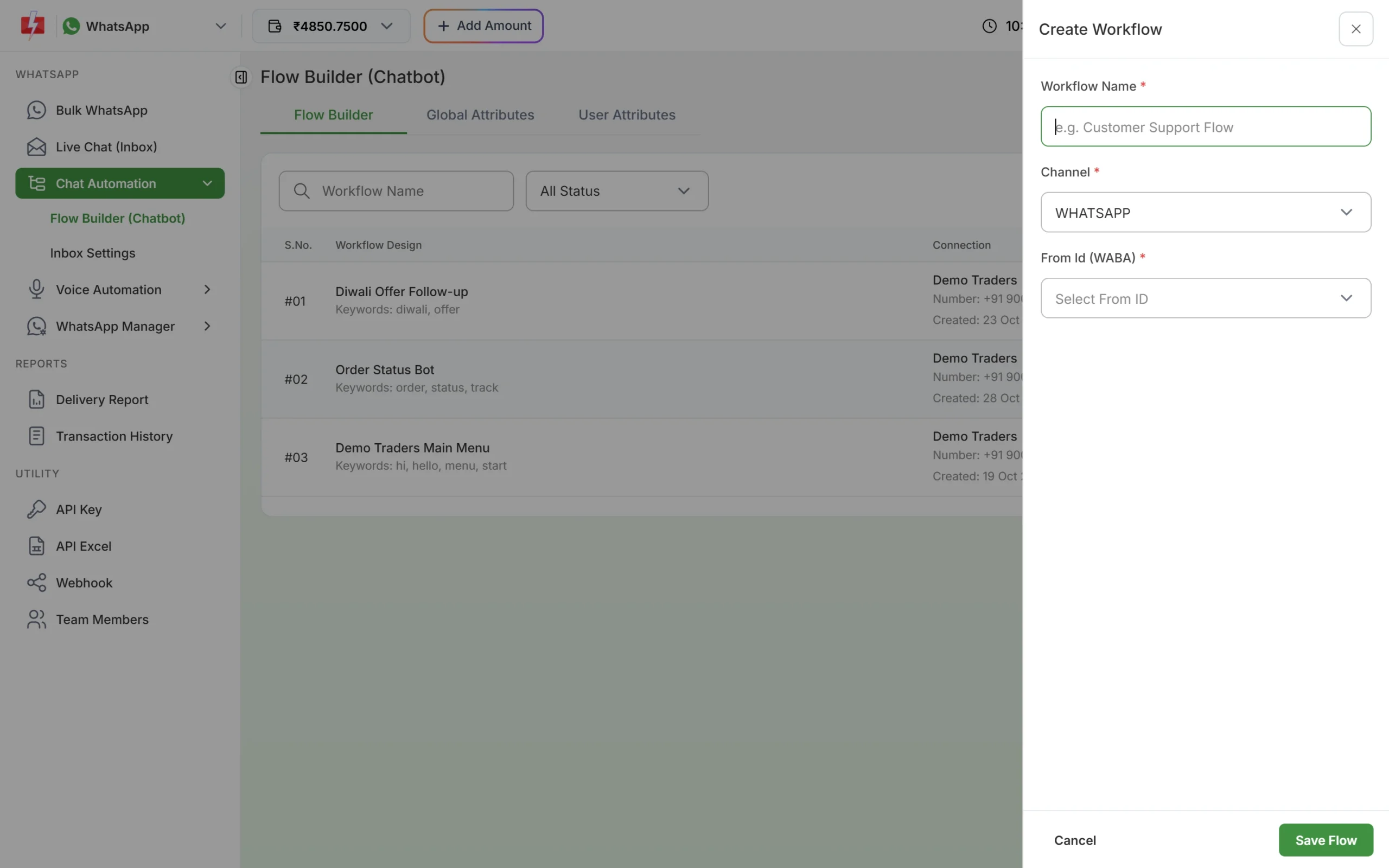
Each workflow belongs to one WhatsApp number. -
Set the trigger words
Open the workflow. In the Flow Start box, type each keyword and press Enter: book, booking, appointment, slot. Matching ignores capital letters but the customer’s whole message must equal the keyword. If you want to catch longer messages, add a regex such as
book|appointment. -
Add a list of services
Drag a List step from the right panel and connect it to Flow Start. Write the question, “Which service would you like to book?”, set the button name (“View services”) and add your options, for example General check-up, Dental cleaning, Eye test. Each option gets its own output on the canvas.
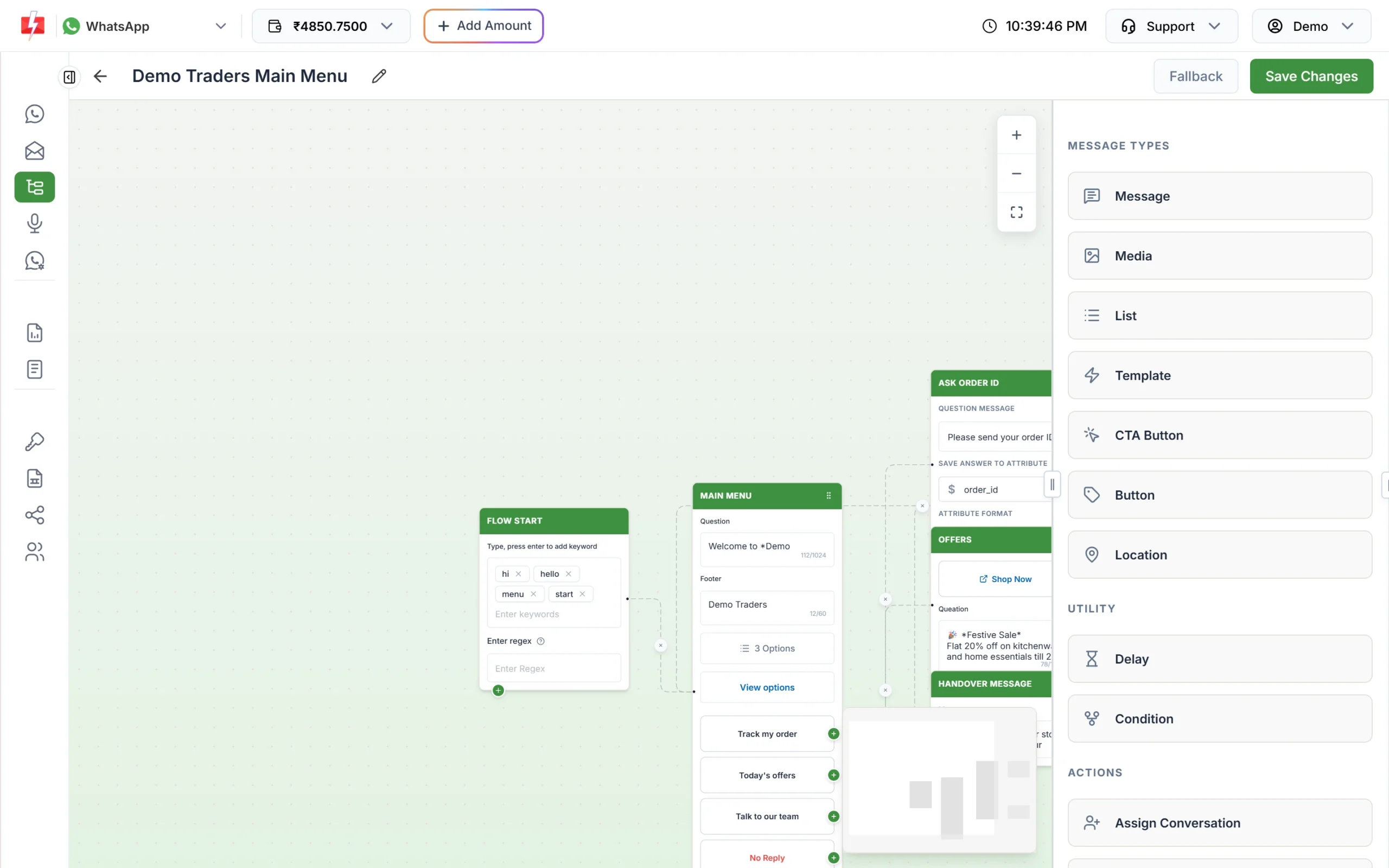
Connect Flow Start to a List step with your services. -
Ask for the day and time with buttons
Connect each service to a Button step: “When would you like to come?” with Today, Tomorrow, Later this week. Connect each of those to a second Button step: Morning, Afternoon, Evening. Buttons keep the answers clean, so your staff do not have to read free text.
-
Confirm and hand over to your team
After the time buttons, add a Message step: “Thank you. We have noted your request. Our front desk will confirm your exact time here shortly.” Then add an Assign Conversation step and choose the agent who handles bookings. The chat, with every tap the customer made, appears in that agent’s Live Chat. If you prefer self-booking, use a CTA Button step with a Link to your online calendar instead.
-
Set the fallback, save and switch it on
Click Fallback at the top. Set how long the bot waits for a reply, the message to send, for example “Type *book* to start again”, and an action such as Assign to Agent. Click Save Changes. New workflows are active; the status toggle in the list switches a flow on or off. Test it by sending “book” from your own phone.
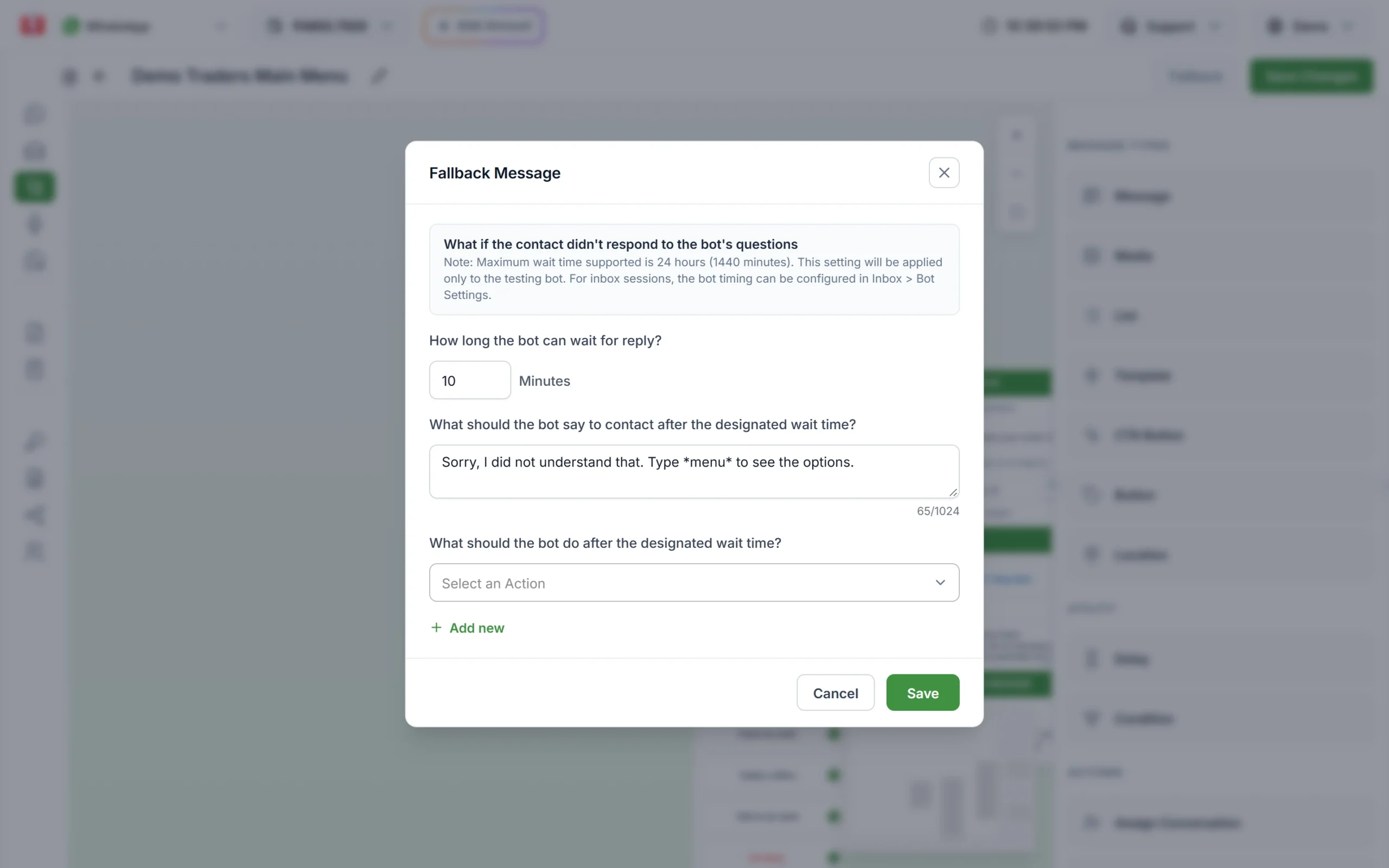
The fallback decides what happens if the customer stops replying.
Optional upgrades
- After-hours message: a Condition step can check the time, so a request at night gets “We will confirm in the morning”.
- Your booking software: an API Request step can send the request to your own system (GET or POST to a public https address). This needs a developer.
- Location: add a Location step so the customer gets your map pin with the confirmation.
Send reminders after the booking
A bot answers when the customer writes. To remind them before the visit, create a utility template such as “Hi {{1}}, this is a reminder of your appointment on {{2}} at {{3}}” and send it through Bulk WhatsApp (you can schedule it) or the API. Reminders tied to a booking fit Meta’s utility category.
What it costs
Flow Builder has no fee. At the time of writing, replies inside 24 hours of the customer’s message are ₹0.13 each (session rate), and a utility reminder template is ₹0.25. Messages from customers are free. See the WhatsApp pricing page.
Sending in bulk? For high WhatsApp volumes our team offers discounted rates. Talk to our team or see WhatsApp pricing.
Common problems and fixes
- The bot does not start. Check the workflow’s status toggle, and that the customer’s whole message matches a keyword. “I want to book” does not match the keyword “book”; add a regex for that.
- Another automatic reply answers instead. Only one automation replies to a message, for example the out-of-office message after hours. Check the order in Inbox Settings > Rule Sequence Settings.
- “Number disconnected” in the list. The number was removed or reconnected. Use Change number in the workflow menu.
Frequently asked questions
Can the bot show real free slots from my calendar?
Not by itself. With an API Request step a developer can fetch slots from your booking software. Without it, use fixed slots and let your team confirm.
Do I need coding to build the booking bot?
No. Lists, buttons, messages and assignment are drag-and-drop. Only the API Request step needs a developer.
Can a customer cancel or change the booking on WhatsApp?
Yes. Add a “Change booking” option to your list that assigns the chat to your front desk.
How many options can the service list have?
Up to 10 options across all sections of one list.
Does the bot work 24 hours?
Yes. It replies any time a customer sends a keyword, as long as the workflow is active.