
If incoming WhatsApp messages are not showing in Fast2SMS Live Chat, the most common reason is that incoming messages are switched off for that number in WhatsApp Manager. Other reasons are that Live Chat is open on a different business number, a filter is hiding the chat, or you are logged in as a Chat Agent who only sees chats assigned to you. Work through the checks below.
How to fix messages not showing in Live Chat
-
Check which number Live Chat is showing
Open Live Chat (Inbox). At the top left you see the business name and number. Click the arrow next to the number and pick the number your customer wrote to. Each number has its own chat list. Only numbers with the status Connected are listed here.
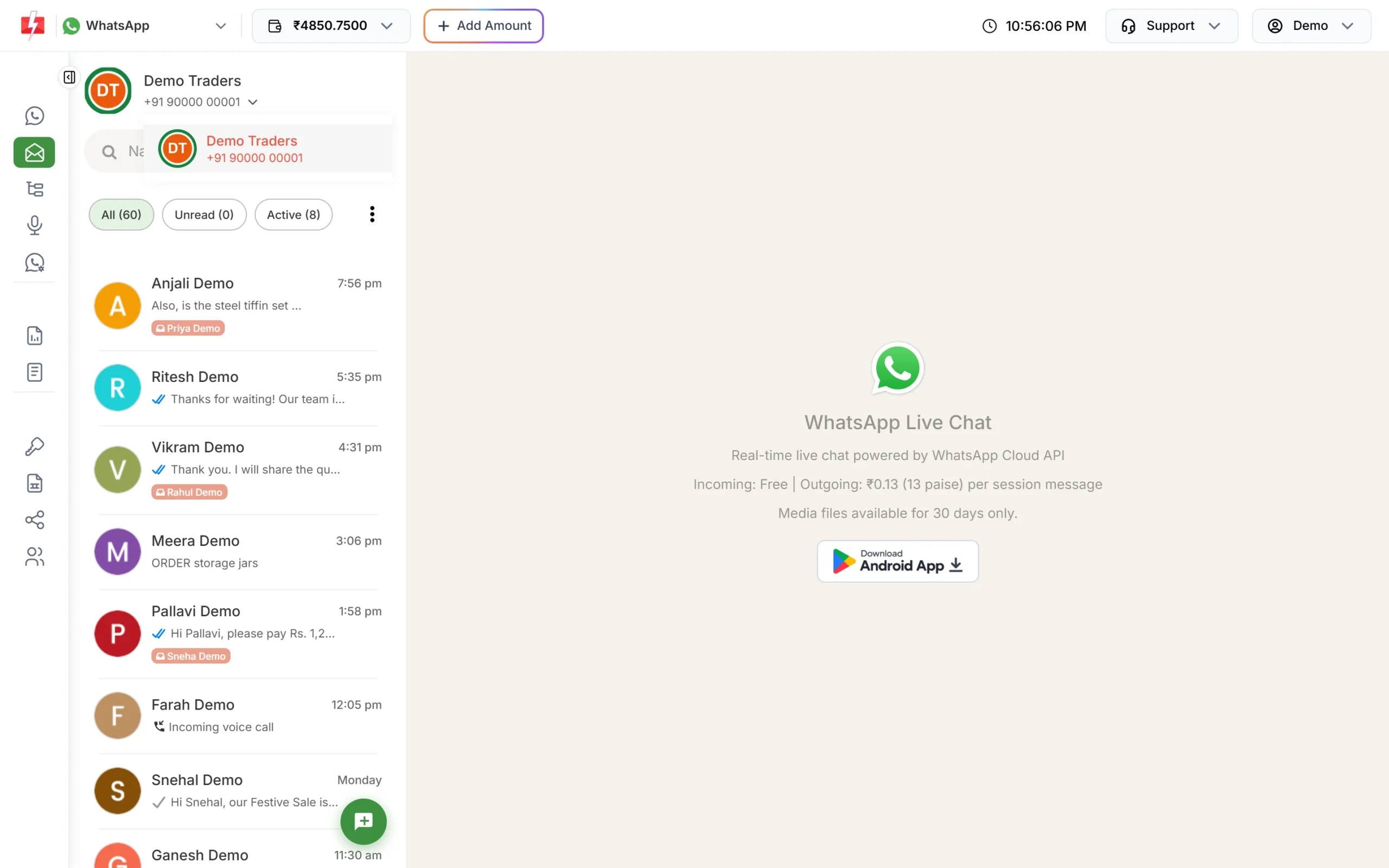
Switch to the number the customer messaged. -
Check that incoming messages are enabled
Go to WhatsApp Manager > Numbers and click the three-dot menu of the number. If the menu shows Enable Incoming Messages, incoming messages are switched off for this number. Click it to turn them back on. If it shows Disable Incoming Messages, they are already on.
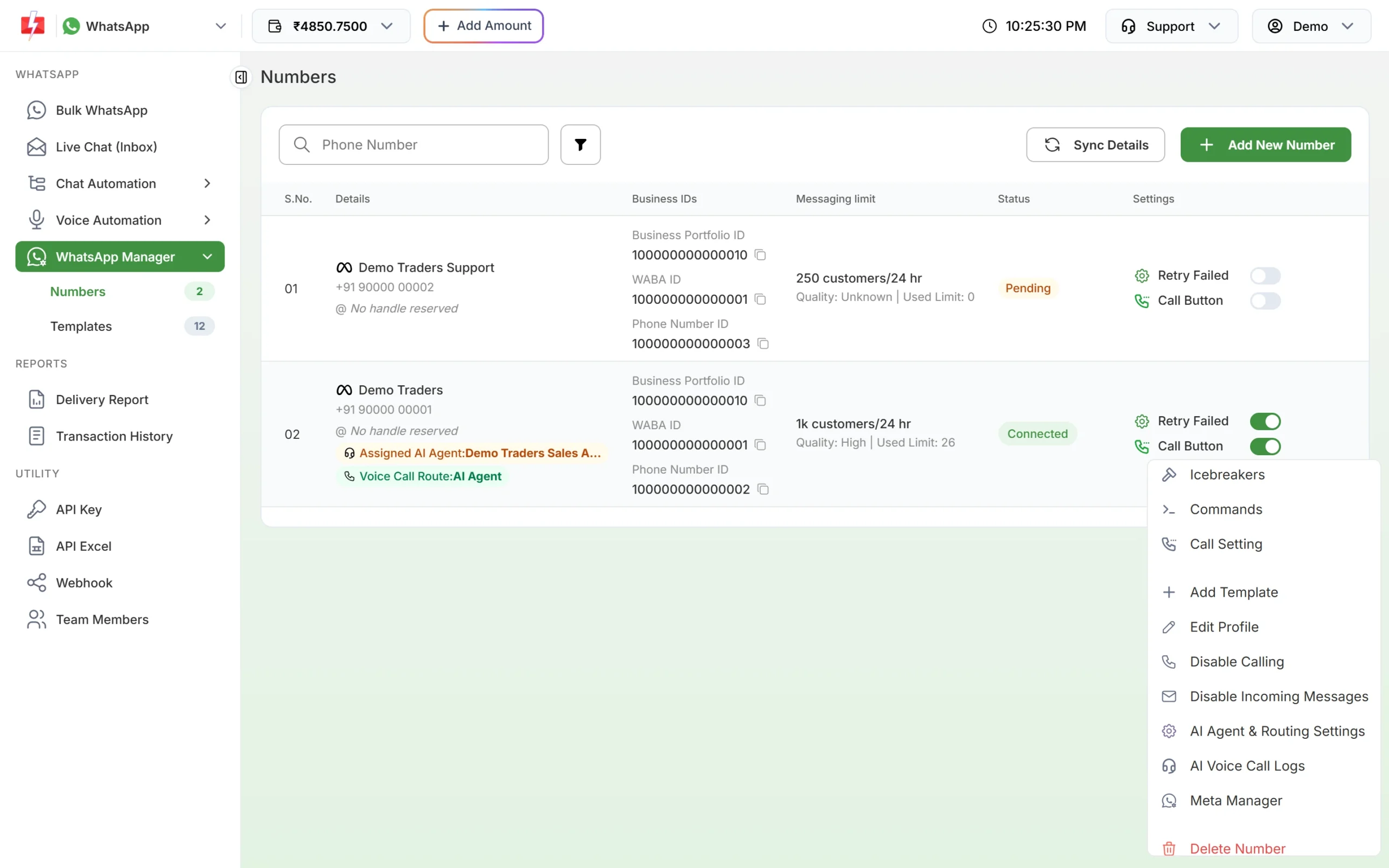
The number menu shows whether incoming messages are on. When someone switches incoming messages off, Fast2SMS asks how:
- Disable Incoming Messages: messages are not shown in Live Chat, but your webhooks still receive them.
- Disable Incoming Messages & Webhooks: messages are not shown in Live Chat and are not sent to your webhooks either.
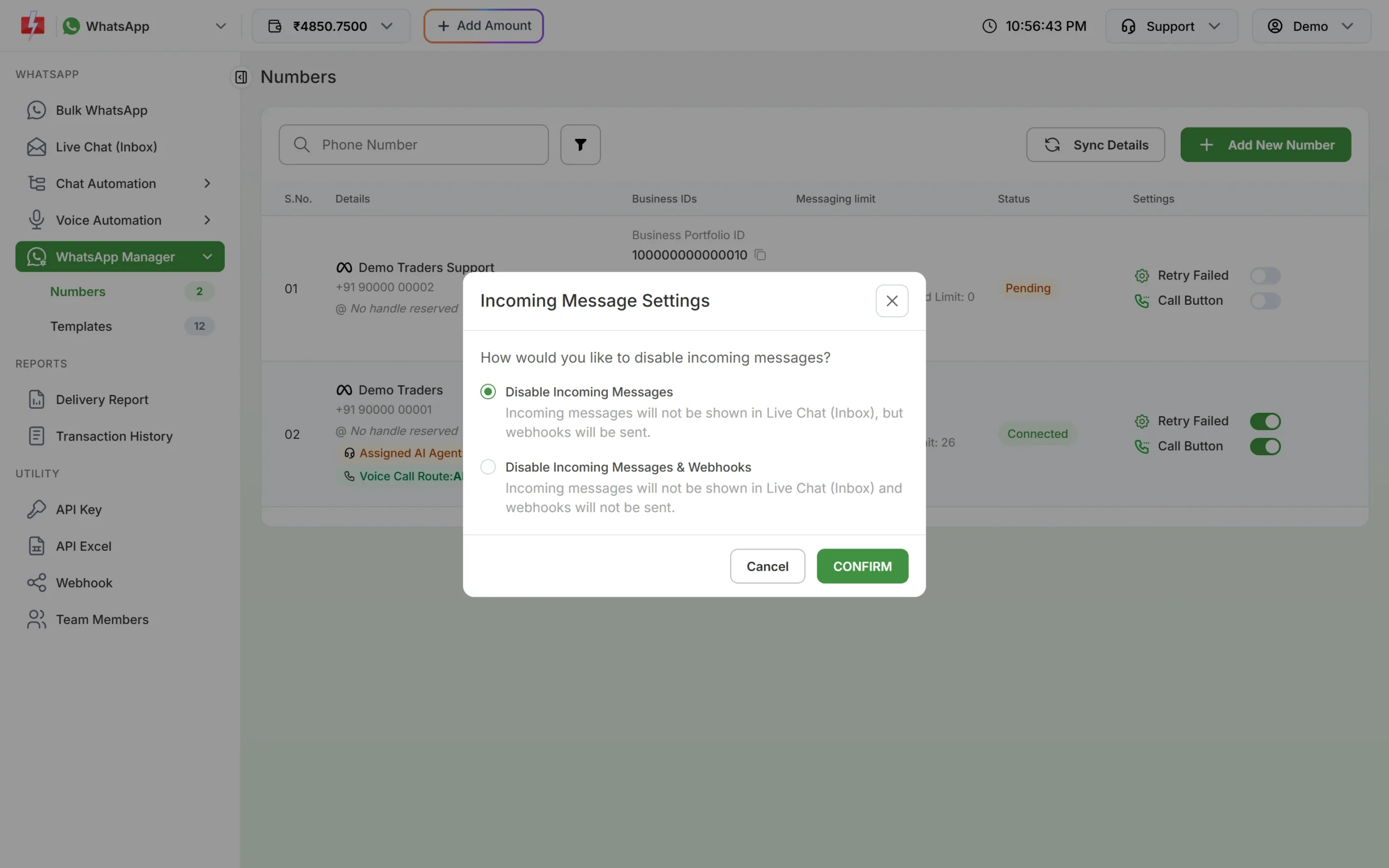
The first option is used by businesses that handle chats in their own software. -
Clear filters in the chat list
The pills above the list (All, Unread, Active) and the funnel icon (Filter Conversations) can hide chats. Click All and reset the filters. To find one customer, type at least 3 characters of the name or the number in the search box.
-
Check your login type
Team members who are added as a Chat Agent see only chats assigned to them. An Admin agent sees all chats. Agents also need WhatsApp access and the number assigned to them in Team Members. Ask the account owner to check this.
-
Reload the page
Live Chat updates in real time. If new messages stop appearing, reload the page. If that does not help, try another browser or a private window without extensions, as some extensions and office networks block live updates.
Frequently asked questions
Why can I not see photos or files from an old chat?
Media files in Live Chat are kept for 30 days. After that the file is no longer available, though the chat itself stays.
Messages show in Live Chat but not on my webhook. Why?
Open Webhook and check that your WhatsApp webhook is Active and its event includes “Incoming Messages” (or “Default All Events”). The Webhook Logs page shows each attempt for 7 days with the HTTP code your server returned.
I use the WhatsApp Business app on the same number. Will my phone replies show in Live Chat?
Yes. Messages you send from the WhatsApp Business app appear in Live Chat with the tag “Business App”. You can hide them with the option Disable Outgoing Business App Messages in the incoming message settings of that number.