
A WhatsApp link (wa.me link) opens a chat with your business number in one tap. You can put it on your website as a chat button, in your Instagram bio, in emails, or print it as a QR code on bills and shop counters. This guide shows how to make a WhatsApp link with a ready-typed message, turn it into a QR code and a website button, and connect it to your Fast2SMS chatbot and inbox.
Before you start
- Your WhatsApp business number connected to Fast2SMS, so the chats land in Live Chat and your automations can reply.
- The number in full international format. For India that is 91 followed by the 10-digit number, for example 919999999999.
How to make a WhatsApp link, QR code and chat button
-
Find your business number
Go to WhatsApp Manager > Numbers. Your connected numbers are listed under Details. Use the one with the status Connected, and make sure it is the number where you want the chats to arrive.
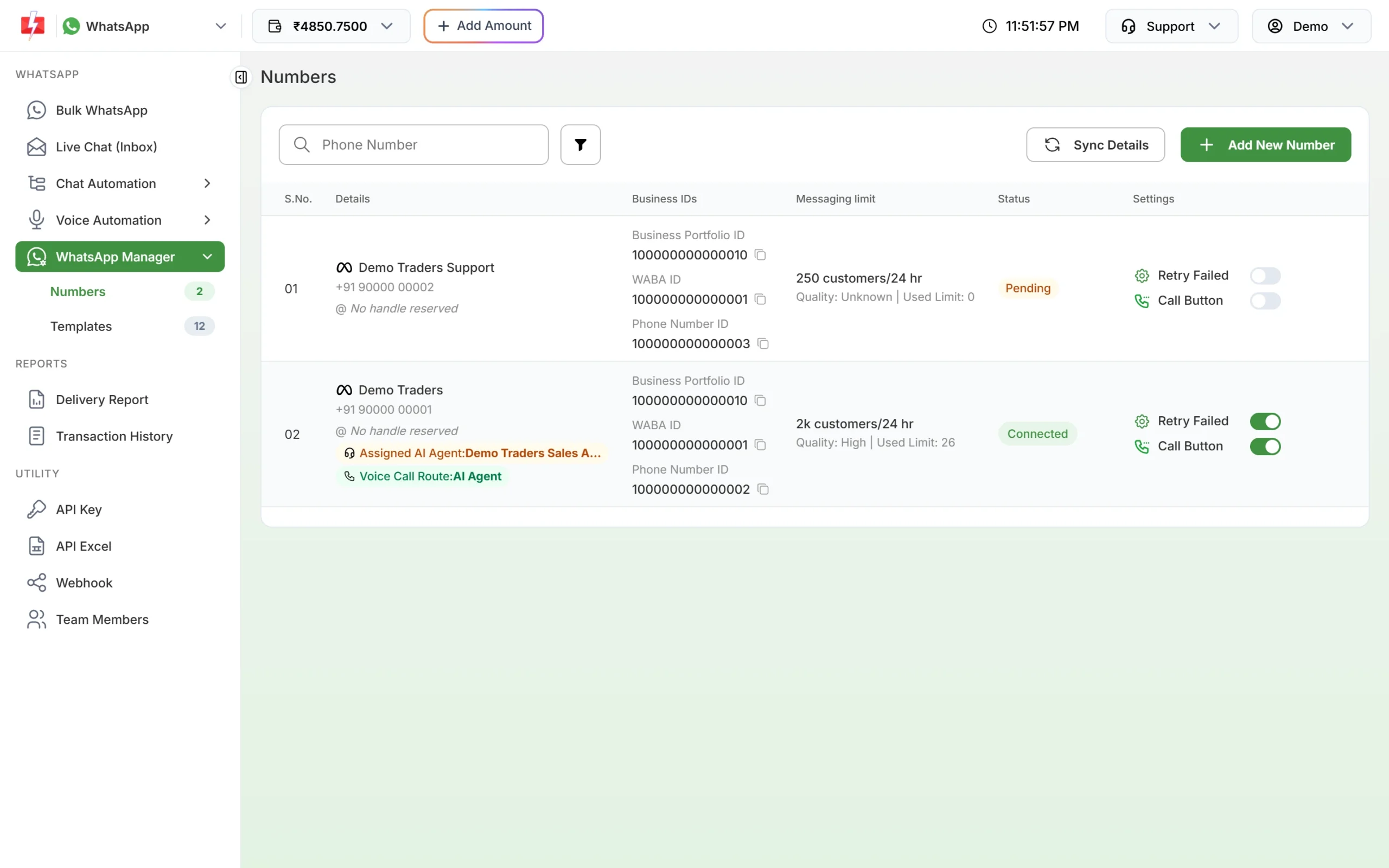
Use a number with the status Connected. -
Write the link
The format is
https://wa.me/followed by the full number, without +, spaces, brackets, dashes or a leading zero.Right Wrong https://wa.me/919999999999https://wa.me/+91-99999 99999https://wa.me/919999999999https://wa.me/09999999999Open the link on your own phone to check that it opens a chat with the right business name.
-
Add a ready-typed message (optional)
Add
?text=and your message, with spaces written as%20. The message appears in the customer’s typing box; they only tap send.https://wa.me/919999999999?text=Hi%20I%20want%20to%20know%20about%20your%20offersUse a different message for each place you share the link, such as “Hi from website” or “Hi from Instagram”. The first message in Live Chat then tells you where the customer came from.
-
Connect the link to your chatbot or auto reply
Make the pre-filled text match a trigger, and the customer gets an answer the moment they send it:
- Chatbot: in Flow Builder (Chatbot), add the same word as a keyword on the Flow Start node, for example
?text=menuwith the keyword “menu”. Flow keywords match the whole message and can be up to 32 characters. - Auto reply: in Inbox Settings, create an auto reply with the text as the keyword and Match Type set to Contains or Exact Match.
- Welcome message: if you add nothing else, the welcome message in Auto Reply Setting greets first-time customers.
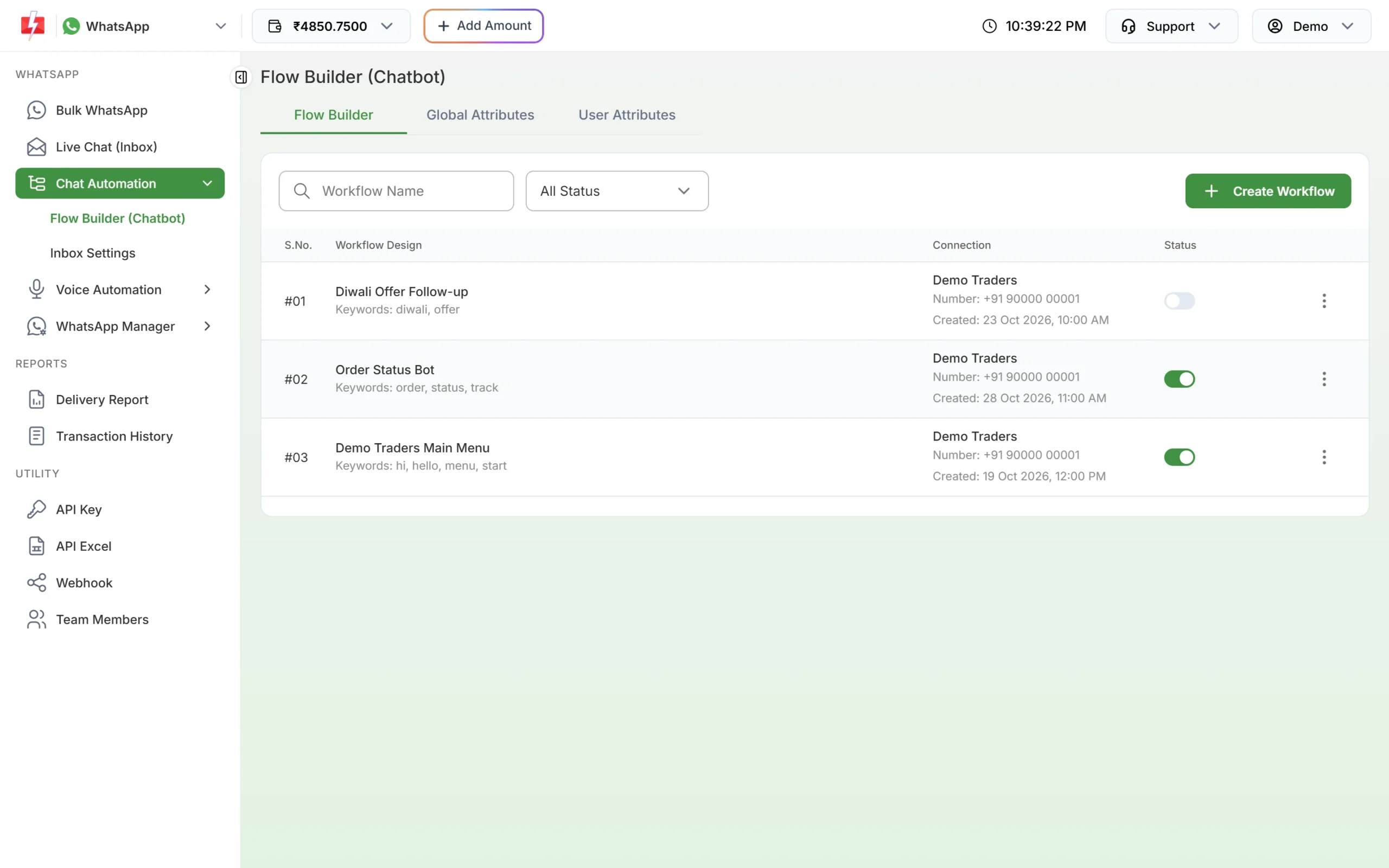
Use a flow keyword as the pre-filled text so the bot replies at once. Note that WhatsApp hides your ice breakers for customers who arrive through a link with pre-filled text.
- Chatbot: in Flow Builder (Chatbot), add the same word as a keyword on the Flow Start node, for example
-
Make a QR code
Paste your wa.me link into any QR code maker and download the image. Print it on bills, packaging, menus, visiting cards or the shop counter with a line such as “Scan to order on WhatsApp”. Scan the printed code with your phone before you print in bulk.
-
Add a chat button to your website
Ask your web developer to add a link button, or paste this into your site’s HTML where you want the button:
<a href="https://wa.me/919999999999?text=Hi%20from%20website"
   target="_blank" rel="noopener"
   style="display:inline-block;padding:12px 20px;background:#25D366;color:#fff;border-radius:24px;text-decoration:none;font-weight:600">
  Chat with us on WhatsApp
</a>
Replace 919999999999 with your own number. On a phone, the button opens the WhatsApp app. On a computer, it opens WhatsApp Web or the desktop app.
-
Answer the chats in Live Chat
Every chat that comes from your link shows in Live Chat (Inbox). Customer messages are free to receive, and the customer’s message opens a 24-hour window in which you can reply with normal messages.
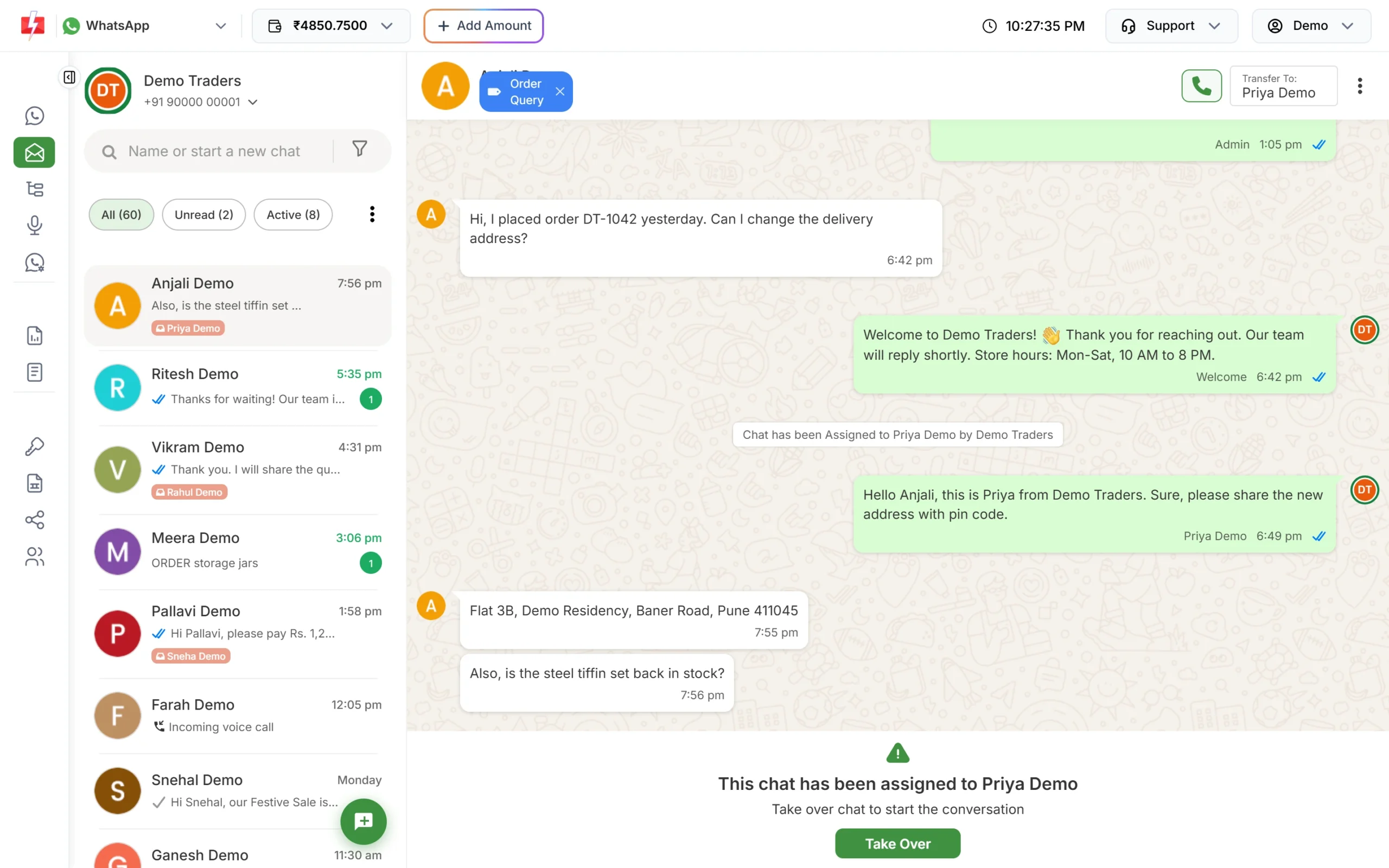
A new chat with the welcome message sent automatically.
Where to use your WhatsApp link
- Website header, contact page and product pages
- Instagram and Facebook bio, YouTube description
- Email signatures and newsletters
- SMS messages, where the link must be part of your approved DLT template
- Printed bills, delivery boxes, posters and visiting cards (as a QR code)
Common problems and fixes
| Problem | Fix |
|---|---|
| The link says the number is not on WhatsApp | Check the number has the country code, no +, no spaces and no leading 0. |
| The pre-filled message is cut or shows odd symbols | Write spaces as %20 and encode other special characters, or use an online URL encoder. |
| The chatbot does not reply to the link message | The flow keyword must match the whole message. Use a one-word text such as “menu”, or use a regex in the Flow Start node. Check the flow is Active. |
| Ice breakers do not show | They are hidden when the customer arrives through a link with pre-filled text. Use a link without ?text= if you want them. |
| Chats do not appear in Live Chat | Check the link uses the number connected to Fast2SMS and that incoming messages are not disabled for it. |
Frequently asked questions
How do I create a WhatsApp link for my business?
Write https://wa.me/ followed by your full number with country code, for example https://wa.me/919999999999. Add ?text= and a message if you want it typed in for the customer.
Is a WhatsApp link or QR code free?
Yes. The link and QR code cost nothing. Customer messages are free to receive; your replies are charged per message. See the WhatsApp pricing page.
Does a wa.me link work with the WhatsApp Business API?
Yes. It works with any WhatsApp number, including numbers connected to Fast2SMS. The chats arrive in Live Chat.
Can I track how many people came from my link?
Use a different pre-filled message for each place, such as “Hi from website”. You can then see the source in the first message of each chat.
Can a customer message me without saving my number?
Yes. The link opens the chat directly, without saving the contact.
Do I need template approval for chats started from my link?
No. The customer writes first, so you can reply with normal messages for 24 hours.