
WhatsApp template buttons let customers reply, open a link, call you or copy a coupon code with one tap. In Fast2SMS you can add up to 3 quick reply (Custom) buttons, 2 website buttons, 1 call button and 1 copy offer code button to a template. Each button label can have up to 25 characters. This guide explains every WhatsApp template button type, when to use it and the rules Meta checks.
WhatsApp template button types
| Button type in Fast2SMS | What the customer gets | Max per template | Good for |
|---|---|---|---|
| Custom | A quick reply. Tapping it sends the button text back to you as a message. | 3 | “Yes, confirm”, “Talk to us”, “Stop offers”, ratings |
| Visit website | Opens a web link | 2 | Shop now, track order, pay invoice, download receipt |
| Call Phone Number | Starts a normal phone call to your number | 1 | Call store, call delivery partner, call support |
| Copy offer code | Copies a coupon code to the phone’s clipboard | 1 | Discount codes in marketing templates |
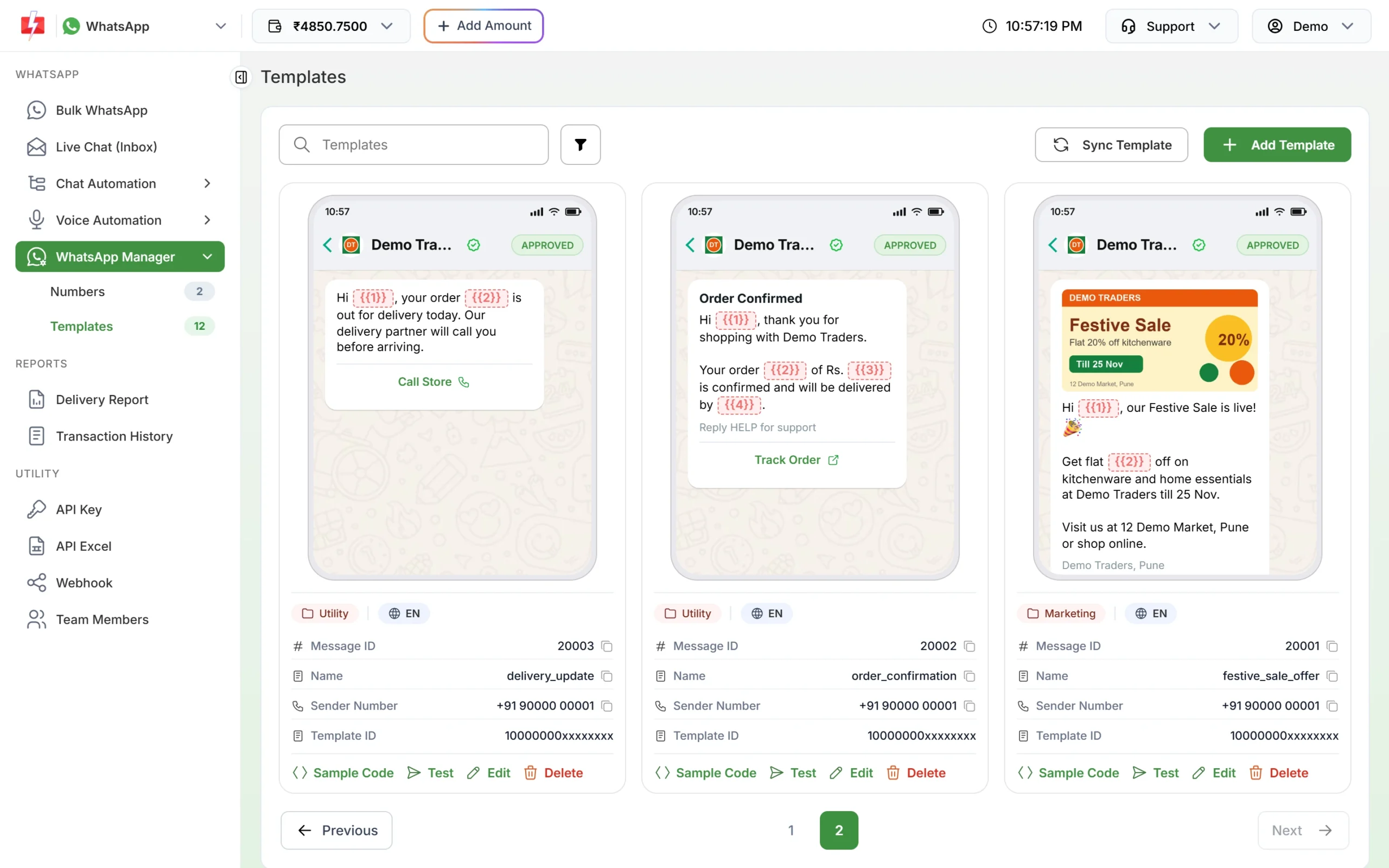
Below are two approved templates with buttons: a utility template with a Call Store button and another with a Track Order website button.
How to add a button to a template
-
Open the template form
Go to WhatsApp Manager > Templates and click Add Template, or click Edit on an existing template. Write the header, body and footer first.
-
Click Add Button and choose the type
Below the footer, click Add Button and pick Custom, Visit website, Call Phone Number or Copy offer code. If you try to add more than the allowed number of one type, the form shows “You can only add N … button(s)”.
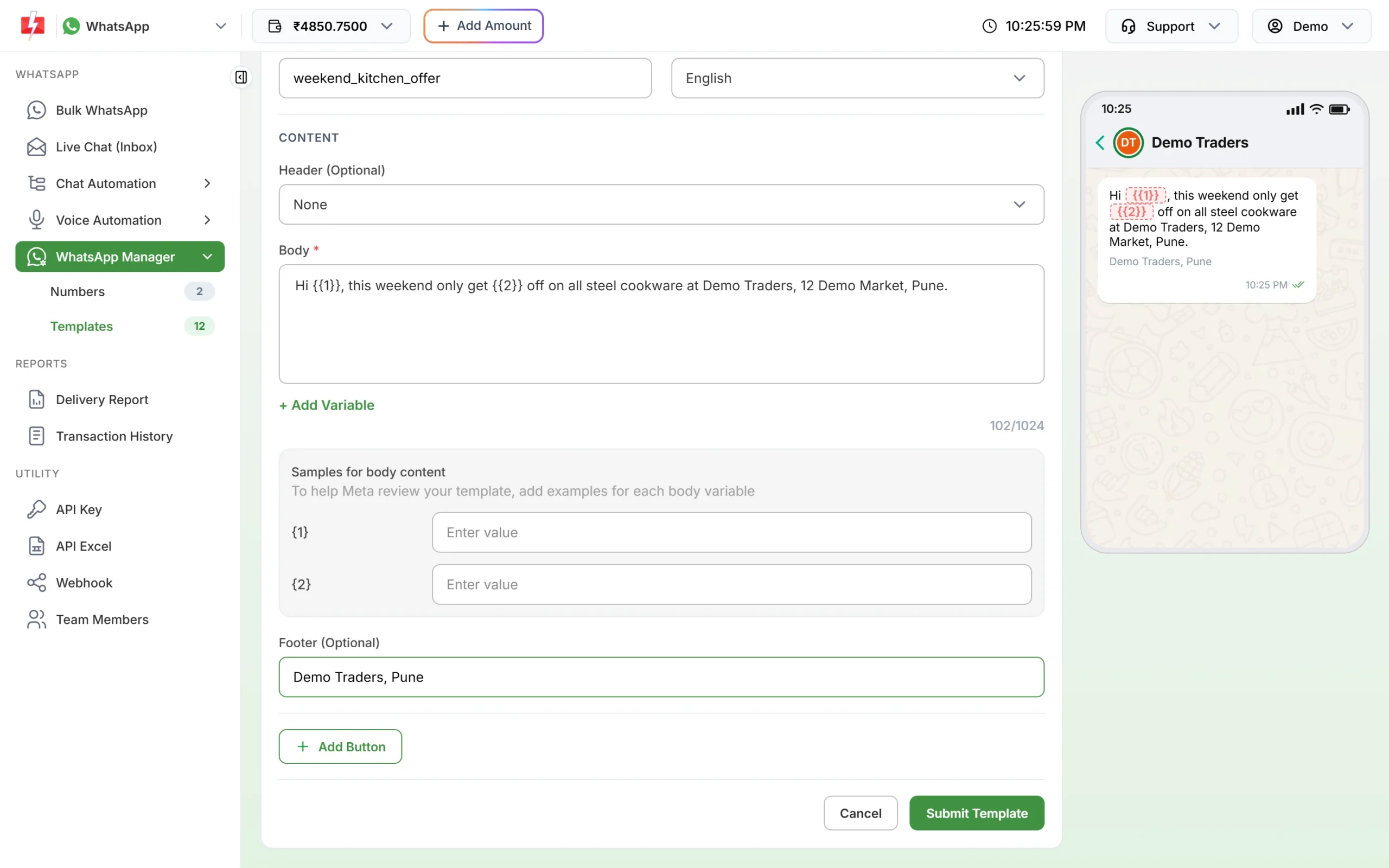
Add Button sits under the footer. -
Fill in the button details
Type the Button Text. Then fill the extra field for that type: the website URL (Static or Dynamic), the phone number, or the offer code. Every button text must be different. The form shows “Button text must be unique” if two match.
-
Check the preview and submit
The buttons appear under the message in the phone preview. Click Submit Template and wait for Meta’s approval.
Rules for each button type
Custom (quick reply) buttons
- Up to 3 per template in Fast2SMS. Label up to 25 characters.
- When a customer taps one, their reply lands in Live Chat (Inbox), and it opens the 24-hour window, so you can answer in your own words.
Visit website buttons (static and dynamic URL)
- Up to 2 per template. The URL can be up to 2,000 characters.
- Static: the same link for everyone, such as https://example.com/sale.
- Dynamic: one variable at the very end of the URL, such as https://example.com/track/{{1}}. When you send, you fill in the value (for example the order number) for each customer. The Test window, for example, asks for it before sending. Meta does not allow the variable in the middle of the URL.
- Characters such as spaces in the dynamic part must be URL-encoded (a space becomes %20).
Call Phone Number button
- Only 1 per template.
- Enter the number with the country code, for example +919876543210. The form accepts 10 to 15 digits. If you leave out +91, the panel adds +91 for you, so use this button for Indian numbers.
- To share a non-Indian number, write it in the body text instead.
Copy offer code button
- Only 1 per template. The code can be up to 20 characters, for example DIWALI20.
- It belongs in Marketing templates, because a coupon is a promotion. A coupon inside a Utility template makes Meta treat it as Marketing.
How buttons look to customers
- With up to three buttons, all of them show under the message.
- With more than three, WhatsApp shows two and puts the rest under “See all options”.
- Meta says templates with 4 or more buttons, or with a quick reply mixed with other button types, cannot be viewed on WhatsApp desktop apps. If many of your customers use WhatsApp on a computer, keep it to three buttons of one kind.
Tips that help approval and replies
- Keep labels short and clear: “Track order” works better than “Click here to track your order now”.
- Do not use URL shorteners from unknown services. Use your own domain so customers trust the link.
- Give marketing templates a way out, such as a “Stop offers” quick reply. People who can opt out easily are less likely to block you.
- Test the template on your own number with the Test button on the approved card and tap each button before a campaign.
Frequently asked questions
How many buttons can a WhatsApp template have?
In Fast2SMS: up to 3 Custom, 2 Visit website, 1 Call Phone Number and 1 Copy offer code. Meta’s own limit is 10 buttons in total.
What is the character limit for WhatsApp button text?
25 characters per button label, according to Meta. Keep it shorter if you can.
Can I use a different link for each customer?
Yes. Choose a Dynamic URL with one variable at the end, and fill in the value for each customer when you send.
Can I add both a call and a website button?
Yes. A template can mix types, within the limit for each type.
Where do quick reply answers go?
They arrive as messages in Live Chat (Inbox), and to your webhook if you have set one.
Can I add a copy code button to a utility template?
A coupon is promotional, so Meta treats such a template as Marketing. Use a Marketing template for offer codes.
Can I add buttons to an approved template?
Yes, with Edit. The template then goes back to Meta for review and cannot be sent until it is approved again.