
The WhatsApp message validity period, also called time-to-live or TTL, is how long WhatsApp keeps trying to deliver a template message. If the customer’s phone stays offline past that time, the message is dropped and never shown. In Fast2SMS you can set it on Utility and Authentication templates, from 30 seconds up to 15 minutes. This guide explains when to use it and how to set it.
What the validity period does
When you send a WhatsApp template, the customer’s phone may be switched off or out of network. WhatsApp keeps the message and delivers it when the phone comes back online. The validity period puts a limit on that wait.
- If the message is delivered within the period, nothing changes.
- If it is not delivered in time, WhatsApp drops it. The customer never sees it.
- The Fast2SMS form says: “If undelivered in time, you won’t be charged and the customer won’t see the message.”
Think of an OTP that arrives 3 hours late, or a “your delivery partner is at the door” alert that shows up the next morning. A validity period stops those stale messages.
Validity period options by template type
| Template type | In the Fast2SMS form | Meta’s default if no period is set (at the time of writing) |
|---|---|---|
| Authentication (OTP) | Custom period from 30 seconds to 15 minutes | 10 minutes for templates created after 23 October 2024 |
| Utility | 30 seconds, 1, 2, 3, 5, 10 or 15 minutes | 30 days |
| Marketing | Not offered | 30 days |
Meta’s own range for utility templates goes up to 12 hours. The Fast2SMS form offers the shorter options above, which suit alerts and reminders.
How to set the message validity period
-
Open the template form
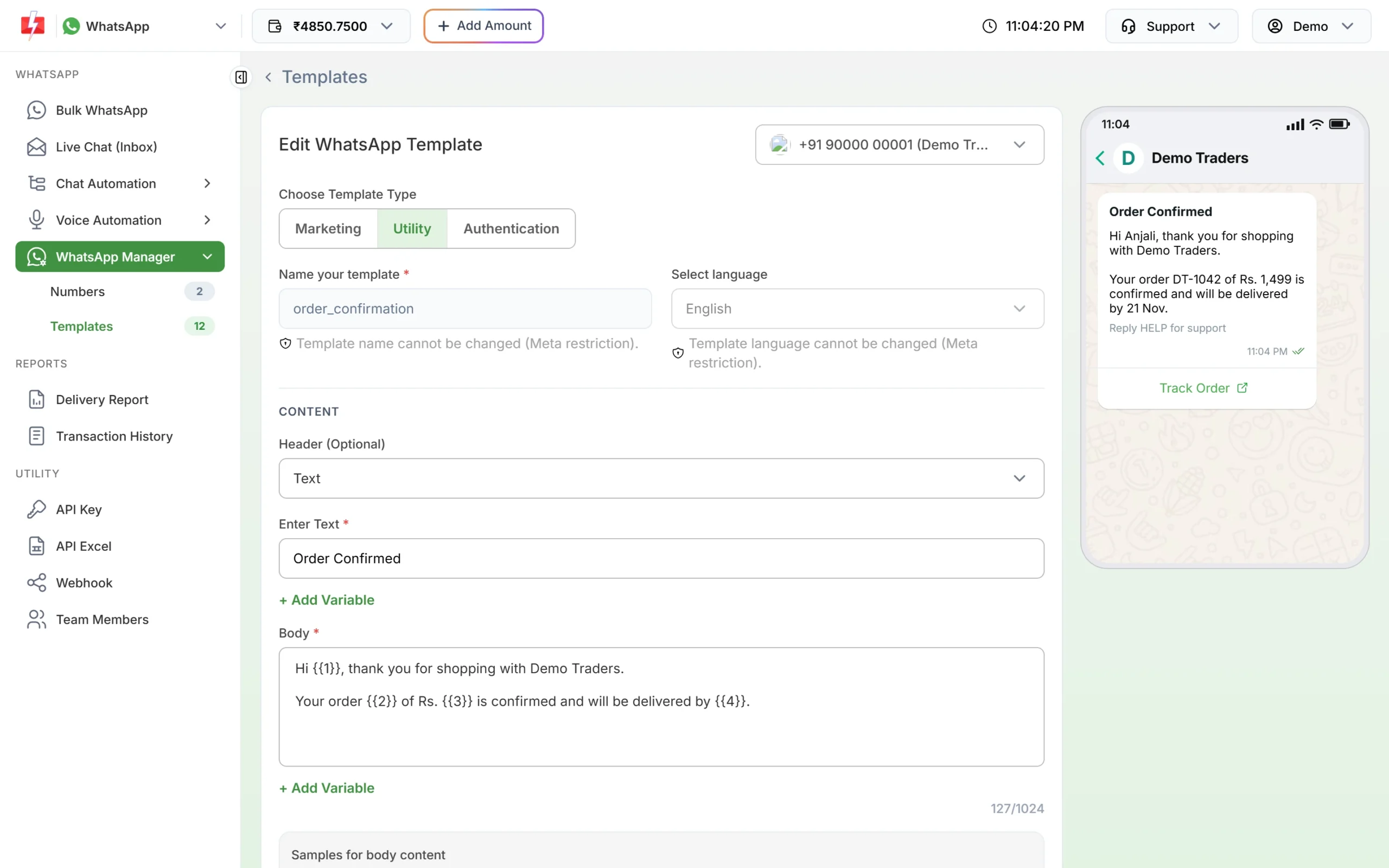
Go to WhatsApp Manager > Templates. Click Add Template for a new template, or Edit on an existing Utility or Authentication template.
-
Choose Utility or Authentication
Under Choose Template Type, click Utility or Authentication. The validity setting does not appear for Marketing.
A Utility template open for editing. -
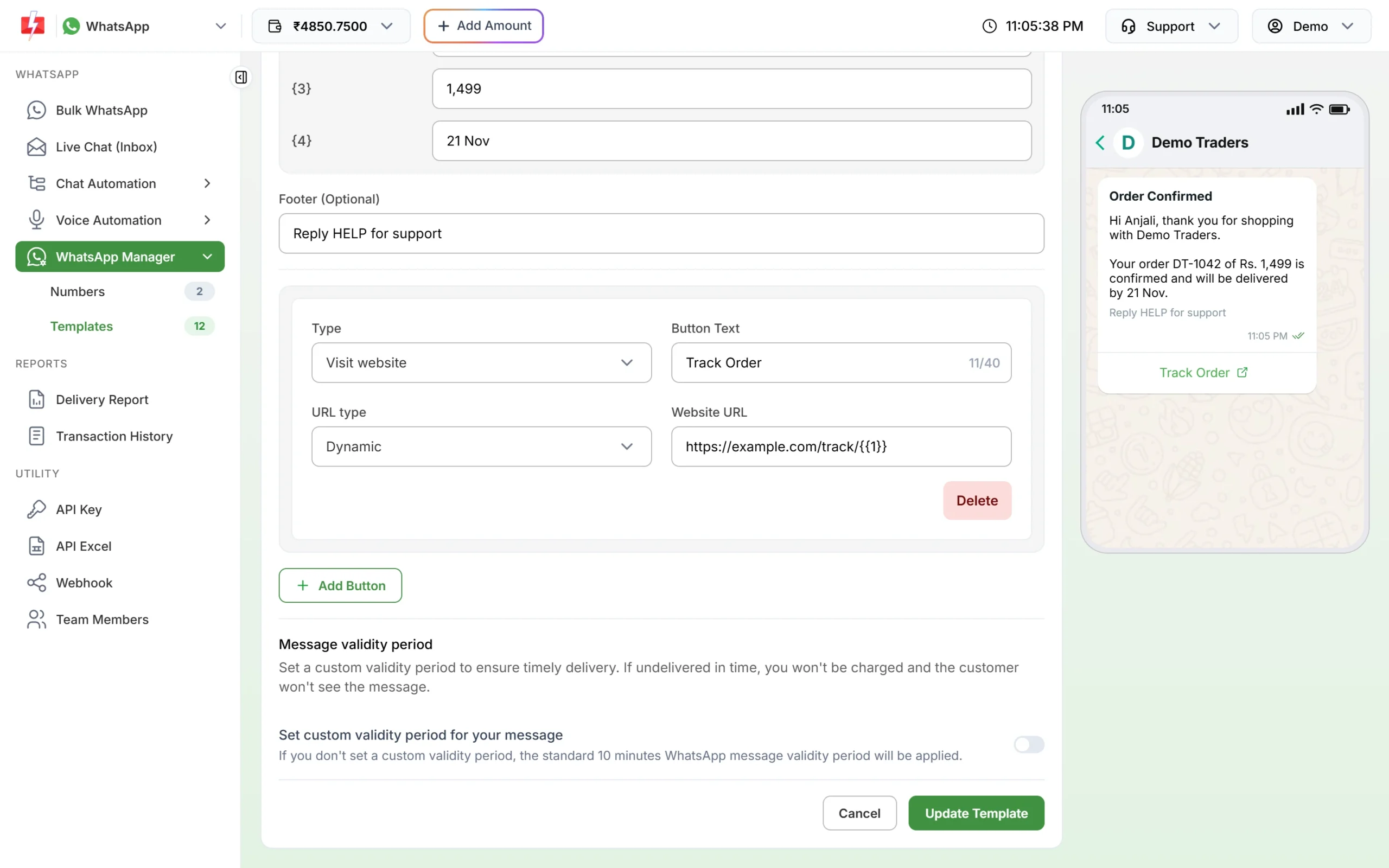
Scroll to Message validity period
The section is at the bottom of the form, above the submit button. Turn on Set custom validity period for your message.
The validity toggle at the bottom of a Utility template. -
Pick the time
Choose how long WhatsApp should keep trying, for example 5 minutes for a delivery-at-door alert. For OTPs, match it to how long your code is valid.
Authentication templates have the same setting, next to the code expiry option. -
Submit or update the template
Click Submit Template or Update Template. If the card goes back to PENDING, wait for Meta’s approval before you send with it.
Which messages should get a validity period?
| Message | Suggested period | Why |
|---|---|---|
| Login or signup OTP | Same as the code’s expiry, for example 5 or 10 minutes | An expired code is useless and causes “wrong OTP” complaints. |
| “Delivery partner is arriving” alert | 10 to 15 minutes | After that the delivery is over. |
| “Your table is ready” or token number call | 2 to 5 minutes | A late call sends people to the counter at the wrong time. |
| Appointment starting soon | 15 minutes | A reminder after the start time only annoys. |
| Order confirmation, invoice, payment receipt | Do not set one | The customer still needs these when the phone comes back online. |
OTP expiry and validity period are different
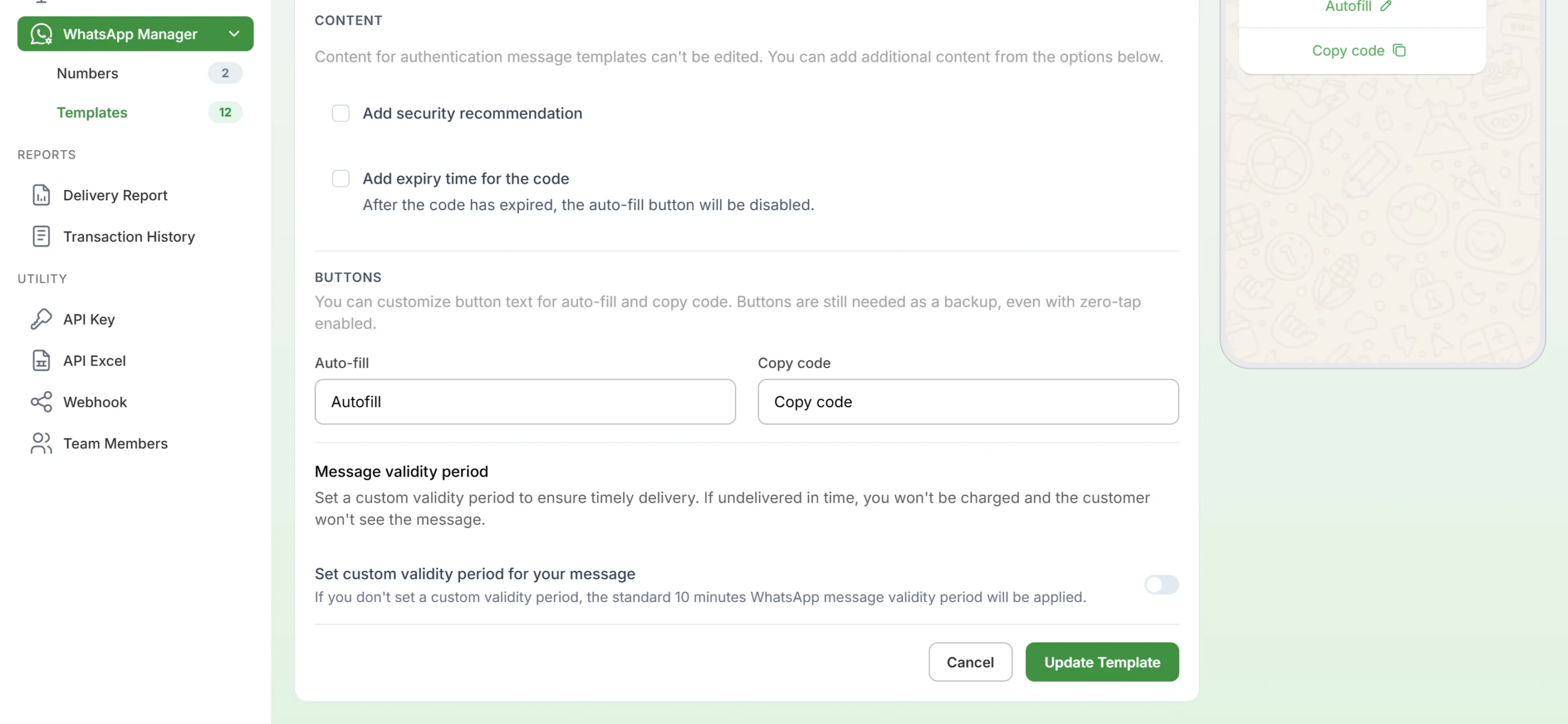
Authentication templates have two separate settings:
- Add expiry time for the code adds a line like “This code expires in 10 minutes.” to the message. After that time, the auto-fill button stops working. You can set 1 to 15 minutes.
- Message validity period decides whether WhatsApp delivers the message at all if the phone was offline.
Set both to the same value, so a customer never receives a code that has already expired.
Good to know
- A dropped message is not delivered, so it does not show as delivered or read in the Delivery Report. Failed WhatsApp messages are refunded to your wallet automatically.
- If Meta moves your template to another category, the custom validity period is cleared. Check the setting again after any category change.
- The validity period is part of the template. Every message sent with that template, from Bulk WhatsApp or the API, uses it.
Frequently asked questions
What is TTL in WhatsApp templates?
TTL (time-to-live) is the time WhatsApp keeps trying to deliver a template message. If the phone does not come online in that time, the message is dropped.
Can I set a validity period on a marketing template?
Not in the Fast2SMS form. The option is shown only for Utility and Authentication templates.
Am I charged for a message that expired?
The template form says you are not charged when a message is not delivered within the validity period. Failed messages are refunded to your wallet automatically.
What is the shortest validity period?
30 seconds, for both Utility and Authentication templates.
What happens if I do not set a validity period?
No custom period is sent with the template and the standard period applies. For alerts that must not arrive late, set your own period.
Does changing the validity period need Meta approval again?
Updating a template can send it back for review. Check the template card after you update, and send only when it shows APPROVED.