
You can save every WhatsApp reply from customers, and the delivery status of messages you send through the API, straight into a Google Sheet. No server is needed: a short Google Apps Script receives the Fast2SMS webhook and adds one row per event. This guide gives you the script, the settings and the checks to send a WhatsApp webhook to Google Sheets.
Before you start
- A Google account and a new Google Sheet.
- A WhatsApp number connected to Fast2SMS.
- Know what the webhook sends. Customer replies (Incoming Messages) are sent for every message a customer writes to your number. Status updates (sent, delivered, read, failed) are sent only for messages you send through the API, not for campaigns sent from the panel. For panel campaigns, use the delivery report and its export.
How to send WhatsApp webhooks to Google Sheets
-
Prepare the sheet
Create a Google Sheet and name the first tab Sheet1 (or change the name in the script below). In row 1, add the headings: Time, Type, Mobile, From, Status, Message type, Text, Media URL, Request ID, Reason.
-
Add the Apps Script
In the sheet, open Extensions > Apps Script. Delete the sample code and paste this:
function doPost(e) {
  var sheet = SpreadsheetApp.getActiveSpreadsheet().getSheetByName('Sheet1');
  var d = {};
  try {
    d = JSON.parse(e.postData.contents);   // JSON body from Fast2SMS
  } catch (err) {
    d = e.parameter;                         // form-encoded body
  }
  sheet.appendRow([
    new Date(),
    d.webhook_type || '',
    d.mobile || '',
    d.from || '',
    d.status || '',
    d.message_type || '',
    d.body || '',
    d.media_url || '',
    d.request_id || '',
    d.failure_reason || ''
  ]);
  return ContentService.createTextOutput('ok');
}
Click the save icon. The script runs each time Fast2SMS sends a POST request and adds one row to the sheet.
-
Deploy it as a web app
Click Deploy > New deployment. Next to “Select type”, choose Web app. Set it to run as you, and allow access to anyone, because Fast2SMS calls it without a Google login. Click Deploy, allow the permissions Google asks for, and copy the Web app URL. It ends in
/exec.Anyone with this URL can add rows to your sheet. Keep it private. For extra safety, add your own secret header in the webhook (step 4) and a check for it in the script.
-
Create the WhatsApp webhook in Fast2SMS
Go to Webhook > WhatsApp and click Add Webhook. Fill in:
- Webhook Name: for example “Google Sheet log”.
- Select Format: Standard Webhook.
- Select Event: Incoming Messages for customer replies, or Default All Events for replies plus status updates.
- The number: your WhatsApp number, or Default All.
- Method: POST. URL: the web app URL you copied. Content-Type: JSON.
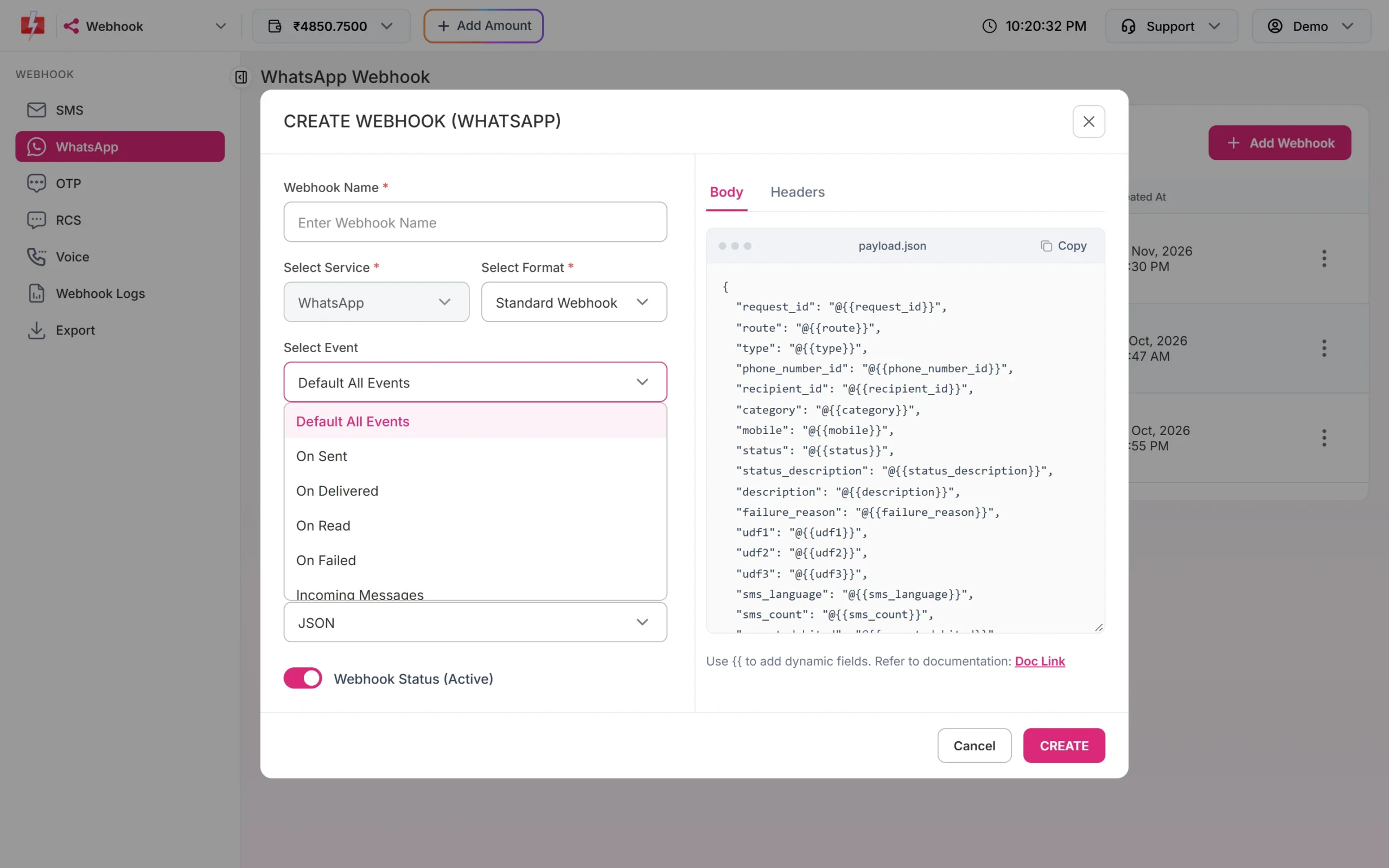
Pick Incoming Messages to log customer replies. -
Set the body to match the script
In the Body tab, keep only the fields the script reads. Type
{{to insert a field. A body that matches the script:{ "webhook_type": "{{webhook_type}}", "mobile": "{{mobile}}", "from": "{{from}}", "status": "{{status}}", "message_type": "{{message_type}}", "body": "{{body}}", "media_url": "{{media_url}}", "request_id": "{{request_id}}", "failure_reason": "{{failure_reason}}" }Keep Webhook Status on and click CREATE. The new webhook shows in the list as Active.
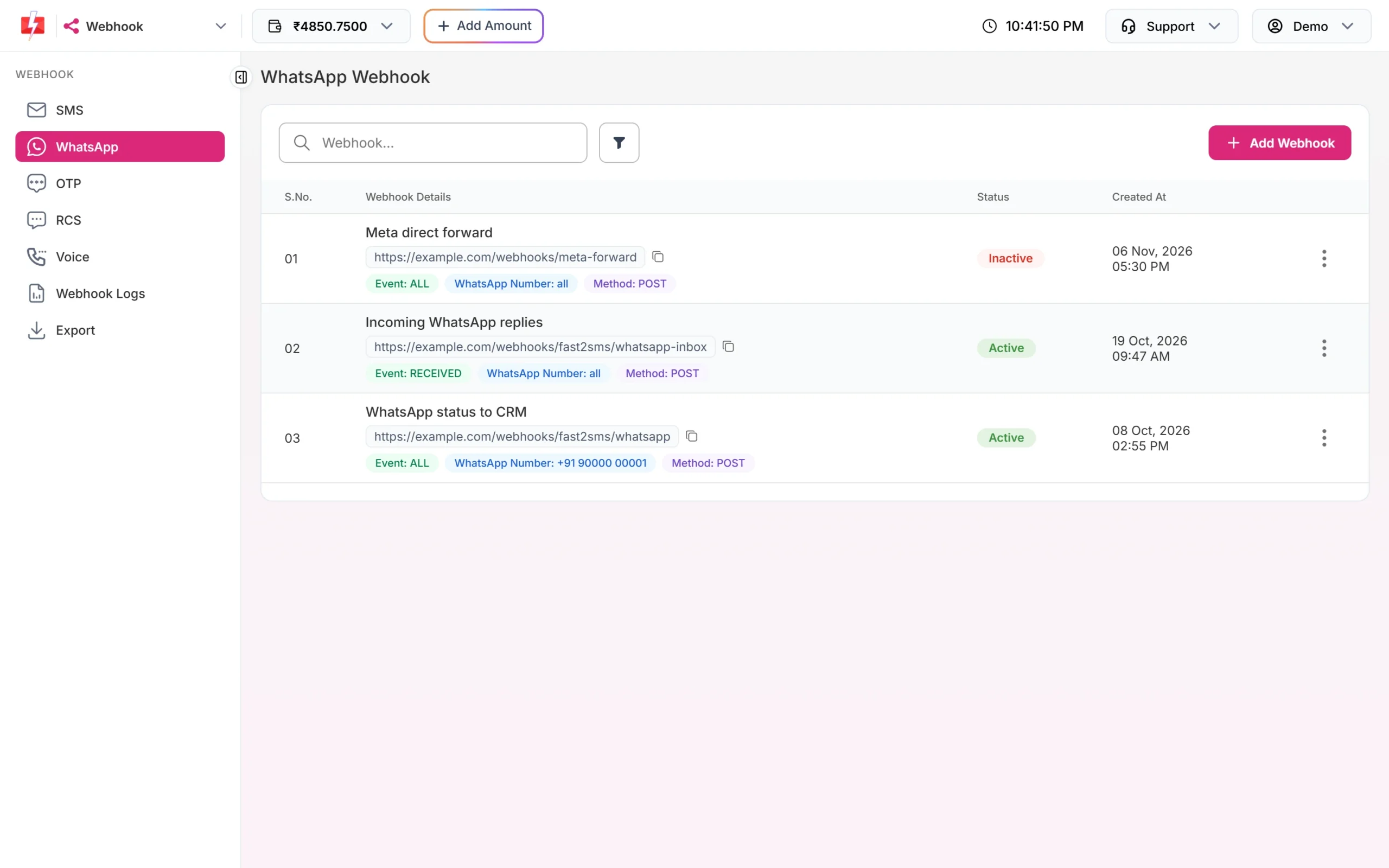
Your webhook appears in the WhatsApp Webhook list. -
Test and check the logs
From the webhook’s three-dot menu, choose Test Webhook. Fast2SMS sends sample data and shows the result. Then send a WhatsApp message to your business number from your phone and check that a row appears in the sheet.
Open Webhook Logs to see each call with its HTTP code and time taken. Logs are kept for 7 days, and each event can be resent once.
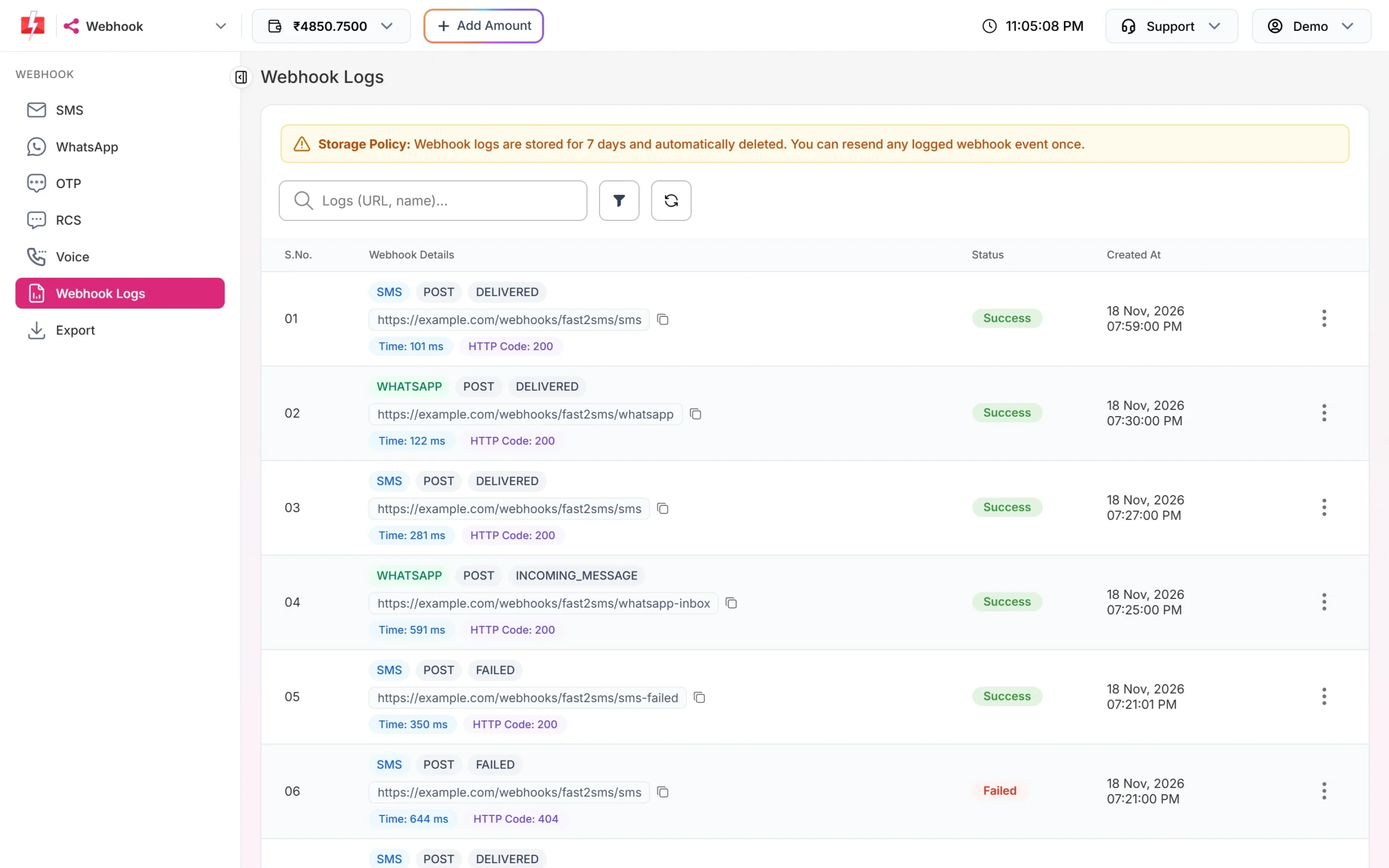
Webhook Logs show every call and the HTTP code your URL returned. Google answers web app requests with a redirect to a one-time address. Fast2SMS counts only HTTP 2xx answers as success. If a log shows a 3xx code but the row is in your sheet, the data did arrive. Do not use Resend in that case, or you will get the row twice.
What the columns mean
| Field | What it holds |
|---|---|
| webhook_type | incoming_message for a customer message, status_update for a delivery status |
| mobile / from | The customer’s number |
| status | sent, delivered, read, failed or received |
| message_type, body | The type of incoming message and its text |
| media_url | Link to a photo, video, audio or document the customer sent |
| request_id | The W… request ID from your API send, to match the status with your message |
| failure_reason | Why a message failed, when it did |
You can add more fields, such as caption, mime_type, display_phone_number or udf1, by adding them to both the webhook body and the appendRow list in the script.
Common problems and fixes
| Problem | Fix |
|---|---|
| No rows appear | Check the webhook is Active and the event matches. Check the URL ends in /exec, not /dev. Check the tab is named Sheet1. |
| Rows appear for replies but not for delivery status | Status webhooks are sent only for messages sent through the API, not panel campaigns. |
| Changes to the script do nothing | After editing, deploy again: Deploy > Manage deployments, edit the deployment and choose a new version. The URL stays the same. |
| Test Webhook fails and no rows appear | Check the web app access allows anyone, not only you. Change it and deploy again. |
| Empty cells | The key names in the webhook body must match the names the script reads (d.body, d.status and so on). |
Frequently asked questions
Is this free?
Webhooks cost nothing in Fast2SMS, and Google Apps Script is free within Google’s usage limits. You pay only for the messages you send.
Can I log SMS delivery reports the same way?
Yes. Create the webhook under Webhook > SMS instead and use the SMS fields, such as request_id, mobile, status and failure_reason. SMS webhooks are also sent only for API sends.
Will this work for thousands of messages a day?
Google Sheets is fine for small and medium volumes. For heavy traffic, receive the webhook on your own server or database.
Can I send messages from Google Sheets too?
Yes. The Fast2SMS add-on for Google Sheets sends SMS from a sheet. See Fast2SMS integration for Google Sheets.
How do I stop the logging?
Switch the webhook to Inactive or delete it in Webhook > WhatsApp.