
Bulk WhatsApp sender software, browser extensions and modified WhatsApp apps send messages through a normal WhatsApp account in a way WhatsApp does not allow. That is why numbers used with them get restricted or banned. The safe way to send WhatsApp messages in bulk is the official WhatsApp Business API, which Fast2SMS gives you with Meta-approved templates, a messaging limit that grows with you and no setup fee. This page explains why the unofficial tools get numbers banned and shows the official way, step by step.
What “bulk WhatsApp sender software” usually is
When people search for a bulk WhatsApp sender, they mostly find three kinds of tools. None of them are part of the official WhatsApp Business Platform:
- Desktop software that opens WhatsApp Web, asks you to scan a QR code and then types and sends messages for you, one chat after another.
- Browser extensions that add a “send to list” button inside WhatsApp Web and fire messages from your logged-in account.
- Modified WhatsApp apps (unofficial copies of the app) that add broadcast-to-everyone, auto-reply or “send to unsaved numbers” features.
They all have one thing in common: they make a normal WhatsApp or WhatsApp Business app account behave like a sending machine. That is exactly what WhatsApp’s rules forbid.
Why numbers get banned when you use these tools
WhatsApp’s Terms of Service do not allow “bulk messaging, auto-messaging, auto-dialing”, using the service through automated or unauthorised means, or using modified versions of the app. WhatsApp says it may disable or suspend accounts that break these terms. In practice, a number gets banned for a mix of these reasons:
- Automation is detected. Hundreds of near-identical messages sent from one account in a short time look like a bot, because they are.
- People block and report you. Most lists used with these tools contain people who never asked to hear from you. Each block or spam report counts against your number.
- Modified apps are not allowed at all. A number can be banned for using an unofficial app even before it sends a single bulk message.
- New SIMs sending to large lists. A fresh number that suddenly messages hundreds of strangers is the classic spam pattern.
A ban can be temporary or permanent. With a permanent ban you lose that number on WhatsApp, together with your customer chats. A tool that “rotates numbers” or adds random delays only hides the problem for a while. It does not make the sending allowed.
The official way: WhatsApp Business API through Fast2SMS
Meta built the WhatsApp Business API for exactly this job: sending business messages to many customers. Fast2SMS connects your number to it. Here is what changes compared with an unofficial tool:
| Unofficial bulk sender | WhatsApp Business API on Fast2SMS | |
|---|---|---|
| Allowed by WhatsApp | No, it breaks the Terms of Service | Yes, it is Meta’s official platform |
| What you send | Any text, typed by a script | Templates that Meta has approved, with your own variables |
| Who can receive it | Often scraped or bought lists | Customers who opted in, saved your number or not |
| Daily volume | Unknown, until the number gets blocked | A clear messaging limit set by Meta: often 250 unique customers per 24 hours for a new, unverified business and 2,000 (2K) after business verification, rising to 10,000, 100,000 and Unlimited |
| Reports | Guesswork | Delivered, Read, Sent, Failed and Pending for every number |
| Replies | Mixed into one phone | A shared Live Chat inbox, auto replies and a chatbot |
| Business identity | A plain phone number | Your display name and business profile, with a path to the green tick |
How to send bulk WhatsApp safely with Fast2SMS
-
Connect your WhatsApp number
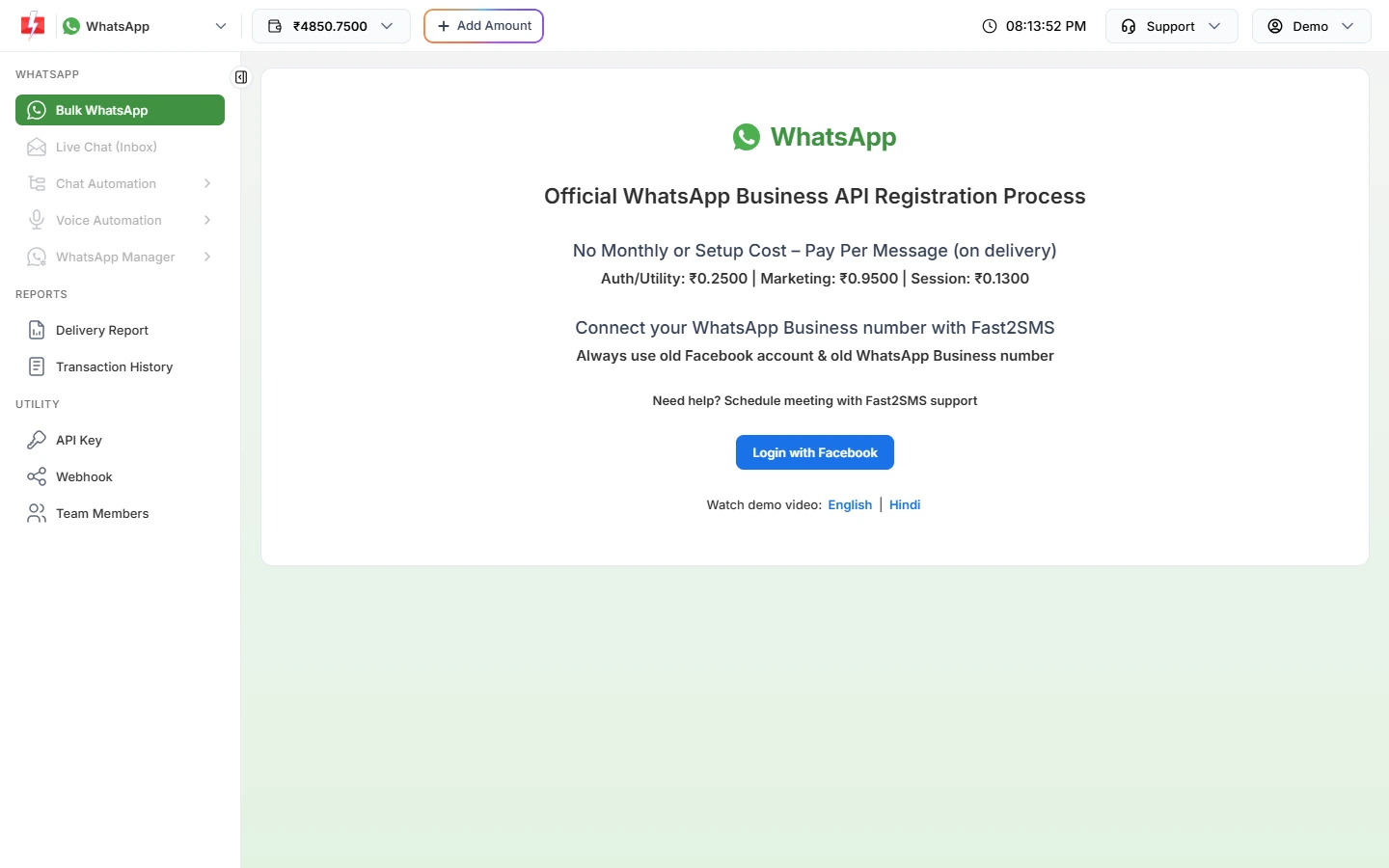
Sign up on Fast2SMS and open the WhatsApp app. Until a number is connected, you see the Official WhatsApp Business API Registration Process page with the per-message rates. Click Login with Facebook and finish Meta’s pop-up: pick your business, enter the number and display name, and verify it with the code Meta sends. The page advises using an old Facebook account and an old WhatsApp Business number.
Connect your number with Login with Facebook. No QR code is involved. -
Create a template and get it approved by Meta
Go to WhatsApp Manager > Templates and click Add Template. Choose the type (Marketing, Utility or Authentication), write the body, add variables such as
{{1}}for the customer’s name, add samples and click Submit Template. Meta reviews it. Only templates with the APPROVED status can be sent.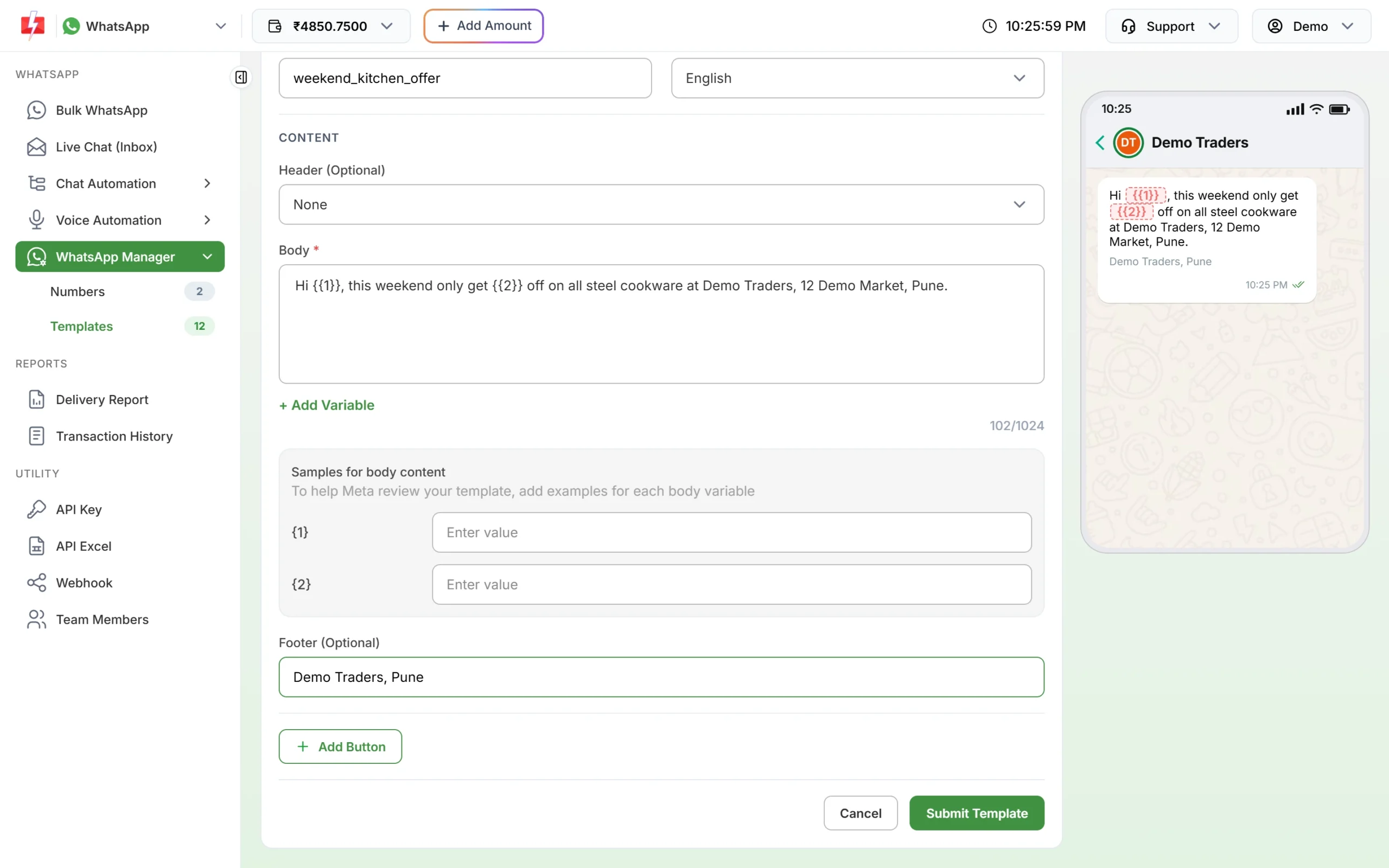
A marketing template with two variables, ready to submit to Meta. -
Upload your opted-in customer list
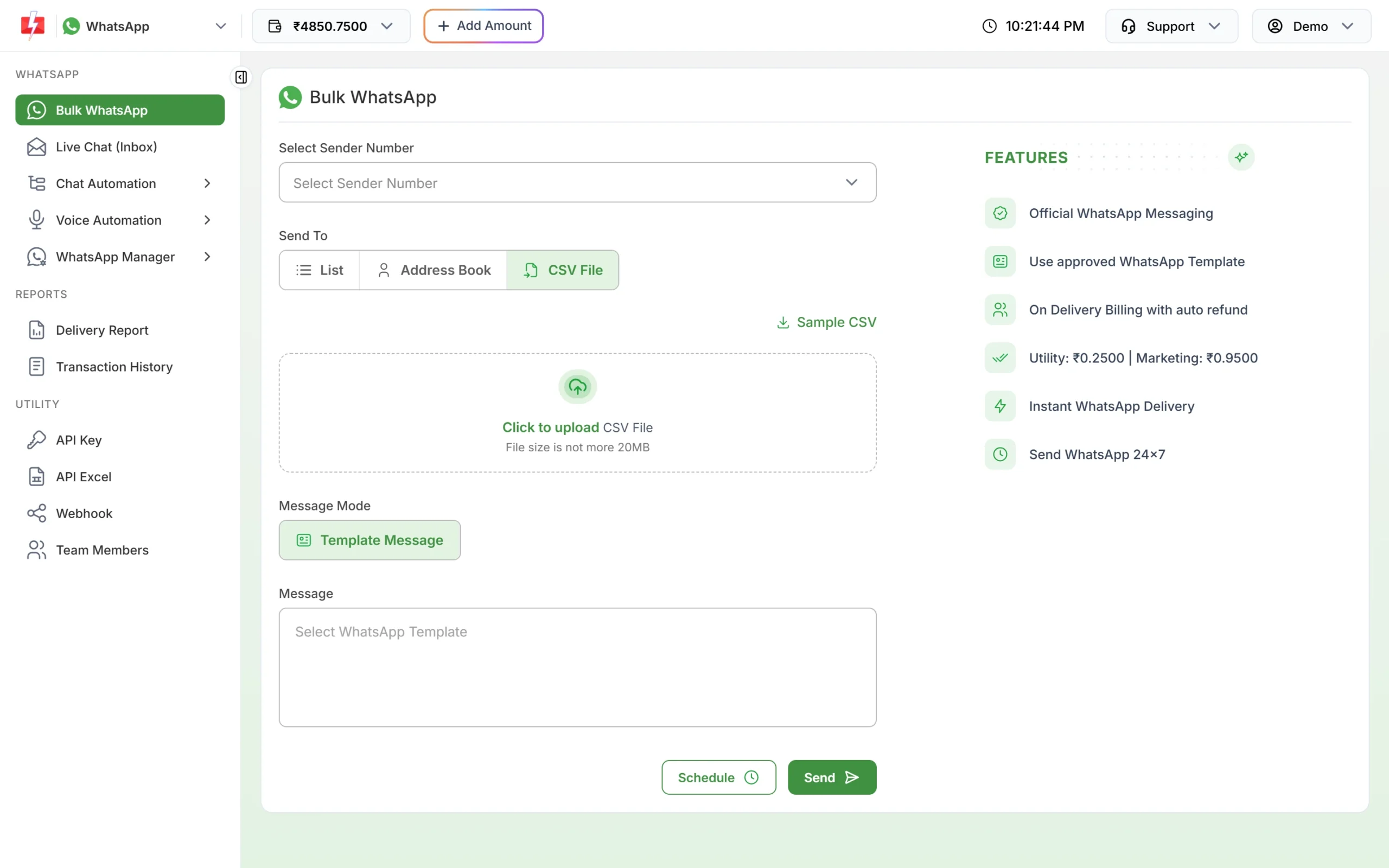
Open Bulk WhatsApp, pick your number in Select Sender Number, and under Send To choose List, Address Book or CSV File. A CSV or Excel file can be up to 20MB. Customers do not need to have saved your number, but they should have agreed to hear from you.
Upload a CSV or Excel file of customers who opted in. -
Check the cost and send
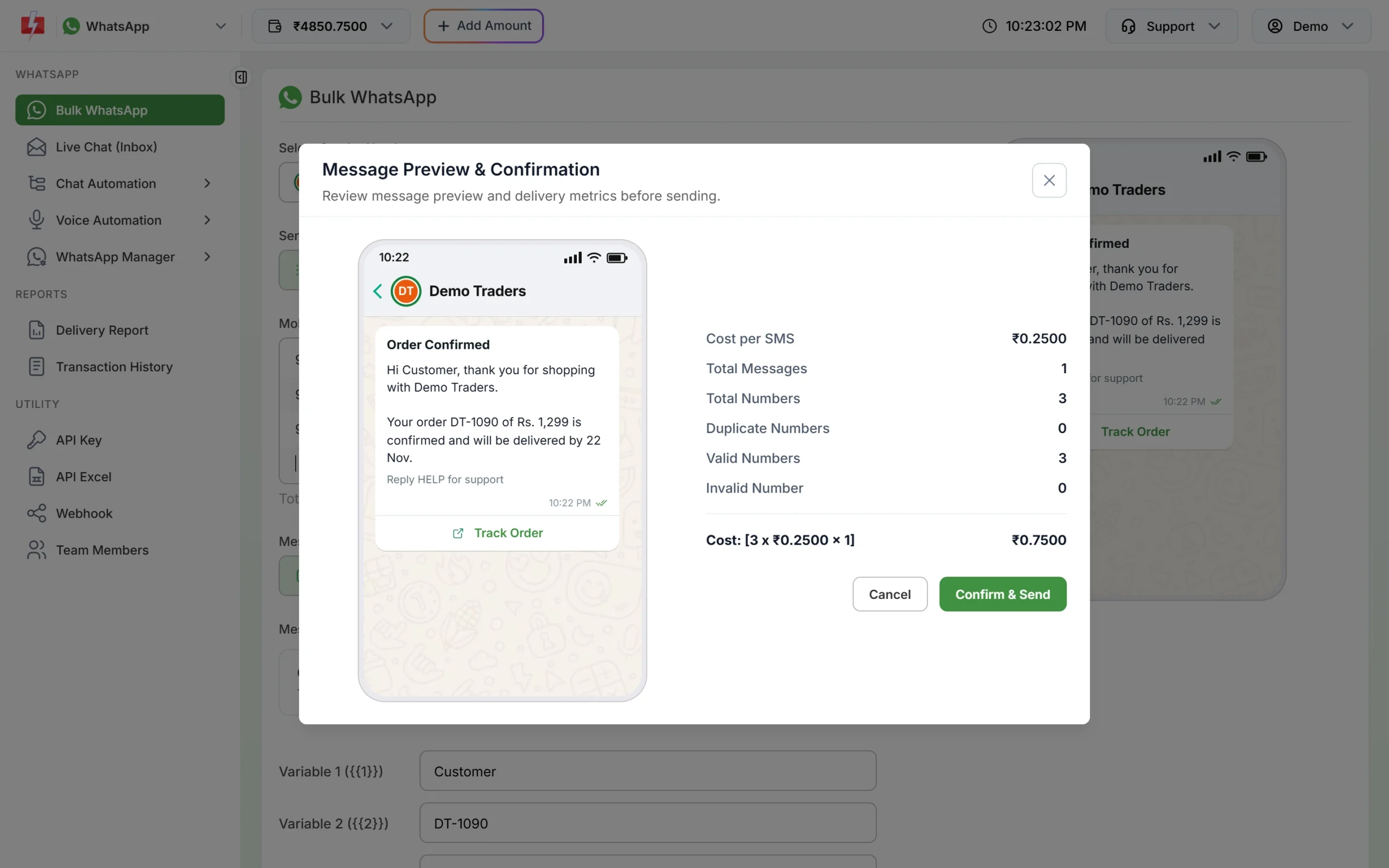
Pick the approved template, fill the variables and click Send (or Schedule). The Message Preview & Confirmation window shows the cost per message, total, duplicate, valid and invalid numbers and the total cost. Click Confirm & Send.
See the exact cost before anything is sent. -
Watch the report and the replies
Open Delivery Report to see each number’s status and the failure reason. Failed messages are refunded to your wallet automatically. Customer replies arrive in Live Chat (Inbox), where your team can reply in their own words for 24 hours after each customer message.
Rules that keep your API number healthy
The API is allowed, but Meta still watches how customers react. These habits keep your number safe and your limit growing:
- Opt-in first. Meta’s Business Messaging Policy says you may message people only if they gave you their number and agreed to receive your messages. Collect consent on your website, checkout, forms or in-store.
- Make stopping easy. Add a quick reply button such as “Stop offers” to marketing templates, and remove people who ask to stop.
- Use the right category. Offers go in Marketing templates; order, payment and delivery updates go in Utility templates.
- Grow step by step. Limits start at the tier Meta gives your business: often 250 unique customers per 24 hours for a new, unverified business and 2,000 (2K) once the business is verified (at the time of writing). Meta raises the limit to 10,000, 100,000 and Unlimited when you use it with good quality.
- Watch the quality rating. WhatsApp Manager shows Quality as High, Medium or Low. If it drops, slow down and clean your list.
What the official way costs
There is no setup fee and no monthly fee on Fast2SMS. You pay per message from your wallet. At the time of writing: Marketing ₹0.95, Utility ₹0.25, Authentication ₹0.25 and session replies in Live Chat ₹0.13 per message. Incoming messages are free. See the current rates on the WhatsApp pricing page.
Sending in bulk? For high WhatsApp volumes our team offers discounted rates. Talk to our team or see WhatsApp pricing.
Path to the green tick
An unofficial tool can never give your number a verified badge. On the API, your messages show your approved display name and business profile. Once Meta has verified your business and your brand is well known, you can request the green tick (the verified badge) for your API number. Our team can help you with the request.
Frequently asked questions
Is there any safe bulk WhatsApp sender software?
Only software that sends through the official WhatsApp Business API is safe. Tools that work through WhatsApp Web, a QR scan or a modified app break WhatsApp’s terms, whatever they claim.
Can WhatsApp detect bulk sender extensions?
WhatsApp uses automated systems and user reports to find accounts that send automated or bulk messages. Random delays and number rotation do not make the sending allowed.
Will my number be banned on the WhatsApp Business API?
Not for using the API. Meta can still limit an API number that gets many blocks and spam reports, so send only to customers who opted in.
Can I send bulk WhatsApp to numbers that have not saved my number?
Yes, through the API. Customers do not need to save your number, but they should have agreed to receive your messages.
Do I need to install any software for the WhatsApp Business API?
No. You use the Fast2SMS panel in your browser to send campaigns and reply to chats, or connect your own software through the API.