
Your webhook URL is a public address, so anyone who learns it could send fake delivery reports to it. This guide shows how to secure a Fast2SMS webhook so your server accepts only real requests: add a secret header, check it in your code, and use a few simple checks on the data. It is for developers who receive SMS, OTP, WhatsApp, RCS or voice reports by webhook.
The short answer
- Add a header with a long random secret to your webhook in the Headers tab, for example
X-Webhook-Token. - In your endpoint, compare that header with the secret stored on your server and reject the request with HTTP 401 when it does not match.
- Use an
https://URL so the secret and the data are encrypted on the way. - Only act on reports whose
request_idyou actually received from the send API.
Before you start
- A webhook already created under Webhook for your channel. See the setup guide linked at the end if you have not made one yet.
- Access to the code of the endpoint that receives the webhook.
- A random secret of at least 32 characters. A password manager or
openssl rand -hex 32can create one.
Add a secret header to your webhook
-
Open the webhook
Go to Webhook, open the channel (SMS, WhatsApp, OTP, RCS or Voice), click the three dots on your webhook and choose Edit Webhook.
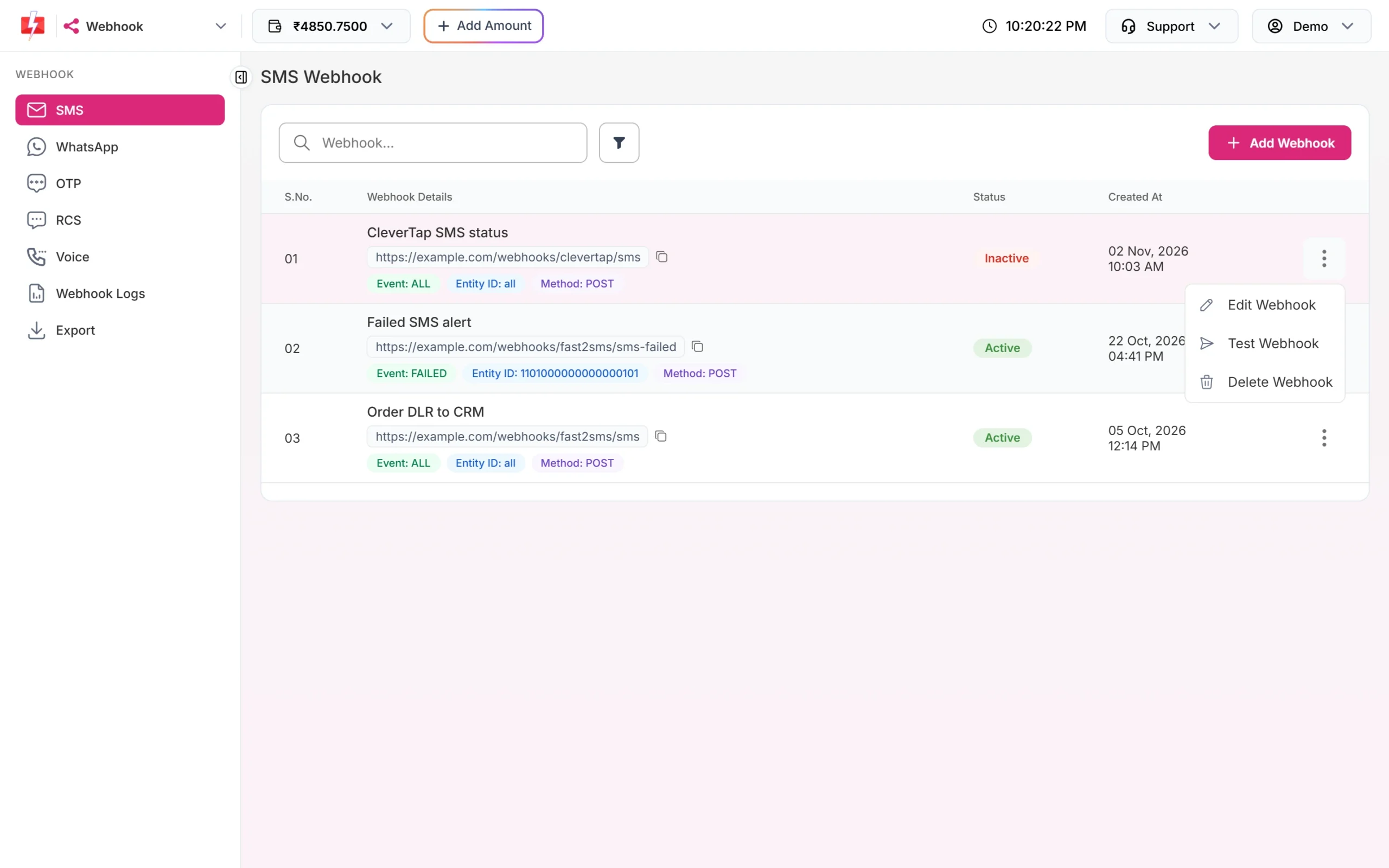
Edit the webhook from its row menu. -
Add the header
On the right, open the Headers tab and click + Add Header. Type the header name in the first box and your secret in the second box. Use a name your server can read easily, such as
X-Webhook-Token.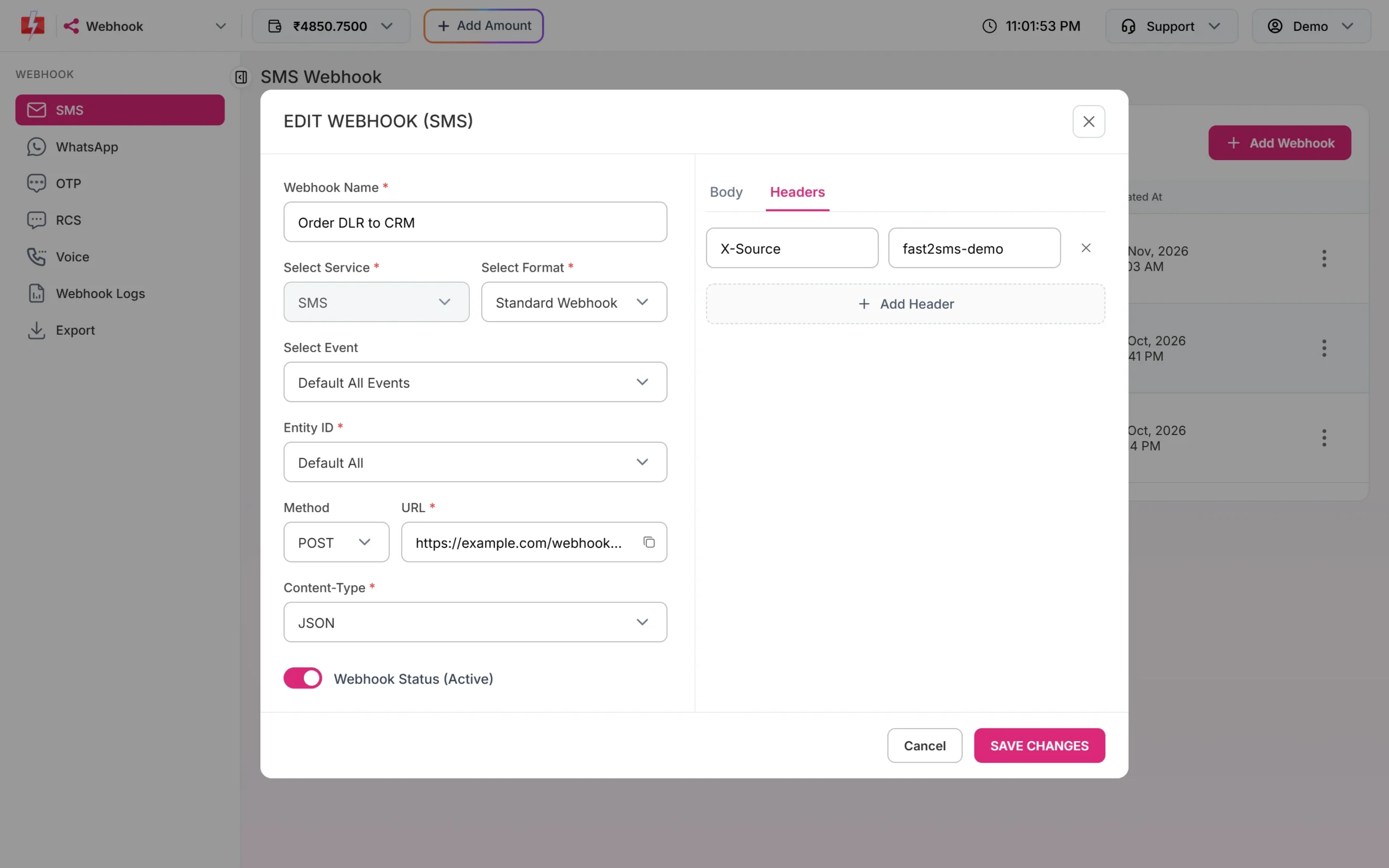
Each header has a name and a value. Your secret goes in the value. -
Save and test
Click SAVE CHANGES. Then use Test Webhook from the row menu. The test request carries the same headers, so you can confirm that your server reads the secret and answers 200.
-
Check the request in Webhook Logs
Open Webhook Logs, click the three dots on the newest row and choose View Details. The Request Data tab shows the headers we sent, and Response Data shows your server’s answer.
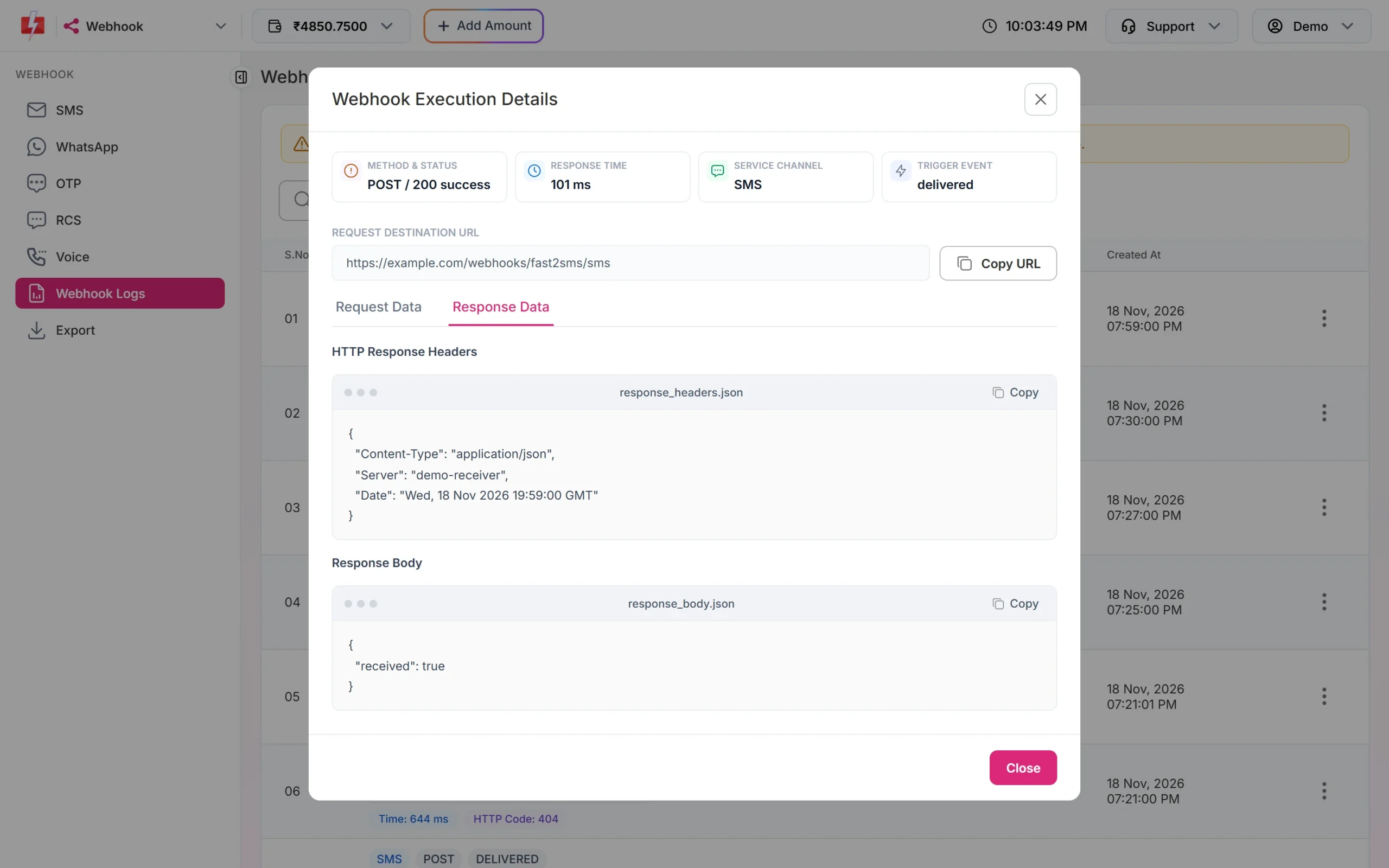
A request your server accepted.
Check the secret in your code
Compare the header with a constant-time function so the check does not leak hints about the secret through timing. Keep the secret in an environment variable, not in your code.
PHP
<?php
$expected = getenv('F2S_WEBHOOK_TOKEN');
$received = $_SERVER['HTTP_X_WEBHOOK_TOKEN'] ?? '';

if ($expected === false || hash_equals($expected, $received) === false) {
    http_response_code(401);
    exit('Unauthorized');
}

$data = json_decode(file_get_contents('php://input'), true);
// save $data, then reply
http_response_code(200);
echo 'OK';
Node.js (Express)
const crypto = require('crypto');
const express = require('express');
const app = express();
app.use(express.json());

app.post('/fast2sms/webhook', (req, res) => {
  const expected = Buffer.from(process.env.F2S_WEBHOOK_TOKEN || '');
  const received = Buffer.from(req.get('X-Webhook-Token') || '');
  const ok = expected.length > 0 &&
    expected.length === received.length &&
    crypto.timingSafeEqual(expected, received);
  if (ok === false) return res.status(401).send('Unauthorized');

  // save req.body, then reply
  res.status(200).send('OK');
});

app.listen(3000);
Python (Flask)
import hmac, os
from flask import Flask, request

app = Flask(__name__)

@app.post("/fast2sms/webhook")
def webhook():
    expected = os.environ.get("F2S_WEBHOOK_TOKEN", "")
    received = request.headers.get("X-Webhook-Token", "")
    if not expected or not hmac.compare_digest(expected, received):
        return "Unauthorized", 401
    data = request.get_json(silent=True) or {}
    # save data, then reply
return "OK", 200The webhook_secret_key header
Some accounts have the older signature setting switched on. Then every webhook request also carries a header named webhook_secret_key that holds a 40-character secret.
- It is the plain secret, not an HMAC signature of the body. Check it the same way as your own header: compare it with the value you saved.
- The new Webhook pages do not have a switch for this setting. If you want it, contact support. For most setups, your own header from the Headers tab does the same job and you control the value.
- If you see
webhook_secret_keyin Request Data in Webhook Logs, the setting is on for your account.
More checks that help
| Check | How |
|---|---|
| Use HTTPS | Save an https:// URL with a valid certificate. Over plain http, the secret header can be read on the way. |
| Match request IDs | Every send API reply has a request_id (S for SMS, O for Smart OTP, W for WhatsApp, R for RCS, V for voice). Store it when you send, and ignore reports for IDs you never created. |
| Use udf fields | Pass your own order or user ID in udf1 when sending. A report whose udf1 does not match the stored record is suspicious. |
| Allow the method you use | If the webhook uses POST, reject GET and PUT on that path. |
| Make updates repeat-safe | The same report can arrive twice after a retry or resend. Update by request_id and mobile instead of inserting a new row. |
| Keep the secret out of the URL | A token in the query string ends up in server and proxy logs. A header is safer. |
Change the secret
- Make your server accept both the old and the new secret for a short time.
- Edit the webhook, change the header value to the new secret and click SAVE CHANGES.
- Send a Test Webhook and check it succeeds.
- Remove the old secret from your server.
Headers you add are shown in Webhook Logs to anyone who can open your Fast2SMS account, so change the secret if someone who had access leaves your team.
Common problems and fixes
Every request now fails with 401
Your server cannot find the header. Some frameworks change header names: PHP reads X-Webhook-Token as HTTP_X_WEBHOOK_TOKEN. Check the exact name and value in Request Data in Webhook Logs.
The test passes but real reports fail
Check that you saved the webhook after adding the header. The test uses the saved settings, and so do real reports.
My firewall blocks the requests
Bot protection on your site can block automated requests. Create a rule that lets requests to your webhook path through and rely on the secret header for security.
Frequently asked questions
Does Fast2SMS sign webhooks with HMAC?
No. The webhook_secret_key header, when it is on, carries the plain secret. Use your own secret header or that header and compare it with your saved value.
Can I add more than one header?
Yes. Click + Add Header again for each header, for example a secret and a source tag.
Can I add a Bearer token in the Authorization header?
Yes. Add a header named Authorization with the value Bearer followed by your token, and check it on your server.
Is HTTP allowed for webhook URLs?
Public http and https URLs are both allowed, but use https so your secret is not sent in clear text.
Can I restrict my endpoint to Fast2SMS IP addresses?
Do not depend on source IPs. Check the secret header instead, which works wherever the request comes from.
Do the headers also apply to webhooks created by API?
Yes. The webhook management API accepts headers as header_key[] and header_value[] pairs.