
You can download an SMS delivery report in Fast2SMS in two ways. For one campaign, click Download on its row in Delivery Report > SMS Report. For all SMS between two dates, go to Delivery Report > Export, choose SMS, pick the dates and click Submit. The export file is ready after some time and stays available for 48 hours.
This guide shows both ways step by step, what the file contains, and the limits that cause “No data found” or “cannot export” messages.
Which download do I need?
| Download (one campaign) | Export (date range) | |
|---|---|---|
| Where | SMS Report list, Download button on a row | Delivery Report > Export |
| Covers | Only that send | All SMS sent in the dates you choose |
| Ready | Straight away | After the file is built. Refresh the page to check |
| Format | Excel file | ZIP file with CSV inside, opens in Excel |
| Kept for | Download again any time from the list | 48 hours, then removed |
How to download the report of one SMS campaign
-
Open SMS Report and find the campaign
Click Delivery Report in the SMS menu. The list shows your sends for the last 2 days by default. To see older sends, click the date box or the filter button and choose a range such as Last 1 week, Last 30 days, Last 3 months or Custom Date, then click Apply Filters.
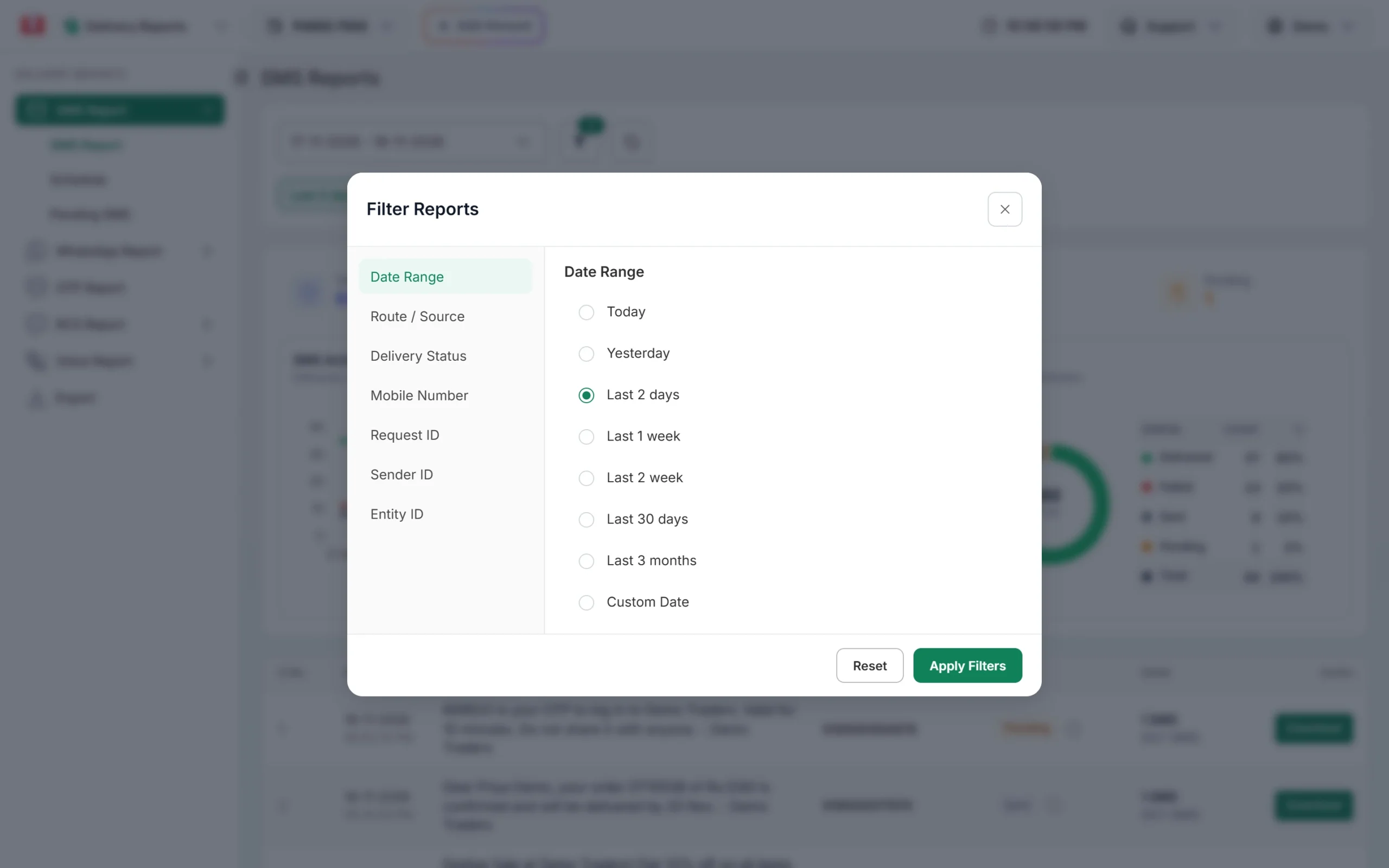
Choose the date range before you look for the campaign. You can also filter by Mobile Number, Request ID, Sender ID or Entity ID to find a send faster.
-
Click Download on the row
Each row in the list has a green Download button in the Action column. Click it to download that campaign’s report with the status of each number.
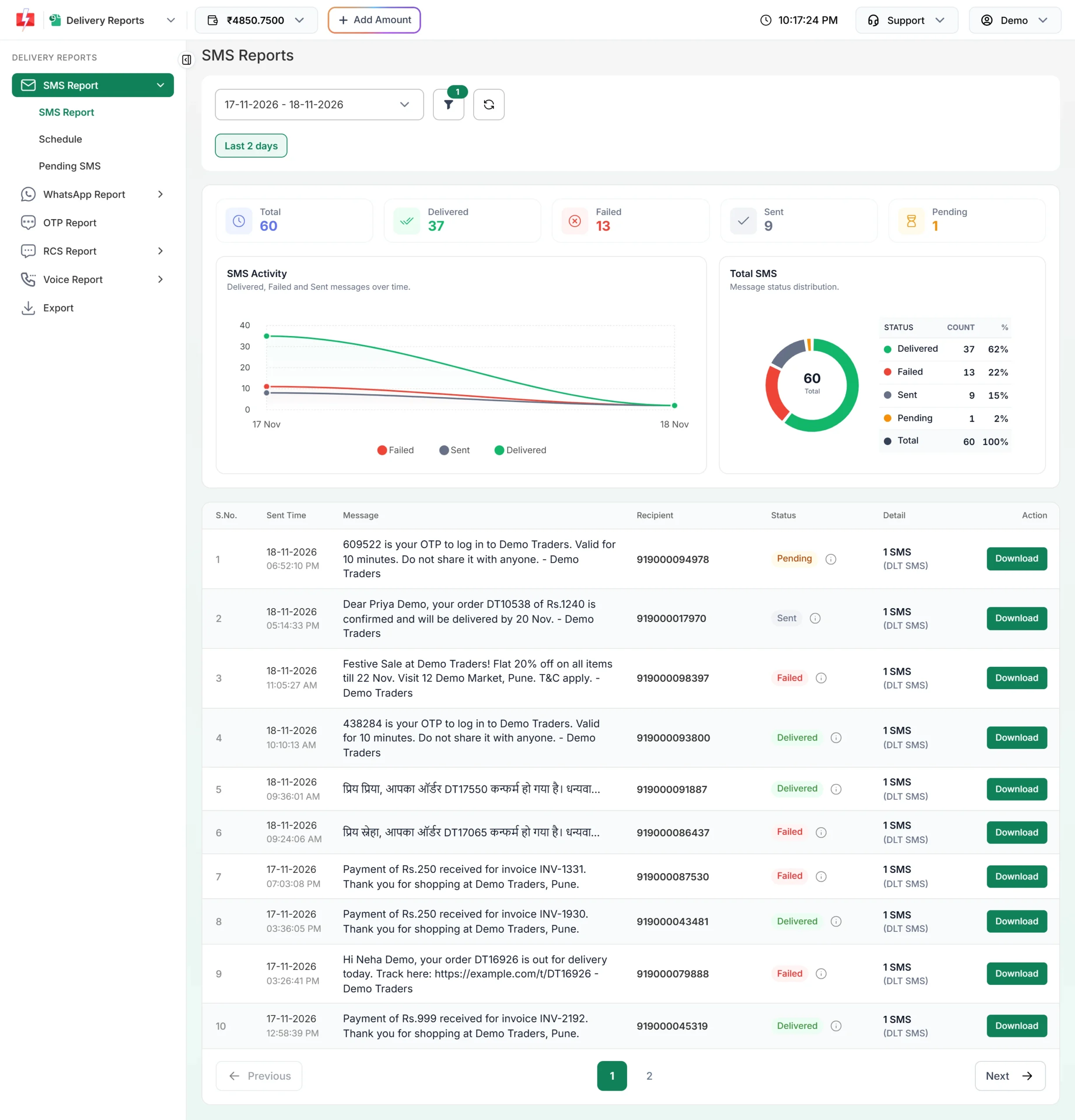
The Download button on each row gives that send’s report. If you click it twice quickly, you may see “Please wait 10 second to export this delivery report.” Wait a moment and try again.
How to export SMS delivery reports for a date range
-
Open the Export page
In Delivery Report, click Export in the left menu. At the top you see the note “Export files stay available for 48 hours, then are removed automatically.”
-
Choose SMS and the dates
Under Generate Report, keep the first box on SMS (it also has WhatsApp, OTP, RCS and Voice). Click Select Date, pick the Start Date and End Date in the calendar, and click Apply.
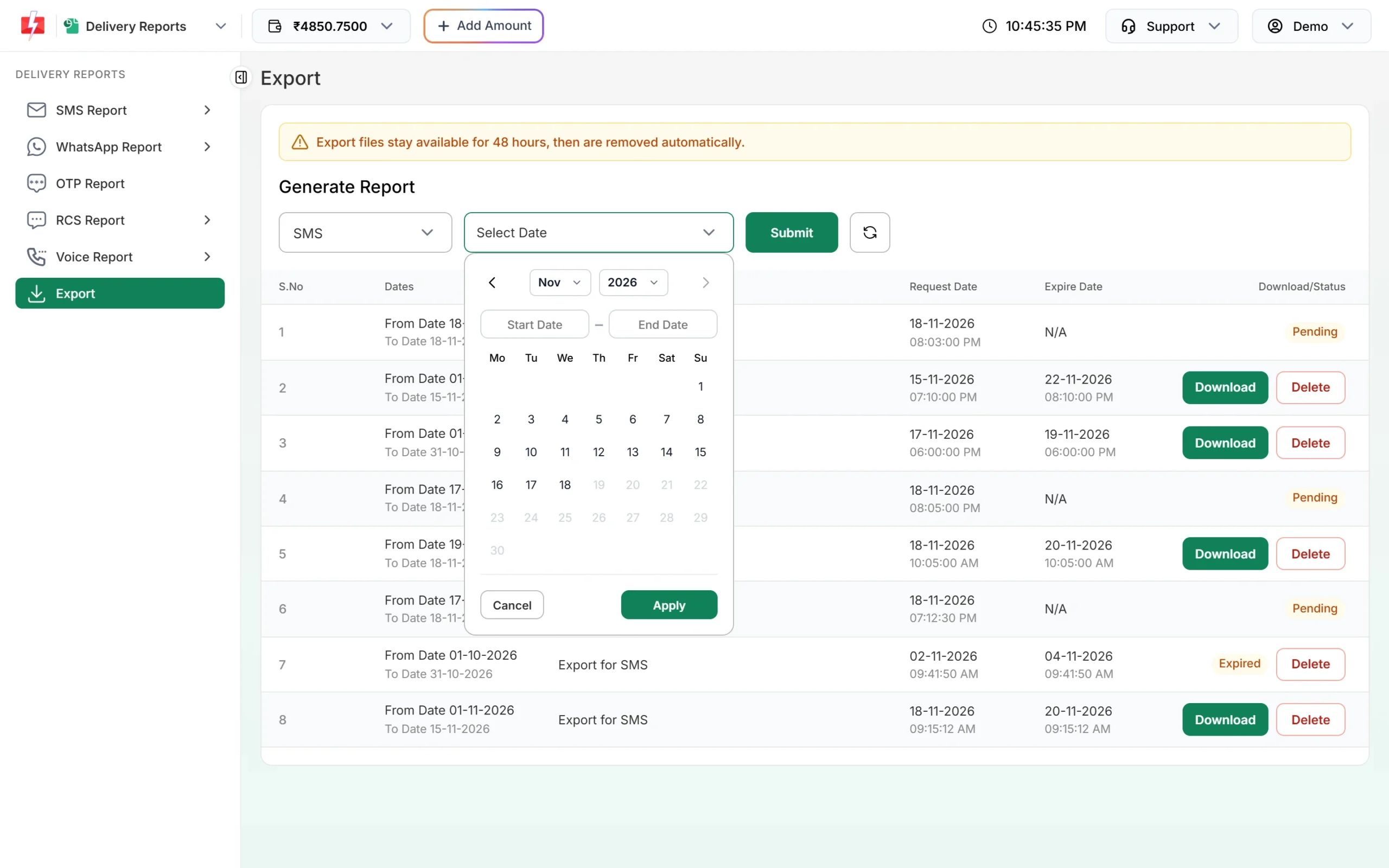
Pick the start and end date for your export. -
Click Submit and wait for the file
Click Submit. You see “Export Request Successfully Sent, Please Refresh This Page After Sometime.” A new row appears with the dates and the status Pending while the file is being made. You also get an SMS on your registered mobile number when the file is ready.
-
Download the file
Click the refresh button next to Submit. When the file is ready, the row shows Download and Delete buttons, and an Expire Date. Click Download to save the ZIP file, then open the CSV inside it with Excel.
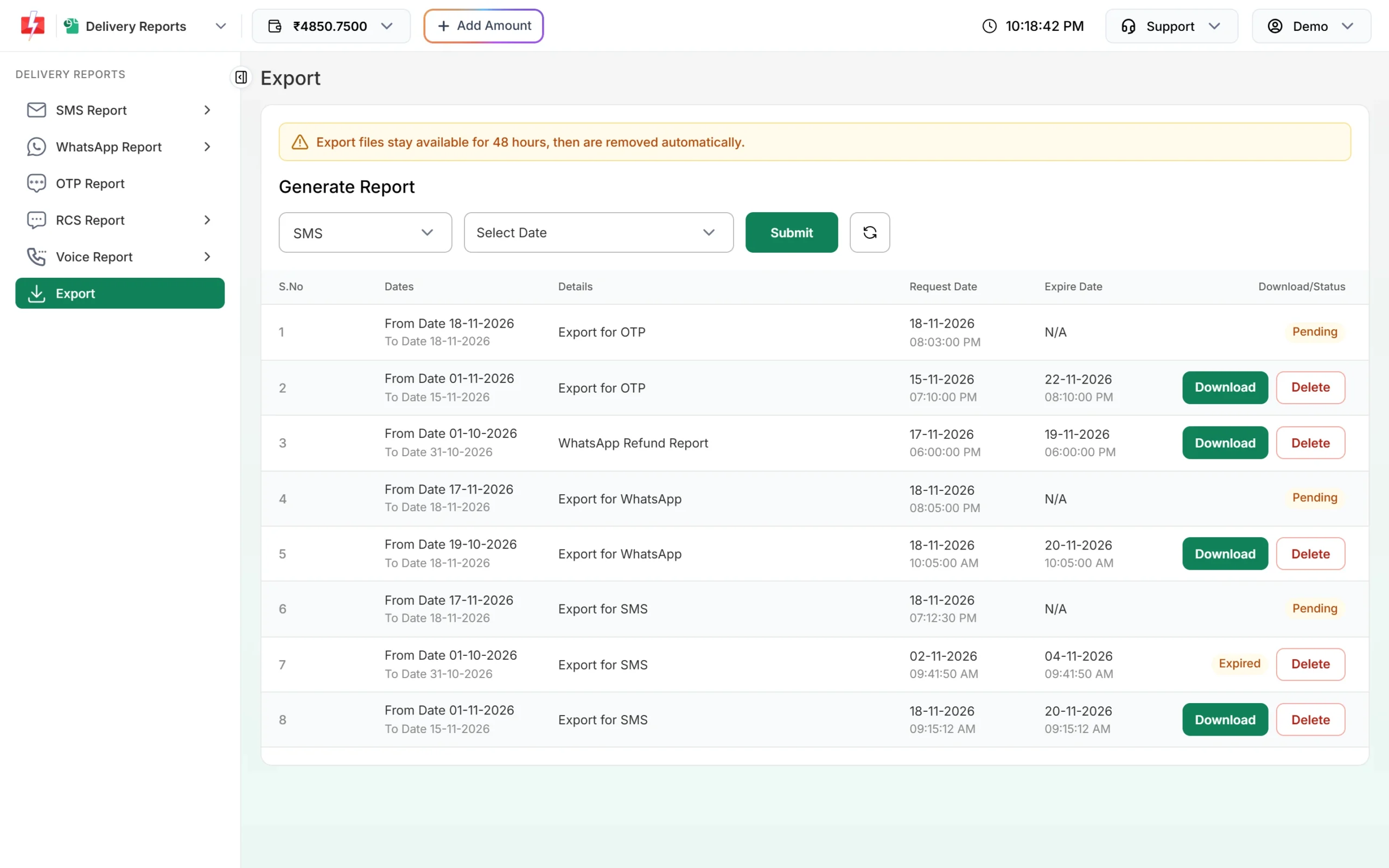
Ready exports show Download. Old ones show Expired. After 48 hours the row shows Expired and the file can no longer be downloaded. Submit a new export if you need it again.
What the SMS export file contains
The export has one row per number, with these columns:
- S.No., SMS Request ID, Sender ID, Receiver
- Sent From, Sent Message, Message Language
- Amount Debit, SMS Count, Characters Count
- Sent/Scheduled Time, Url Status, Url Time
- Status, Description, Delivery Time, Sent IP
Status and Description match what you see in Delivery Details, for example Delivered with “Delivered successfully”, or DND with “DND activated”. Sort or filter the Status column in Excel to get a list of failed numbers.
Export messages and limits
| Message | Why | What to do |
|---|---|---|
| No data found on these dates. | No SMS were sent in that date range | Check the dates. Pick a range that has sends in SMS Report. |
| You cannot export more than 5 reports, wait until old reports expires. | You already have 5 exports that are not expired | Delete old exports you no longer need, or wait for them to expire. |
| You already have more than 2 pending export request. | Two exports are still being built | Wait until they show Download, then submit the next one. |
| Row shows Expired | 48 hours have passed | Submit the export again. |
Frequently asked questions
How do I download my SMS delivery report in Excel?
For one campaign, click Download on its row in SMS Report. For a date range, use Delivery Report > Export, choose SMS and dates, click Submit, and download the ZIP when it is ready. The CSV inside opens in Excel.
How long are export files available?
48 hours from when they are ready. After that they show Expired and are removed.
How far back can I see SMS reports?
In SMS Report you can pick ranges up to Last 3 months, or a Custom Date range. The earliest date you can pick is the day your account was created.
Why does my export say Pending?
The file is still being made. Large date ranges take longer. Refresh the page after some time, or wait for the SMS that says the file is ready.
Can I export only failed numbers?
The export includes all numbers with their status. Open it in Excel and filter the Status column to Failed, DND, Blocked or Invalid.
Does the export include Quick SMS?
The SMS export covers SMS sent from your account in the dates you pick. Messages that were held for review and rejected are not in the SMS Report.
Can I get the report without downloading files?
Yes, if you send by API. Set up a webhook and Fast2SMS sends the delivery status of API sends to your URL.