
When you send bulk SMS from the Fast2SMS panel, duplicate and invalid numbers are found and removed for you. The confirmation popup shows how many were dropped, and you pay only for the valid numbers. This guide explains what counts as invalid, how to see the counts before you send, and how to keep your contact list clean so fewer SMS fail.
What counts as a duplicate or invalid number?
| Type | What it means | Charged? |
|---|---|---|
| Valid number | A 10-digit Indian mobile number starting with 6, 7, 8 or 9. A +91 or 91 in front, spaces and dashes are cleaned automatically. | Yes |
| Duplicate number | The same number appears more than once in the same send | No, it is sent once |
| Invalid number | Too short, too long, starts with 0 to 5 after cleaning, or has letters | No, it is skipped |
A valid-looking number can still fail later, for example if it is switched off or no longer in use. Those failures come from the operator and show in the delivery report. More on that below.
See duplicate and invalid counts before you send
-
Add your numbers on the DLT SMS page
Open DLT SMS, choose the Sender ID and add numbers under Send To. You can type or paste them in List, pick contacts from Address Book, or upload a CSV File. The Total Contacts counter shows every entry, including repeats and wrong ones.
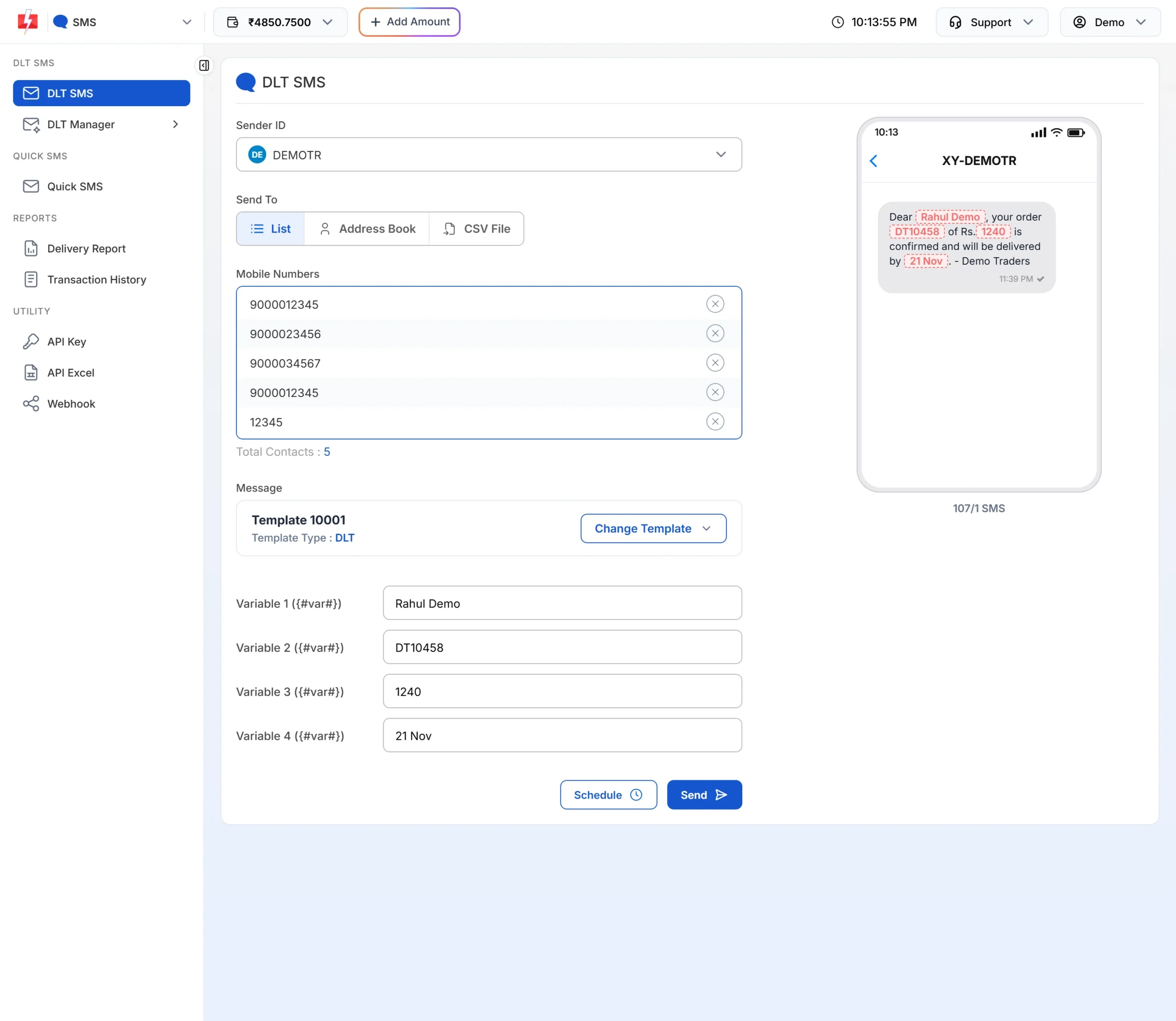
Five entries: one is repeated and one is too short. -
Click Send and read the confirmation popup
Pick your template and click Send (or Schedule). Nothing is sent yet. The Message Preview & Confirmation popup shows Total Numbers, Duplicate Numbers, Valid Numbers and Invalid Number, and the cost worked out on the valid numbers only.
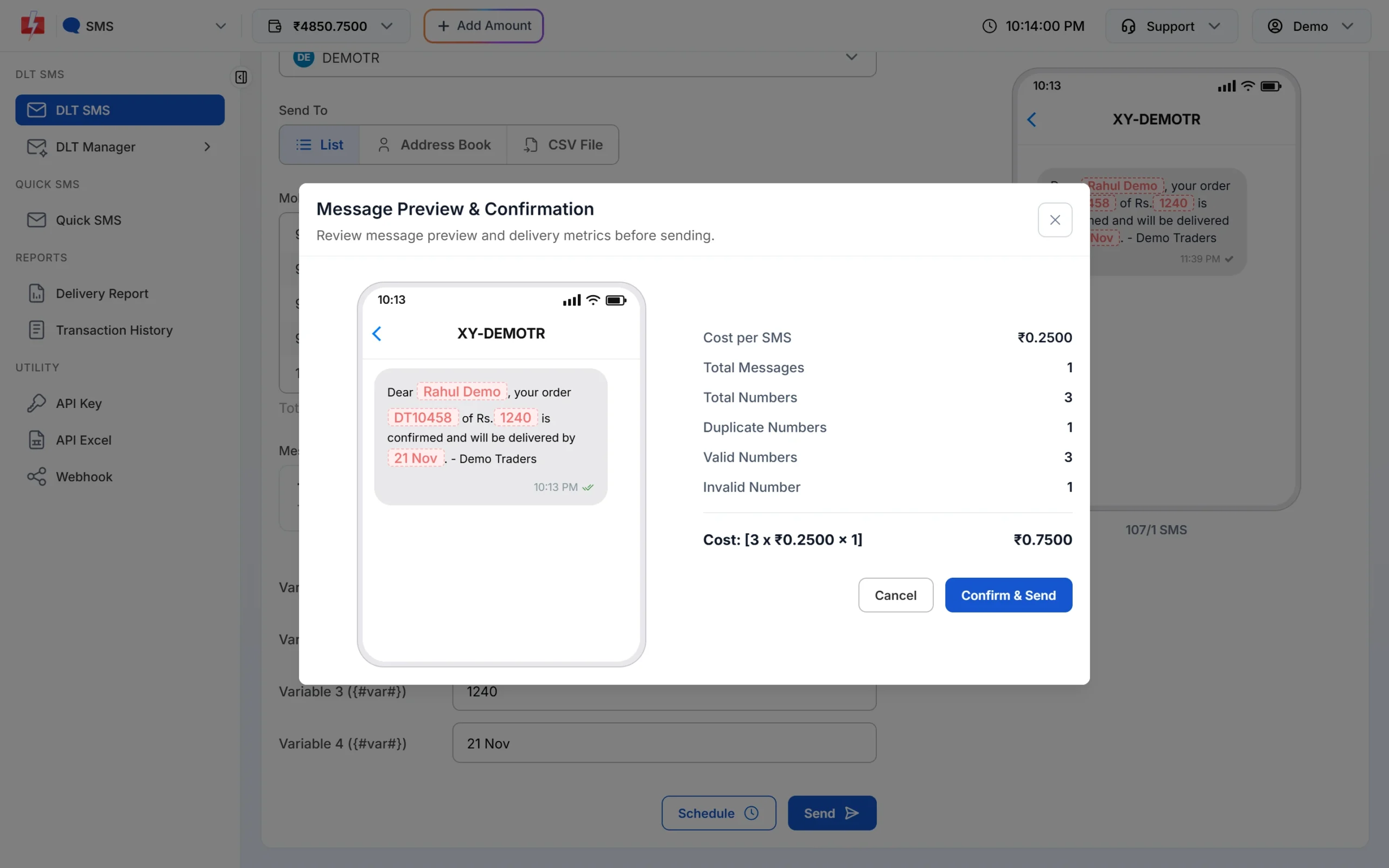
One duplicate and one invalid number were removed. Only 3 numbers are charged. If the counts look wrong, click Cancel, fix the list and try again. If they look right, click Confirm & Send.
Duplicates from Excel files and the API
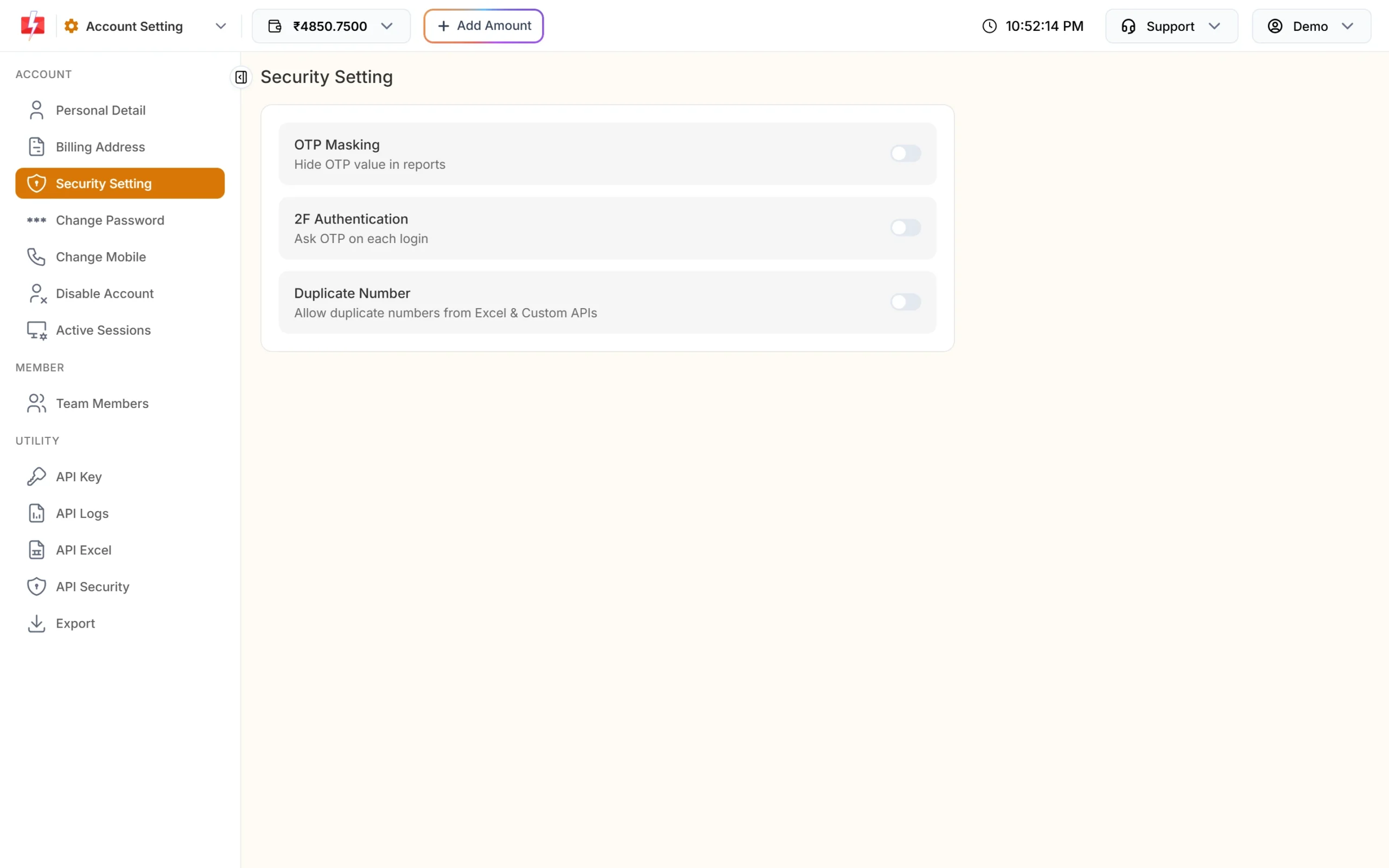
For Excel files and the custom API, a setting decides what happens to repeated numbers. Go to Account Setting > Security Setting and find Duplicate Number (“Allow duplicate numbers from Excel & Custom APIs”).
- Off: duplicate numbers from Excel files and custom APIs are removed automatically. This is the safe choice for most businesses.
- On: repeated numbers are kept. Use this only if you really need to send two different messages to the same number in one file, for example two separate order updates.
Changing the switch asks for your account password.
With the standard SMS API (bulkV2), invalid numbers in the numbers field are dropped without an error. You get error 411 “Invalid Numbers” only when every number is invalid. Add sms_details=1 to your request to get the lists of valid and invalid numbers in the reply.
Clean your list once in the Address Book
If you send to the same customers often, import them into the Address Book. The import cleans the list for you:
- only 10-digit numbers starting with 6 to 9 are kept, and longer numbers keep their last 10 digits, so 91 and 0 in front are fine;
- duplicates inside the file are skipped;
- numbers already saved are not added again, they are only linked to the group you choose.
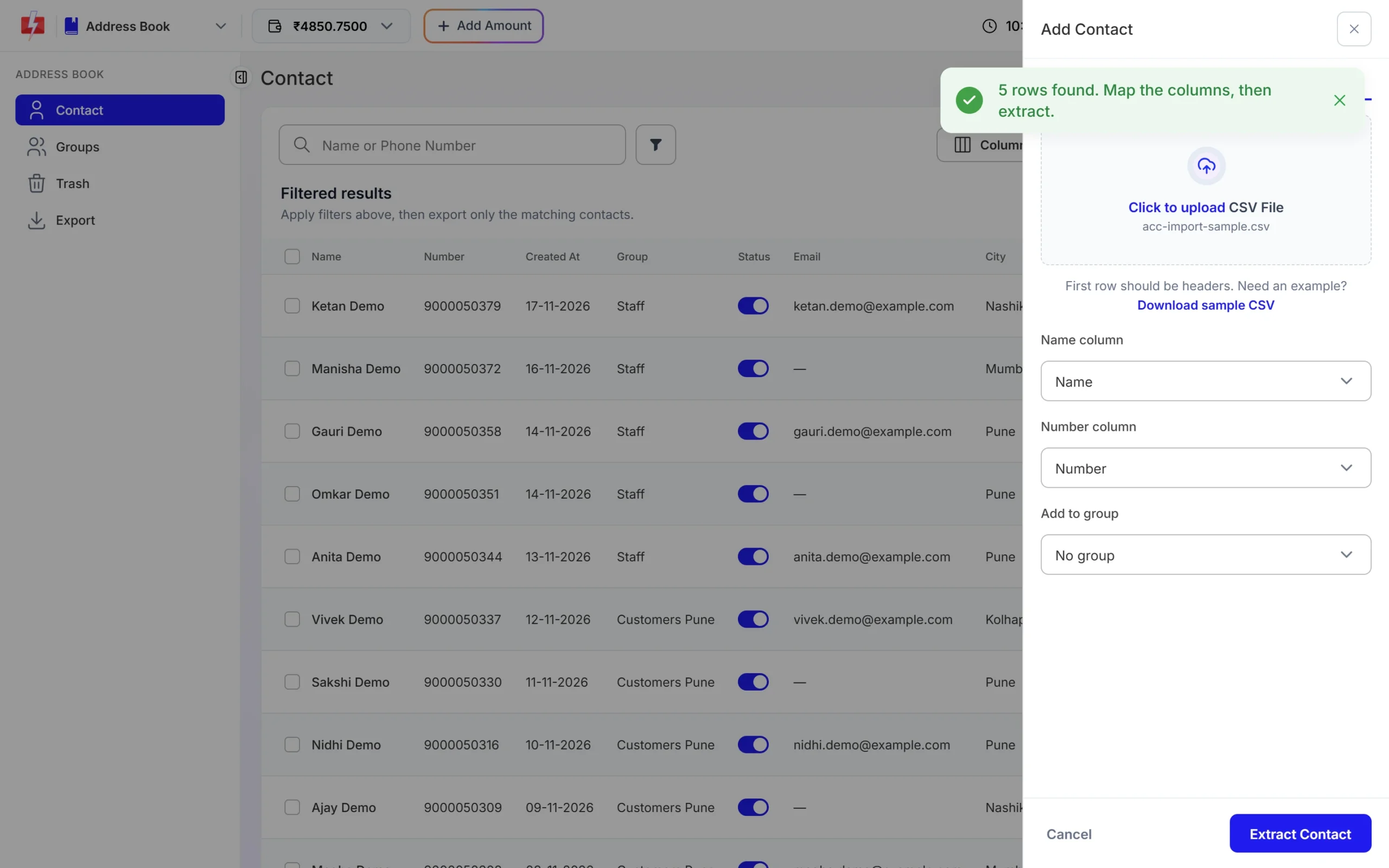
Open Address Book > Contact, click Add Contact, open the Upload CSV tab, upload your file, map the Name column and Number column, choose a group and click Extract Contact. The result message tells you how many contacts were imported, how many invalid numbers were ignored and how many duplicates were skipped.
Remove numbers that keep failing
Some numbers pass the format check but never receive SMS. After each campaign, open the Delivery Report, click the message and look at the Description of failed numbers. Remove numbers that show:
- “Number not exist” or “Unknown subscriber”: the number is not in use;
- “Number invalid”: the number is not a working mobile number;
- “Number suspended by operator”: the connection is suspended.
Do not remove numbers that failed with “Number switch off or low signal”, as those can receive SMS later. For promotional SMS, numbers marked “DND activated” will keep failing for promotional messages. Use the Export page to download a full report and filter failed numbers in Excel.
Quick tips before every bulk SMS
- Keep numbers in one column, without names or text in the same cell.
- Format the number column as text in Excel so leading digits are not lost or turned into 9.19E+11.
- Use Excel’s Remove Duplicates option on the number column if you want a clean file before upload.
- Send to Indian mobile numbers only. Landline and foreign numbers are treated as invalid.
Frequently asked questions
Am I charged for duplicate numbers?
No. In the panel, a repeated number is counted once and the cost is worked out on valid numbers only.
Am I charged for invalid numbers?
No. Invalid numbers are removed before sending and are not charged.
Why does Total Numbers in the popup differ from Total Contacts?
Total Contacts counts every entry you added. The popup removes repeated and invalid entries before counting the numbers that will get the SMS.
Can I send the same SMS twice to one number?
In one panel send, a repeated number gets the SMS once. For Excel files and custom APIs, you can keep repeats by turning on Duplicate Number in Security Setting.
Does Fast2SMS remove DND numbers before sending?
No. DND numbers are valid numbers. Transactional and service SMS reach them. Promotional SMS to them fail and show DND in the report.
Can I send to numbers with +91?
Yes. +91 or 91 in front is cleaned automatically, as long as 10 digits starting with 6 to 9 remain.