
To export the OTP report in Fast2SMS, open Delivery Reports, click Export, choose OTP, pick the dates and click Submit. The file is ready to download after a short wait, and it is the only place where you can see whether each OTP was verified. This page shows the steps and explains every column.
Before you start
- You need a Fast2SMS account that has sent Smart OTPs (SMS or WhatsApp).
- Know the date range you need. The report page opens on the last 2 days.
How to export the OTP report
-
Open the OTP Report
Open Smart OTP and click Delivery Report, or pick Delivery Reports from the apps menu and choose OTP Report. Here you see totals for Delivered, Read, Failed, Sent and Pending, and every OTP with its status.
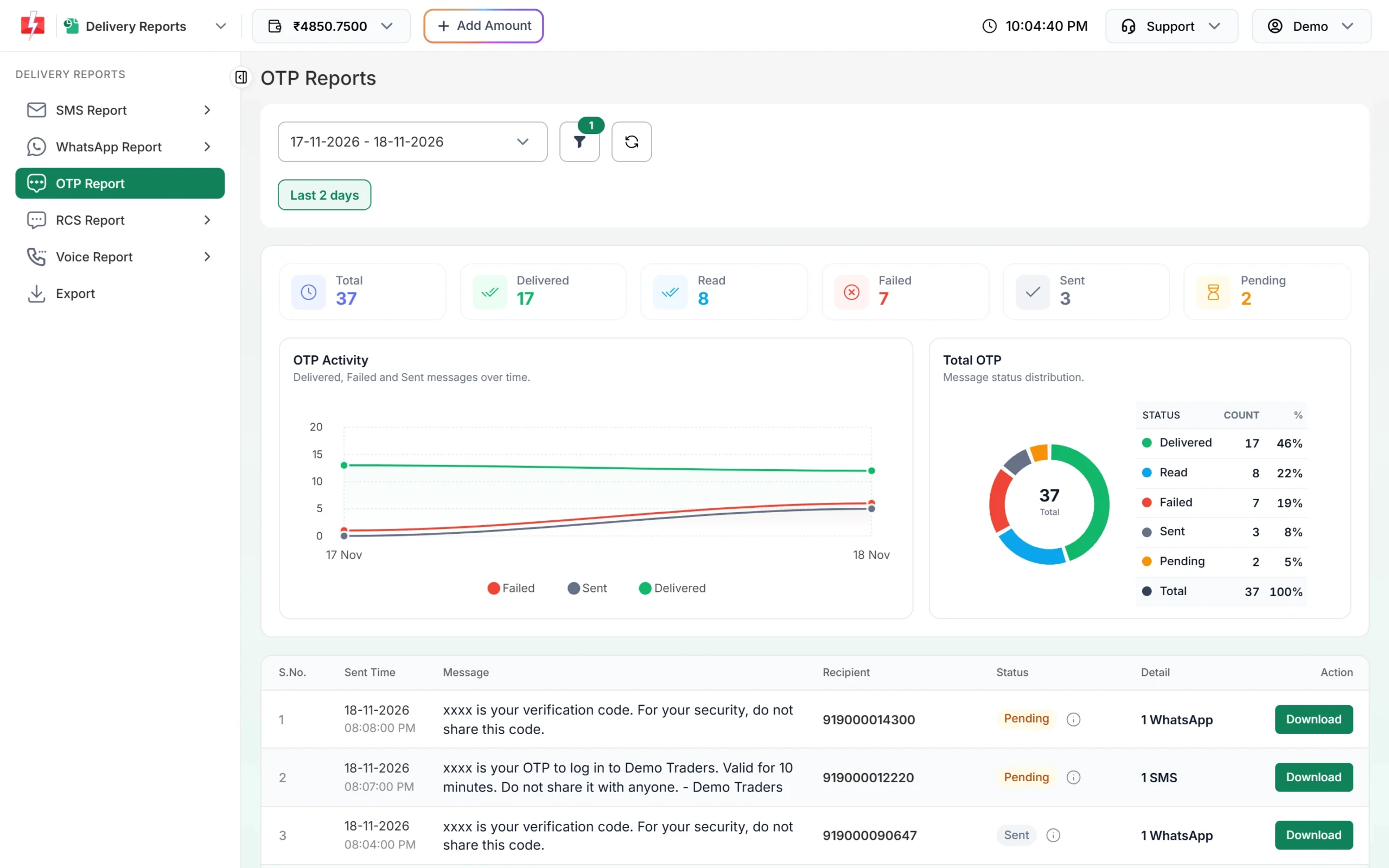
The OTP Report. The Export link is in the left menu. -
Request the export
Click Export in the left menu. Under Generate Report, choose OTP in the first box, choose your dates in Select Date, and click Submit.
-
Download the file
Your request appears in the list as Pending. Click the refresh button after a few minutes. When it is ready, a Download button appears. Files stay available for 48 hours and then show Expired.
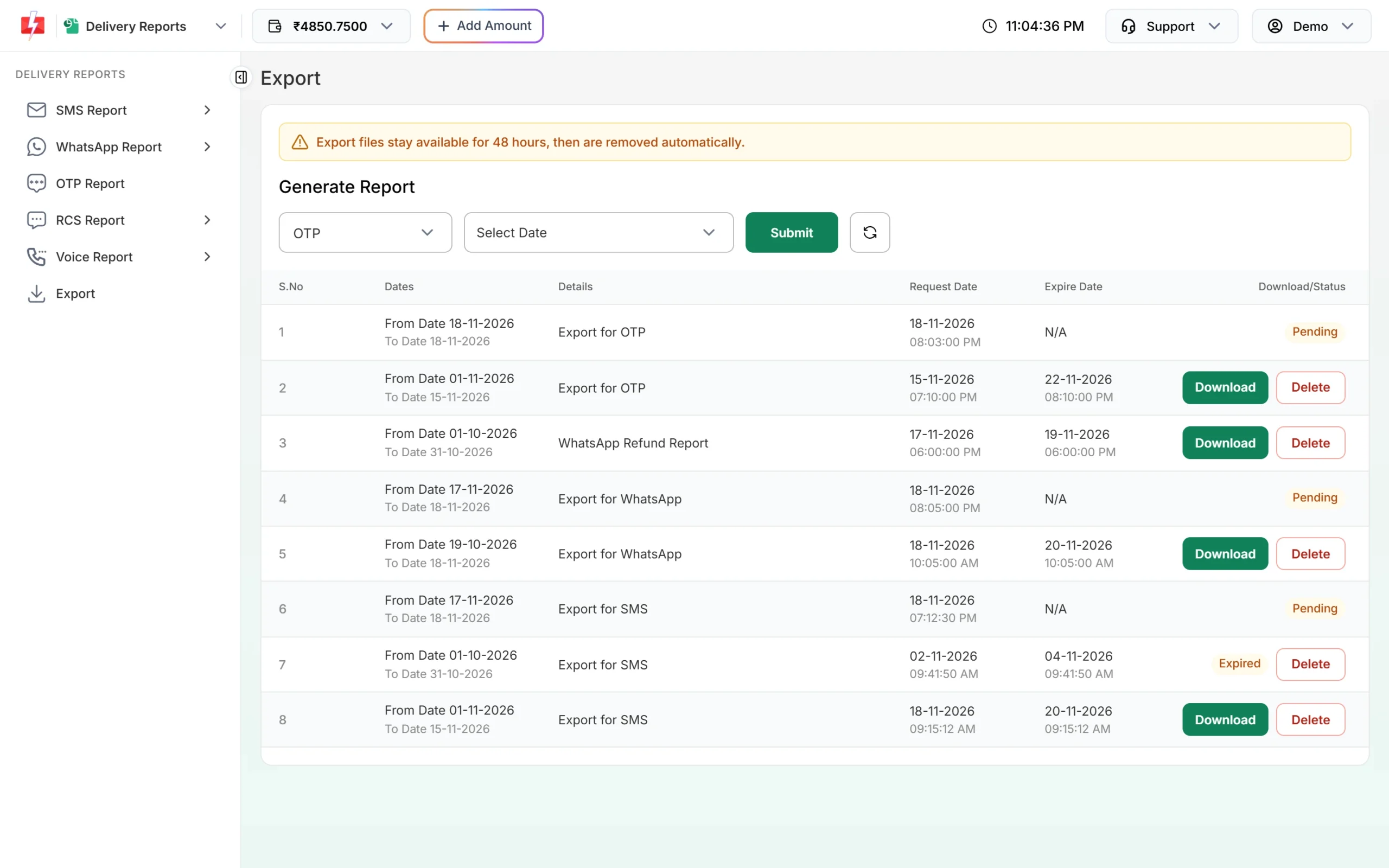
Export list: Pending, then Download, then Expired after 48 hours.
Columns in the OTP export
| Column | What it shows |
|---|---|
| Request ID, Channel, Sender ID, Receiver | Which OTP went to which number, and on SMS or WhatsApp |
| Message, Template Name, Category, Message Language | What was sent |
| Amount Debit, SMS Count, Characters Count | What the message cost and its size |
| Status, Description, Reason | Delivery result and failure reason |
| Sent/Scheduled Time, Delivery Time, Read Time | Timing of each step |
| Verified, Verified At | Whether the user entered the right code, and when |
| Sent IP, Sent From | Where the request came from |
| Attempts | 2 for a fallback message on the other channel |
What the Verified column means
- Yes: the OTP was verified.
- No: it has not been verified.
- Expired: it ran out of time, used up its wrong tries, or was replaced by a newer OTP to the same number.
Frequently asked questions
Where can I see if a user verified the OTP?
Only in the OTP export file, in the Verified and Verified At columns. The report page shows delivery status, not verification.
How long can I download the export?
48 hours after it is ready. After that, request a new export.
Why does my export show Pending?
The file is still being built. Click refresh after a few minutes.
Can I export only WhatsApp OTPs?
The export covers the dates you pick. The Channel column lets you filter SMS and WhatsApp rows in Excel.
Does the export show the OTP code?
The OTP Report page shows the code as xxxx. Check the Message column of your file before sharing it with others.