
When a user says “I did not get the OTP”, you need to know what happened to that message. Fast2SMS gives you three places to check: the OTP Report in the panel, an OTP webhook that pushes each delivery status to your server, and the OTP export file, which also shows whether the user verified the code. This guide shows how to use each one for Smart OTP and what every status means.
Which one should I use?
| You want to | Use |
|---|---|
| Check one user’s OTP right now | OTP Report, search by mobile number or request ID |
| Update your own app or database automatically | OTP webhook |
| Know which users verified the code | OTP export file (Verified and Verified At columns) |
| See why an API call was refused | API Logs (the OTP was never sent) |
Check an OTP in the OTP Report
-
Open the OTP Report
In Smart OTP click Delivery Report, or open Delivery Reports and click OTP Report. It opens on the last 2 days. Change the dates with the date picker. The cards at the top show Total, Delivered, Read, Failed, Sent and Pending.
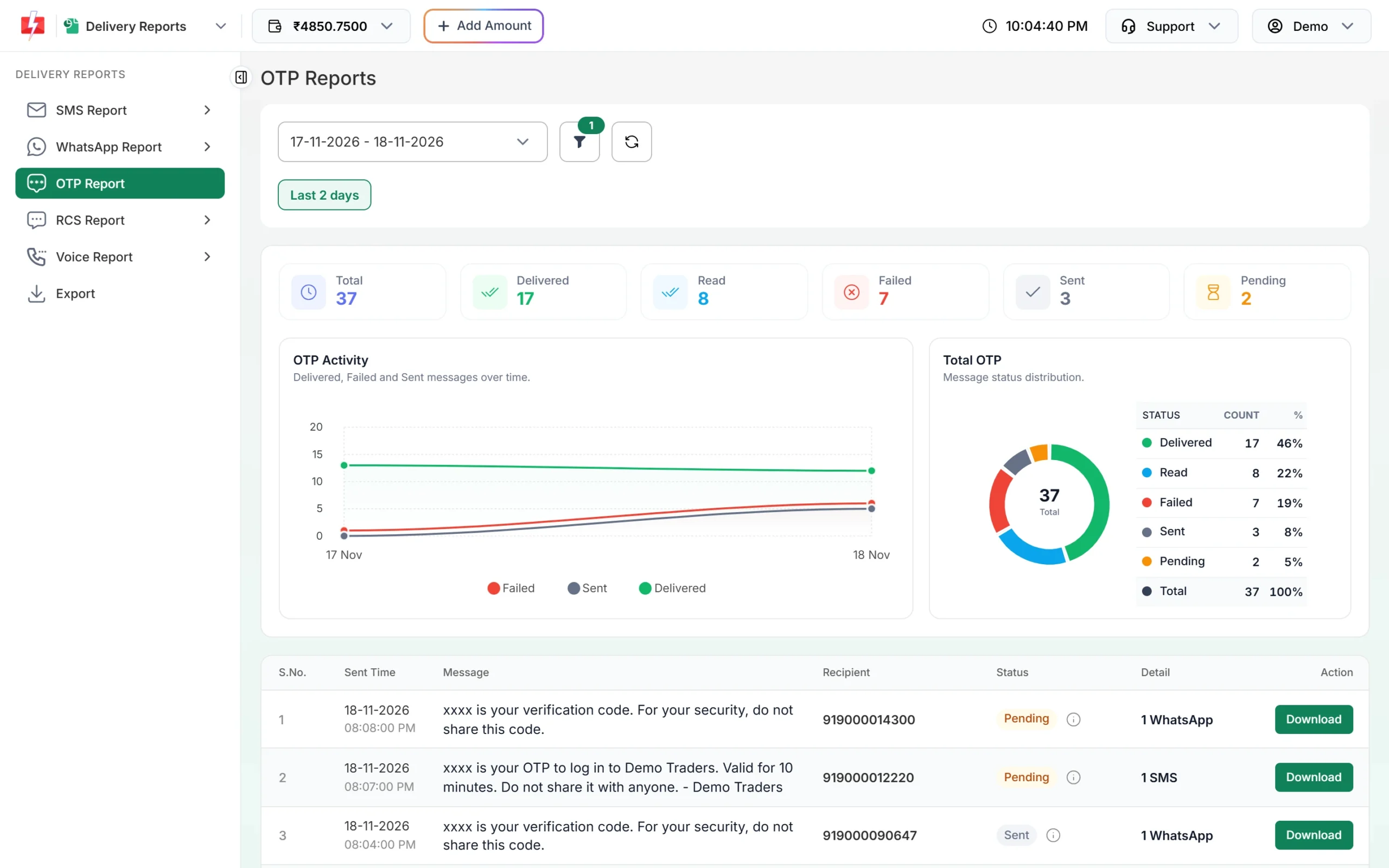
The OTP Report for the last 2 days. -
Find the message
Click the filter button to open Filter Reports. You can filter by Mobile Number, Request ID, Delivery Status, Sender ID, WABA Number, Entity ID and OTP Channel (All, SMS or WhatsApp), then click Apply Filters. The request ID is the
request_idstarting with “O” that the Send OTP API returned.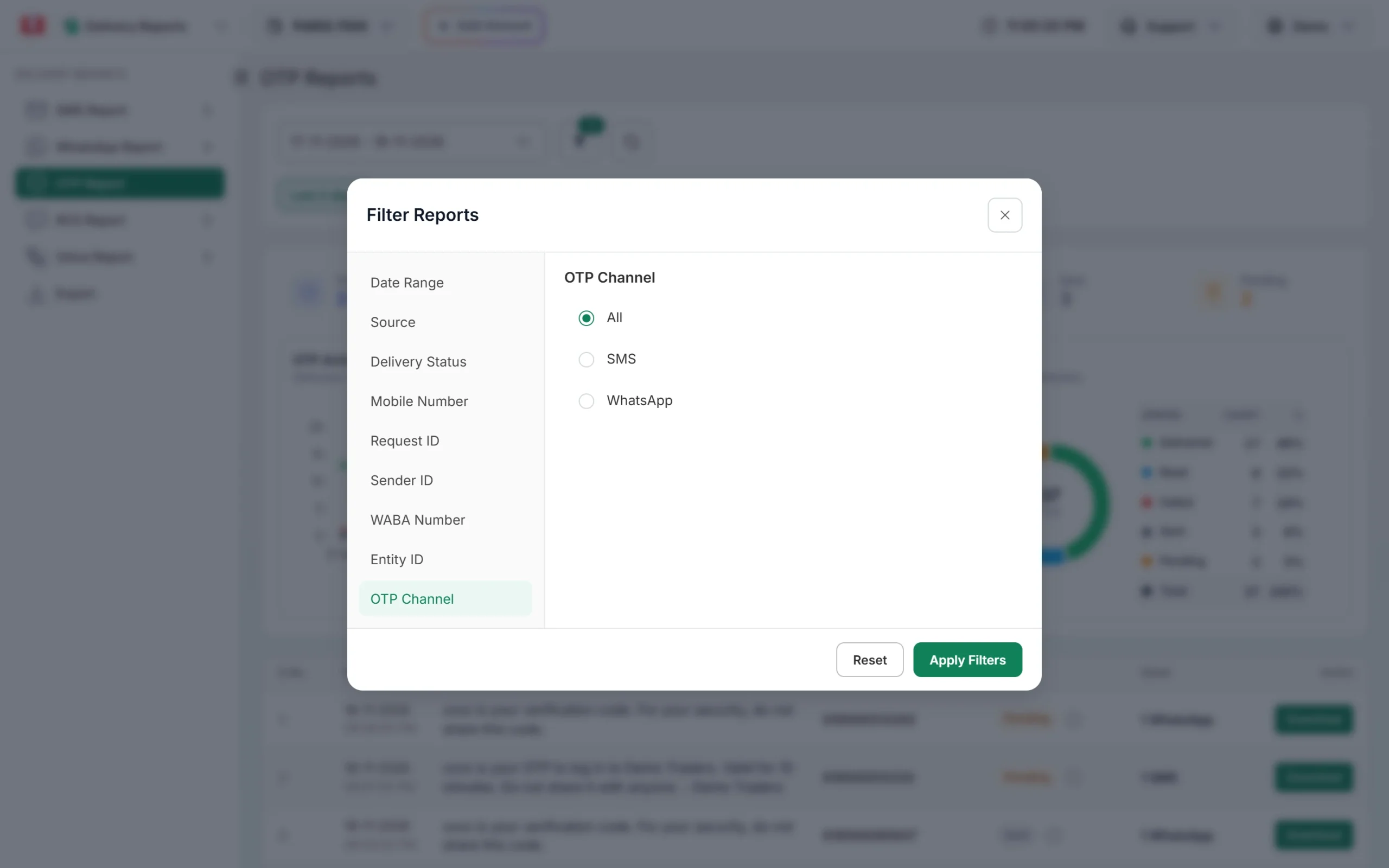
Filter by channel, number or request ID. -
Open Delivery Details
Click the row. Delivery Details shows the request ID, a preview of the message, and a Receivers table with the status, channel, description, process time and delivery time. The OTP digits are hidden as xxxx. For a failed OTP, the Description tells you why.
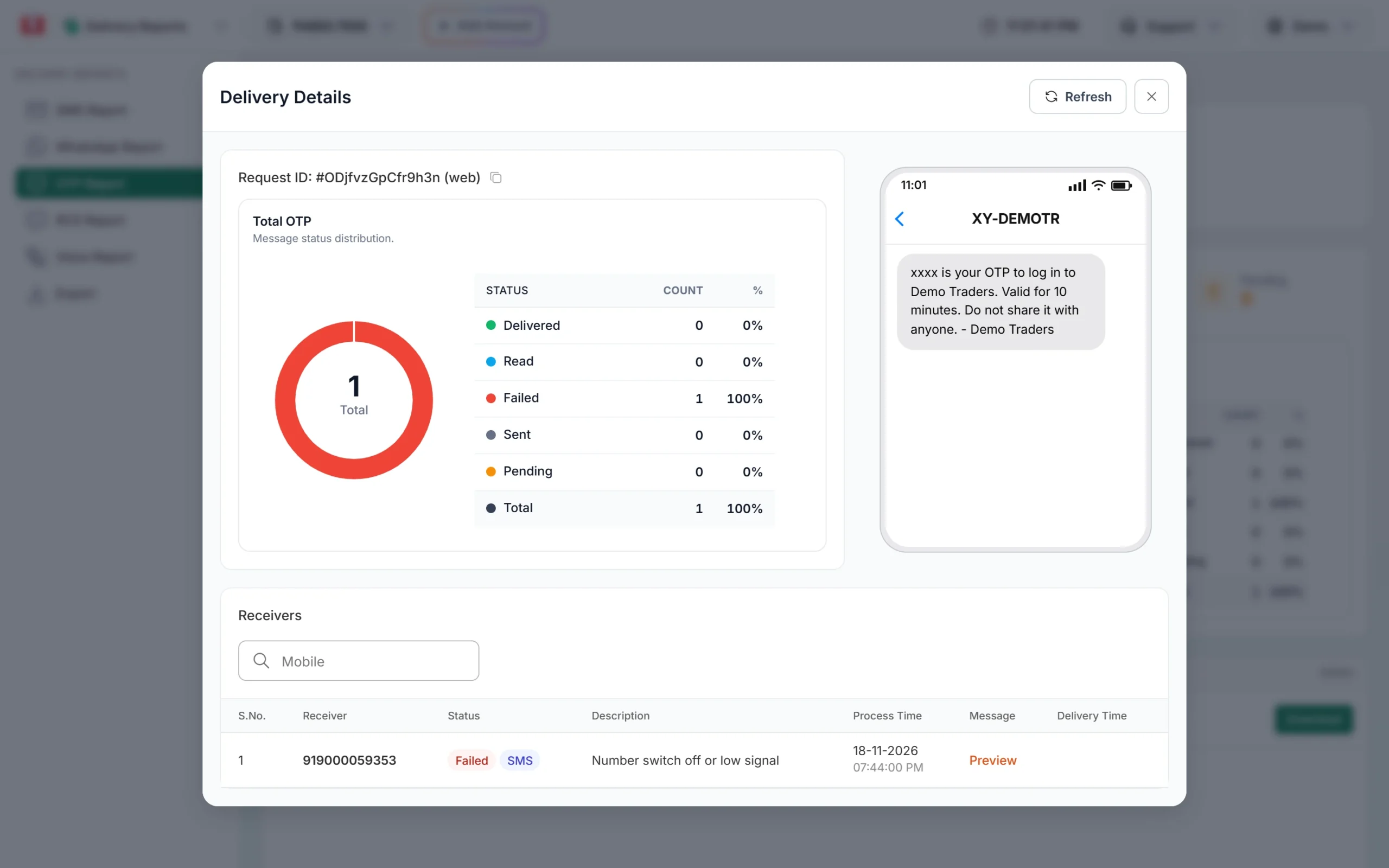
A failed SMS OTP. The description gives the reason. -
Check for a fallback
If the OTP template has a fallback, a failed first message is sent once more on the other channel. You then see two receiver rows under the same request ID, one with an SMS badge and one with a WhatsApp badge.
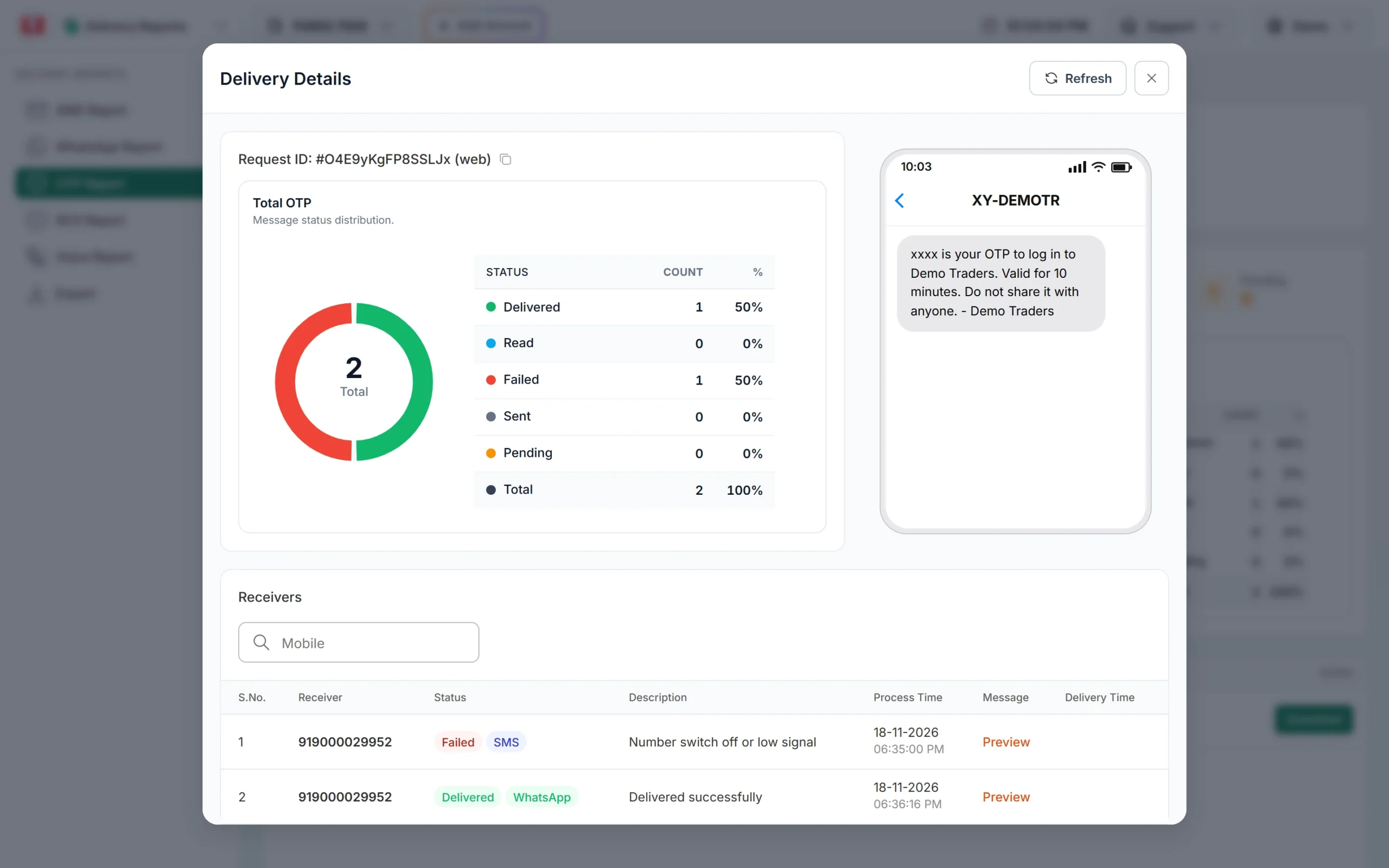
SMS failed, then the WhatsApp fallback was delivered.
What each OTP status means
| Status | Meaning | What to do |
|---|---|---|
| Delivered | The operator or WhatsApp confirmed the message reached the phone. | If the user still says no OTP, ask them to check the SMS inbox, spam folder or WhatsApp on the main phone. |
| Read | WhatsApp only. The user opened the message. | Nothing. The user has the code. |
| Sent | The message left Fast2SMS, but the final report has not come back yet. | Wait a little and click refresh. Reports can come late when the phone is off. |
| Pending | The message is still being processed. | Wait and refresh. |
| Failed | The message could not be delivered. This count also includes blocked, DND and invalid numbers. | Read the description. Add a fallback on the other channel so failed OTPs get a second chance. |
Common failure descriptions are a switched-off phone or low signal, an invalid or blocked number, and for WhatsApp, a number that is not on WhatsApp.
Get OTP status on your server with a webhook
An OTP webhook calls your URL each time an OTP delivery report comes in, so your app can update without opening the panel.
- Open the Webhook app and click OTP, or click Webhook under UTILITY in Smart OTP.
- Click Add Webhook. Give it a name, keep Select Format on Standard Webhook, and choose an event: Default All Events, On Delivered or On Failed.
- Enter your public https URL, pick POST and JSON, and write the body with
{{field}}placeholders. - Keep Webhook Status (Active) on and save.
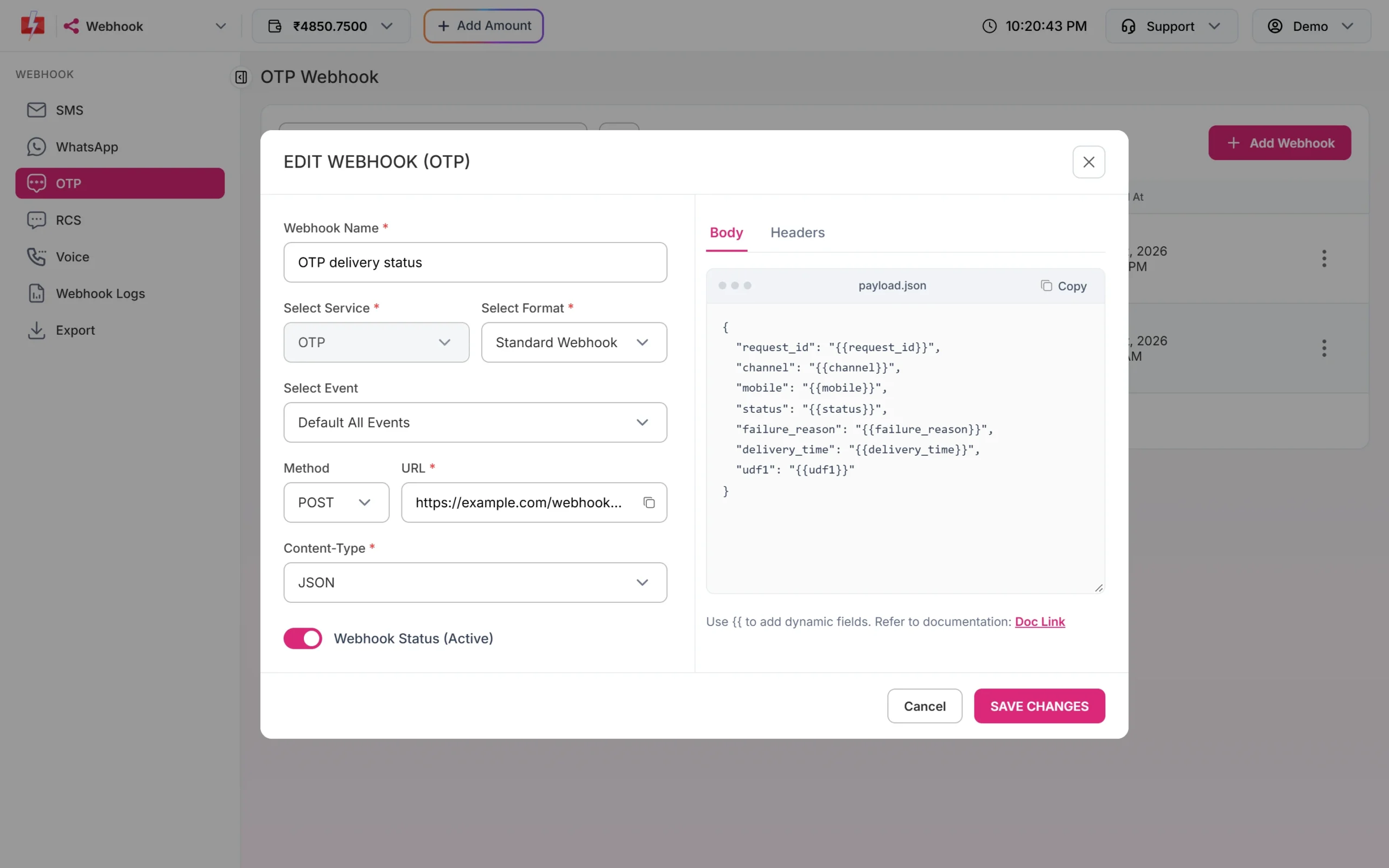
A useful body for OTP:
{
  "request_id": "{{request_id}}",
  "channel": "{{channel}}",
  "mobile": "{{mobile}}",
  "status": "{{status}}",
  "failure_reason": "{{failure_reason}}",
  "delivery_time": "{{delivery_time}}",
  "udf1": "{{udf1}}"
}
channel is sms or whatsapp. udf1 carries the value you passed in the Send OTP call, such as your user ID, so you can match the report to the user. A simple receiver in PHP:
<?php
$data = json_decode(file_get_contents('php://input'), true) ?: [];

// Save the status against your own record
error_log(sprintf('OTP %s to %s via %s: %s',
    $data['request_id'] ?? '',
    $data['mobile'] ?? '',
    $data['channel'] ?? '',
    $data['status'] ?? ''
));

http_response_code(200);
Things to know about webhooks:
- They fire only for OTPs sent through the API.
- They fire only for delivery reports that arrive within 24 hours of sending.
- Your URL must answer with an HTTP 2xx code within 10 seconds. Failed calls are retried up to 3 times, 60 seconds apart, for network errors, timeouts and 5xx answers.
- Every call is listed in Webhook Logs for 7 days, and you can resend each logged event once.
See which users verified the OTP
The report pages show delivery, not verification. To see verification, export the report:
- Open Delivery Reports and click Export.
- Choose OTP and a date range, then click Submit.
- Refresh after a while and click Download when the file is ready. Files stay for 48 hours.
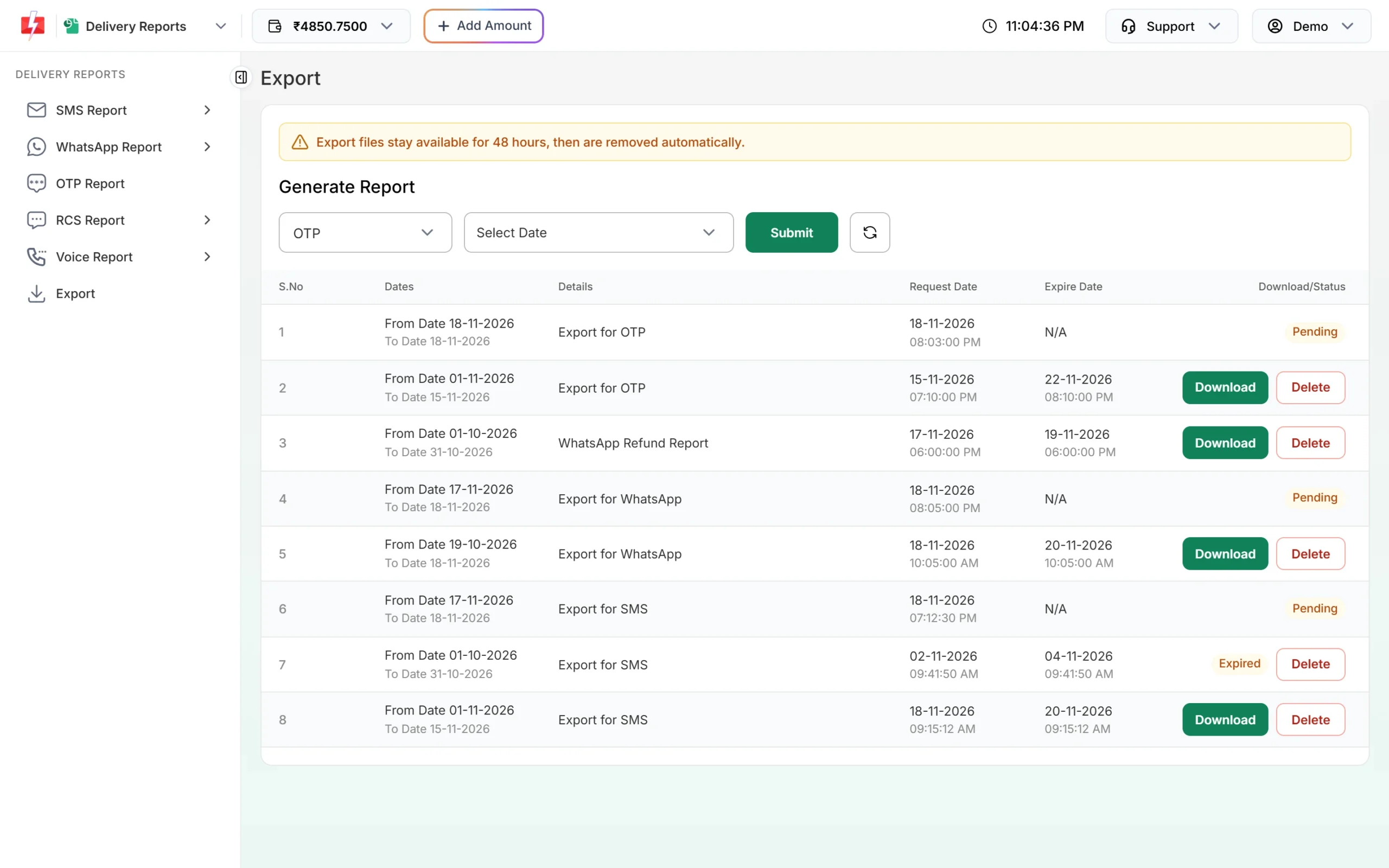
The file has one row per message with these columns among others: Request ID, Channel, Sender ID, Receiver, Amount Debit, Status, Description, Sent Time, Delivery Time, Verified (Yes, No or Expired), Verified At, Template Name, Reason and Attempts. “Expired” also covers codes that ran out of tries or were replaced by a newer OTP to the same number.
Frequently asked questions
Does “OTP sent successfully” mean the OTP was delivered?
No. It means Fast2SMS accepted the request. Check the OTP Report or your webhook for Delivered, Read or Failed.
Why is my OTP stuck on Sent?
The operator has not sent the final report yet. This often happens when the phone is off or out of network. The status updates when the report arrives.
Why do I see the OTP as xxxx in the report?
The OTP Report hides the code in the message preview and the message column. The rest of the text is shown as sent.
Why did my webhook not fire?
Check that the webhook is active, that its event matches (for example On Failed only fires for failed OTPs), that the OTP was sent through the API, and that the report came within 24 hours. Then look for the call in Webhook Logs.
Can I see if a user typed the right code?
Yes, in the OTP export file, in the Verified and Verified At columns. In your app, the Verify OTP API tells you at the moment the user types it.
How long can I see old OTPs?
Use the date picker in the OTP Report to go back. API Logs and Webhook Logs keep 7 days.