
Skip to content
Fast2SMS Help Center
API Docs Contact Us Sign up free

How to see logged-in devices and log out other devices in Fast2SMS

To see where your Fast2SMS account is logged in, go to Account Setting and open Active Sessions. It lists every logged-in device with its browser, IP address and last activity, and you can log out any device, or all other devices at once, with your password. This page shows how, and what each detail means.

Keep your account in your hands

See every device on your Fast2SMS account and log out the ones you do not use.

Sign up free →Book a free meeting

How to check active sessions

  1. Open Active Sessions

    Click Account Setting on the dashboard (or in the apps menu). In the left menu under ACCOUNT, click Active Sessions. The page title is “Logged in devices”.
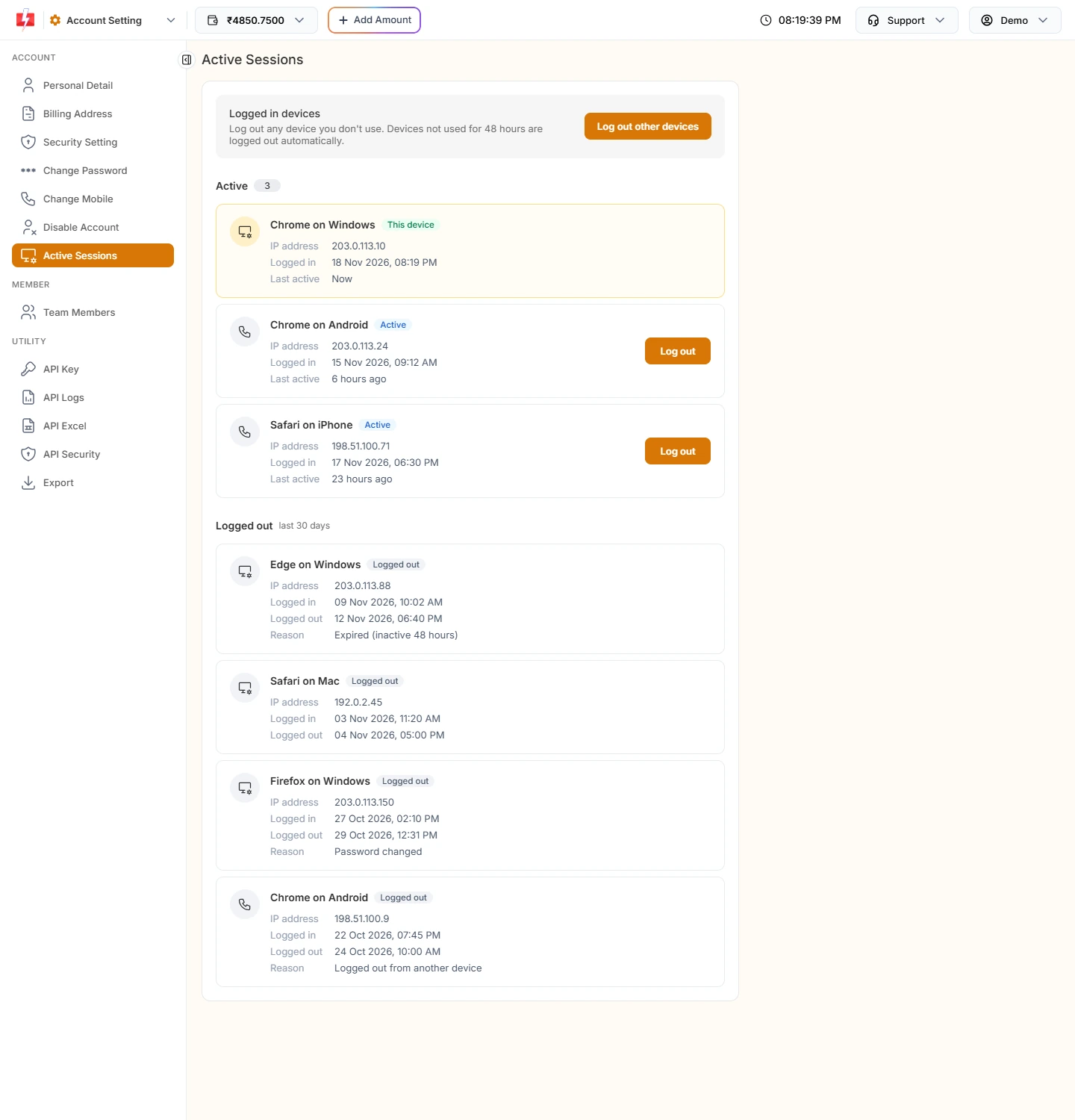
    Active Sessions page with 3 active devices: Chrome on Windows marked This device, Chrome on Android and Safari on iPhone, and a Logged out list with reasons
    Active devices on top, devices logged out in the last 30 days below.
  2. Read each device card

    Every card shows the device name, such as “Chrome on Windows” or “Safari on iPhone”, the IP address, when it Logged in, and when it was Last active. The device you are using now is first, with the tag This device.

  3. Log out a device you do not know

    Click Log out on that card, type your account password and confirm. The message “Device logged out.” appears and the device moves to the Logged out list.
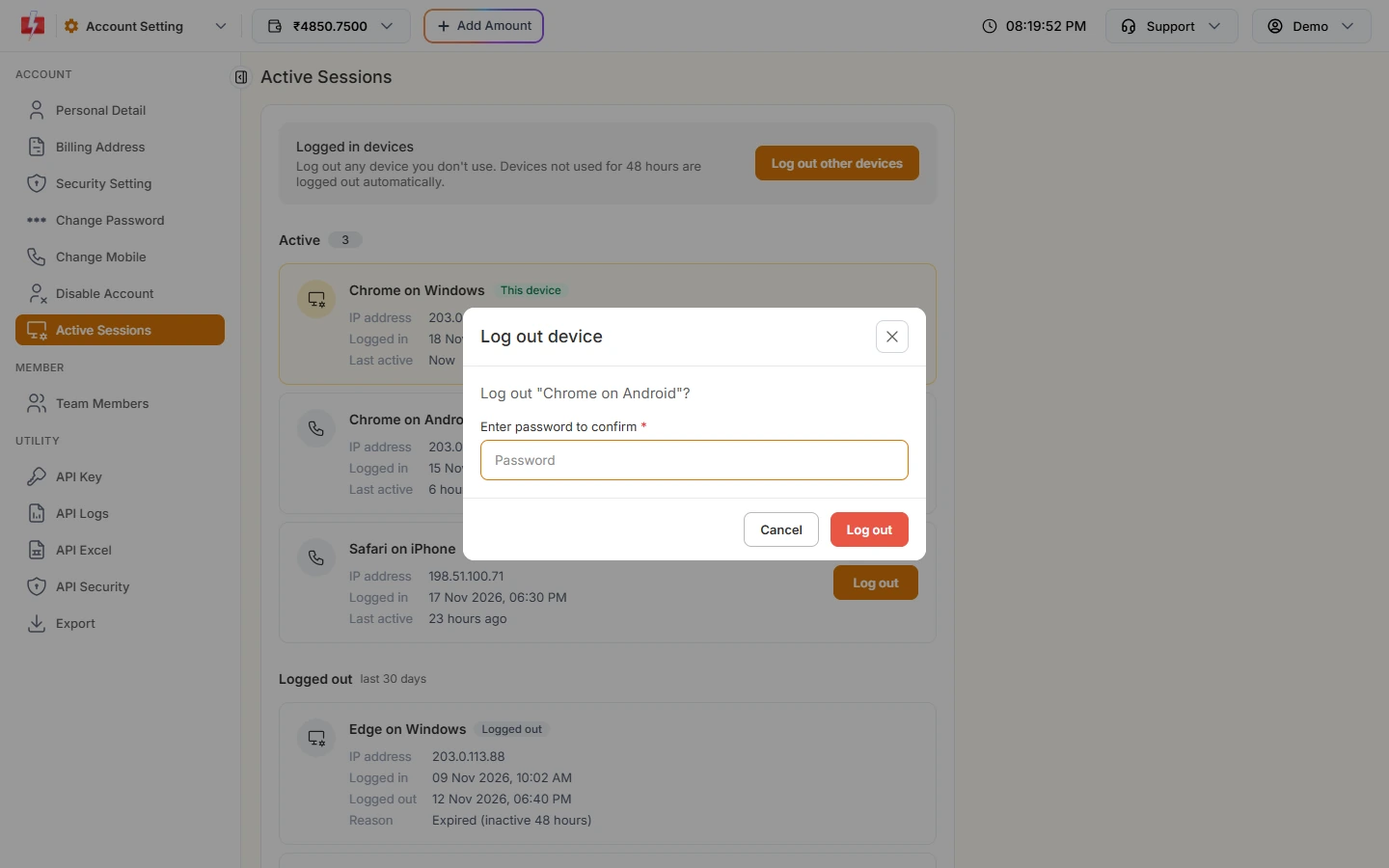
    Log out device popup asking Log out Chrome on Android with a password field and Cancel and Log out buttons
    Your password is needed to log out a device.
  4. Or log out all other devices

    Click Log out other devices at the top and enter your password. Every device except the one you are using is logged out, and you see “N other device(s) logged out.” The button shows only when another device is logged in.

What the Logged out list tells you

Devices that ended in the last 30 days stay in the list with a reason:

Reason Meaning
Logged out Someone used Log Out on that device
Logged out from another device It was logged out from the Active Sessions page
Password changed The password was changed, so other devices were signed out
Mobile number changed The registered mobile was changed
Logged out everywhere All sessions were ended
Expired (inactive 48 hours) The device was not used for 48 hours

If you see a device or IP address you do not recognise, log it out, then change your password from Change Password and turn on 2F Authentication in Security Setting.

Add a login OTP

Turn on two-factor authentication so a password alone cannot open your account.

Sign up free →Book a free meeting

Frequently asked questions

Can I see my Fast2SMS login history?

Yes. Active Sessions shows current devices and the devices logged out in the last 30 days, with IP address and times.

Why can’t I log out “This device” from the list?

For the device you are using, use Log Out in the profile menu at the top right.

How long does a login stay active?

Until you log out, or until the device is not used for 48 hours. Then it is logged out automatically.

Can my team members see this page?

No. Account settings open only for the account owner.

Is the IP address exact?

It is the IP the login came from. Mobile networks and Wi-Fi often change it, so the same phone can show different IPs over time.

Secure your account today

Review your devices, set a strong password and switch on 2F Authentication.

Sign up free →Book a free meeting

Related guides

  • How to turn on two-factor authentication and secure your Fast2SMS login
  • Why was I logged out of Fast2SMS?
  • How to change your registered mobile number or email in Fast2SMS
  • How to add team members (agents) in Fast2SMS

Related articles

  • Team member can’t see WhatsApp chats or numbers? Live Chat access problems fixed
  • How to contact Fast2SMS support: ticket, email, meeting and feature requests
  • Fast2SMS new panel tour: dashboard, apps, wallet rates and where everything moved
  • Paid but wallet not credited, or payment failed? What to do after a Fast2SMS recharge

    New to Fast2SMS?

    Get ₹50 free credit when you sign up.

    Sign up free or book a free meeting

    Topics

    • Bulk SMS
    • WhatsApp
    • OTP
    • RCS
    • Voice Call
    • DLT
    • Delivery Report
    • Transaction
    • Address Book
    • Webhooks

    On this page

    1. How to check active sessions
    2. What the Logged out list tells you
    3. Frequently asked questions
    4. Related guides
    Sign up free

    Products

    • Bulk SMS Service
    • WhatsApp Business API
    • OTP SMS
    • RCS Messaging
    • Voice Call (OBD)
    • Cloud Telephony
    • Quick SMS without DLT
    • Campaign Flow Builder
    • Integrations

    Pricing

    • Bulk SMS Pricing
    • WhatsApp Pricing
    • RCS Pricing
    • Voice Call Pricing
    • Cloud Telephony Pricing

    Guides

    • How to send bulk SMS in India
    • Send bulk WhatsApp messages
    • Official WhatsApp Business API
    • WhatsApp OTP API
    • RCS business messaging
    • Bulk voice call service
    • WooCommerce SMS & WhatsApp plugin
    • Shopify SMS & WhatsApp app
    • DLT Registration

    Bulk SMS for

    • Bulk SMS API
    • OTP SMS provider in India
    • Bulk SMS for marketing
    • Bulk SMS for E-commerce
    • Bulk SMS for Schools
    • Bulk SMS for Hospitals
    • Bulk SMS for Real Estate
    • Bulk SMS in Delhi
    • Bulk SMS in Mumbai

    Company

    • About Us
    • Why Fast2SMS
    • Certificates
    • SMS Reseller
    • Contact Us
    • API Docs
    • Sitemap
    Fast2SMS [email protected] +91 6262778822

    Social links

    Meta Business Partner
    © 2026 Fast2SMS. All rights reserved. Privacy Policy · Terms · Article sitemap · Page sitemap