
Customers often send photos, PDFs, voice notes or their location on WhatsApp: a damaged parcel, a payment screenshot, an address pin. In Fast2SMS these arrive in your Live Chat inbox, and you can also pass them to your own system by webhook. This guide explains how to receive images and documents from customers on WhatsApp, how long the files stay, and how to download them.
Before you start
- A WhatsApp number connected to Fast2SMS. See how to connect your number to the WhatsApp Business API.
- Incoming messages must not be switched off for that number (see “Turn incoming messages on or off” below).
- Receiving is free. Messages, photos and files that customers send you cost nothing.
What customers can send you
| Type | How it shows in Live Chat |
|---|---|
| Image | A preview in the chat. Click it to view it large or to download it. A caption shows under the photo. |
| Video | A video player in the chat. |
| Audio and voice notes | An audio player in the chat. |
| Document (PDF, Word, Excel and others) | A file card with an icon, the file name, the size in KB and a download button. |
| Location | A map image that opens the spot in Google Maps. |
| Reactions and replies | The emoji reaction, or the quoted message the customer replied to. |
In the chat list, the last message preview shows “Photo”, “Video”, “Audio”, “Document” or “Location” for these.
How to receive and save customer files
-
Ask the customer to send the file
Customers can send a file to your number at any time. If you need one, simply ask in the chat: “Please send a photo of the parcel” or “Please share the payment screenshot”. A message from the customer also opens the 24-hour window, so you can reply freely after it.
-
Open the chat in Live Chat
Go to Live Chat (Inbox). New messages show a green unread count on the chat. Open the chat to see the file in the conversation, with the time it arrived.
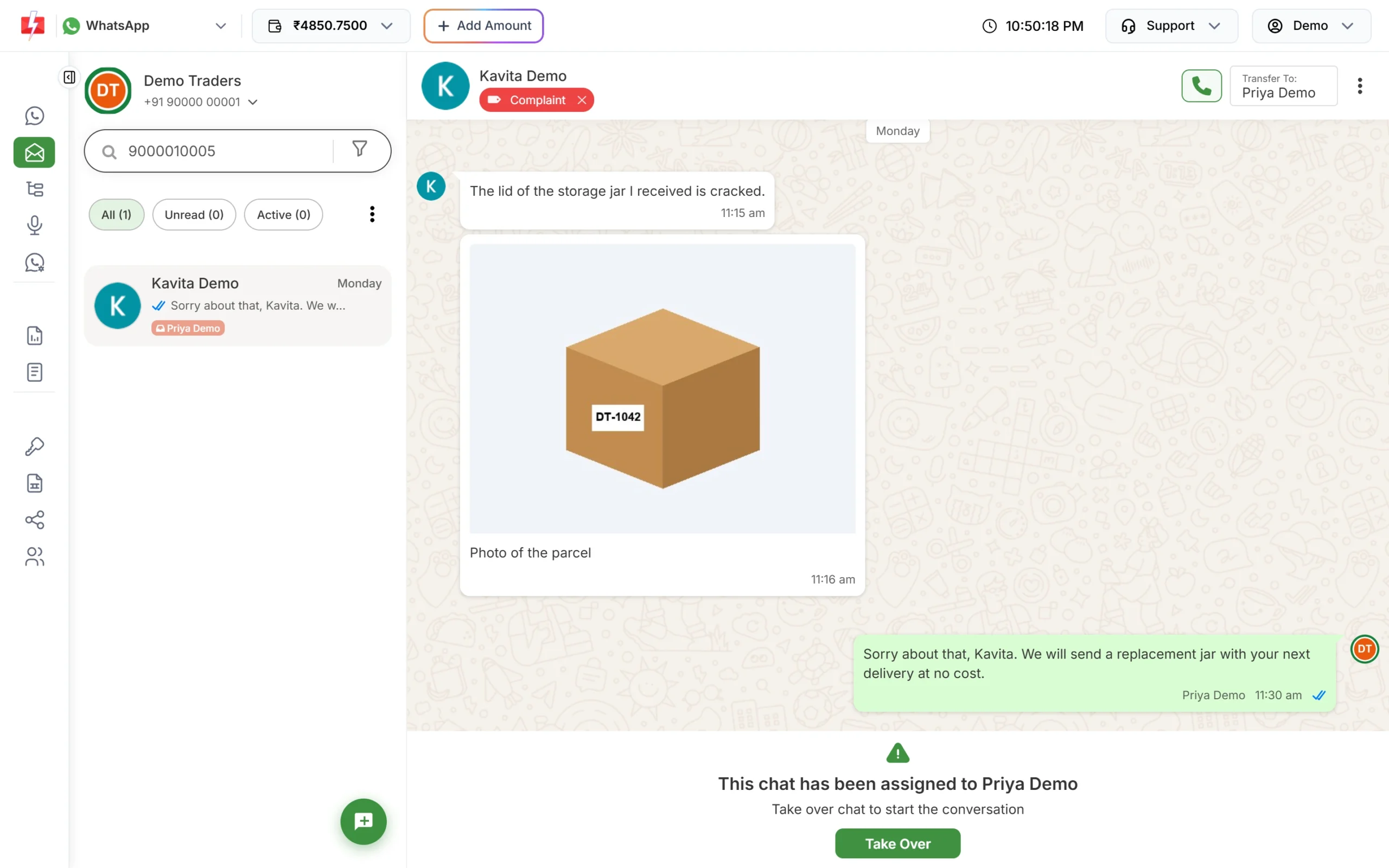
A customer’s photo with its caption, in the middle of the conversation. -
View or download the file
Click an image to open it full size and download it. Documents have a download button on the file card. Download anything you need to keep, such as invoices, ID proofs or warranty photos, and save it in your own records.
Media files in Live Chat are available for 30 days only. After that you cannot open them from the inbox, so save important files within that time.
For safety, files with a dangerous type cannot be downloaded. You will see “File blocked for security” and “This file was blocked for security (dangerous file type). It cannot be downloaded.” Ask the customer to send the file as a PDF or image instead.
-
Reply and tag the chat
Reply in the box below, or send a file of your own with + (up to 10 files at a time, 10 MB each). Add a label such as “Complaint” or “Payment Pending” and a note like “Photo received, replacement approved” so the next person knows the file has been checked.
-
Send files to your own system (optional)
If you want incoming photos and documents in your CRM or your own app, set up a webhook. Go to Webhook > WhatsApp and click Add Webhook. Choose the event Incoming Messages, pick your number, enter your server URL and save. For each incoming message, your server receives the details, including the message type,
mime_type,media_urlandcaptionfor files.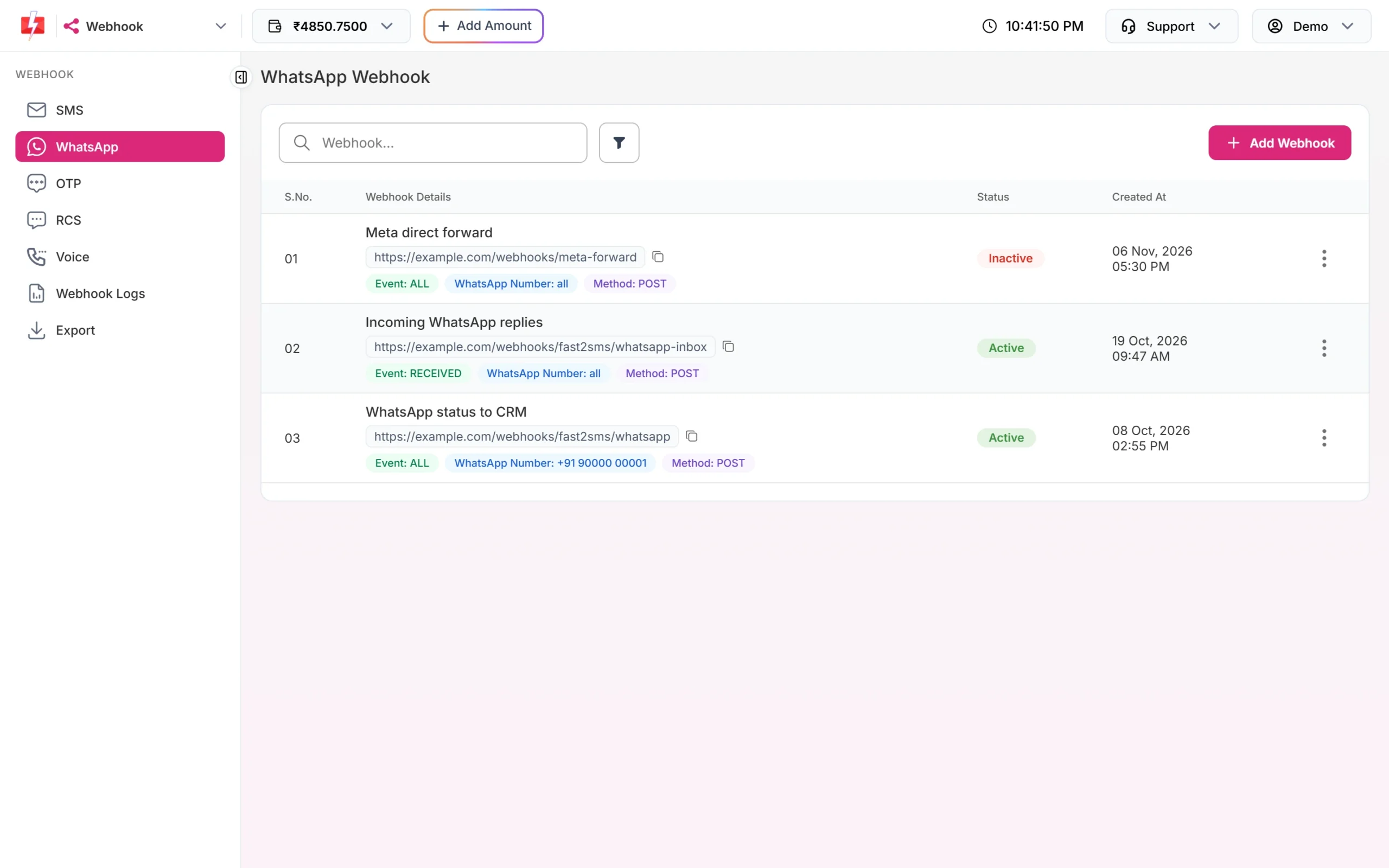
A webhook with the event RECEIVED forwards incoming messages to your server. If you need the files later, have your server download and store each file when the webhook arrives.
Turn incoming messages on or off
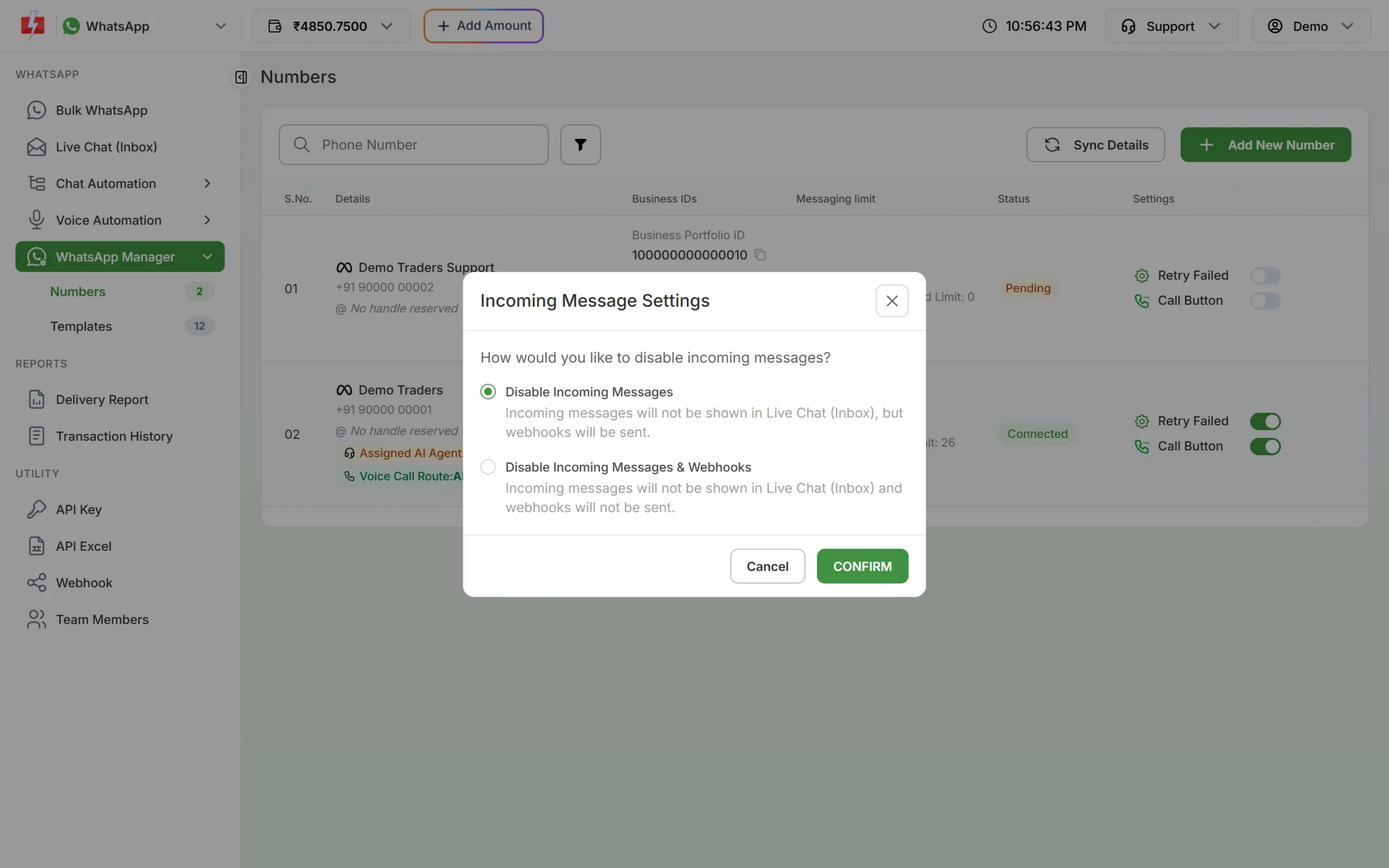
In WhatsApp Manager > Numbers, the number’s three-dot menu has Disable Incoming Messages. It asks “How would you like to disable incoming messages?”:
- Disable Incoming Messages: messages and files no longer show in Live Chat, but webhooks are still sent. Use this if only your own system handles replies.
- Disable Incoming Messages & Webhooks: neither Live Chat nor webhooks get them. Use this for a send-only number.
If you stop seeing customer photos in the inbox, check this setting first. Use Enable Incoming Messages from the same menu to turn them back on.
Files and automatic replies
- Keyword auto replies react to text, button taps and list choices only. A photo or document never triggers an auto reply.
- In Flow Builder, the Condition node can check whether the customer’s reply “Is Image” or “Is Document”, so a bot can ask for a photo and then move on only when one arrives.
Common problems and fixes
| Problem | Fix |
|---|---|
| The customer says they sent a photo but it is not in the inbox | Check that incoming messages are not disabled for the number. Check you are viewing the right business number in the switcher at the top. |
| An old photo will not open | Media is available for 30 days. Ask the customer to send it again. |
| “File blocked for security” | The file type is not safe to download. Ask for a PDF or an image. |
| A Chat Agent cannot see the file | Chat Agents see only chats assigned to them. Assign the chat to the agent. |
| Webhook does not receive files | Check the webhook is Active, the event is Incoming Messages or Default All Events, and the number matches. Check Webhook Logs for the HTTP code. |
Frequently asked questions
Can customers send PDFs on WhatsApp Business API?
Yes. Customers can send documents, images, videos, audio and locations. They show in your Live Chat inbox.
Do I pay to receive photos or documents?
No. Incoming messages, including files, are free. You pay only for messages you send.
How long are customer files kept in Fast2SMS?
Media files in Live Chat are available for 30 days. Download what you need to keep.
Can I receive files outside the 24-hour window?
Yes. Customers can message you at any time. Their message opens a new 24-hour window for your replies.
Can my software get the files automatically?
Yes. Add a WhatsApp webhook with the Incoming Messages event. Each message comes with its type, media link and caption.
Do messages I send from the WhatsApp Business app show in Live Chat?
If your number runs on both the app and the API, messages you send from the app also show in Live Chat, tagged “Business App”. You can hide them with Disable Outgoing Business App Messages in the incoming settings.