
You can send bulk SMS from your phone by opening the Fast2SMS panel in your mobile browser. You do not need to install anything. The panel works on a phone screen, so you can add money, pick your DLT template, paste numbers or choose contacts, send, and check the delivery report, all from your mobile.
This guide walks you through sending bulk SMS from a mobile phone, step by step, with screenshots of the panel on a phone.
Before you start
- A Fast2SMS account. You can sign up from your phone.
- Your DLT entity, sender ID (header) and content template added and approved in DLT Manager. If you are not registered on DLT yet, you can use Quick SMS for short business messages.
- Enough wallet balance for the campaign.
- Your customer numbers, either in a CSV file on your phone, saved in the Address Book, or copied as a list.
How to send bulk SMS from a mobile phone
-
Log in and open the SMS app
Open fast2sms.com in Chrome or any mobile browser and log in. On the dashboard, tap SMS (DLT & Quick SMS). Your wallet balance shows at the top of every page.
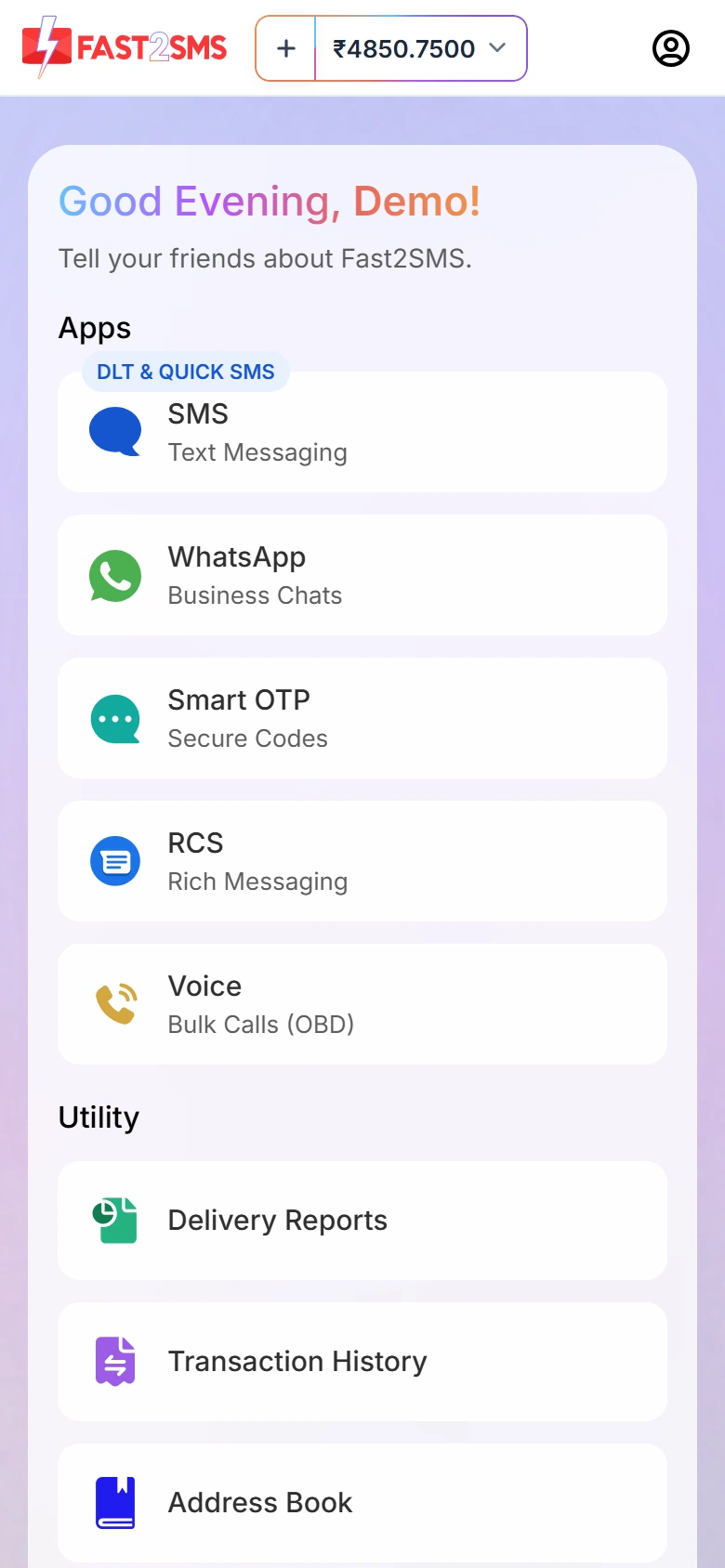
The dashboard on a phone. Tap SMS to start. -
Add money if needed
Tap the + next to your balance to open Top up Wallet. Enter the amount. The screen shows the GST and the total you pay. Tap Continue, fill in the billing details and pay.
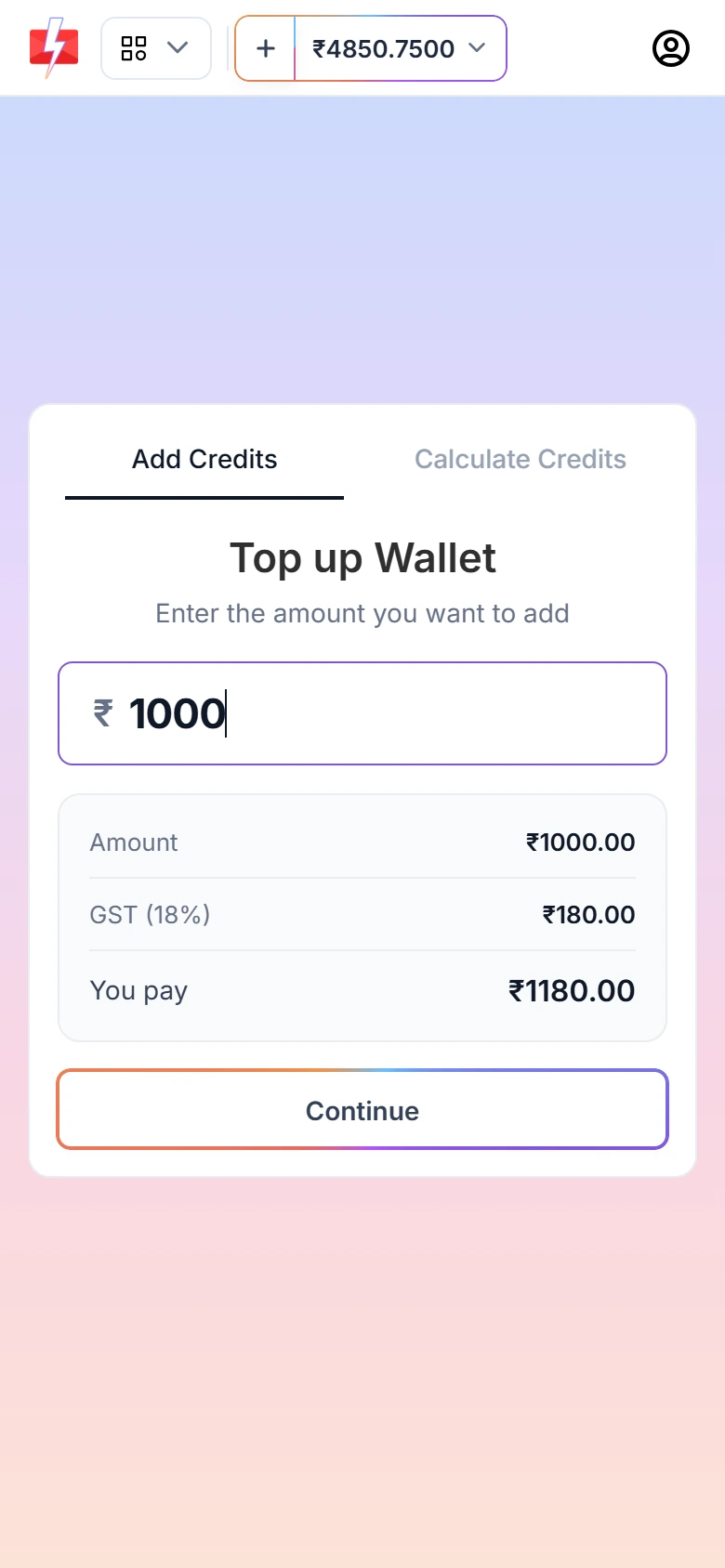
Top up your wallet from the phone. -
Choose the sender ID and add numbers
On the DLT SMS page, tap Sender ID and pick your approved header. Under Send To, choose one:
- List: paste numbers, one per line. The Total Contacts count updates as you paste.
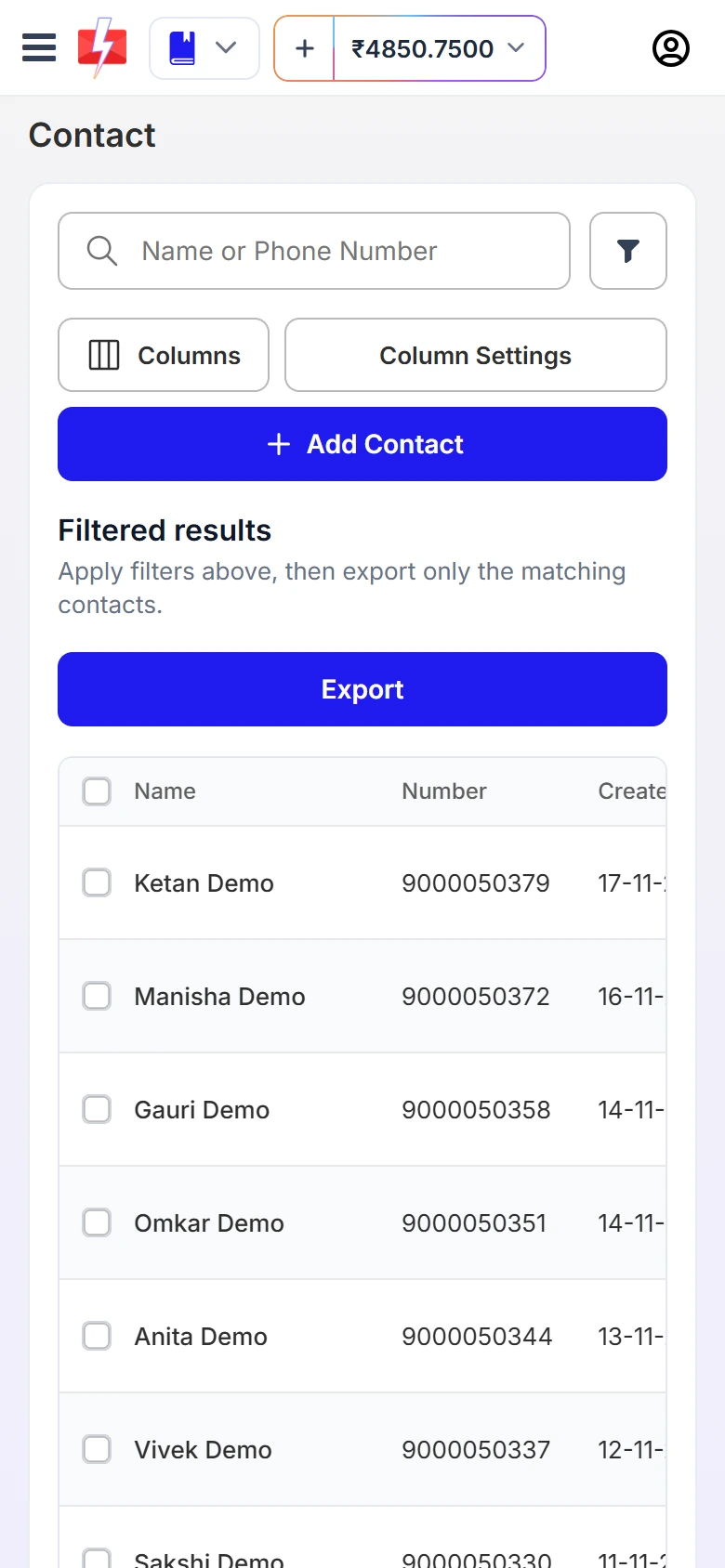
- Address Book: tick saved contacts or whole groups.
- CSV File: pick a CSV from your phone’s files or downloads (up to 20 MB), then choose the column that has the mobile numbers.
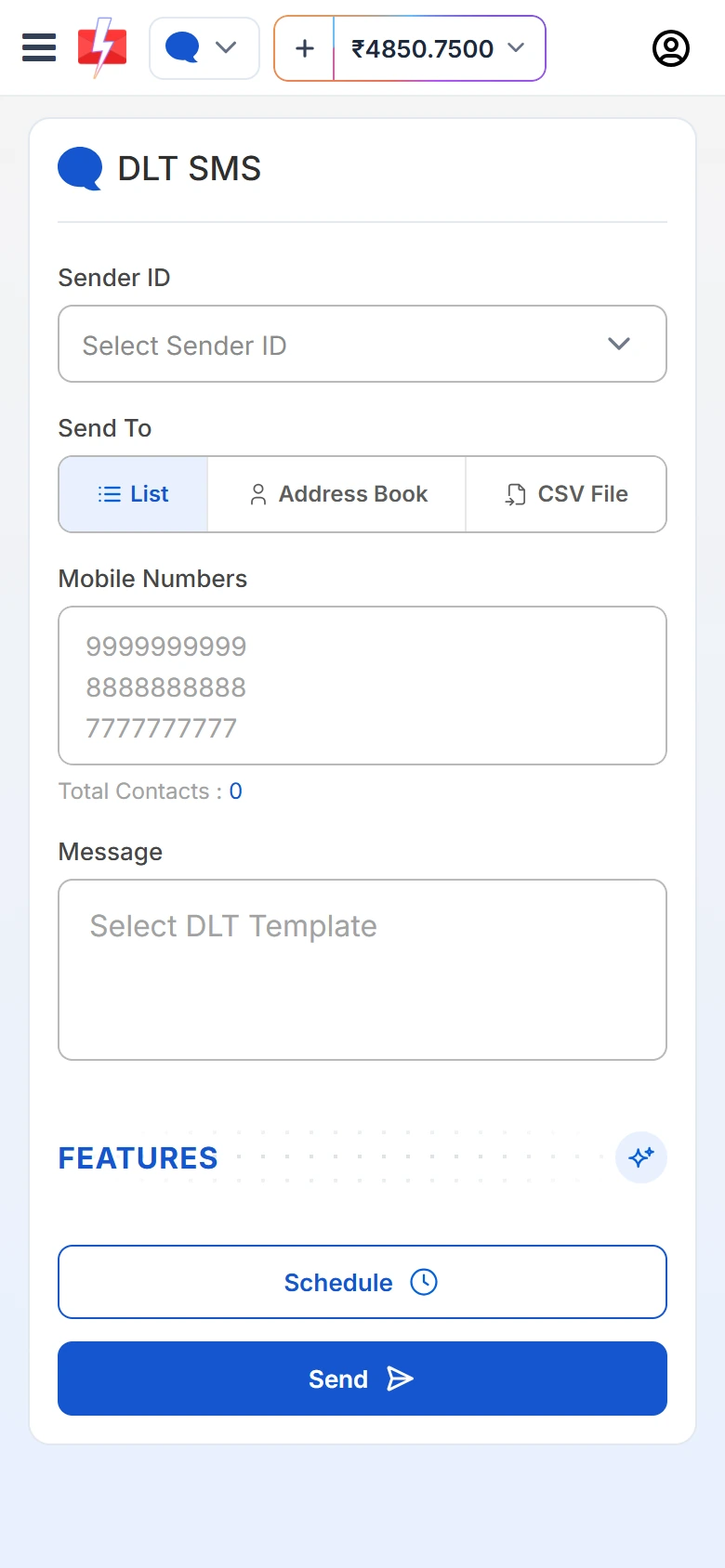
The DLT SMS form fits a phone screen. -
Select your DLT template and fill the variables
Tap Select DLT Template. Only approved templates linked to the chosen sender appear. Pick one and type a value in each variable box. The preview shows the final message and how many SMS parts it uses.
-
Send or schedule
Tap Send, or Schedule to pick a date and time. A Message Preview & Confirmation popup shows the cost per SMS, valid numbers, duplicates, invalid numbers and the total cost. Check it and tap Confirm & Send.
-
Check the delivery report
Open Delivery Report from the menu. The cards show Total, Delivered, Failed, Sent and Pending for the dates you picked. Tap a message to see the status of each number.
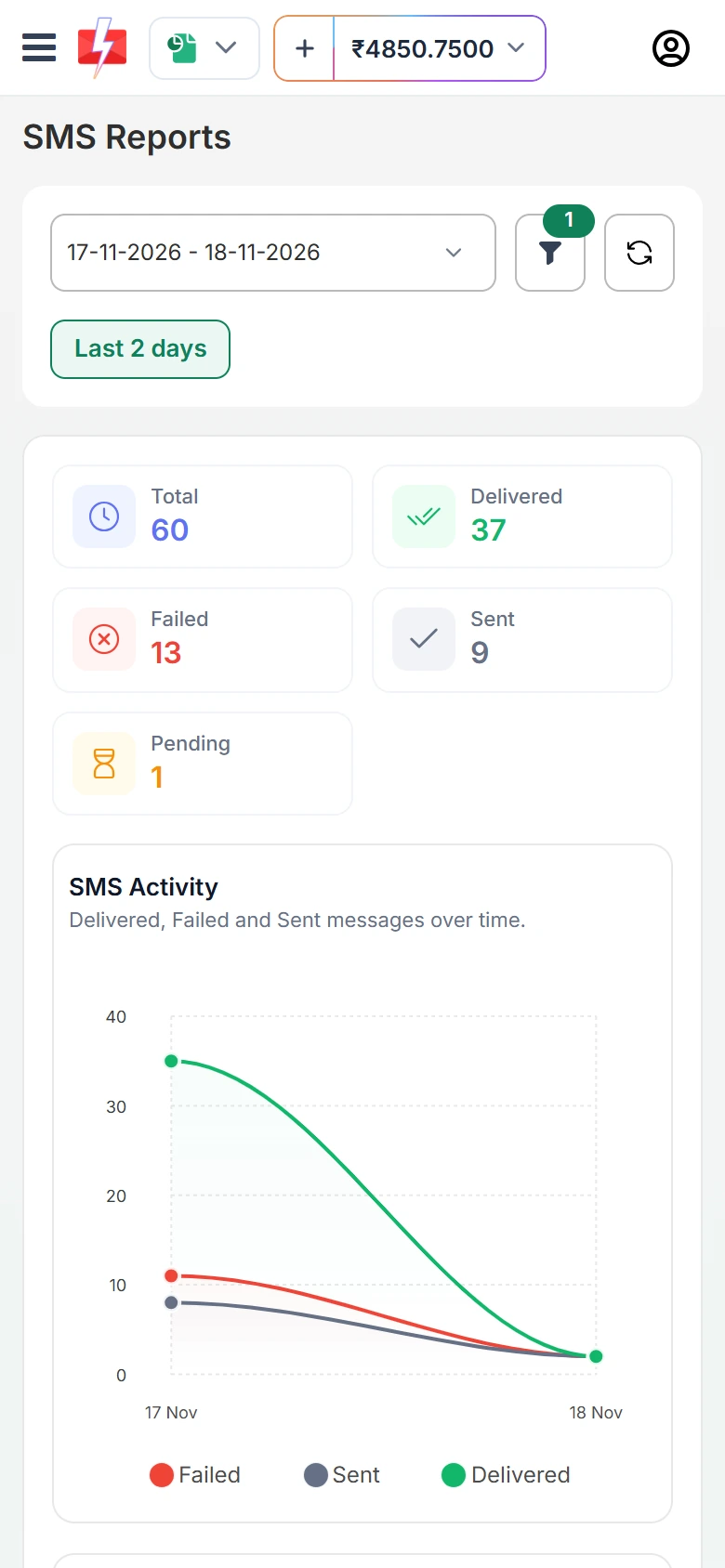
See delivery results on your phone.
Tips for sending from a phone
- Keep contacts in the Address Book. Typing or pasting long lists on a phone is slow. Import your list once from a computer or phone, put customers in groups, then just tick the group when you send.
- Use CSV for personalised SMS. If each customer needs a different name or amount, upload a CSV and map each variable to a column.
- Add the panel to your home screen. Most mobile browsers have an “Add to Home screen” option in the menu, which gives you a one-tap shortcut.
- Turn on two-factor login. If you share or lose your phone, an OTP on each login protects your wallet. Find it in Account Setting > Security Setting.
- Remember the promotional time rule. Promotional SMS sent at night are held and go out the next morning.
Can I send SMS from my phone’s own number in bulk?
No. Business SMS in India go out under a DLT sender ID, not your SIM number. Sending promotional messages in bulk from a normal SIM breaks TRAI’s rules and can get the SIM barred. See can I use my own mobile number as the sender.
Frequently asked questions
Do I need a computer to send bulk SMS?
No. Every step, from adding money to reading the delivery report, works in a mobile browser.
Can I upload an Excel file from my phone?
Yes, save it as CSV first. On the DLT SMS page, choose CSV File and pick the file from your phone’s storage.
Can I do DLT setup from my phone?
Yes. DLT Manager works on a phone. You need screenshots of your approved entity, header and templates from your DLT portal to upload.
Can I send WhatsApp messages from my phone too?
Yes. Tap WhatsApp on the dashboard to send bulk WhatsApp campaigns and reply to customers in live chat.
Is sending from the phone more expensive?
No. The rates are the same, whatever device you use.
Can I schedule SMS from my phone?
Yes. Tap Schedule instead of Send and pick the date and time. You can cancel a scheduled SMS from Delivery Report > Schedule.