
How long you can see an SMS delivery report in Fast2SMS depends on where you look. In the panel, the SMS Report lets you choose ranges up to Last 3 months or a Custom Date range. Export files stay for 48 hours. The API and webhooks each have their own limits. If you need delivery records for audits, disputes or your own analysis, save them yourself on a regular schedule.
This page lists every place SMS delivery reports appear, how far back each one goes, and three simple ways to keep a permanent copy.
How long SMS delivery reports are available in each place
| Where | How far back / how long | Good for |
|---|---|---|
| Delivery Report > SMS Report (panel) | Preset ranges from Today up to Last 3 months, or Custom Date. The start date cannot be before the day your account was created. | Checking campaigns and single numbers |
| Download button on a campaign row | Available while you can see the campaign in SMS Report | One campaign’s report as an Excel file |
| Delivery Report > Export | The file stays for 48 hours after it is ready, then it is removed | All SMS between two dates |
DLR API (/dev/dlr/{request_id}) |
Looks back 7 days | Status of one API request |
SMS logs API (/dev/sms_logs) |
Start date within the last 1 year, up to 3 days per call | Pulling per-number reports into your own system |
SMS summary API (/dev/sms_summary) |
Up to 30 days per call | Totals only: sent, delivered, pending, failed, blocked |
| Webhooks | Sent once, when the report arrives (API sends only, reports that arrive within 24 hours). Webhook Logs are kept 7 days. | Saving every delivery report as it happens |
So there is no single number that covers every tool. The safest plan is not to treat any of them as your only archive.
Way 1: Export every month from the panel
-
Pick the period in SMS Report
Open Delivery Report in the SMS menu. The report opens on Last 2 days. Click the date box or the filter button and choose Last 30 days, Last 3 months or Custom Date to check what was sent in the period you want to save.
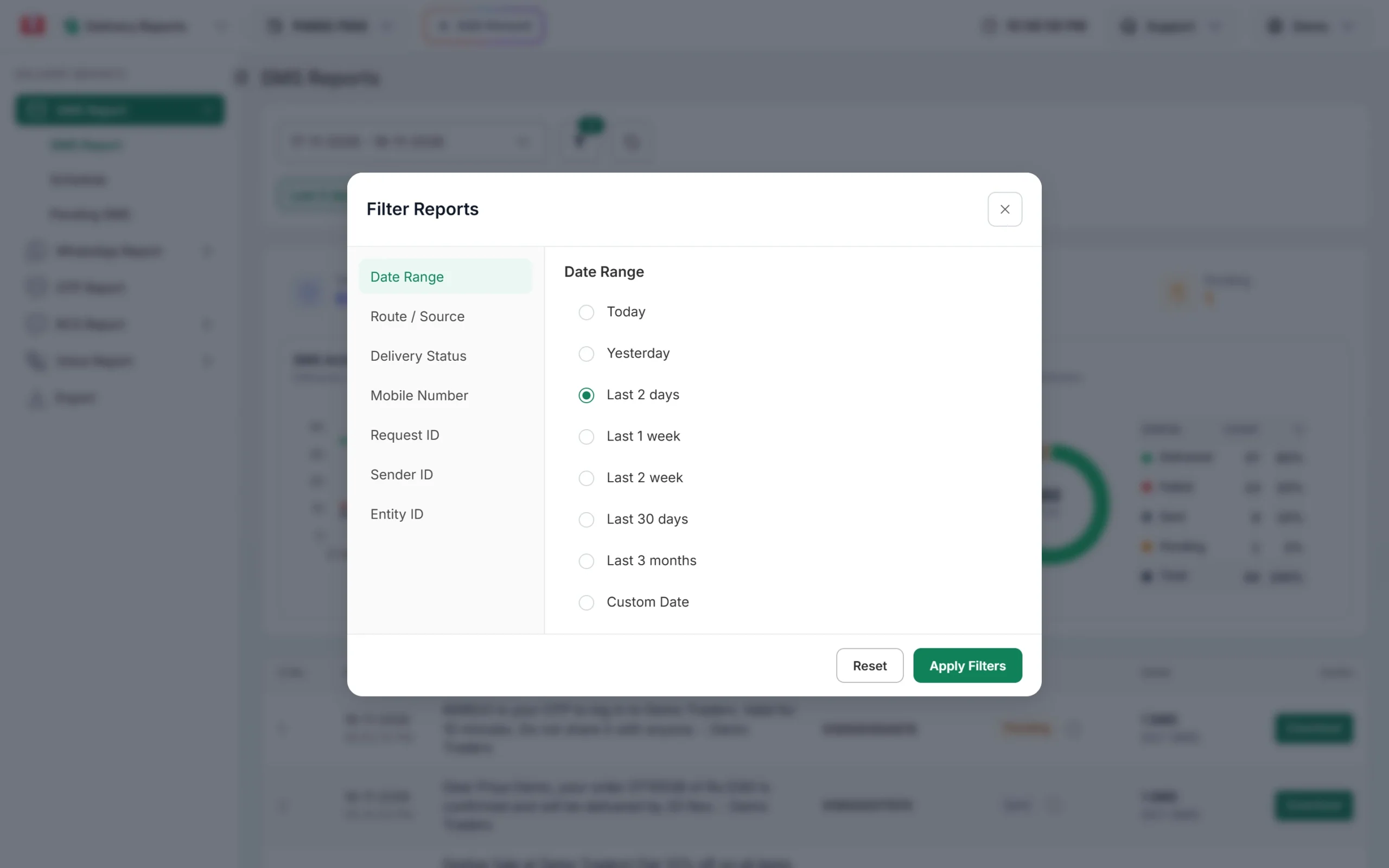
Date ranges in the SMS Report filter. -
Request an export
Click Export in the left menu. Keep the channel on SMS, click Select Date, choose the start and end date, and click Submit. The new row shows Pending while the file is being made.
-
Download it within 48 hours
Click the refresh button next to Submit. When the row shows Download, save the file and keep it in your own storage. After 48 hours the row shows Expired and the file is gone, so download it the same day.
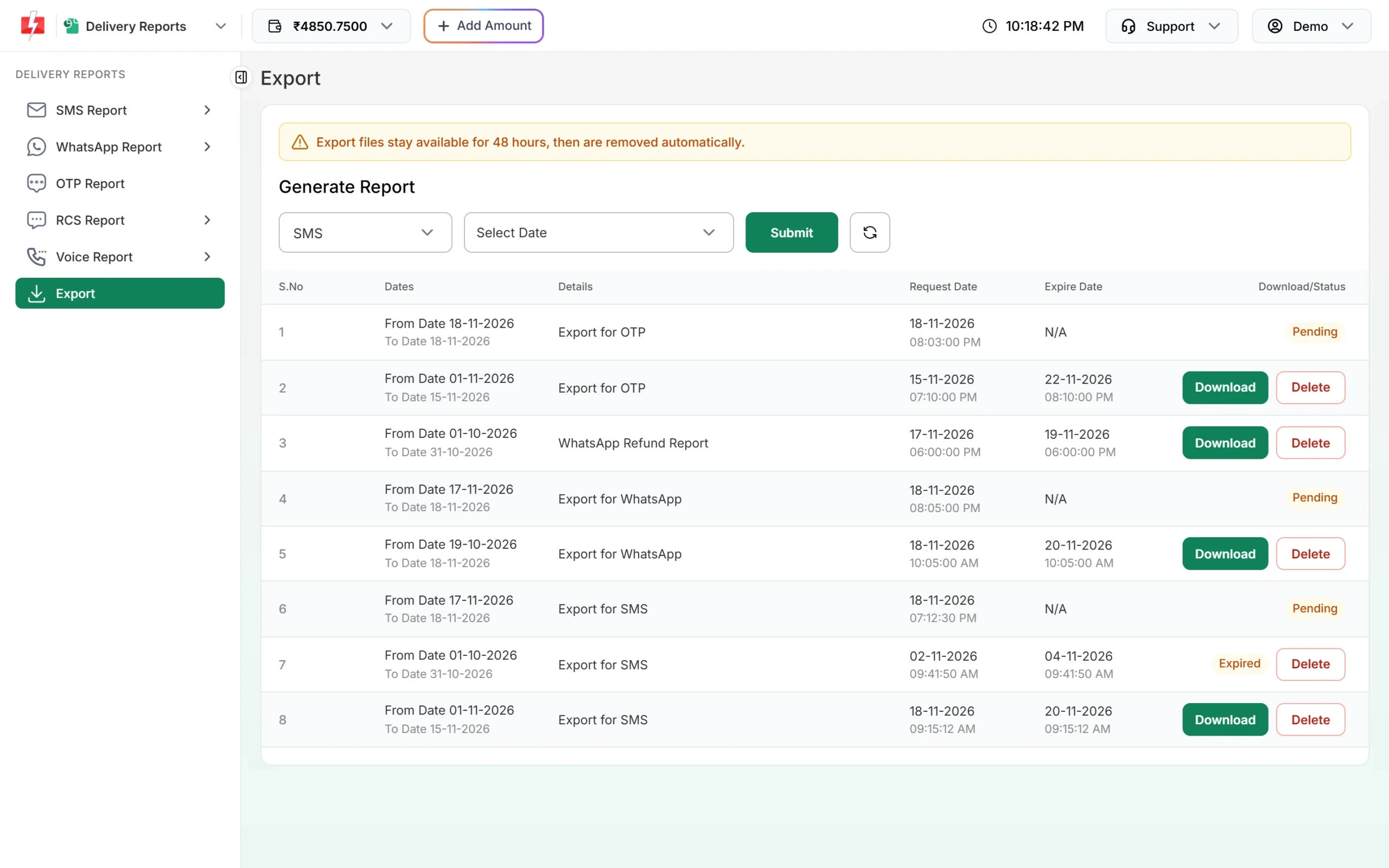
Export files are removed 48 hours after they are ready.
You can have at most 5 exports that have not expired, and at most 2 waiting to be built. If you see “You cannot export more than 5 reports, wait until old reports expires.”, delete old exports you have already saved.
For a single campaign, click Download on its row in SMS Report instead. Both ways are shown step by step in How to download and export your SMS delivery report.
Way 2: Pull reports with the API
If you send through the API, a small daily job can copy reports into your own database. The SMS logs API returns one item per number, with the same fields as the DLR (status, description, sent time, delivery time, amount debited and so on). Each call covers up to 3 days, so run it daily or loop over the days you need.
curl "https://www.fast2sms.com/dev/sms_logs?from=2026-11-01&to=2026-11-03&limit=1000&page=1" \
  -H "authorization: YOUR_API_KEY"
If the range is too long you get “You can fetch only 3 days of analytics at a time.” If the start date is too old you get “Start date must be within the last 1 year.” See the SMS delivery report API guide for the DLR and summary calls.
Way 3: Save each report as it arrives with webhooks
A webhook sends each delivery report to your URL, so your system keeps its own copy from day one. Points to know:
- Only SMS sent through the API fire webhooks. Campaigns sent from the panel do not.
- Only delivery reports that arrive within 24 hours fire a webhook.
- Failed calls to your URL are retried, and every attempt is listed in Webhook Logs for 7 days.
- Use either webhooks or the DLR API for the same messages, not both. Pulling a DLR can stop the webhook for those numbers.
Set it up with Webhooks in Fast2SMS.
Which way should you use?
- You send from the panel: export every month (Way 1).
- You send by API and have a developer: webhooks (Way 3), with the SMS logs API as a backup for missed days (Way 2).
- You need proof for one customer: open the campaign in SMS Report, filter by Mobile Number, and download that campaign.
Frequently asked questions
How far back can I see SMS delivery reports in Fast2SMS?
The longest preset in SMS Report is Last 3 months, and Custom Date lets you choose your own range. The start date cannot be earlier than the day your account was created.
Why did my export file disappear?
Export files are removed automatically 48 hours after they are ready. The row then shows Expired. Submit the export again and download it the same day.
How long can I check a request ID with the DLR API?
The DLR API looks back 7 days. For older messages use the SMS logs API, which accepts a start date within the last year, 3 days per call.
Do panel campaigns send delivery reports to my webhook?
No. Webhooks fire only for SMS sent through the API. For panel campaigns, download or export the report.
What is in the exported SMS report?
One row per number, with the request ID, sender ID, number, message, amount, SMS count, sent time, status, description and delivery time.
Are Smart OTP messages in the SMS report?
No. Smart OTP messages have their own OTP Report and export. See how to export the OTP report.