
Before you send a voice campaign to thousands of people, send the exact same campaign to a few phones you can hold in your hand. A test voice campaign shows you how the recording sounds on a real phone, whether every key does what you expect, and what the report and charges look like. It costs only the answered test calls. This checklist walks you through it in Fast2SMS.
Before you start
- One paid transaction of ₹100 or more on your account. Until then, sending shows “You need to complete one transaction of ₹100.00 or more before sending voice calls.”
- A little wallet balance for the test calls.
- Your own approved voice files, or the free sample files that every account gets.
- Time inside calling hours. Calls go out only between 10 AM and 9 PM IST.
How to test a voice campaign
-
Pick 2 to 5 test phones
Use your own number and a few colleagues’ numbers, ideally on different operators such as Jio, Airtel, Vi and BSNL. Check two things first. A test number on the DND registry will not ring: the operator skips it and the report shows DND. And a number in your voice Blacklist is never called, so remove your test numbers from it if you added them earlier.
-
Start with a sample file if you have no recording yet
In Bulk Voice Call, click the voice file field. The Voice File window has Sample Files and My Files tabs. The samples are free, already approved, and cover Simple, Key Press and Call Patch calls in Hindi and English, plus a Thank You file. They let you test the whole flow before you pay the upload fee for your own file.
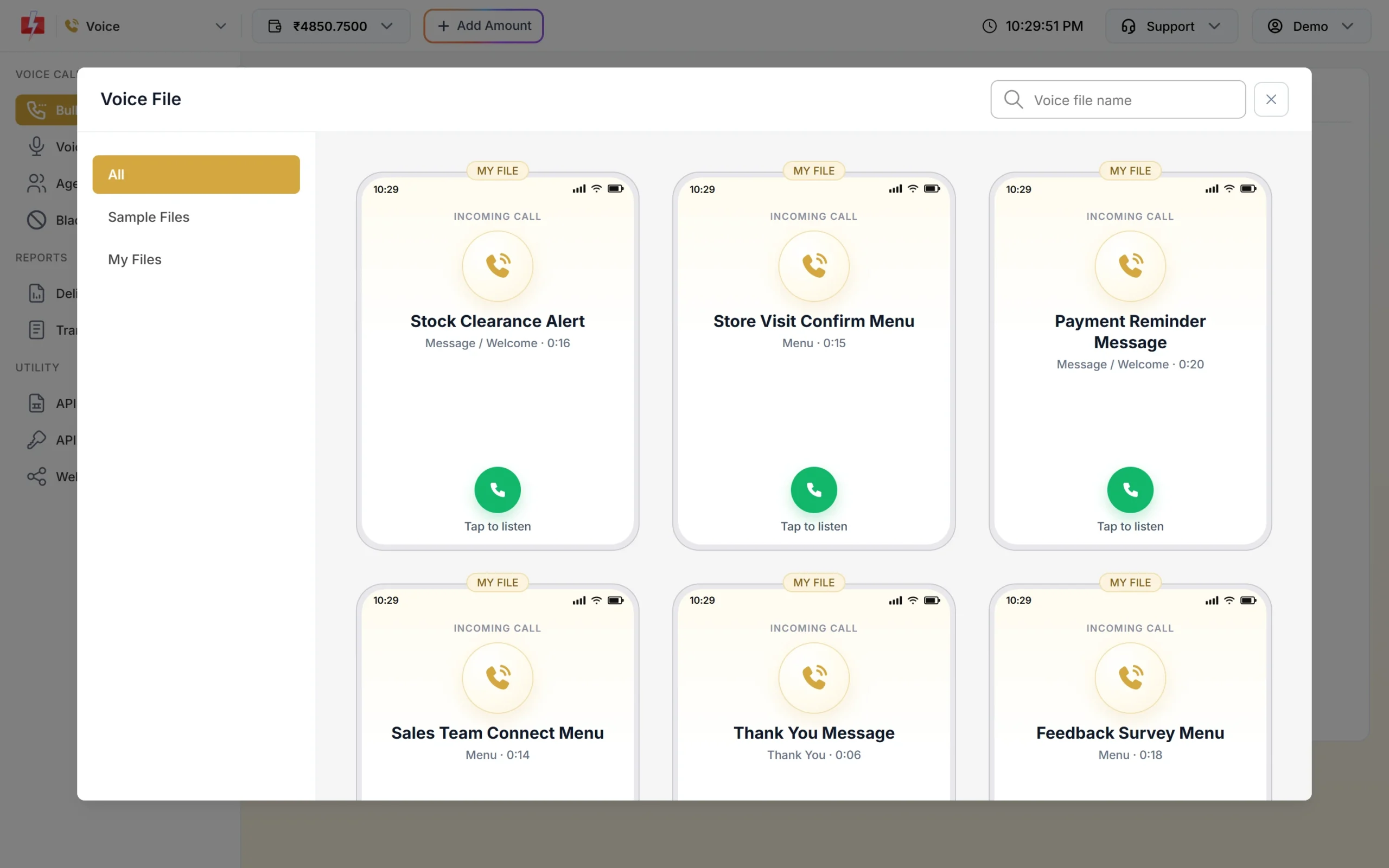
Pick a sample or one of your approved files. -
Build the test exactly like the real campaign
Use the same Campaign Type, the same voice files and the same More options (wait time, repeats, no-key and wrong-key files) you plan to use for the full list. Only the numbers change. Name it clearly, for example “TEST Diwali offer”, so you can find it in reports.
-
Read the confirmation popup
Click Send. In Campaign Preview & Confirmation, check that Valid Numbers equals your number of test phones, and note the Pulses per Call (estimate) and the cost. If Valid Numbers is lower, one of your test numbers was a duplicate, invalid or blacklisted. Then click Confirm & Send.
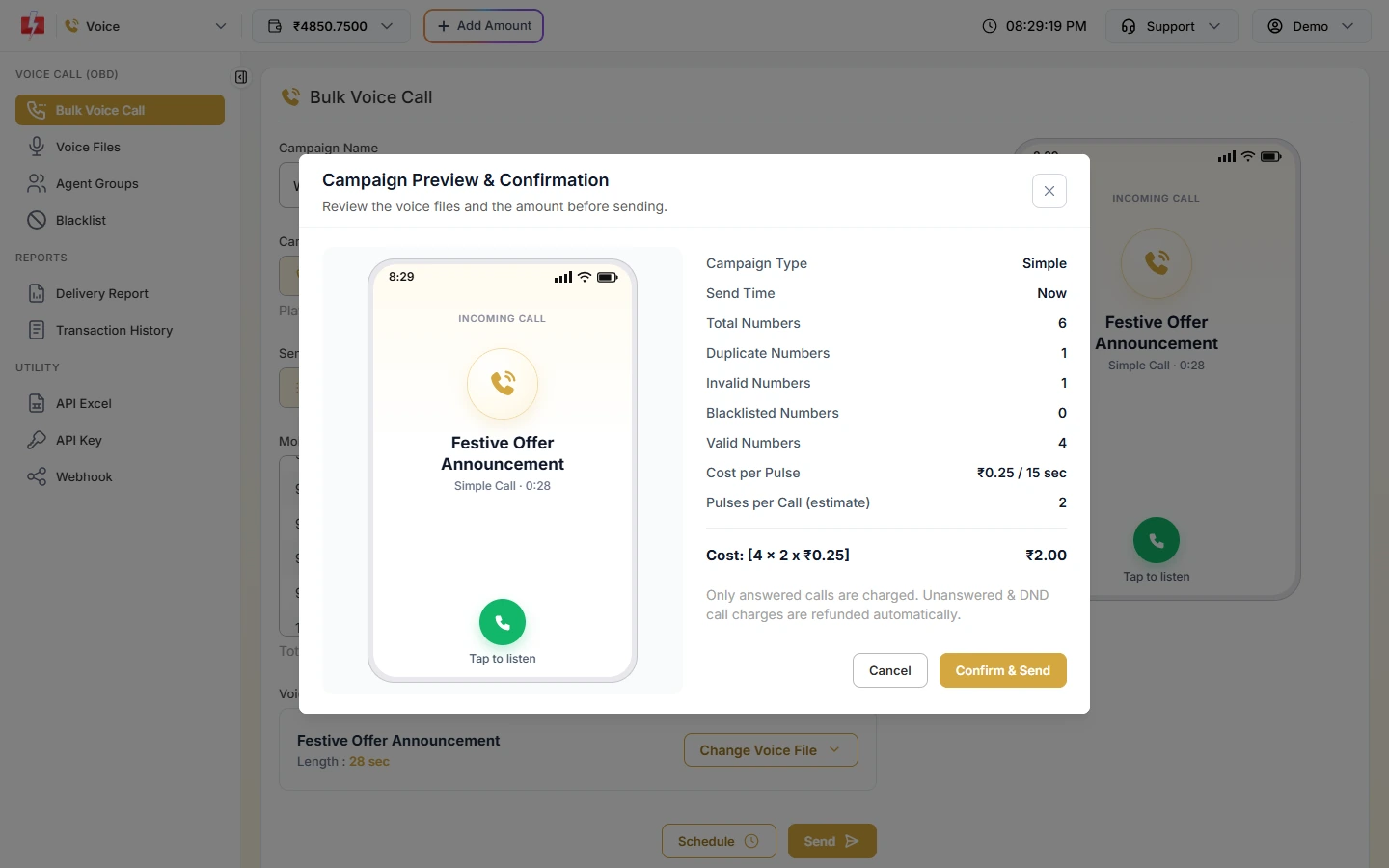
Nothing is sent until you click Confirm & Send. -
Answer each call and listen like a customer
Calls start within a minute. On each phone, check: is your brand name clear in the first seconds, is the volume steady, is there no long silence at the start, and is the message easy to follow at normal phone volume? Ask one person to listen on speaker in a noisy room.
-
Try every path of the call
For a Key Press call, use each test phone for a different path: press an allowed key, press a key you did not allow, press nothing, and hang up halfway. Check that the right file plays each time. For a Call Patch call, press the key once while your agents are ready to answer, and once while nobody in the agent group picks up, so you also hear the “no agent available” file.
-
Check the report
Open Delivery Report > Voice Report and click the test campaign. Each number shows its Status, Description, Duration, Pulses and Charge. For Key Press, the Key column should match what each tester pressed. For Call Patch, check the agent, agent talk time and the recording.
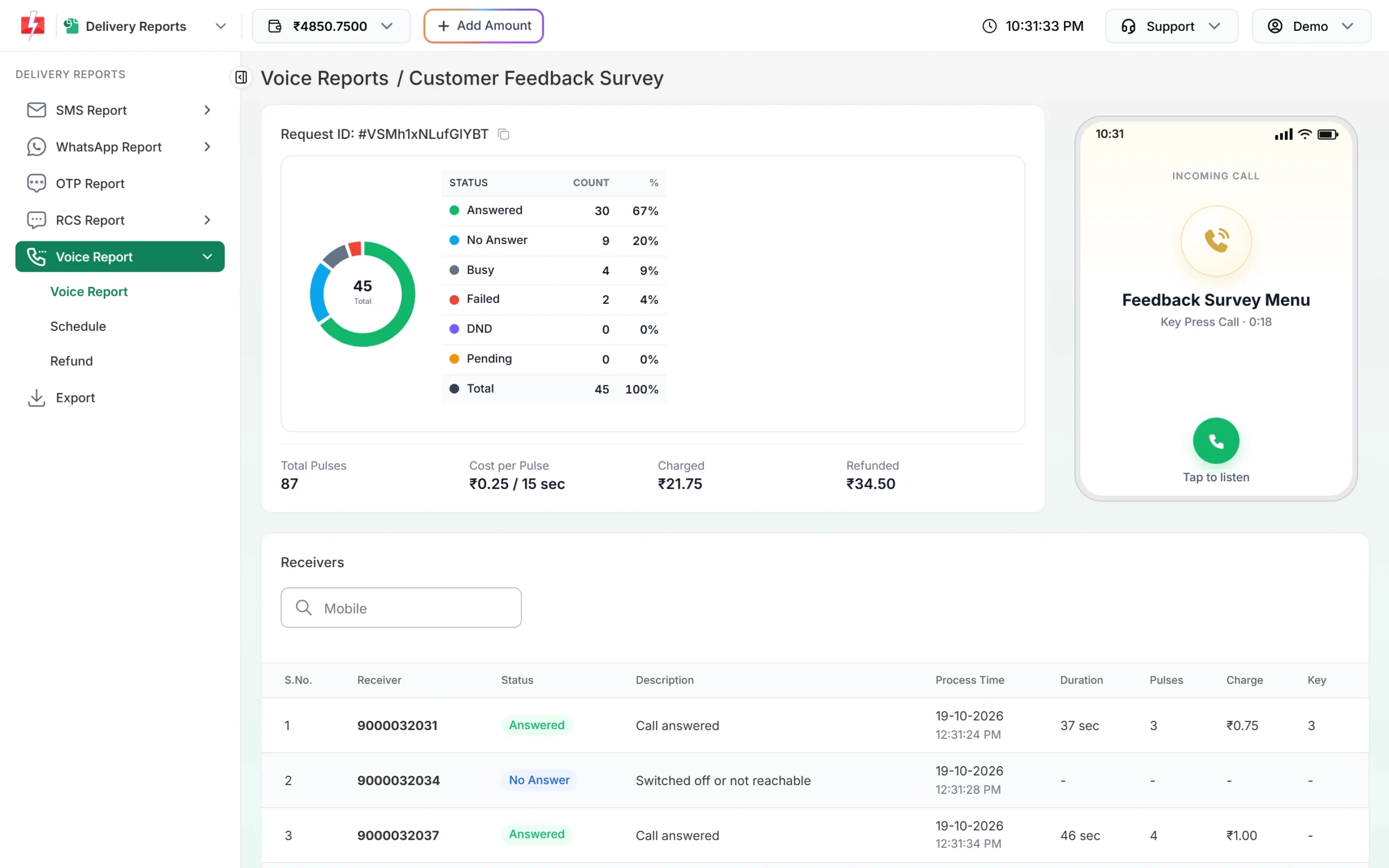
Compare the Key column with what each tester pressed. -
Check the money
In Transaction History, the send appears as a “Voice Call (N Calls)” debit. About 1 hour after the campaign finishes, the unused amount comes back as “Unanswered Voice Call Refund (N Calls)” or “Voice Call Refund (N Calls)”. Multiply the pulses of a typical answered test call by your full list to estimate the real campaign.
-
Test the API and webhook too, if you use them
Send the same test through the voice API, save the
request_id, and check that your webhook receives one request per number after the campaign is settled, withstatusand, for Key Press,dtmf. See how to test a Fast2SMS webhook locally.
Final checklist before the full send
| Check | Why it matters |
|---|---|
| Brand name in the first seconds | It is the Must rule for voice file approval, and people hang up on unknown callers. |
| Message length | Every extra 15 seconds adds a pulse to every answered call. |
| Allowed keys match the menu | A key you mention but did not tap plays the wrong-key file. |
| All files show Approved | A file that is not approved stops the campaign. |
| Agents ready (Call Patch) | Agents’ phones must be on and free while the campaign runs. |
| List cleaned | Remove opt-outs and add them to the voice blacklist. |
| Start time | Large lists should start early so they finish before calls pause at 9 PM. |
| Wallet balance | The full estimate is held when you send. |
What a test costs
Only answered calls are charged, at ₹0.25 per 15-second pulse at the time of writing. A test of 4 phones with a 20 to 30 second call is 2 pulses each, so about ₹2 in all. Calls you do not answer cost nothing and are refunded. Uploading your own voice file has a separate ₹10 fee, refunded if the operator rejects it.
Sending in bulk? For high voice call volumes our team offers discounted rates. Talk to our team or see voice call pricing.
Common problems and fixes
| What you see | What to do |
|---|---|
| A test phone did not ring and the report shows DND | That number is on the DND registry. Use another test phone. |
| A test phone did not ring and shows Blacklisted | Remove the number from Blacklist in the Voice menu. |
| “A chosen voice file was not found or is not approved yet. Please choose it again.” | Wait for approval in Voice Files, or test with a sample file. |
| “Calling hours are over for today, so your campaign is scheduled for …” | You sent outside calling hours. The test runs at 10 AM, or cancel it from Voice Schedule. |
| Result still Pending | The operator has not returned the result yet. Check again a little later. |
Frequently asked questions
Is there a free trial for bulk voice calls?
The sample voice files are free and pre-approved, so you can test without uploading anything. The test calls themselves are charged only if answered, at the normal pulse rate.
Can I test without recording my own message?
Yes. Pick a file from Sample Files in the Voice File window. There are Simple, Key Press and Call Patch samples in Hindi and English.
Why did my test phone not ring?
The most common reasons are that the number is on DND, is in your voice blacklist, or the campaign was sent outside 10 AM to 9 PM and is waiting in Voice Schedule. The report shows which one.
Can I send a test call at night?
No. Calls go out only between 10 AM and 9 PM IST. A test sent later is scheduled for 10 AM.
How many test numbers should I use?
Two to five is enough: enough to try each path of the call and more than one operator.
Does a test campaign count like a normal campaign?
Yes. It is a normal campaign with its own row in Voice Report, its own charges and its own refund.
Related guides
- How to send bulk voice calls in Fast2SMS (step by step)
- Voice files for bulk calls: format, upload, approval and rejection reasons
- IVR voice call campaigns: Key Press and Call Patch
- Voice call report: call status meanings, pulse charges and refunds
- How to test a Fast2SMS webhook locally
- Bulk voice call