
A COD confirmation call is an automated voice call to a buyer who chose cash on delivery: “Press 1 to confirm your order, press 2 to cancel it.” The key they press is saved against their number, so you ship confirmed orders and stop the ones that were cancelled or placed by mistake. In Fast2SMS you build it with a Key Press (DTMF) campaign, either from the panel in batches or from your store’s backend with the voice API, one call per order.
How a COD confirmation call works
- The buyer places a COD order. Your system marks it “awaiting confirmation”.
- Your system starts a Key Press call to the buyer’s number, or you upload the batch of new COD numbers in the panel.
- The buyer hears your recording and presses 1 to confirm or 2 to cancel.
- When the campaign’s results are in, the key appears in the Voice Report, the voice report API and your voice webhook.
- Key 1: pack and ship. Key 2: cancel. No answer or no key: follow up another way.
Before you start
- At least one paid transaction of ₹100 or more on your Fast2SMS account, and wallet balance for the calls.
- Approved voice files: a menu file (Used As “Menu (press a key)”) and, if you want them, Thank You, No Key Pressed and Wrong Key Pressed files. Upload them under Voice Files.
- For automation: your API key and, ideally, a webhook URL on your server.
Limits to plan around
- One recording for everyone. Every number hears the same voice file, so the call cannot speak the order number or amount. Refer to “your recent cash on delivery order from Demo Store” instead.
- DND buyers are not called. The operator does not dial DND numbers. They show as DND and cost nothing, but you need another way to confirm those orders.
- Calling hours. Calls go out only between 10 AM and 9 PM IST. An order placed at night is called from 10 AM the next morning.
- No automatic retry. Unanswered calls are not retried. Send a new call later if you want a second attempt.
- Results come after the call ends. The key is reported once the campaign’s results are in and the campaign is settled, not the second the buyer presses it.
Write the COD call script
Keep the menu file short, say your store name first and repeat the keys at the end.
| File (Used As) | Script |
|---|---|
| Menu (press a key) | “Namaste, this is Demo Store. Thank you for your cash on delivery order. To confirm your order, press 1. To cancel it, press 2. Again, press 1 to confirm or 2 to cancel.” |
| Menu, Hindi | “नमस्ते, यह Demo Store से call है। आपके cash on delivery order के लिए धन्यवाद। Order confirm करने के लिए 1 दबाएं। Order cancel करने के लिए 2 दबाएं।” |
| Thank You | “Thank you. We have noted your choice.” |
| No Key Pressed | “We did not get your answer. Please press 1 to confirm or 2 to cancel.” |
| Wrong Key Pressed | “That key is not valid. Please press 1 to confirm or 2 to cancel.” |
Option 1: confirm COD orders in batches from the panel
Good for small stores that check orders a few times a day.
-
Export the new COD orders
Export the phone numbers of COD orders waiting for confirmation from your store as a CSV or Excel file.
-
Create a Key Press campaign
Open Bulk Voice Call, enter a Campaign Name such as “COD confirm 19 Nov 2 PM” and choose Key Press (DTMF). Under Send To, pick CSV File, upload the file and choose the column with the numbers.
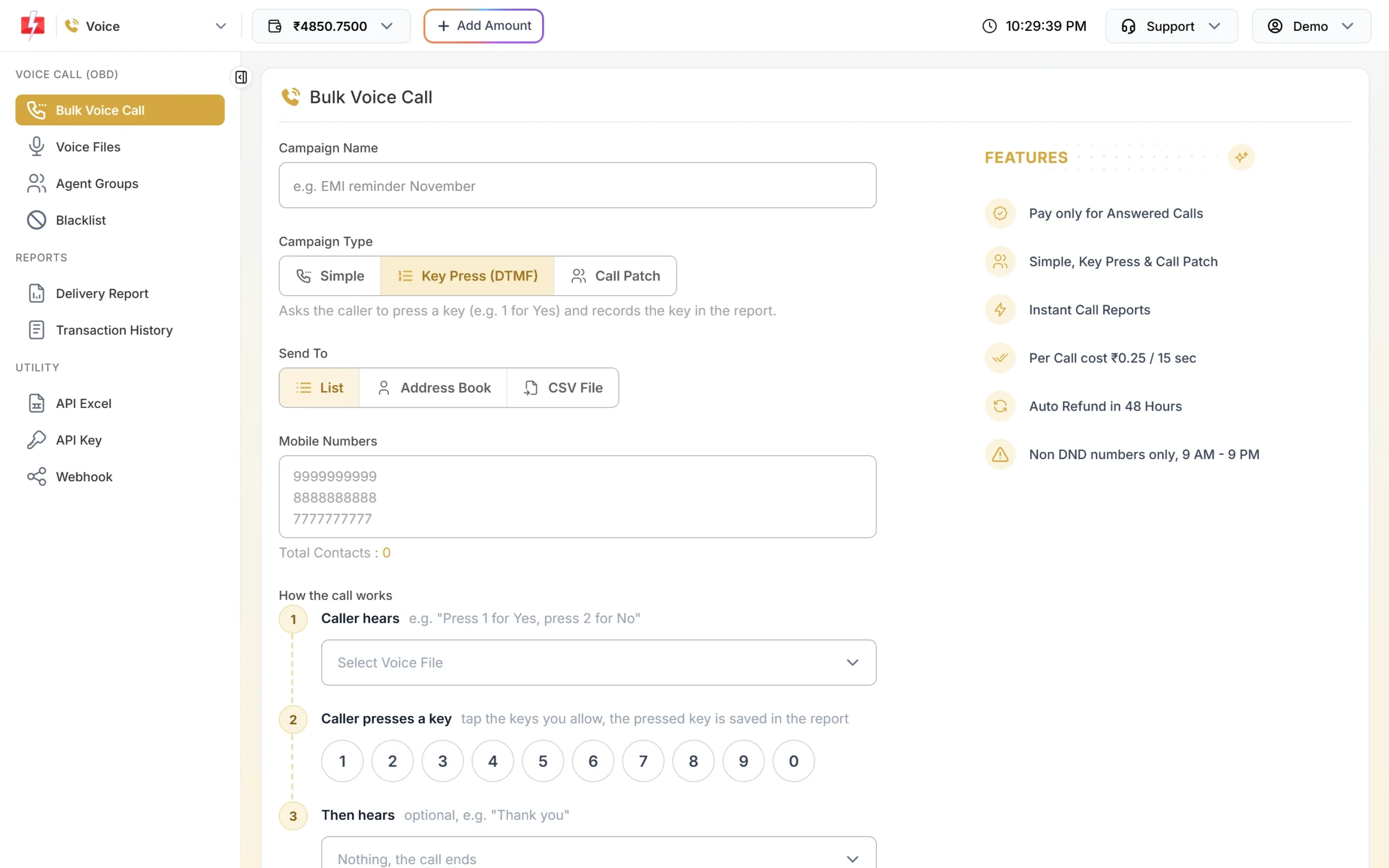
Key Press records whether the buyer pressed 1 or 2. -
Set the call flow
In Caller hears, pick your COD menu file. Tap keys 1 and 2 on the keypad. In Then hears, pick the thank-you file. Under More options, add the No Key Pressed and Wrong Key Pressed files, keep Wait for a key (sec) at 5 or 6 and Repeat step 1 if no key at 1.
-
Send and confirm
Click Send, check the counts and cost in Campaign Preview & Confirmation, then click Confirm & Send.
-
Read the answers
Open Delivery Report > Voice Report and click the campaign. The Key column shows 1 or 2 for each buyer, and a dash where no key was pressed. Click Download on the campaign row for an Excel file with Mobile, Status and Key Pressed, and match the numbers to your orders.
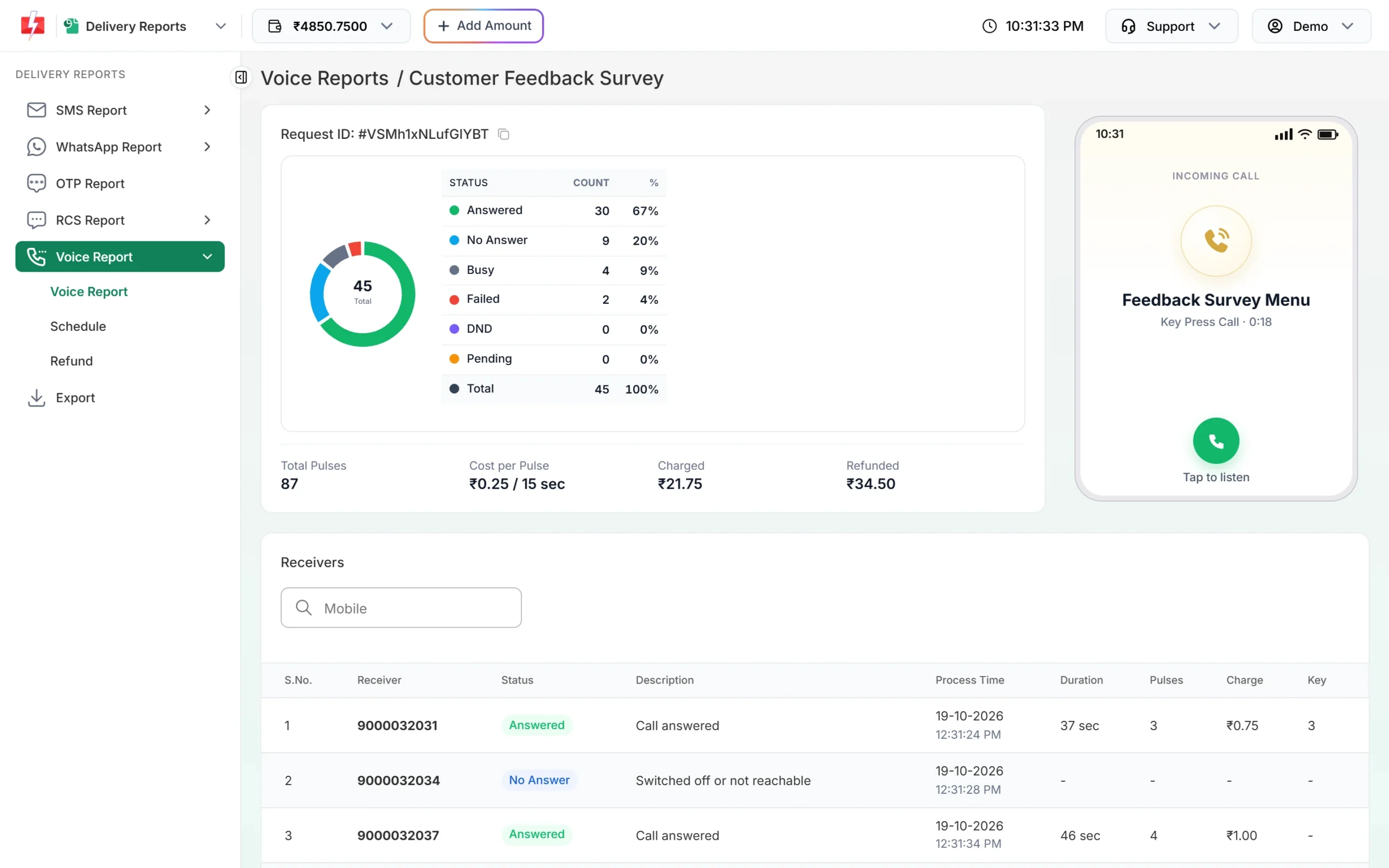
Match each number’s key to its order.
Option 2: call each order automatically with the API
Good for stores with steady COD volume. Your backend sends one Key Press call per order to POST https://www.fast2sms.com/dev/voice/bulk.
-
Get the File IDs
Copy the File ID of each approved file from its card in Voice Files, or call
GET https://www.fast2sms.com/dev/voice/files. The Voice API Excel under API Excel lists your approved files with ready API URLs.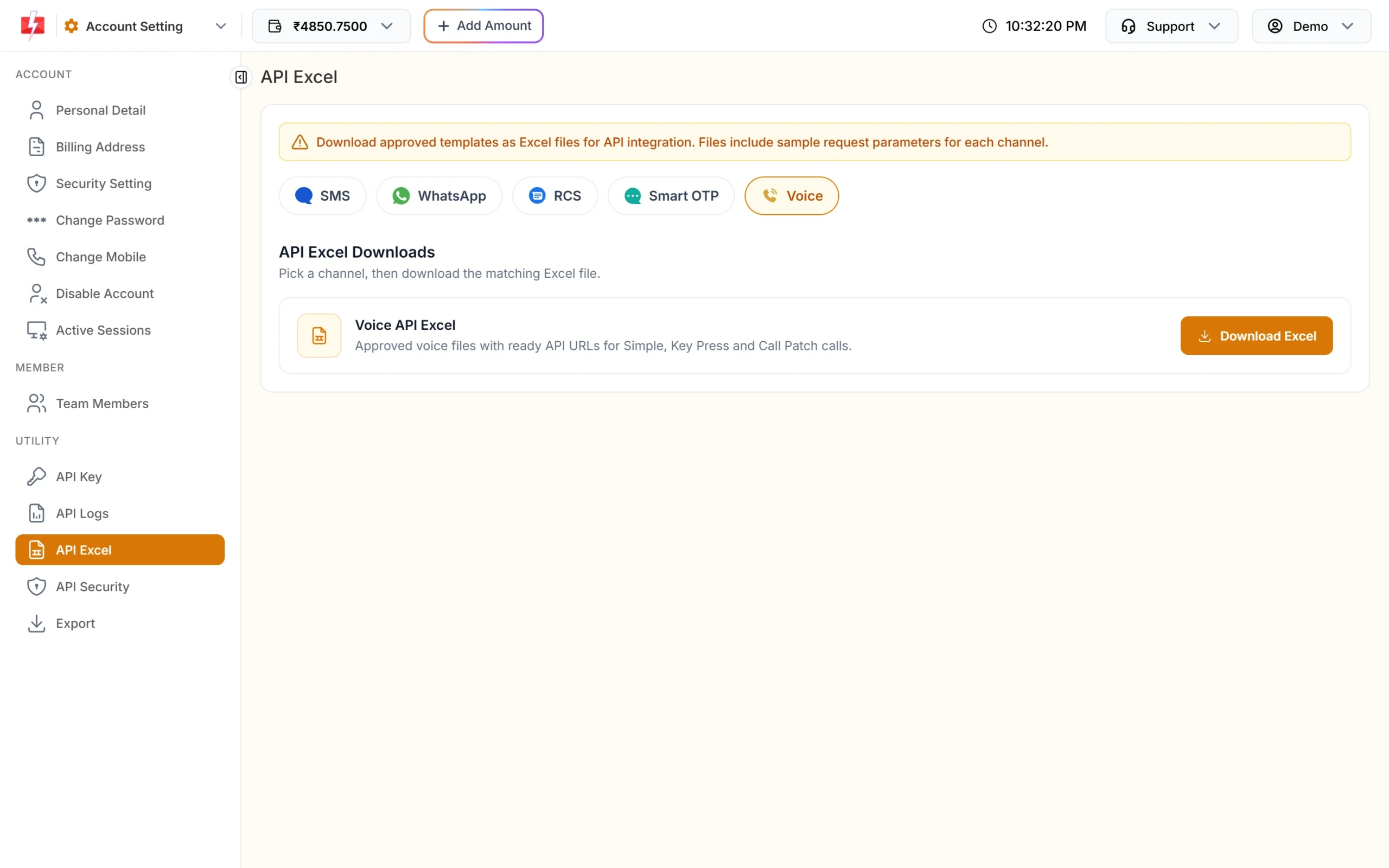
Download ready API URLs for your approved files. -
Send the call when the order is placed
Put the order number in
campaign_nameso every result is easy to match.curl -X POST "https://www.fast2sms.com/dev/voice/bulk" \ -H "authorization: YOUR_API_KEY" \ -H "Content-Type: application/json" \ -d '{"campaign_name":"COD DT10458","numbers":"9999999999", "file_id":"30031","dtmf_keys":"1,2","thanks_file_id":"30033", "no_input_file_id":"30034","wrong_input_file_id":"30035", "menu_wait_time":6,"reprompt":1}'file_idis the menu file anddtmf_keysmakes it a Key Press call. The optional file and timing fields match More options in the panel; they are not yet on the public API docs page at the time of writing. A successful response has"return":trueand arequest_id. Save therequest_idon the order. -
Receive the key on your webhook
Add a voice webhook under Webhook in the Voice menu. After the campaign is settled, Fast2SMS sends one request per number with fields such as
request_id,campaign_name,mobile,status,dtmfandreason. No webhook is sent for DND or blacklisted numbers, so if nothing arrives for an order, check its result by API. You can fetch results withGET https://www.fast2sms.com/dev/voice/report?request_id=V...&numbers=1. See voice call report by API.
Orders placed after calling hours are accepted and scheduled for the next morning; the API message says “Calling hours are over for today, so the campaign is scheduled for …” with the date and time.
What to do with each result
| Result | Meaning | Action |
|---|---|---|
| Answered, key 1 | Buyer confirmed | Pack and ship |
| Answered, key 2 | Buyer cancelled | Cancel the order |
| Answered, no key | Buyer heard the call but did not press | Follow up by SMS or WhatsApp, or call manually |
| No Answer or Busy | Buyer did not pick up | Call again later in a new call, then follow up another way |
| DND | Not called by the operator | Confirm another way, for example an OTP at checkout |
| Failed, “Invalid number” | The number is not in service | Hold the order and check the phone number |
Decide in advance how long you wait for an answer before cancelling or shipping anyway, and tell buyers this on your checkout page.
What a COD confirmation call costs
You pay only for answered calls, at ₹0.25 per 15-second pulse at the time of writing. A buyer who listens to a 15-second menu, presses 1 and hears a short thank you is on the line for about 20 to 30 seconds, which is 2 pulses or ₹0.50. When you send, an estimate covering the menu, wait time and repeats is held from your wallet; unanswered and DND calls are refunded automatically about 1 hour after the campaign finishes.
Sending in bulk? For high voice call volumes our team offers discounted rates. Talk to our team or see voice call pricing.
Frequently asked questions
Can the call say the order number or amount?
No. Every number hears the same recording. Mention your store name and “your recent cash on delivery order” instead.
Can I call buyers who order at night?
Calls go out only between 10 AM and 9 PM IST. Night orders sent by API are scheduled for the next morning automatically.
How soon do I get the buyer’s answer?
After the call ends and the campaign’s results are in. The key then appears in the Voice Report and is sent to your webhook.
Will buyers on DND get the call?
No. The operator does not dial DND numbers. Use an OTP at checkout or a message to confirm those orders.
Is a voice call or an OTP better for COD confirmation?
An OTP stops a fake number before the order is placed. A voice call confirms intent after the order. Many stores use OTP at checkout and a call for orders that still need checking.
Can I use this with Shopify or WooCommerce?
Yes, if your store’s backend or an automation tool can send an HTTPS request when a COD order is created. It calls the voice API as shown above.
Can a buyer talk to my team during the call?
Not in a Key Press call. Use a Call Patch campaign instead to connect buyers who press a key to your support agents.