
Most WhatsApp API signup errors come from one of four things: the number is still active on WhatsApp somewhere else, the verification code did not arrive, the Facebook account or business is not ready, or the browser blocked the Facebook pop-up. This guide lists the errors you can see when you click Login with Facebook in Fast2SMS, inside Meta’s pop-up and after it, with the fix for each one.
Before you try again
- Use a Facebook account you have had for a while. The connect page says: “Always use old Facebook account & old WhatsApp Business number”. Meta may stop a brand-new Facebook account with a message like “Your Facebook account is too new”.
- Keep the phone with that number in your hand. You need it for the verification code.
- Use a desktop browser with ad-blockers and privacy extensions turned off for fast2sms.com and facebook.com.
- Know which Meta business (business portfolio) the number should go under, and make sure you are an admin of it.
Errors on the Fast2SMS connect page
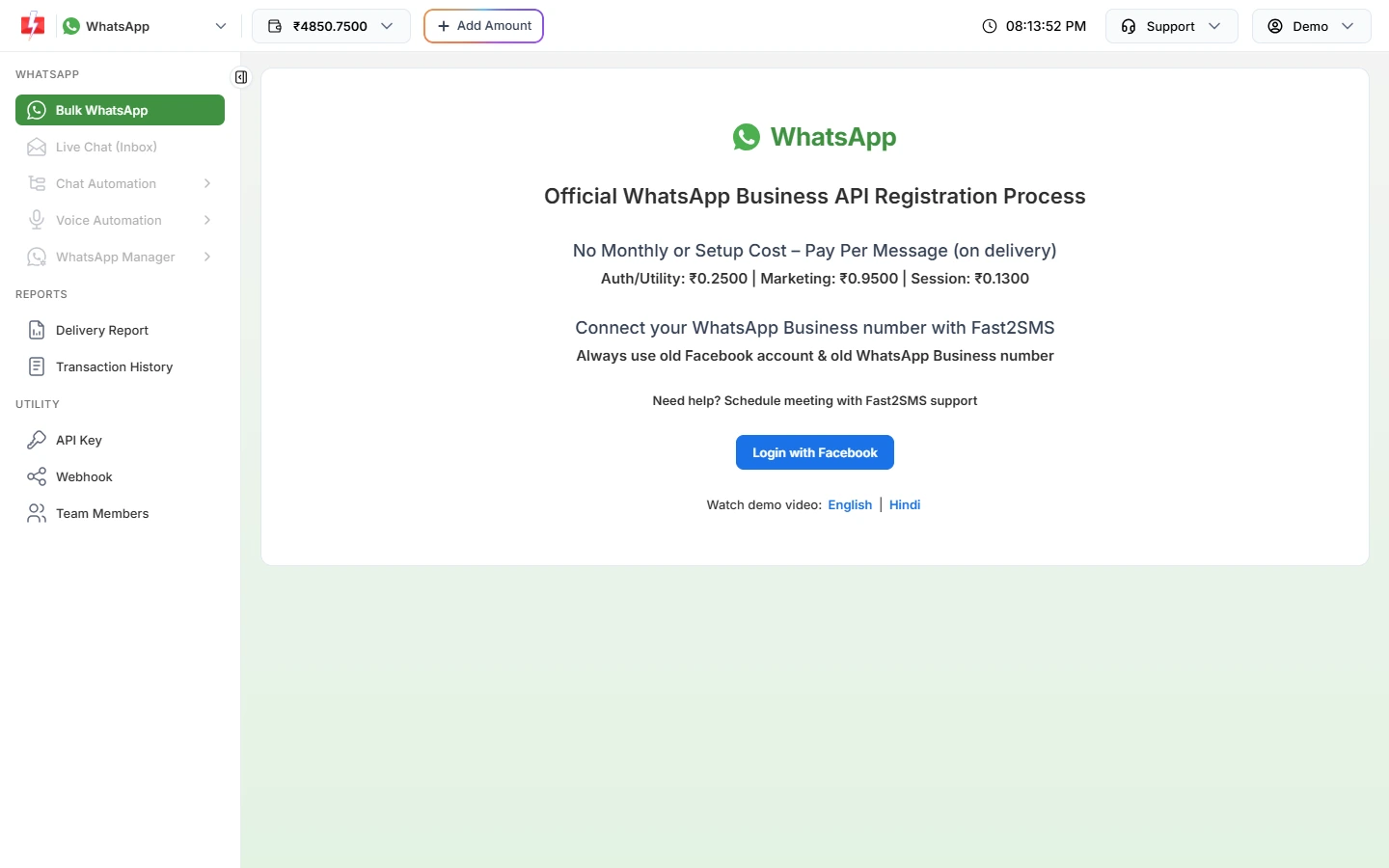
| What you see | What it means | Fix |
|---|---|---|
| Button stays on “Loading Facebook…” or “Facebook could not load in this browser” | An ad-blocker, privacy extension or office network is blocking Facebook. | Allow fast2sms.com and facebook.com, or try another browser. If you see “Facebook is ready. Click “Login with Facebook” again.”, click the button once more. |
| The pop-up closed and nothing happened | The Meta signup was closed before the last step. | Click Login with Facebook again and finish every screen. |
| “This WhatsApp number (+91…) is already connected to another account. Remove it there first, or use a different number.” | The number is already connected to a different Fast2SMS account. | Delete it from the other Fast2SMS account first, or use another number. |
| “Failed to onboard WhatsApp business. Please try again or contact support.” | Meta’s side finished, but the connection could not be completed. | Try once more. If it repeats, book a meeting from the connect page. |
| “Missing required parameters” or “Invalid waba_id” | Meta did not send back the account details. | Start again and make sure you select or create a WhatsApp Business Account and a phone number in the pop-up. |
| “Something went wrong” | An unexpected error. | Wait a few minutes and try again. If it repeats, contact support. |
WhatsApp API signup errors inside the Meta pop-up
These come from Meta. The wording and codes below are from Meta’s documentation at the time of writing.
The number is already on WhatsApp
| Meta says | Fix |
|---|---|
| The number is registered on WhatsApp (the normal app, not the Business app) | Move the number to the WhatsApp Business app first, or use a different number. |
| The number is connected to another product or provider (codes such as 3441079 or 3441095) | In the WhatsApp Business app, open Settings > Account > Business Platform and disconnect it, then wait about 15 minutes. |
| The number is on an account in a business you do not manage (3441067) | Ask that business’s admin to remove it, or to give you admin access. |
| The number is managed by a partner for another business (3441074) | Ask your old provider to remove it from their account first. |
| The number is connected to the Meta Business Suite inbox (3441073) | Disconnect WhatsApp from the inbox in Meta Business Suite. |
| Two-step verification is on (3441075) | Turn off two-step verification for the number, then try again. |
| The Business app is out of date (4563015) | Update the WhatsApp Business app on the phone. |
If you want to keep using the same number in the WhatsApp Business app on your phone as well, read about WhatsApp coexistence before you start.
The verification code did not arrive
- SMS not delivered (3441083): choose the voice call option in the pop-up and Meta calls the number with the code.
- “WhatsApp can’t send a code to this number” (3441084) or the code could not be sent (3441085): wait a few minutes and request a new code.
- Too many code requests (3441082, 3441101, 2388367): wait for the time Meta shows, then request again. Asking during the wait restarts the error.
- “You’ve tried too many invalid verification codes.”: wait for the time shown, then start the verification again.
- “Your phone number doesn’t appear to be valid”: check the number is active and can receive SMS or calls. Numbers that answer with an IVR menu are not supported.
Display name and business
- “Your verified name violates WhatsApp guidelines.”: change the display name so it matches your business. See display name rules.
- Business verification in progress (2494030): wait until Meta finishes your business verification, then try again.
- Limit on accounts before verification (2388098): complete Meta business verification. See Meta business verification in India.
- Your business portfolio has reached its WhatsApp account limit (2494067): remove WhatsApp accounts you no longer use in Business Settings.
- WhatsApp account already shared with another partner (2655049, 2494028): remove the other partner’s access, or create a new WhatsApp Business Account in the pop-up.
- “User does not have permission to create WhatsApp Business Accounts.”: ask the business admin for full access, or pick a business where you are admin.
Facebook account and security
- “Your Facebook account is too new”: wait a few hours, or use an older account.
- Two-factor authentication required (2859009, 3441071): turn on two-factor authentication for your Facebook account or business portfolio, then try again.
- New device or location (2859030, 2859043): wait a few minutes and complete Meta’s check.
- Too many requests (3441033, 3441046): wait a while before trying again.
After the number is connected
-
Wait 10 minutes before the first message
If you send too soon you see “Messaging will be available 10 minutes after onboarding.” Use that time to check your number and templates.
-
Check the number in WhatsApp Manager
Open WhatsApp Manager > Numbers. A Connected number can send. A Pending one is not listed in Bulk WhatsApp yet. Click Sync Details to fetch the latest status from Meta. A red “Unverified” badge means Meta has not approved the display name yet.
-
Wait for your first template
When you connect a number for the first time, a utility template called payment_completed is created for it automatically. You can send it once Meta approves it, or create your own with Add Template.
Frequently asked questions
Why did I not get the WhatsApp API verification code?
The SMS may not reach the number, or you asked for codes too often. Use the voice call option, and wait for the time Meta shows before asking again.
Can I use a number that is already on WhatsApp?
A number on the WhatsApp Business app can be connected. A number on the normal WhatsApp app must move to the Business app first, or be deleted from WhatsApp, before you can use it.
What does “already connected to another account” mean?
The number is connected to a different Fast2SMS account. Remove it there first, then connect it again.
Why does the Login with Facebook button not work?
Usually an ad-blocker or privacy extension blocks Facebook. Turn it off for fast2sms.com, or use another browser.
Do I need business verification to connect a number?
You can start without it, but Meta may limit you until your business is verified. Some signup errors ask you to finish verification first.
Can Fast2SMS help me with the signup?
Yes. Use “Need help? Schedule meeting with Fast2SMS support” on the connect page to book a call.