
Yes, you can use a virtual number, a landline or a toll-free number for the WhatsApp Business API, as long as you own the number and it can receive Meta’s verification code by SMS or voice call. A mobile number is the easiest choice. This page explains Meta’s number rules, how to verify a landline or virtual number, and what to check before you pick one.
Which numbers work for WhatsApp Business API?
At the time of writing, Meta’s developer documentation sets these rules for a business phone number:
| Number type | Allowed? | How it is verified |
|---|---|---|
| Mobile number | Yes (recommended) | SMS or voice call |
| Landline (fixed line) | Yes | Voice call. SMS is not recommended |
| Virtual number (cloud telephony, DID) | Yes, if it can receive a call or SMS and you own it | Voice call or SMS, whichever reaches you |
| Toll-free / 1800 number | Yes, if behind an IVR that accepts international calls and routes the verification call to a person | Voice call |
| Short code (like 56767) | No | – |
| Pager number | No | – |
The number must also have a country and area code, and must belong to your business.
Before you choose a number
- Use a number you will keep for years. Your customers save it, your templates and quality rating belong to it, and you need access to it again if you ever re-register it. A temporary or rented online number you lose access to can lock you out.
- Do not use a number that is on the WhatsApp app unless you want coexistence. A number on the normal WhatsApp app must be deleted from the app first. A number on the WhatsApp Business app can be connected and kept on the app through coexistence.
- Make sure someone can answer. For a landline or IVR number, someone must be there to hear the code when Meta calls.
- The Fast2SMS connect page advises using an older Facebook account and an older WhatsApp Business number where you have one. If you have one, use it.
How to connect a landline or virtual number
-
Open the connect page
Log in to Fast2SMS and click Bulk WhatsApp. If no number is connected yet, you see the registration page. If you already have a number, go to WhatsApp Manager > Numbers and click Add New Number.
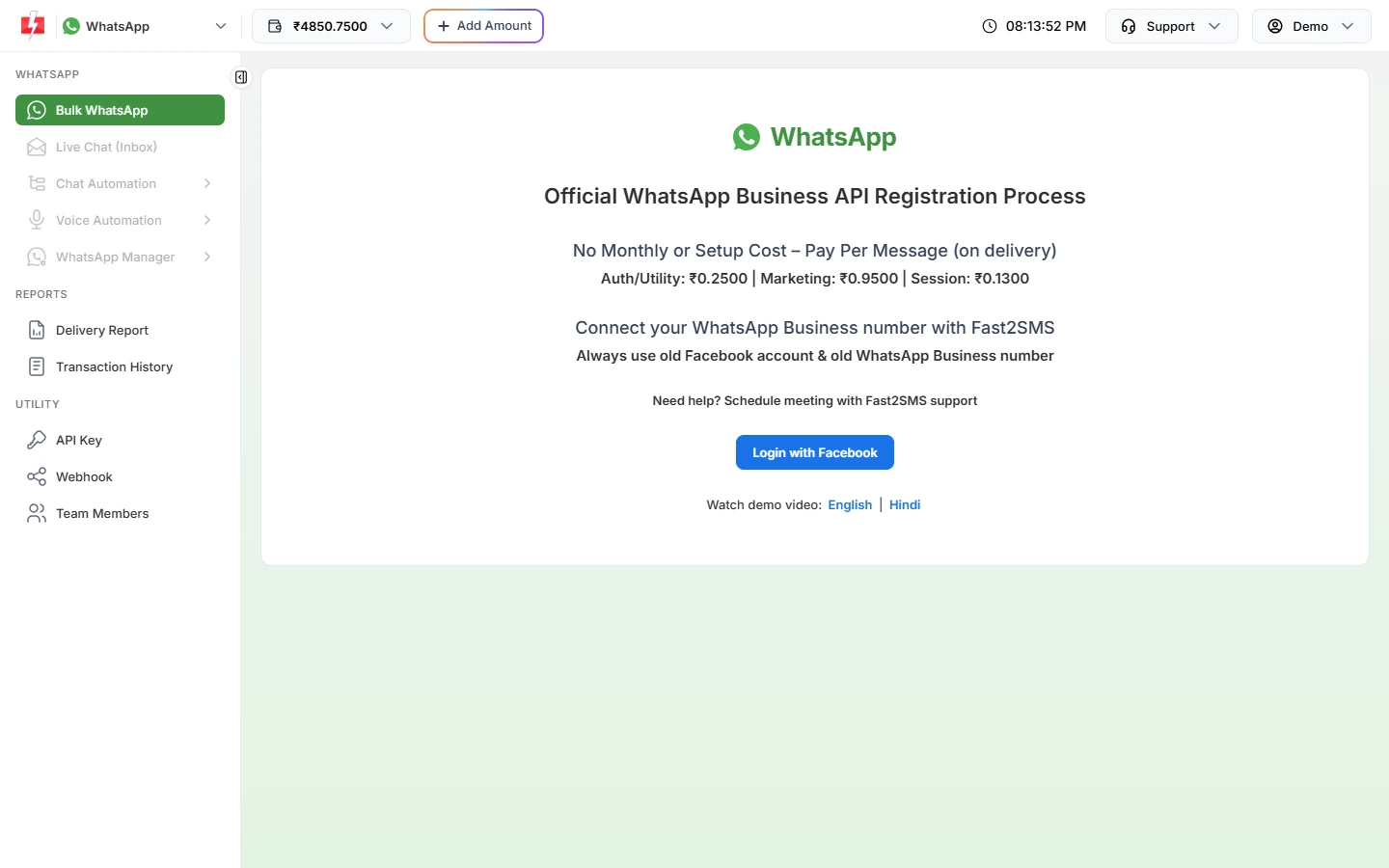
The connect page opens Meta’s sign-up window. -
Add the number in Meta’s window
Click Login with Facebook, choose or create your business portfolio and WhatsApp Business account, then enter the number with its country code and your display name.
-
Choose voice call for a landline
When Meta asks how to send the verification code, choose phone call for a landline, toll-free or IVR number. Answer the call, note the code and type it in. For a virtual number that receives SMS in its dashboard, the text message option also works.
-
Check the number in Fast2SMS
Back in WhatsApp Manager > Numbers, click Sync Details. The number shows Pending, then Connected. You can send messages about 10 minutes after onboarding.
Frequently asked questions
Can I use my office landline for WhatsApp Business API?
Yes. Choose the voice call option during verification and answer the call on the landline.
Can I use a free online virtual number?
Avoid it. If the number is shared or expires, you may lose the ability to verify it again, and someone else could get it.
Will customers see a landline number on my WhatsApp profile?
Yes. Customers see the number with your display name, so a well-known office number can build trust.
Can I use one number for both calls and WhatsApp API?
Yes. Meta says a registered number can still be used for normal calls and SMS, but not on the WhatsApp app at the same time unless it is a WhatsApp Business app number using coexistence.
Is there any charge for connecting a number?
No. Fast2SMS has no setup, monthly or per-number fee. You pay only for the messages you send.