
A WhatsApp CRM is a place where your team answers WhatsApp chats and keeps track of each lead or customer: who they are, what they asked for, who is handling them and what happens next. In Fast2SMS this is the free shared Live Chat inbox on your official WhatsApp number, with labels, tags, notes, chat status, agents and a chatbot that qualifies leads. This guide shows how to run WhatsApp lead management from it, step by step.
Before you start
- A WhatsApp number connected to Fast2SMS (see WhatsApp Business API onboarding).
- Your sales or support staff added in Team Members with WhatsApp access. You can add team members (agents) to your account.
- A short list of the stages your leads go through, for example New Lead, Interested, Payment Pending, Customer.
Which inbox tool does which CRM job
| CRM job | Fast2SMS tool | Good to know |
|---|---|---|
| Lead stage | Label | One per chat; up to 50 labels per account |
| Product, city, source, budget | Tags | Many per chat, up to 50 characters each |
| What was discussed, next step | Notes | 10-400 characters, with the writer’s name and date |
| Details collected by the bot | Attributes | Saved from Flow Builder, shown in Contact info |
| Owner of the lead | Transfer To / Assign Multiple Chats | Chat Agents see only chats assigned to them |
| Work status | Open / Pending / Closed | From the chat’s three-dot menu |
| Follow-up lists | Filter Conversations | Combine label, tag, status, assignee and reply status |
How to manage WhatsApp leads in Fast2SMS
-
Capture every lead in one inbox
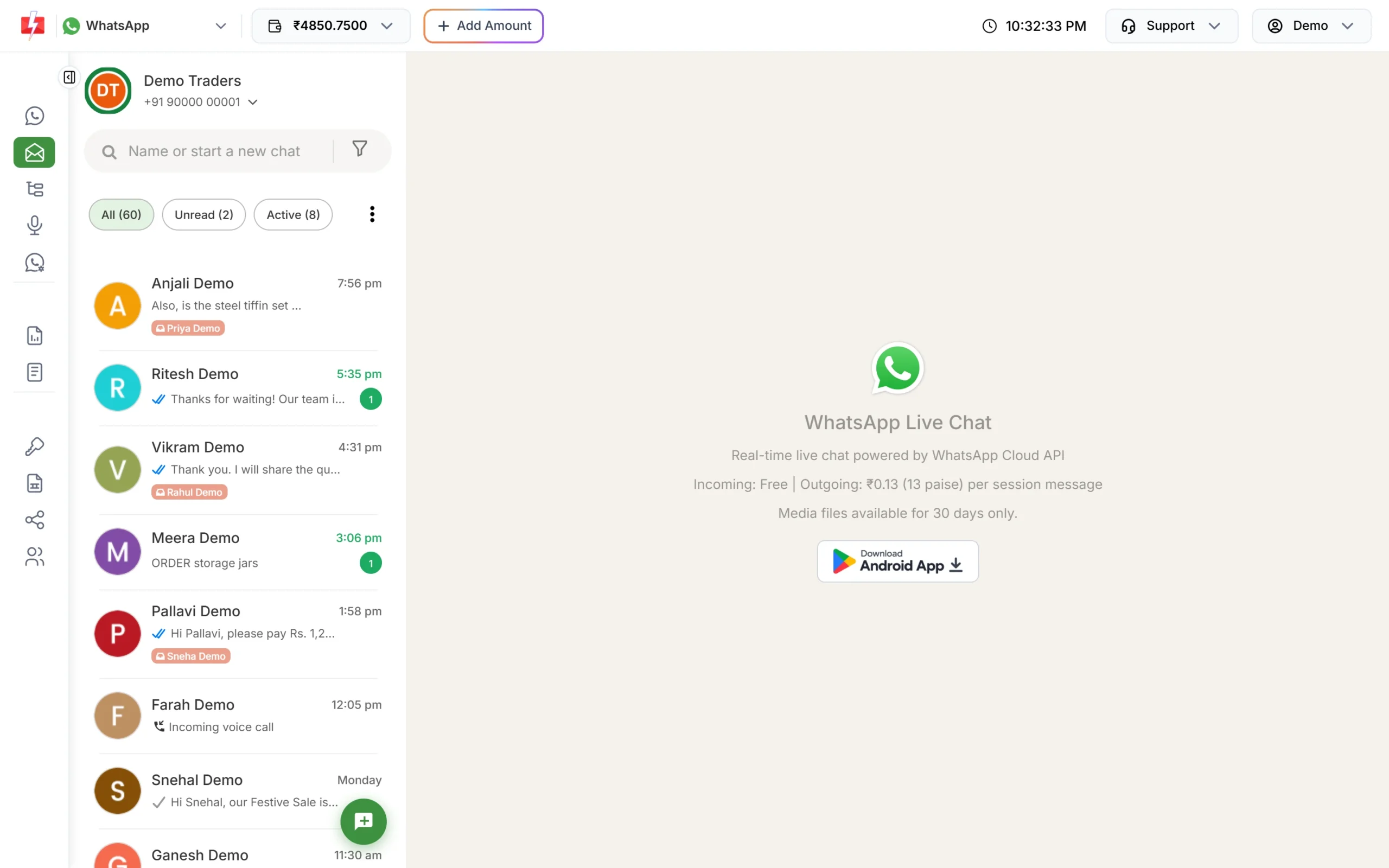
Every customer who messages your number appears in Live Chat (Inbox), newest first, with unread counts. Leads come from your website chat button, wa.me links and QR codes, Click-to-WhatsApp ads, and replies to your campaigns. Incoming messages are free.
All chats on your number land in one shared list. -
Qualify leads with a chatbot
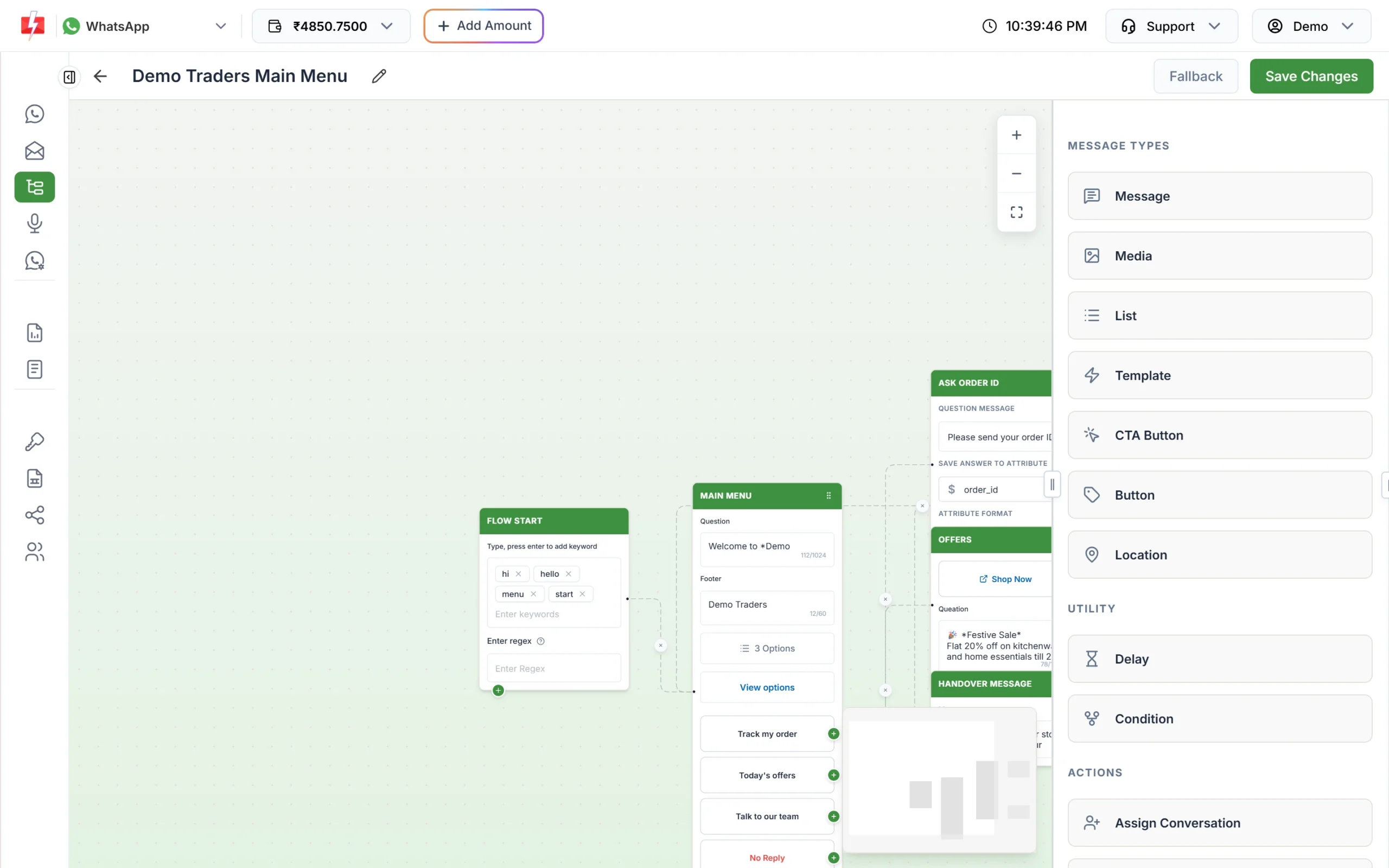
In Chat Automation > Flow Builder (Chatbot), create a workflow that starts on words like hi, price or enquiry. Use a List or Button step to ask what the customer wants (product, budget, city), then an Assign Conversation step to hand the chat to the right sales person. If you have your own CRM or sheet, an API Request step can send the details there.
A short menu sorts leads before a person picks up the chat. -
Mark the stage with a label
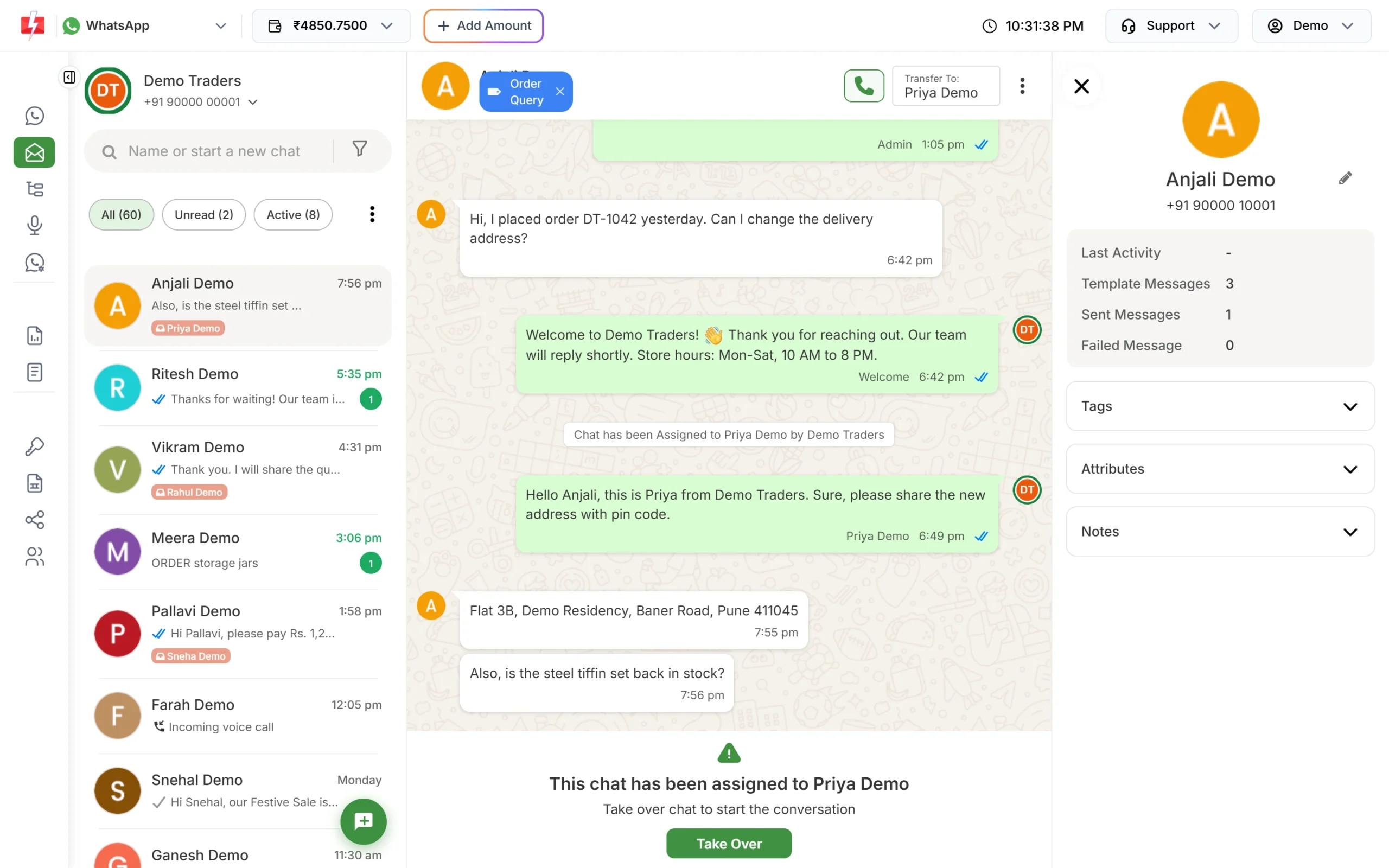
Open a chat and click Add Label. Create labels for your stages, such as New Lead, Interested, Payment Pending and VIP. Because a chat has one label, changing it moves the lead to the next stage. Use Tags in Contact info for extra details like product name, city or the ad that brought the lead.
-
Write notes for the next person
In Contact info, click Add Note and write what was promised: “Wants 2 BHK under 60 lakh, site visit Saturday” or “Sent quote, call back Monday”. Customers never see labels, tags or notes.
Contact info is your lead card: tags, bot answers and team notes. -
Assign leads to your team
Click Transfer To in a chat to give it to an agent, or use Assign Multiple Chats from the three-dot menu above the list after a big campaign. A Chat Agent sees only the chats assigned to them; an Admin agent sees all chats. The owner can Take Over any chat.
-
Build follow-up lists with filters
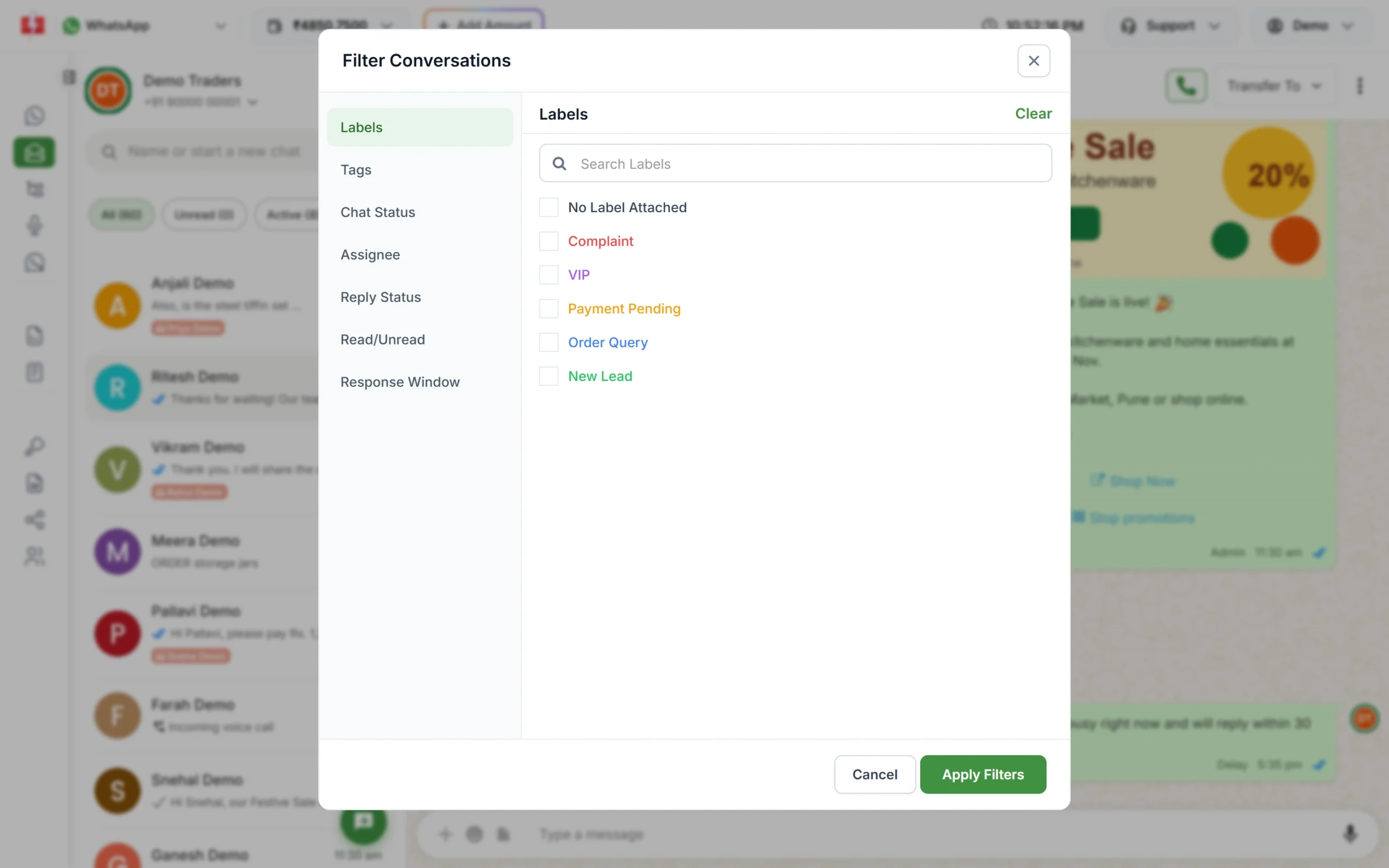
Click the funnel icon to open Filter Conversations. For example, choose label Interested and Reply Status Unreplied to see warm leads nobody has answered, or Assignee and Chat Status Pending to check one agent’s open follow-ups.
Filters turn your labels and tags into follow-up lists. -
Follow up after 24 hours with a template
You can send free-form replies for 24 hours after the customer’s last message. After that, the inbox shows Send Template: pick an approved template, such as a reminder or an offer, to restart the conversation. For a group of leads, add them to an Address Book group and send a campaign from Bulk WhatsApp.
What the inbox does not do
The Fast2SMS inbox is a WhatsApp-first CRM, not a full sales CRM. There is no deal value, pipeline board, task reminder or automatic round-robin assignment. If you need those, keep your sales CRM and connect it: the WhatsApp webhook can send incoming messages and delivery status to your server, and our API sends templates from your CRM. See Fast2SMS CRM integrations.
What it costs
The inbox, agents, chatbot, labels and notes are free. Messages customers send you are free. You pay per message you send, at the time of writing: ₹0.13 for a reply inside 24 hours (session), ₹0.25 for a utility template and ₹0.95 for a marketing template. Automatic replies are charged at the session rate. See the WhatsApp pricing page.
Sending in bulk? For high WhatsApp volumes our team offers discounted rates. Talk to our team or see WhatsApp pricing.
Frequently asked questions
Is there a free WhatsApp CRM?
In Fast2SMS the Live Chat inbox, agents, labels, tags, notes and chatbot have no monthly or per-agent fee. You pay only for the messages you send.
Can my sales team use WhatsApp CRM on their phones?
Yes. Agents log in at fast2sms.com/agent from a mobile browser, or with the Fast2SMS Agent Login Android app, and see the chats assigned to them.
Can I add more than one agent?
Yes. You can add team members (agents) to your account. Each one can be given one or more of your WhatsApp numbers.
Can I export my leads?
There is no chat export in the inbox. To keep a copy of every lead in your own system, use the WhatsApp webhook or a chatbot API Request step.
Can two agents work on the same lead?
A chat is assigned to one agent at a time. Notes show who wrote what, so the next agent can pick up from there.
Can I message a lead who has not written to me?
Yes, but only with an approved template, and only if the person has agreed to get messages from you.