
WhatsApp error 130403 means your business has blocked this customer on WhatsApp, so Meta will not deliver your messages to them. Error 131021 means the sender and the recipient are the same number. Both are easy to fix once you know what they mean. This page explains each one and the steps in Fast2SMS.
Error 130403: your business blocked this user
Meta’s description, at the time of writing, is that the message could not be delivered because this business has blocked the end user on WhatsApp. Meta’s advice is not to retry, and to unblock the user if you want to message them again.
Many people read 130403 as “the customer blocked me”. It is the other way round: the block was made from your business number.
How a customer gets blocked from your number
- A team member clicked Block in Live Chat. Fast2SMS asks “Block {name}?” with the note “This person won’t be able to message you”, and sends the block to WhatsApp as well.
- The number was blocked from the WhatsApp Business app, if your number also works in the app (coexistence).
- Someone blocked it using the block-users API.
How to unblock a customer in Fast2SMS
-
Find the chat in Live Chat
Open Live Chat (Inbox), pick the right business number and search for the customer’s number. When a contact is blocked, the reply box is replaced by an Unblock bar.
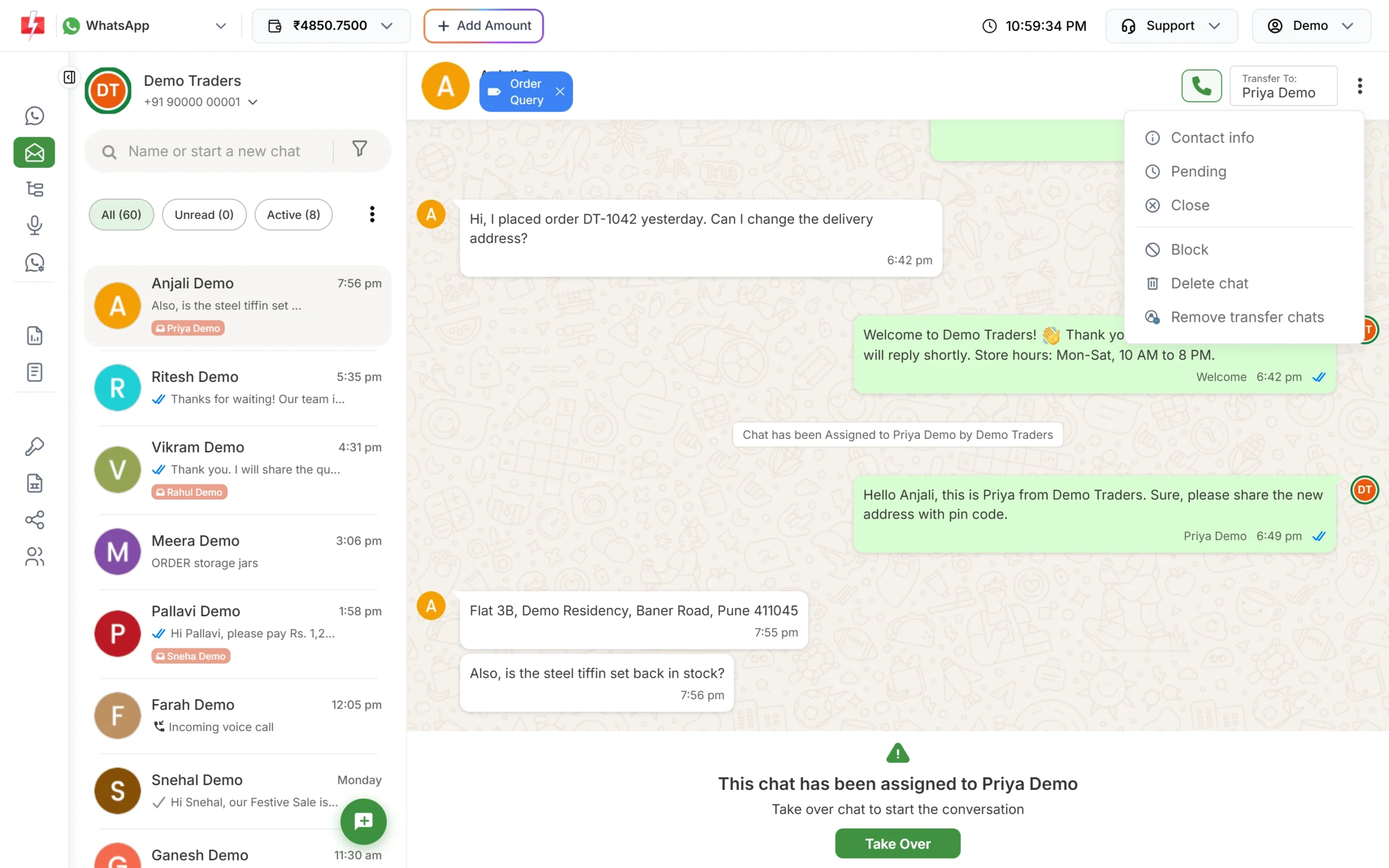
Block and Unblock are in the chat’s more menu. -
Click Unblock
Use Unblock on the bar or in the chat’s more menu. Once unblocked, the customer can message you again and your messages to them can be delivered.
-
Send again
If the customer’s last message was more than 24 hours ago, send an approved template, not free text.
Error 131021: sender and recipient are the same
Meta’s description, at the time of writing, is that the sender and recipient phone number is the same. A WhatsApp Business API number cannot message itself.
In Fast2SMS this shows in the Delivery Report as “You can not send message to your own number”. It usually happens when:
- you test a campaign by adding your own business number to the list,
- your contact file includes your shop’s own WhatsApp number,
- a test in your API code uses the business number as the recipient.
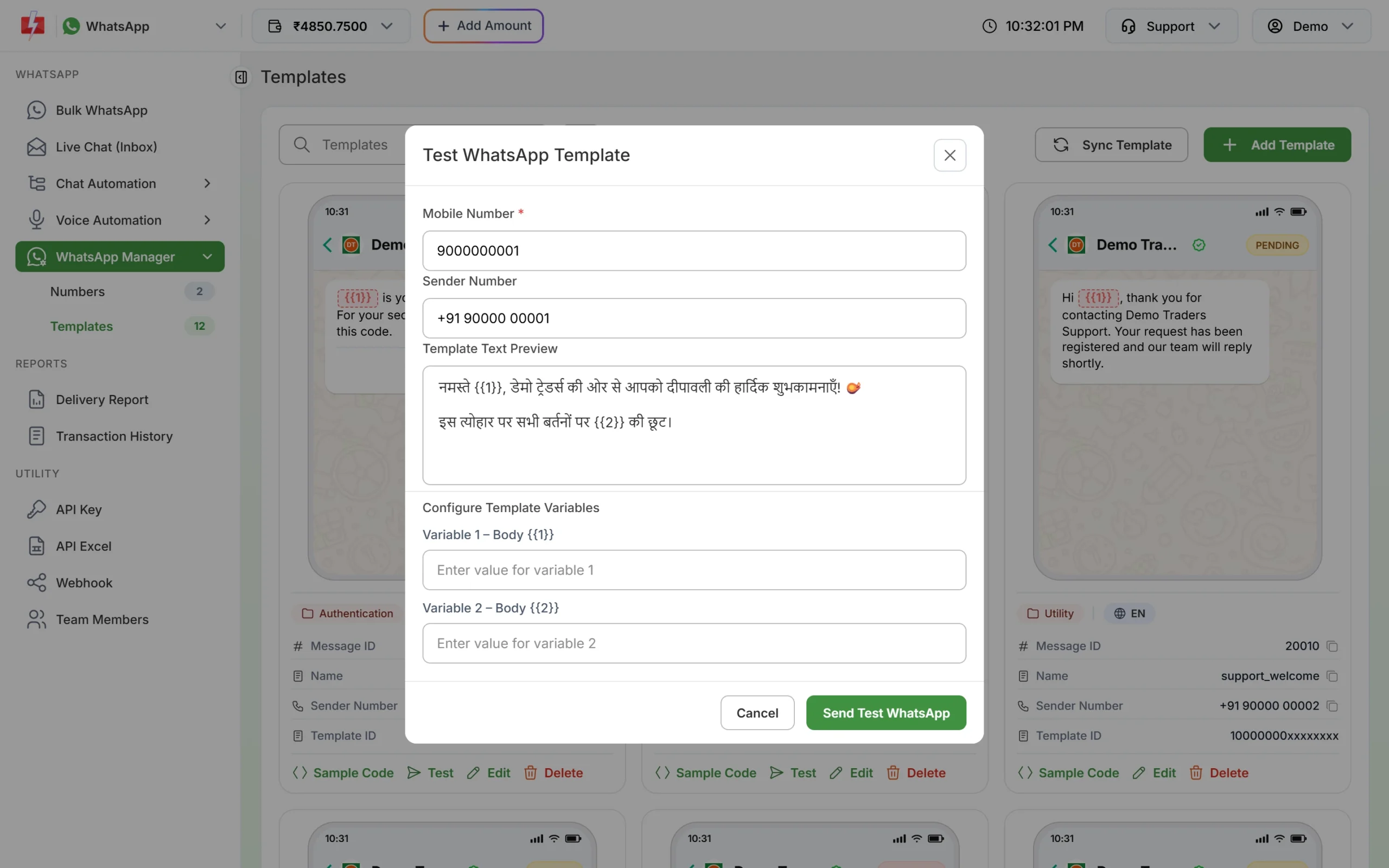
Fix: test with a different phone, such as a personal number, and remove your business number from contact lists. The Test button on a template card lets you send to another mobile number. Its Mobile Number box is pre-filled with your account mobile, so change it if that is also your WhatsApp business number.
Frequently asked questions
Does 130403 mean the customer blocked my business?
No. Meta’s description says your business blocked the user. A block made by the customer is a different thing.
Can a blocked customer still message me?
No. Fast2SMS’s block note says the person won’t be able to message you. Unblock them if you want to talk again.
Are failed messages with 130403 or 131021 charged?
No. Fast2SMS refunds every failed WhatsApp message to your wallet automatically, about two days after sending.
Can agents block customers?
The Block option is in the chat’s more menu in Live Chat. Agree within your team who may use it, so customers are not blocked by mistake.
How do I test a template without sending to my business number?
Click Test on an approved template in WhatsApp Manager > Templates and enter a personal mobile number.