
WhatsApp error 2388019 means your WhatsApp Business Account already has the maximum number of message templates Meta allows. You cannot add another one until you delete some, or until your account qualifies for the higher limit. Every language version of a template counts on its own, so the limit fills up faster than most people expect.
What WhatsApp error 2388019 means
Meta’s short meaning is “message template limit exceeded”. At the time of writing, Meta’s limits per WhatsApp Business Account are:
| Your business | Template limit per account |
|---|---|
| Business portfolio not verified | 250 templates |
| Business portfolio verified, and at least one of its WhatsApp accounts has a number with an approved display name | Up to 6,000 templates |
A template with the same name in English and Hindi counts as two. Meta also limits how fast you create them: at most 100 new templates per account per hour.
Why it happens
- Old campaign templates were never cleaned up.
- Rejected templates were left in the account instead of being deleted.
- The same template was created in several languages.
- Your business portfolio is not verified, so the lower limit applies.
How to fix error 2388019 in Fast2SMS
-
See how many templates you have
Open WhatsApp Manager. The Templates item in the sidebar shows your template count. Click it to see every template as a card with its status, category and language.
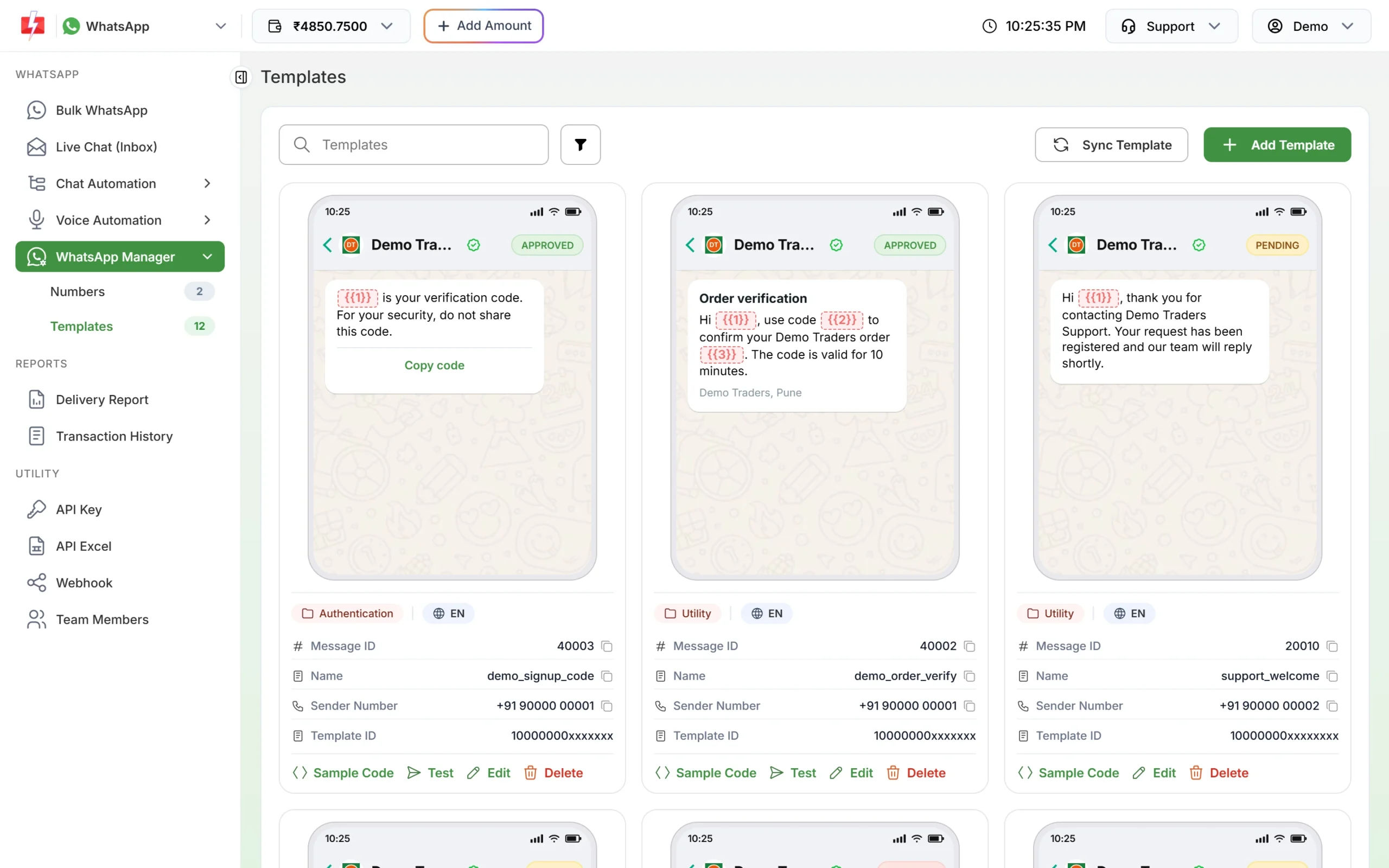
Your templates with their status, category and language. -
Find templates you do not need
Click the filter button. Choose REJECTED under Status first, as rejected templates cannot be sent anyway. If you have more than one business account, use Number to see one account at a time, as the limit is per account. Then look at old one-time campaign templates.
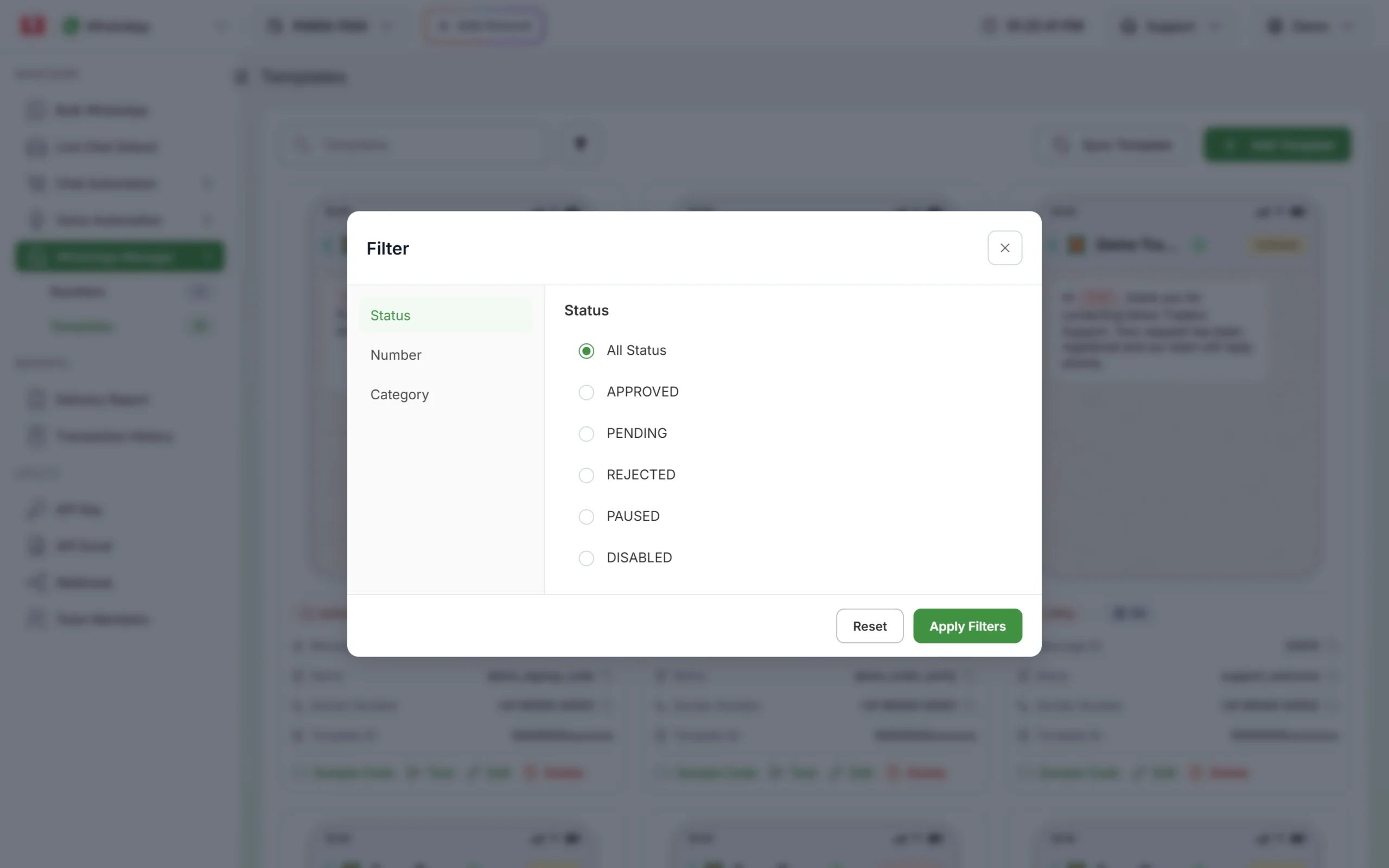
Filter by status, number or category. -
Delete them
Click Delete on a template card, enter your Fast2SMS password and click Delete. The template is removed from Meta as well as from your panel.
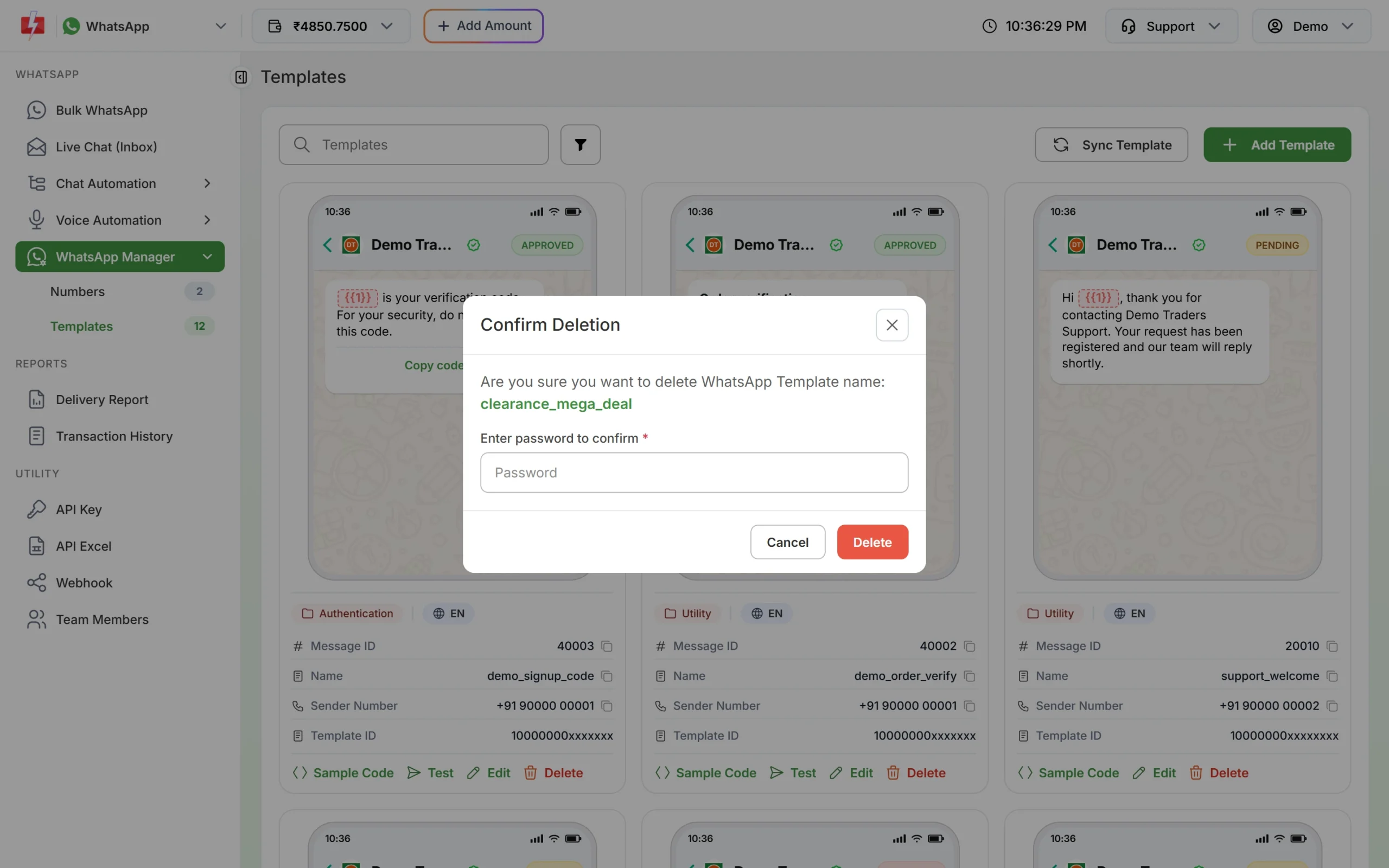
Deleting a template needs your password. -
Create your new template
Click Add Template and submit the new template. If Meta still returns 2388019, delete a few more and try again.
How to avoid it
- Write templates you can reuse, with variables for the parts that change, instead of one template per campaign.
- Delete rejected and outdated templates every month.
- Create language versions only for languages you really send in.
- Complete Meta business verification to qualify for the higher limit.
Frequently asked questions
How many WhatsApp templates can I create?
At the time of writing, 250 per account if your business portfolio is not verified, and up to 6,000 if it is verified and has a number with an approved display name.
Do rejected templates count toward the limit?
Meta counts the templates in your account, so delete rejected ones you will not fix.
Does each language count separately?
Yes. The same template in two languages counts as two.
Can I reuse the name of a deleted template?
Not for 30 days if the deleted template was approved.
Can I delete a disabled template?
Meta does not allow templates in a disabled status to be deleted at the time of writing.