
To whitelist an IP address for the Fast2SMS API, open Account Setting, go to API Security, add your server’s public IP under Whitelisted IPs and then switch API Security on. After that, only calls from those IPs are accepted, even if someone else gets your API key. This guide shows how to find the right IP, add it, and fix error 414 “IP is blacklisted from Dev API section”.
Why whitelist IPs for the API?
Your API key works from any computer by default. If the key leaks, for example in a code repository or an old plugin, anyone can send messages from your wallet. With API Security on, Fast2SMS checks the IP address of every API call and rejects calls that do not come from your list. It is one of the simplest ways to protect your balance.
Before you start
- Log in as the account owner. Team members cannot open Account Setting.
- Know which servers call the API: your website server, app backend, CRM, and any plugin host that sends from your account.
- Keep your registered mobile handy. Switching API Security on or off needs an OTP.
How to whitelist an IP address
-
Open API Security
On the dashboard, click Account Setting, then API Security under UTILITY in the left menu. At the top you see the API Security switch and the Low Balance Notification switch. Below them are two lists: Whitelisted IPs and Latest hits by other IP.
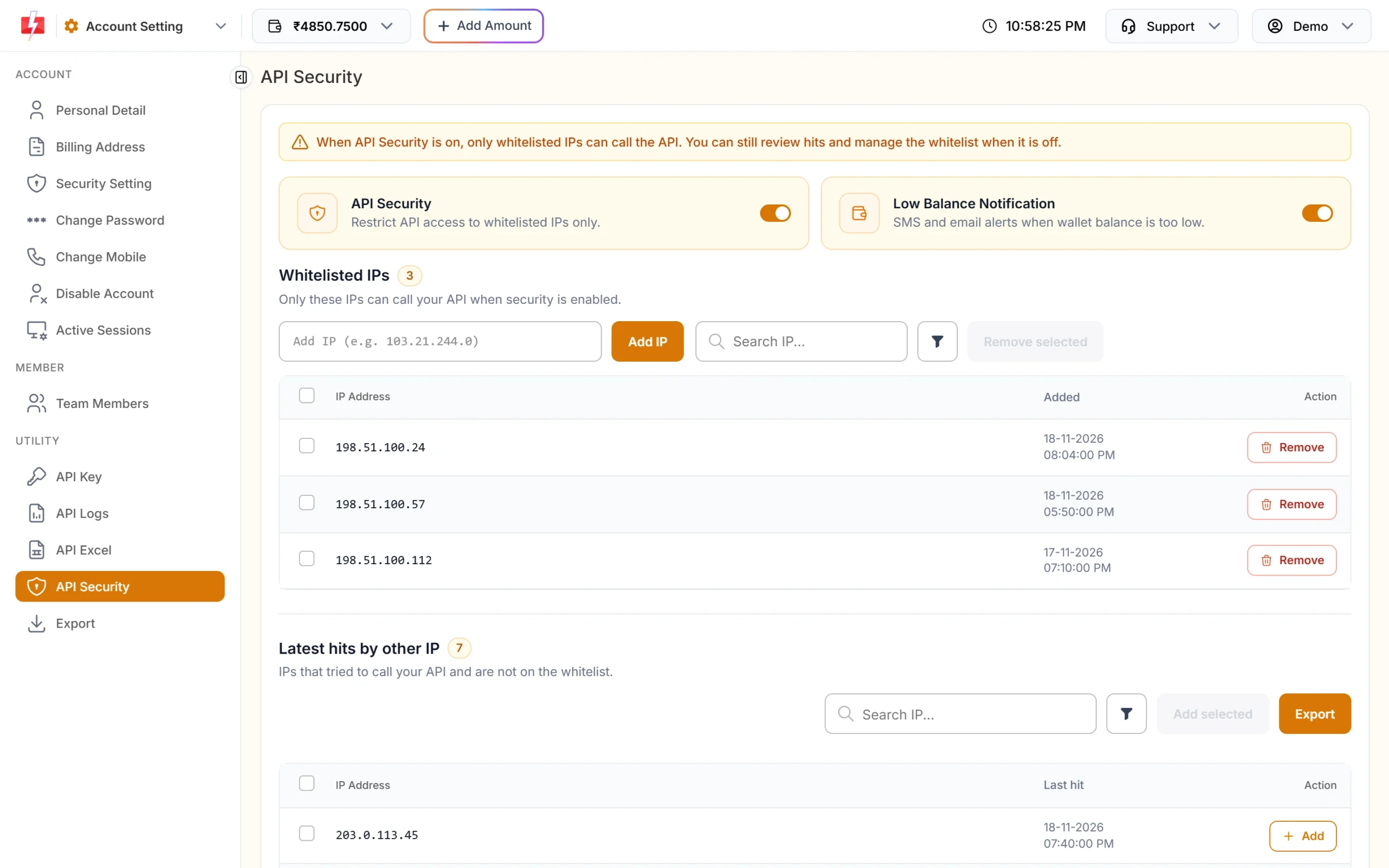
API Security with three whitelisted IPs. -
Find your server’s public IP
The easiest way: make one test API call from your server, for example a wallet balance check, while API Security is still off. Every call is recorded, so your server’s IP appears in Latest hits by other IP with the time of the last hit. You can also ask your hosting provider for the server’s public (outgoing) IP. Use the public address, not a local one such as 192.168.x.x.
-
Add the IP to the whitelist
Type the IP in the Add IP box and click Add IP. You can paste several IPs at once. Or, in Latest hits by other IP, click Add next to an IP, or tick several and click Add selected. You see “Successfully updated.” or a count such as “3 IPs added to whitelist.”
-
Switch API Security on
Only after all your servers are on the list, turn on the API Security switch. Confirm with the OTP sent to your registered mobile. From now on, calls from any other IP get error 414.
-
Check that calls still work
Send a test call from each server and open API Logs. Calls should show as Success. If one fails with code 414, its IP is missing from the list.
Add every IP first, then switch API Security on. If you switch it on first, your live website or app will stop sending SMS and OTPs until its IP is added.
Manage the lists
Whitelisted IPs
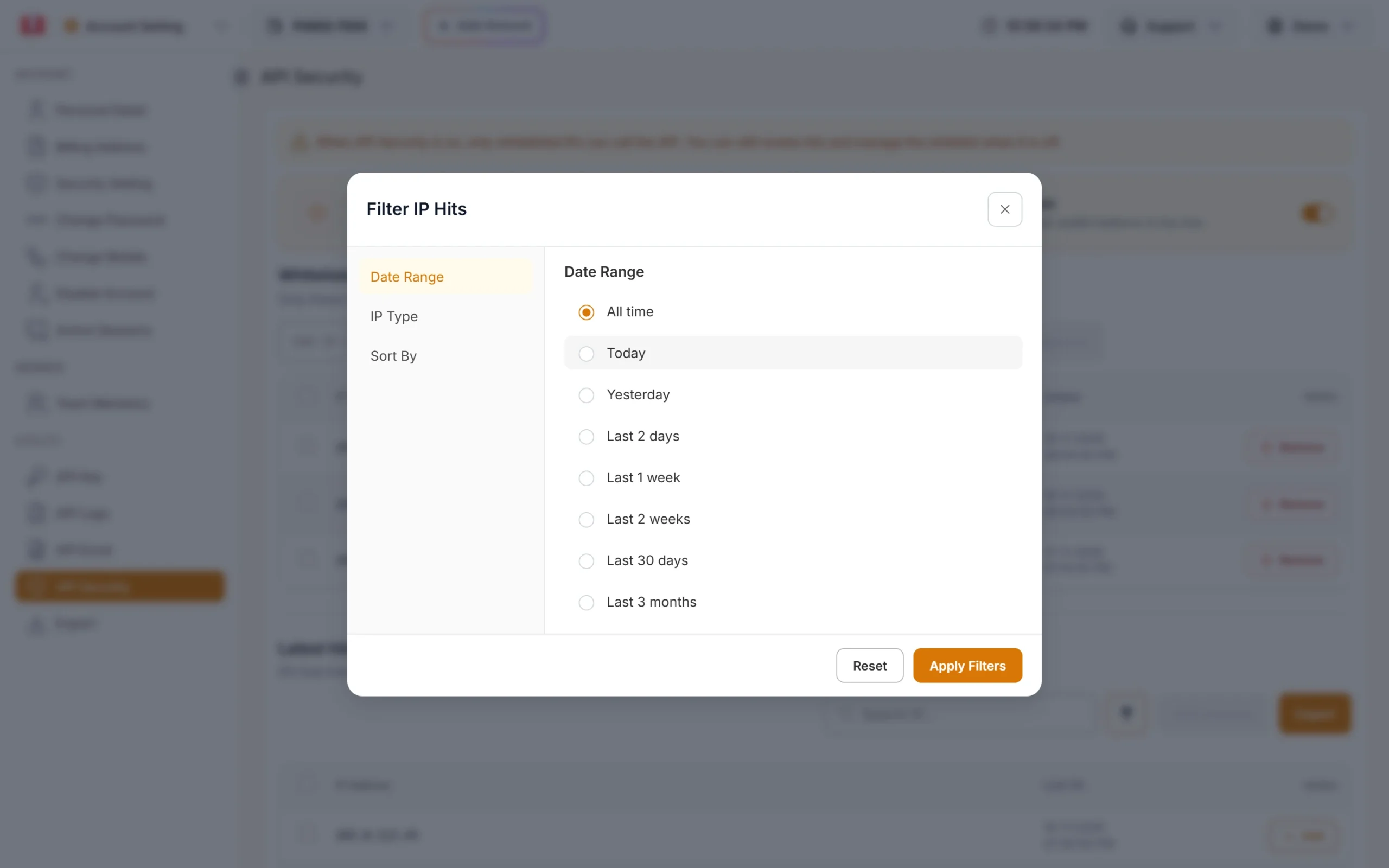
This list shows each allowed IP with a date and a Remove button. The date shows the latest time that IP was seen. Use search or the filter to find an IP. To remove several, tick them and click Remove selected.
Latest hits by other IP
This list shows IPs that called your API but are not on the whitelist, with their Last hit time. It works even when API Security is off, so you can watch who uses your key before you lock it. If you see an IP you do not know, reset your API key. Click Export to download the list. IP records are kept for 3 months.
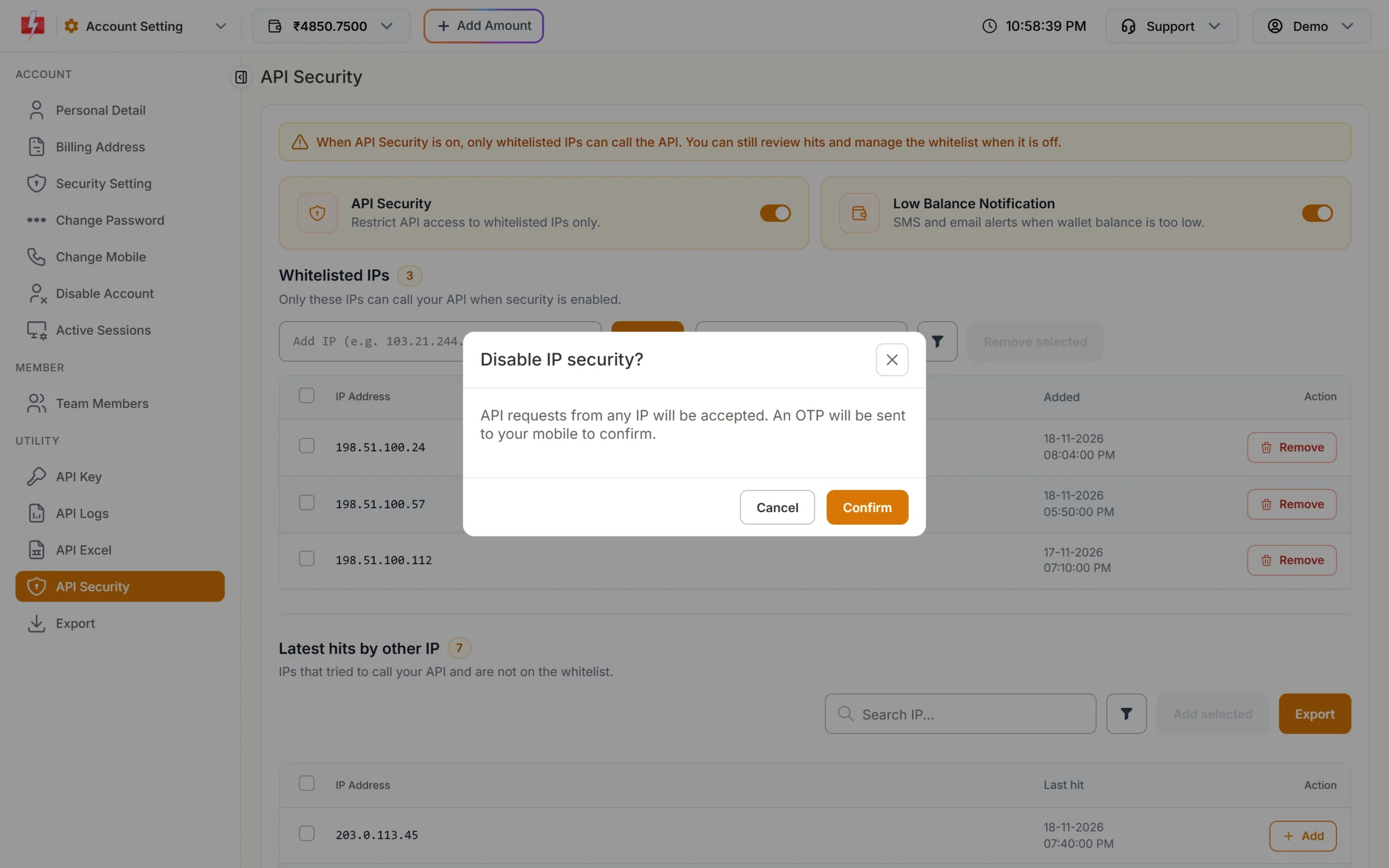
How to turn API Security off
Turn off the API Security switch. A box “Disable IP security?” says API requests from any IP will be accepted. Click Confirm and enter the OTP. Your whitelist stays saved, so you can switch it on again later without adding the IPs again.
Error 414: IP is blacklisted from Dev API section
This is the error your code gets when API Security is on and the call comes from an IP that is not on the list. It comes back with HTTP status 401:
{"return":false,"status_code":414,"message":"IP is blacklisted from Dev API section"}To fix it:
- Open API Security and look in Latest hits by other IP. The IP that was blocked is listed there.
- If it is your server, click Add.
- If you do not know the IP, leave it blocked and reset your API key from the API Key page.
Common problems and fixes
My server’s IP keeps changing
Shared hosting, some cloud functions and home internet connections change their outgoing IP. Ask your host for a fixed (static) outgoing IP and whitelist that. Otherwise you will see 414 errors each time the IP changes.
“Please enter a valid IP address”
Enter a single IP such as 203.0.113.10, without http://, port numbers or spaces.
“IP address already added in your white listed IP”
The IP is already on the list. Nothing more to do.
Plugins stopped sending after I turned on API Security
Plugins call the API from the server where your shop or website runs, for example your WordPress or WooCommerce host. Add that server’s IP too. Check Latest hits by other IP to see which IPs were blocked.
Frequently asked questions
How do I know if API Security is on?
Look at the API Security switch at the top of the page. While it is off, the API accepts calls from any IP.
Can I whitelist more than one IP?
Yes. Add as many server IPs as you need, one by one or several at once.
Does API Security affect the Fast2SMS panel?
No. It only controls API calls. Your panel login works as usual from any network.
What is the Low Balance Notification switch on this page?
It sends you SMS and email alerts when your wallet balance is too low, so your API sends do not stop without warning.
What should I do if I see an unknown IP in Latest hits?
Someone may be using your API key. Reset the key on the API Key page, update it in your own systems, and switch API Security on.