
Bulk SMS for employees and HR alerts covers the messages a company sends its own people: salary credited, shift changes, missed punches, interview schedules and, on a bad day, “office closed, stay home”. This guide is for HR teams, factory and warehouse managers, security agencies and any company with a large or shift-based workforce. It shows which channel suits each alert, gives sample DLT and WhatsApp templates, explains where voice calls help and where they cannot, and covers setup and HRMS integration in Fast2SMS.
Employee messages and the right channel
Field and shop-floor staff often use basic phones or switch off mobile data during shifts, so SMS should carry anything that must reach everyone. WhatsApp is better for documents and two-way HR help. Voice suits announcements for people who do not read messages.
| Message | Best channel | Why |
|---|---|---|
| Salary credited | SMS (Service Implicit) | Short, expected, and reaches every phone. |
| Payslip available | SMS or WhatsApp utility with an HRMS link | The employee logs in to see the payslip; salary details are not broadcast. |
| Shift roster or shift change | SMS, plus WhatsApp utility | Must reach staff before the shift, even without data. |
| Missed punch, attendance alert | SMS (Service Implicit) | Sent the same day so the employee can correct it. |
| Leave approved or rejected | WhatsApp utility or SMS | Personal update to one employee. |
| Interview schedule for candidates | SMS and WhatsApp utility with a location or call button | Candidates reach the right place on time. |
| Policy circular, holiday list | WhatsApp utility with a PDF | The document opens in the chat. |
| Emergency: office or plant closed | SMS first, then a voice call | SMS reaches everyone at any hour; a call adds urgency. |
| Safety check after an incident | Key Press voice call or WhatsApp reply buttons | “Press 1 if you are safe” gives a quick headcount. |
| HRMS or payroll app login | Smart OTP | Codes on a priority route with fallback to another channel. |
| “How many leaves do I have?” | WhatsApp Live Chat with HR | A shared HR inbox instead of personal phones. |
Sample DLT SMS templates for HR
Employee alerts are information to people you already have a relationship with, so register them as Service Implicit. Login OTPs are Transactional. Below are examples to adapt and register on your DLT portal in your company’s name.
| Use | DLT category | Sample template (example) |
|---|---|---|
| Salary credited | Service Implicit | Dear {#var#}, your salary for {#var#} has been credited to your bank account on {#var#}. Payslip on {#url#} – Demo Industries HR |
| Shift change | Service Implicit | Dear {#var#}, your shift on {#var#} is changed to {#var#} at {#var#}. Contact your supervisor for queries. – Demo Industries HR |
| Missed punch | Service Implicit | Dear {#var#}, no out-punch is recorded for {#var#}. Please update it on the HR portal by {#var#}. – Demo Industries HR |
| Leave status | Service Implicit | Dear {#var#}, your leave from {#var#} to {#var#} is {#var#}. – Demo Industries HR |
| Interview schedule | Service Implicit | Dear {#var#}, your interview for {#var#} is on {#var#} at {#var#}. Venue: {#var#}. Contact {#cbn#} – Demo Industries HR |
| Office closed | Service Implicit | Dear Team, {#var#} will remain closed on {#var#} due to {#var#}. Please follow instructions from your manager. – Demo Industries |
| Training reminder | Service Implicit | Dear {#var#}, your {#var#} training is on {#var#} at {#var#}. Attendance is required. – Demo Industries HR |
| HRMS login OTP | Transactional | {#numeric#} is your OTP to log in to the Demo Industries HR portal. Do not share it with anyone. – Demo Industries |
Keep a separate emergency template ready and approved now, with variables for the site, date and reason. DLT approval takes time, and you will not want to wait for it during an emergency.
WhatsApp templates for employees
| Template name | Category | Body (example) | Extras |
|---|---|---|---|
| payslip_ready | Utility | Hi {{1}}, your payslip for {{2}} is ready. Log in to the HR portal to view it. | Visit website “Open HR portal” |
| shift_update | Utility | Hi {{1}}, your shift for {{2}} is {{3}} at {{4}}. Please confirm. | Quick replies “Confirmed” and “Call me” |
| policy_circular | Utility | Dear {{1}}, the updated {{2}} is attached. Please read it before {{3}}. | Document header (PDF) |
| safety_check | Utility | Dear {{1}}, due to {{2}} at {{3}}, please confirm your status now. | Quick replies “I am safe” and “I need help” |
| interview_invite | Utility | Hi {{1}}, your interview for {{2}} is on {{3}} at {{4}}. | Call Phone Number button |
Ask employees for WhatsApp consent in the joining form, for example “I agree to receive HR and work updates from Demo Industries on WhatsApp on this number”. Candidates can opt in on your job application form.
Voice calls for staff: useful, with two limits
A recorded call in Hindi or the local language reaches workers who do not read SMS. Use Simple for an announcement and Key Press (DTMF) for a headcount.
Sample safety-check script: “This is Demo Industries. Because of heavy rain, the Pune plant is closed today. Press 1 if you are safe at home. Press 2 if you need help from the company.” Follow up the people who pressed 2 or did not answer.
OTP for HRMS and payroll apps
Payroll and HR portals hold bank and salary details, so logins need an OTP. Smart OTP sends the code on a priority route by SMS or WhatsApp, verifies it, limits wrong tries and can resend on the other channel if the first message fails. Your HRMS vendor calls the send and verify APIs with your OTP ID.
How to get started on Fast2SMS
Before you start: register your company on a DLT portal with the HR templates above, complete PE-TM binding with Fast2SMS and add the approved records in SMS > DLT Manager. Recharge your wallet with Add Amount.
-
Create staff groups
Open Address Book > Groups and click Add Group for each site, department or shift, for example “Plant A Shift 1” or “Head office”. Group names must be unique and 3 to 50 characters long.
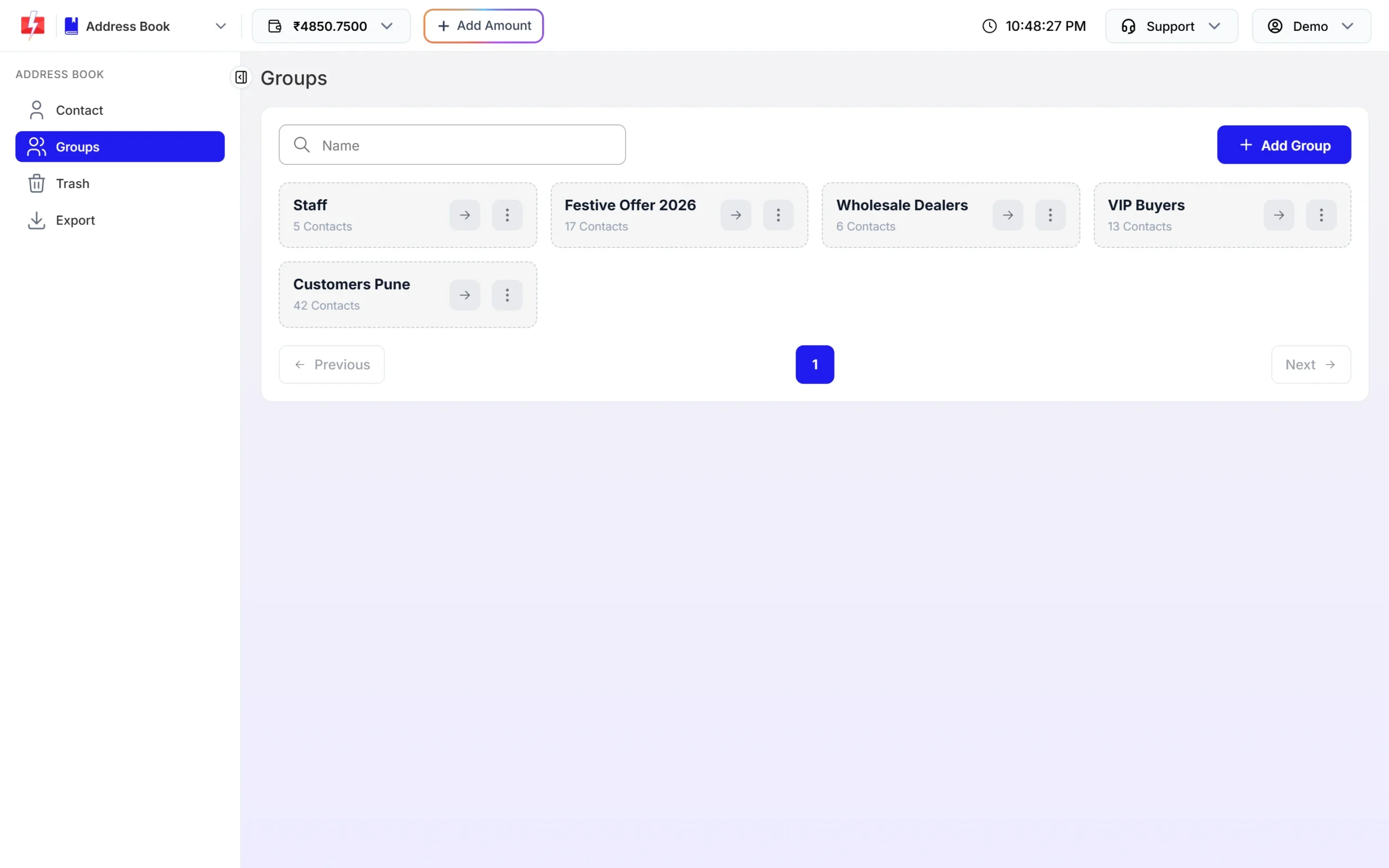
One group per site, team or shift. -
Import the employee list
Export names and mobile numbers from your HRMS or payroll sheet. In Address Book > Contact, open Add Contact and use the CSV upload. Map the Name and Number columns, pick the group and click Extract Contact. Invalid and repeated numbers are skipped, and existing contacts are added to the group.
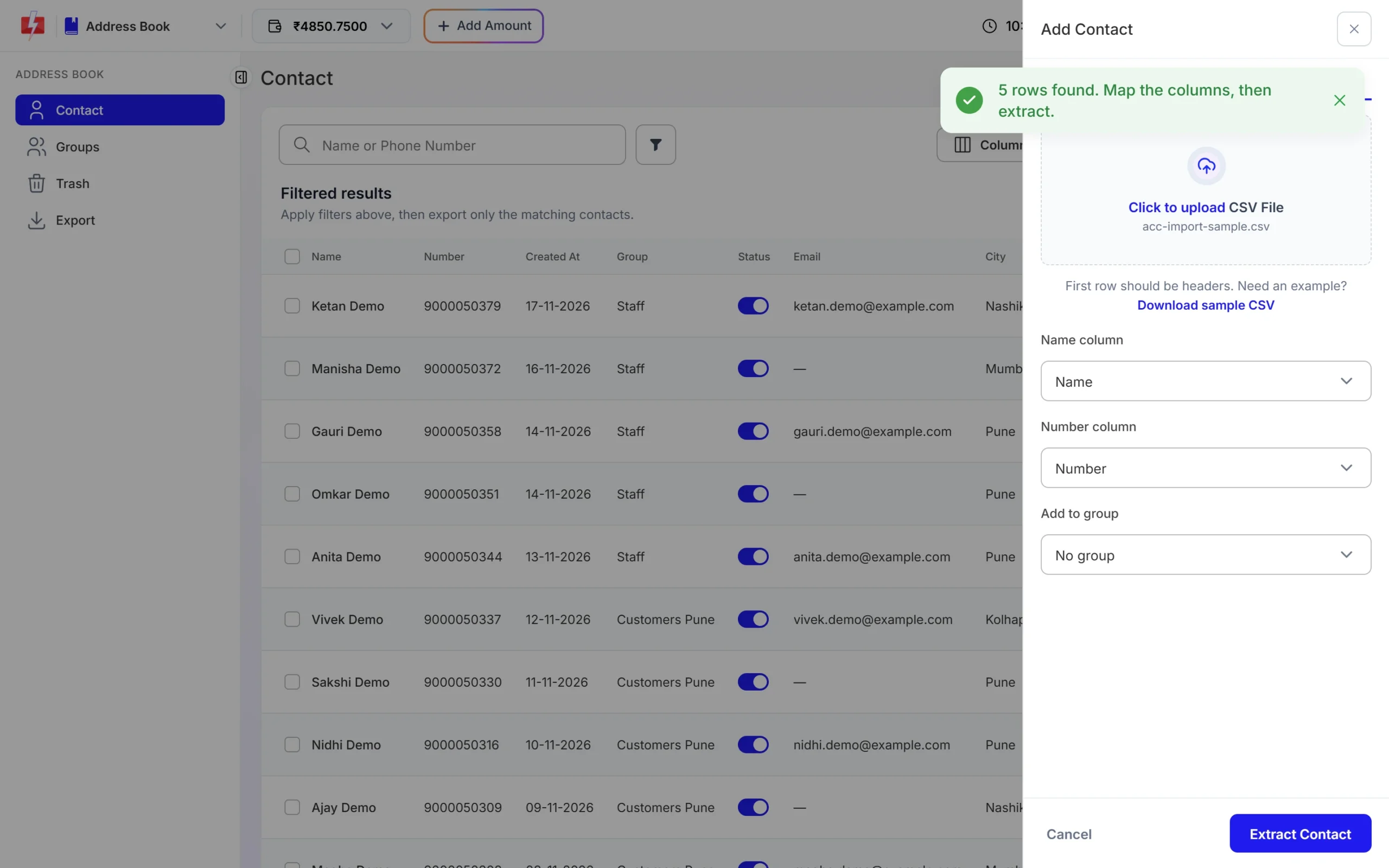
Map columns and choose the group. -
Send an alert to a group
Open DLT SMS, choose your sender ID, click the Address Book tab and then Choose Contacts. Switch to the Group tab, tick the groups and click Submit. Select your template, fill the variables and send or schedule.
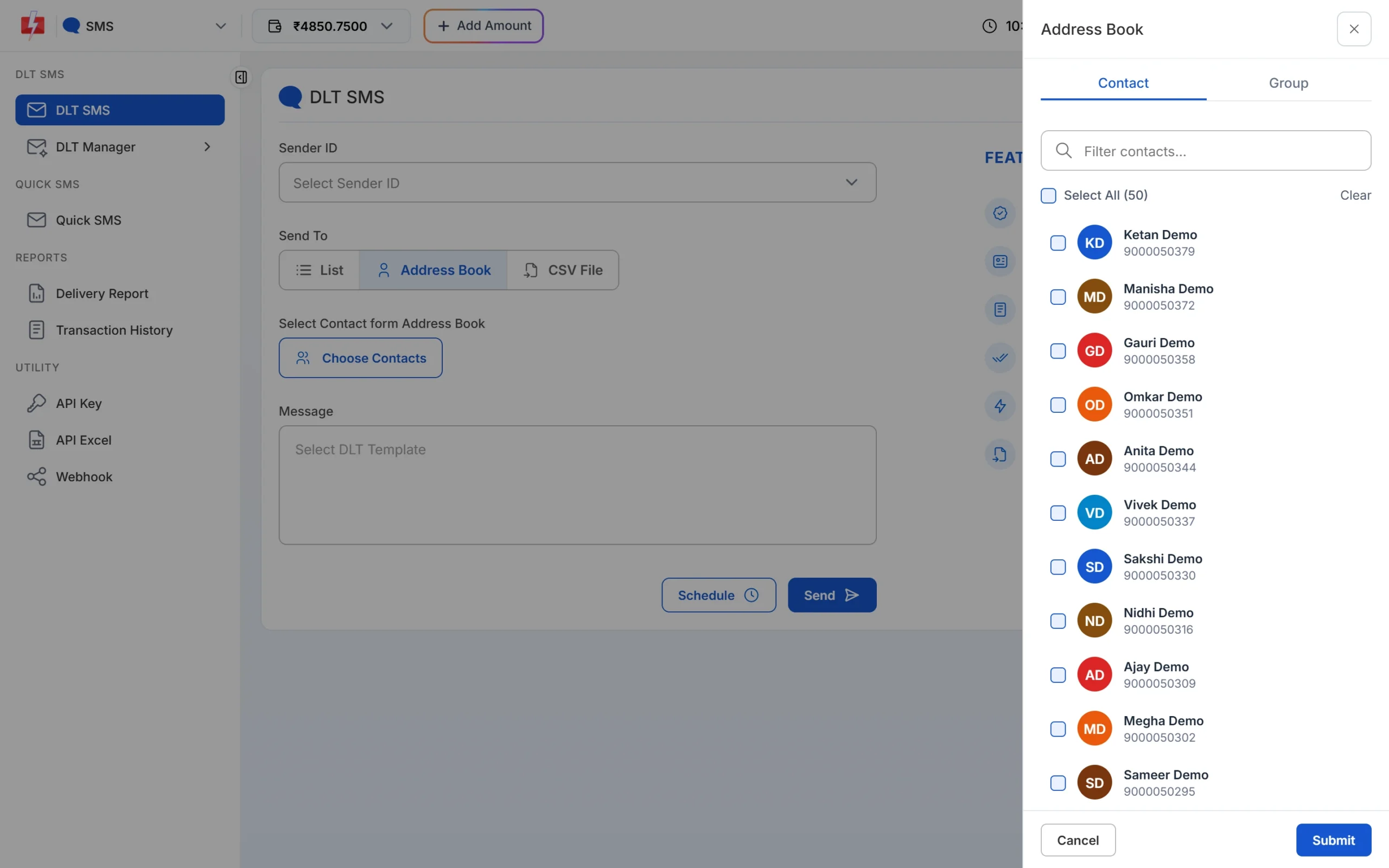
Pick whole groups for a site-wide alert. -
Run a voice headcount
In Voice > Bulk Voice Call, choose Key Press (DTMF), pick the approved recording and allow keys 1 and 2. After the campaign, open the campaign in the Voice Report. The Delivery Details show answered, no answer, busy and failed counts and a Key column with each person’s answer.
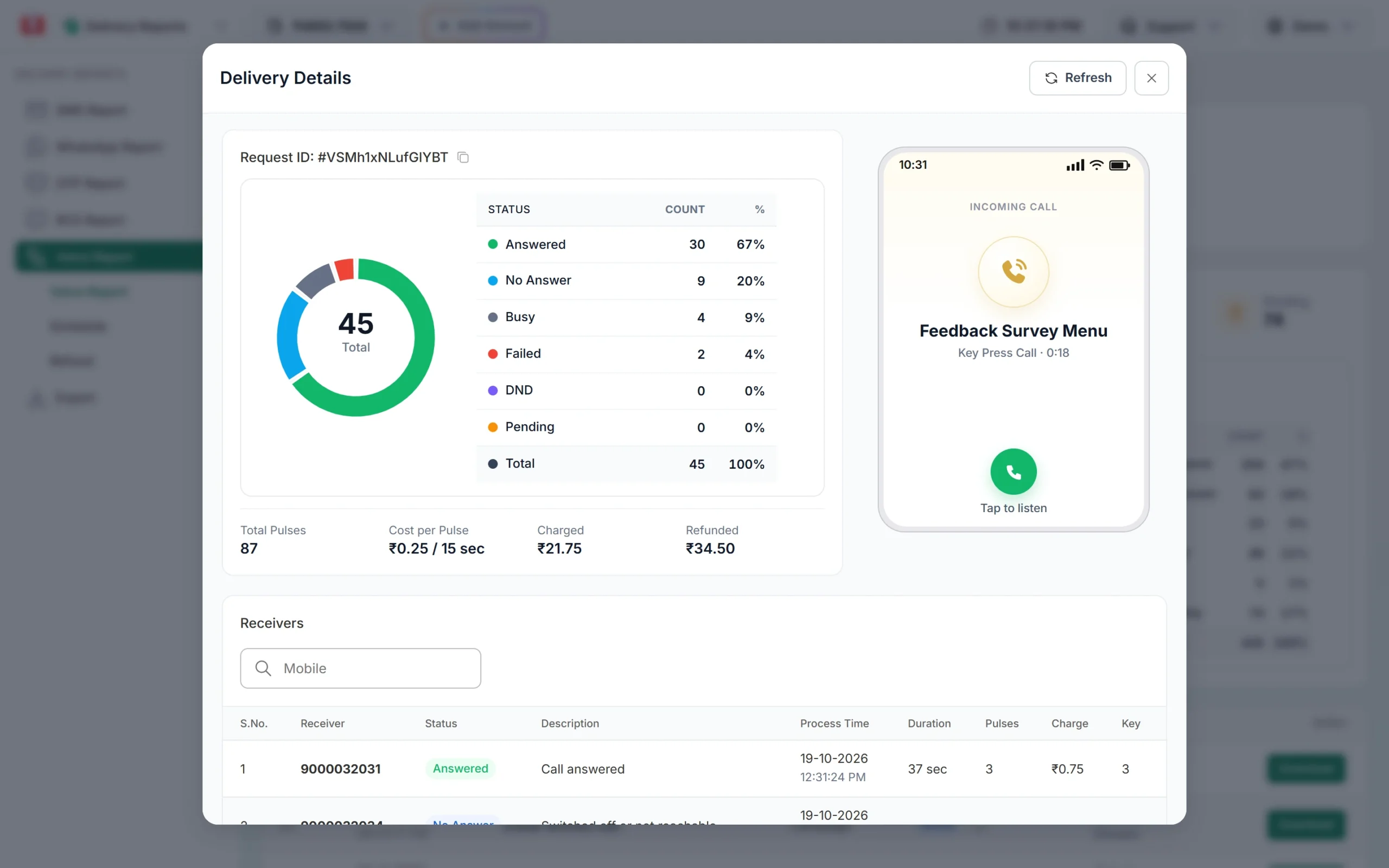
See who pressed which key. -
Connect your HRMS with the API key
Open Account Setting > API Key. Click View to see the key (you confirm with an OTP) and give it only to your HRMS vendor. The API Access switch turns all API requests off without changing the key, and API Security lets you allow requests only from your HRMS server’s IP addresses.
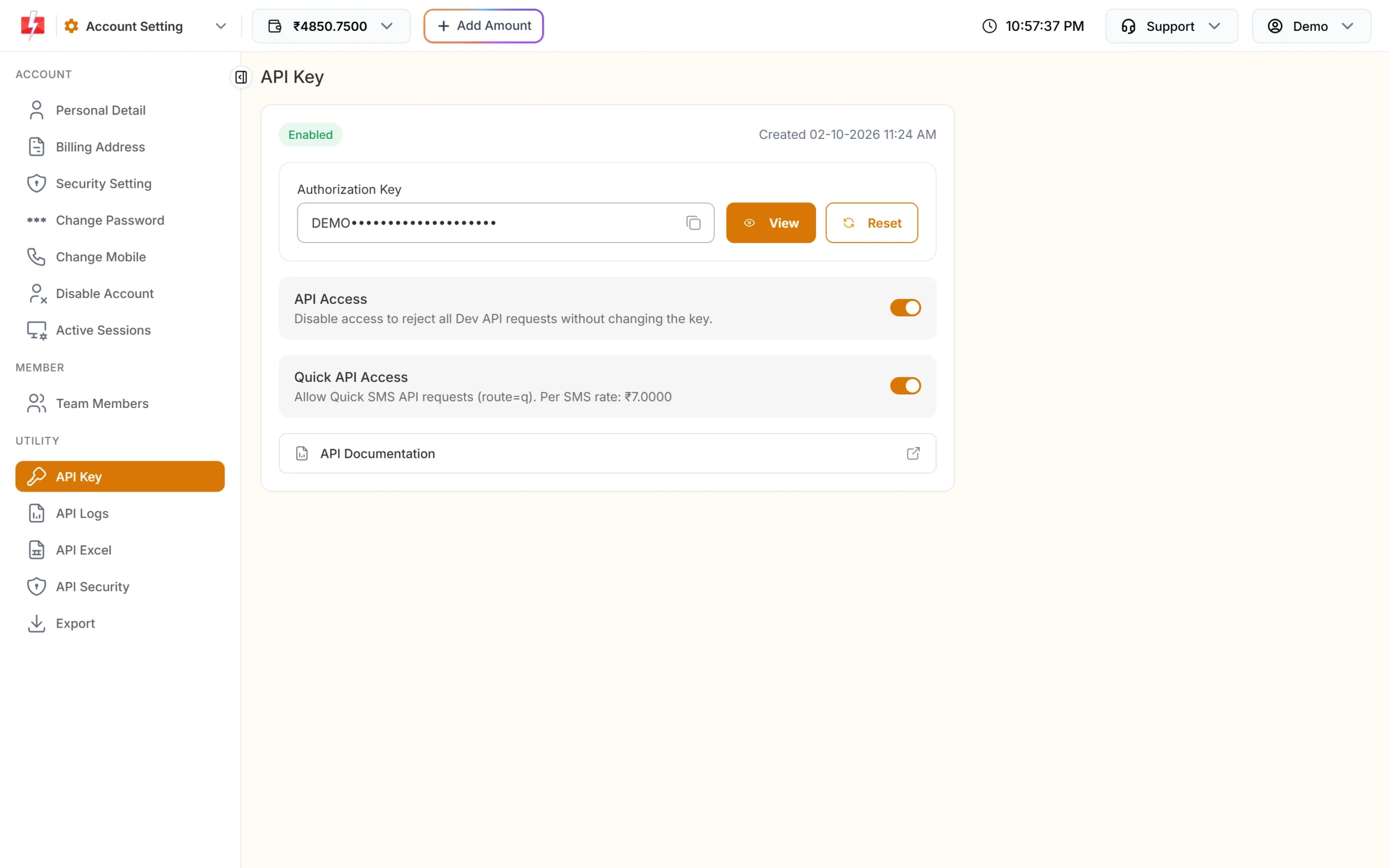
Your API key and access switches. -
Check delivery after every alert
Open Delivery Reports > SMS Report. The cards show delivered, failed, sent and pending numbers, and you can filter by sender ID or status. Download the campaign report and ask supervisors to reach the employees whose SMS failed.
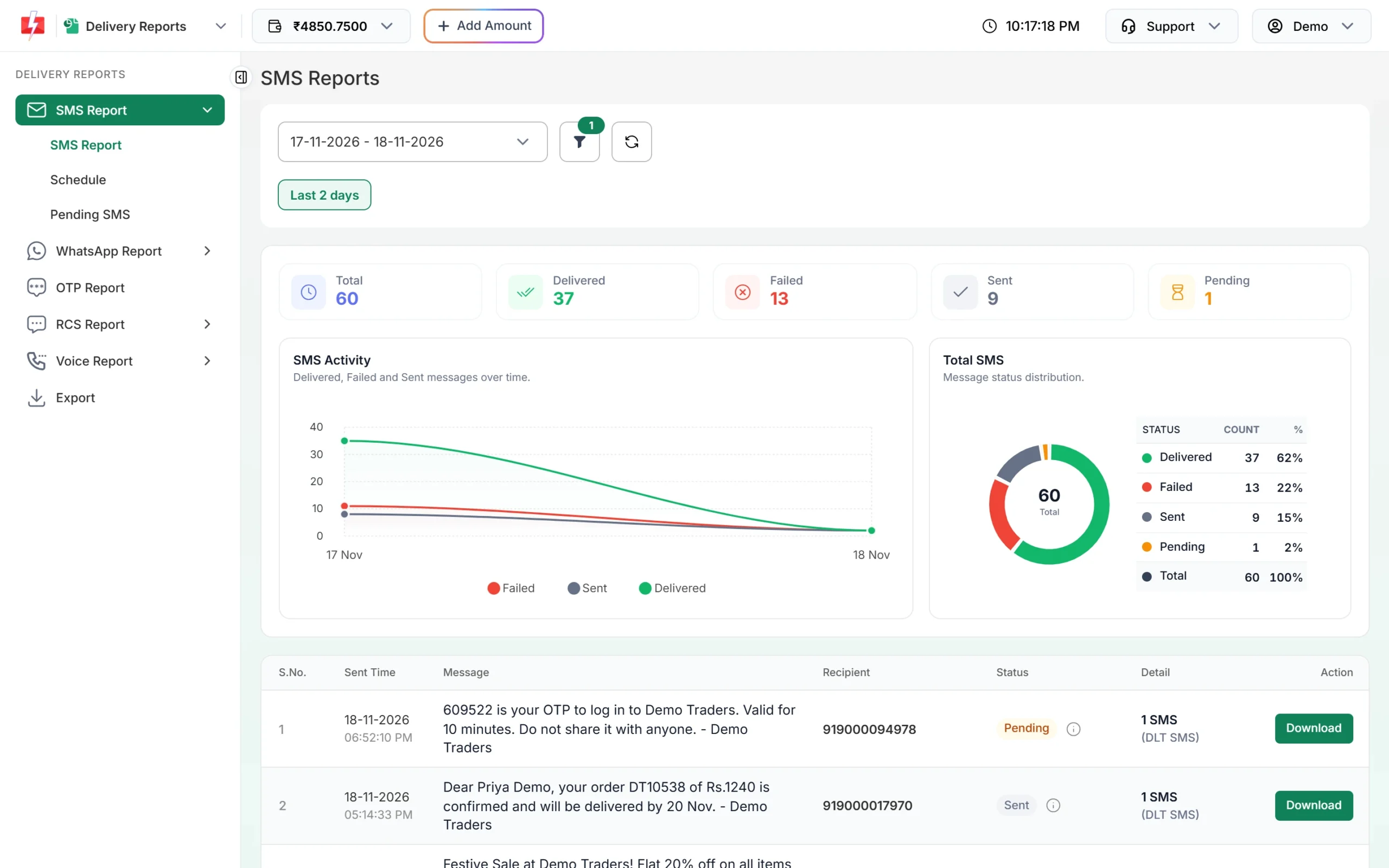
Find the employees who did not get the alert.
Automation options
- HRMS, payroll and attendance systems: send salary, missed-punch and shift alerts through the API as soon as the event happens. Download your approved templates with sample requests from API Excel.
- Webhooks: get delivery status and WhatsApp replies (like “I need help”) back into your system.
- Scheduling: schedule the roster message for every evening, or send once a day across a date range.
- Google Sheets: small teams can send from a sheet with the Fast2SMS add-on.
- HR help desk: employees message your WhatsApp number; HR staff reply in Live Chat (Inbox) as team members (agents).
Compliance and privacy notes
- DLT: all business SMS, including messages to your own employees, must use an approved header and template, and your PE-TM chain must be complete.
- Consent: take SMS, WhatsApp and call consent in the joining form, and remove numbers of people who leave the company.
- Salary and personal data: do not put salary amounts, bank account numbers, PAN, Aadhaar or performance details in broadcasts. Send a link to the HR portal behind an OTP login.
- Voice: calls only from 10 AM to 9 PM, to non-DND numbers, with operator-approved recordings that name your company.
- API safety: keep the API key with your HRMS vendor only, switch on API Security for IP whitelisting, and reset the key if it leaks.
How to estimate the cost
Multiply your headcount by the alerts each person gets in a month. SMS: employees x SMS parts x your rate (bulk SMS pricing). Hindi alerts are Unicode, at up to 70 characters per SMS part. WhatsApp: employees x the utility rate (WhatsApp pricing). Voice: per pulse, only for answered calls (voice call pricing). The confirmation popup shows the exact total before each send.
Frequently asked questions
Do messages to our own employees need DLT?
Yes. Any business SMS in India goes through DLT, so register your HR templates and sender ID like any other business message.
Which DLT category should HR messages use?
Service Implicit for salary, shift, attendance and notices. Transactional for login OTPs.
Will emergency SMS reach employees on DND?
Yes, when sent with a Service Implicit template. Voice calls do not reach DND numbers.
Can we send an emergency alert at night?
Yes, by SMS with a Service Implicit template. Voice calls are only possible between 10 AM and 9 PM.
Can we send each employee their own payslip PDF on WhatsApp?
The panel attaches one file per campaign, so a personal payslip needs one WhatsApp API request per employee. A portal link behind an OTP login is the safer choice.
Can employees reply to HR on WhatsApp?
Yes. Replies arrive in Live Chat, where HR team members answer. Incoming messages are free.