
You cannot rename an approved DLT header. To change your SMS sender ID after a rebrand, you register a new header on your DLT portal, register templates that carry the new brand name, add both in Fast2SMS and then switch your campaigns and API calls over. Your Entity ID stays the same as long as the legal business is the same. This guide walks through the switch in the right order, so your OTPs and alerts do not stop for a single day.
First, what kind of change is it?
| What changed | Entity ID | What you do |
|---|---|---|
| New brand or shop name, same company | Stays the same | New header and new templates under the same entity |
| Company renamed (same PAN, same legal body) | Usually stays the same | Update the entity details on the portal, then new header and templates |
| New legal body (for example proprietorship to private limited) | New Entity ID | New entity registration, headers, templates and PE-TM chain |
| Only a new address, email or authorised person | Stays the same | Update the details on the portal. Your header does not change. |
Why you need new templates too
DLT templates are expected to carry your brand name, and Vi’s DLT FAQ says templates without it can be rejected. After a rebrand, your old templates still say the old name. The fixed text of an approved template cannot be edited, so you register new templates with the new name. At the time of writing, portals also allow one header per new template, so each new template goes on the new header.
How to change your sender ID step by step
-
Update your entity details on the DLT portal (if the company name changed)
Log in to the portal where you registered and update your business details in its account settings. On Vilpower, for example, you confirm the change with an OTP and the registrar checks it, which Vi says takes up to 72 hours. Upload documents that show the new name, and keep the name the same on all of them.
-
Register the new header
Apply for a header that matches the new brand, for example a 6-letter short form of the new name. Attach proof that the brand belongs to your entity, such as the name change certificate or a trademark document. Headers cannot be transferred between businesses, so the new name must be free.
-
Register new templates on the new header
Copy your working templates, change the brand name, keep the same variables and pick the same category. Start with the messages that cannot stop: OTPs, order updates and payment alerts.
-
Add the new Sender ID in Fast2SMS
Open DLT Manager > Sender ID and click Add New Sender ID. Select your entity, type the new header exactly as approved and upload a screenshot that shows the Sender ID and its approved status. It shows as Pending until our team checks it.
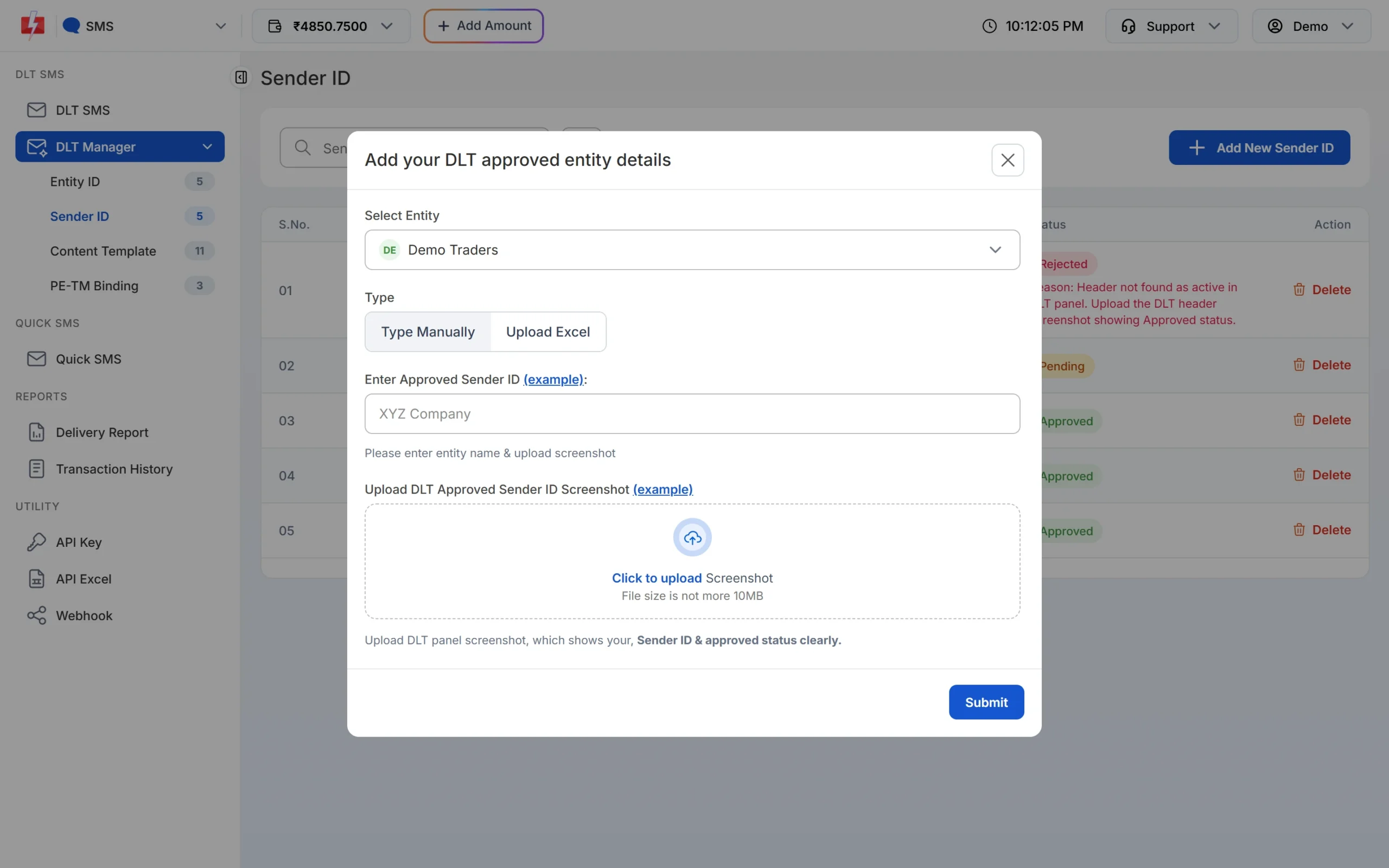
Add the new header under the same entity. -
Add the new templates and link them to the new header
Open Content Template and click Add Content Template. Tick the new header under Select Sender ID, enter the Content Template ID, choose the same Template Type as on DLT, paste the approved text and upload the screenshot. Each new template gets its own Message ID.
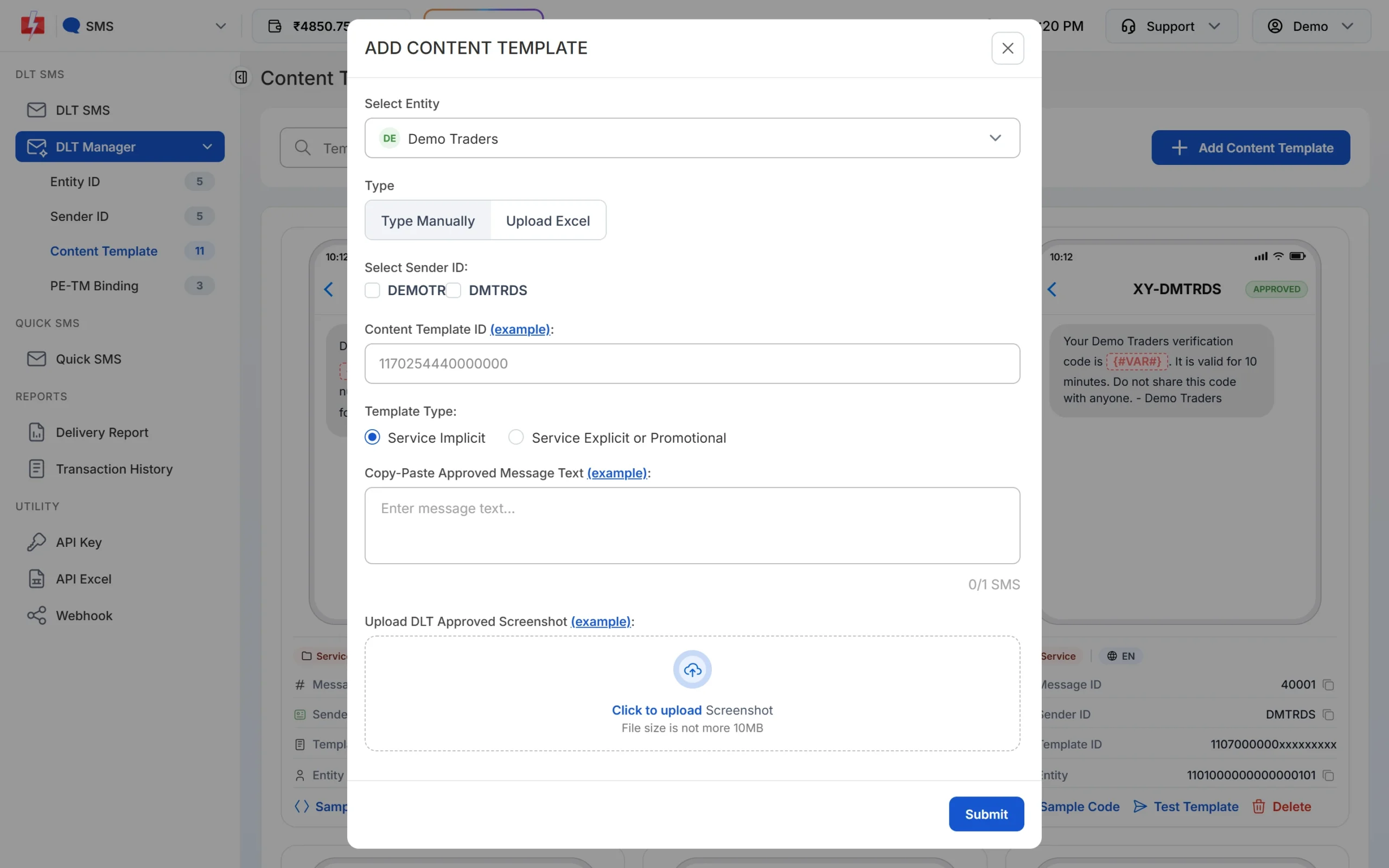
Tick the new Sender ID for every new template. -
Test, then switch everything over
Click Test Template on each new card and send it to your own number. Once it is delivered, update:
- your API calls: the new
sender_id(exact capital letters) and the new Message ID inmessage, - Smart OTP: create a new OTP template on the new DLT template. It gets a new OTP ID, so update the OTP ID in your app,
- plugins and integrations such as WooCommerce, Shopify or Tally that store a sender ID or template.
- your API calls: the new
-
Retire the old header
Keep the old header and templates until all traffic runs on the new ones. After that you can surrender the old header on the portal, or leave it unused. Unused headers and templates are switched off after 90 days.
Do not delete the old Sender ID or entity in Fast2SMS while it is still in use. Deleting a sender also removes its templates and any Smart OTP templates built on them, and their OTP IDs stop working in the API at once.
Common problems and fixes
| Problem | Fix |
|---|---|
| “Sender ID is not valid.” after the switch | The new header is not yet Approved in Fast2SMS, or the capital letters differ. Check Sender ID in DLT Manager. |
| “Message is not valid.” | You are sending an old template with the new header. Use the Message ID of a template linked to the new Sender ID. |
| New header rejected | Attach proof that the new brand belongs to your entity, or pick a header closer to the registered name. |
| OTPs stopped after the old sender was deleted | Create a new Smart OTP template on a template of the new header and update the OTP ID in your app. |
Frequently asked questions
Can I change my DLT header name?
No. An approved header cannot be renamed. Register a new header and new templates, then switch over.
Do I need a new DLT registration after changing the company name?
Not if the legal body and PAN stay the same. Update the entity details on your portal. A new legal body needs a new registration.
Can I move my old templates to the new header?
Templates carry your old brand name, so register new ones with the new name on the new header.
Will customers see both names for a while?
Yes, while you switch. Mention the new name in the first messages from the new header so customers trust it.
Does Fast2SMS charge to add a new Sender ID?
No. Adding entities, Sender IDs and templates in DLT Manager is free. You pay only for the SMS you send.
What happens to the old header?
You can surrender it on the portal, and it returns to the header pool. If you leave it unused, it is switched off after 90 days.