The campaign canvas is where you draw your journey: which channel goes first, what happens when a message is delivered, read, failed or not delivered, and when the next step should send. This guide shows how to build a campaign journey in the Fast2SMS journey builder: add SMS, WhatsApp, RCS and Voice steps, set the wait for result, connect the outputs and save the campaign.
Before you start
- Main account login (team members cannot open Campaign).
- What each step will send: an approved DLT sender ID and template for SMS, a connected WhatsApp number with an approved template, an approved RCS bot, or approved voice files with bulk voice calling switched on for your account.
- A computer. The canvas is made for a large screen.
How to build a campaign journey
-
Start an empty canvas and add the first step
In the Campaign List, click Create Campaign, then choose Build my own. (To start from a finished layout instead, choose Use a ready journey; see ready journeys.) The canvas opens with only the Start box. Click the + under Start (next to “Add a step”) and pick a channel, or drag a step from the Steps list on the right onto the canvas. The Start box has no settings: you choose contacts, variables and timing later on the Launch page.
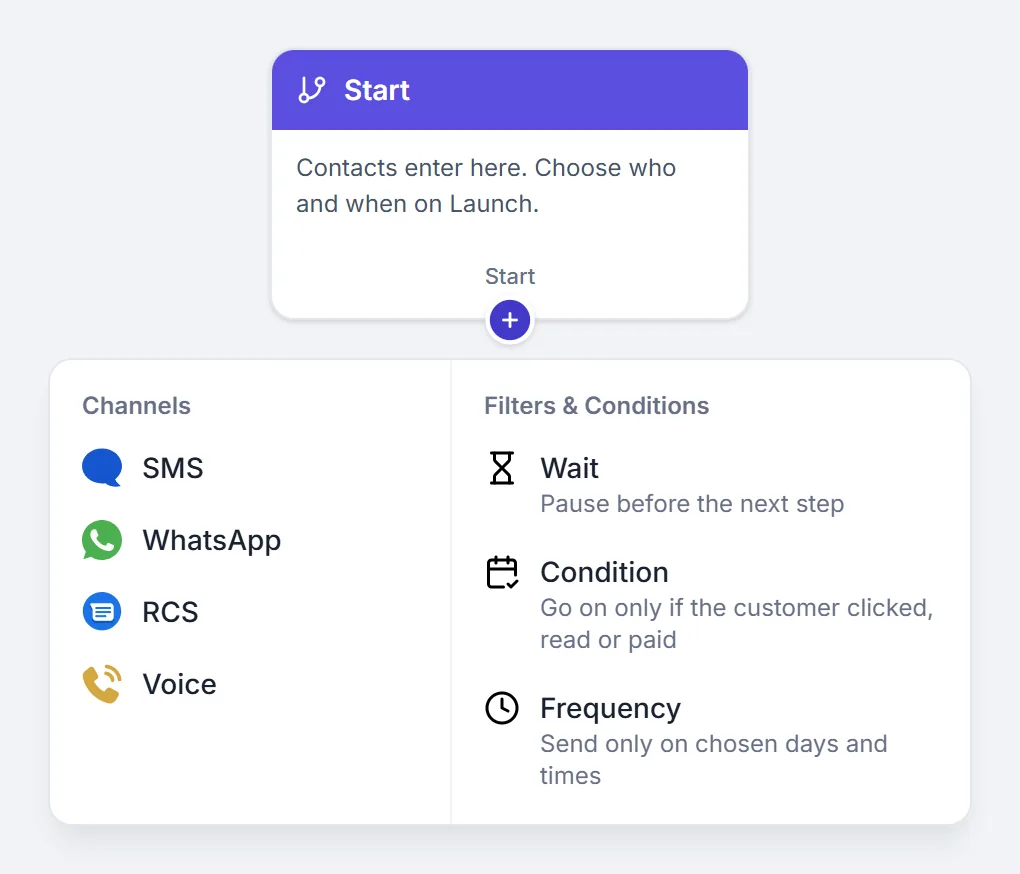
The + menu lists the four channels on the left and the three control steps on the right; the step you pick is joined to Start. -
Set up a WhatsApp step
Click a box to open its settings on the right (Configuration tab). For WhatsApp: give it a Name, choose the Select Sender Number (connected numbers only), keep Template Message and use Change Template to pick an approved template. A template with an image, video or document header asks for that file. Direct Send (Utility) works only for numbers with a messaging limit of 100K or more. The line at the top shows the estimated price per message. Click Save at the bottom of the panel.
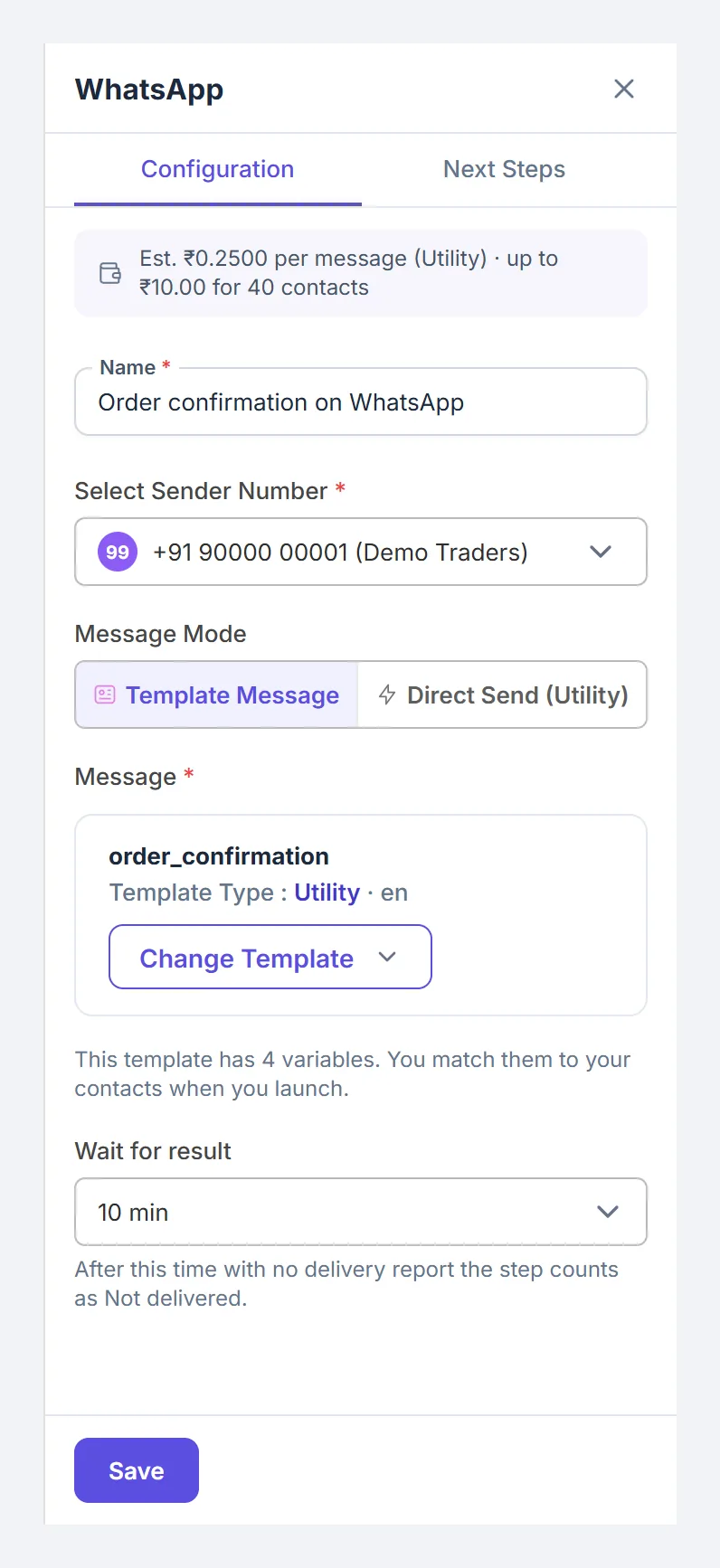
The note under the template says how many variables it has; you match them to your sheet on the Launch page, not here. -
Set up an SMS step
For SMS choose the Sender ID (your approved DLT header) and a DLT template linked to that sender with Change Template. The panel shows the template type, how many variables it has and an estimate such as “Est. ₹0.2500 per contact (1 SMS)”.
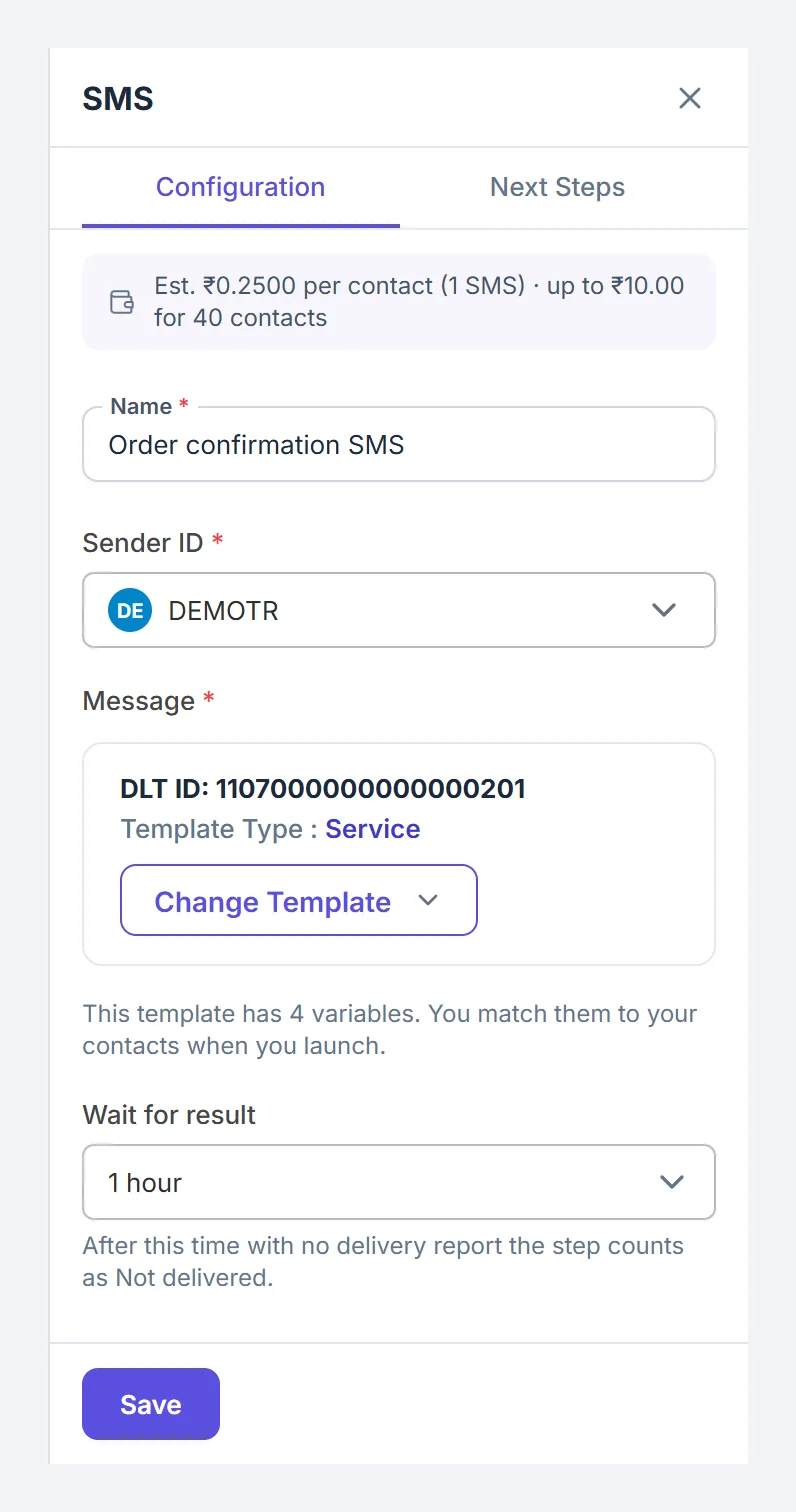
The estimate counts SMS parts: a longer template shows “(2 SMS parts)” and the price of two SMS per contact. -
Set up an RCS step
For RCS choose the RCS BOT (approved and active), then the RCS Type: Plain, Rich, Carousel or Media. Enter the message (use Insert variable to add a column name such as
{{name}}), add media and up to 4 suggestions (Open URL, Dial a Number or View Location). A carousel needs 2 to 10 cards. Select Previous Template under the preview copies a message you sent earlier from the same bot.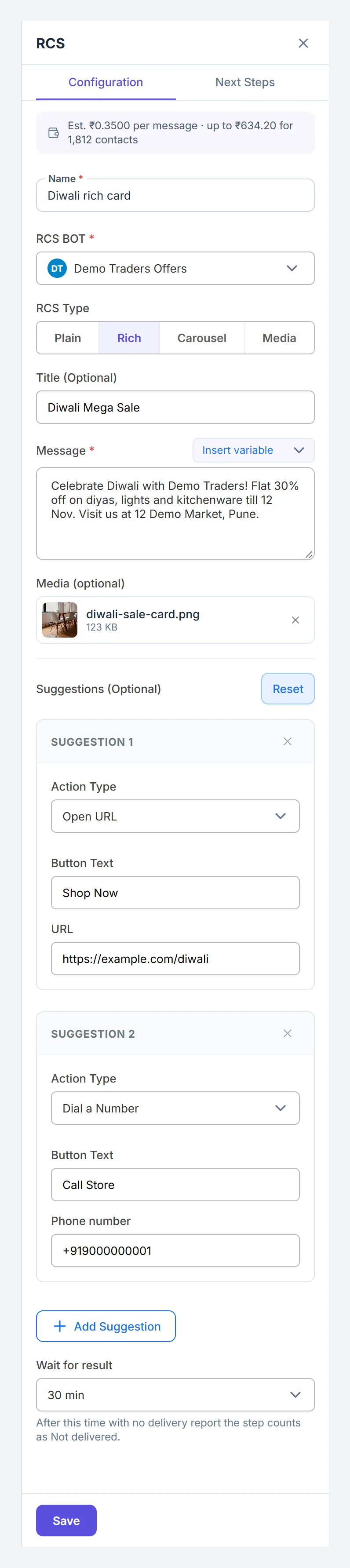
A rich card with two buttons: Shop Now opens a web page and Call Store dials the shop. -
Set up a Voice step
For Voice pick the Campaign Type: Simple plays one recorded file, Key Press (DTMF) asks the caller to press a key, and Call Patch connects the caller to an agent group when they press a key. Choose your approved voice files with Change Voice File. Voice steps cannot read out names or amounts. Bulk voice calling must be switched on for your account.
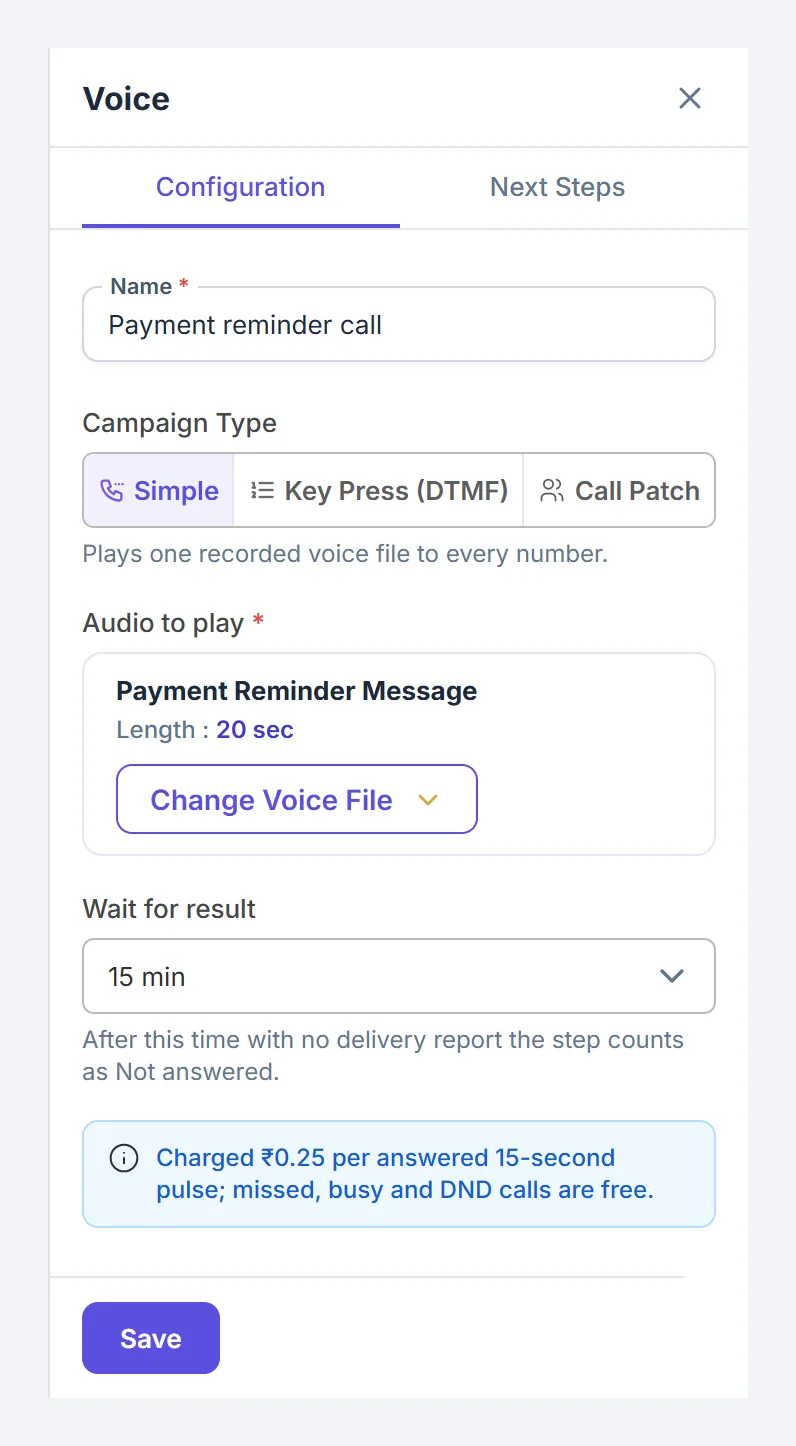
A 20-second recording; the blue note gives the rate per answered 15-second pulse for this account. -
Choose the wait for result
Every channel step has Wait for result (you can see it in the panels above): how long to wait for a delivery report before the step counts as Not delivered, or Not answered for Voice. Defaults: SMS 2 hours, WhatsApp 30 minutes, RCS 30 minutes, Voice 15 minutes. You can pick 5, 10, 15 or 30 minutes, or 1, 2, 6, 12 or 24 hours. The wait starts when the channel has accepted the message. A shorter wait makes the fallback faster; a longer wait gives slow delivery reports time to arrive.
-
Understand the outputs
The dots under each box are its outputs. Each one can lead to a different next step:
- SMS: Sent, Delivered, Failed, Not delivered
- WhatsApp and RCS: Sent, Delivered, Read, Failed, Not delivered
- Voice: Answered, Not answered, Failed
- Wait and Frequency: Goto. Condition: Yes and No.
“Sent” moves on as soon as the operator, WhatsApp or the RCS network accepts the message, without waiting for delivery. If Read has no line, a read message follows the Delivered line. An output with no line ends the journey for that contact.
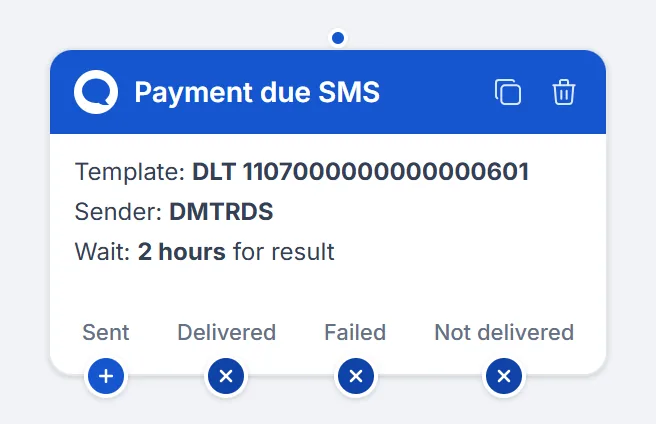
Delivered, Failed and Not delivered have lines (shown by the x); Sent shows a + because nothing is attached to it. -
Connect the steps
Drag a line from an output dot to the next box, or click the + on a free dot to add a new step already joined to it. Each output has one line; a new line from the same dot replaces the old one. You can also open the Next Steps tab of a step and pick the next step for each result from a list. Click the small x in the middle of a line to remove it. The copy and bin icons on a box duplicate or delete that step.
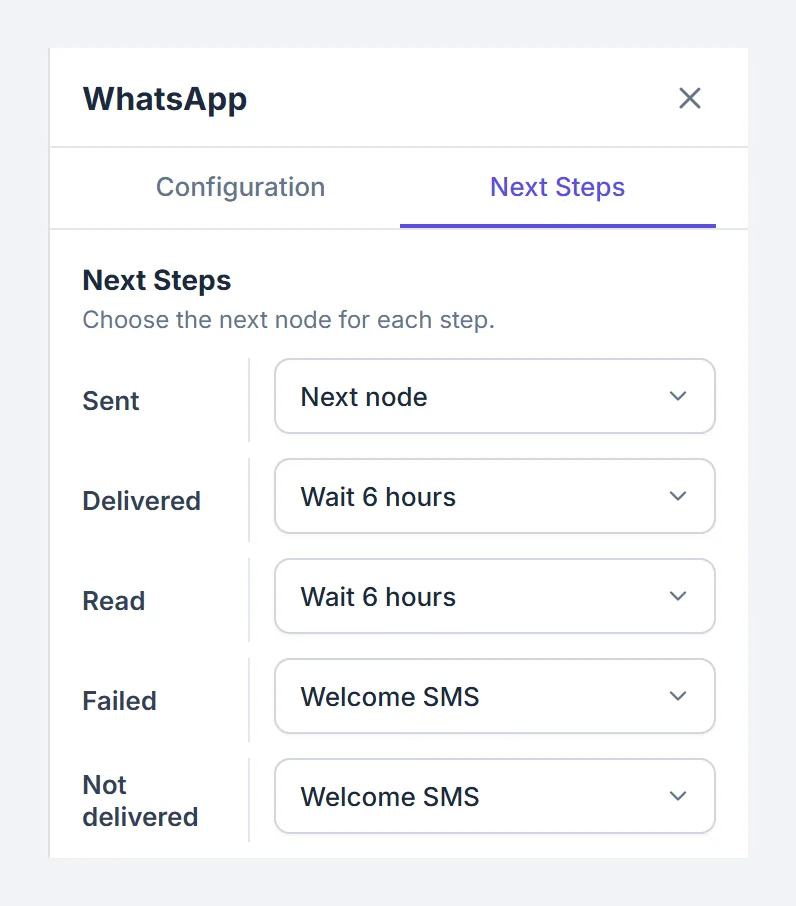
Delivered and Read continue to the 6-hour wait, while Failed and Not delivered go to the Welcome SMS fallback. -
Save the campaign and launch it
To rename the campaign, point at the name at the top and click the pencil. The first time, click Save campaign; after that the button is Save Changes, and you see “Campaign saved”. Missing settings are listed when you launch, in a “Fix these before launching” box. When the journey is ready, click Launch: it saves the journey and opens the Launch page. Once a campaign has run, the header also shows the last run with its status and reached count, plus Pause (or Resume), Stop and Report icons while that run is open.

This campaign’s last run is still Running with 5 of 40 contacts reached; click the chip or the report icon to open its report.
Journey limits
| Limit | Value |
|---|---|
| Size of one journey | Up to 200 boxes and 400 connections |
| Campaigns per account | Up to 200 |
| Channel steps needed | At least one SMS, WhatsApp, RCS or Voice step |
| Wait for result | 5 minutes to 24 hours |
| Same step for one contact | Once per run (a loop back ends the journey) |
| Journey length per contact | Up to 30 days from the start of the run |
A run uses the journey as it was when the run started. Changes you save apply to the next run.
Common problems and fixes
- “Connect the Start node to the first step.” Draw a line from the Start dot to your first step.
- “<step> is not connected to the flow.” A box has no line coming into it. Connect it or delete it.
- “Add at least one SMS, WhatsApp, RCS or Voice step.” A journey of only Wait, Condition or Frequency boxes cannot send.
- “This template is not linked to the selected sender ID.” Pick a DLT template linked to that header on your DLT portal.
- “Direct Send is available only for WhatsApp numbers with a messaging limit of 100K or more. Please use a Template message.” Use Template Message.
- “The campaign is too large (max 200 boxes and 400 connections).” Split it into two campaigns.
Frequently asked questions
Can one journey use all four channels?
Yes. You can add SMS, WhatsApp, RCS and Voice steps in any order in one campaign.
Do I pick contacts in the builder?
No. The builder only holds the steps. You choose contacts, variables and the time on the Launch page.
Can I use RCS message templates?
RCS steps send from your approved RCS bot. You write the message, media and buttons in the step itself, or use Select Previous Template to copy one you sent before from that bot.
What happens if I leave an output unconnected?
The journey ends for contacts who get that result. For example, an unconnected Delivered dot means delivered contacts get nothing more.
Can I edit a campaign while it is running?
You can save changes, but the open run keeps the journey it started with. The changes apply from the next run.
Can a voice call say the customer’s name?
No. Voice steps play recorded files only.
How do I copy a campaign?
Use Duplicate in the campaign’s ⋮ menu on the Campaign List.