
Fast2SMS API error 406, “Invalid Sender ID”, means the sender_id in your SMS request is not accepted. With route=dlt it must be one of your own approved sender IDs in DLT Manager, written in exactly the same case. With route=dlt_manual it must be 3 to 6 characters long. Here is how to check both.
The exact error
The SMS API (/dev/bulkV2) answers with HTTP 400:
{"return":false,"status_code":406,"message":"Invalid Sender ID"}On /dev/custom (many messages in one call) the same problem looks like this:
{"return":false,"errors_keys":["senderId"],"errors":{"senderId":["Sender ID is not valid."]}}Why it happens
With route=dlt
- Wrong case. The check is case-sensitive. If your sender is
DEMOTR, thendemotrorDemoTrfails. - The sender is not approved yet. Pending and rejected senders cannot be used.
- The sender is not in this account. It may be registered at DLT but not added to Fast2SMS DLT Manager, or added in another account.
- A shared or global sender. DLT SMS needs your own sender ID.
- Spaces or extra characters around the value.
With route=dlt_manual
The sender must be 3 to 6 characters. Fast2SMS does not check it against DLT Manager on this route. A wrong sender will fail later at the operator instead.
How to fix error 406
-
Open your sender list
Go to SMS, open DLT Manager and click Sender ID. Each row shows the sender, its entity and its status: Approved, Pending or Rejected (with the reason).
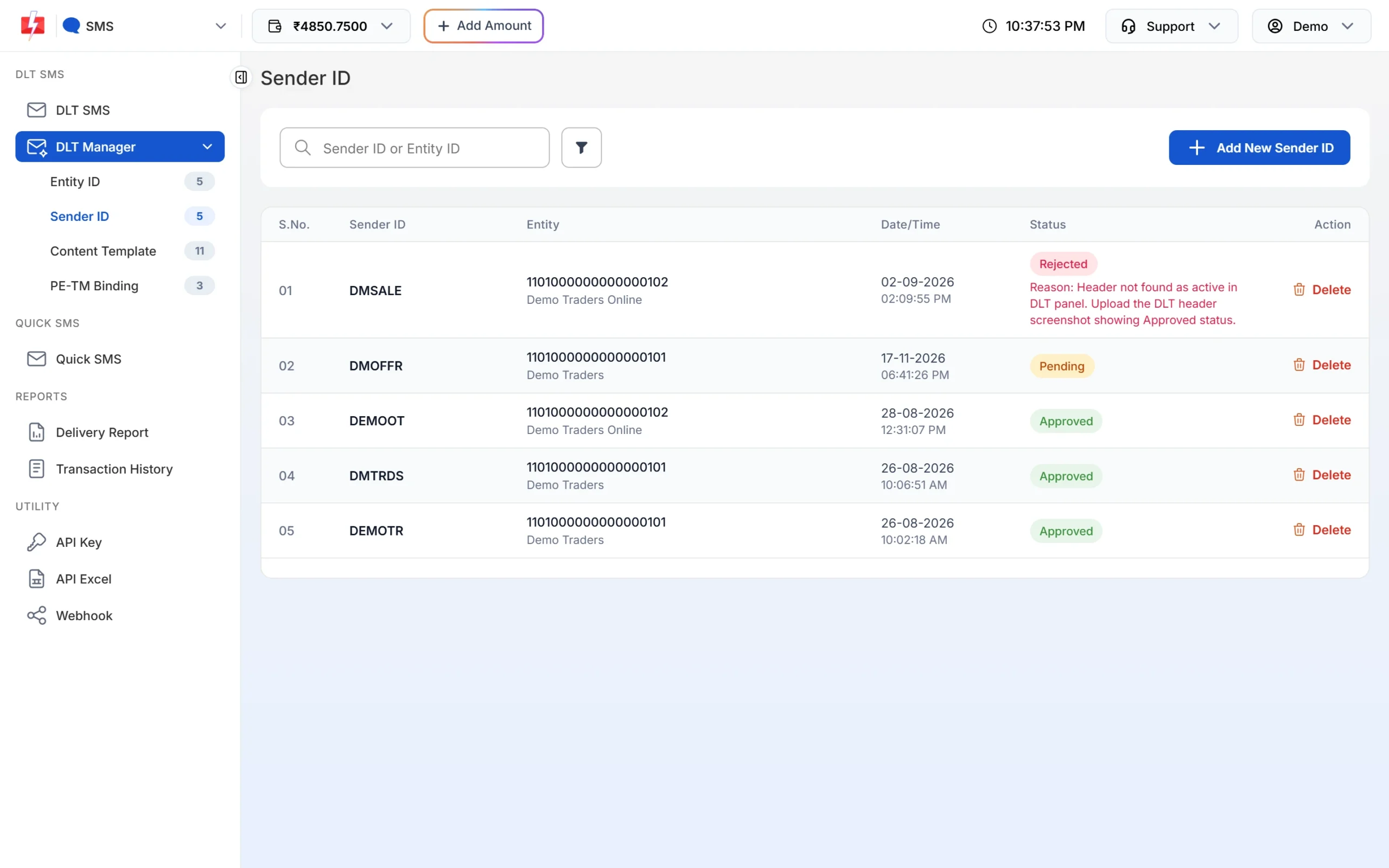
Only Approved senders work in the API. -
Copy the sender exactly
Use an Approved sender and copy it letter by letter, keeping upper and lower case as shown.
-
Add the sender if it is missing
If the sender is approved at your DLT portal but not in the list, click Add New Sender ID, choose the entity, enter the sender and upload the DLT screenshot. Wait for Approved before you use it.
-
Check the template link
With
route=dlt, the template inmessagemust also be linked to this sender. If the sender is right but the template is not linked, you get error 424 instead.
Code check
SENDER = "DMTRDS"   # exactly as shown in DLT Manager, no .lower() or .title()
payload = {"route": "dlt", "sender_id": SENDER.strip(), "message": "40001",
           "variables_values": "4821", "numbers": "9999999999"}
data = requests.post("https://www.fast2sms.com/dev/bulkV2",
                     headers={"authorization": API_KEY}, json=payload, timeout=15).json()
if data.get("status_code") == 406:
    log.error("Sender %r is not an approved sender in this account", SENDER)
To list your approved senders by API:
curl "https://www.fast2sms.com/dev/dlt_manager?type=sender" -H "authorization: YOUR_API_KEY"How to avoid it
- Keep sender IDs in one config file and never change their case in code.
- Wait for the Approved status in DLT Manager before using a new sender in production.
- If a sender is rejected, read the reason in the list, fix it and add it again.
- For DLT Manual, double-check the sender against your DLT portal. Fast2SMS only checks its length there.
Frequently asked questions
Is the Fast2SMS sender ID case-sensitive?
Yes, for route=dlt. Send it exactly as it appears in DLT Manager.
How long can a sender ID be?
3 to 6 characters. Promotional senders are 6 digits.
My sender is approved at DLT. Why is it invalid?
It also has to be added and approved in Fast2SMS DLT Manager in the same account as your API key.
Can I use one sender with many templates?
Yes. Link the sender to each template in DLT Manager, then use any of those Message IDs with it.
Am I charged for a 406 error?
No. The request is refused before sending.