
The Fast2SMS WhatsApp OTP API is free to get: there is no setup fee, no monthly fee and no API fee. You pay only for each OTP message, ₹0.25 per WhatsApp authentication message at the time of writing. New accounts get ₹50 free credit, so your first test OTPs cost you nothing.
To get the API, connect your WhatsApp number with Facebook login, get an authentication template approved, and then send OTPs through Smart OTP or a ready-made API URL. The steps below cover both.
Sending in bulk? For high WhatsApp volumes our team offers discounted rates. Talk to our team or see WhatsApp pricing.
Before you start
- A Facebook account you have used for a while. The connect page itself advises: always use an old Facebook account and an old WhatsApp Business number.
- A working website with your business name, logo and terms. Meta may review it.
- A phone number for WhatsApp. Either a new number that is not on WhatsApp, or your existing WhatsApp Business app number.
- A desktop browser with ad-blockers turned off for fast2sms.com, so the Facebook pop-up can open.
If any of these is missing, the process can get stuck on Meta’s side. Our WhatsApp onboarding guide explains each item in detail.
Step 1: Connect your WhatsApp number
-
Open the WhatsApp app in Fast2SMS
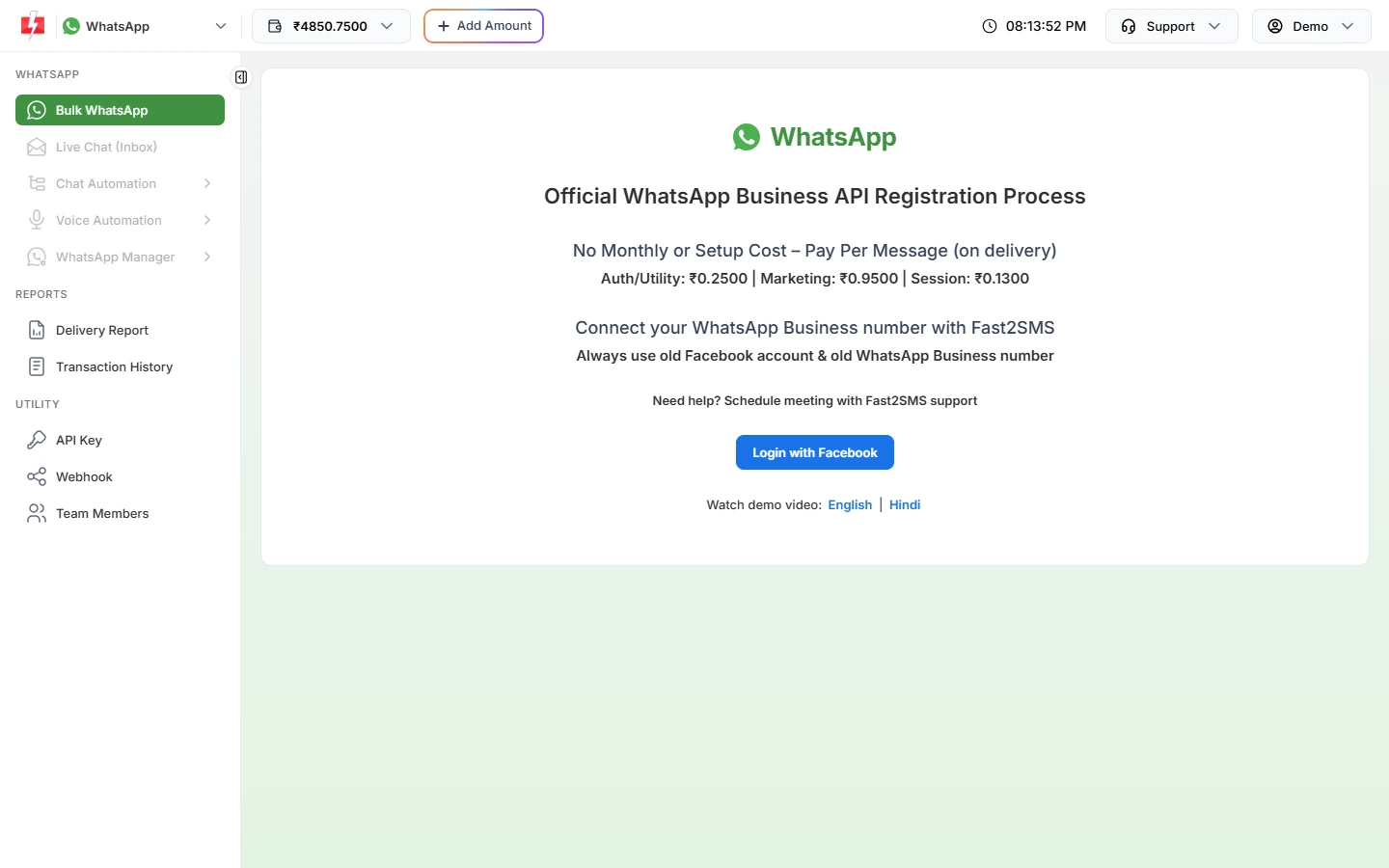
Log in to Fast2SMS and open WhatsApp on the Apps dashboard. If no number is connected yet, you see the connect page with the current rates and the Login with Facebook button. Other menu items stay grey until a number is connected.
-
Log in with Facebook
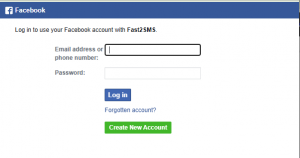
Click Login with Facebook and log in to your Facebook account in the pop-up.
-
Allow the connection and fill in your business details
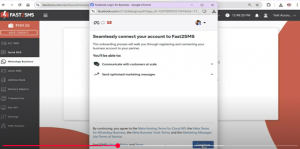
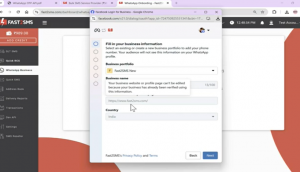
Meta asks you to confirm the connection to Fast2SMS. Click Continue, then fill in your business information.
-
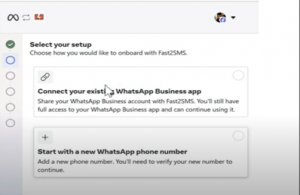
Choose an existing or a new number
Pick Connect your existing WhatsApp Business app to keep using your Business app number, or Start with a new WhatsApp phone number for an API-only number. Verify the number with the code Meta sends, then choose your business name and time zone.
-
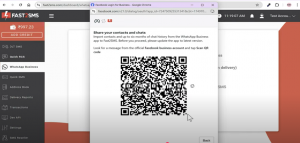
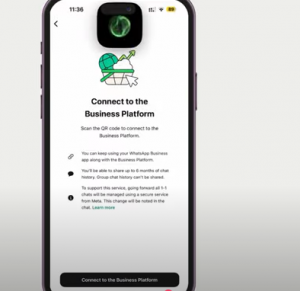
Existing number only: scan the QR code
If you connect your Business app number, Meta shows a QR code. Scan it from the WhatsApp Business app on your phone. Then choose whether to share your old chats with Fast2SMS or only new ones.
-
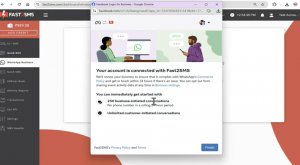
Click Finish
Always click Finish at the end. If you close the window before that, nothing is saved, and you have to start again.
-
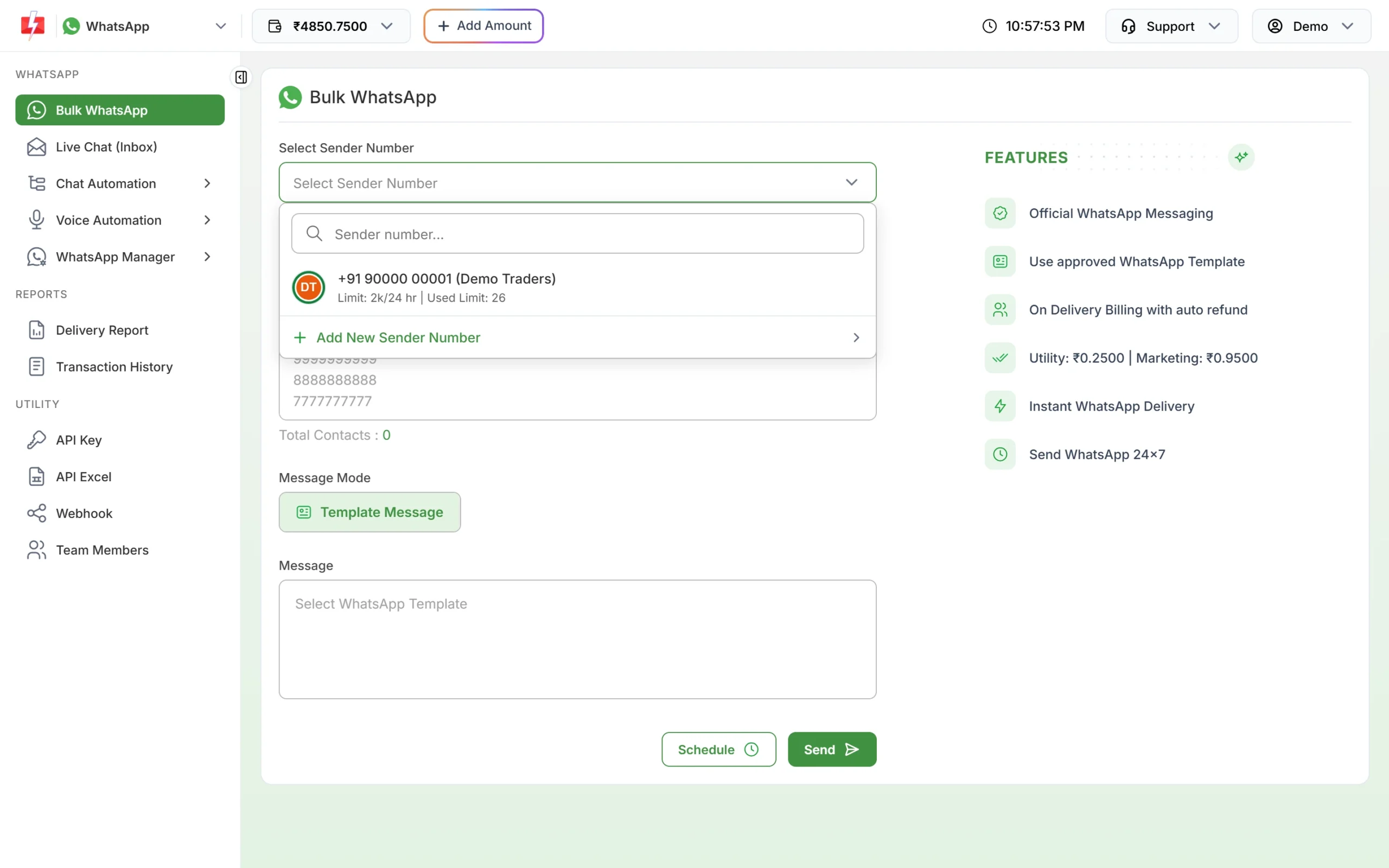
Check that the number is connected
The panel opens Bulk WhatsApp, and your number shows in the sender list. Sending starts about 10 minutes after onboarding.
Step 2: Create an authentication template
WhatsApp OTPs must use an approved template in the Authentication category, usually with a copy code button. Create it in the WhatsApp app and wait for Meta’s approval. See how to create a WhatsApp template.
Step 3, option A: send OTPs with Smart OTP (recommended)
Smart OTP creates the code, sends it and checks what the user types, so you do not write OTP logic yourself. Open Smart OTP > OTP Template List, add a template on the WhatsApp channel, pick your number and authentication template, and mark the OTP variable. You can add an SMS fallback, which is sent if the WhatsApp OTP fails. Then call the send OTP and verify OTP APIs from your app. The Smart OTP WhatsApp template guide shows each field.
Step 3, option B: use the WhatsApp template API URL
Use this if your app already creates and checks its own OTPs.
-
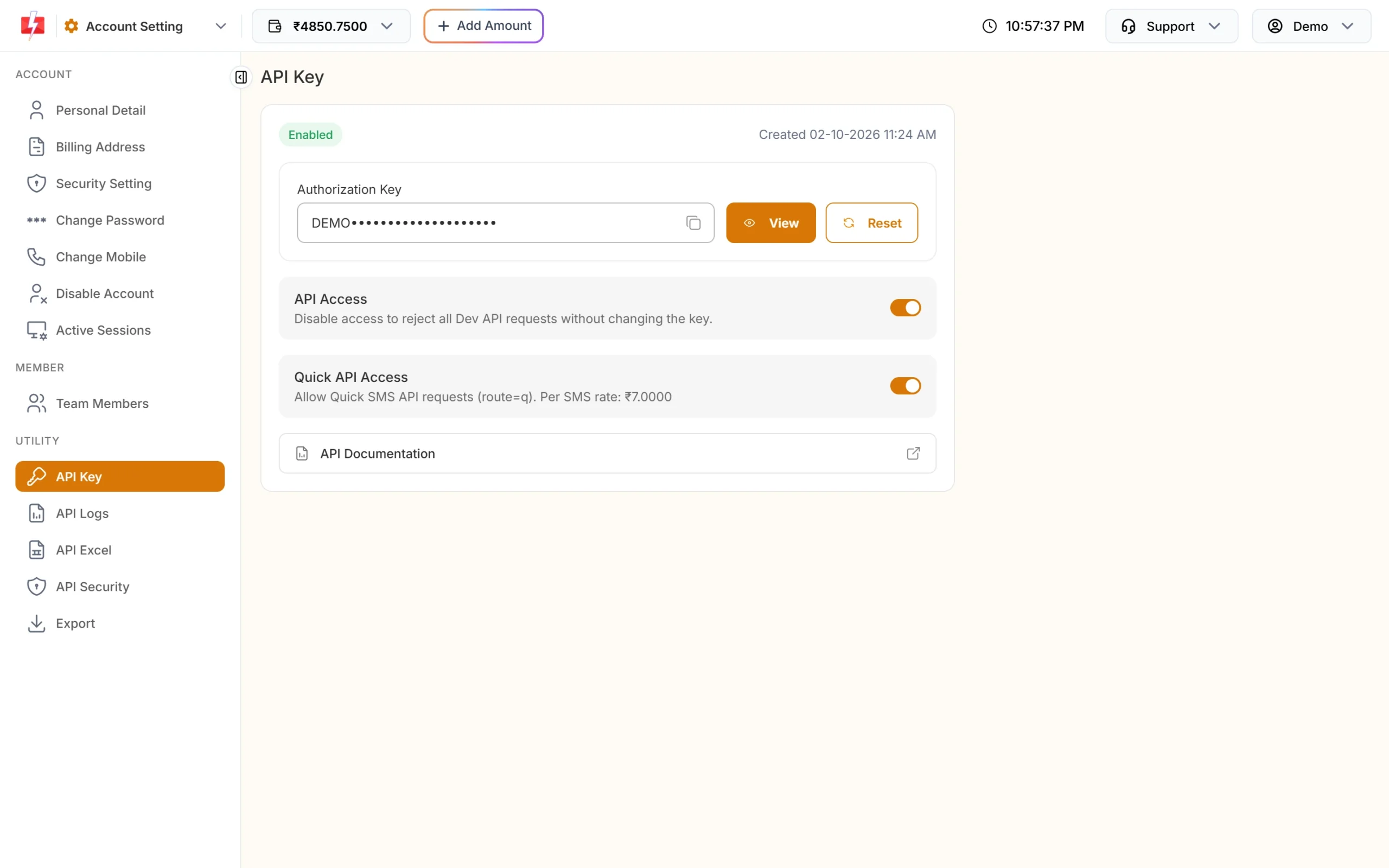
Copy your API key
Open Settings > API Key (also under UTILITY in the WhatsApp sidebar) and click View to see the full key.
-
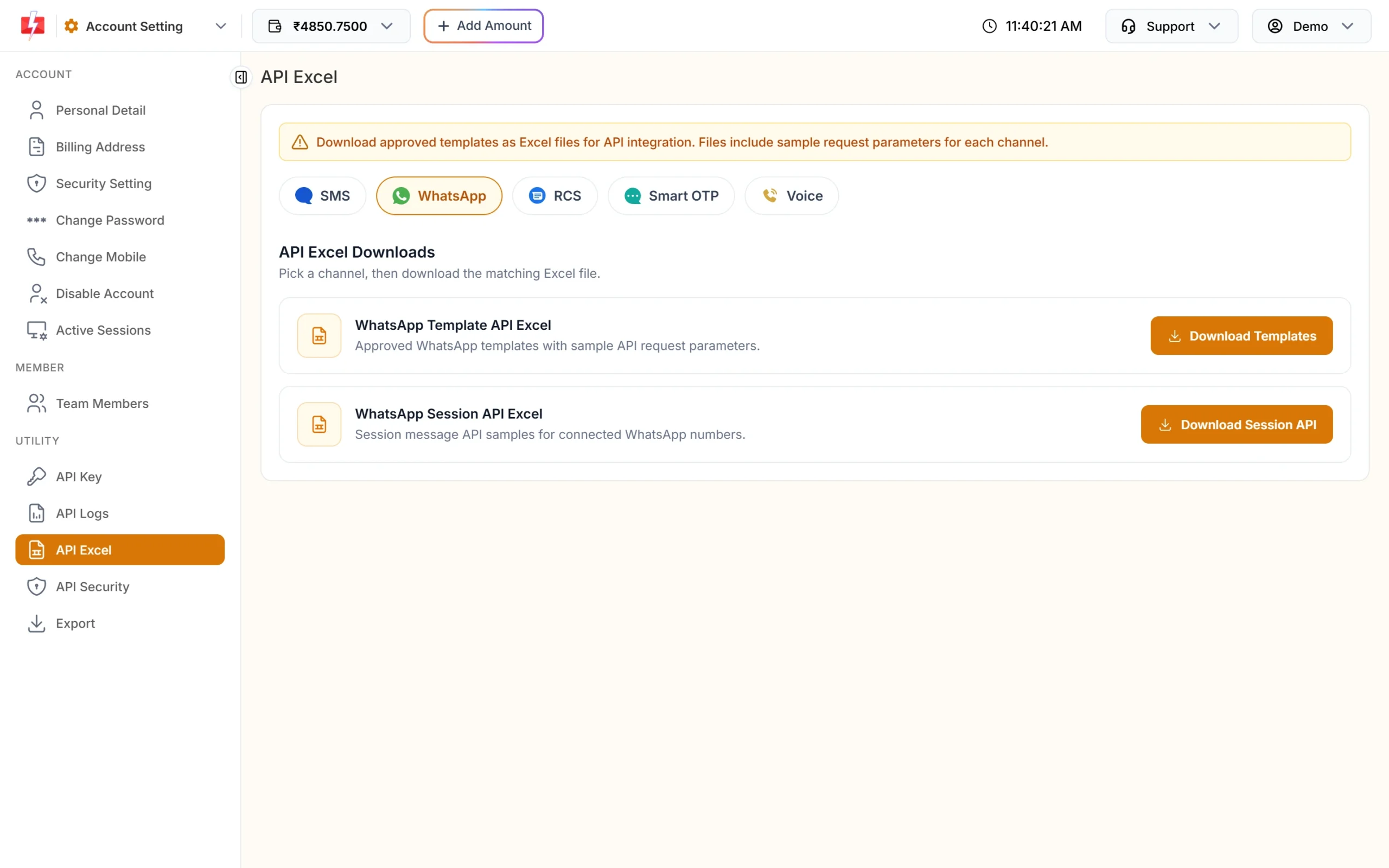
Download the API Excel
Open Utility > API Excel, choose the WhatsApp channel and download the file. It lists every approved template with a ready API URL.
-
Fill in the URL
Copy the URL of your OTP template. Replace <YOUR_API_KEY> with your key. The message_id is already filled in. Put the mobile number in numbers and the OTP in variables_values.
-
Send a test
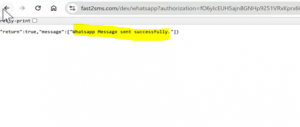
Open the URL. The reply “WhatsApp Message sent successfully” means the OTP has gone out. Now call the same URL from your website or app.
What you pay
| Item | Cost |
|---|---|
| Setup, monthly fee, API access | Free |
| Each WhatsApp OTP (authentication message) | ₹0.25 at the time of writing |
| Failed WhatsApp message | Refunded to your wallet automatically, about two days after sending |
| SMS fallback in Smart OTP | Charged at your SMS rate when it is sent |
See the current rates on the WhatsApp pricing page.
Frequently asked questions
Is the WhatsApp OTP API really free?
The API is free to use. Each OTP message costs ₹0.25 at the time of writing, and the ₹50 signup credit covers your first tests.
Do I need DLT registration for WhatsApp OTP?
No. DLT applies to SMS. WhatsApp OTP needs a connected number and an approved authentication template. An SMS fallback does need DLT.
Can I use my existing WhatsApp Business number?
Yes. Choose “Connect your existing WhatsApp Business app” in the Meta pop-up and scan the QR code from the app.
What if the user does not have WhatsApp?
The message fails and is refunded. With Smart OTP, add an SMS fallback so the user still gets the code.
Am I charged for failed WhatsApp OTPs?
No. Failed messages are refunded to your wallet automatically.
Related guides