
This Android example gives you a ready OTP login screen in Kotlin and Jetpack Compose. The user types a mobile number, gets a code by SMS or WhatsApp through Fast2SMS Smart OTP, types it or taps the code the keyboard suggests, and your app gets a signed “verified” token. The app talks only to your own backend, which holds the API key.
Download the Android (Kotlin) OTP widget example (zip)Download .zip
Download the complete OTP widget kit (zip)Download .zip
BuildConfig, strings.xml, local.properties or anywhere in the APK. APKs are easy to unpack. The key lives only in the backend’s environment, and the app only knows your backend URL.What is in the Android example
| File | What it does |
|---|---|
F2sOtpClient.kt |
send, verify and resend as suspend functions (HttpURLConnection and org.json), plus cleanMobile. |
OtpScreen.kt |
The Compose screen: phone field with +91, Send, code field (KeyboardType.NumberPassword with the ContentType.SmsOtpCode autofill hint), resend countdown, errors and onVerified(token, mobile). It ends with an optional SMS User Consent snippet. |
MainActivity.kt |
Shows the screen and where to send the token. |
AndroidManifest.xml, network_security_config.xml |
Internet permission and a local-only cleartext rule. |
app/build.gradle.kts |
compileSdk 35, minSdk 24, Compose BOM, Material 3, coroutines. |
The app needs one of the kit’s backends to talk to (see the OTP widget overview).
Before you start
- A Fast2SMS account with wallet balance.
- An approved DLT OTP template, or a WhatsApp Authentication or Utility template.
- Android Studio and a server for one of the backends.
Set up OTP on Android
-
Create a Smart OTP template and copy its OTP ID
In the Fast2SMS panel, open Smart OTP > OTP Template List and click Add OTP Template. Pick SMS Channel with your approved DLT OTP template, or WhatsApp Channel with an approved Authentication or Utility template. You can add a fallback on the other channel. Then copy the 10-character OTP ID from the card. It decides the channel, the template and the fallback for every code the widget sends.
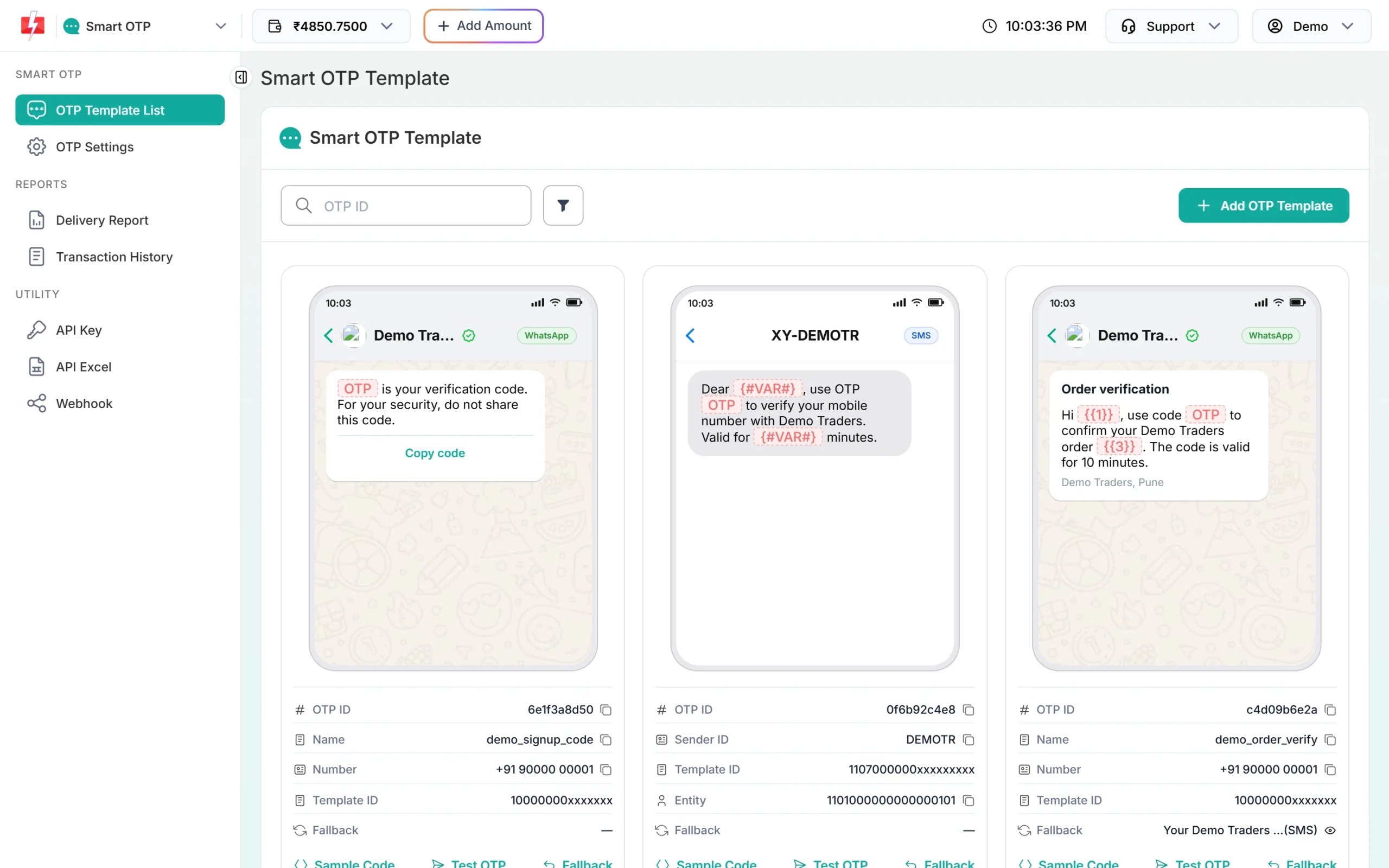
Copy the OTP ID from the template card. -
Run a backend that holds your API key
The widget never calls Fast2SMS. It calls a small backend that you run, and only that backend knows your API key. The full kit has ready backends for PHP hosting (one file), Node.js with Express, Python Flask, Django, Laravel, Cloudflare Workers, Vercel or Netlify functions and Google Apps Script (see the OTP widget overview). Copy the key from API Key under UTILITY in the panel, and give the backend these three settings:
FAST2SMS_API_KEY=YOUR_API_KEY F2S_OTP_ID=YOUR_OTP_ID F2S_TOKEN_SECRET=at-least-32-random-charactersF2S_TOKEN_SECRETis any random text of 32 or more characters. The backend will not start (or, on PHP and serverless hosts, refuses every request) if one of these is missing or wrong. The app talks to this backend over HTTPS; use a URL such ashttps://www.example.com/f2s-otp.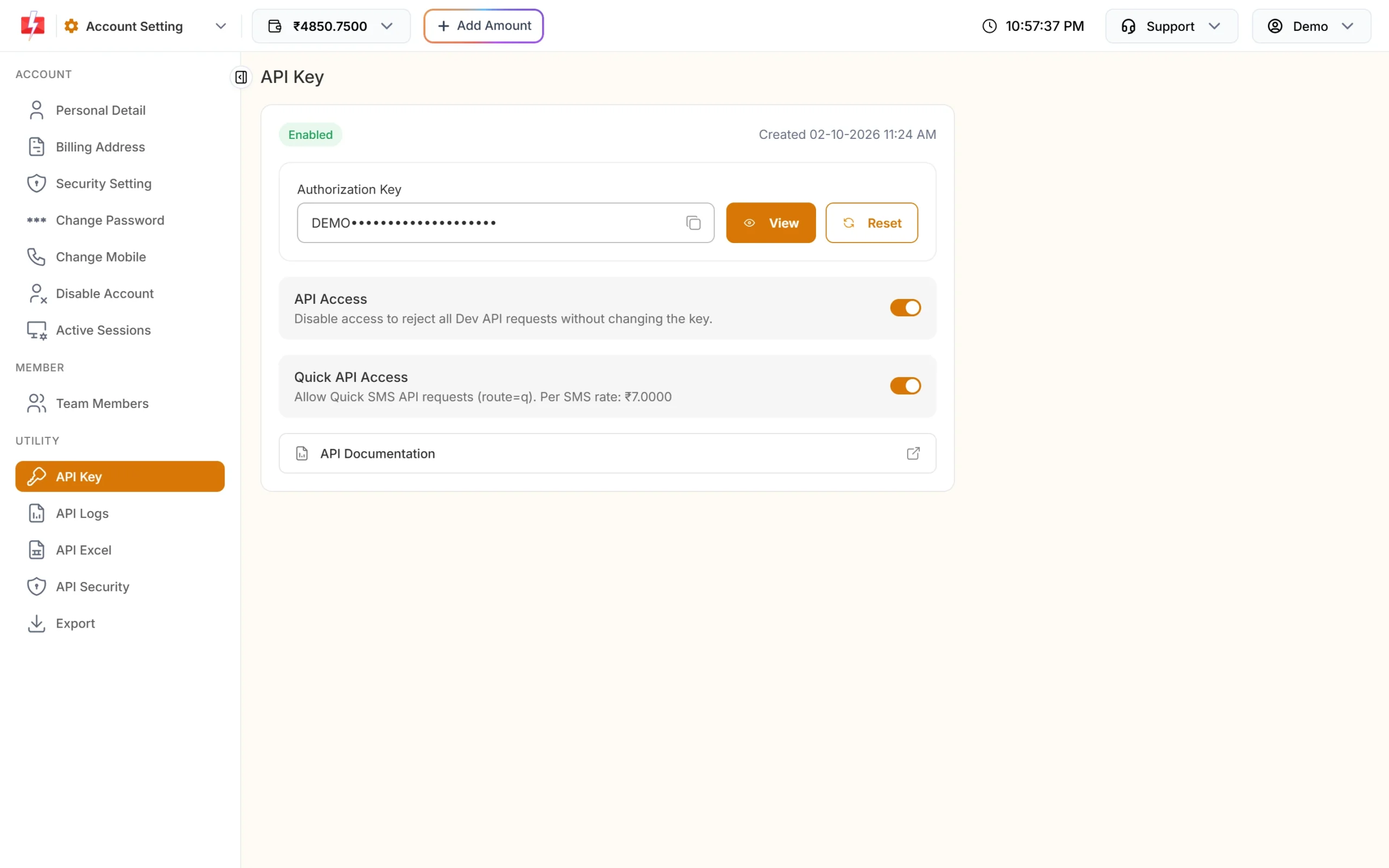
The key goes into your backend settings only. -
Add the files and set the endpoint
The example has no Gradle wrapper or root
settings.gradle.kts. Create a new Empty Activity (Compose) project in Android Studio and copy in the files fromapp/src/main/java/com/example/f2sotp/, or add them to your own app. InMainActivity.kt, setOTP_ENDPOINTto your backend URL and run.To test on the emulator with a backend on your computer, use
http://10.0.2.2:3000/f2s-otp. The includedres/xml/network_security_config.xmlallows plainhttponly to10.0.2.2. Remove it for release builds.
Use the screen in your own app
const val OTP_ENDPOINT = "https://www.example.com/f2s-otp" // your backend, never fast2sms.com

class MainActivity : ComponentActivity() {
    private val client = F2sOtpClient(OTP_ENDPOINT)

    override fun onCreate(savedInstanceState: Bundle?) {
        super.onCreate(savedInstanceState)
        setContent {
            MaterialTheme {
                OtpScreen(client) { token, _ ->
                    // Send the token to YOUR login API (field name e.g. f2s_token).
                    // Your server checks it, then starts the session.
                }
            }
        }
    }
}
For a second OTP ID, create the client as F2sOtpClient(OTP_ENDPOINT, "YOUR_OTP_ID"). The backend accepts it only if it is in F2S_OTP_IDS.
Reading the code from the SMS
ContentType.SmsOtpCodelets the keyboard or autofill service offer the code. It needs Compose UI 1.8 or newer; on older Compose, remove that line and the keyboard’s own suggestion still works on most phones.- For one-tap reading, use the optional SMS User Consent API snippet at the end of
OtpScreen.kt. It needsplay-services-auth-api-phoneand reads the code after the user taps Allow. - Codes sent on WhatsApp are not read from SMS; the user types or copies them.
What the app sends to your backend
| Request body | Success answer |
|---|---|
{"action":"send","mobile":"9999999999"} |
ok, masked, resend_after, length, expires_in, ticket |
{"action":"verify","mobile":"9999999999","otp":"123456","ticket":"..."} |
ok, masked, token, expires_in (600) |
{"action":"resend","mobile":"9999999999","ticket":"..."} |
same as send |
Every call is a POST to your endpoint with the headers Content-Type: application/json and X-F2S-Widget: 1. Errors come back as {"ok":false,"reason":"...","message":"..."}, and the screen shows message, which is plain English. The ticket from send is kept in memory only; verify and resend need it.
Check the token on your server
The onVerified callback in the app proves nothing to your server on its own. Send the token to your own log-in or sign-up API, check it there with the backend kit’s helper, and only then create the session:
// Node.js / Express backend kit
const v = await otp.verifyToken(req.body.f2s_token, { mobile: req.body.phone });
if (!v) return res.status(403).send('Mobile number not verified.');
// v.mobile is the verified 10-digit number. A token works only once.
<?php
// PHP single-file backend kit
require __DIR__ . '/f2s-otp.php';
$v = \F2sOtp\verify_token($_POST['f2s_token'] ?? '', $_POST['phone'] ?? null);
if ($v === null) { http_response_code(403); exit('Mobile number not verified.'); }
// $v['mobile'] is the verified 10-digit number.The token lasts 10 minutes by default and works once. Use the number the helper returns, not a number the app sends separately.
How the backend protects an app
A browser sends an Origin header, and the backend uses it to block other websites. Mobile apps send no Origin header, so that check does not apply to them. What protects your wallet against app requests is:
- the resend wait (30 seconds by default),
- the per-number and per-IP limits (5 and 20 sends per hour by default),
- the limit on wrong codes (5 by default),
- an optional captcha (Cloudflare Turnstile or reCAPTCHA, off by default).
The example screen does not include a captcha. If you turn F2S_CAPTCHA on, your app must send a captcha token in the captcha field of the send call. For high volume, also check a Google Play Integrity token on the backend before it sends a code, so only your real app can ask for codes.
Do not set an Origin header in the app. If you do and it is not in the backend’s allowed list, the backend answers “This page is not allowed to use this OTP service.”
Limits and cost
| Backend setting | Default | What it does |
|---|---|---|
F2S_RESEND_WAIT |
30 seconds | Wait between two sends to one number. |
F2S_LIMIT_PER_NUMBER |
5 per hour | Sends to one mobile number. |
F2S_LIMIT_PER_IP |
20 per hour | Sends from one IP address. |
F2S_LIMIT_VERIFY_PER_IP |
60 per hour | Verify calls from one IP address. |
F2S_MAX_VERIFY |
5 | Wrong codes allowed for one code. |
F2S_TOKEN_TTL |
600 seconds | How long the verified token lasts. |
F2S_CAPTCHA |
off | turnstile or recaptcha, with F2S_CAPTCHA_SECRET. |
Fast2SMS also has its own limits in Smart OTP > OTP Settings: Max Verify OTP Limit (Per SMS) and SMS Resend / Time Limit (Seconds). The backend’s own limits apply first.
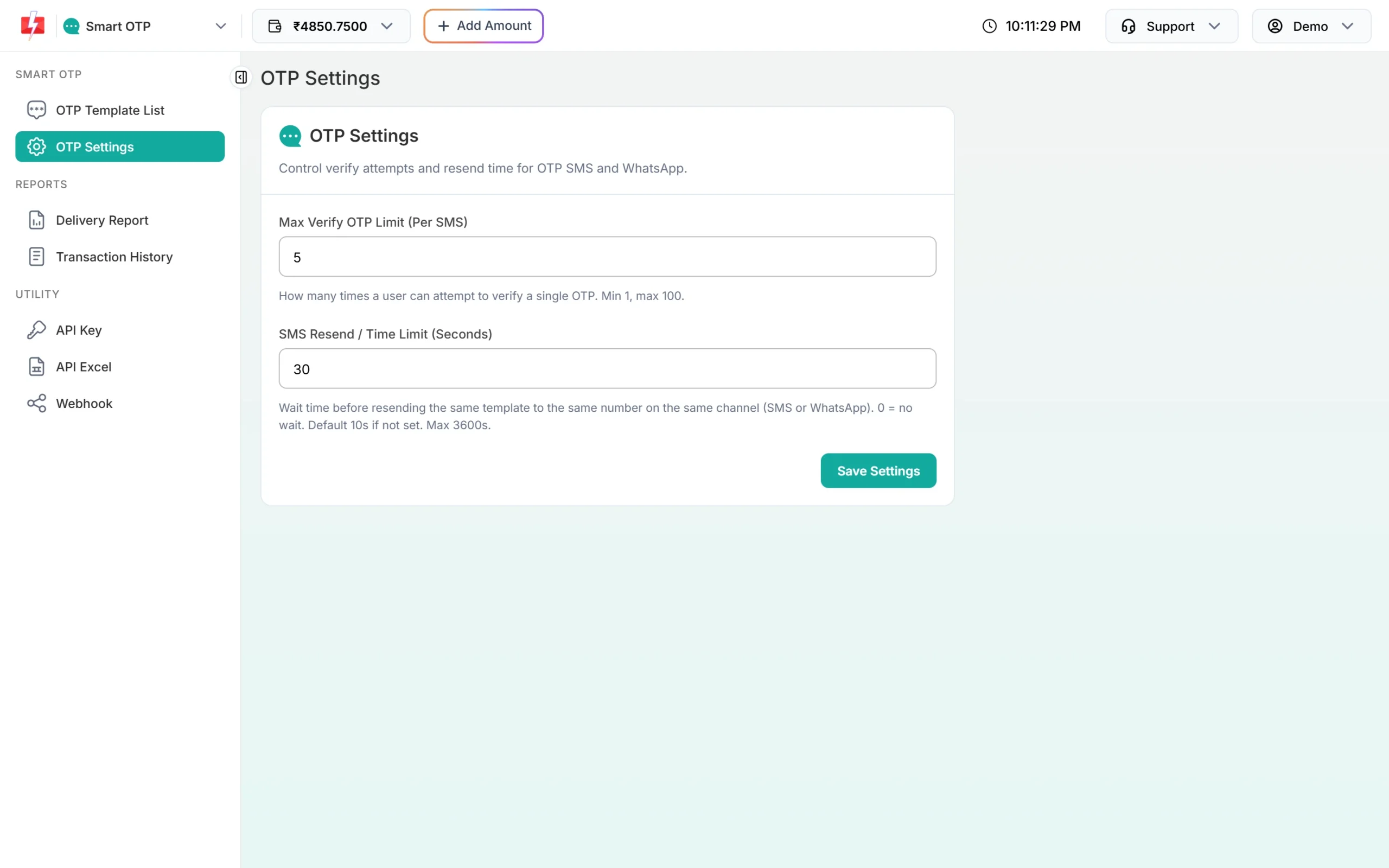
Resend sends the same code again. Fast2SMS allows it within 10 minutes of the first send, up to 5 sends in total. Sending a fresh code for a number cancels the older code. If the template has a fallback and the first channel fails, Fast2SMS sends the same code once on the other channel.
Each send and each resend is charged at your Smart OTP rate. Verify is free. If a fallback message goes out on the second channel, that message is charged too, and so is a Test OTP from the template card, because it is a real send. See the current rates on the Smart OTP page.
Sending in bulk? For high OTP volumes our team offers discounted rates. Talk to our team or see OTP pricing.
Test status
Common problems and fixes
| What you see | Why | Fix |
|---|---|---|
| “Could not reach the server…” | Wrong endpoint, backend not running, or cleartext blocked. | Check OTP_ENDPOINT. On the emulator use 10.0.2.2, not localhost. |
Unresolved reference: SmsOtpCode |
Compose UI older than 1.8. | Update the Compose BOM, or remove the contentType line. |
| “We could not send the code right now…” | A backend setup problem: wrong OTP ID, low balance, key refused. | Read the backend log. It names the real reason. |
| “Please wait N seconds…” | The resend wait. | Wait for the countdown. |
| Code sent but nothing arrives | Sent means Fast2SMS accepted it, not that the phone got it. | Check Smart OTP > Delivery Report. |
| The code is not suggested | It depends on the phone and keyboard. | The user can type it, or add the SMS User Consent snippet. |
Frequently asked questions
Can I put my Fast2SMS API key in BuildConfig?
No. Anything in the APK, including BuildConfig and strings.xml, can be extracted. Keep the key on the backend and let the app call your endpoint.
Do I need the SMS Retriever API?
No. The screen already offers the code through the keyboard. The optional SMS User Consent snippet reads it after one tap. Fully automatic SMS Retriever reading needs an app hash in the SMS text, which your DLT template would have to allow.
What is the minimum Android version?
The example’s build.gradle.kts sets minSdk 24 and compileSdk 35.
Does this work with XML layouts instead of Compose?
The screen is written in Compose. F2sOtpClient.kt has no UI code, so you can call it from a Views-based screen yourself.
Can the OTP go on WhatsApp instead of SMS?
Yes. The OTP ID on the backend picks the channel. Use a WhatsApp OTP template, or an SMS template with a WhatsApp fallback.
Does Resend send a new code?
No. Resend sends the same code again, within 10 minutes and up to 5 sends in total. Each resend is charged.
Related guides
- OTP verification in an Android app (Kotlin) with Fast2SMS: the safe way
- OTP autofill on Android, iPhone and websites: SMS Retriever, app hash and DLT
- OTP for website login vs app login: what changes and what stays the same
- Smart OTP in Fast2SMS: set up OTP on SMS and WhatsApp with fallback
- OTP fraud and SMS pumping: how to protect your OTP form and wallet