
Good WhatsApp business description, greeting and away message examples save your team from typing the same lines all day. This page gives ready-to-copy text for your business profile, the welcome message, the out-of-office message, the “we are busy” message and quick replies, with examples for shops, clinics, coaching centres and restaurants. It also shows where each one goes in the Fast2SMS panel.
Before you start
- A WhatsApp number connected to Fast2SMS. If you have not done this yet, see WhatsApp Business API onboarding in Fast2SMS.
- The profile is set per number, and so are the welcome and away messages. If you have two numbers, set both.
Where each message goes
| What | Where in Fast2SMS | Limit |
|---|---|---|
| Status (short line under your name) | WhatsApp Manager > Numbers > number menu > Edit Profile | Required, up to 512 characters |
| Business description | Same page, Description (Optional) | Up to 512 characters |
| Greeting (welcome message) | Chat Automation > Inbox Settings > Auto Reply Setting | Text, image, audio or video |
| Away message (out of office) | Same tab, Out of Office Message | Text only, once per chat a day |
| “We are busy” message | Same tab, Delayed Response Message | Text only |
| Quick replies for your team | Predefined Messages (opened from Live Chat) | Picked by agents in Live Chat |
How to set them up
-
Write your status and description
Open WhatsApp Manager > Numbers, click the three dots on your number and choose Edit Profile. Pick your Category, write the Status and Description, add your address, email and up to two websites, then click SAVE CHANGES. The phone preview on the right shows how customers will see it.
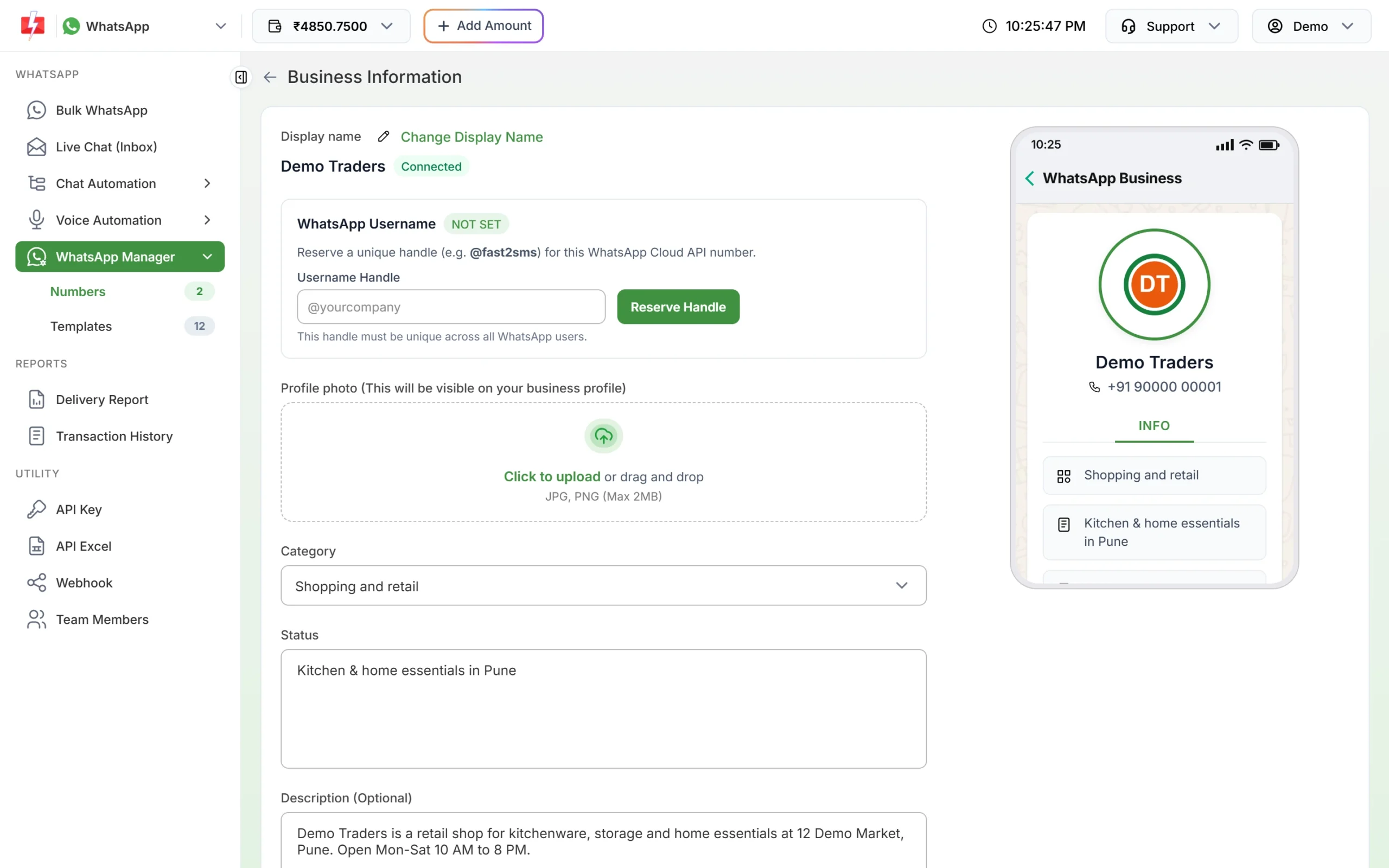
The status and description show on your WhatsApp business profile. -
Set the welcome message
Go to Chat Automation > Inbox Settings and open the Auto Reply Setting tab. Select your number at the top right. Under Reply Type choose Text, Image, Audio or Video, then write the Reply Message. The welcome message goes to a customer who writes to you for the first time, or whose last message was more than 24 hours ago.
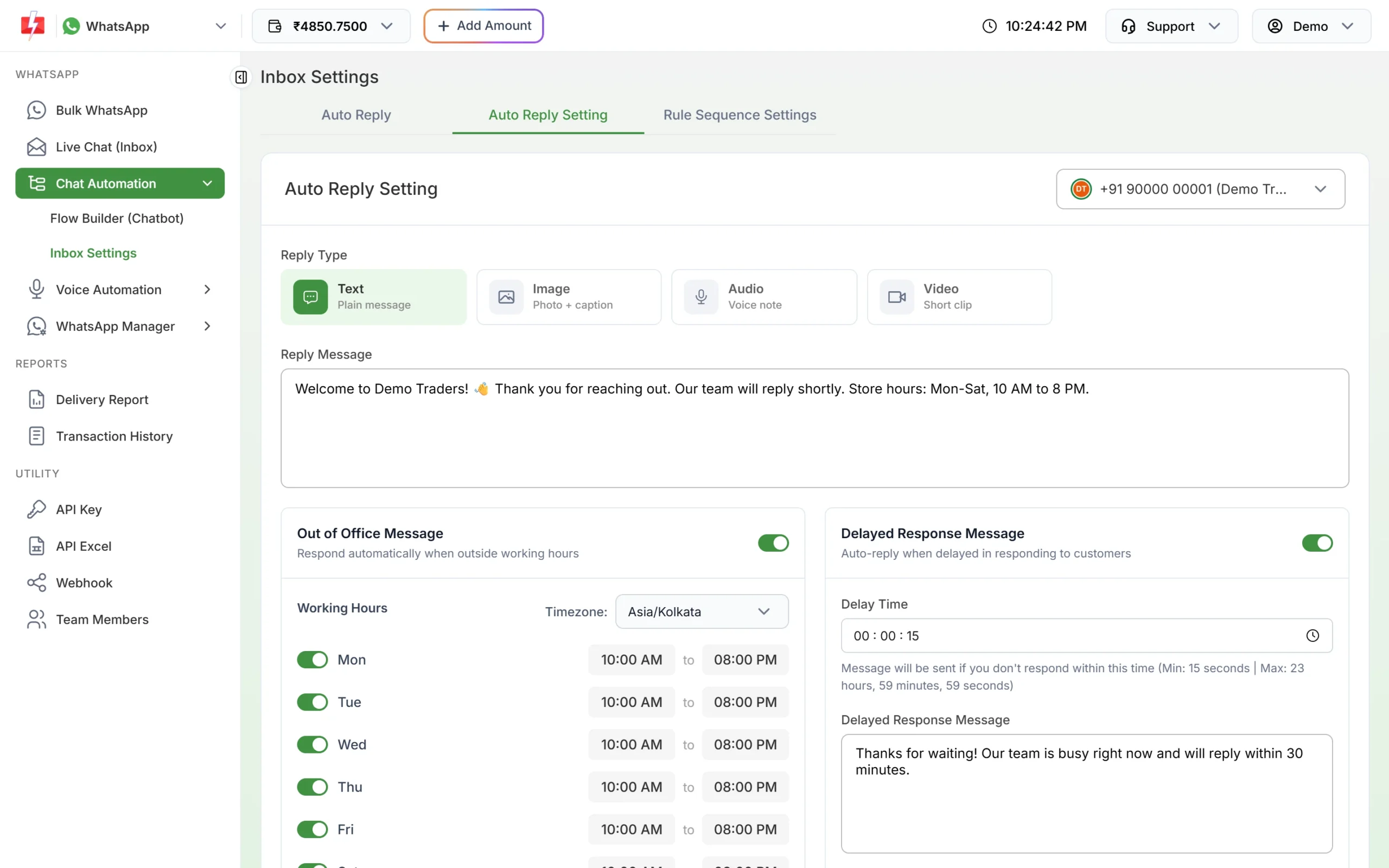
The welcome message, away message and busy message are on one tab. -
Set the away message and working hours
Switch on Out of Office Message. Choose the timezone, switch each day on or off, set the start and end time, and write the Out of Office Message Text. Then switch on Delayed Response Message if you want a “please wait” note when nobody replies within a set time. Click Save Settings.
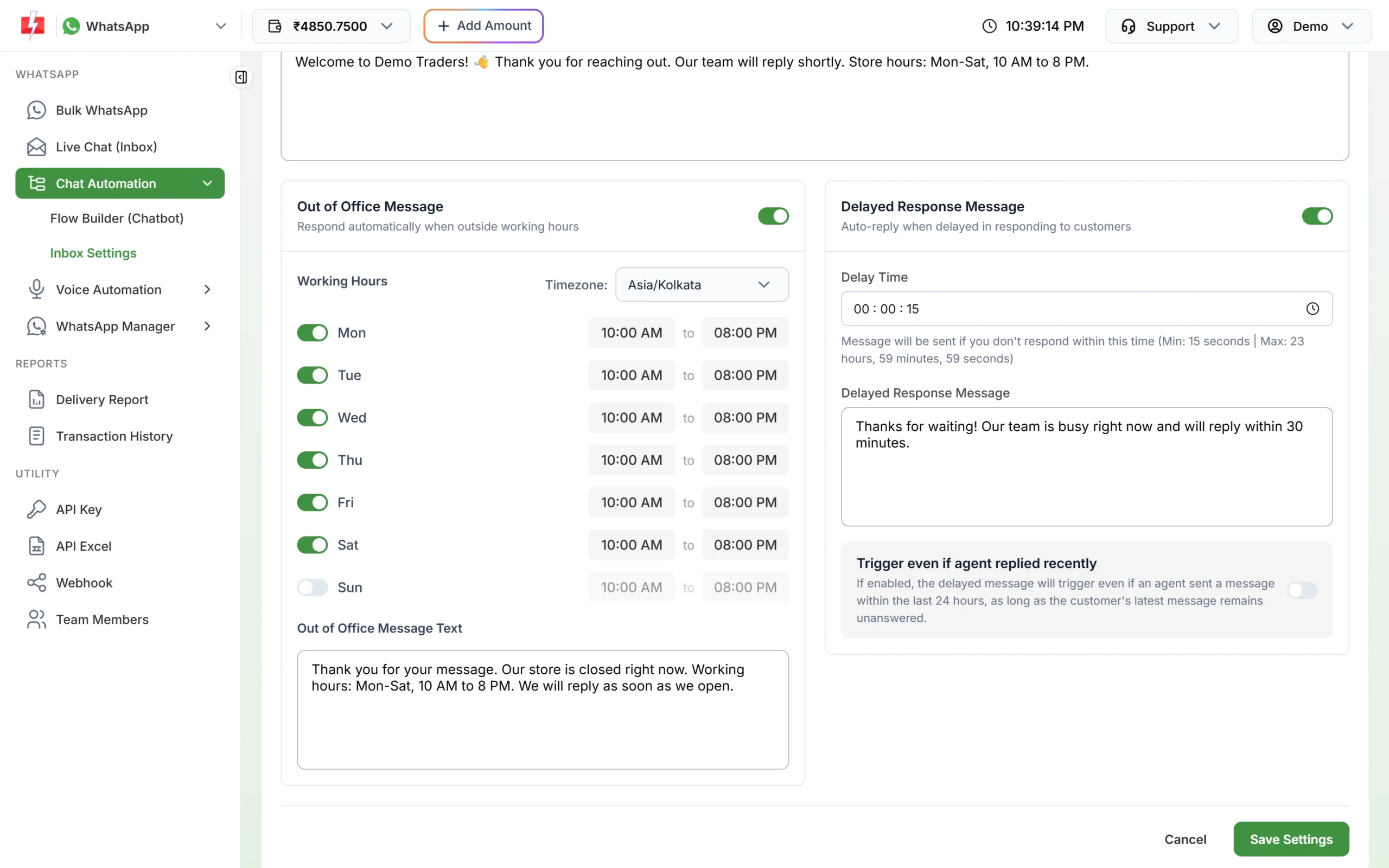
Working hours decide when the away message is sent. -
Save quick replies for your team
In Live Chat, click the predefined message icon and then Add Message. This opens the Predefined Messages page. Click Add Predefined Message, choose the number, write the message and click Save. Agents then pick a saved message in Live Chat, edit it if needed and send it.
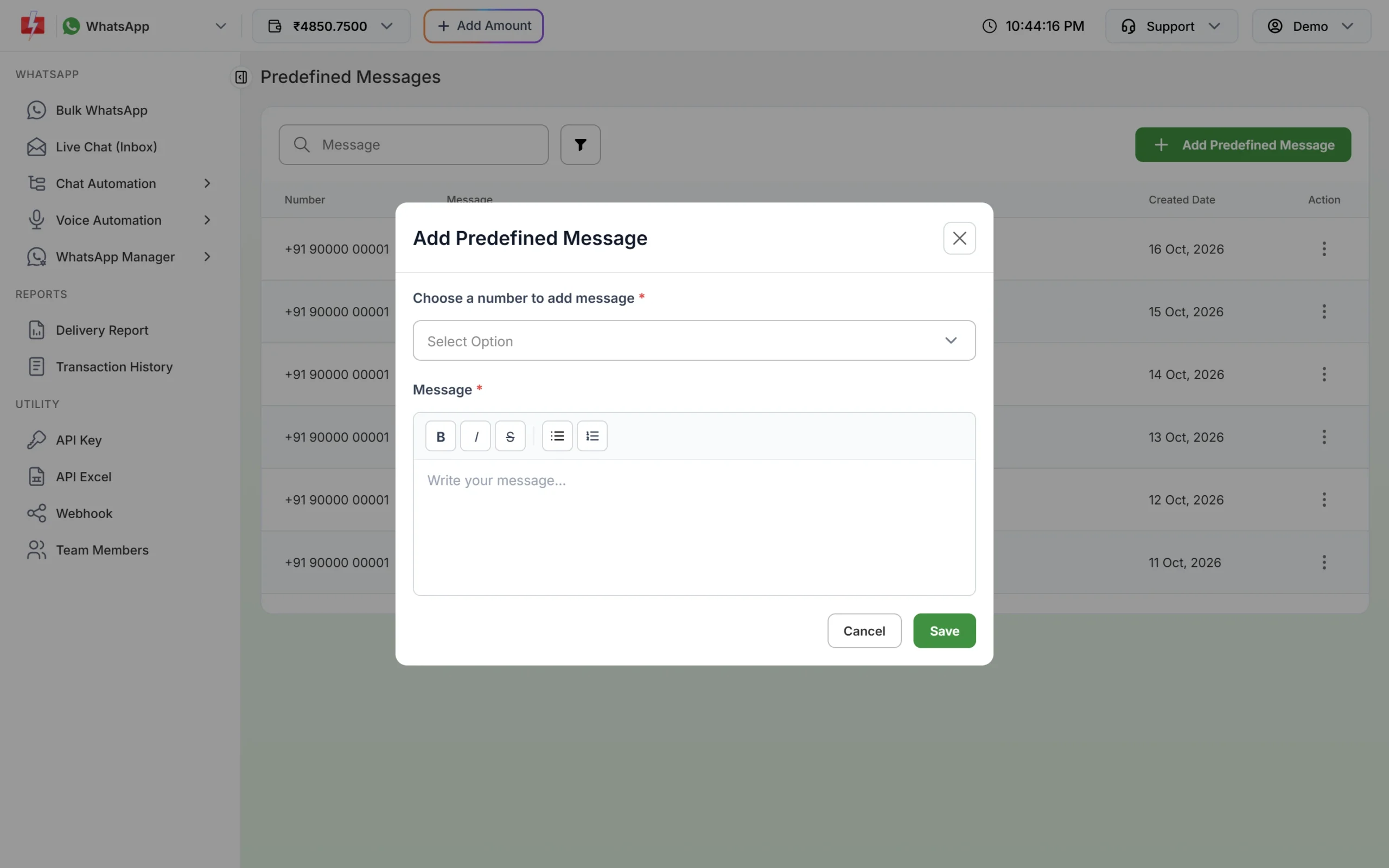
Predefined messages are quick replies your agents can reuse.
Business description examples
Say who you are, what you sell, where you are and when you are open. Keep offers out; they change often. For the Status line, use a short version such as “Kitchen and home essentials in Pune”.
- Retail shop: “Demo Traders sells kitchenware, storage and home essentials at 12 Demo Market, Pune. Open Mon-Sat, 10 AM to 8 PM. Order on WhatsApp for home delivery in Pune.”
- Clinic: “Family clinic for general medicine and child care. Book appointments, get reports and reminders on WhatsApp. OPD Mon-Sat, 9 AM to 1 PM and 5 PM to 8 PM.”
- Coaching centre: “Classes 9 to 12 and entrance exam coaching. Get batch timings, fee details and test results on WhatsApp.”
- Restaurant: “North Indian and Chinese food, dine-in and delivery. Send ‘menu’ to see today’s menu. Open daily, 11 AM to 11 PM.”
WhatsApp greeting message examples
- General: “Hello, thank you for messaging Demo Traders. Tell us what you are looking for and our team will reply shortly. Store hours: Mon-Sat, 10 AM to 8 PM.”
- With a menu prompt: “Welcome to Demo Traders. Reply ‘price’ for our price list, ‘order’ to track an order or ‘agent’ to talk to our team.”
- Restaurant: “Welcome. Send ‘menu’ to see today’s menu or tell us your order and address for delivery.”
Away message (out of office) examples
- “Thank you for your message. Our store is closed right now. Working hours: Mon-Sat, 10 AM to 8 PM. We will reply as soon as we open.”
- Sunday off: “We are closed on Sundays. We will reply on Monday morning. For order tracking, reply ‘order’ anytime.”
- Clinic: “The clinic is closed now. Our staff will reply in OPD hours. In a medical emergency, please call the emergency number or visit the nearest hospital.”
“We are busy” (delayed response) examples
- “Thanks for waiting. Our team is busy right now and will reply within 30 minutes.”
Quick reply examples for agents
- Address: “Our address: 12 Demo Market, Pune. Google Maps: (your map link).”
- Payment: “You can pay by UPI to (your UPI ID). Please share the screenshot here after payment.”
What these messages cost
The profile is free. Welcome, out-of-office and delayed messages are sent inside the 24-hour window after the customer writes to you, so each one is charged at the session (service) message rate, ₹0.13 per message at the time of writing. Messages customers send you are free. If your wallet is empty, automatic replies are not sent. See the WhatsApp pricing page for current rates.
Sending in bulk? For high WhatsApp volumes our team offers discounted rates. Talk to our team or see WhatsApp pricing.
Common problems and fixes
- The welcome message did not go. Only one automatic reply goes per incoming message. If a chatbot flow or keyword auto reply matched first, that one is sent instead. Check the order under Rule Sequence Settings.
- No away message after hours. Check that the toggle is on, the day is switched on, and the timezone is right. The away message is also skipped when the chat is assigned to an agent or an agent replied in the last 24 hours.
Frequently asked questions
What should I write in my WhatsApp business description?
Your business name, what you sell, your area and your hours, in one or two lines. Add how customers can order or book on WhatsApp.
Can I send an image as my greeting?
Yes. In Auto Reply Setting choose Image, Audio or Video as the reply type. Image and video can have a caption.
Will the greeting go to every message?
No. It goes to a customer’s first message, or the first message after 24 hours of silence.
Can I change my display name on the same page?
No. The display name is reviewed by Meta. The Change Display Name link on the page explains Meta’s process.