
Before you send WhatsApp messages to a customer, WhatsApp requires their opt-in: clear permission to receive messages from your business on WhatsApp. You must also stop messaging anyone who asks you to stop. This guide explains the WhatsApp opt-in rules in plain words, gives sample opt-in text you can copy, and shows how to handle opt-outs in Fast2SMS with a “Stop promotions” button, an auto reply and chat tags.
What WhatsApp says about opt-in
WhatsApp’s Business Messaging Policy says you may message people only after they have given you opt-in permission confirming they want to receive messages from you. Meta’s developer guide adds three requirements:
- Say clearly that the person is opting in to receive messages from your business.
- Name your business in the opt-in, so the person knows who will message them.
- Follow the law that applies to you and your customers.
You choose how to collect it. Meta lists the website, SMS, a phone call with an IVR menu, and in person or on paper as accepted places. The opt-in does not have to happen inside WhatsApp.
Good opt-in in practice
Meta’s best practices go further than the minimum. They help keep your quality rating high:
- Ask per type of message. Separate consent for order updates and for offers. A customer who agreed to delivery updates may block you if you send daily promotions.
- Tell people what they get. “Order and delivery updates” or “festival offers, about twice a month” is better than a vague “updates”.
- Tell people how to stop. Give clear instructions for leaving each type of message.
- Watch your quality rating after you start a new way of collecting opt-in.
Sample opt-in text you can adapt
| Where | Sample text |
|---|---|
| Checkout page checkbox | “Send me order and delivery updates from Demo Traders on WhatsApp.” |
| Separate marketing checkbox (unticked by default) | “Yes, send me offers and new arrivals from Demo Traders on WhatsApp. I can reply STOP any time.” |
| Shop counter or form | “I agree to receive bills and offers from Demo Traders on WhatsApp on this number.” |
| Website chat button | “Chat with Demo Traders on WhatsApp. We will reply on WhatsApp to the number you message from.” |
Keep a record of who opted in, when and where. If a customer complains, you can show their consent.
What WhatsApp says about opt-out
The policy is short and strict: you must respect every request from a person to block, discontinue or opt out of your messages, whether they ask on WhatsApp or somewhere else (by phone, email, at your shop). WhatsApp also lets users stop marketing messages from a business inside the app. If you send marketing to someone who did this, the message fails with error 131050. Do not keep retrying those numbers.
How to handle opt-outs in Fast2SMS
-
Add a “Stop promotions” button to marketing templates
When you create a Marketing template in WhatsApp Manager > Templates > Add Template, add a button of type Custom (a quick reply) with text such as “Stop promotions”. Customers can opt out in one tap instead of blocking you.
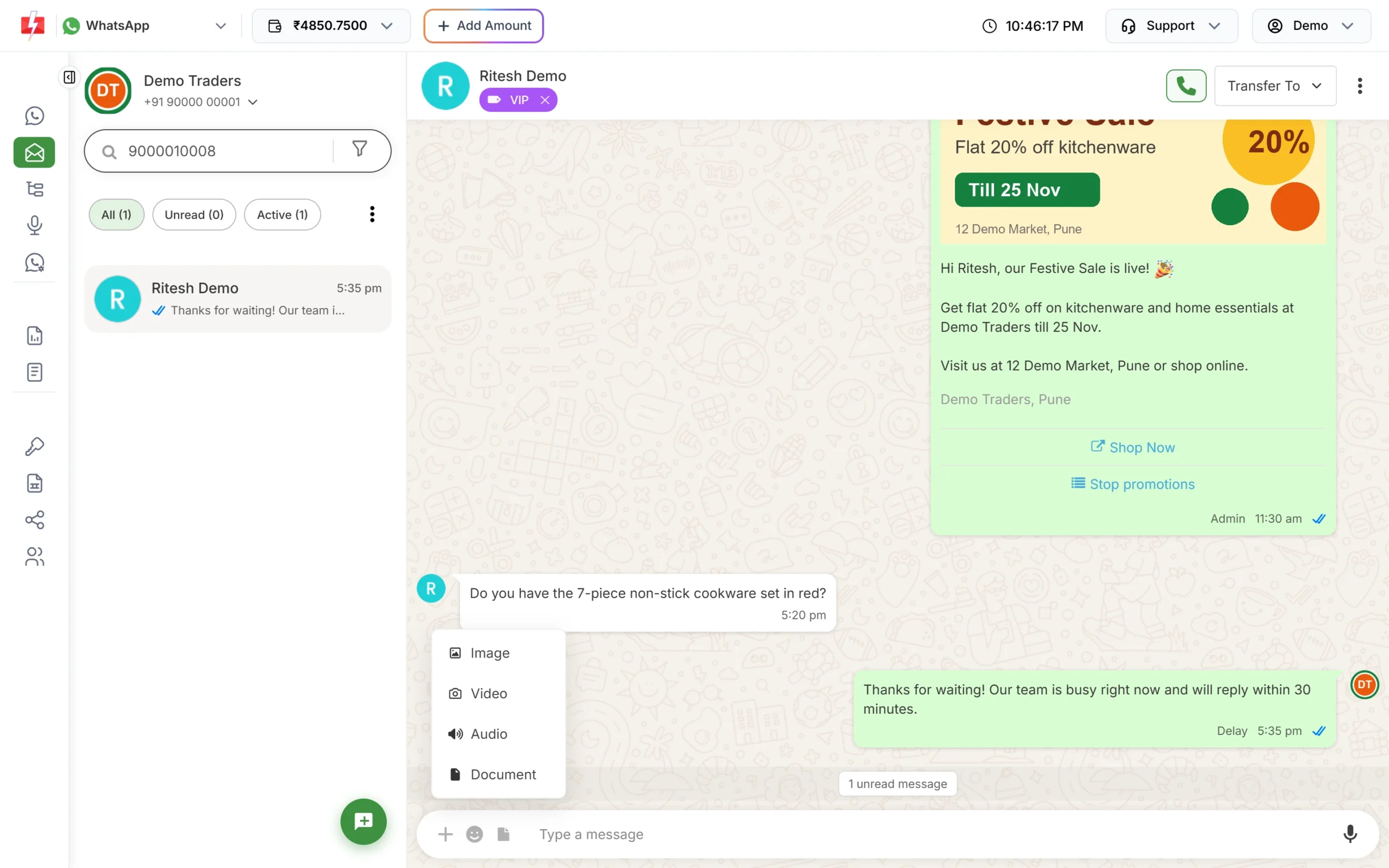
A marketing template with a “Stop promotions” quick reply button, as the customer sees it. -
Create an auto reply that confirms the opt-out
Go to Chat Automation > Inbox Settings and click Create Auto Reply. Name it “Opt-out”, add the keywords “Stop promotions”, “STOP” and “unsubscribe”, and set Match Type to Exact Match so normal sentences do not trigger it. For the reply, write something like “You will not get offers from Demo Traders on WhatsApp anymore. You will still get your order updates.” Auto replies also react to quick reply button taps.
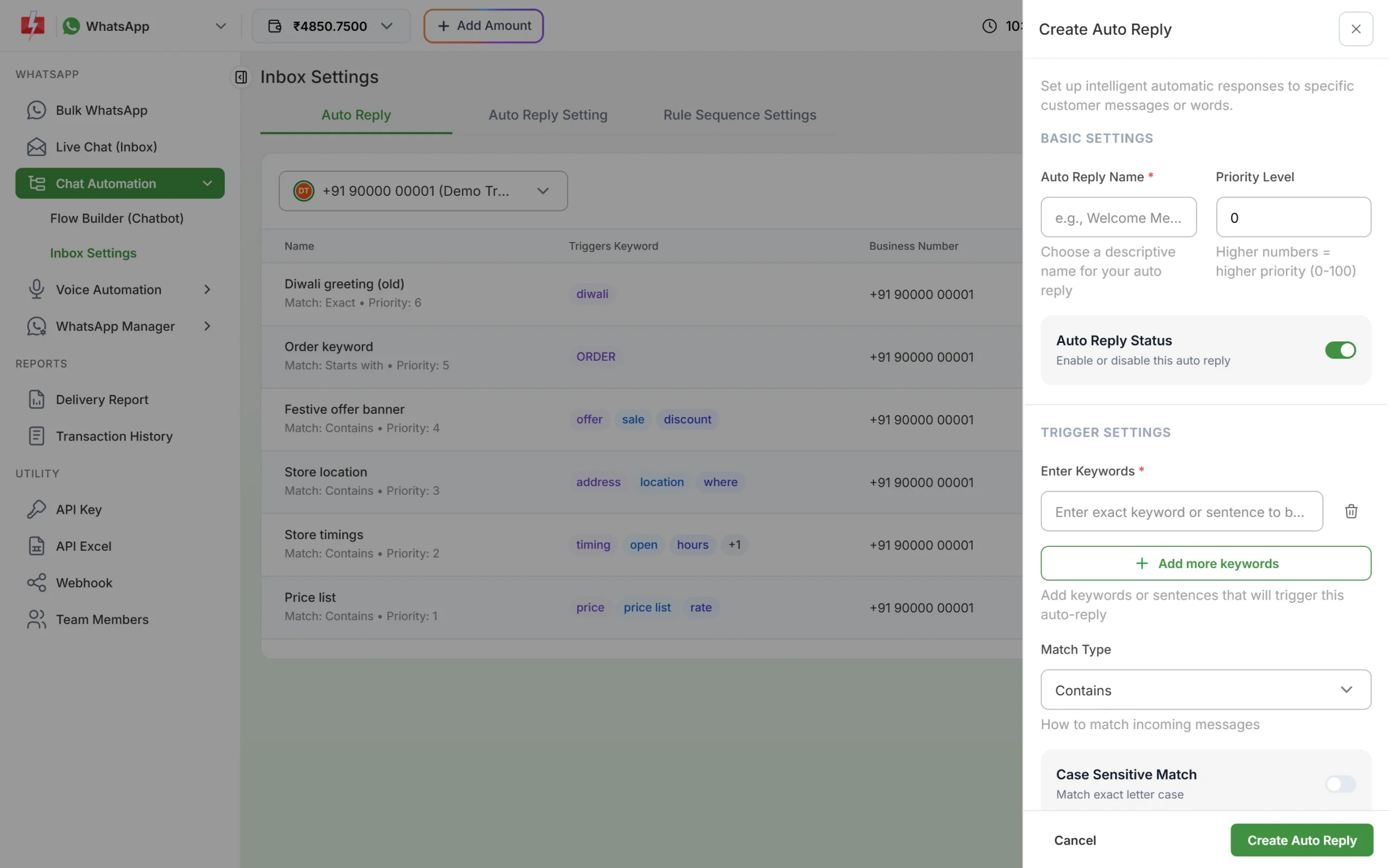
An auto reply confirms the opt-out straight away. Give this rule a high Priority Level (0 to 100, higher wins) so it runs before other keyword replies. Each automatic reply is charged at the session rate.
-
Tag the customer in Live Chat
Open the chat in Live Chat (Inbox), open the contact panel and add a tag such as “Opted out” under Tags, or add a note with the date. Your team will see it before sending anything else.
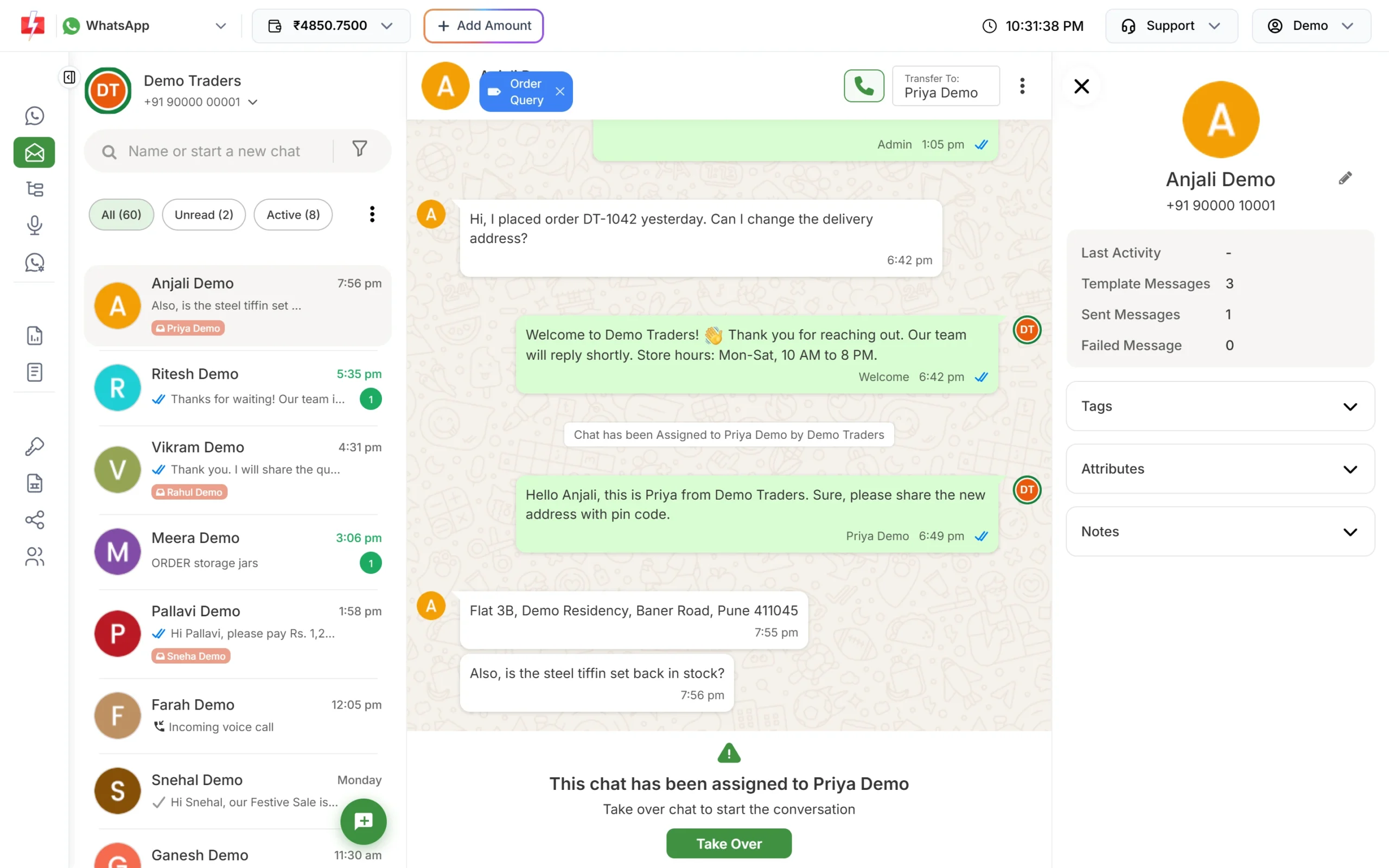
Use Tags or Notes to mark customers who opted out. -
Remove the number from your next campaign list
Before each campaign, remove opted-out numbers from your Address Book group or Excel file. Bulk WhatsApp sends to every valid number you give it, so your list is where the opt-out must be honoured.
Opt-in for service messages vs marketing
| Message type | Opt-in needed? | Tip |
|---|---|---|
| Replies to a customer who wrote to you | The customer started the chat, so you can reply within 24 hours. | Answer quickly and do not add offers they did not ask for. |
| Order, payment, delivery updates (Utility) | Yes, usually collected at checkout or sign-up. | Keep these strictly about the transaction. |
| OTP and login codes (Authentication) | Yes, the customer asks for the code on your app or site. | Show “We will send the code on WhatsApp” next to the button. |
| Offers and promotions (Marketing) | Yes, best as a separate opt-in. | Always give a way to stop. |
Common problems and fixes
| Problem | Fix |
|---|---|
| Quality rating dropped after a campaign | The list probably had people who did not expect your message. Send only to recent, opted-in customers. |
| Error 131050 in the Delivery Report | The customer stopped marketing messages from you in WhatsApp. Remove them from marketing lists. |
| Customer keeps getting offers after saying STOP | Your list was not updated. Use tags or a separate “opted out” group and clean the file before every send. |
| Opt-out auto reply fires on normal chats | Change Match Type from Contains to Exact Match. |
Frequently asked questions
Is opt-in mandatory for the WhatsApp Business API?
Yes. WhatsApp’s policy says you need the person’s permission to receive your messages before you message them first.
Does the opt-in have to be collected on WhatsApp?
No. You can collect it on your website, by SMS, through an IVR call, or in person or on paper, as long as it names your business and clearly says they will get messages from you.
Is a customer’s phone number on an invoice enough as opt-in?
Having the number is not permission. Ask the customer clearly, for example with a checkbox or a line on the form, and keep a record.
How should customers opt out of WhatsApp messages?
Give them a simple way, such as a “Stop promotions” button or replying STOP, and honour any request they make by phone, email or in person too.
What happens if I ignore opt-out requests?
Customers will block and report you. That lowers your quality rating and, if it continues, can lead WhatsApp to restrict your account.
Can I message an opted-out customer about their order?
If they opted out of offers only, order updates are usually fine. If they asked you to stop all messages, stop all messages.