
Customer engagement with automated messages means your customers get the right message at the right moment without someone on your team typing it: a welcome when they first write to you, a confirmation when they buy, a reminder before a due date, an answer to “what are your timings?” at 11 PM. This guide maps the customer journey to messages you can automate, shows which Fast2SMS tools do each job (scheduling, WhatsApp auto replies, the Flow Builder chatbot, the API and integrations), and lists the rules that keep automation from turning into spam.
What “automated customer engagement” means for a small business
Engagement is every contact that keeps a customer close to your business between purchases. For a small team, the problem is time: nobody can send 300 reminders by hand or answer the same question 50 times a day. Automation solves three things:
- Speed: the customer gets an answer or a confirmation in seconds, at any hour.
- Consistency: every customer gets the reminder, not only the ones someone remembered.
- Focus: your staff only handle the chats that need a person.
The customer journey and what to automate at each stage
| Stage | Message to automate | Channel | Fast2SMS tool |
|---|---|---|---|
| First contact | Welcome reply, menu of options, store timings | WhatsApp, RCS | Welcome message, Icebreakers, Flow Builder |
| Sign-up | OTP to verify the number | SMS, WhatsApp | Smart OTP with fallback |
| Purchase | Order confirmation, invoice, payment receipt | SMS, WhatsApp | API, Shopify app, WooCommerce plugin, Tally plugin |
| Delivery or service | Shipped, out for delivery, appointment confirmed | SMS, WhatsApp | API with your order or booking system |
| Questions | Price list, location, order status | WhatsApp, RCS | Keyword Auto Reply, Flow Builder |
| After hours | “We are closed, we will reply at 10 AM” | WhatsApp, RCS | Out of Office message |
| Reminders | Payment due, renewal, re-order, appointment tomorrow | SMS, WhatsApp, voice | Scheduled campaigns, API |
| Feedback | Rate your visit, survey | WhatsApp, voice | Flow Builder buttons, Key Press voice call |
| Win-back | Offer for customers who have not bought in a while | WhatsApp, RCS, SMS | Scheduled campaign to an Address Book group |
Set up the automations in Fast2SMS
-
Greet every new WhatsApp chat automatically
Go to WhatsApp > Chat Automation > Inbox Settings and open the Auto Reply Setting tab. Pick your number and write a Welcome reply (text, image, audio or video). It goes to a customer on their first contact in 24 hours. On the same screen, turn on the Out of Office Message with your working hours per day and timezone, and a Delayed Response Message that goes out if nobody replies within the time you set (from 15 seconds up to just under 24 hours).
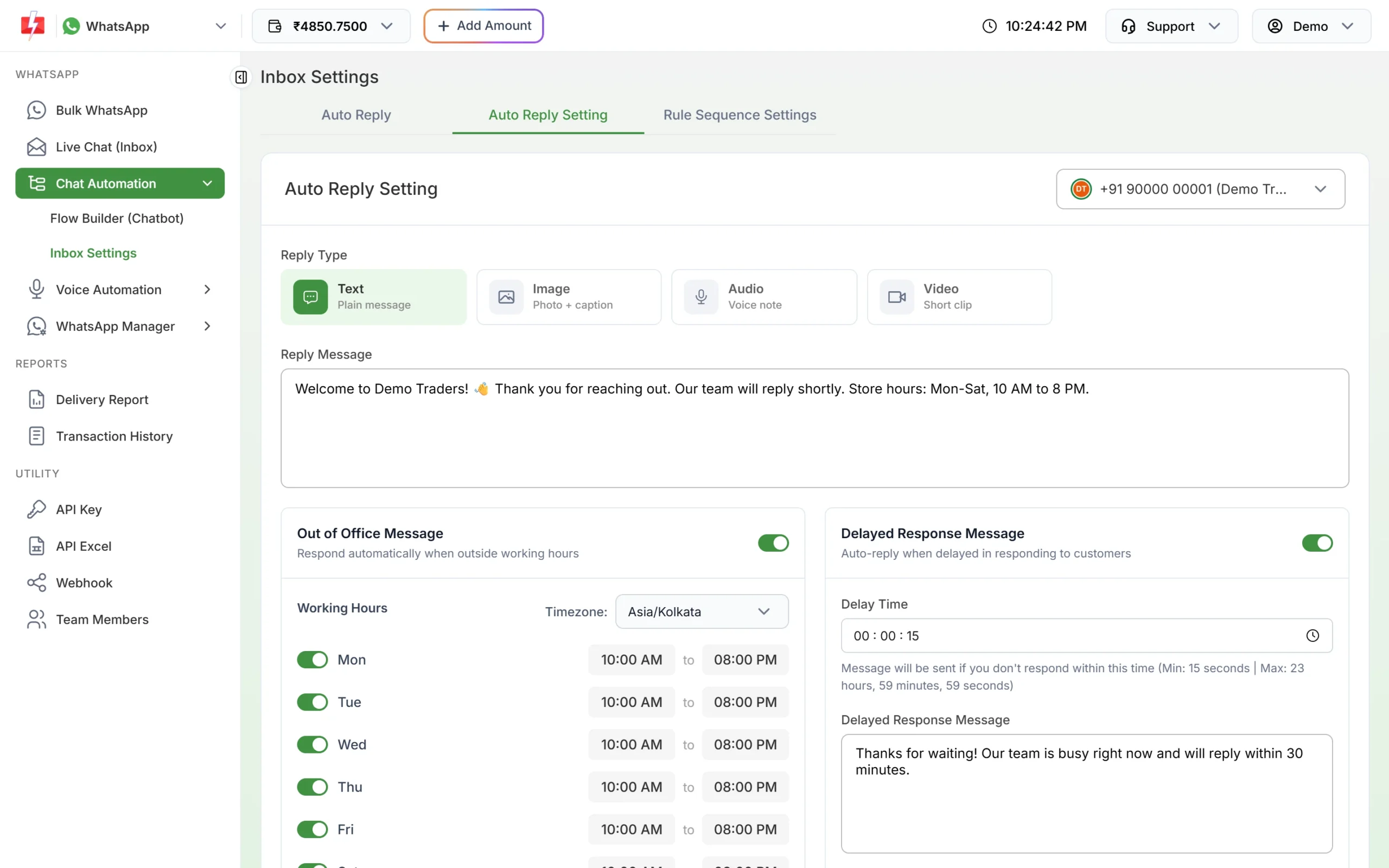
Welcome, out-of-office and delayed-response replies on one screen. -
Answer common questions with keyword auto replies
On the Auto Reply tab, click Create Auto Reply. Give it a name, add keywords such as “price”, “timing” or “address”, choose the match type (for example Contains or Starts with), set a priority and write the reply. The switch in the list turns each rule on or off.
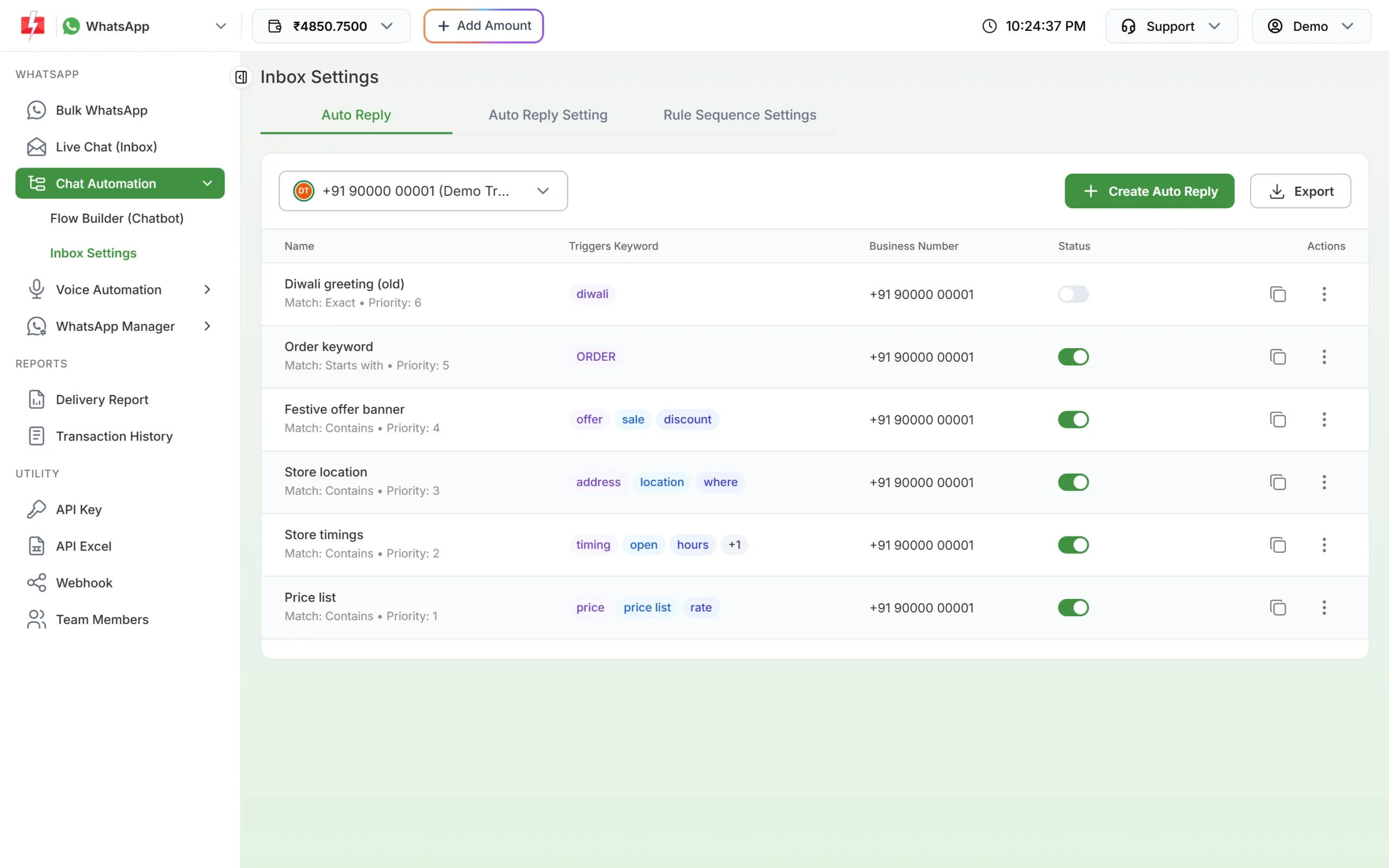
Keyword rules for the questions customers ask most. RCS has the same Inbox Settings for your RCS bot, with auto replies, a welcome message, out-of-office hours and a delayed response.
-
Build a menu chatbot with Flow Builder
For more than one-line answers, open Flow Builder (Chatbot) and click Create Workflow. Name it and pick your WhatsApp number. In the editor, the Flow Start box takes the keywords that start the flow, such as “hi”, “hello” or “menu”. Then drag in blocks: Message, Media, List, Button, CTA Button, Template and Location to talk to the customer, Delay and Condition to control the path, Assign Conversation to hand over to a staff member, and API Request to fetch data such as an order status from your own system. Click Save Changes. A flow is live while its status switch is on.
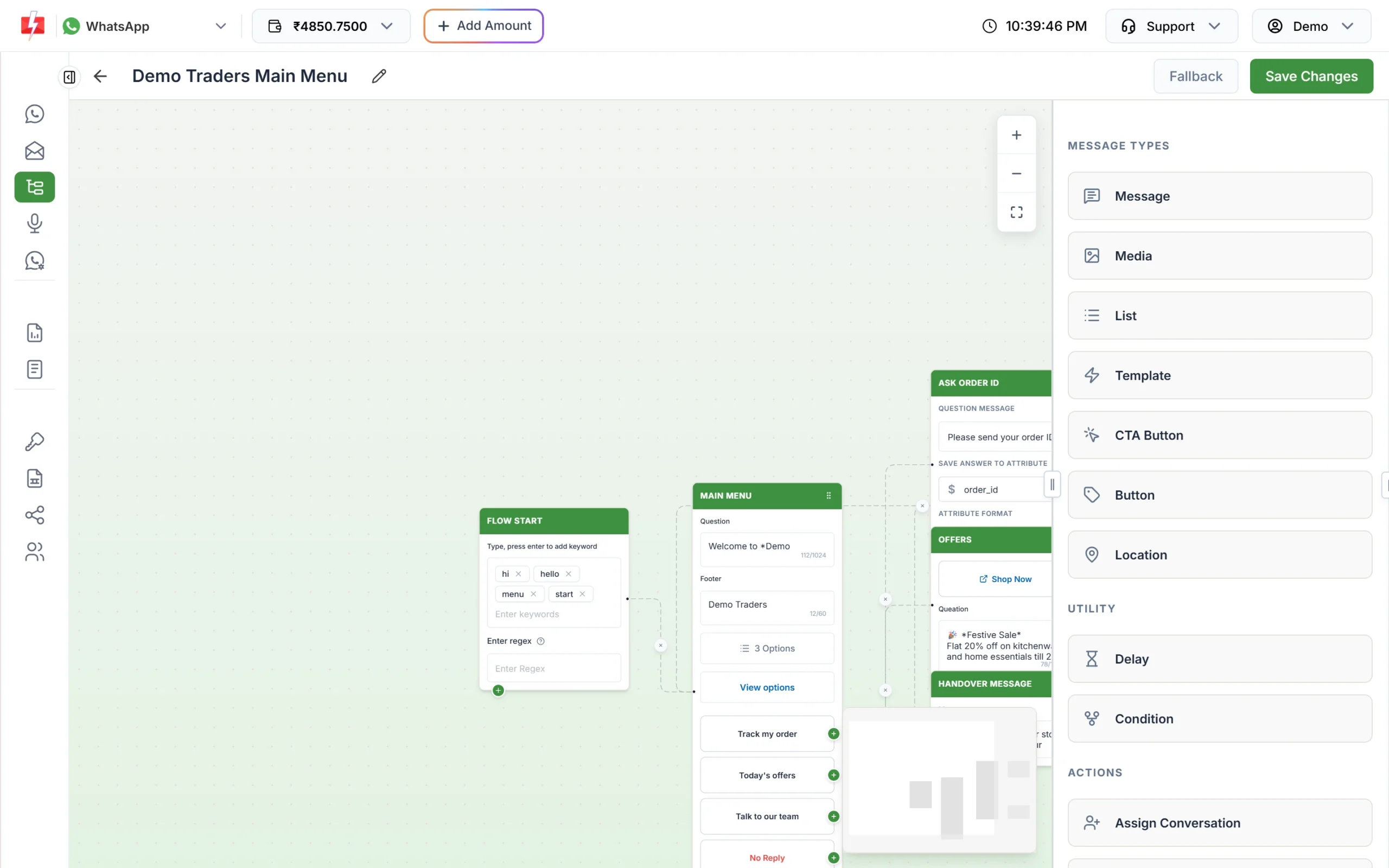
A simple main-menu chatbot with order tracking, offers and a handover to the team. In Live Chat, bot messages are tagged “Chatbot”, so your team can see what the customer has already been told.
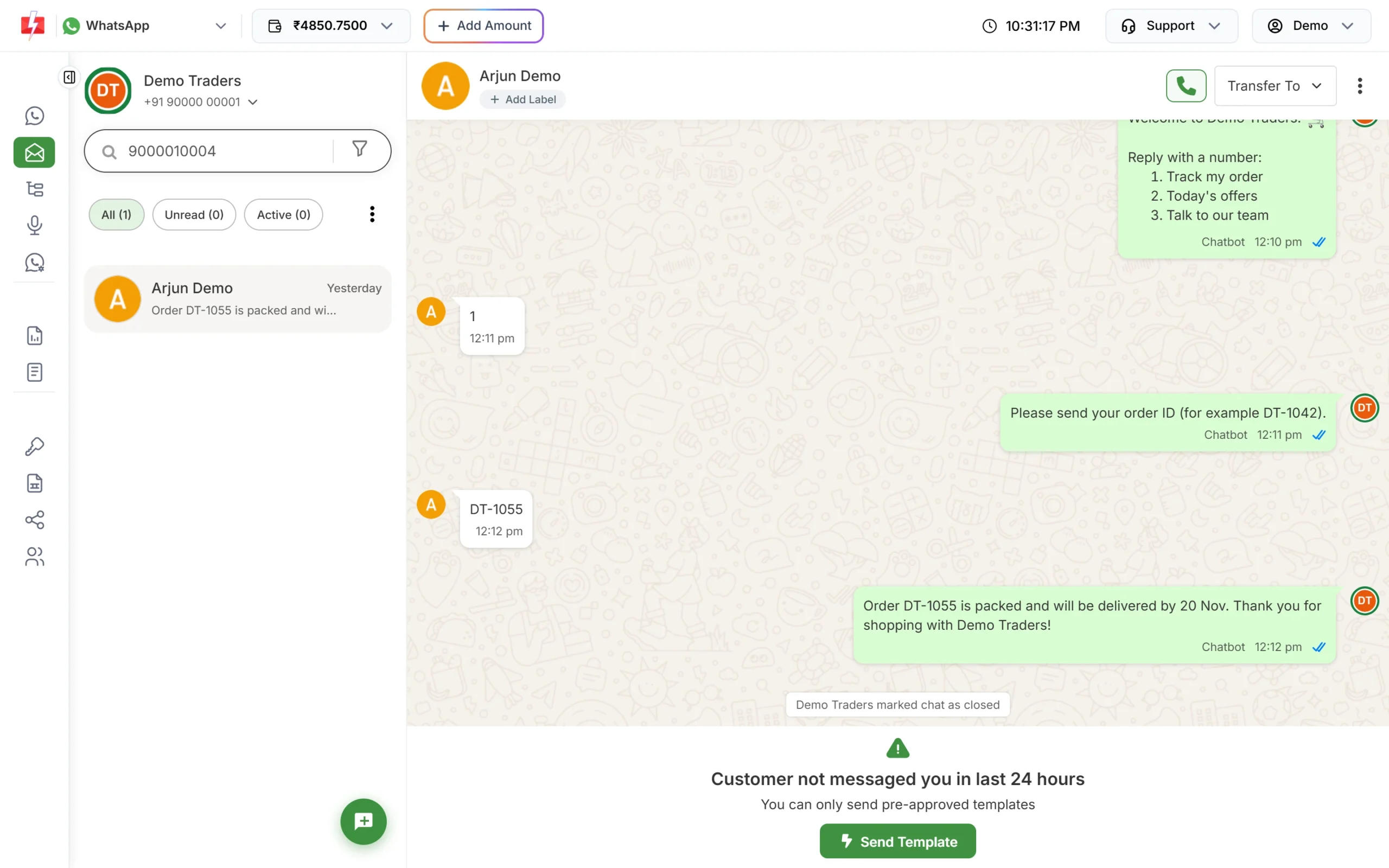
A customer tracks an order with the chatbot, no staff needed. -
Schedule reminders and repeat sends
On the DLT SMS page, fill in the campaign and click Schedule instead of Send. Pick one date for a single send, or a date range to send the same message every day at the same time. WhatsApp and voice campaigns can be scheduled the same way. Scheduled campaigns appear under Delivery Reports > Schedule, where you can cancel them before the time and get the amount back in your wallet.
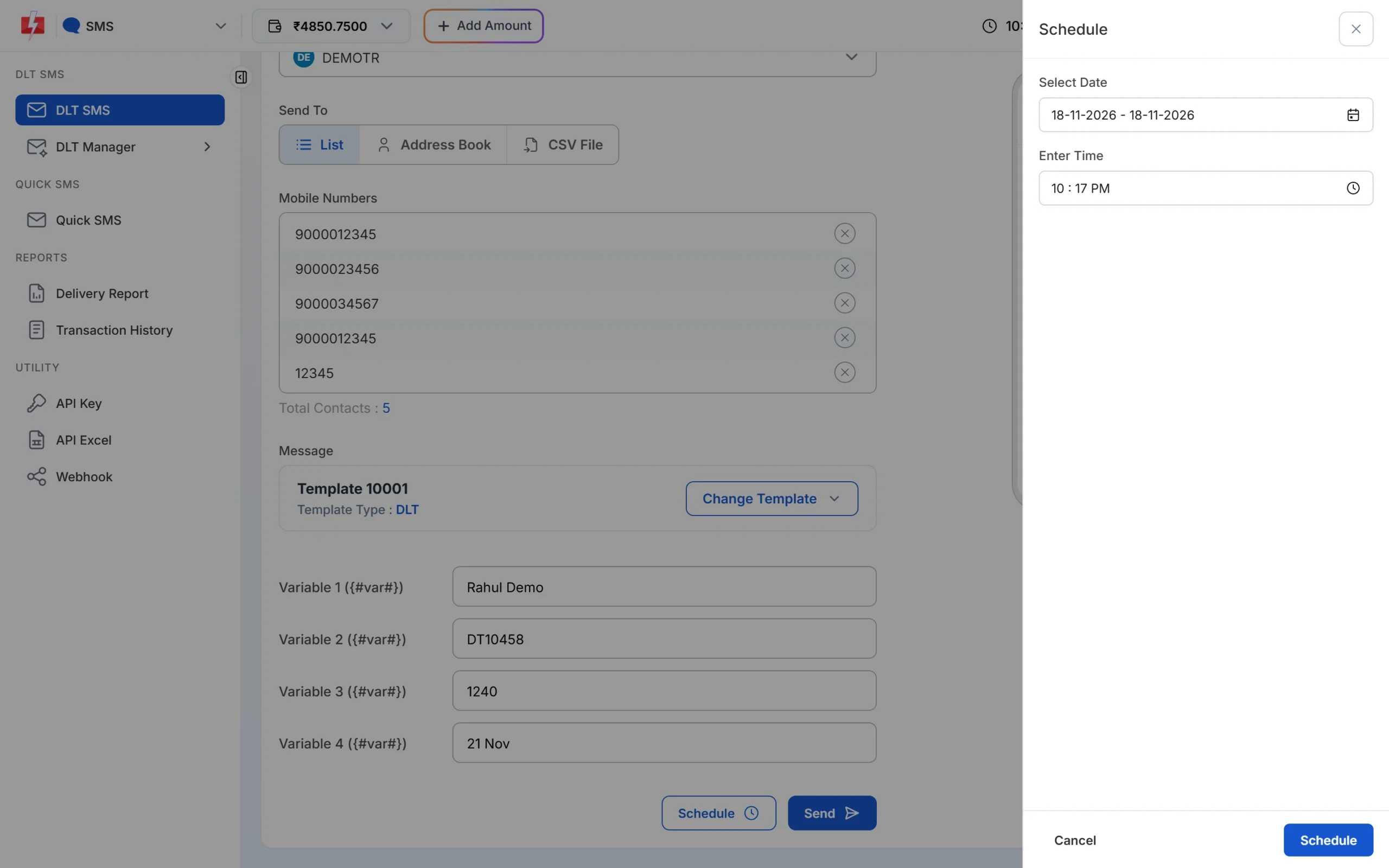
One date for a single send, a date range for a daily repeat. -
Trigger messages from your own software
The most useful automations start from an event in your business: an order placed, an invoice created, a booking made, a payment overdue. Connect these with the API key from API Key, or use a ready integration: the Shopify app, the WooCommerce plugin, the Tally Prime plugin, the Google Sheets add-on, or tools such as Pabbly Connect and HubSpot listed on the integrations page. Add a webhook to receive delivery reports, and for WhatsApp incoming messages too, so your CRM always has the latest status.
Automation ideas you can copy
- Restaurant: “menu” keyword sends the menu image, “book” starts a flow that asks date, time and guests, then assigns the chat to the manager.
- Clinic: booking system calls the API for a confirmation SMS, a scheduled reminder goes the day before, and a WhatsApp flow handles “reschedule”.
- Online store: order and shipping updates from the store plugin, “track” keyword asks for the order ID and checks it with an API Request block.
- Coaching institute: “fees” keyword replies with the fee structure PDF, a monthly scheduled SMS reminds parents of the due date.
- Wholesaler: “price list” auto reply sends the latest rate list as a document, out-of-office hours cover Sundays.
- Service business: after each job, a WhatsApp template with reply buttons asks for a rating. Low ratings get assigned to the owner.
Rules so automation stays welcome
- Always give a way to reach a person. Add a “Talk to our team” option and an Assign Conversation step in every flow.
- Use approved templates outside the 24-hour window. On WhatsApp, free replies (including bot replies) are possible only within 24 hours of the customer’s last message. After that, only a Meta-approved template can start the chat again.
- Keep service and marketing apart. Reminders and confirmations are service messages. Offers need a promotional SMS template (daytime only, not to DND numbers) or a WhatsApp marketing template sent to customers who opted in.
- Do not over-send. A reminder that repeats every day for a month will be blocked or reported. One reminder before the date and one on the day is enough for most.
- Test before you switch on. Message your own number with each keyword, try every button in the flow, and check what happens when you do not reply.
- Check the rule order. When several automatic replies could answer the same message, Rule Sequence Settings decides which one runs first: out of office, chatbot flow, auto reply, welcome or delayed response.
Common problems and fixes
| Problem | Likely cause | Fix |
|---|---|---|
| The chatbot does not answer “Hi” | Flow keywords match exactly, and “Hi there” is not “hi” | Add more keywords, or use the regex field, for example ^hi |
| Welcome message sent twice to the same customer | It goes on the first contact in each 24 hours | This is expected. Keep the welcome short. |
| Auto reply did not run while a staff member was chatting | Welcome, out of office and chatbot replies are skipped when a chat is assigned or an agent replied recently | Keyword auto replies and flow keywords still run. The other replies come back once the chat is unassigned and no agent has replied for 24 hours. |
| Flow shows “Number disconnected” | The WhatsApp number was removed or reconnected | Use Change number in the flow’s menu |
| Scheduled SMS went out at 10 AM, not at night | The template is promotional, and promotional SMS are held until the morning | Use a Service Implicit template for reminders |
What automation costs
There is no fee for setting up auto replies, Inbox Settings or Flow Builder in Fast2SMS. Messages that go out are charged from your wallet like any other message: SMS per part, WhatsApp by template category or as a session message, RCS by message type. Keyword auto replies on WhatsApp appear in Transaction History as “WhatsApp (Auto Reply)”, so you can see exactly what automation costs. Click the wallet balance at the top of the panel to see your current rates, or see the WhatsApp pricing page.
Sending in bulk? For high WhatsApp volumes our team offers discounted rates. Talk to our team or see WhatsApp pricing.
Frequently asked questions
Can I send automatic messages to customers without coding?
Yes. WhatsApp welcome, out-of-office and keyword replies, Flow Builder chatbots and scheduled campaigns are all set up in the panel. Store plugins for Shopify and WooCommerce also need no code.
How many chatbot flows can I create?
Up to 20 workflows per WhatsApp number.
Can the chatbot hand the chat to my staff?
Yes. Add an Assign Conversation block to pass the chat to a team member, who answers it in Live Chat.
Can I send the same reminder SMS every day?
Yes. Choose a date range in the Schedule drawer and the message goes once a day at the time you set. The cost is shown for all days before you confirm.
Do automatic WhatsApp replies work after 24 hours?
Replies work when the customer writes to you, because that opens a new 24-hour window. To start a chat yourself after 24 hours, you need an approved template.
Can my chatbot check an order status from my website?
Yes. The API Request block can call your own system’s public URL with the order ID the customer typed and use the answer in the next message.
Is there an extra fee for Flow Builder?
No. Building and running a flow has no fee of its own. Any charge for a message sent from your number shows in Transaction History.