
The fastest way to grow WhatsApp opt-ins is to ask at every place customers already meet you (checkout, bill counter, website, ads and SMS), tell them exactly what they will get, and make joining a single tap. This guide gives 10 practical ways to grow your WhatsApp opt-in list in a way that follows Meta’s rules, and shows how to confirm and track each new subscriber in Fast2SMS.
What counts as a valid WhatsApp opt-in
Meta asks for three things: the person must know they are opting in to messages from you, your business must be named, and you must follow the law that applies to you. You can collect it on your website, by SMS, through an IVR call, or in person or on paper. Meta also suggests asking separately for different kinds of messages, such as order updates and offers, so customers are not surprised.
A good opt-in line names the business, the channel and what they will get:
Keep a record of who opted in, when and where. It helps if a customer ever asks why you messaged them.
10 ways to grow WhatsApp opt-ins
1. A separate WhatsApp checkbox at checkout or sign-up
On your website, app or order form, add one checkbox for order updates on WhatsApp and a second, unticked one for offers. Customers who tick the offers box are your marketing list. Those who only tick updates still get their order messages.
2. A “Chat on WhatsApp” button on your website
Link the button to https://wa.me/ followed by your business number with country code, and add a ready message with ?text=, for example “Hi, I want offers on WhatsApp”. When the customer sends it, they have started the chat and asked for offers in their own words.
3. A QR code at the counter, on bills and on packaging
Turn the same wa.me link into a QR code and print it near the billing counter, on receipts, delivery boxes and menus. Meta’s WhatsApp Manager can also create QR codes and short links for a business number, with a pre-filled message of up to 140 characters. Add one line under the code: “Scan to get offers on WhatsApp”.
4. A keyword to join: “Send JOIN”
On posters, flyers and SMS, write “WhatsApp JOIN to 90000 00001 for weekly offers”. Then create an Auto Reply in Fast2SMS so everyone who sends JOIN gets an instant confirmation (see the steps below).
5. Ask existing customers by SMS
Your SMS list is often bigger than your WhatsApp list. Send a DLT SMS with your wa.me link asking customers to join you on WhatsApp. The link must be part of your approved DLT template.
6. Click-to-WhatsApp ads
Facebook and Instagram ads with a WhatsApp button bring new people straight into a chat. Ask them in the chat if they want offers on WhatsApp before you add them to campaigns.
7. Ask at the end of a good support chat
When a customer has just had their problem solved in Live Chat, a short “Would you like our offers on WhatsApp too? Reply YES” gets a high yes rate. Your team can save it as a predefined message to send in one click.
8. A welcome reward
Give a reason to join: a first-order coupon, early access to sales or a free sample. Send it with an approved marketing template right after they opt in.
9. Social media bios and posts
Put your wa.me link in your Instagram bio, Facebook Page and YouTube description, with the same promise: what they get and how often.
10. Staff who ask at billing
A cashier asking “Shall we send your bill and offers on WhatsApp?” is still one of the best opt-in sources for shops, clinics and restaurants. Record the answer in your billing software or a register.
Confirm and track opt-ins in Fast2SMS
-
Create a JOIN auto reply
Go to Chat Automation > Inbox Settings and click Create Auto Reply. Name it “Join offers”, add the keywords JOIN and “JOIN OFFERS”, choose Match Type Exact Match so ordinary sentences do not trigger it, and write a reply such as “Thanks for joining Demo Traders offers on WhatsApp. We send about two offers a month. Reply STOP any time.” Click Create Auto Reply.
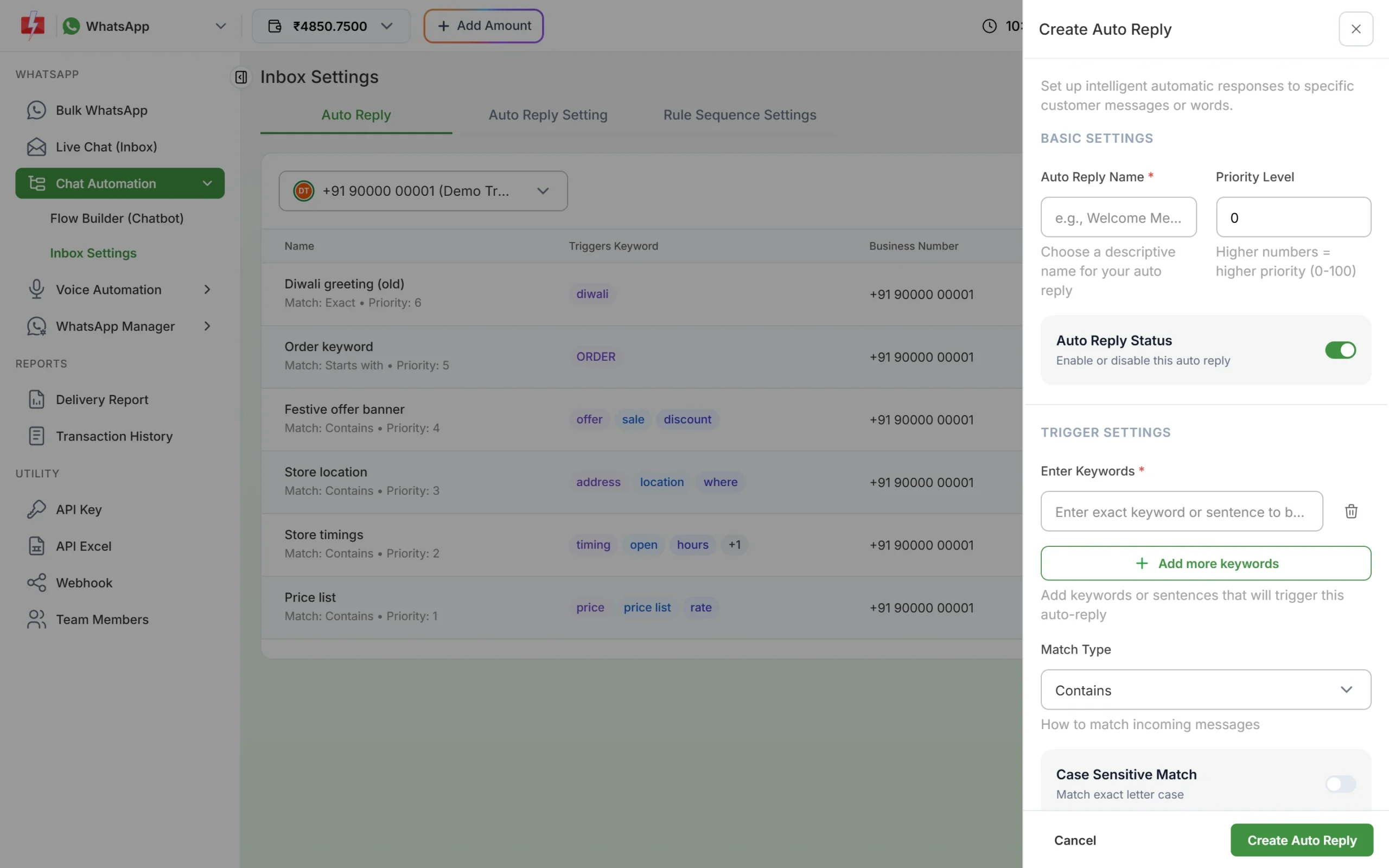
An auto reply confirms the opt-in the moment the customer sends JOIN. -
Set icebreakers for new chats
In WhatsApp Manager > Numbers, open the number’s menu and choose Icebreakers. Add up to 4 tap-to-send questions (80 characters each, no emojis), for example “Send me weekly offers”. A customer who taps it has asked for offers.
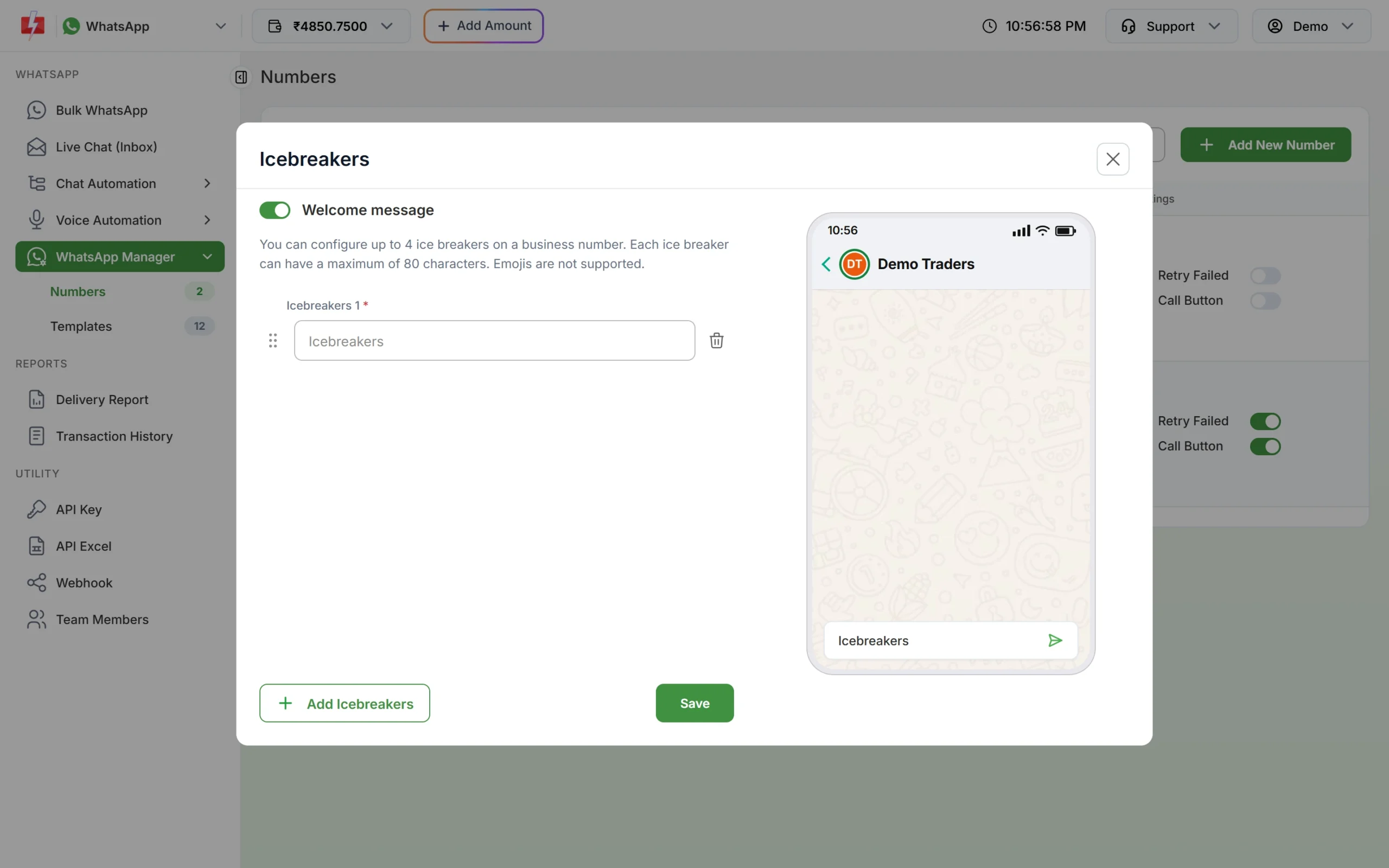
Icebreakers give new customers ready questions to tap. -
Mark opted-in customers
In Live Chat (Inbox), open the contact details panel and add a tag such as “Offers opt-in”, or a note with the date and source (QR, website, ad). Use the conversation filter by tag to find them later.
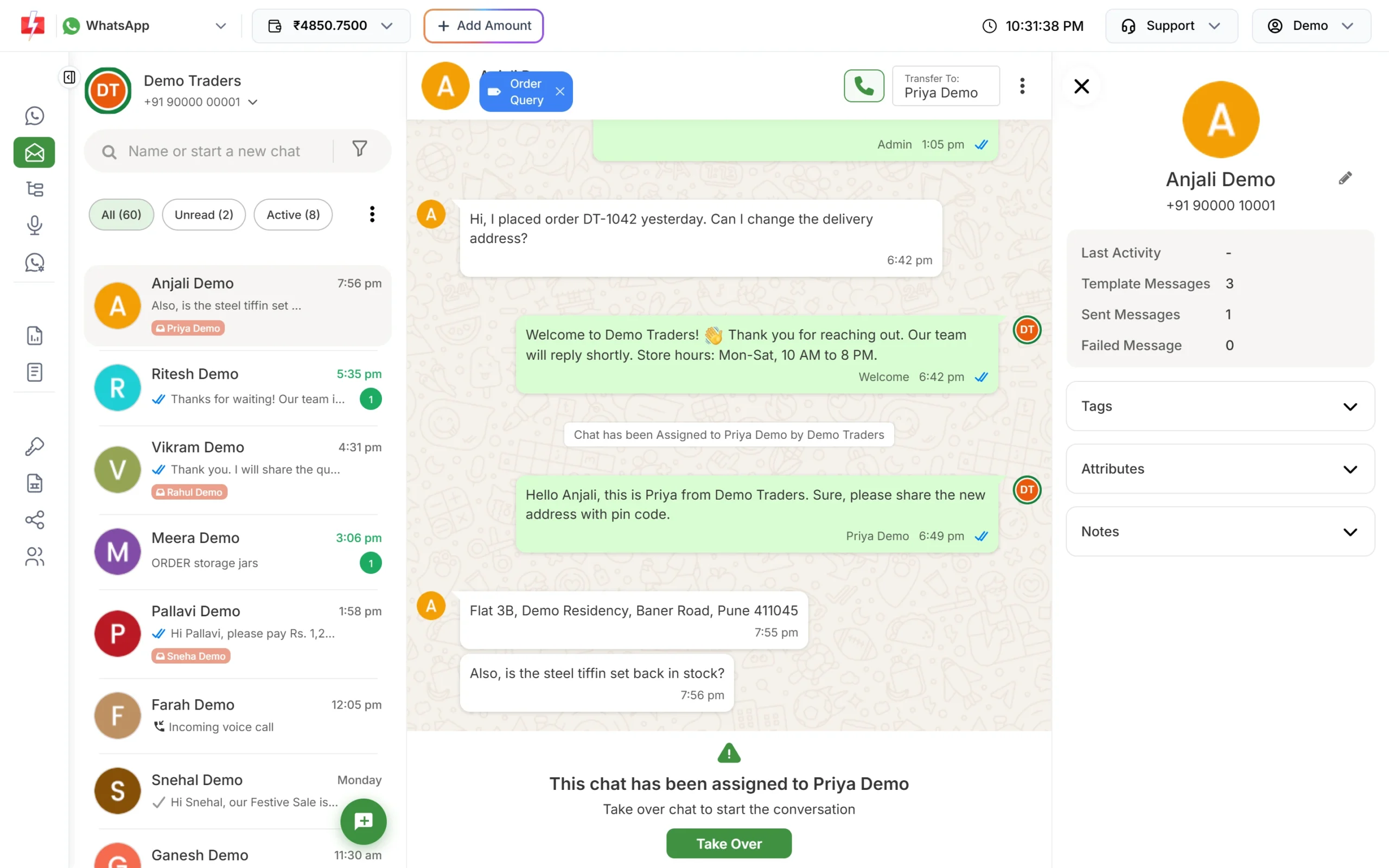
Tags and notes on the contact keep a record of the opt-in. -
Build your campaign list
Keep opted-in customers in an Address Book group or an Excel file. In Bulk WhatsApp, send marketing templates only to that group, never to your full contact list.
What it costs
Collecting opt-ins costs nothing. Customers’ messages to you are free, and each automatic confirmation is charged at the session rate, ₹0.13 at the time of writing. Marketing templates you send to your list cost ₹0.95 per message. See the WhatsApp pricing page for current rates.
Sending in bulk? For high WhatsApp volumes our team offers discounted rates. Talk to our team or see WhatsApp pricing.
Keep the list healthy
- Make leaving easy. Add a “Stop promotions” button to marketing templates and an auto reply for STOP. Remove those numbers before the next campaign.
- Send what you promised. If you said “twice a month”, do not send daily.
- Never add bought or scraped numbers. They never opted in, so they block and report you.
- Watch your quality rating in WhatsApp Manager > Numbers after you start a new opt-in source, as Meta advises.
Frequently asked questions
Is a customer messaging me first an opt-in?
It lets you reply for 24 hours. For later offers, ask them clearly in the chat and keep a record of their yes.
Does opt-in have to be collected on WhatsApp?
No. Meta accepts opt-in from your website, SMS, an IVR call, or in person or on paper, as long as it names your business and says they will get messages.
Can I use one checkbox for order updates and offers?
You can, but separate checkboxes work better. Customers who only want order updates will not block you over offers they did not expect.
Can I add customers from my phone contacts to campaigns?
Only those who agreed to get your messages on WhatsApp. Having someone’s number is not permission.
How do I make a WhatsApp QR code for opt-ins?
Create a wa.me link with your number and a ready message, then turn it into a QR code, or create one in Meta’s WhatsApp Manager.
What if someone opts out?
Stop marketing to them at once, confirm it, and remove them from your list. WhatsApp also lets users stop marketing messages in the app, and those sends fail with error 131050.