
A good OTP verification screen gets the user through in one try: the code fills itself or pastes in one tap, the resend button waits just long enough, and every error tells the user what to do next. This guide covers the input field, the resend timer and the error messages, and shows how to match each one to the Smart OTP API responses and settings in Fast2SMS. It is written for developers and product teams building a login or sign-up flow.
The OTP screen checklist
| Part of the screen | Do this |
|---|---|
| Heading | Say where the code went: “Enter the 6-digit code sent to 98xxxxxx21” with an Edit number link. |
| Input | One field that accepts digits only, opens the number keypad, allows paste and supports autofill. |
| Submit | Verify automatically when the last digit is entered. Keep a button for users who prefer it. |
| Resend | Show a countdown, then a Resend code link. Match the timer to your resend wait setting. |
| Errors | One short line under the field that says what happened and what to do. |
| Other channel | If you use WhatsApp fallback, say “Check your SMS or WhatsApp”. |
The input field: one box or six?
Six separate boxes look nice but often break paste and autofill, because the browser puts the whole code in the first box. If you want the look of boxes, draw them with CSS around one real input. The field that matters looks like this:
<label for="otp">Enter the 6-digit code sent to 98xxxxxx21</label>
<input id="otp" name="otp" type="text"
       inputmode="numeric" pattern="[0-9]*"
autocomplete="one-time-code" maxlength="6">inputmode="numeric"opens the number keypad on phones.autocomplete="one-time-code"lets iPhone and many browsers suggest the code from the SMS.- Set
maxlengthto the same length you send. Smart OTP sends 6 digits by default, and you can choose 4 to 10 withotp_length. - On paste, strip spaces and anything that is not a digit before you check the length.
For full autofill on Android apps and Chrome, your DLT OTP template needs the app hash or a WebOTP line. See OTP autofill on Android, iPhone and websites.
The resend timer
Users press Resend too early when they cannot see a timer, and every resend is a charged message. Use the limits you set in Fast2SMS:
-
Set the resend wait and verify attempts
Open Smart OTP > OTP Settings. SMS Resend / Time Limit (Seconds) is the minimum wait before the same template can go to the same number again (default 10 seconds if not set). Max Verify OTP Limit (Per SMS) is how many wrong tries one code allows (default 10). Click Save Settings.
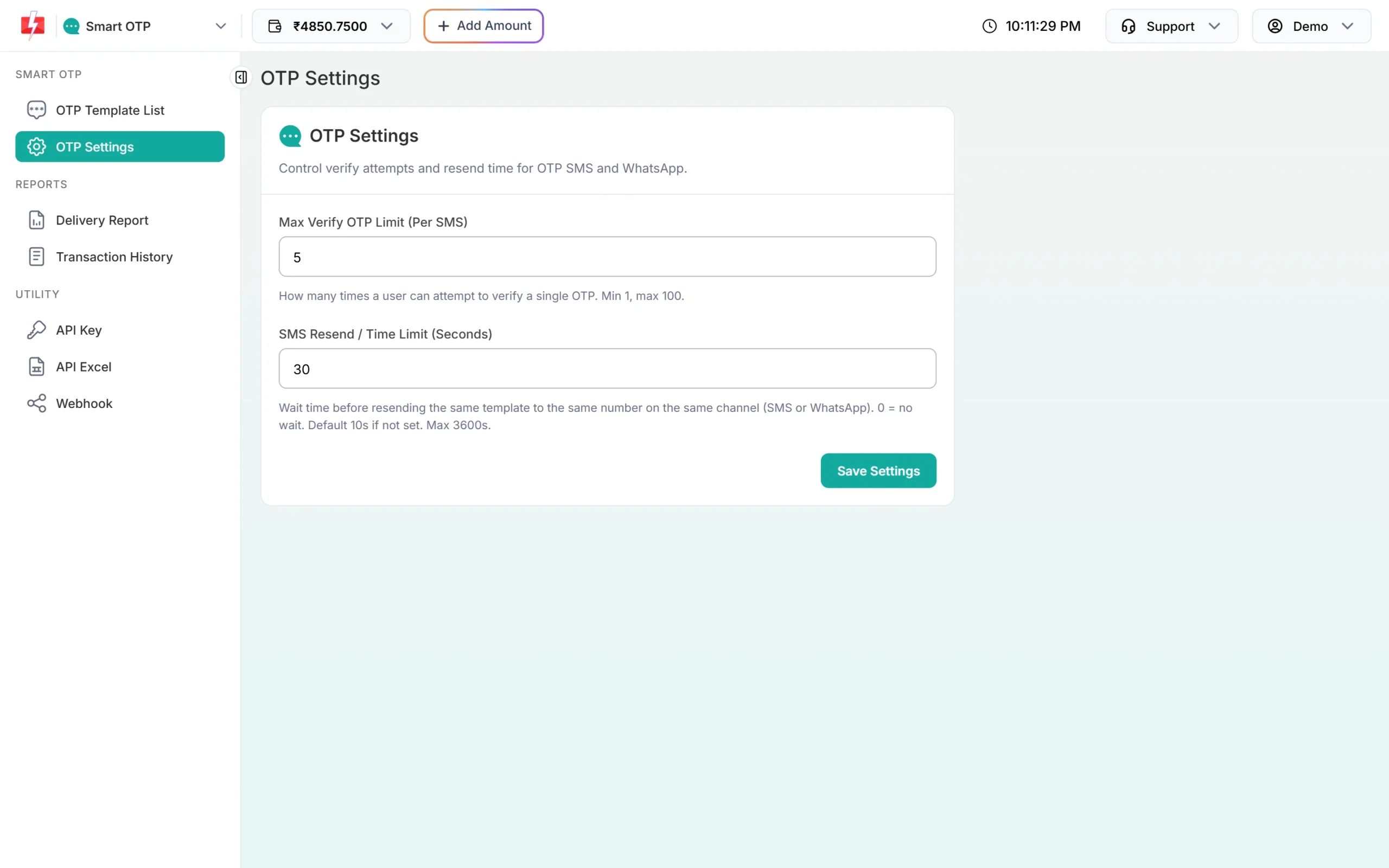
Use these two values in your screen’s timer and error messages. -
Start the countdown from the same number
If the wait is 30 seconds, show “Resend code in 0:30” and enable the link at zero. A timer shorter than the setting only produces “Please wait” errors.
-
Stop offering resend after the limit
Resend works up to 5 sends of the same OTP within 10 minutes, counting the first. After that, hide Resend and offer to start again with a fresh code, or the other channel.
Error messages that help
Do not show the raw API text to users. Map each Smart OTP response to a short message and an action.
| API message | Show the user | Screen action |
|---|---|---|
| “Invalid OTP” | That code is not right. Check it and try again. | Clear the field, keep focus on it. |
| “OTP expired” | This code has expired. We can send you a new one. | Show a Send new code button. |
| “Maximum verification attempts reached. OTP is no longer valid.” | Too many wrong tries. Please request a new code. | Disable the field and show Send new code. |
| “Please wait N seconds before requesting a new OTP” | You can ask for a new code in N seconds. | Restart the timer from N. |
| “OTP resend window (10 minutes) has expired. Please request a new OTP.” | Let’s send you a fresh code. | Call send again, not resend. |
| “Maximum resend limit (5 times) reached. Please try again later.” | We have sent several codes. Please try again in a few minutes. | Hide Resend for a while. |
| “OTP not found or already verified” | This code was already used or replaced. Request a new one. | Show Send new code. |
Each new send to a number cancels the older unverified codes for that number. If a user taps Send twice, only the latest code works. Say “Use the latest code we sent” in your hint text.
Small things that cut drop-offs
- Show the number with the middle digits hidden and an Edit number link. Many failures are typos.
- Keep the screen open if the user leaves to read the SMS. Do not reset the timer or the field.
- Keep the OTP expiry long enough for slow networks. Smart OTP defaults to 15 minutes.
- Track how many users reach the screen and how many verify. The Verified column in the OTP report export shows which codes were verified.
Frequently asked questions
Should OTP input be one field or separate boxes?
One real input is safer for paste and autofill. You can style it to look like boxes.
How long should the resend timer be?
The same as your SMS Resend / Time Limit in OTP Settings. Many teams use 30 seconds.
Should I auto-submit when the last digit is typed?
Yes, it saves a tap. Keep a Verify button too, and do not auto-submit a pasted code that has the wrong length.
How many wrong tries should I allow?
Set it in Max Verify OTP Limit. The default is 10 and you can choose 1 to 100.
Why does an older code say invalid?
A new send to the same number cancels older codes. Only the latest one can be verified.
How do I make the OTP fill automatically?
Use autocomplete=”one-time-code” on the field, and add the app hash or WebOTP line to your DLT OTP template.