
This guide shows you how to build a Go OTP login page with Fast2SMS Smart OTP, using only the standard library (net/http and html/template). Our starter kit has a small login app and a fast2sms package you can copy into your own project. Users type their mobile number, get a code by SMS or WhatsApp and log in.
What you build
A login page that works like this:
- The user types a mobile number and clicks Send OTP. Fast2SMS creates the code and sends it.
- The user types the code and clicks Verify. Fast2SMS checks it, and your app logs the user in.
- A Resend code button works after a short wait (30 seconds by default).
The kit uses Smart OTP, our recommended way to send OTPs. An OTP template sends on SMS or WhatsApp, with optional fallback to the other channel, on a priority route. Fast2SMS creates, stores and checks the code, so your app does not keep any OTP itself.
Download the ready-made starter kit (zip)Download .zip
go test ./...) against the included mock server before you use it.Before you start
- A Fast2SMS account with wallet balance. Every OTP you send is charged.
- For SMS OTP: an approved DLT entity, sender ID and OTP content template in DLT Manager. For WhatsApp OTP: a connected WhatsApp number with an approved authentication (or utility) template.
- Go 1.22 or newer. No other packages are needed.
Set up Go OTP login in 5 steps
-
Create a Smart OTP template
In the panel, open Smart OTP > OTP Template List and click Add OTP Template. On the SMS Channel tab, pick your entity, sender and approved DLT OTP template, then click the variable button that holds the code and click Assign OTP Template. For WhatsApp, use the WhatsApp Channel tab. You can also tick SET FALLBACK TEMPLATE to add the other channel as a fallback.
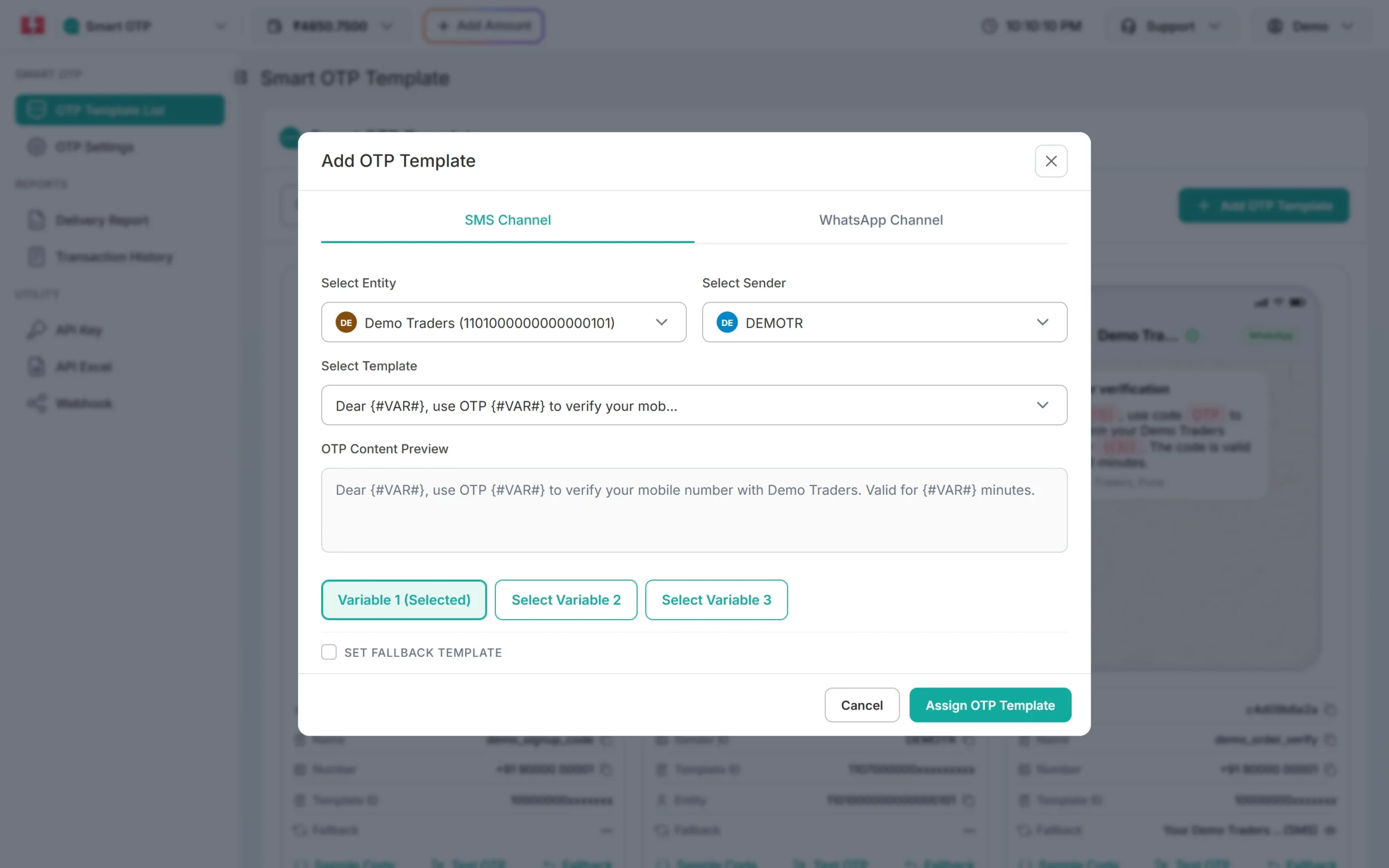
Pick the entity, sender and DLT template, then choose which variable holds the OTP. -
Copy the OTP ID
Your new template shows as a card in the OTP Template List. Copy its OTP ID with the copy icon. It is 10 characters long, for example
a1b2c3d4e5.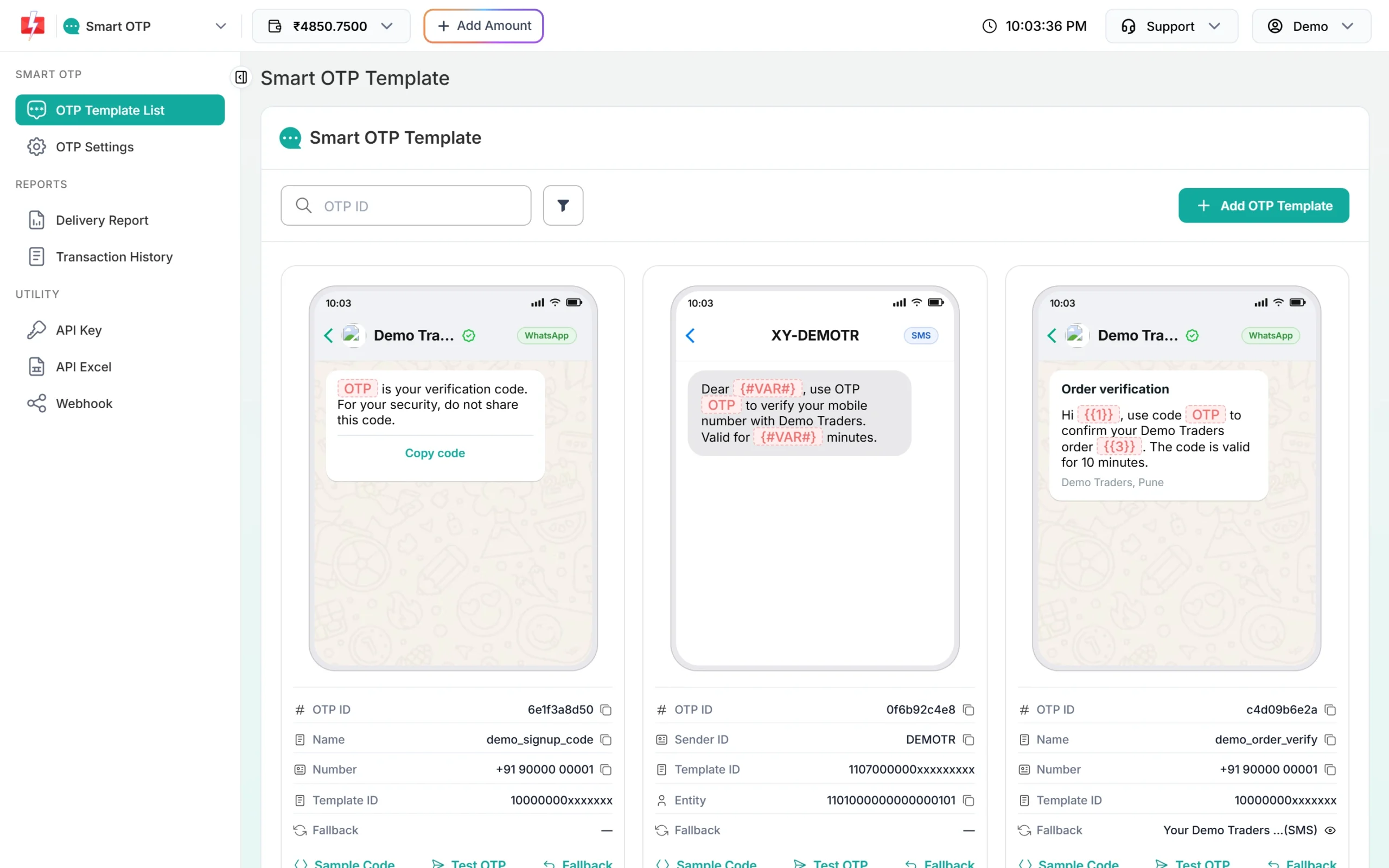
Each card shows the OTP ID you put in your .env file. -
Copy your API key
In the left menu under Utility, click API Key. Click View to see the full Authorization Key (the panel asks for an OTP sent to your registered mobile first) and copy it. Check that API Access is switched on.
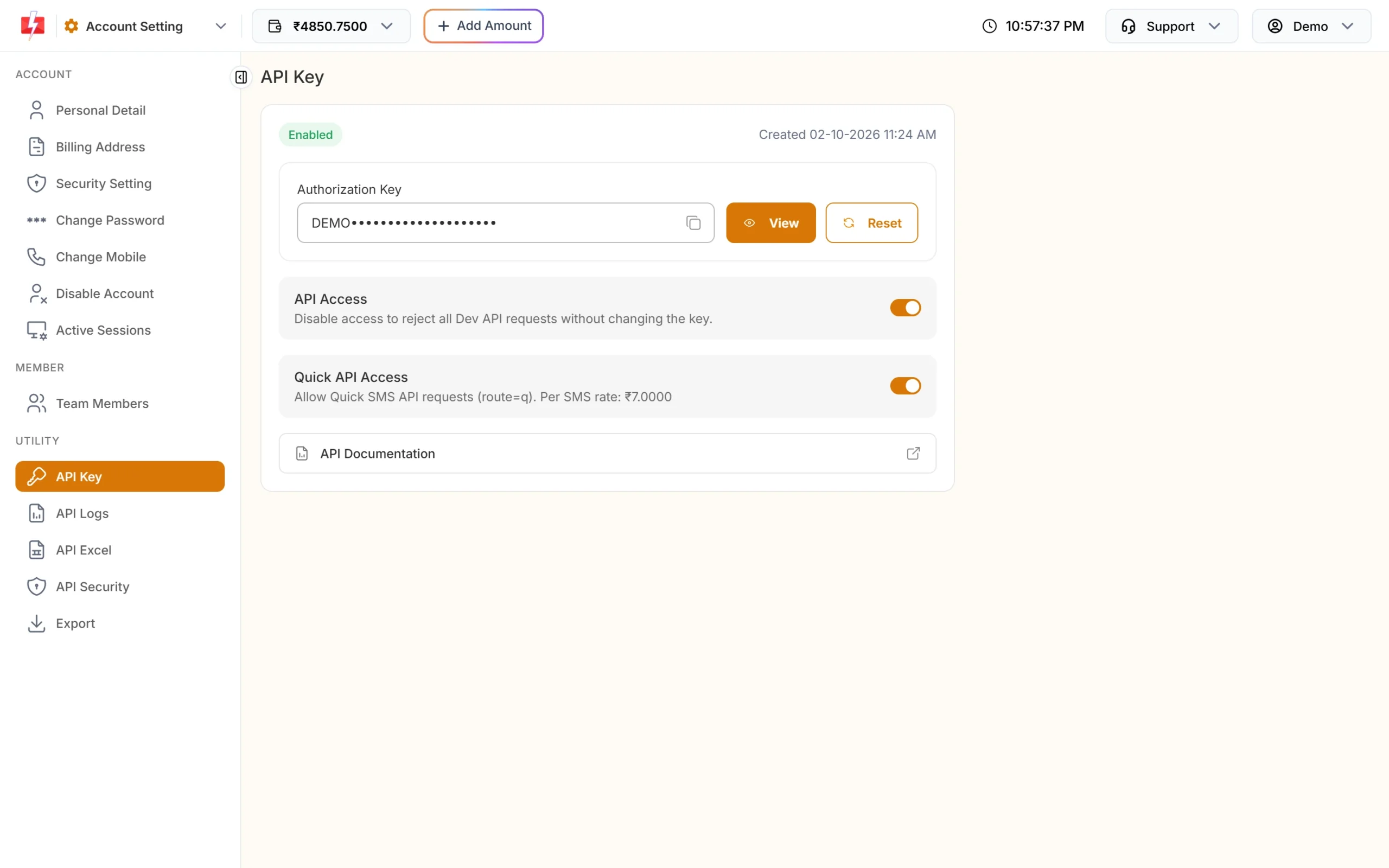
Copy the Authorization Key. API Access must be on. -
Put the API key and OTP ID in .env
In the unzipped kit, copy
.env.exampleto.envand put in your values:FAST2SMS_API_KEY=YOUR_API_KEY FAST2SMS_OTP_ID=a1b2c3d4e5 OTP_RESEND_WAIT_SECONDS=30The app reads
.envfrom the folder you start it in. Real environment variables win over.env.Never commit
.envto git; make sure your.gitignorelists it. -
Run it and log in
Start the app:
go run .Open
http://127.0.0.1:8000, type your own mobile number and click Send OTP, then type the code and click Verify. SetADDR(for exampleADDR=:8080) to listen on another address. If the API key or OTP ID is missing, the app stops at start-up with “Setup needed”.
How send, verify and resend work in the Go kit
| Step | Your app calls | Fast2SMS endpoint | Charged? |
|---|---|---|---|
| Send | client.Send(ctx, mobile, otpID, opts) |
POST /dev/otp/send |
Yes |
| Verify | client.Verify(ctx, mobile, code) |
POST /dev/otp/verify |
No |
| Resend | client.ResendOrSend(ctx, mobile, otpID, opts) |
POST /dev/otp/resend, falls back to send |
Yes |
The client is the fast2sms folder (client.go). Copy the folder into your own module. The login page, an in-memory session store, the CSRF check and the .env loader are in main.go.
Send
The kit first cleans the number, so +91 98765-43210 becomes 9876543210. Anything that is not a 10-digit Indian mobile starting with 6 to 9 is refused before any API call, so it costs nothing. Then it sends the mobile and your OTP ID. Fast2SMS makes a 6-digit code that is valid for 15 minutes, unless you pass otp_length (4 to 10) or otp_expiry (1 to 10080 minutes).
“OTP sent successfully” means Fast2SMS accepted the request. It does not mean the phone has received it. Delivery shows in Smart OTP > Delivery Report and in the OTP webhook.
Verify
Verify needs only the mobile and the code the user typed, no OTP ID. Fast2SMS checks the latest unverified code for that mobile. Sending a new OTP cancels the older codes, so only the newest one works. The result is one of verified, invalid (wrong code, one try used), expired, max_attempts or not_found.
This is the verify case from main.go. On success it gives the user a new session:
res, err := a.client.Verify(r.Context(), pending, otp)
if err != nil {
	return err
}
if res.OK {
	// Logged in. A new session id stops session fixation.
	a.sessions.regenerate(w, s)
	s.data["user_mobile"] = pending
	delete(s.data, "pending_mobile")
	delete(s.data, "sent_at")
	delete(s.data, "need_new_code")
}
Resend
Resend sends the same code again and is charged like a new send. It works only within 10 minutes of the last send, and Fast2SMS allows at most 5 sends to one number in those 10 minutes, counting the first. So a user gets up to 4 resends. When there is nothing to resend (never sent, already verified, or the 10 minutes are over), the kit sends a new code instead:
func (c *Client) ResendOrSend(ctx context.Context, mobile, otpID string, o SendOptions) (*Result, error) {
	r, err := c.Resend(ctx, mobile)
	if err != nil {
		return nil, err
	}
	switch r.Reason {
	case "no_previous", "already_verified", "window_expired":
		r, err = c.Send(ctx, mobile, otpID, o)
		if err != nil {
			return nil, err
		}
		r.SentNew = true
	}
	return r, nil
}
The API key goes in the authorization header as the bare key. Do not add Bearer in front: the OTP API refuses it.
req.Header.Set("authorization", c.apiKey) // bare key, no "Bearer ", never in the URLThe kit never retries a send or resend on its own, because a retry after a timeout could send, and charge, twice. It retries once, after 1 second, only when the connection could not be opened or Fast2SMS answered 502, 503 or 504 with an error page.
Security notes
Never expose the API key
- Call Fast2SMS only from your server. Never put the API key in JavaScript, a mobile app or a page the browser can download.
- Keep the key in
.envor environment variables, out of git. If it ever leaks, click Reset on the API Key page; the old key stops working. - Turn on API Security and whitelist your server’s public IP, so a stolen key does not work from anywhere else.
- The kit never writes the OTP or the full key to its logs. Mobiles are logged as
98xxxxxx10.
Rate limits
Every send costs money, so limit who can press Send OTP. There are three layers:
- The kit’s wait: the Resend button works only after
OTP_RESEND_WAIT_SECONDS(30 by default). Clicks before that make no API call. - Fast2SMS limits: the SMS Resend / Time Limit in OTP Settings (10 seconds if not set, 0 to 3600) and the fixed cap of 5 sends per number in 10 minutes.
- Your own limit: add a limit per IP address or a CAPTCHA on the Send button. Bots that try many different numbers are not stopped by per-number limits.
Sessions live in the program’s memory and are lost on restart. Use Redis or a database when you run more than one server, and add Secure: true to the cookie once you are on HTTPS.
Verify attempts
Set Max Verify OTP Limit (Per SMS) in Smart OTP > OTP Settings. It can be 1 to 100 and is 10 if you never set it; 3 to 5 suits most login pages. When the limit is reached, the code stops working and the kit shows “Too many wrong tries” with a Send new code button.
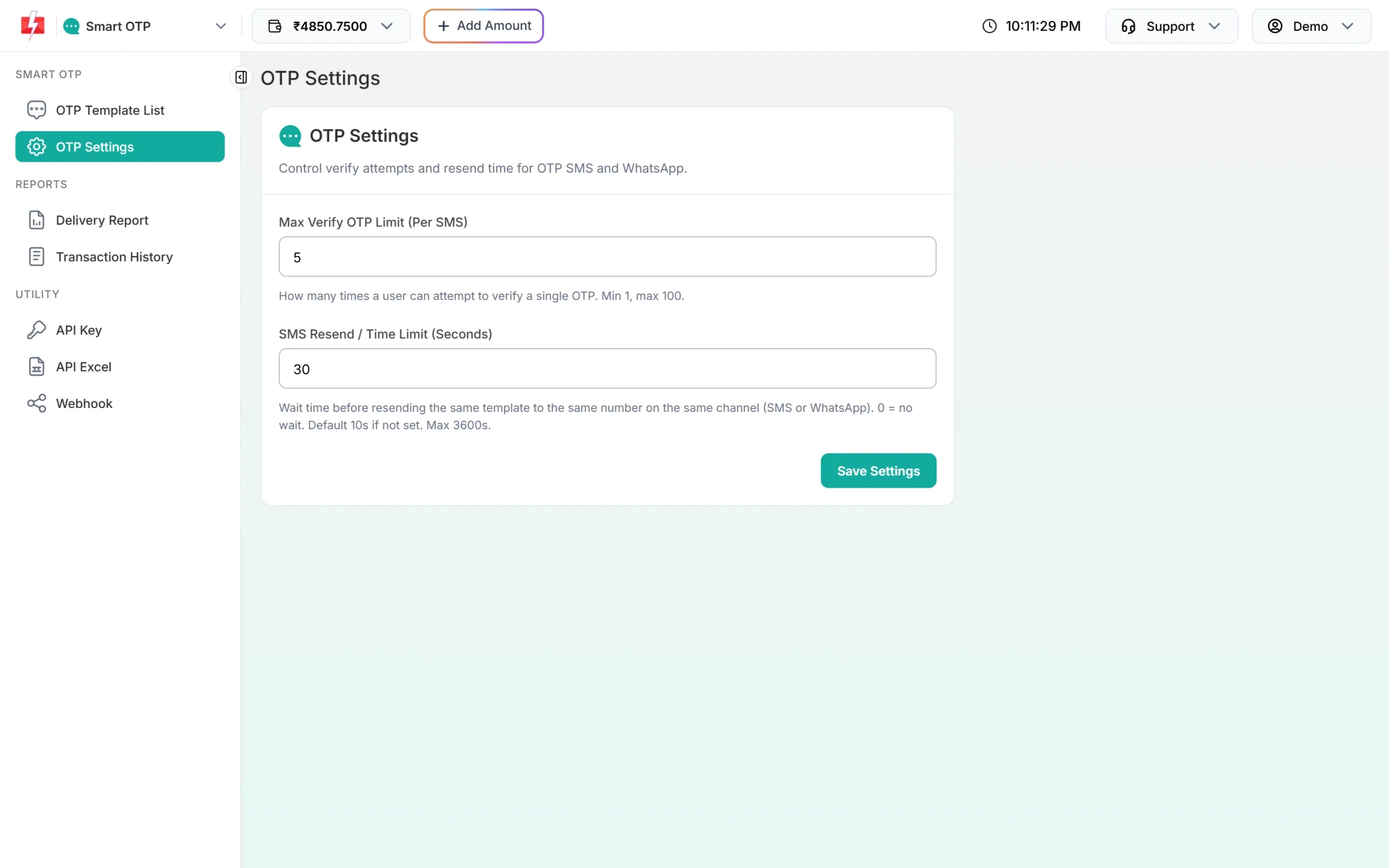
client.Send(ctx, mobile, otpID, opts). Do not re-send the old code. In the kit, the Send new code button calls client.ResendOrSend(ctx, mobile, otpID, opts); for a stricter setup, change it to call send when the last verify ended in max_attempts.Every send and every resend is charged at your OTP rate; verify is free. A fallback message on the second channel is also charged. See the current rates on the OTP SMS page.
Sending in bulk? For high OTP volumes our team offers discounted rates. Talk to our team or see OTP pricing.
Use HTTPS on the live site. After a correct code the kit starts a new session (or sign-in cookie), which stops session fixation, and every form carries a CSRF token.
OTP over DLT SMS: the second Go kit
Smart OTP is the easier choice. If you would rather send OTPs through your own approved DLT OTP template with the DLT SMS API, use our “OTP over DLT” kit for the same stack. It has the same login page, but the work is split differently:
- Your app makes the code with a secure random generator and keeps only an HMAC-SHA256 hash of it, with the expiry time and a try counter. The code is never stored, logged or shown.
- Fast2SMS only delivers the SMS. In
dltmode the kit calls/dev/bulkV2withroute=dlt, your sender ID and the template’s Message ID. Indlt_manualmode it calls/dev/customwithroute=dlt_manual, your Entity ID, the 19-digit DLT Template ID and the full text. - Verify happens in your app with a constant-time compare. No API call, no charge.
- Resend sends a new code and the old one stops working.
The two calls are svc.SendOTP(ctx, mobile) and svc.VerifyOTP(mobile, code) in fast2sms/otp.go. These are the DLT settings in its .env, next to the API key and an OTP_HASH_SECRET (a long random string; the app will not start without it):
# How to send: dlt (DLT SMS, default) or dlt_manual (DLT Manual).
OTP_SEND_MODE=dlt

# Your approved DLT sender ID, exactly as in DLT Manager (case matters).
FAST2SMS_SENDER_ID=FSTSMS

# DLT SMS: the "Message ID" from the template card in DLT Manager. NOT the 19-digit DLT Template ID.
FAST2SMS_DLT_MESSAGE_ID=111111
FAST2SMS_DLT_VARIABLES={otp}

# DLT Manual: the full approved DLT text, with {otp} where the code goes.
FAST2SMS_DLT_MANUAL_TEXT=Your OTP is {otp} for Login. -Demo
FAST2SMS_DLT_ENTITY_ID=1101234567890123456
FAST2SMS_DLT_TEMPLATE_ID=1107123456789012345| Rule | Default | Setting |
|---|---|---|
| Code length | 6 digits (4 to 6 allowed) | OTP_LENGTH |
| Code expires after | 5 minutes | OTP_EXPIRY_MINUTES |
| Wrong tries per code | 5, then the code is deleted | OTP_MAX_ATTEMPTS |
| Wait between sends to one number | 30 seconds | OTP_RESEND_WAIT_SECONDS |
| Sends per number per hour | 5 | OTP_MAX_SENDS_PER_HOUR |
OTP records live in memory (MemoryStore). Write a store for Redis or your database if you run more than one server. Like the Smart OTP kit, this one was reviewed but not compiled or run (no Go on the test machine). The review fixed one compile error in a test file.
Download the OTP over DLT starter kit (zip)Download .zip
Common problems and fixes
| What you see | Why | Fix |
|---|---|---|
“SMS login is not set up correctly” and Invalid authorization key in the log |
Wrong key, or Bearer in front of it |
Copy the key again from API Key and send it bare. |
Authorization Key Disabled (413) in the log |
API Access is off | Switch on API Access on the API Key page. |
IP is blacklisted (414) in the log |
API Security is on and your server IP is not listed | Add the server’s public IP in API Security. |
| “Could not send the code: Invalid OTP ID” | The OTP ID is wrong, deleted or from another account | Copy it from OTP Template List, in the same account as the key. |
| “Please wait N seconds before asking for a new code.” | Fast2SMS cooldown for this number | Wait, or change the time in OTP Settings. |
| “Could not send the code: Insufficient wallet balance” | Low balance | Recharge with Add Amount. |
| “Maximum resend limit (5 times) reached” | 5 sends to this number in 10 minutes | Wait and try later. |
| “Could not reach the SMS service.” | Network problem, or Fast2SMS was busy | Try again in a minute. |
Test without sending SMS
Each kit has a fake Fast2SMS server in its mock folder (it needs Python 3). It never sends an SMS, and with it the correct code is always 123456. Start it, then run the tests in a second terminal:
python mock/mock_fast2sms.py
FAST2SMS_BASE_URL=http://127.0.0.1:4010 go test ./...
To click through the login page with the mock, set FAST2SMS_API_KEY=TEST_KEY_OK and FAST2SMS_BASE_URL=http://127.0.0.1:4010 in .env. Remove FAST2SMS_BASE_URL before you go live.
Frequently asked questions
Can I use the fast2sms package with Gin, Echo or Chi?
Yes. The package only makes HTTP calls to Fast2SMS and does not depend on net/http routing. Create the client once and call Send, Verify and ResendOrSend from your handlers.
Why does the Go client take a context?
So the call stops when the user’s request is cancelled. Each call also has its own 15-second limit.
Is the starter kit free?
Yes. The kit is free under the MIT license. You pay only for the OTPs you send from your Fast2SMS wallet.
Can the same code send the OTP on WhatsApp?
Yes. The code only knows the OTP ID. If that OTP ID uses a WhatsApp authentication template, or has a WhatsApp fallback, Fast2SMS handles the channel and your code stays the same.
The page says the code was sent, but no SMS arrived. Why?
“OTP sent successfully” means Fast2SMS accepted the request. Check the status in Smart OTP > Delivery Report. If the message failed and you set a fallback, the same OTP goes out once on the other channel.
How many times can a user resend the OTP?
Up to 4 times: Fast2SMS allows 5 sends of one OTP ID to a number in 10 minutes, counting the first. The wait between sends comes from your OTP Settings and the kit’s 30-second Resend wait.