
Your users see an OTP SMS from your own DLT sender ID, for example VM-DEMOTR-T, and a WhatsApp OTP from your own WhatsApp Business number with your business name. With Fast2SMS Smart OTP, each OTP template is tied to one sender: a DLT sender ID for SMS, or a connected WhatsApp number for WhatsApp. This page explains how the OTP sender is set, how to see which one each template uses, and how to change it.
Who the OTP SMS comes from
An OTP SMS in India comes from a header (sender ID) that your business registered on DLT. It is up to 6 characters, such as your brand name. On the phone it looks like this:
| Part | Example | Who sets it |
|---|---|---|
| Prefix | VM- | The operator, to show which operator and circle delivered it |
| Header | DEMOTR | Your business, on the DLT portal |
| Suffix | -T or -S | The operator, from the template type you registered |
The suffix tells users what kind of message it is, such as -T for transactional or -S for service. See SMS header suffix -P, -S, -T and -G. You cannot send OTP SMS from a personal mobile number in India. See why you cannot use your mobile number as sender ID.
Who the WhatsApp OTP comes from
A WhatsApp OTP comes from the WhatsApp Business number you connected in Fast2SMS. The chat shows your business name and logo, and the message has a Copy code button. You can use any connected number on your account. Each WhatsApp OTP template is linked to one number and one approved authentication or utility template.
See which sender each OTP template uses
-
Open the OTP Template List
In Smart OTP, open OTP Template List. Each card shows a phone preview and a Sender ID / Number row. For SMS it is the DLT sender ID. For WhatsApp it is the display number.
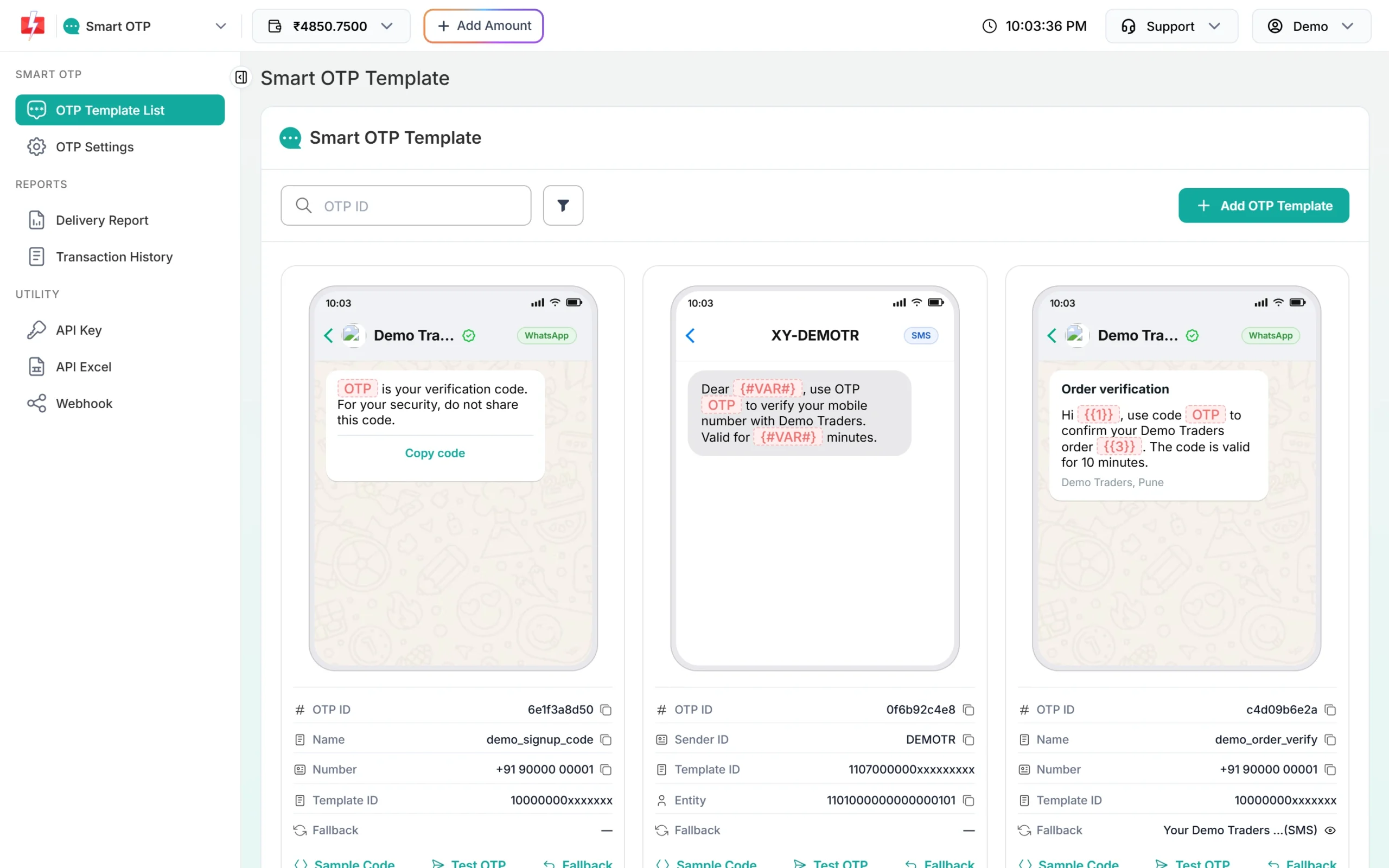
The Sender ID / Number row tells you who the OTP comes from. -
Check the fallback sender too
If the template has a fallback, the Fallback row shows it. Click the eye icon to preview the fallback message. When the first channel fails, the same code goes from the fallback sender, so the user may see it from your WhatsApp number instead of your SMS header, or the other way round.
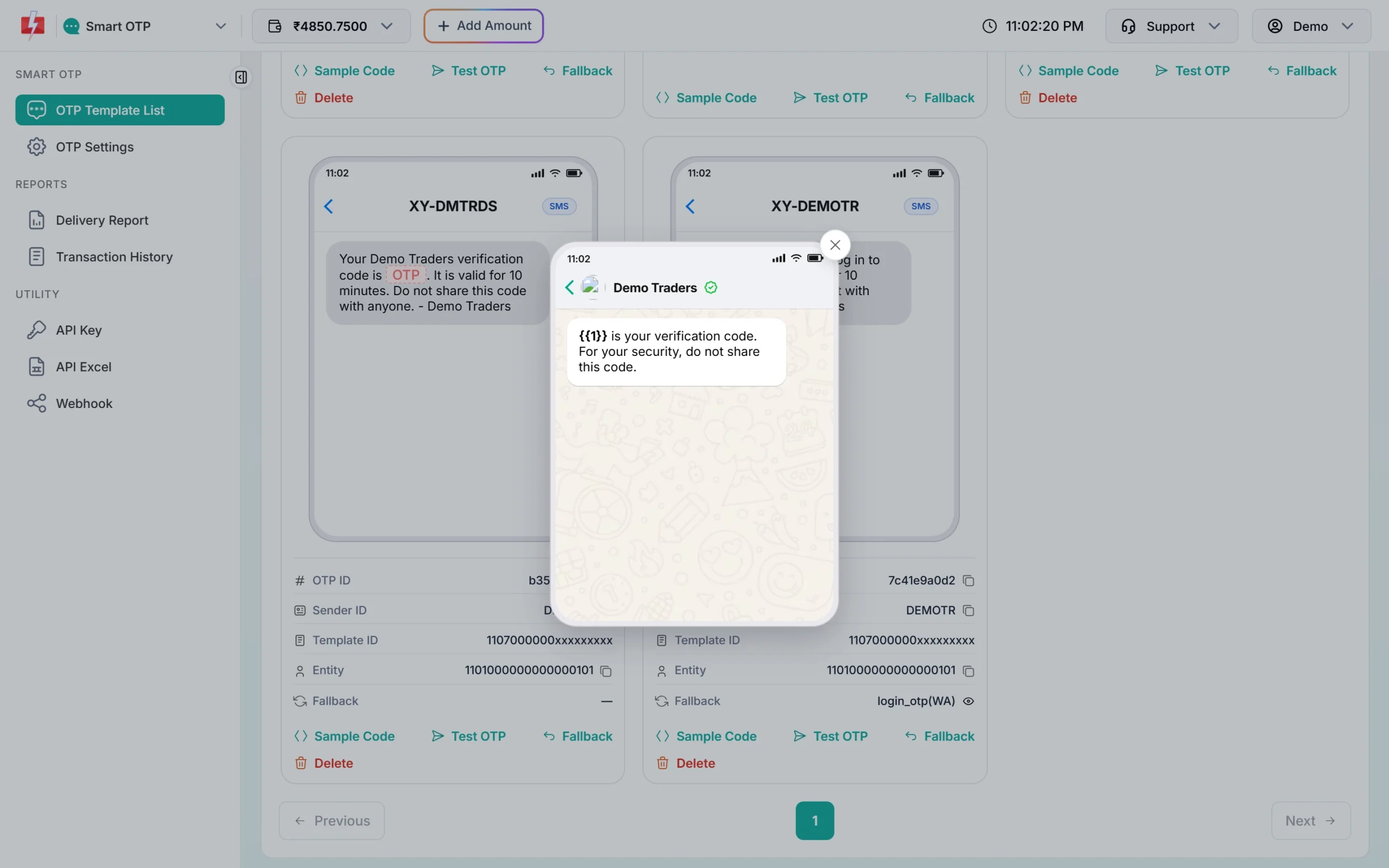
The fallback preview shows the message from the other channel.
How to change the OTP sender
The sender of a Smart OTP template cannot be edited. To send from a different sender ID or WhatsApp number, create a new OTP template:
-
Get the new sender ready
For SMS, the new header must be approved on your DLT portal and added in DLT Manager, with an approved OTP content template linked to it. For WhatsApp, connect the new number in WhatsApp Manager and get an authentication template approved on it.
-
Add a new OTP template
Click Add OTP Template. For SMS, choose the entity, then the new sender, then the template, and click the variable that carries the OTP. For WhatsApp, choose the number and template.
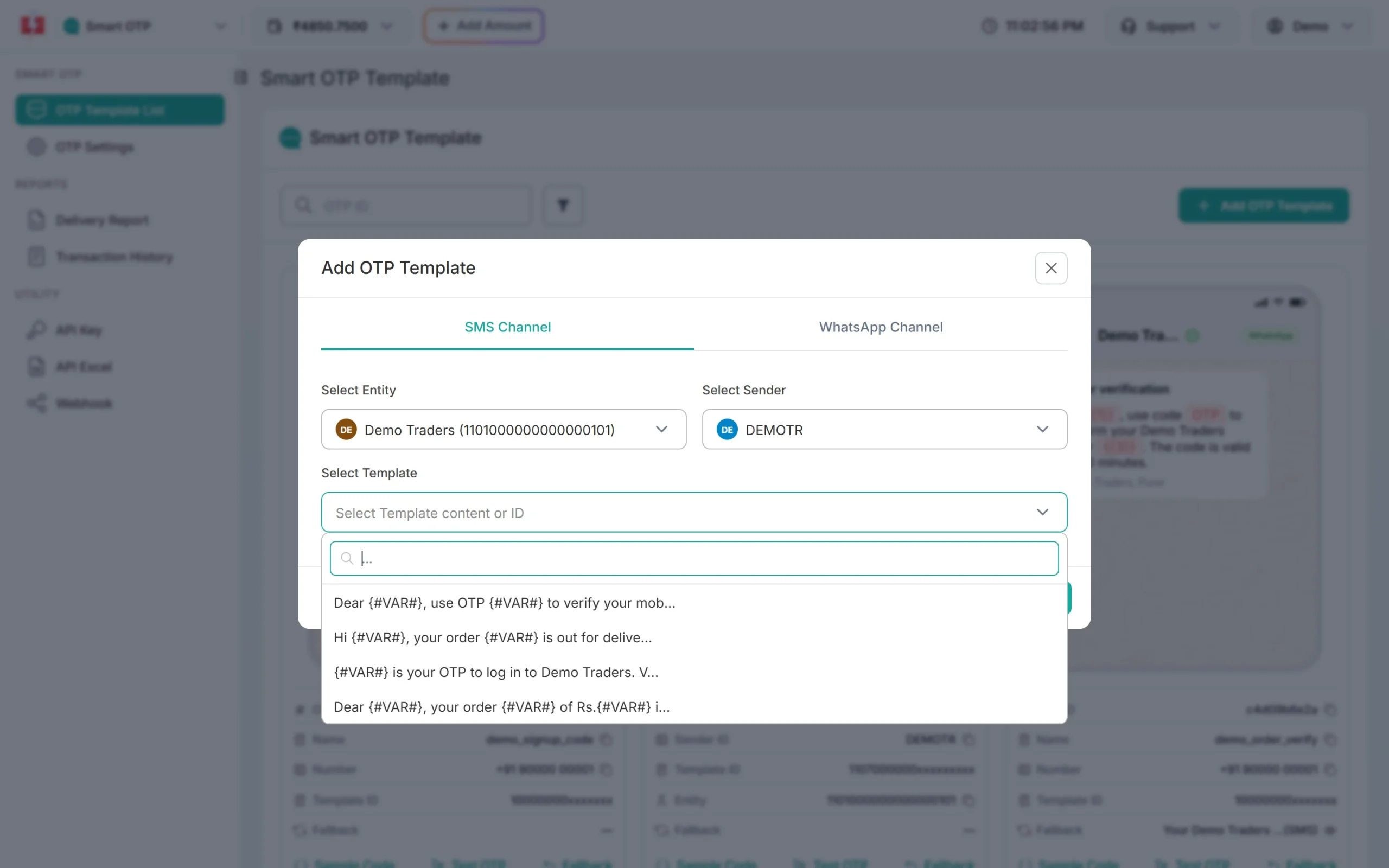
Pick the new sender, then its DLT template. -
Use the new OTP ID in your code
The new template gets a new OTP ID. Replace the old OTP ID in your app, website or plugin settings. Test it with the Test OTP button first. The old template keeps working until you delete it.
If you are changing the header because your brand changed, see change sender ID after a rebrand.
Common questions from users about the sender
- “The OTP came from a name I do not know.” Use a header that matches your brand, and put your brand name in the OTP text. Users trust a code that names the app they are using.
- “I got the OTP on WhatsApp, not SMS.” That is the fallback working, or your template is WhatsApp first.
- “The OTP went to spam.” Phone spam filters sometimes file business SMS away. A clear brand name in the header and text helps. See why business SMS go to spam.
Frequently asked questions
Can I send OTP SMS from my own company name?
Yes. Register your header on DLT, add it in DLT Manager, and use it in your Smart OTP template.
Can I send OTP from my mobile number?
Not by SMS. Business SMS in India must come from a DLT header. On WhatsApp, the OTP comes from your WhatsApp Business number.
Can one account use different senders for different apps?
Yes. Create one OTP template per sender. Each has its own OTP ID, so each app uses its own.
Why does my OTP show a different letter at the end of the sender ID?
The operator adds the suffix from the template type you registered on DLT, such as -T or -S.
Do I need a separate WhatsApp number for OTPs?
No. You can use a number you already use for WhatsApp messages, as long as it is connected and has an approved authentication or utility template.
Can I edit the sender of an existing OTP template?
No. Create a new OTP template with the new sender and update the OTP ID in your code.