
Before you send a WhatsApp campaign to thousands of customers, send the template to your own phone first. In Fast2SMS every approved template has a Test button that sends it to one number with the values you type. This guide shows how to test a WhatsApp template before going live, check it in the Delivery Report, try the API call, and run a small pilot campaign.
Before you start
- Your WhatsApp number shows Connected in WhatsApp Manager > Numbers. Sending starts 10 minutes after a new number is connected.
- The template shows APPROVED. Pending, rejected and paused templates cannot be sent, so the Test button appears only on approved cards.
- Your wallet has some balance. A test is sent as a real WhatsApp message.
- For an image, video or document header, keep a public link to a sample file ready.
How to send a test WhatsApp template
-
Find the approved template
Go to WhatsApp Manager > Templates. Click Sync Template if you just got an approval email from Meta and the card still shows PENDING.
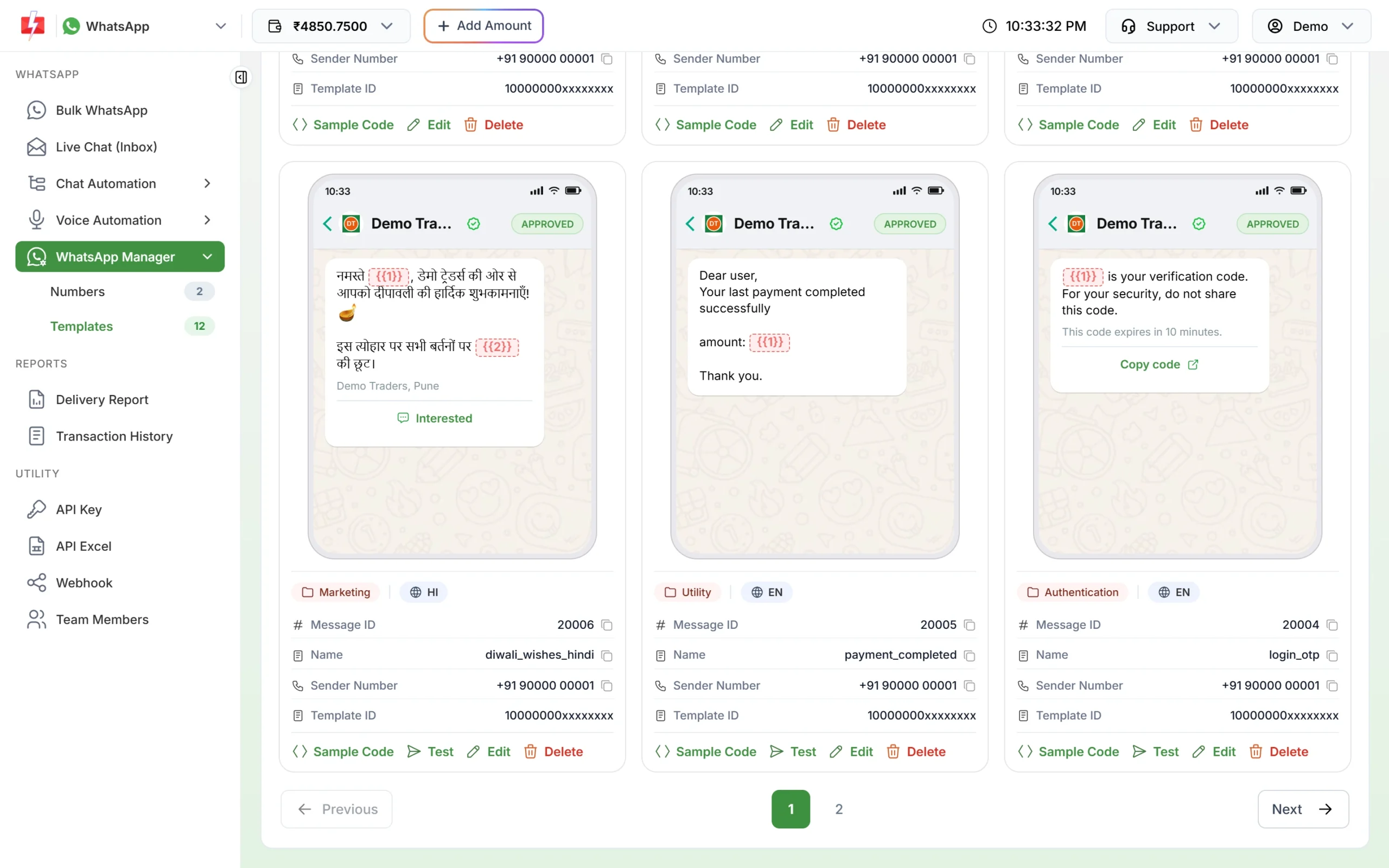
Approved templates have a Test link next to Sample Code. -
Click Test
The Test WhatsApp Template pop-up opens. Mobile Number is filled with your account number. Change it to any 10-digit number you can check. Sender Number shows the business number the template belongs to.
-
Fill the variables
Under Configure Template Variables there is one box per variable, such as “Variable 1 – Body {{1}}”. Type the kind of values you will send for real: a long name, a big amount, a full date. That is how you spot text that looks wrong. For a media header, paste the public file link that starts with http.
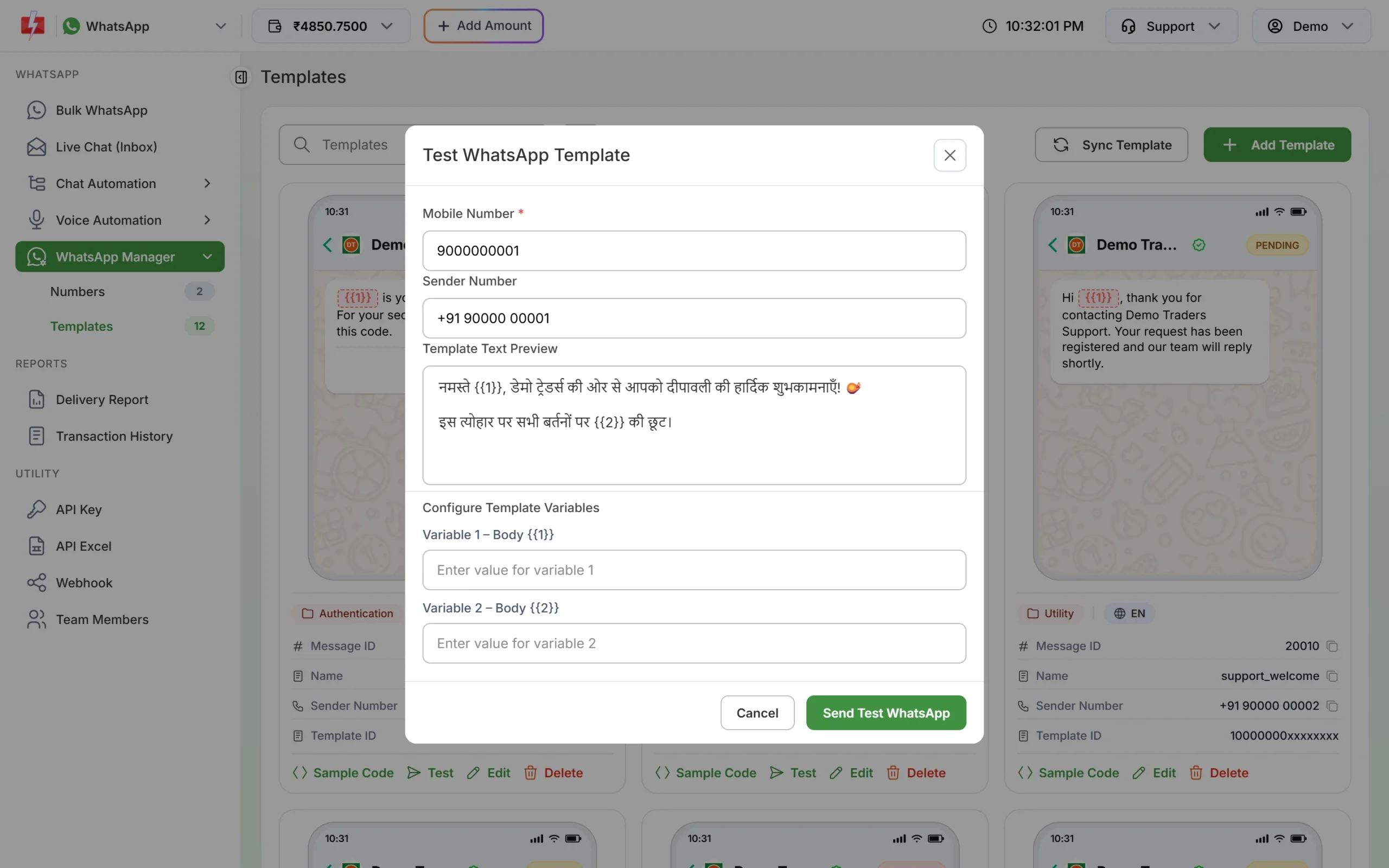
The test pop-up: number, preview and one box per variable. -
Click Send Test WhatsApp
A pop-up message confirms that the test was sent. Open WhatsApp on your phone and check the message.
-
Check the message on your phone
Look at it the way a customer would:
- Do the variables read well? No double spaces, no “Rs. Rs.”, no cut-off names.
- Does the header image or PDF open, and is it the right file?
- Do the buttons work? Tap the website button, check the dynamic link opens the right page, and check the phone button dials the right number.
- Does the business name and profile photo look right at the top of the chat?
Errors you may see when testing
| Message | What to do |
|---|---|
| “Please enter a valid 10-digit mobile number” | Type the number without +91 or spaces. |
| “Please enter a valid media URL starting with http” | Paste a full public link to the image, video or PDF. |
| “Please enter a value for the dynamic button variable” | The website button has a dynamic part. Fill its box too. |
| “WhatsApp Template ID (message_id) is invalid or not approved.” | The template is no longer APPROVED. Click Sync Template and check its status. |
| “Linked WhatsApp Sender Phone ID not found or not connected” | The template’s number is not connected. Check Numbers and click Sync Details. |
Check the test in the Delivery Report
Open Delivery Report under REPORTS and find the latest entry. The details show the status of your number (Sent, Delivered, Read or Failed) and, for a failed message, Meta’s reason in the Description column. A test sent from the Test button goes through the API route, so its Request ID ends with “(api)”.
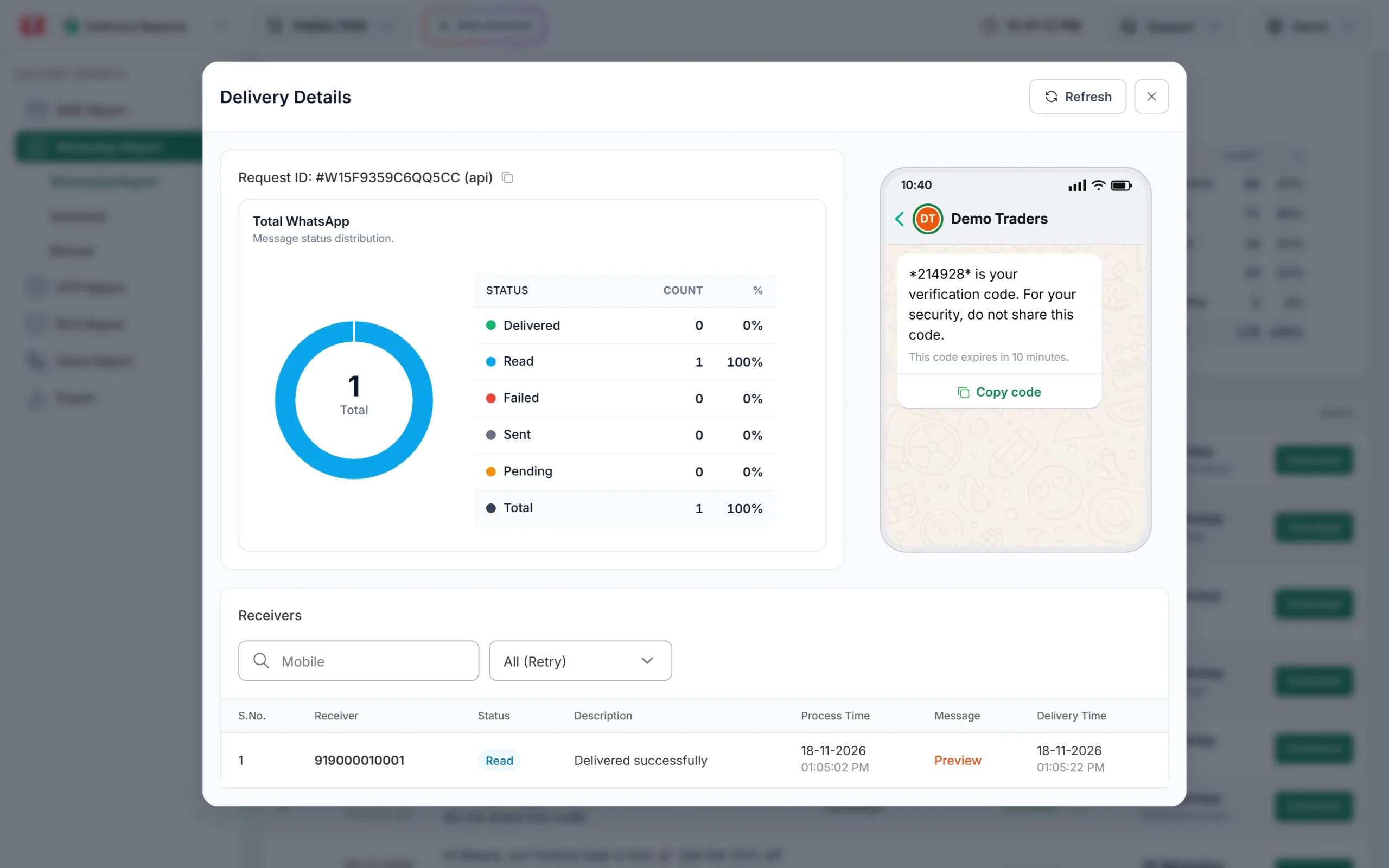
If the test failed, the reason tells you what to fix. See WhatsApp API error codes.
Test the API call with your own number
If you will send from your website or software, test the API before you connect it to real customers. Click Sample Code on the template card to see the request for that template, with its Message ID.
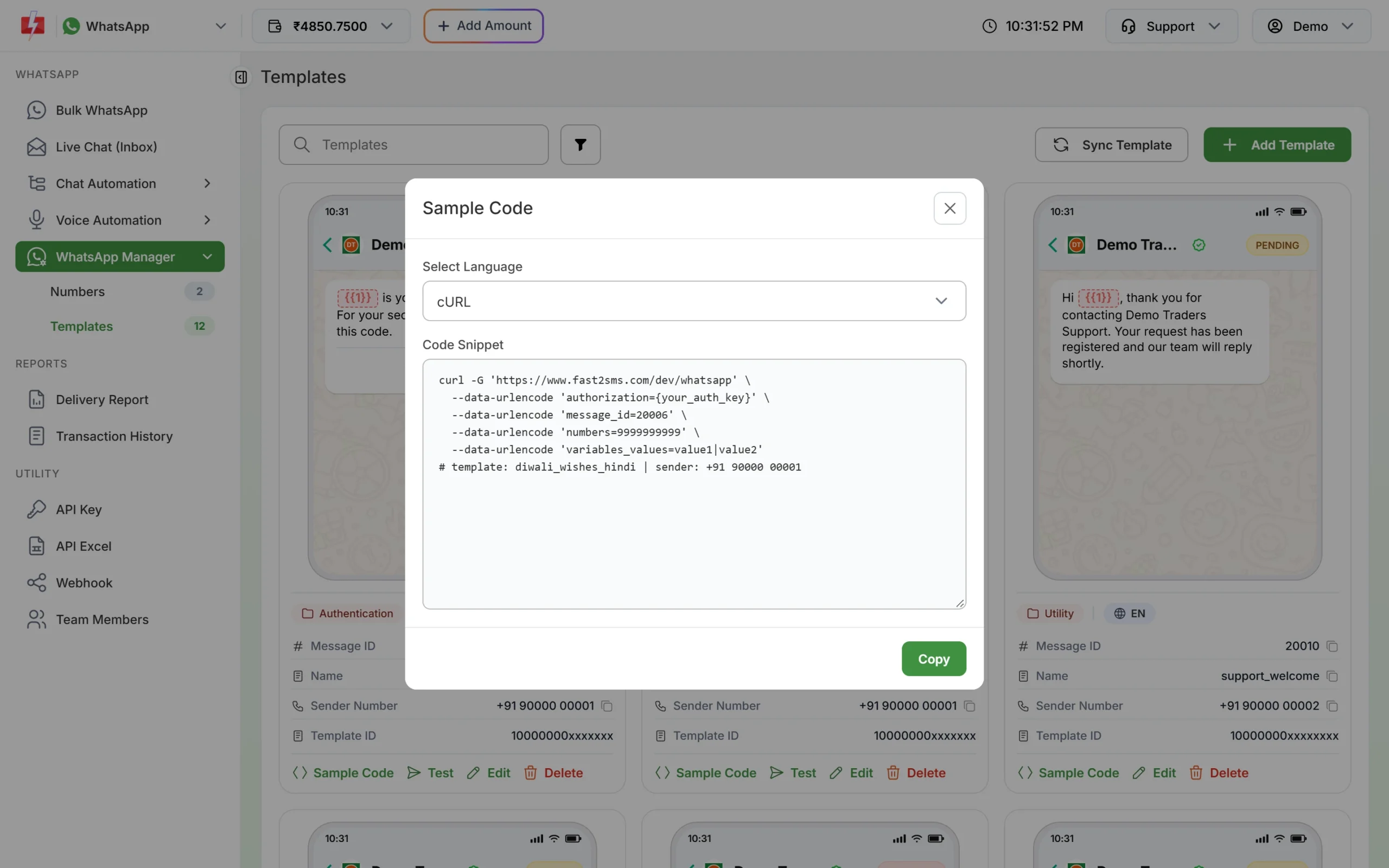
Send it to your own number first, with the API key in the header:
curl -G "https://www.fast2sms.com/dev/whatsapp" \
  -H "authorization: YOUR_API_KEY" \
  --data-urlencode "message_id=20005" \
  --data-urlencode "numbers=9999999999" \
  --data-urlencode "variables_values=1499"
Replace 20005 with your template’s Message ID, 9999999999 with your own mobile number, and the variable values with real-looking data. Put the values in the same order as {{1}}, {{2}} and separate them with |. A successful call returns "return":true and a request ID that starts with W. More on this in sending WhatsApp templates by API.
Run a small pilot before the full campaign
-
Send to your team first
In Bulk WhatsApp, choose the template and paste 5 to 10 numbers of colleagues in List. If you will upload an Excel file for the real campaign, use a small file with the same columns, so you test the column mapping too.
-
Check the cost and numbers
Click Send. The Message Preview & Confirmation pop-up shows the preview, the cost per message, valid, invalid and duplicate numbers, and the total cost. Check them before you click Confirm & Send.
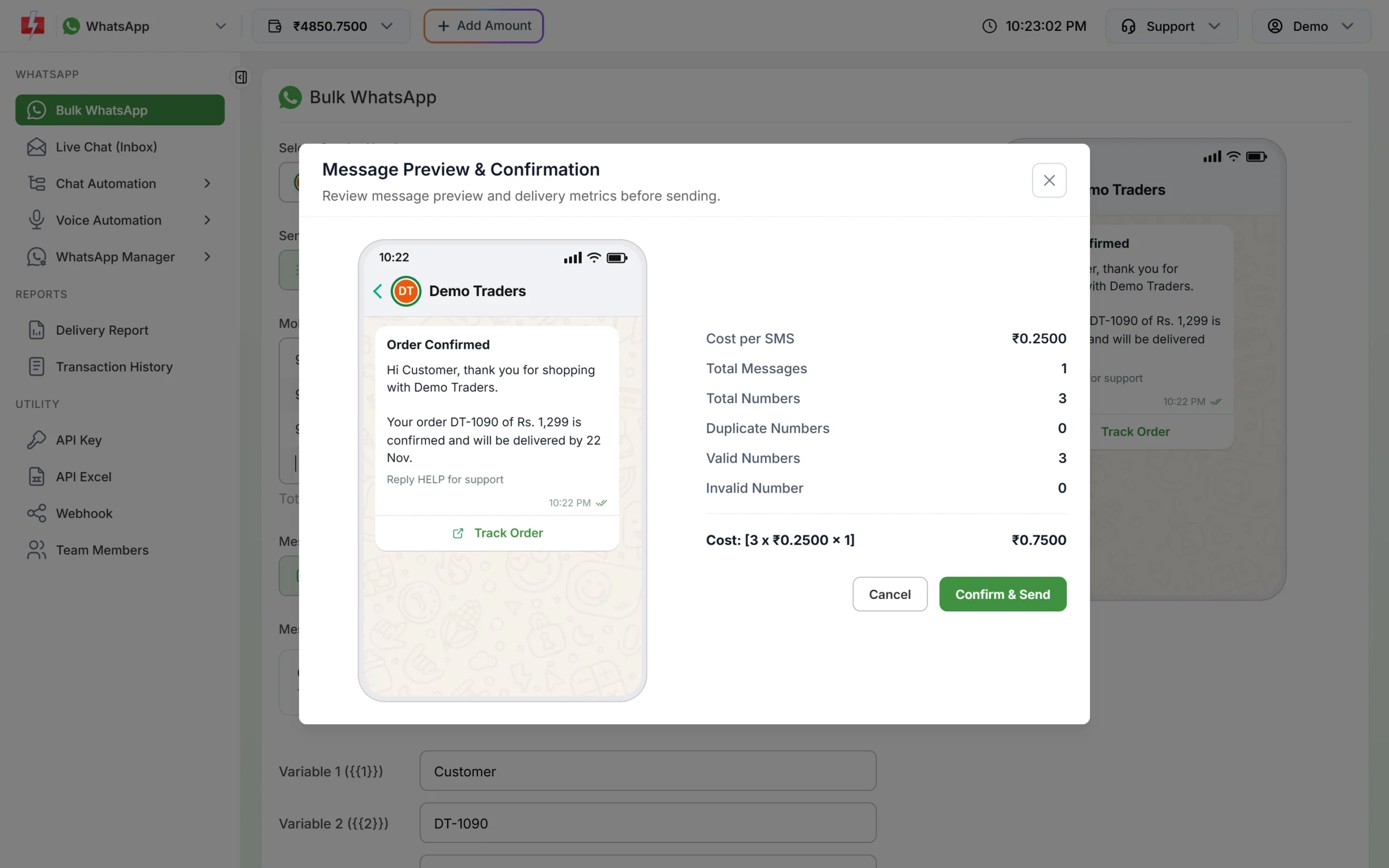
The confirmation pop-up shows the cost before anything is sent. In this example a utility template costs ₹0.25 per message, so 3 numbers cost ₹0.75. Rates depend on the template category and your account.
Sending in bulk? For high WhatsApp volumes our team offers discounted rates. Talk to our team or see WhatsApp pricing.
-
Ask your team what they saw
Did it arrive on every phone? Did the buttons work on both Android and iPhone? Fix anything now, then send the full campaign.
Common problems and fixes
- No Test link on the card: the template is not APPROVED yet. Wait for Meta, then click Sync Template.
- Test sent but nothing arrived: check that the number is on WhatsApp, and look at the Delivery Report for a failure reason.
- The template is missing in Bulk WhatsApp: the sender number selected there must be the number the template was created for.
- Image header did not show: the link must be public and open without a login. Open it in a private browser window to check.
Frequently asked questions
How do I test a WhatsApp template in Fast2SMS?
Open WhatsApp Manager > Templates, click Test on an approved template, enter your number and variable values, and click Send Test WhatsApp.
Can I test a template before Meta approves it?
No. Only approved templates can be sent. Use the live preview in the template form to check the layout while it is pending.
Is a test message charged?
A test is a real WhatsApp message sent through the normal route, so keep some wallet balance before you test.
Can I send a test to more than one number?
The Test pop-up sends to one number at a time. For a group of testers, send a small campaign from Bulk WhatsApp.
Why does my test show (api) in the report?
Tests from the Test button are sent through the API route, so their Request ID is marked “(api)”.
Is there a WhatsApp test number I can use?
In Fast2SMS you test with your own connected business number and send to your own mobile. That is the closest check to what customers will see.