
To send a WhatsApp template message with the Fast2SMS API, call https://www.fast2sms.com/dev/whatsapp with your API key, the template’s Message ID (message_id), the mobile numbers and the variable values. This guide shows where to find each ID in the panel, the full parameter list, ready code in cURL, PHP, Python, Node.js, Java, C# and Go, and the errors you may see on the first try.
Before you start
- A WhatsApp number connected in Fast2SMS with the status Connected. A newly connected number can send only after 10 minutes.
- At least one template with the status APPROVED.
- Your Fast2SMS API key from API Key under UTILITY. See how to find and reset your API key.
- Enough wallet balance for all the numbers in the request.
How to send a WhatsApp template message by API
-
Open your approved templates
Go to WhatsApp Manager and click Templates. Each card shows the category, the language, the Message ID, the name, the Sender Number and Meta’s Template ID. Only cards with the green APPROVED badge can be sent.
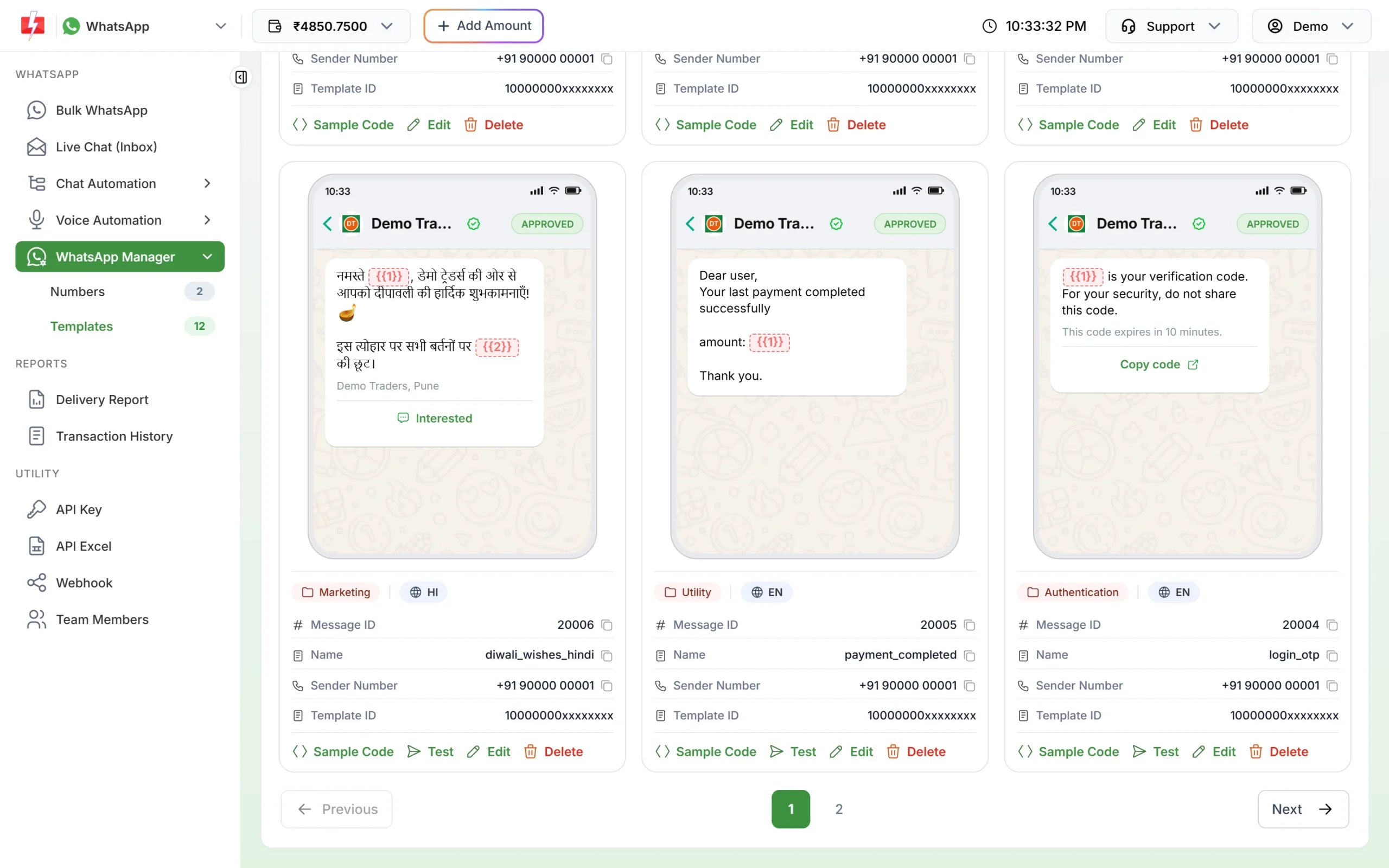
The Message ID on each card is the value you pass as message_id. Use the Message ID (for example 20005), not the long Meta Template ID. The API rejects Meta’s ID with “WhatsApp Template ID (message_id) is invalid or not approved.”
-
Copy the sample code
Click Sample Code on the template card. Pick your language in Select Language and click Copy. The sample already has the right
message_idand onevariables_valuesslot per variable.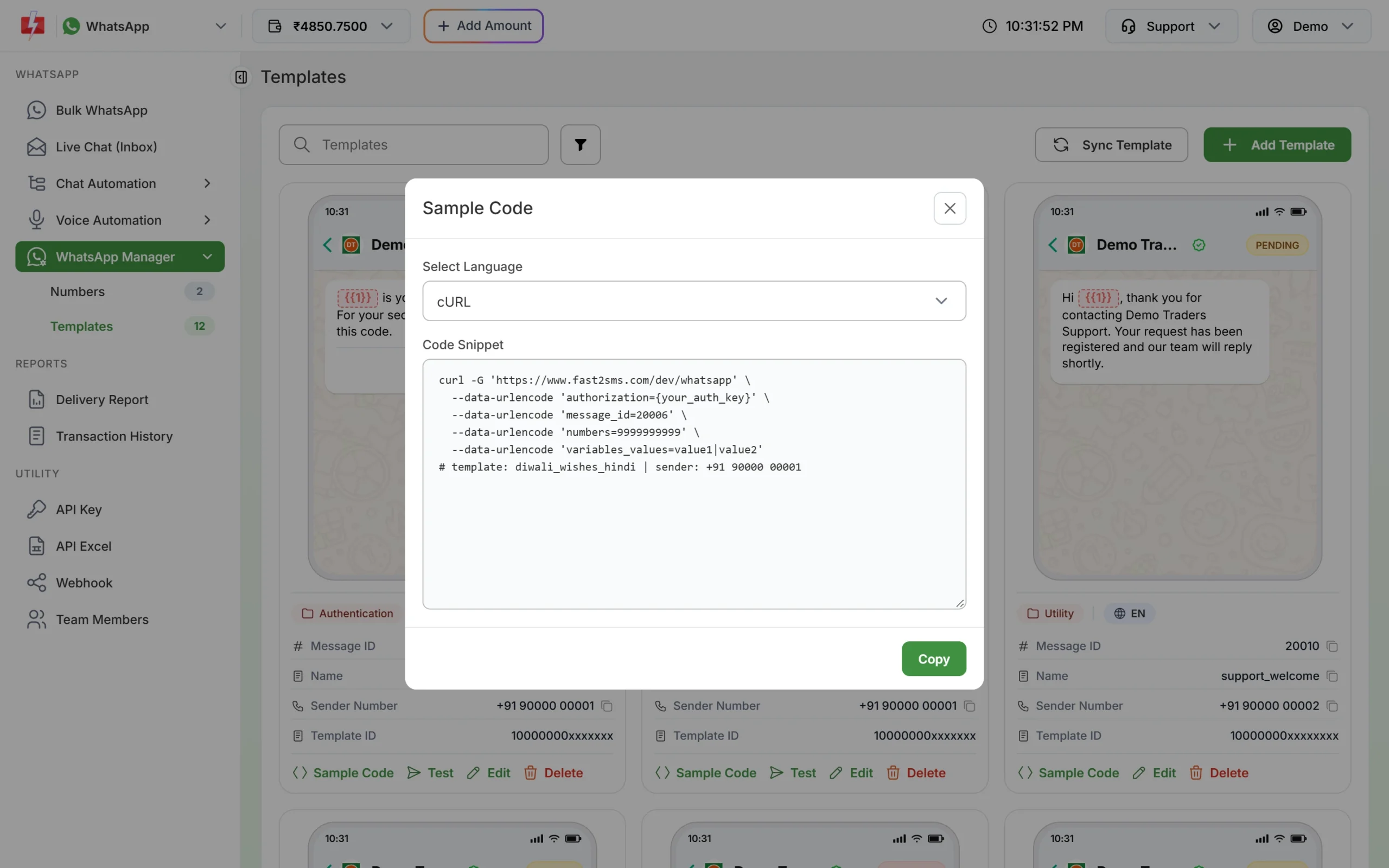
Sample Code gives a ready request for that template. -
Note the phone_number_id (optional)
Open WhatsApp Manager and click Numbers. The Phone Number ID is under Business IDs. You need it only when you want to choose the sending number. If you leave it out, a connected number of the template’s WhatsApp Business Account is used.
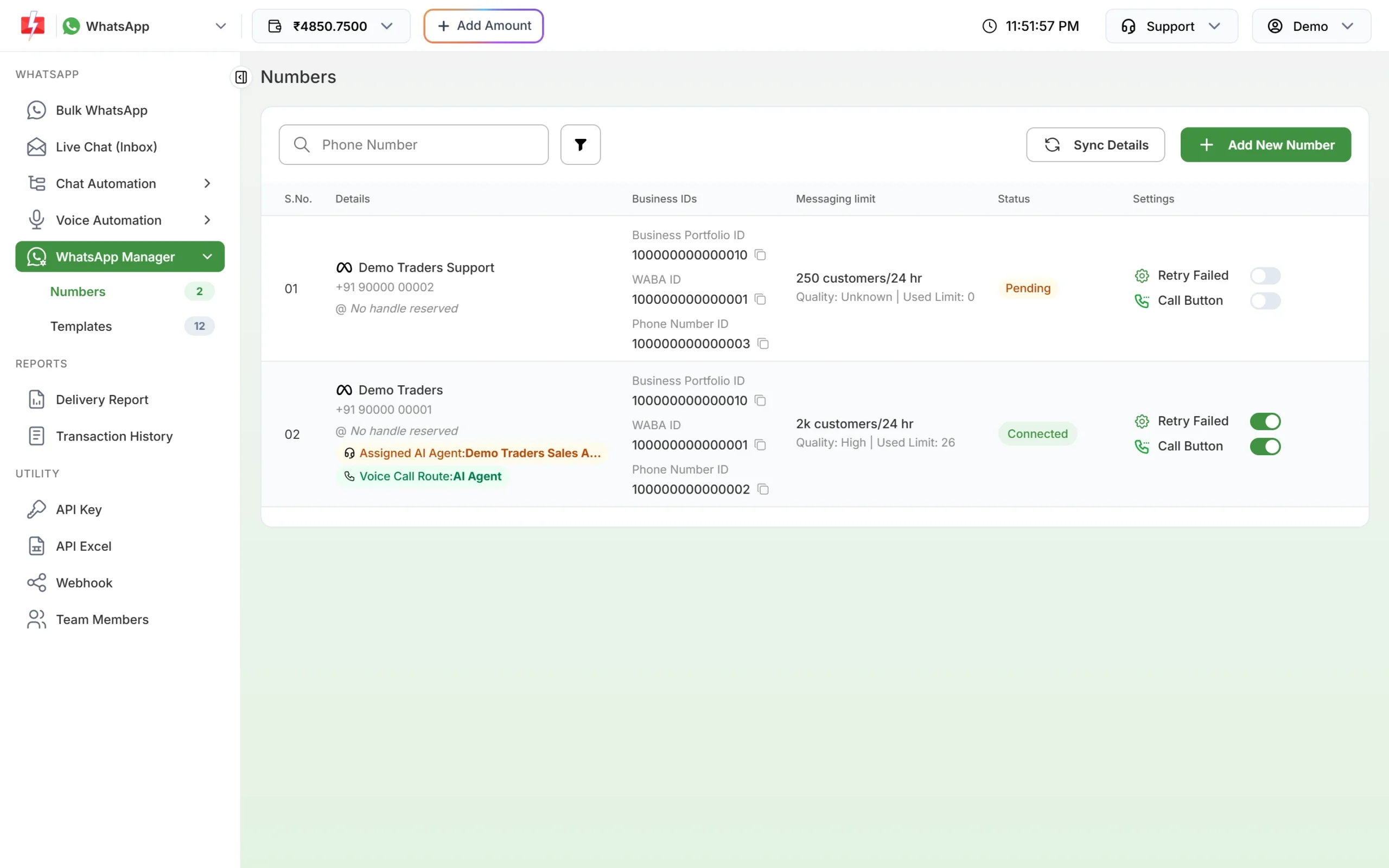
The Phone Number ID is listed for every number. -
Send the request from your server
Put your API key in the
authorizationheader and sendmessage_id,numbersandvariables_values. Code for each language is below. -
Check the result
A successful reply has
"return":trueand arequest_idthat starts with W. Save it. You need it to fetch the delivery report, and you can search it in Delivery Report and API Logs.
Parameters
| Parameter | Required | What to send |
|---|---|---|
authorization (header) |
Yes | Your Fast2SMS API key |
message_id |
Yes | The template’s Message ID from the template card. Must be an approved template of your account |
numbers |
Yes | Indian mobile numbers, comma-separated. 10 digits starting with 6 to 9; a leading 91 or +91 is accepted |
variables_values |
If the template has variables | Values for {{1}}, {{2}} and so on, in order, separated by |. Up to 1,000 characters in total |
phone_number_id |
No | The sending number’s Phone Number ID. Must be connected |
media_url |
For media headers | Public link to the header image, video or PDF. See sending media templates |
document_filename |
No | File name shown for a PDF header |
schedule_time |
No | Send later: DD-MM-YYYY-HH-MM in IST, or a Unix timestamp, at least 1 minute ahead |
sms_details |
No | 1 adds the rate, count and category to the reply |
udf1, udf2, udf3 |
No | Your own tracking values, returned in webhooks |
Code examples
All examples send the template with Message ID 20005 and one variable to 9999999999. Replace YOUR_API_KEY with your key. Keep the key on your server, never in a mobile app or web page.
cURL (POST, JSON)
curl -X POST "https://www.fast2sms.com/dev/whatsapp" \
  -H "authorization: YOUR_API_KEY" \
  -H "Content-Type: application/json" \
  -d '{"message_id":"20005","numbers":"9999999999","variables_values":"1499"}'
cURL (GET)
curl -G "https://www.fast2sms.com/dev/whatsapp" \
  -H "authorization: YOUR_API_KEY" \
  --data-urlencode "message_id=20005" \
  --data-urlencode "numbers=9999999999" \
  --data-urlencode "variables_values=1499"
PHP
<?php
$payload = [
    "message_id"       => "20005",
    "numbers"          => "9999999999",
    "variables_values" => "1499",
];
$ch = curl_init("https://www.fast2sms.com/dev/whatsapp");
curl_setopt_array($ch, [
    CURLOPT_POST           => true,
    CURLOPT_RETURNTRANSFER => true,
    CURLOPT_HTTPHEADER     => ["authorization: YOUR_API_KEY", "Content-Type: application/json"],
    CURLOPT_POSTFIELDS     => json_encode($payload),
    CURLOPT_TIMEOUT        => 30,
]);
$data = json_decode(curl_exec($ch), true);
curl_close($ch);

if (($data["return"] ?? false) === true) {
    echo "Accepted, request ID: " . $data["request_id"];
} else {
    print_r($data["errors"] ?? $data);
}
Python
import requests

r = requests.post(
    "https://www.fast2sms.com/dev/whatsapp",
    headers={"authorization": "YOUR_API_KEY"},
    json={"message_id": "20005", "numbers": "9999999999", "variables_values": "1499"},
    timeout=30,
)
data = r.json()
if data.get("return"):
    print("Accepted, request ID:", data["request_id"])
else:
    print("Error:", data.get("errors") or data)
Node.js
const res = await fetch("https://www.fast2sms.com/dev/whatsapp", {
  method: "POST",
  headers: {
    authorization: process.env.FAST2SMS_API_KEY,
    "Content-Type": "application/json",
  },
  body: JSON.stringify({ message_id: "20005", numbers: "9999999999", variables_values: "1499" }),
});
const data = await res.json();
if (data.return === true) {
  console.log("Accepted, request ID:", data.request_id);
} else {
  console.log("Error:", data.errors || data);
}
Java (11 or later)
import java.net.URI;
import java.net.http.*;

public class SendWhatsApp {
    public static void main(String[] args) throws Exception {
        String body = "{\"message_id\":\"20005\",\"numbers\":\"9999999999\",\"variables_values\":\"1499\"}";
        HttpRequest req = HttpRequest.newBuilder(URI.create("https://www.fast2sms.com/dev/whatsapp"))
                .header("authorization", "YOUR_API_KEY")
                .header("Content-Type", "application/json")
                .POST(HttpRequest.BodyPublishers.ofString(body))
                .build();
        HttpResponse<String> res = HttpClient.newHttpClient().send(req, HttpResponse.BodyHandlers.ofString());
        System.out.println(res.statusCode() + " " + res.body());
    }
}
C# (.NET 6 or later)
using System.Net.Http;
using System.Text;

var client = new HttpClient();
var req = new HttpRequestMessage(HttpMethod.Post, "https://www.fast2sms.com/dev/whatsapp");
req.Headers.TryAddWithoutValidation("authorization", "YOUR_API_KEY");
req.Content = new StringContent(
    "{\"message_id\":\"20005\",\"numbers\":\"9999999999\",\"variables_values\":\"1499\"}",
    Encoding.UTF8, "application/json");
var res = await client.SendAsync(req);
Console.WriteLine(await res.Content.ReadAsStringAsync());
Go
package main

import (
	"fmt"
	"io"
	"log"
	"net/http"
	"strings"
)

func check(err error) {
	if err == nil {
		return
	}
	log.Fatal(err)
}

func main() {
	body := `{"message_id":"20005","numbers":"9999999999","variables_values":"1499"}`
	req, err := http.NewRequest("POST", "https://www.fast2sms.com/dev/whatsapp", strings.NewReader(body))
	check(err)
	req.Header.Set("authorization", "YOUR_API_KEY")
	req.Header.Set("Content-Type", "application/json")
	res, err := http.DefaultClient.Do(req)
	check(err)
	defer res.Body.Close()
	out, _ := io.ReadAll(res.Body)
	fmt.Println(res.StatusCode, string(out))
}The response
Success comes with HTTP 200:
{"return":true,"request_id":"Wa1B2c3D4e5F6g7","message":["Whatsapp Message sent successfully."]}This means Fast2SMS accepted the request and queued it. It does not mean the message reached the phone. Delivery and read status come later in the delivery report, the WhatsApp DLR API and webhooks. See WhatsApp delivery and read status by API.
With schedule_time the message says the WhatsApp message was scheduled. An error has "return":false and an errors object that names the field, for example:
{"return":false,"errors_keys":["message_id"],"errors":{"message_id":["WhatsApp Template ID (message_id) is invalid or not approved."]}}Find message_id and phone_number_id by API
If you manage many templates, fetch the IDs from your code instead of copying them by hand:
curl "https://www.fast2sms.com/dev/dlt_manager/whatsapp?type=template" \
  -H "authorization: YOUR_API_KEY"
The reply lists each number with its waba_id, phone_number_id, number, quality_rating, messaging_limit and connection_status. With type=template each number also has a templates list:
{"success":true,"data":[{"waba_id":"100000000000001","phone_number_id":"100000000000002","number":"+91 90000 00001",
 "connection_status":"CONNECTED","templates":[{"message_id":20005,"template_id":"1000000000000005",
 "template_name":"payment_completed","category":"UTILITY","status":"Approved","language":"en","var_count":1}]}]}
Pass message_id from this list to the send API. template_id is Meta’s ID and is not used for sending. Use type=number to get only the numbers, and add phone_number_id=... to see one number.
Download every template as API URLs in Excel
Go to Account Setting, open API Excel and pick WhatsApp. Download Templates gives one row per template on a connected number, with the Message ID, variable count, media needs and a ready api_url. Download Session API gives samples for free-form replies.
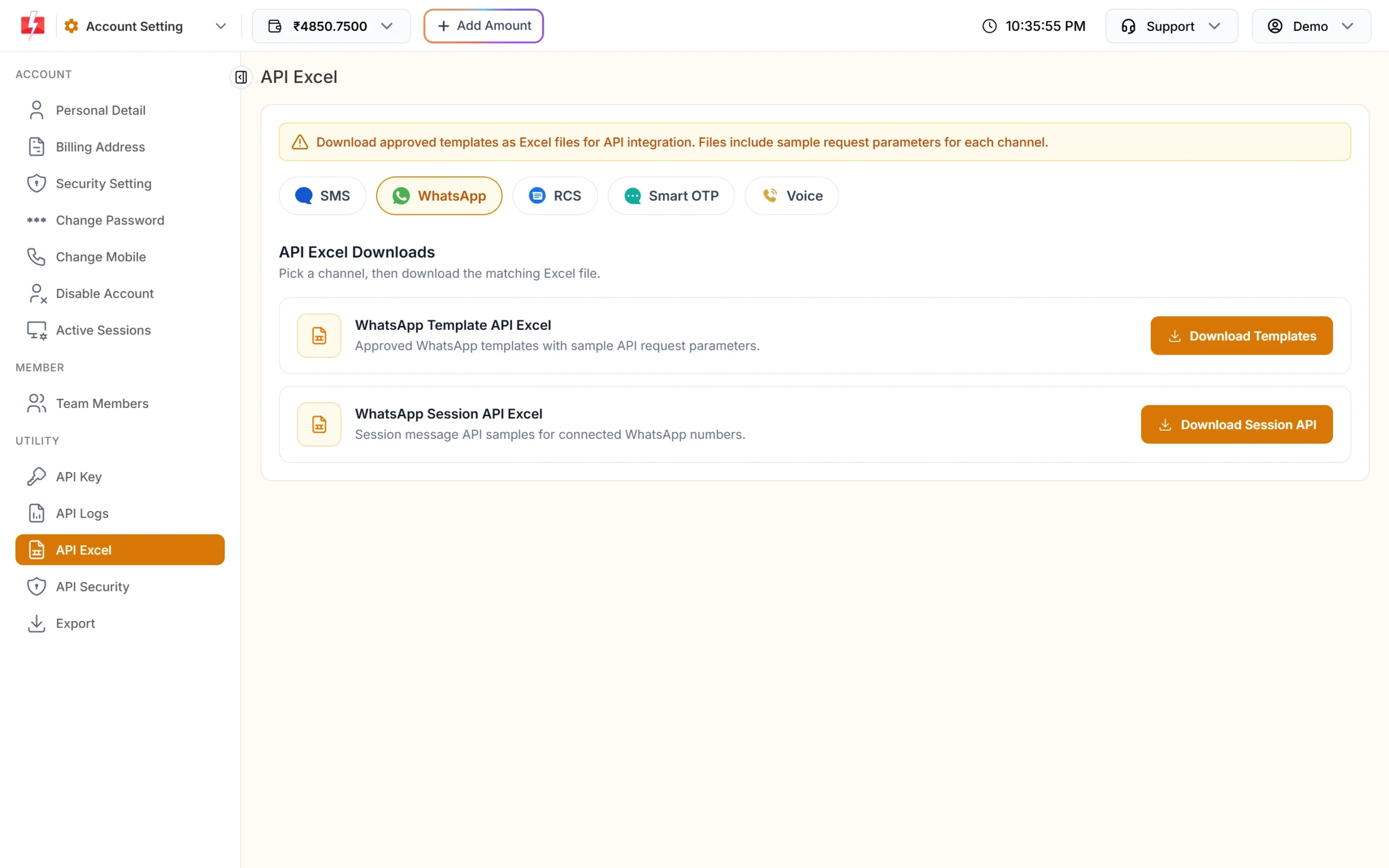
The Excel URLs carry your key as ?authorization= in the link. That is handy for testing in a browser, but in your app send the key in the header so it does not end up in server and proxy logs.
Variables, numbers and charges
- Variables: send values in the order of {{1}}, {{2}} in the body, separated by
|. For “Hi {{1}}, your order {{2}} is shipped” sendvariables_values=Rahul|ORD123. - Authentication (OTP) templates: send only the code, for example
variables_values=482913. Fast2SMS also puts it on the copy-code button. For OTP login flows with retries and verification, Smart OTP on WhatsApp does this work for you. - Numbers: the template API takes Indian mobile numbers only. If even one number in the list is invalid, the whole request is refused with “Mobile Number format is invalid:” followed by the bad numbers. Clean your list first.
- Charges: each message is charged at your rate for the template’s category (Marketing, Utility or Authentication). The amount comes off your wallet when the message is queued. Failed messages are refunded automatically later. See WhatsApp failed message charges and refunds and the current rates on the WhatsApp pricing page.
Common problems and fixes
“WhatsApp Template ID (message_id) is invalid or not approved.”
The ID is not an approved template of this account. Use the Message ID from the template card, not Meta’s Template ID, and check that the card says APPROVED. A PAUSED or REJECTED template cannot be sent.
“WhatsApp Phone Number ID is invalid or not connected.”
The phone_number_id is wrong, belongs to another WhatsApp Business Account than the template, or the number is not Connected. Remove phone_number_id to let Fast2SMS pick a connected number of the template’s account, or reconnect the number.
“Messaging will be available 10 minutes after onboarding.”
The number was connected less than 10 minutes ago. Wait and try again.
“Insufficient wallet balance, you need at least ₹X…”
The cost of all numbers in the request is more than your balance. Recharge, or send to fewer numbers per call.
Error 412 “Invalid Authentication, Check Authorization Key”
The key is missing or wrong. Copy it again from API Key and send it in the authorization header without quotes or spaces. For all API errors see Fast2SMS WhatsApp API errors.
The API said success but the customer did not get the message
Check the delivery report. WhatsApp can still fail a message after it is accepted, for example when the number is not on WhatsApp. The reason is shown with a Meta error code. See WhatsApp API error codes.
Frequently asked questions
What is message_id in the Fast2SMS WhatsApp API?
It is the Message ID shown on the template card in WhatsApp Manager, a short number such as 20005. It is not Meta’s Template ID.
Is phone_number_id required?
No. If you leave it out, the message goes from a connected number in the template’s WhatsApp Business Account. Send it when that account has more than one number and you want a specific one.
Can I send to many numbers in one call?
Yes. Put them in numbers, separated by commas. Every number must be a valid Indian mobile, or the whole request is refused.
Can I send a free text message without a template?
Only within 24 hours of the customer’s last message, with the session message API. See WhatsApp session message API.
Does the API support GET and POST?
Yes. Both work. POST with a JSON body is easier to read and keeps values out of URLs.
Can I schedule a WhatsApp template by API?
Yes. Add schedule_time as DD-MM-YYYY-HH-MM in IST or as a Unix timestamp, at least 1 minute in the future.
Can I send to international numbers?
Not with this API at the time of writing. It accepts Indian mobile numbers only.