
There is no single “change number” button on the WhatsApp Business API. To change the phone number on your WhatsApp API account, you connect the new number as a second number, move your templates, chatbot and settings to it, and then remove the old one. This guide gives the safe order to do it in Fast2SMS so customers and your API keep working during the switch.
Before you start
- The new number must be one you own, with a country code, and it must be able to receive an SMS or a voice call for Meta’s verification code. Landlines work with the voice-call option; short codes do not.
- If the new number is already on the WhatsApp or WhatsApp Business app, decide first: Fast2SMS supports keeping a WhatsApp Business app number on the app as well (coexistence). A number on the normal WhatsApp app has to be removed from the app before it can be registered.
- Check your number limit. At the time of writing, a new Meta business portfolio can register 2 phone numbers, and Meta raises this to 20 after business verification or once your messaging limit reaches 2,000.
What moves with the number and what does not
| Item | What to do |
|---|---|
| Templates | Create them again for the new number and wait for Meta’s approval. Deleting the old number in Fast2SMS also deletes its templates. |
API code (message_id) |
Each new template gets a new Message ID. Update your code, plugins and Smart OTP. |
| Flow Builder chatbots | Use Change number on each workflow. |
| Welcome, away and busy messages, auto replies, predefined messages | These are saved per number. Set them up again for the new number. |
| Team members | Give agents access to the new number. |
| Business profile | Fill in the profile of the new number. |
| Chats | Customers see the new number as a new chat. Old conversations stay with the old number. |
How to change your WhatsApp API number in Fast2SMS
-
Connect the new number
Go to WhatsApp Manager > Numbers and click Add New Number. Click Login with Facebook, choose your existing business portfolio, add the new number with its display name and enter the code Meta sends. Back in Numbers, click Sync Details. The new number shows Pending first and Connected when it is ready. You can send about 10 minutes after onboarding.
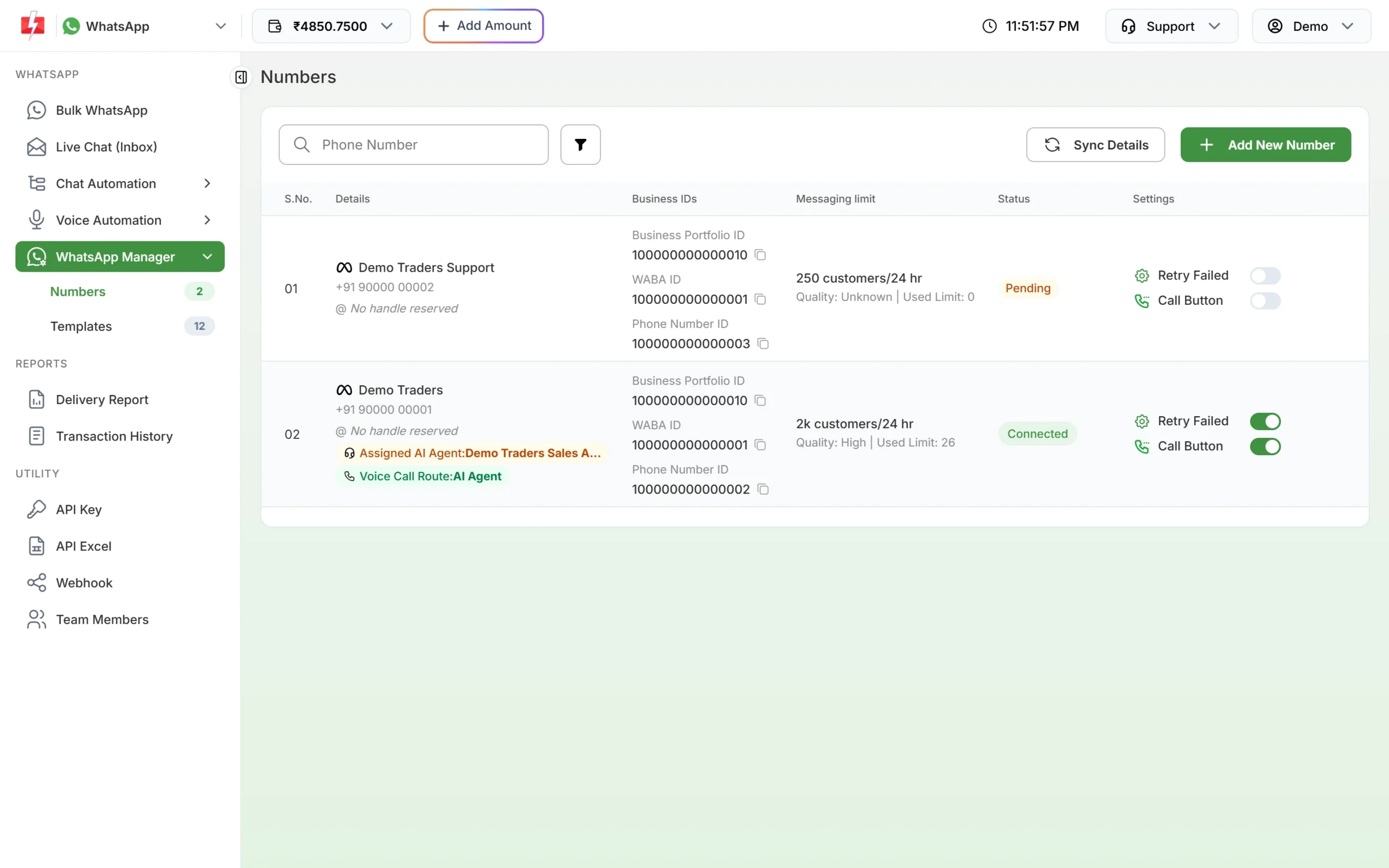
Both numbers stay in Numbers while you move over. -
Recreate your templates
Open the new number’s three-dot menu and click Add Template, so the template is linked to the new number. Use the same text that was approved before. When the templates show APPROVED, note each one’s Message ID from the template card; you need it for the API.
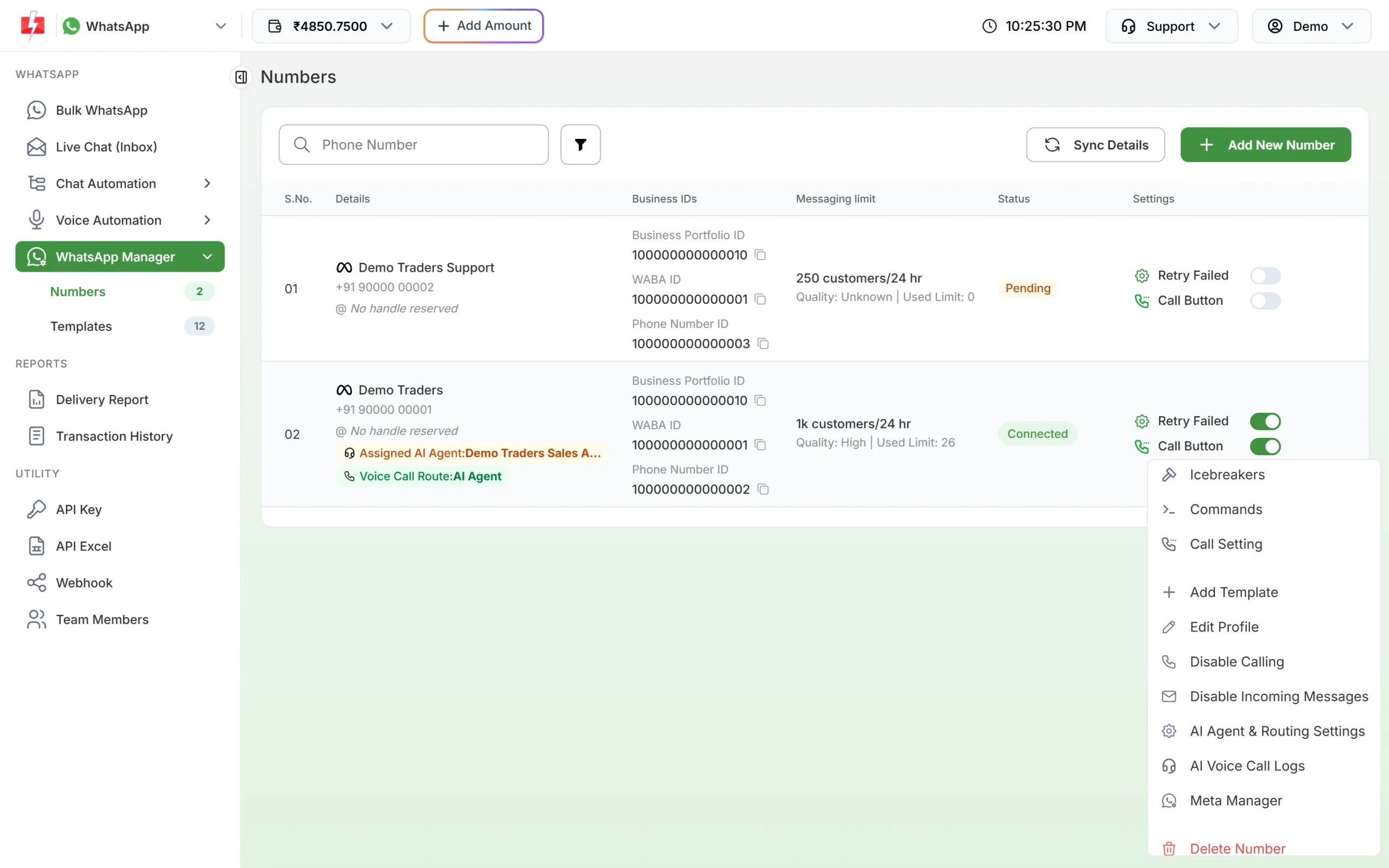
Add Template and Edit Profile are in each number’s menu. -
Fill in the profile
From the same menu, choose Edit Profile and add the logo, category, status, description, address and website, so the new number looks the same to customers.
-
Move your chatbot flows
Go to Chat Automation > Flow Builder (Chatbot). Open the three-dot menu on each workflow and choose Change number. Conversations that were in the middle of a flow are cleared. A number can have up to 20 workflows. If a flow uses a Template step, pick the new number’s template in it.
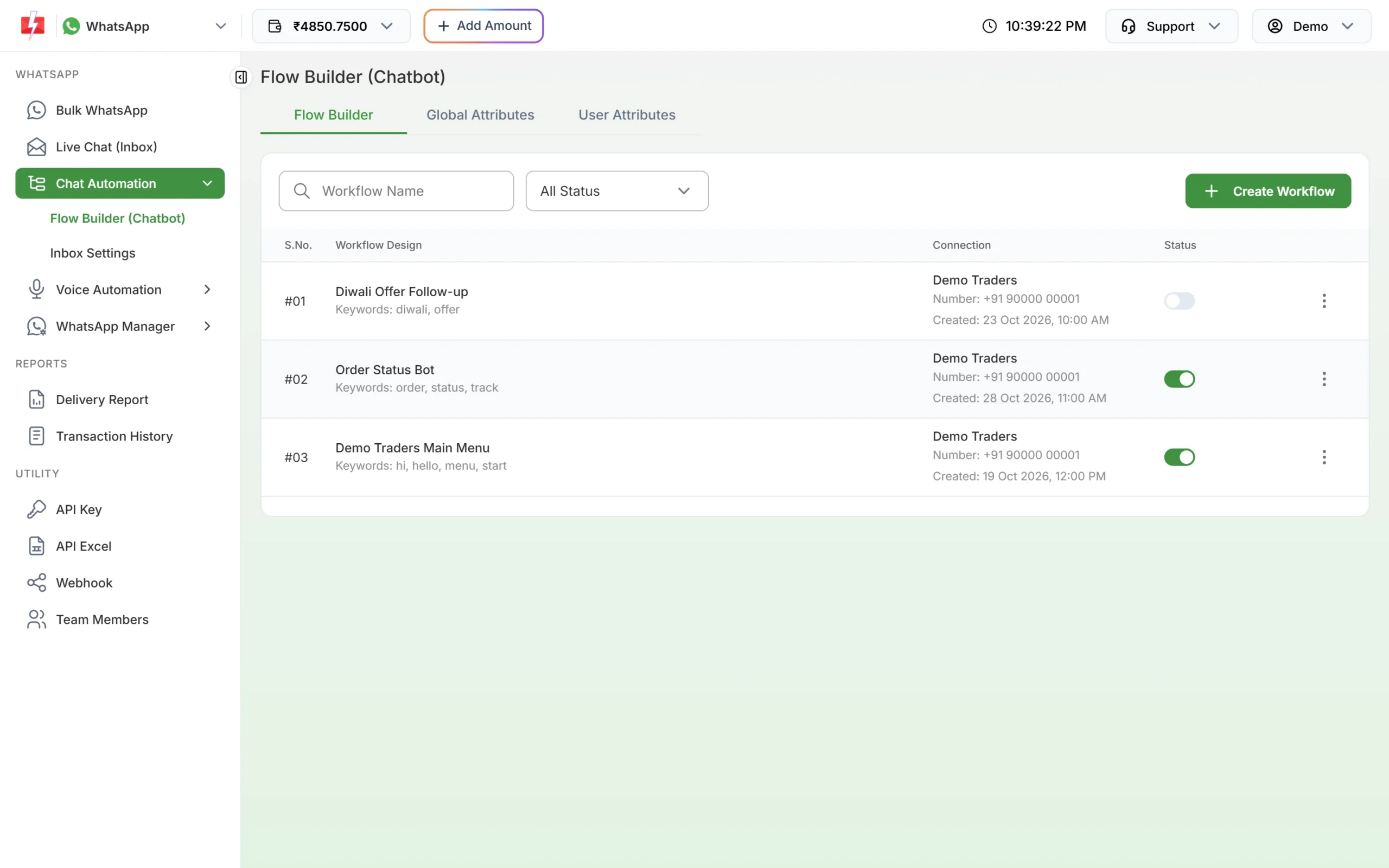
Each workflow shows the number it replies on. -
Set up the inbox for the new number
In Chat Automation > Inbox Settings, select the new number at the top and add your auto replies, welcome message, out-of-office hours and delayed response again. Add your predefined messages for the new number too. In Team Members, edit each agent and tick the new number under WhatsApp access. If you route calls to an AI agent, use AI Agent & Routing Settings on the new number.
-
Switch your API, plugins and Smart OTP
Replace the old
message_idvalues with the new ones in your code, WooCommerce, Shopify or Tally setup, and in Smart OTP. Send a test from the template’s Test button first. If your webhook code filters by phone number, add the new number’s Phone Number ID. -
Tell your customers
Update the number on your website chat button, wa.me links, QR codes, Google Business Profile, bills and visiting cards. You can also send an approved template from the new number to your regular customers so the new chat starts on their phone.
-
Remove the old number
When everything runs from the new number, open the old number’s menu and click Delete Number, then enter your password. This removes it and its templates from Fast2SMS only. To free it on Meta’s side, delete it in Meta’s WhatsApp Manager (the Meta Manager link opens it). At the time of writing, Meta does not let you delete a number that sent a paid message in the last 30 days, and it asks for the two-step verification PIN of a connected number.
Things to know before you switch
- Messaging limit: at the time of writing, Meta sets the messaging limit for the whole business portfolio, so a new number in the same portfolio shares it. A number in a new portfolio starts at Meta’s tier for that business: often 250 unique customers per 24 hours before business verification and 2,000 (2K) after (at the time of writing).
- Quality rating is shown per number in the Messaging limit column. Start the new number with utility messages and replies to customers who wrote to you, before big marketing campaigns.
- Display name: Meta reviews the display name of every new number. Use the same business name as before.
- Green tick: talk to our team before you switch a number that has the green tick, and plan to apply again for the new number.
What it costs
Connecting a number is free and there is no per-number fee. You pay only for messages: at the time of writing ₹0.25 for utility and authentication, ₹0.95 for marketing and ₹0.13 for session replies. Template approval itself is free. See the WhatsApp pricing page.
Sending in bulk? For high WhatsApp volumes our team offers discounted rates. Talk to our team or see WhatsApp pricing.
Frequently asked questions
Can I change the number without losing my templates?
No. Templates are tied to a sender number. Submit them again for the new number and Meta reviews them again.
Will my customers’ chat history move to the new number?
No. On WhatsApp a new number is a new chat. Old messages stay in the old chat on the customer’s phone.
Can I use my old number on the WhatsApp app after switching?
Yes, after you delete it in Fast2SMS and in Meta’s WhatsApp Manager.
Will my API key change?
No. The API key belongs to your Fast2SMS account. Only the template message_id values change.
How long does the switch take?
Connecting takes a few minutes. Template approval usually takes minutes to a few hours, so plan the switch a day ahead and keep the old number running until you finish.