
A WhatsApp broadcast list in the WhatsApp Business app reaches at most 256 contacts per list, and only people who have saved your number get the message. Bulk WhatsApp through the official WhatsApp Business API has no such list size and does not need customers to save your number, because you send Meta-approved templates. This guide compares WhatsApp broadcast vs bulk WhatsApp API, explains why sending in bulk from the normal app gets numbers banned, and shows how to send safely from Fast2SMS.
WhatsApp broadcast list vs bulk WhatsApp API at a glance
Both send one message to many people. The difference is who receives it, how many, and whether WhatsApp allows it at your volume. The app rules below are WhatsApp’s rules at the time of writing.
| Broadcast list (WhatsApp Business app) | Bulk WhatsApp API (Fast2SMS) | |
|---|---|---|
| Who receives it | Only contacts who saved your number in their phone | Any opted-in customer who uses WhatsApp, saved or not |
| How many | Up to 256 contacts per list | Set by your Meta messaging limit: often 250 unique customers per 24 hours for a new, unverified business and 2,000 (2K) after business verification, and it can grow to 10,000, 100,000 and Unlimited |
| Message content | Any text you type | A template approved by Meta (Marketing, Utility or Authentication) |
| Personalisation | Same text for everyone | Variables such as name, order number or amount, filled per customer from Excel or CSV |
| Media and buttons | Media you attach by hand | Image, video or PDF header, plus buttons like Visit website, Call Phone Number, Copy offer code and quick replies |
| Reports | Read ticks per message | Delivery Report with Delivered, Read, Sent, Failed and Pending for every number, with the failure reason |
| Team and automation | One phone and its linked devices | Live Chat inbox for your team, keyword auto replies and a no-code chatbot (Flow Builder) |
| Cost | Free app | Pay per message, no setup or monthly fee |
| Ban risk at high volume | High if you message many people who do not know you | Low when you send to opted-in customers, because Meta built the API for business messaging |
Why bulk sending from the normal WhatsApp app gets numbers banned
WhatsApp’s terms do not allow bulk or automated messaging from the WhatsApp or WhatsApp Business app. When a number sends the same message to hundreds of people in a short time, WhatsApp’s systems treat it as spam. These are the usual reasons a number gets banned:
- Messages to people who never saved your number. Many of them tap Block or Report. A few reports in a short time are enough for WhatsApp to restrict the number.
- Unofficial “bulk sender” tools. Browser extensions, desktop software and modified apps that send through WhatsApp Web or ask you to scan a QR code are not the official API. WhatsApp can detect this automation and ban the number, sometimes for good.
- New or rarely used numbers that suddenly send a lot. A fresh SIM that messages a large list on day one looks like a spammer.
- Bought or scraped number lists. People on these lists did not agree to hear from you, so blocks and reports are high.
A banned number loses its chats, and getting it back depends on WhatsApp’s review. That is why businesses that need to reach more than a few hundred customers move to the WhatsApp Business API.
How to send bulk WhatsApp through the API in Fast2SMS
-
Connect your WhatsApp number
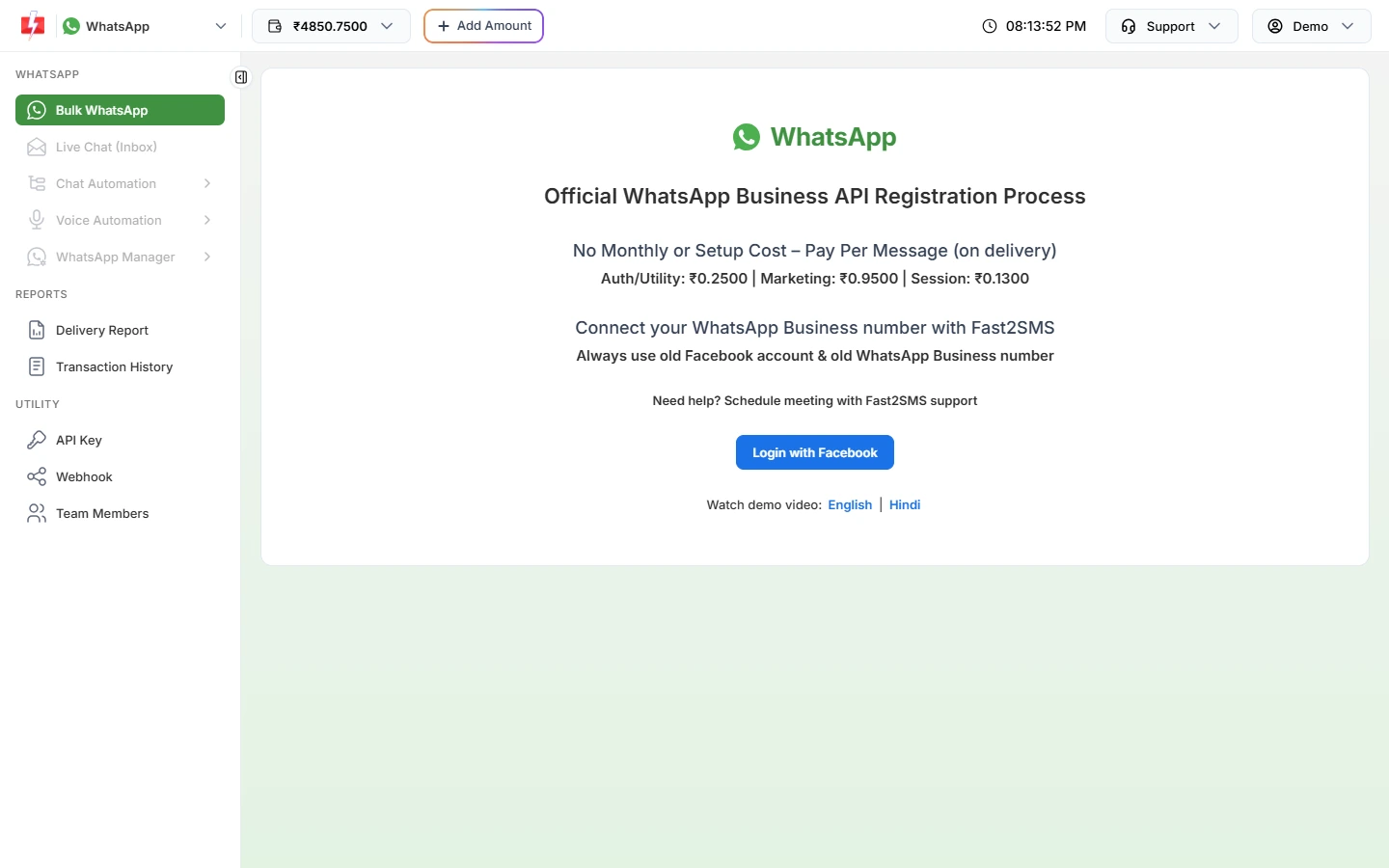
Open the WhatsApp app in the panel. Until a number is connected you see the Official WhatsApp Business API Registration Process page. Click Login with Facebook and finish Meta’s sign-up pop-up. The page shows your per-message rates and advises using an old Facebook account and an old WhatsApp Business number.
Connect your number with Login with Facebook. -
Get a template approved
Go to WhatsApp Manager > Templates and click Add Template. Write your offer or update, add variables for the parts that change, and submit it. Meta reviews it, and approval can take up to 24 hours. Only APPROVED templates can be sent.
-
Choose who gets the message
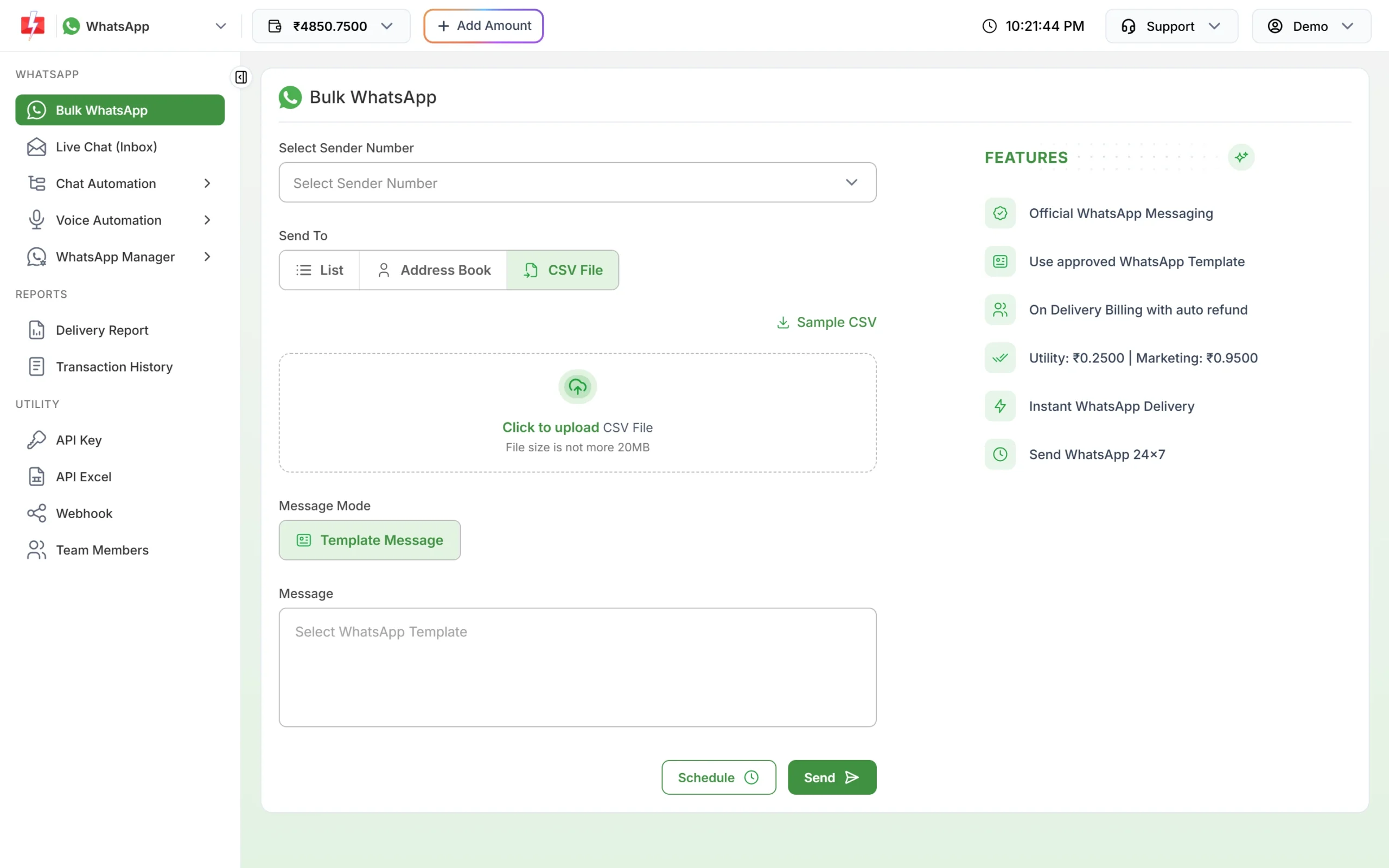
Open Bulk WhatsApp, pick your number in Select Sender Number, and under Send To choose List (type or paste numbers), Address Book (saved groups) or CSV File (upload .xlsx, .xls or .csv up to 20MB). Customers do not need to have saved your number.
Upload your customer list as a CSV or Excel file. -
Pick the template and fill the variables
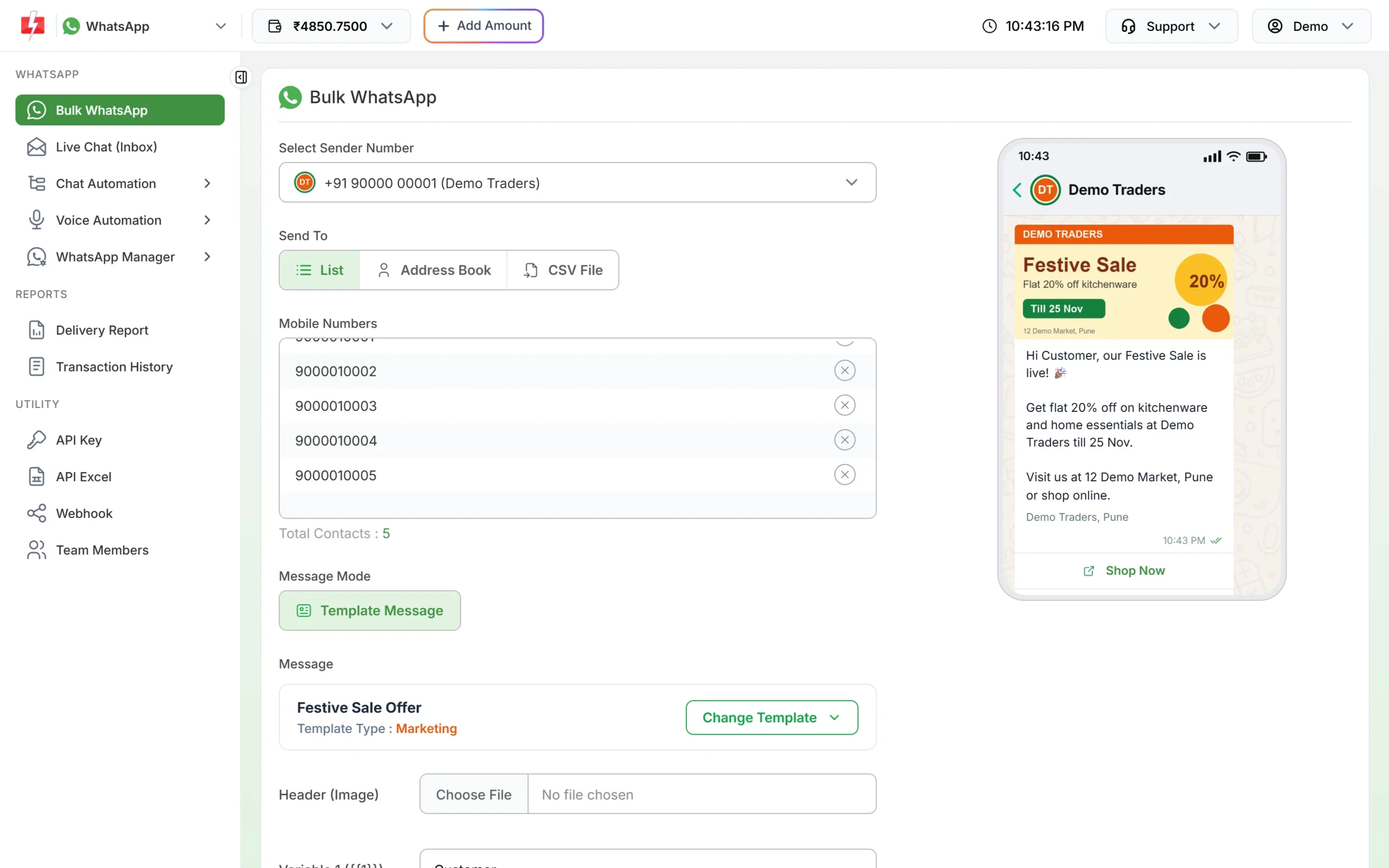
Click Select WhatsApp Template and choose an approved one. The phone preview on the right shows what customers will see. Upload the header image if the template has one, and fill each variable or map it to a column of your file.
A marketing template selected, with a live preview. -
Check the cost and send
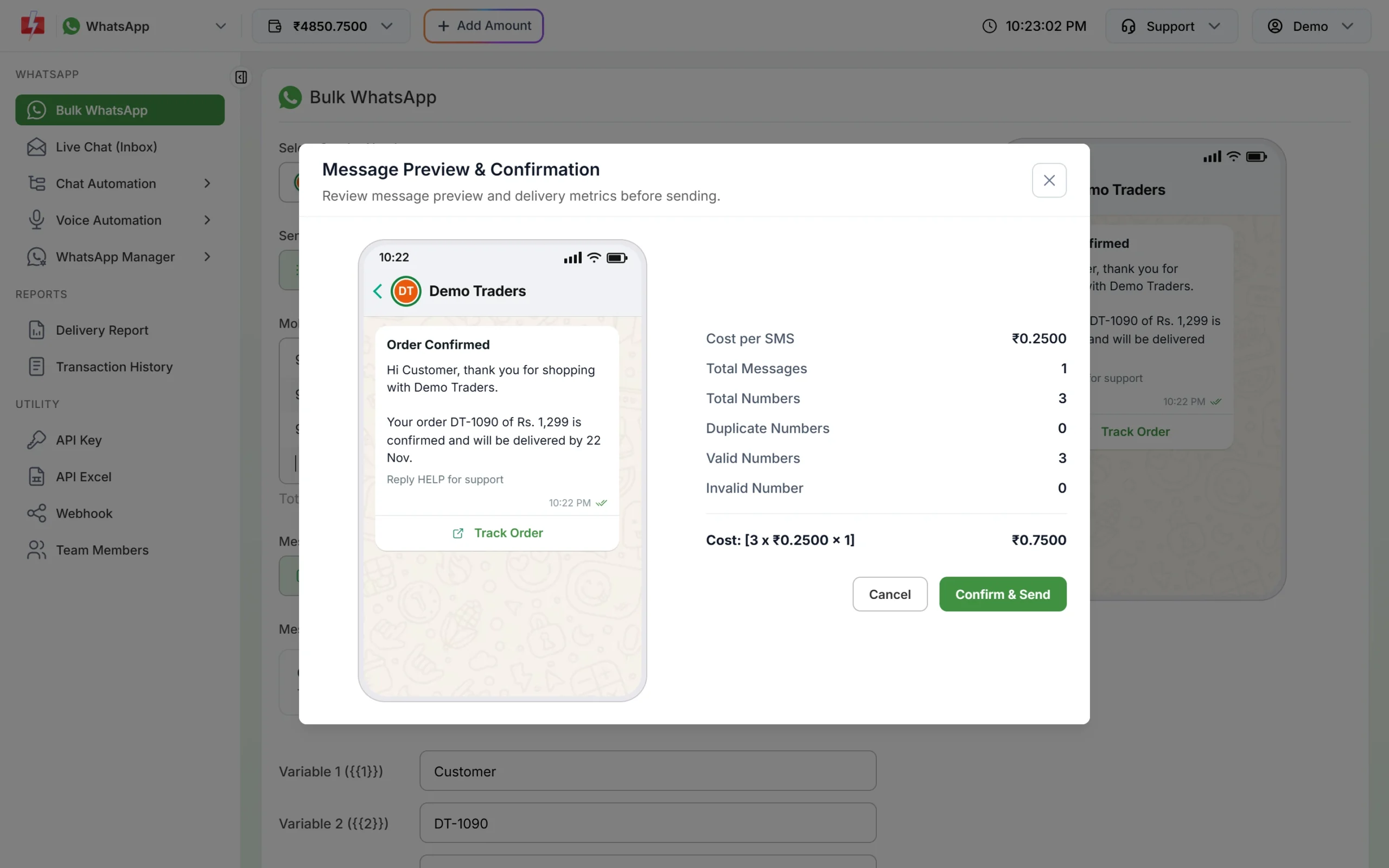
Click Send (or Schedule for later). The Message Preview & Confirmation window shows the cost per message, total numbers, duplicate and invalid numbers, and the total cost. Duplicates are sent once and invalid numbers are dropped. Click Confirm & Send.
Check numbers and cost before you confirm.
After sending, open Delivery Report to see each number’s status. Failed messages are refunded to your wallet automatically.
What bulk WhatsApp API costs on Fast2SMS
You pay per message by template category. There is no setup fee and no monthly fee. Rates at the time of writing:
| Message type | Price per message |
|---|---|
| Marketing template (offers, festival campaigns) | ₹0.95 |
| Utility template (order, payment, delivery updates) | ₹0.25 |
| Authentication template (OTP) | ₹0.25 |
| Session reply in Live Chat (within 24 hours of the customer’s message) | ₹0.13 |
Your account may have its own rates. The exact cost is always shown in Message Preview before you confirm, and on the WhatsApp pricing page.
Sending in bulk? For high WhatsApp volumes our team offers discounted rates. Talk to our team or see WhatsApp pricing.
When a broadcast list is still enough
If you run a small shop, message fewer than a couple of hundred regular customers, and all of them have saved your number, the Business app broadcast list works. Move to the API when any of these is true:
- Your list is bigger than a few hundred people, or keeps growing.
- Many customers have not saved your number, so your broadcasts are not reaching them.
- You want each message to carry the customer’s name, order number or amount.
- You need a delivery report, a shared team inbox or an automatic chatbot.
- You send order, payment or OTP messages from your website or software, which needs an API.
Common problems and fixes
| Problem | Fix |
|---|---|
| Broadcast reached only some customers | The rest have not saved your number. Use bulk WhatsApp through the API, which does not need that. |
| Number banned after sending from the app | Appeal through WhatsApp’s in-app review. For future campaigns, use the API and send only to opted-in customers. |
| Template not shown in Bulk WhatsApp | Only APPROVED templates appear. Check its status in WhatsApp Manager > Templates. |
| “Messaging will be available 10 minutes after onboarding.” | A newly connected number can send about 10 minutes after onboarding. Wait and try again. |
| Number not listed in Select Sender Number | Only Connected numbers appear. Check the Status column in WhatsApp Manager > Numbers. |
Frequently asked questions
How many contacts can a WhatsApp broadcast list have?
Up to 256 contacts per list in the WhatsApp Business app, at the time of writing. You can make several lists, but each message still reaches only people who saved your number.
Why are my WhatsApp broadcast messages not delivered to everyone?
A broadcast reaches only contacts who have your number saved in their phone. Customers who did not save it never see the message.
Can I send WhatsApp messages to 10,000 people at once?
Yes, through the WhatsApp Business API, once your messaging limit allows it. Limits start at the tier Meta gives your business: often 250 unique customers per 24 hours for a new, unverified business and 2,000 (2K) once the business is verified (at the time of writing), and Meta raises the limit as you send good-quality messages.
Is bulk WhatsApp allowed in India?
Bulk messages through the official WhatsApp Business API are allowed when customers have opted in and you use Meta-approved templates. Bulk sending from the normal app or with unofficial tools breaks WhatsApp’s terms.
Do I need DLT registration for bulk WhatsApp?
No. DLT is for SMS. WhatsApp templates are approved by Meta, not on a DLT portal.
Can my customers reply to a bulk WhatsApp message?
Yes. Replies arrive in Live Chat (Inbox) in Fast2SMS, and your team can answer free-form for 24 hours after each customer message.
Will my number be banned on the API?
The API does not ban numbers for volume, but Meta still acts on blocks and reports. If many customers block you, your quality rating drops and templates can be paused. Send to opted-in customers and offer a “Stop promotions” button.