
These WhatsApp template examples cover the messages most businesses send every day: order updates, payments, appointments, support and a festival offer. Each one is written to pass Meta’s review, with the category to choose, the variables and the button. Copy the text, change the fixed words to match your business and submit it from the Fast2SMS template form.
Before you copy a template
- Your WhatsApp number must be connected in Fast2SMS. Templates belong to the number’s WhatsApp Business Account.
- Variables are written as {{1}}, {{2}} and so on. Insert them with + Add Variable so the numbering stays right, and give a realistic sample for each one.
- No body here starts or ends with a variable, because Meta rejects that. Keep it that way when you edit.
- Template names can use only small letters, numbers and underscores, such as
order_shipped. The form converts spaces to underscores for you. - Change “Demo Traders” and the other sample details to your own business name, address and links.
Order and delivery templates (Utility)
| Name | Body | Button |
|---|---|---|
| order_confirmation | Hi {{1}}, thank you for shopping with Demo Traders. Your order {{2}} of Rs. {{3}} is confirmed and will be delivered by {{4}}. Footer: Reply HELP for support |
Visit website, dynamic: “Track Order” with https://yourshop.com/track/{{1}} |
| order_shipped | Hi {{1}}, your order {{2}} has been shipped with {{3}}. The tracking number is {{4}}. You can track it any time using the button below. | Visit website: “Track Order” |
| out_for_delivery | Hi {{1}}, your order {{2}} is out for delivery today. Our delivery partner will call you before arriving. | Call Phone Number: “Call Store” |
| order_delivered | Hi {{1}}, your order {{2}} was delivered on {{3}}. If anything is missing or damaged, reply to this message within 7 days. | Custom: “Report a problem” |
| cod_confirmation | Hi {{1}}, you placed a cash on delivery order {{2}} for Rs. {{3}}. Please confirm the order using the buttons below. | Custom: “Confirm order”, “Cancel order” |
| refund_processed | Hi {{1}}, the refund of Rs. {{2}} for order {{3}} has been processed. It will reach your original payment method in 5 to 7 working days. | None |
Change “5 to 7 working days” and “7 days” to what your business actually offers.
Payment and invoice templates (Utility)
| Name | Body | Button / header |
|---|---|---|
| payment_received | Dear {{1}}, we have received your payment of Rs. {{2}} on {{3}} for invoice {{4}}. Thank you for your business. | None |
| invoice_shared | Dear {{1}}, please find your invoice {{2}} for Rs. {{3}} attached. The due date is {{4}}. Footer: Demo Traders, Pune |
Document header (PDF) |
| payment_due_reminder | Dear {{1}}, this is a reminder that Rs. {{2}} for invoice {{3}} is due on {{4}}. Please ignore this message if you have already paid. | Visit website: “Pay Now” |
| payment_failed | Hi {{1}}, your payment of Rs. {{2}} for order {{3}} did not go through. You can try again from your order page. | Visit website: “View Order” |
Appointment and booking templates (Utility)
| Name | Body | Button |
|---|---|---|
| appointment_confirmed | Hi {{1}}, your appointment with {{2}} is confirmed for {{3}} at {{4}}. Please arrive 10 minutes early. | Call Phone Number: “Call Clinic” |
| appointment_reminder | Hi {{1}}, this is a reminder of your appointment on {{2}} at {{3}}. Reply below to confirm or to change the time. | Custom: “Confirm”, “Reschedule” |
| booking_cancelled | Hi {{1}}, your booking {{2}} for {{3}} has been cancelled as you requested. Any refund due will be processed in 5 working days. | None |
| class_schedule | Dear parent, the {{1}} class for {{2}} will be held on {{3}} at {{4}}. Please make sure your child attends on time. | None |
Support and account templates (Utility)
| Name | Body | Button |
|---|---|---|
| support_ticket_created | Hi {{1}}, thank you for contacting Demo Traders support. Your request {{2}} has been registered and our team will reply shortly. | None |
| support_ticket_closed | Hi {{1}}, your request {{2}} has been resolved. How was your experience? Reply with a rating from 1 to 5. | None |
| account_details_changed | Hi {{1}}, the mobile number on your account was changed on {{2}}. If you did not make this change, call us at once. | Call Phone Number: “Call Support” |
Festival offer templates (Marketing)
Offers are always marketing. Pick Marketing as the type, and only send them to customers who agreed to get offers from you.
| Name | Body | Button / header |
|---|---|---|
| festive_sale_offer | Hi {{1}}, our Festive Sale is live. Get flat {{2}} off on kitchenware and home essentials at Demo Traders till 25 Nov. Footer: Demo Traders, Pune |
Image header; Visit website: “Shop Now” |
| festive_coupon_code | Hi {{1}}, celebrate the festival with us. Use the code below to get {{2}} off on your next order till {{3}}. Happy shopping. | Copy offer code: the coupon (up to 20 characters) |
| diwali_wishes_hindi | A greeting with an offer, written in Hindi. Choose Hindi as the language. | Custom: “Interested” |
Add a “Stop promotions” quick reply to marketing templates so customers can opt out easily. See WhatsApp opt-in and opt-out rules.
How to add one of these templates in Fast2SMS
-
Open Add Template
Go to WhatsApp Manager > Templates and click Add Template. Check the sender number at the top right.
-
Choose the type, name and language
Click Utility or Marketing as given above. Type the name, for example
order_shipped, and pick the language the text is written in. -
Paste the body and add variables
Paste the fixed text. Where you see {{1}}, {{2}}, place the cursor and click + Add Variable. Fill each box under Samples for body content with a realistic value, such as “Priya” or “DT-1042”.
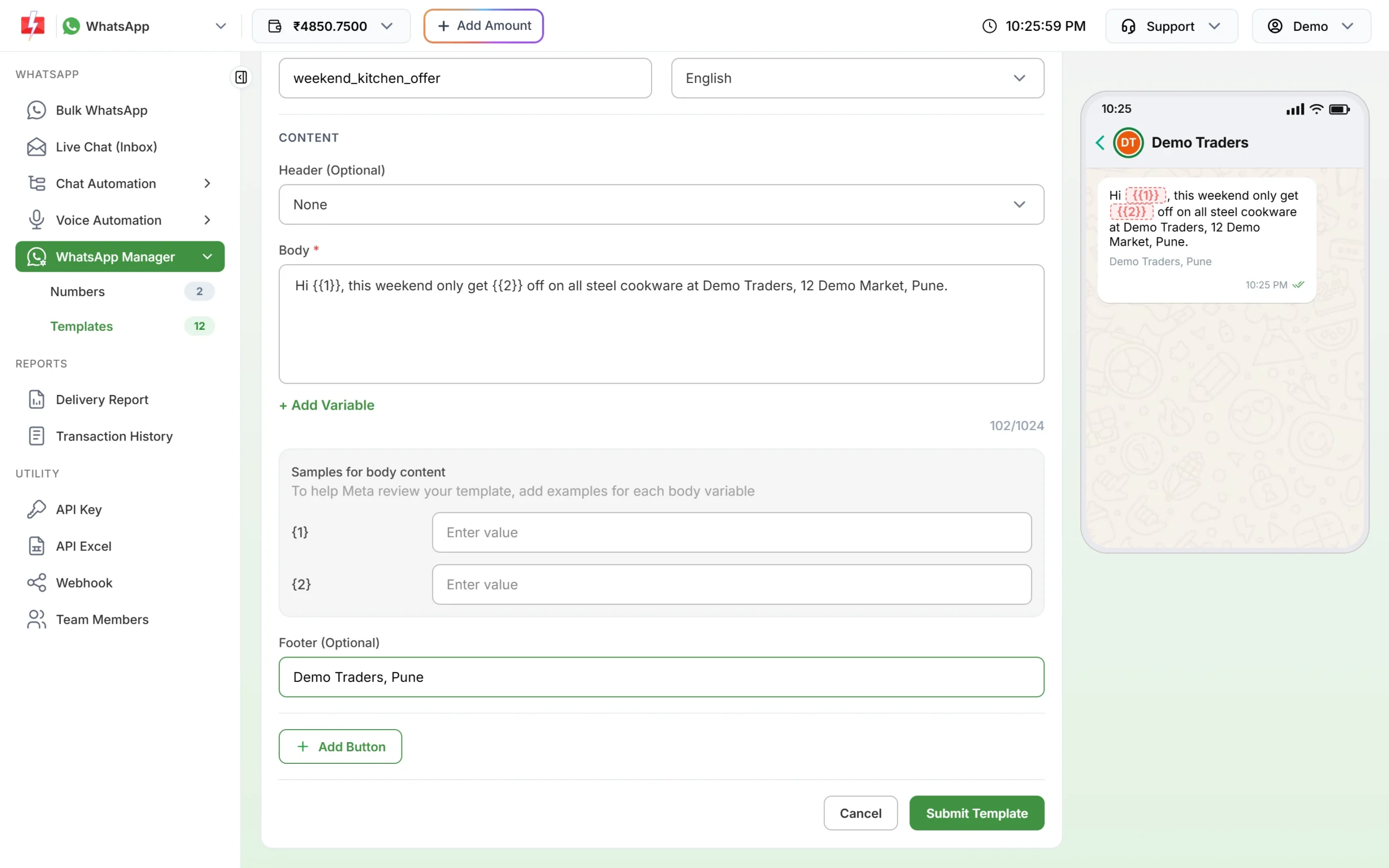
Body with variables, sample boxes and the live preview. -
Add the header, footer and button
Pick a header type if the example has one, add the footer, then click Add Button. You can add up to 3 custom (quick reply) buttons, 2 website buttons, 1 phone number button and 1 copy offer code button.
-
Submit and wait for approval
Click Submit Template, check the preview and confirm. When Meta approves it, the card shows APPROVED and the template appears in Bulk WhatsApp.
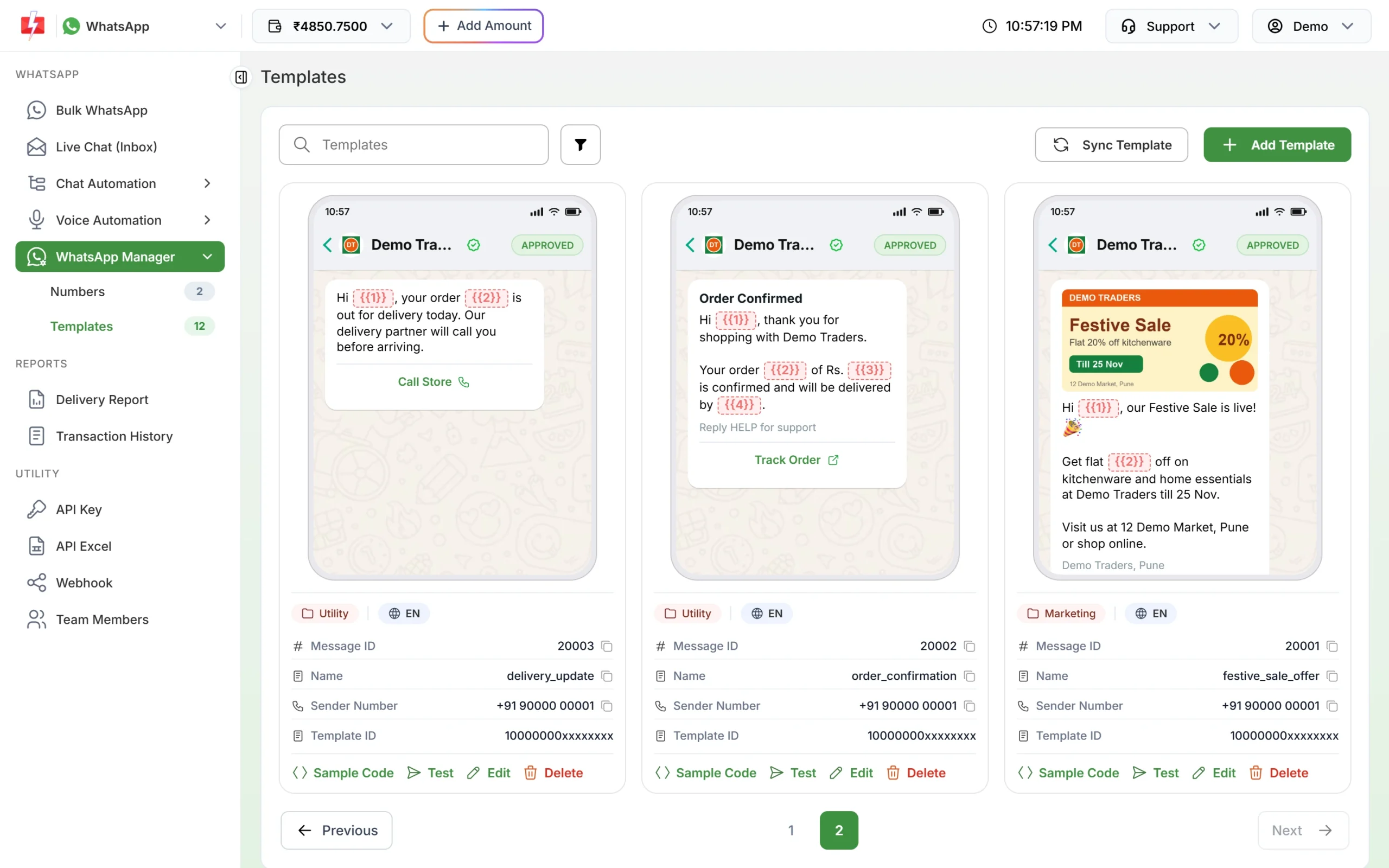
Approved order, delivery and offer templates. -
Send it
In Bulk WhatsApp, click the template picker and choose your template. The picker has tabs for Authentication, Marketing and Utility, and lists only approved templates.
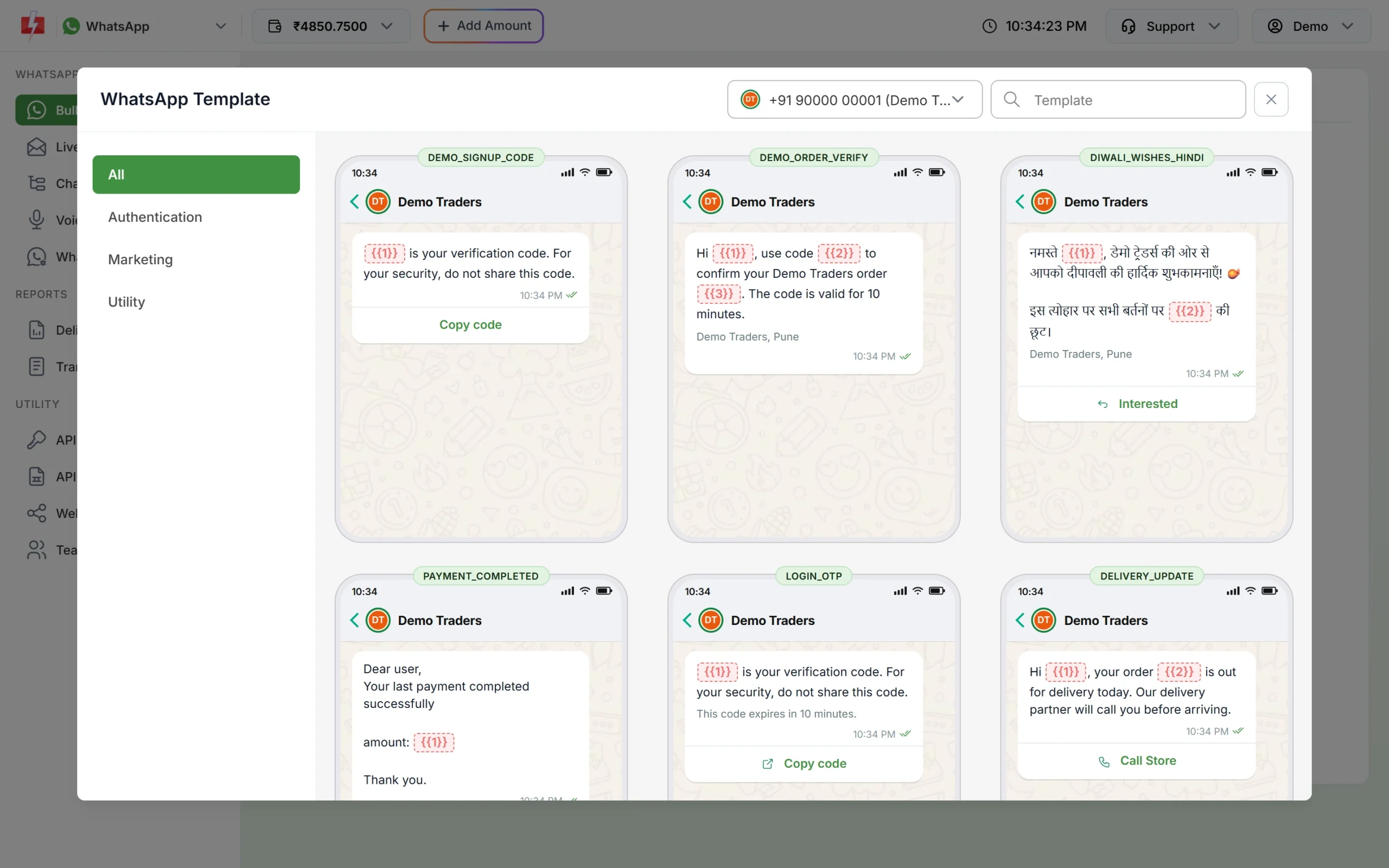
Pick an approved template when you send.
Tips that help these templates get approved
- Keep one purpose per template. An order update with an offer at the end becomes marketing.
- Use samples that look real. “Example1” tells the reviewer nothing.
- Make each template different. Meta rejects a new template whose body and footer match one you already have.
- Do not ask for full card numbers, bank account numbers or ID numbers. Meta’s policy does not allow it.
- Short is fine. The body can be up to 1,024 characters, but most good updates fit in two or three lines.
Frequently asked questions
Can I copy these WhatsApp templates exactly?
Yes, but change the business name, address, links and time periods to your own. Meta checks that the template fits your business and your samples.
Which category should an order confirmation use?
Utility, as long as it has no offer or promotion in it. Add an offer and Meta treats it as marketing.
Can I send an invoice PDF on WhatsApp?
Yes. Create a utility template with a Document header. You attach the PDF for each campaign, or send its link by API.
How do I add a coupon code to a template?
Create a marketing template and add a Copy offer code button with the code, up to 20 characters. The customer taps it to copy the code.
Can I use the same template for several numbers?
A template is created for one WhatsApp Business Account. If your numbers are in different accounts, create the template for each.
How long does approval take?
Meta says review usually finishes within 24 hours. Click Sync Template on the Templates page to fetch the latest status.
Can I write these templates in Hindi?
Yes. Write the text in Hindi and choose Hindi as the language. See template rules and limits for the length limits that apply.