
You can send SMS from Google Sheets with the Fast2SMS API and a short Apps Script. Each row in your sheet (name, mobile, order number and so on) becomes a DLT SMS from your own sender ID, and the script writes the request ID and the delivery status back into the sheet. This guide is for shop owners, schools and small teams who keep their lists in Google Sheets and are comfortable pasting a script. No server is needed.
Before you start
- A Google account and a Google Sheet with your contacts.
- API key from API Key under UTILITY, with API Access on.
- An approved DLT template added in DLT Manager, with its Message ID and Sender ID.
- Wallet balance for the number of SMS you plan to send.
- Share the sheet carefully. Anyone who can edit the sheet can edit the script. The key is stored in Script Properties, not in a cell, but editors can still run the script.
Get your key and template IDs
-
Copy the API key
In Fast2SMS open Account Setting, API Key. Click View, enter the OTP sent to your account mobile and copy the Authorization Key.
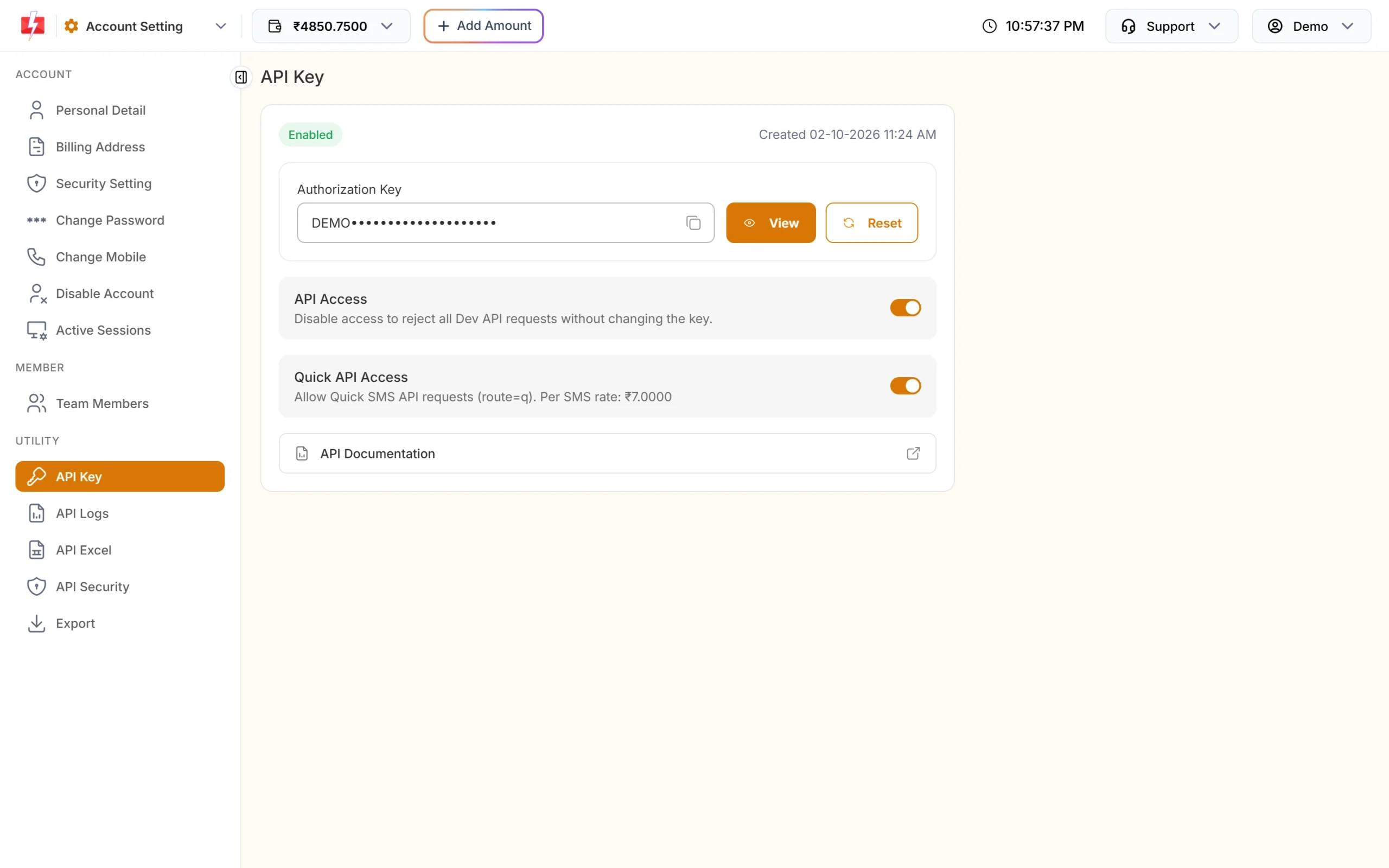
You will paste this into Script Properties, not into the sheet. -
Copy the Message ID and Sender ID
Open DLT Manager, Content Template. On the approved template card, copy the Message ID and the Sender ID. Count the
{#var#}places in the text; you need one sheet column for each.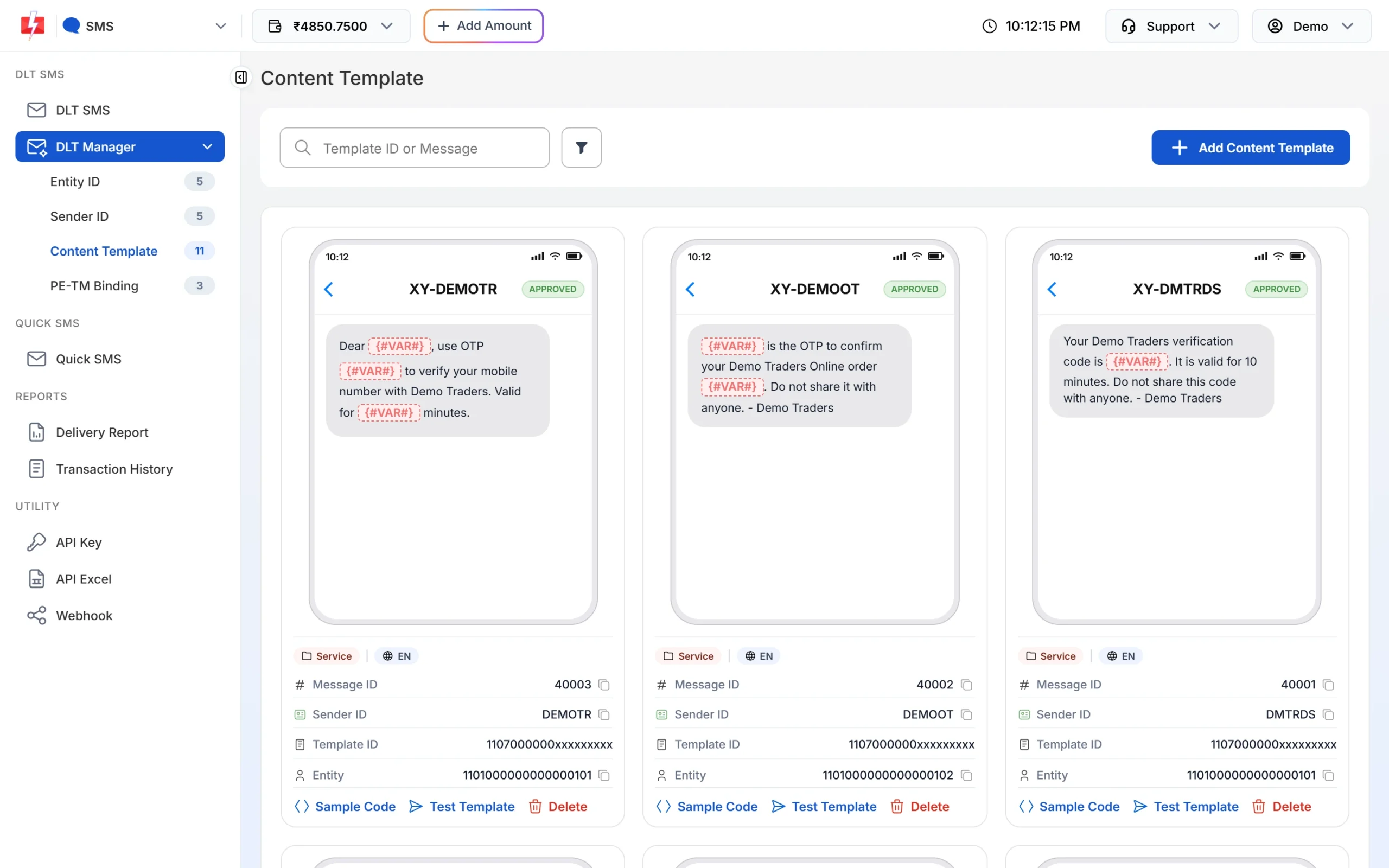
The variables in the template become columns in your sheet. -
Optional: download the API Excel
Under API Excel, the SMS tab has Download Excel. The file lists your approved DLT templates with sender IDs and sample API URLs, which is handy to check the Message IDs.
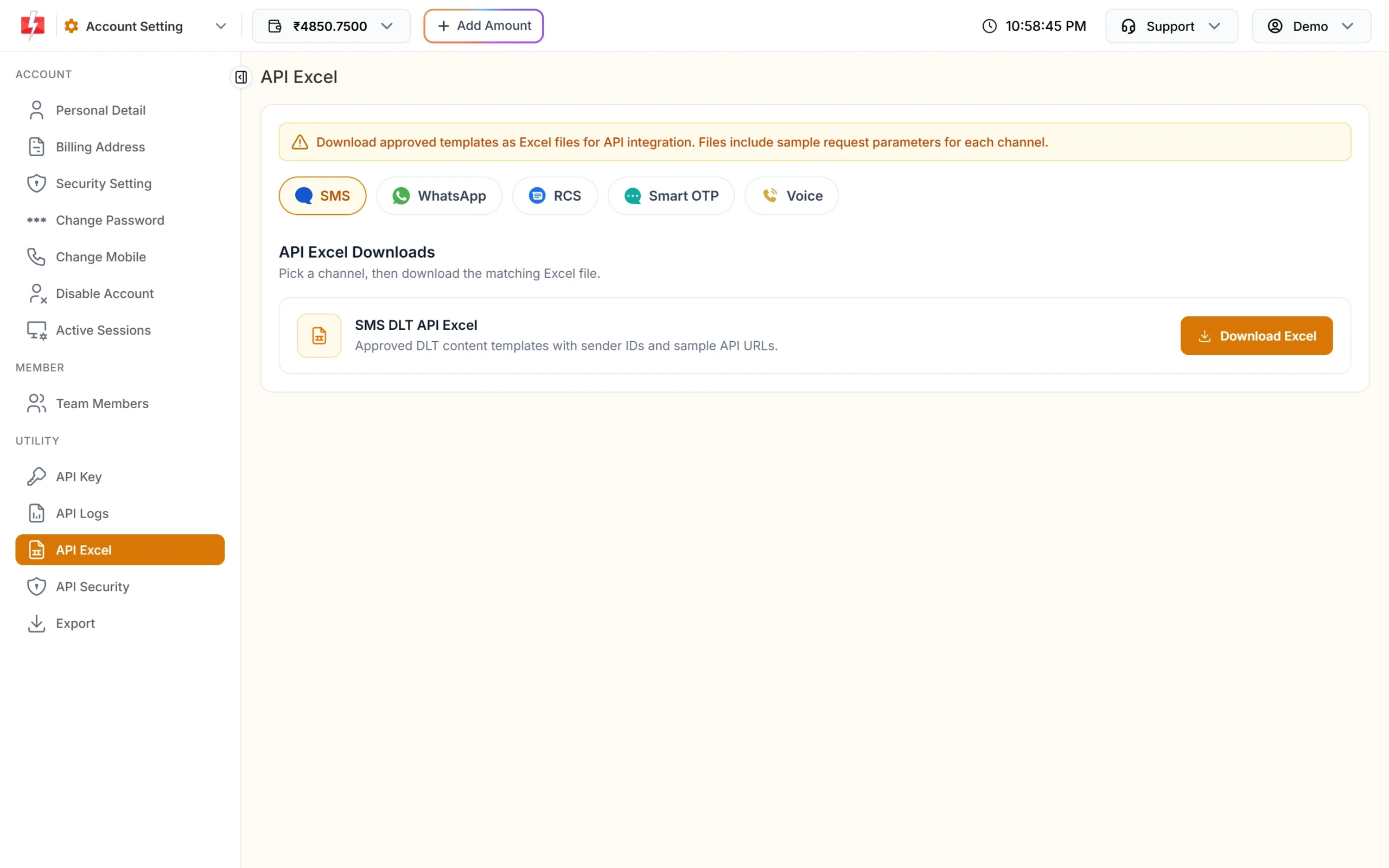
The sample URLs in this file carry your key, so keep the file private.
Prepare the sheet
Name the tab SMS and use these columns in row 1. The example template is Message ID 10001 on sender DEMOTR: “Dear {#var#}, your order {#var#} of Rs.{#var#} is confirmed and will be delivered by {#var#}. – Demo Traders”.
| A | B | C | D | E | F | G |
|---|---|---|---|---|---|---|
| Name | Mobile | Order | Amount | Delivery date | Request ID | Status |
| Rahul | 9999999999 | DT10458 | 1240 | 21 Nov |
Columns A and C to E fill the four variables in order. The script fills F and G. Format column B as plain text so Sheets does not change long numbers.
Add the script
- In the sheet, open Extensions, then Apps Script.
- Open Project Settings (gear icon), scroll to Script Properties and add a property named
FAST2SMS_API_KEYwith your key as the value. - Back in the editor, replace the code in
Code.gswith the full script below and click Save. - Reload the sheet. A Fast2SMS menu appears. The first run asks you to allow the script to use the sheet and connect to an external service.
Full copy-paste script: Code.gs
// Fast2SMS: send DLT SMS from Google Sheets and read delivery status
const SHEET_NAME = 'SMS';
const SENDER_ID = 'DEMOTR';       // your approved sender ID, exact case
const MESSAGE_ID = '10001';       // Message ID from DLT Manager
const VAR_COLUMNS = [1, 3, 4, 5]; // columns (1 = A) that fill {#var#} in order
const MOBILE_COL = 2;             // B
const REQ_COL = 6;                // F
const STATUS_COL = 7;             // G

function onOpen() {
  SpreadsheetApp.getUi().createMenu('Fast2SMS')
    .addItem('Send to rows without a Request ID', 'sendPending')
    .addItem('Update delivery status', 'updateStatus')
    .addToUi();
}

function apiKey_() {
  const key = PropertiesService.getScriptProperties().getProperty('FAST2SMS_API_KEY');
  if (!key) throw new Error('Add FAST2SMS_API_KEY in Project Settings > Script Properties');
  return key;
}

function call_(method, path, body) {
  const options = {
    method: method,
    headers: { authorization: apiKey_() },
    muteHttpExceptions: true,
  };
  if (body) {
    options.contentType = 'application/json';
    options.payload = JSON.stringify(body);
  }
  const res = UrlFetchApp.fetch('https://www.fast2sms.com' + path, options);
  let data = {};
  try { data = JSON.parse(res.getContentText()); } catch (e) { data = { message: 'Non-JSON response' }; }
  return { http: res.getResponseCode(), data: data };
}

function cleanMobile_(value) {
  let d = String(value).replace(/\D/g, '');
  if (d.length > 10 && d.startsWith('91')) d = d.slice(2);
  return /^[6-9]\d{9}$/.test(d) ? d : '';
}

function sendPending() {
  const sheet = SpreadsheetApp.getActive().getSheetByName(SHEET_NAME);
  const rows = sheet.getDataRange().getValues();
  let sent = 0, failed = 0;

  for (let i = 1; i < rows.length; i++) {          // skip the header row
    const row = rows[i];
    if (row[REQ_COL - 1]) continue;                 // already sent
    const mobile = cleanMobile_(row[MOBILE_COL - 1]);
    if (!mobile) {
      sheet.getRange(i + 1, STATUS_COL).setValue('Invalid number');
      failed++;
      continue;
    }
    const vars = VAR_COLUMNS.map(c => String(row[c - 1]).replace(/\|/g, ' ').slice(0, 40));
    const r = call_('post', '/dev/bulkV2', {
      route: 'dlt',
      sender_id: SENDER_ID,
      message: MESSAGE_ID,
      variables_values: vars.join('|'),
      numbers: mobile,
      udf1: 'sheet-row-' + (i + 1),
    });

    if (r.data.return === true) {
      sheet.getRange(i + 1, REQ_COL).setValue(r.data.request_id);
      sheet.getRange(i + 1, STATUS_COL).setValue('Queued');
      sent++;
    } else {
      const msg = Array.isArray(r.data.message) ? r.data.message.join(' ') : r.data.message;
      sheet.getRange(i + 1, STATUS_COL).setValue('Error ' + (r.data.status_code || r.http) + ': ' + msg);
      failed++;
      // Stop on account-level errors so every row does not fail the same way
      if ([412, 413, 414, 416].includes(Number(r.data.status_code))) break;
    }
  }
  SpreadsheetApp.getActive().toast('Queued: ' + sent + ', not sent: ' + failed, 'Fast2SMS');
}

function updateStatus() {
  const sheet = SpreadsheetApp.getActive().getSheetByName(SHEET_NAME);
  const rows = sheet.getDataRange().getValues();

  for (let i = 1; i < rows.length; i++) {
    const requestId = rows[i][REQ_COL - 1];
    const status = String(rows[i][STATUS_COL - 1]);
    if (!requestId || status === 'Delivered' || status === 'Failed') continue;

    const r = call_('get', '/dev/dlr/' + encodeURIComponent(requestId));
    if (r.data.success && r.data.data && r.data.data[0]) {
      const d = r.data.data[0].delivery_status[0];
      sheet.getRange(i + 1, STATUS_COL).setValue(d.status);   // Delivered, Failed or Sent
    }
  }
}
Send and check the results
- Add a test row with your own mobile number and click Fast2SMS, Send to rows without a Request ID.
- Column F gets a request ID that starts with S, and column G says Queued. Queued means Fast2SMS accepted the SMS, not that it reached the phone.
- After a few minutes, click Update delivery status. Column G changes to Delivered, Failed or Sent (operator report still pending). The delivery report API looks back 7 days.
- Rows that already have a request ID are skipped, so you can add new rows and run the menu again without sending twice.
Run it automatically
In the Apps Script editor, open Triggers (clock icon) and add a time-driven trigger:
sendPendingevery hour or every day, if other people or forms add rows to the sheet.updateStatusevery hour to keep the Status column fresh.
A Google Form that writes to this sheet plus an hourly trigger gives you an automatic “thank you” or confirmation SMS, using an approved template.
Things to know
- Variables: each value is cut to 40 characters, and the script replaces any
|in a cell with a space because|separates variables. - Charges: each SMS is charged at your plan rate times the SMS parts. Failed DLT SMS are not refunded automatically. See the current rates on the bulk SMS pricing page.
- Promotional templates: if the template is promotional or the sender is numeric, SMS sent late in the evening or at night are held until the next morning.
- Large lists: Apps Script has a time limit per run and daily quotas for URL fetches (see Google’s Apps Script quotas page). For thousands of rows, run the menu again (sent rows are skipped), or send the same text to many numbers in one call by joining them with commas in
numbers. - Webhooks: for a sheet, the Update delivery status button is simpler than a webhook. Do not use both for the same messages, because reading the report by API can stop the webhook for those rows.
Can I send or verify OTP from Google Sheets?
Sheets is the wrong place for login OTPs, because OTP is part of your app’s sign-in flow. If you build a small form as an Apps Script web app, the same call_ function works for Smart OTP:
function sendOtp(mobile) {
  return call_('post', '/dev/otp/send', { mobile: cleanMobile_(mobile), otp_id: 'YOUR_OTP_ID', otp_expiry: 5 });
}

function verifyOtp(mobile, otp) {
  const r = call_('post', '/dev/otp/verify', { mobile: cleanMobile_(mobile), otp: String(otp).trim() });
  return r.data.return === true;   // false: Invalid OTP, OTP expired, ...
}
Verify checks the latest unverified OTP for that mobile; no OTP ID is needed. Keep these functions on the server side of the web app (google.script.run), never in the HTML page.
Errors you may see in the Status column
| Status text | Fix |
|---|---|
| Error 412: Invalid Authentication, Check Authorization Key | The key in Script Properties is wrong or was reset. Paste the current key. |
| Error 413: Authorization Key Disabled | Turn API Access on. |
| Error 414: IP is blacklisted from Dev API section | API Security is on. Google’s servers use many changing IPs, so turn API Security off for this use, or send from your own server instead. |
| Error 406: Invalid Sender ID | Fix SENDER_ID; it must match DLT Manager exactly, including case. |
| Error 424: Invalid Message ID | Use the Message ID (not the 19-digit Template ID) linked to that sender. |
| Error 416: You don’t have sufficient wallet balance | Recharge and run the menu again. |
| Error 411: Invalid Numbers | The mobile is not a 10-digit Indian number starting with 6 to 9. |
| Invalid number | The script skipped the row before calling the API. Fix the number. |
Common problems and fixes
- No Fast2SMS menu: reload the sheet. Check that the function is named exactly
onOpen. - “Add FAST2SMS_API_KEY…” error: the Script Property is missing or misspelled.
- Numbers show as 9.99E+09: format the Mobile column as plain text before pasting numbers.
- Same person got two SMS: the Request ID cell was cleared, or the row was copied with an empty Request ID. Do not clear column F after sending.
- Status stays Sent: the operator has not reported yet. Run Update delivery status again later.
Frequently asked questions
Is it free to send SMS from Google Sheets?
The script is free. Each SMS is charged from your Fast2SMS wallet at your plan rate.
Do I need DLT to send from Sheets?
Yes, for SMS from your own sender ID in India. The script uses your approved DLT template through its Message ID.
Can I use the API URL in a cell formula instead?
Not recommended. A URL with authorization= in it exposes your key to everyone who can see the sheet, and formulas can recalculate and send again. Use the script with Script Properties.
Can I send different templates from one sheet?
Yes. Add a Message ID column and read it per row instead of the fixed MESSAGE_ID. All templates must be linked to the sender you use.
Can I send WhatsApp messages from Google Sheets?
Yes, with the Fast2SMS add-on for Google Sheets, or with the WhatsApp API and an approved WhatsApp template.
Will Hindi templates work?
Yes. Apps Script sends UTF-8, and the language is detected from your approved template.