
To receive incoming WhatsApp messages and button replies on your own server, create a WhatsApp webhook in Fast2SMS with the event Incoming Messages and your URL. Every time a customer writes to your number, Fast2SMS posts the message to that URL: the sender, the text or media link, and which button they tapped. This guide shows the setup, a body template you can copy, and small receiver examples in PHP, Python and Node.js.
Before you start
- A connected WhatsApp number in Fast2SMS.
- A public https URL on your server that accepts POST requests and answers with HTTP 200 within 10 seconds. Localhost and private IP addresses are not allowed.
- Incoming messages switched on for the number. If someone chose Disable Incoming Messages & Webhooks in the number’s action menu in WhatsApp Manager, no webhook is sent for that number.
Set up the incoming message webhook
-
Open the WhatsApp webhook page
Click Webhook under UTILITY in the WhatsApp menu, or go to the Webhook section and choose WhatsApp. You see your existing WhatsApp webhooks with their event, number and method. Click Add Webhook.
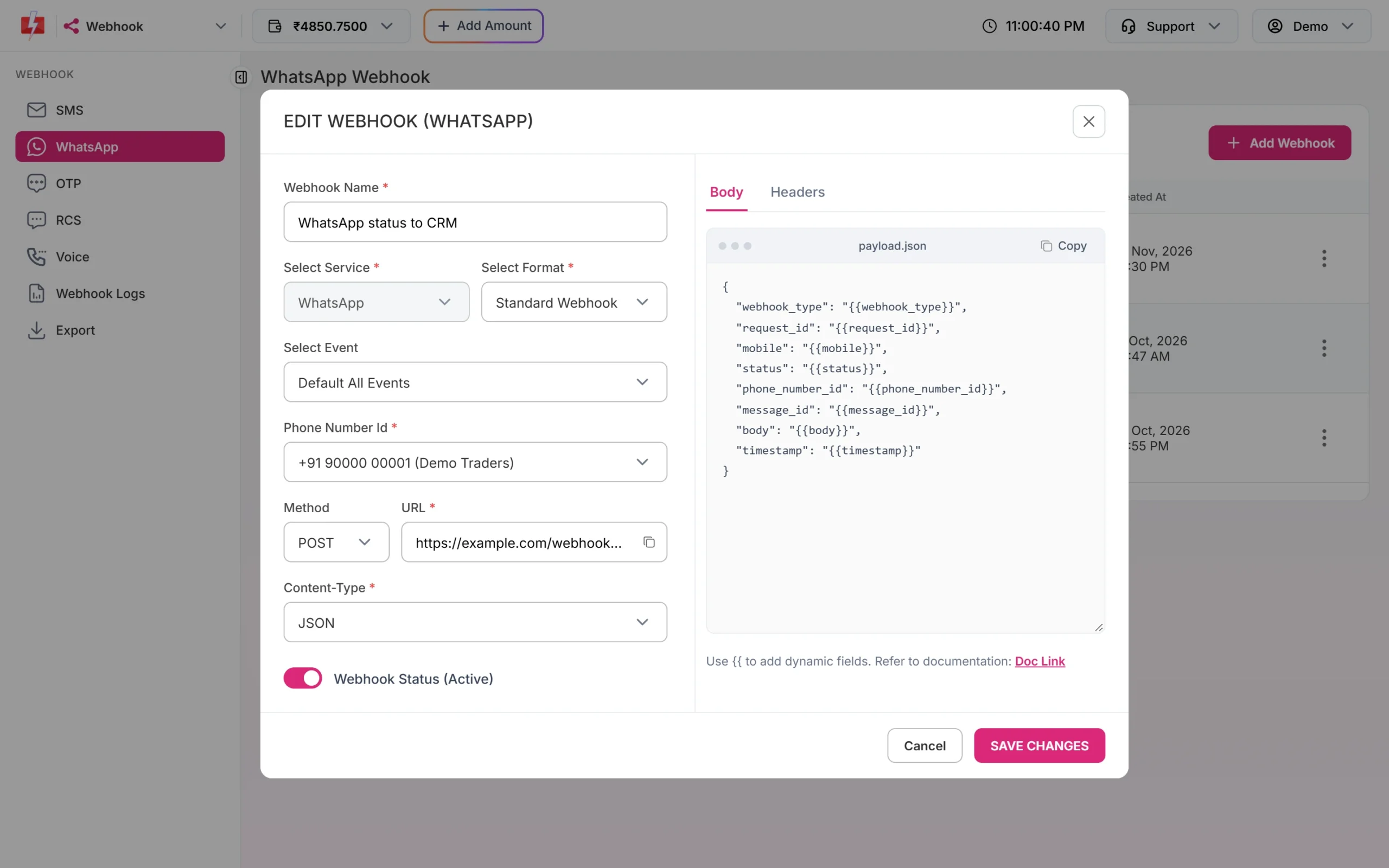
A webhook with Event RECEIVED gets incoming messages. -
Choose the format
Enter a Webhook Name. In Select Format pick Standard Webhook to build your own body with placeholders. Pick META DIRECT if your code already reads Meta’s WhatsApp Cloud API webhook format; Fast2SMS then forwards Meta’s raw JSON with a
fast2sms_idadded.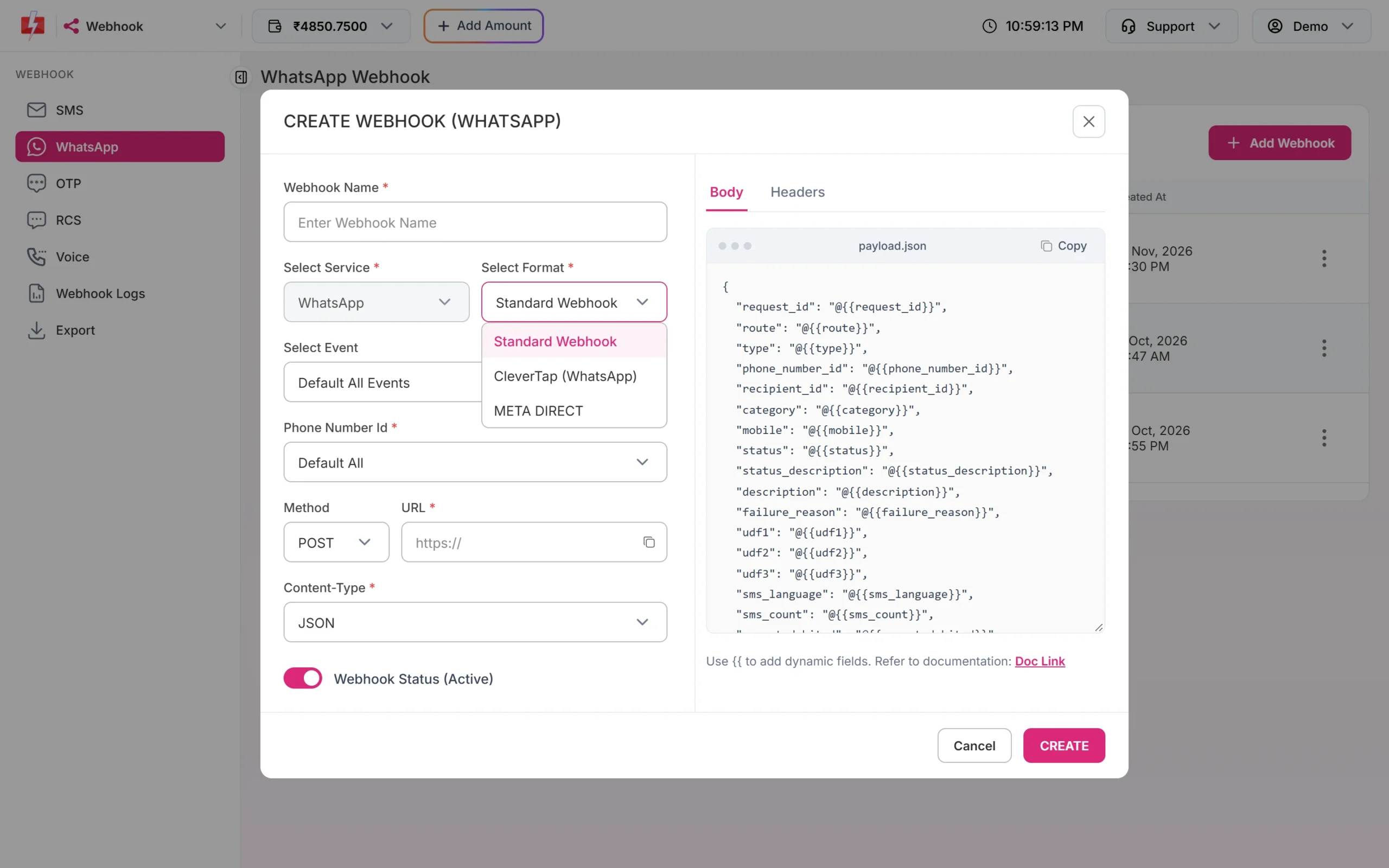
Standard Webhook lets you design the body; META DIRECT forwards Meta’s format. -
Select the Incoming Messages event
Open Select Event and pick Incoming Messages. Use Default All Events only if one URL should get both delivery updates and incoming messages. In Phone Number Id keep Default All or choose one number.
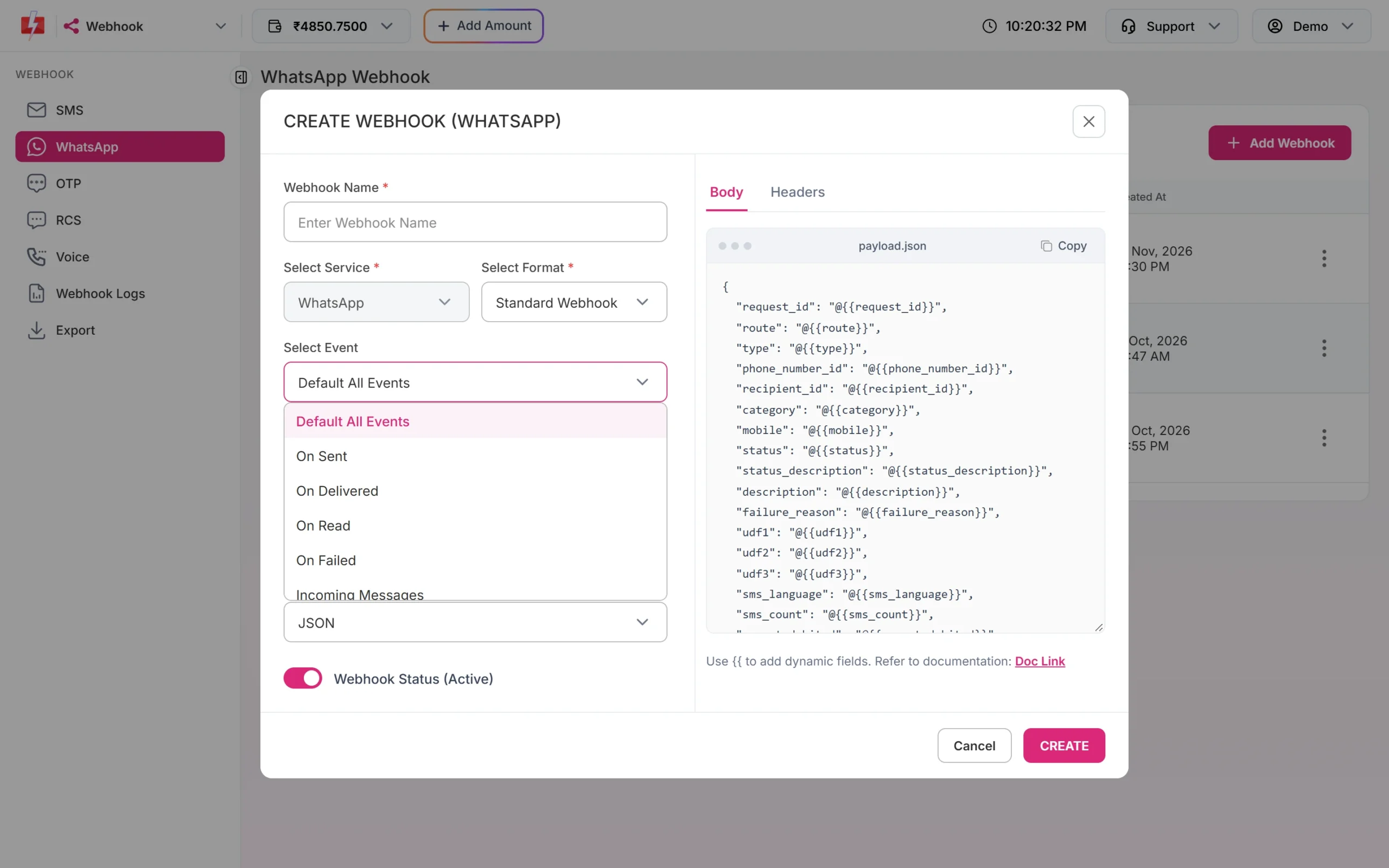
Incoming Messages is the last option in Select Event. -
Enter the URL and body
Keep Method as POST and Content-Type as JSON. Paste your URL. In the Body tab, use the template below or edit the generated one. Type
{{to pick a field. -
Create and test
Leave Webhook Status (Active) on and click CREATE. Then open the row menu and use Test Webhook: it sends one request with sample values to your URL straight away. Finally send a WhatsApp message to your business number from your own phone and check Webhook Logs.
A body template for incoming messages
{
  "webhook_type": "{{webhook_type}}",
  "message_id": "{{message_id}}",
  "from": "{{from}}",
  "phone_number_id": "{{phone_number_id}}",
  "message_type": "{{message_type}}",
  "body": "{{body}}",
  "media_url": "{{media_url}}",
  "mime_type": "{{mime_type}}",
  "caption": "{{caption}}",
  "context_message_id": "{{context_message_id}}",
  "button_text": "{{button_text}}",
  "button_payload": "{{button_payload}}",
  "button_id": "{{button_id}}",
  "button_title": "{{button_title}}",
  "timestamp": "{{timestamp}}"
}| Field | What you get |
|---|---|
webhook_type |
incoming_message for a customer message, status_update for a delivery update |
message_id |
WhatsApp’s ID of the incoming message. Use it to send a reaction |
from |
The customer’s WhatsApp number |
message_type |
For example text, image, document, audio, video, sticker, location, button or a reply to an interactive message |
body |
The text. For image, document, audio, video and sticker messages it is the file link |
media_url, mime_type, caption |
The file link, file type and caption of a media message |
context_message_id |
Set when the customer replied to one of your messages: the ID of that message |
button_text, button_payload |
Filled when the customer taps a quick reply button on your template |
button_id, button_title |
Filled when the customer picks a reply button or list item in an interactive message |
timestamp |
Unix time of the message. Use it to track the 24-hour reply window |
Want to know which template a button reply belongs to? Compare context_message_id with the WhatsApp message ID of your sent message. That ID is the request_id field in the status updates and the WhatsApp DLR API.
Receiver examples
Your endpoint should answer with HTTP 200 quickly and do any slow work afterwards. Fast2SMS waits at most 10 seconds.
PHP
<?php
// whatsapp-webhook.php
$event = json_decode(file_get_contents("php://input"), true) ?? [];
http_response_code(200);
echo "ok";

if (($event["webhook_type"] ?? "") === "incoming_message") {
    $from = $event["from"] ?? "";
    $text = ($event["button_text"] ?? "") ?: (($event["button_title"] ?? "") ?: ($event["body"] ?? ""));
    file_put_contents(__DIR__ . "/incoming.log", date("c") . " $from: $text" . PHP_EOL, FILE_APPEND);
}
Python (Flask)
from flask import Flask, request

app = Flask(__name__)

@app.post("/fast2sms/whatsapp")
def whatsapp_webhook():
    event = request.get_json(silent=True) or {}
    if event.get("webhook_type") == "incoming_message":
        text = event.get("button_text") or event.get("button_title") or event.get("body")
        print("From", event.get("from"), "type", event.get("message_type"), "text", text)
        # save to your database or queue here
    return "ok", 200
Node.js (Express)
import express from "express";

const app = express();
app.use(express.json());

app.post("/fast2sms/whatsapp", (req, res) => {
  res.sendStatus(200);
  const event = req.body || {};
  if (event.webhook_type === "incoming_message") {
    const text = event.button_text || event.button_title || event.body;
    console.log("From", event.from, "type", event.message_type, "text", text);
  }
});

app.listen(3000);
To answer the customer, call the session message API within 24 hours. See WhatsApp session message API.
Check that your endpoint is safe
- Add your own secret header. In the Headers tab of the webhook, add a header such as
X-Webhook-Tokenwith a long random value, and reject requests without it. - webhook_secret_key. If the webhook signature setting is on for your account, every request also carries the header
webhook_secret_key. It is a plain shared secret, not an HMAC, so compare it with your saved value. - Use https so message text is encrypted on the way to your server.
Common problems and fixes
Delivery updates arrive but incoming messages do not
The webhook’s event is On Sent, On Delivered, On Read or On Failed. Edit it and choose Incoming Messages or Default All Events.
Nothing arrives for one number
Check the webhook’s Phone Number Id: if it is set to another number, messages to this one are skipped. Also check that incoming messages are not disabled together with webhooks for that number.
Webhook Logs show HTTP 0 or a timeout
Your server did not answer within 10 seconds. Return 200 first, then process. Network errors, timeouts, HTTP 408, 429 and 5xx are retried up to 3 times, 60 seconds apart.
Webhook Logs show HTTP 404 or 401
The path is wrong or your server asked for a login. These are not retried. Fix the URL, then use Resend Webhook on the log row. Each row can be resent once, and logs are kept for 7 days.
The media link stops working later
Download and store files you need to keep. In Live Chat, media files are available for 30 days only.
Frequently asked questions
Can I get WhatsApp replies on my own server?
Yes. Create a WhatsApp webhook with the event Incoming Messages and your public URL. Each customer message is posted to it.
Do incoming messages still show in Live Chat?
Yes, unless incoming messages are disabled for that number. The webhook and the inbox work side by side.
Is receiving messages charged?
No. Incoming WhatsApp messages are free. Your replies are charged as session messages or templates.
How many webhooks can I create for WhatsApp?
Up to 10 per service, so you can send incoming messages and delivery updates to different URLs.
Can I get Meta’s original webhook JSON?
Yes. Choose the META DIRECT format. Fast2SMS forwards Meta’s webhook body and adds fast2sms_id.
Can I create this webhook by API?
Yes, with POST /dev/webhook/v2/whatsapp and event=received. See manage webhooks by API.